You can save QR codes directly to Apple Wallet or Google Wallet for quick access during in-person customer interactions. Instead of searching through saved images on your phone, you can store QR codes as digital wallet passes with useful identifying information. This article explains how to save new and existing QR codes to Apple Wallet or Google Wallet for convenient access and sharing.
TABLE OF CONTENTS
Saving QR Codes to Your Digital Wallet
Save to Wallet is a feature in the QR Code Builder that allows you to store new or existing QR codes directly in Apple Wallet or Google Wallet. Each wallet pass contains a scannable QR code and relevant identifying information, such as the QR code name, type, associated location, or destination. This makes it easier to find and present the right QR code during in-person customer interactions.
Wallet passes are designed for each platform, so their appearance and displayed information may differ. For example, Apple Wallet supports displaying a profile image on Profile Card passes, while the current Google Wallet implementation does not. Branding appears in the header of wallet passes by default.
Note: A saved wallet pass can be accessed offline, but opening destinations such as websites, forms, or funnels may still require an internet connection.How to Save a QR Code to Apple Wallet or Google Wallet
You can save a new or existing QR code to your digital wallet directly from the QR Code Builder. Once saved, the pass can be opened from your mobile wallet whenever you need to display the QR code.
Navigate to Sites → QR Codes in your account.
Click Create QR Code to create a new QR code, or locate an existing QR code and click Edit.
If creating a new QR code, select the QR code type and enter the required information. For an existing QR code, review its settings. Proceed to the final QR color and shape step and customize the colors, shape, or logo as needed.
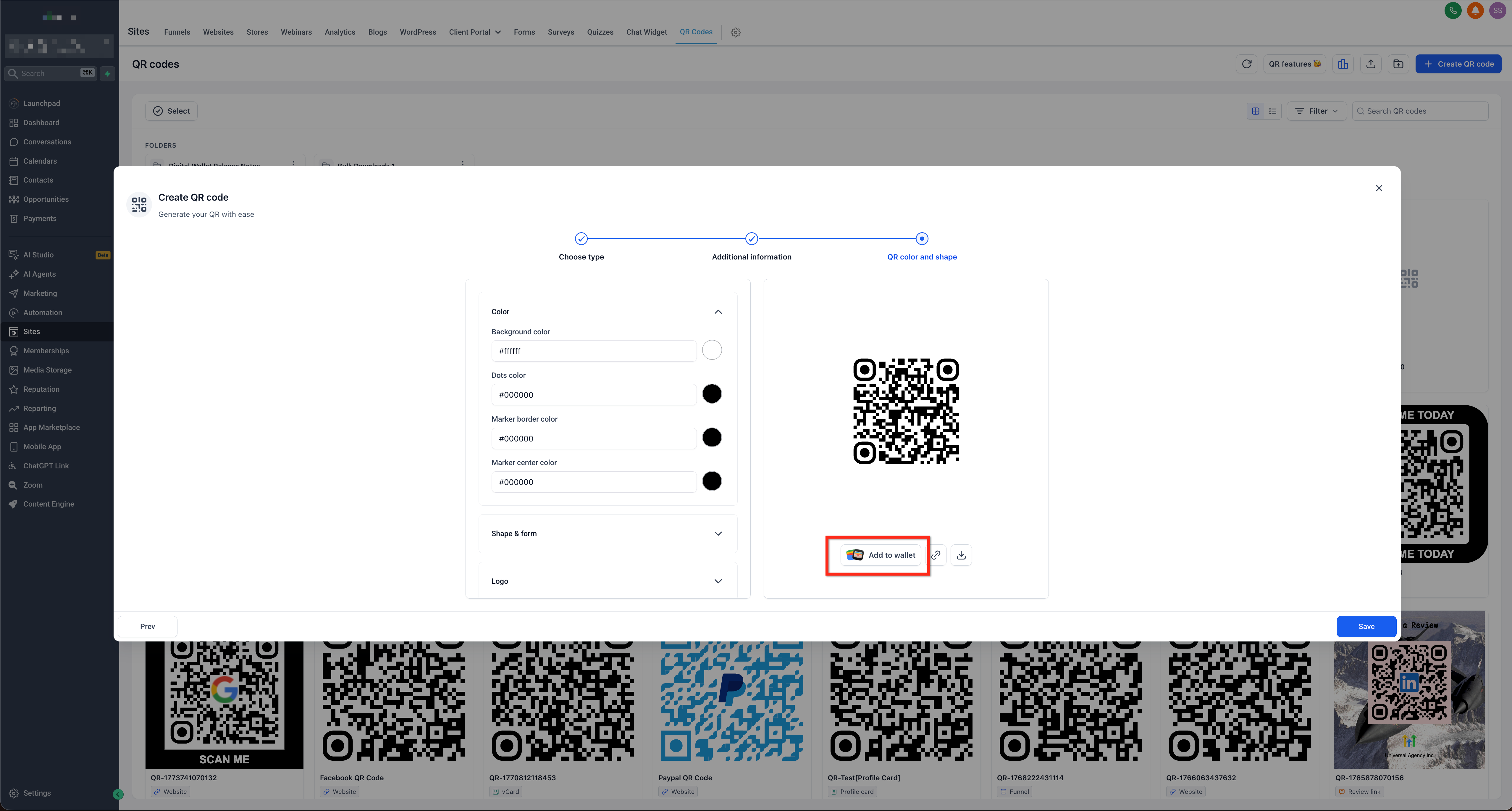
Click Add to Wallet below the QR code preview.
In the Add to digital wallet pop-up, scan the displayed QR code using your phone's camera or a compatible QR code scanner.
Follow the on-screen prompts to open Apple Wallet or Google Wallet, depending on your device, and confirm that you want to add the QR code pass.
Open Apple Wallet or Google Wallet, select your saved QR code pass, and present it for scanning whenever needed.