
Voice Notes let community members record and share audio messages in private chats instead of typing. You can use the microphone in a conversation to record a message and send it directly to another member. Recipients can listen, pause, replay, and move through the recording using the built-in audio player. This guide explains how to record and send Voice Notes on the web and supported mobile apps, manage microphone permissions, and troubleshoot common issues.
TABLE OF CONTENTS
- What Are Voice Notes in Community Chats?
- Key Benefits of Voice Notes
- Prerequisites and Limitations
- How to Record and Send Voice Notes
- How to Listen to Voice Notes
- Platform Availability
- Frequently Asked Questions
- Need Help?
What Are Voice Notes in Community Chats?
Voice Notes are audio messages that members can record and send in private, one-to-one community conversations. Instead of typing a lengthy reply, you can record a spoken message using the microphone control in the chat input area.
After you send a Voice Note, it appears directly in the conversation with an inline audio player. The recipient can play the recording, pause it, move to another part of the audio, or listen again without leaving the chat.
Voice Notes are useful for sharing explanations, discussing ideas, giving updates, and communicating more naturally without scheduling a live call.
Key Benefits of Voice Notes
Voice Notes make private community conversations more flexible. They help members communicate when speaking is easier, faster, or more expressive than typing.
- Faster Communication: Record explanations and updates instead of writing long messages.
- More Personal Conversations: Express tone, emotion, and emphasis through your voice.
- Flexible Responses: Send audio messages that other members can listen to and answer when convenient.
- Inline Playback: Play, pause, replay, and navigate recordings without opening a separate audio player.
- Easy Identification: Recognize Voice Notes by their waveform display in the conversation.
- Web and Supported Mobile Access: Record and listen through supported community chat interfaces on desktop and mobile devices.
Prerequisites and Limitations
Before recording, make sure you can access the intended conversation and that your browser or device can use its microphone. The recording feature must also be available in your community chat interface.
- Community Chat Access: You must be able to open a private conversation with the member you want to message.
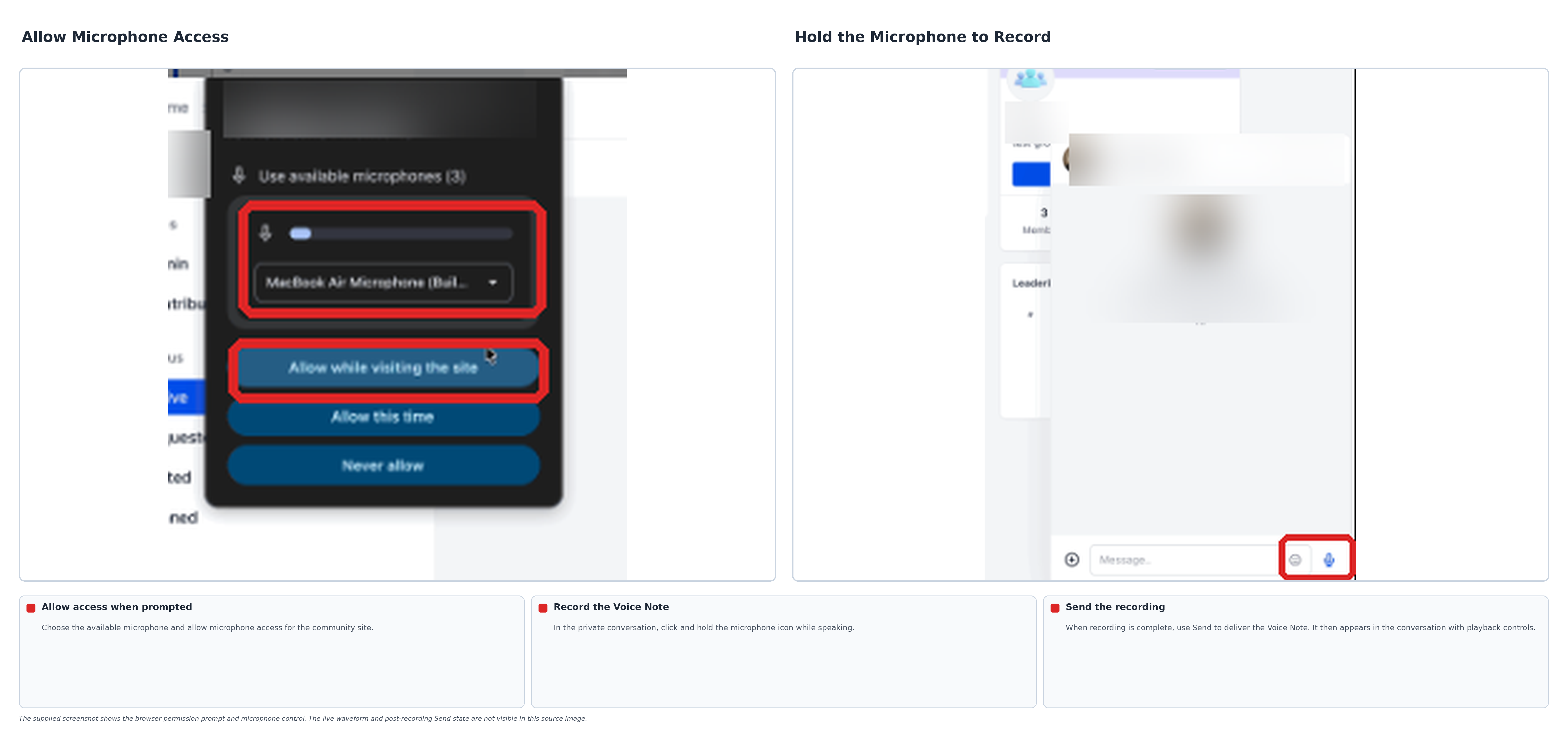
- Microphone Permission: Your browser or mobile device must allow microphone access.
- Supported Interface: Voice Notes must be available in the web or mobile chat application you are using.
- Private Conversations: This guide covers Voice Notes in direct Community Chats. Voice Notes in community posts and comments use a separate recording process.
- No Automatic Transcription: Community Chat Voice Notes are audio messages and do not automatically generate written transcripts as part of this feature.
Important: If your browser or mobile device requests microphone access, select Allow before recording. Without microphone permission, Voice Notes cannot capture audio.
How to Record and Send Voice Notes
You can record a Voice Note directly from an eligible private Community Chat. The steps below explain how to open a conversation and use the recording controls on the web and supported mobile applications.
Record a Voice Note on the Web
Use the updated Communities web interface to open a group, find another member, and send an audio message in a private conversation.
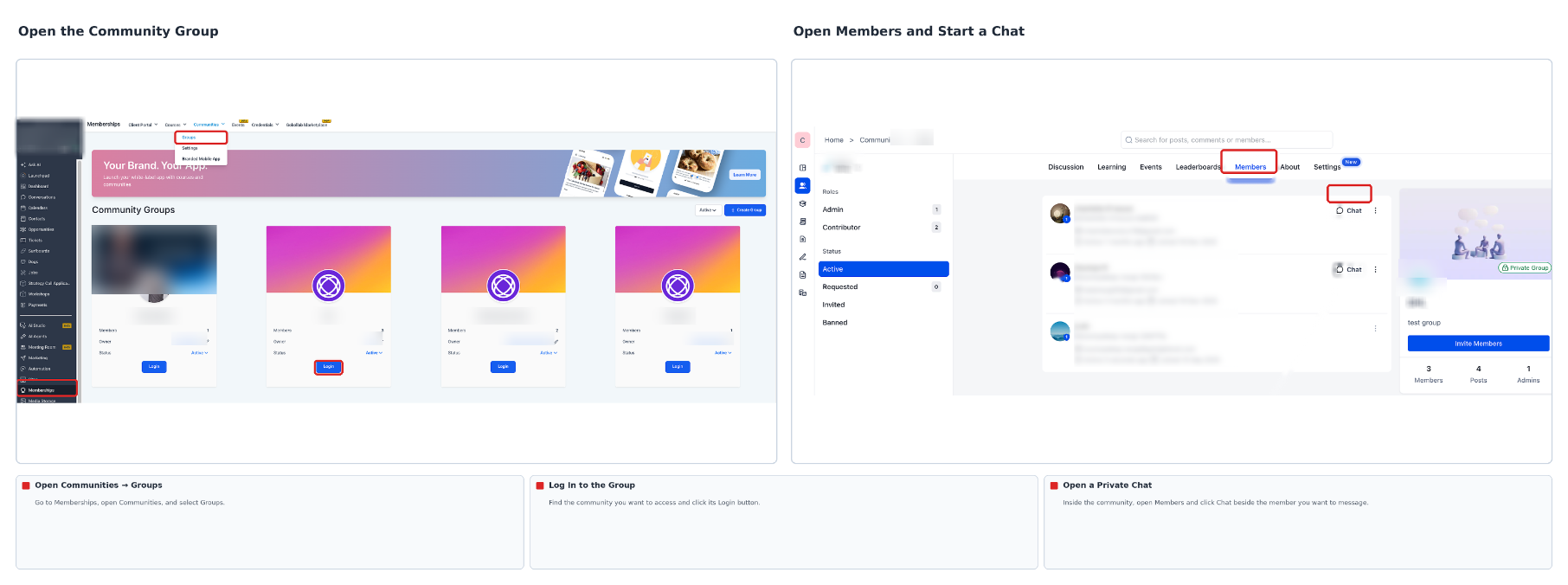
- Go to Memberships → Communities → Groups.
- Find the group you want to access and click Login to open it.
- Inside the community, select Members. Find the member you want to contact and click the Chat button beside their name.
- In the private conversation, locate the microphone icon in the message input area.
- Click and hold the microphone icon to start recording. Speak your message while the live waveform indicates that audio is being captured.
- When your message is ready, click Send to deliver the Voice Note.
After sending, the Voice Note appears in the conversation as an audio message with inline playback controls. Other members with access to the conversation can listen and respond.
Record a Voice Note on a Supported Mobile App
When your community's mobile chat application supports Voice Notes, you can record and send audio messages from an iOS or Android device.
- Open the supported community mobile application and sign in.
- Navigate to the community where you want to send a message. Open an existing private conversation or start a direct chat with another member.
- In the message input area, press and hold the microphone icon to start recording.
- Speak your message. Watch the waveform and recording controls as your audio is captured.
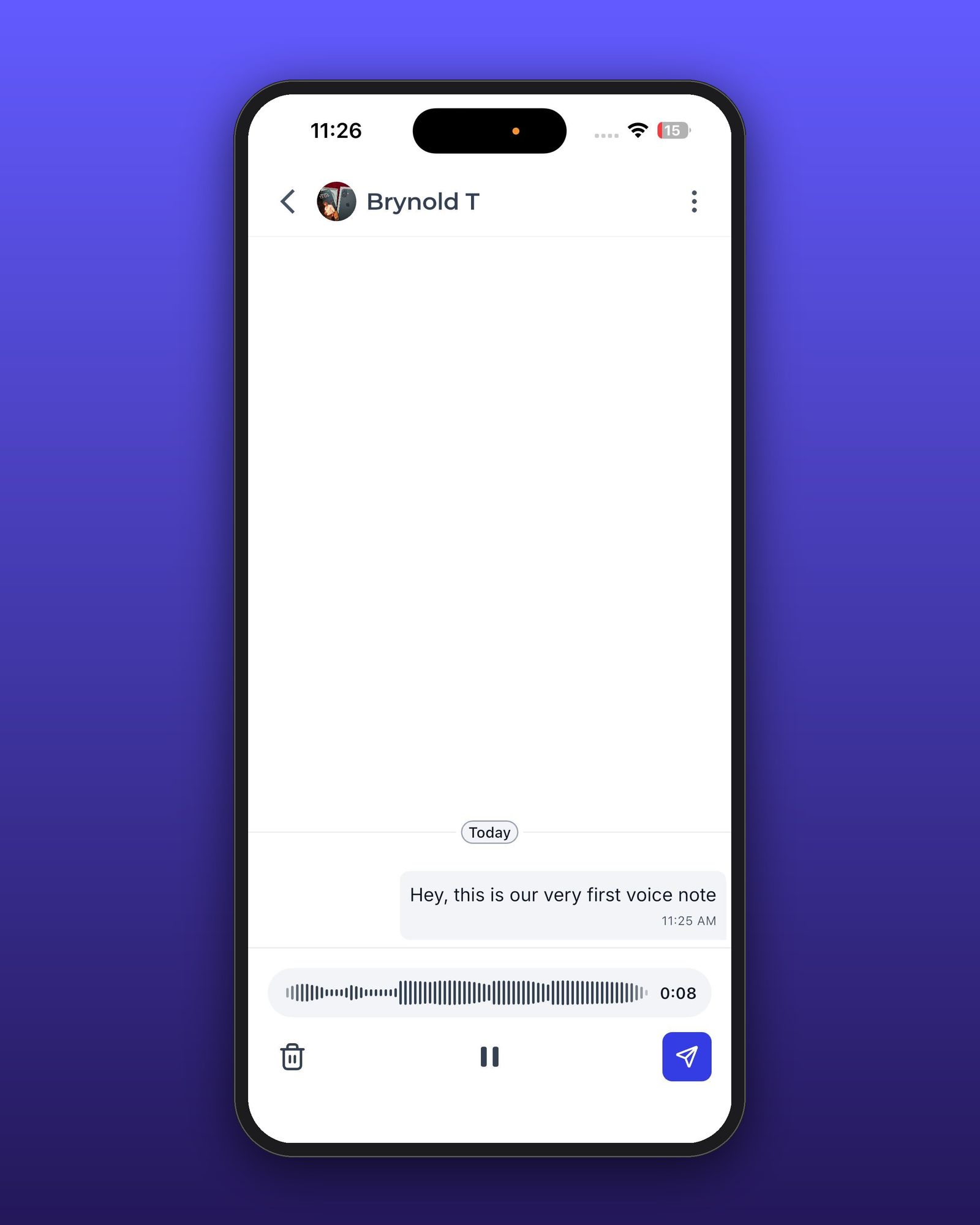
- When the recording is ready, use the available Send control to send your Voice Note.
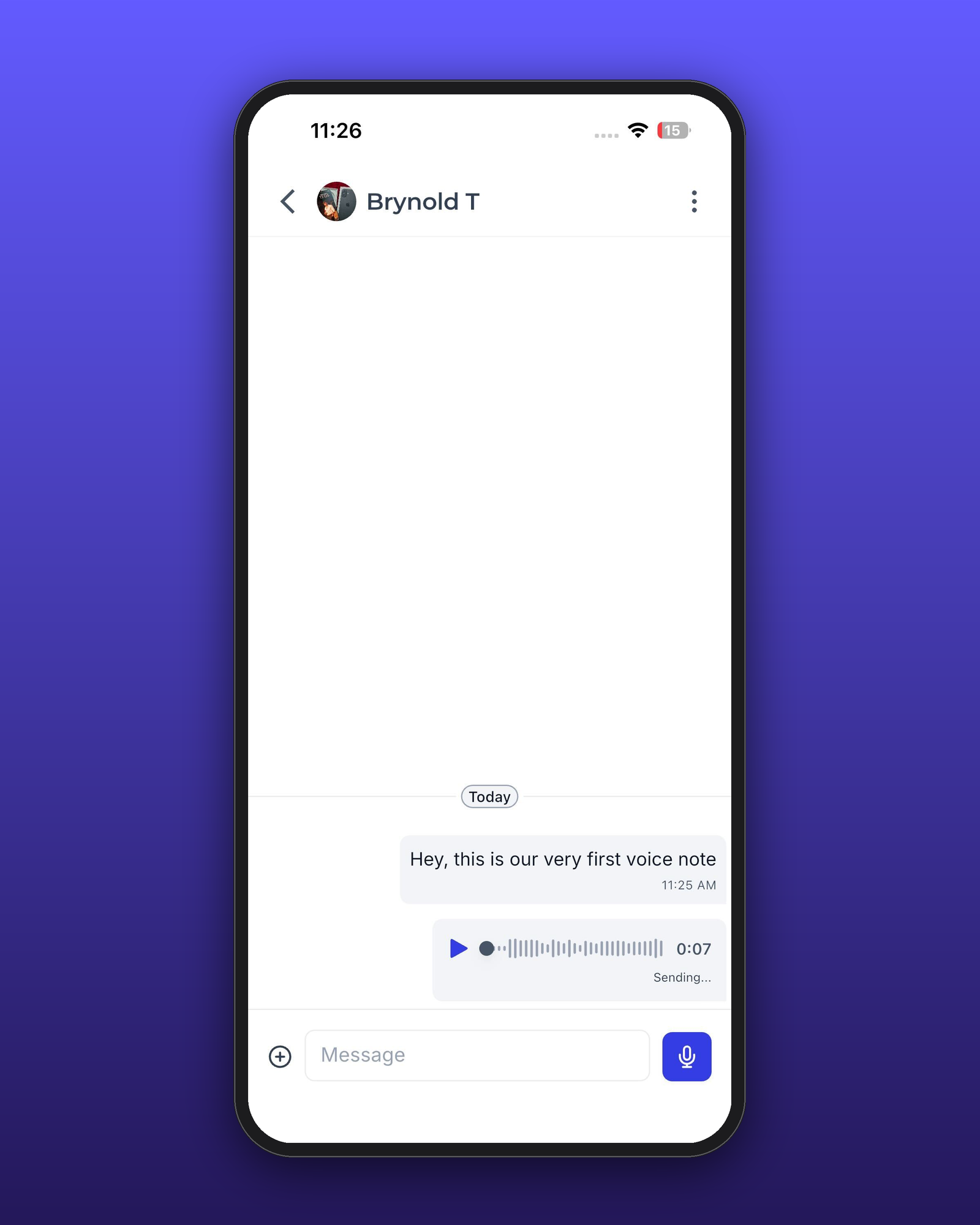
The audio message appears in the conversation, where the recipient can listen using the available playback controls.
How to Listen to Voice Notes
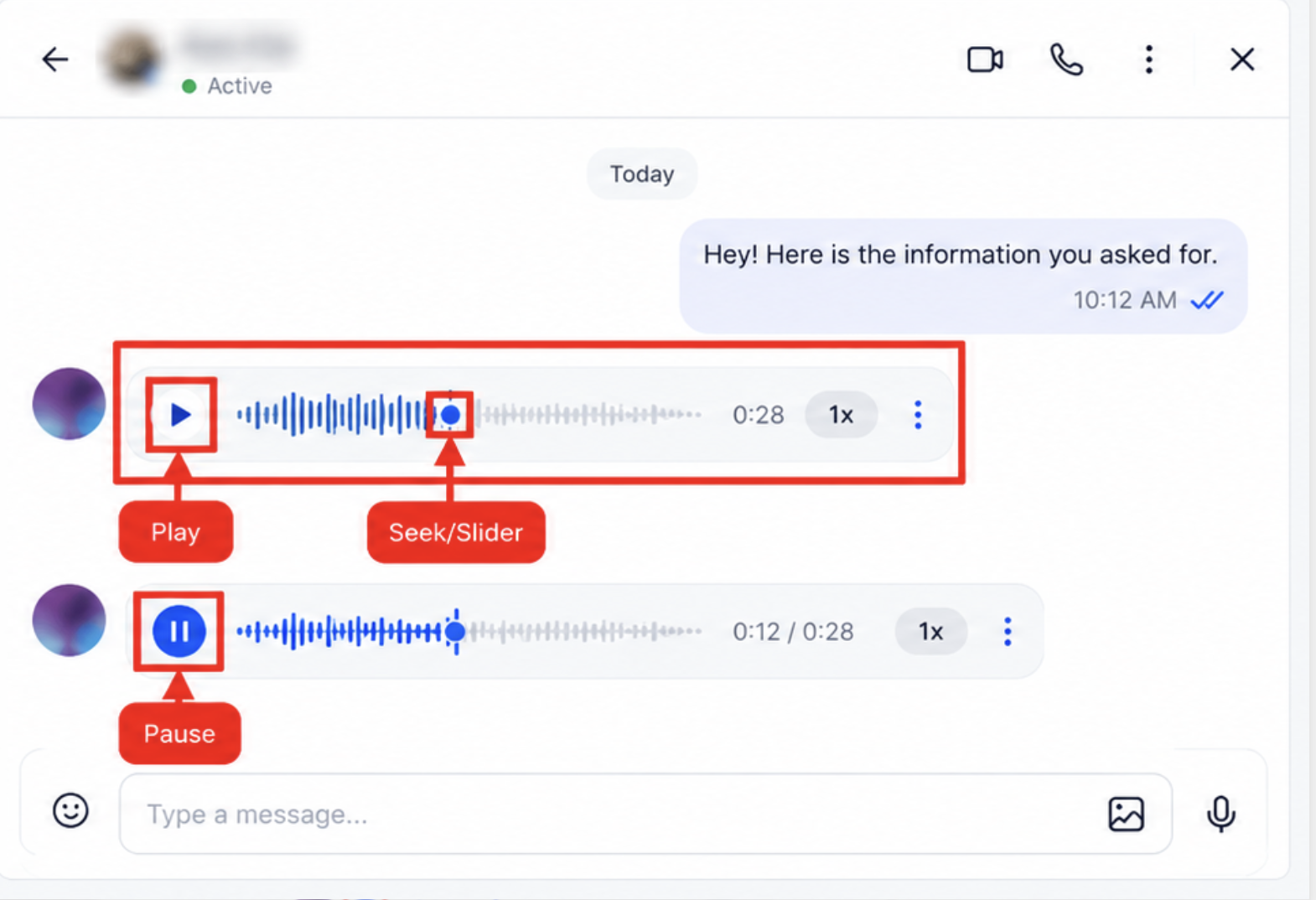
Voice Notes include an inline audio player, allowing you to listen without opening another page or downloading a file. You can also pause a message, replay it, or move to a specific part of the recording.
- Open the Community Chat containing the Voice Note.
- Find the audio message by its waveform-style display.
- Click or tap Play to begin listening.
- Use Pause to stop playback temporarily.
- Move the available playback slider or seek control to listen to another part of the recording.
- Use Play again whenever you want to replay the message.
These controls help you review important details, return to specific parts of a message, and respond at your convenience.
Platform Availability
Voice Notes are supported in specific community chat experiences. The available recording controls depend on whether you are using the updated web interface or a compatible mobile application.
- Web — Communities New UI: Record, send, and listen to Voice Notes within supported private Community Chats.
- iOS: Record and listen to Voice Notes in supported community mobile chat applications that provide this feature.
- Android: Record and listen to Voice Notes in supported community mobile chat applications that provide this feature.
Before following the mobile instructions, confirm that your application displays the microphone and Voice Note recording controls.
Frequently Asked Questions
Q: Are Voice Notes available in community posts and comments or only in private chats?
Voice Notes are supported in private Community Chats and in community posts and comments. However, recording Voice Notes for posts and comments follows a different process. This guide focuses on private conversations.
Q: Do Voice Notes generate the same notifications as text messages?
Yes. Voice Notes appear as new chat messages and follow the same in-app notification behavior as text messages in supported Community Chats.
Q: Can I listen to a Voice Note on the web if it was recorded on mobile?
Yes. Voice Notes remain associated with their conversations. You can listen from another supported interface when you have access to the same chat.
Q: Are Community Chat Voice Notes automatically transcribed?
No. Community Chat Voice Notes are audio messages for conversations between members. Automatic transcription is not part of this feature.
Q: Why can't I record a Voice Note?
Check that your browser or device has permission to use the microphone. Also confirm that you are using a community chat interface that supports Voice Notes.
Q: Can I pause, replay, or skip through a received Voice Note?
Yes. The inline audio player includes playback controls for pausing, replaying, and moving to another part of the recording.
Need Help?
If you cannot record, send, or play a Voice Note, review your microphone permissions, community access, and recording controls. The following checks can help identify common issues.
- Microphone Is Not Working: Confirm that your browser or device allows microphone access. If prompted, select Allow.
- Microphone Icon Is Missing: Check that you are using a supported Community Chat interface with Voice Notes available.
- Cannot Start a Private Chat: Confirm that you can access the community and open a direct conversation with the intended member.
- Recording Does Not Send: Review the recording controls and use the available Send button to submit the message.
- Cannot Find a Voice Note: Open the original conversation and look for the audio message displayed with a waveform.
- Playback Is Interrupted: Return to the audio message and use the inline player to continue listening.
- Voice Notes Are Unavailable on Mobile: Confirm that your community mobile application supports Voice Notes in private conversations.
If the issue continues, contact support. Include your device type, browser or mobile application, affected community conversation, and details about the recording or playback problem.