
Connect Events with Workflows to automate attendee communications, respond to registration and check-in activity, and schedule actions around event dates. This article covers how to automate the attendee journey, from registration to post-event follow-up. Learn how event triggers, workflow conditions, and event-based timing work together to create personalized automations.
TABLE OF CONTENTS
- What Is Events and Workflows Integration?
- Key Benefits of Events and Workflows Integration
- Event-Based Workflow Triggers
- Using Event Data in Workflow Conditions
- Wait Relative to the Event Date
- How to Set Up Event-Based Workflows
- Common Event Automation Use Cases
- Frequently Asked Questions
What Is Events and Workflows Integration?
Events and Workflows Integration connects event activity with workflow automation. It allows you to initiate workflows when attendees register or check in, evaluate event information, and schedule actions around an event's date and time.
You can use event information to manage communications, segment attendees, update contact records, and coordinate follow-up activities throughout the attendee journey.
Key Benefits of Events and Workflows Integration
Automated Attendee Communication: Send registration confirmations, reminders, welcome messages, and follow-ups based on event activity.
Event-Based Scheduling: Run workflow actions before, during, or after an event using its scheduled date and time.
Personalized Attendee Journeys: Create different workflow paths based on event details, registration information, and ticket categories.
CRM Automation: Connect attendee activity with contact management, pipeline updates, task assignments, and team notifications.
Centralized Event Automation: Manage multiple stages of attendee engagement through workflows.
Event-Based Workflow Triggers
Event-based triggers allow workflows to respond when an attendee completes a specific activity.
Event Registration
The Event Registration trigger starts a workflow when a contact registers for an event. You can use it to initiate confirmation messages, apply contact tags, or begin reminder sequences.
Event Checked In
The Event Checked In trigger starts a workflow when an attendee checks in. Use this trigger to initiate welcome communications, provide access instructions, or notify team members about attendee arrivals.
Trigger Filters
Configure filters to control which event activities initiate a workflow. Supported filter categories include:
Registration status
Specific event
Person who booked the registration
Ticket type
Check-in information
These filters help you target relevant event activity without creating a separate workflow for every attendee category.
Using Event Data in Workflow Conditions
Workflow conditions allow you to direct attendees along different automation paths based on event information. Available Event Information
Event-related data includes:
Event type
Event name
Event start date and end date
Event timezone
Event location
Ticket information
Check-in information
Example: Ticket-Based Personalization
Suppose an event has VIP and standard tickets. You can configure a conditional branch that sends exclusive instructions to VIP attendees and general event information to standard attendees. You can also customize communications based on the selected event or its scheduled date.
Wait Relative to the Event Date
The Wait action can use event-related timing to control when subsequent workflow actions execute. This helps coordinate attendee communications without setting individual calendar dates for every event. At the Event Date/Time
Configure a workflow to resume at the scheduled event start time. For example, send instructions when an online session begins.
Before the Event
Schedule workflow steps ahead of the event. For example, configure reminders three days before an event and again two hours before it starts.
After the Event
Schedule follow-up activities after the event. Examples include attendee surveys, thank-you messages, and access to event recordings.
Example: Pre-Event Reminder
A contact registers on Monday for an event scheduled on Friday. A Wait action configured for three days before the event schedules the next step for Tuesday.
Tip: Combine event triggers, conditional branches, and event-relative Wait actions to create automated journeys that adjust to event details.How to Set Up Event-Based Workflows
Step 1: Open Workflows
Navigate to Automation > Workflows.
Click Create Workflow.
Start with a blank workflow or choose an available template.
Step 2: Select an Event Trigger
In the workflow builder, add one of the following triggers:
Event Registration: Starts the workflow when a contact registers.
Event Checked In: Starts the workflow when an attendee checks in.
Select the trigger that matches the attendee activity you want to automate.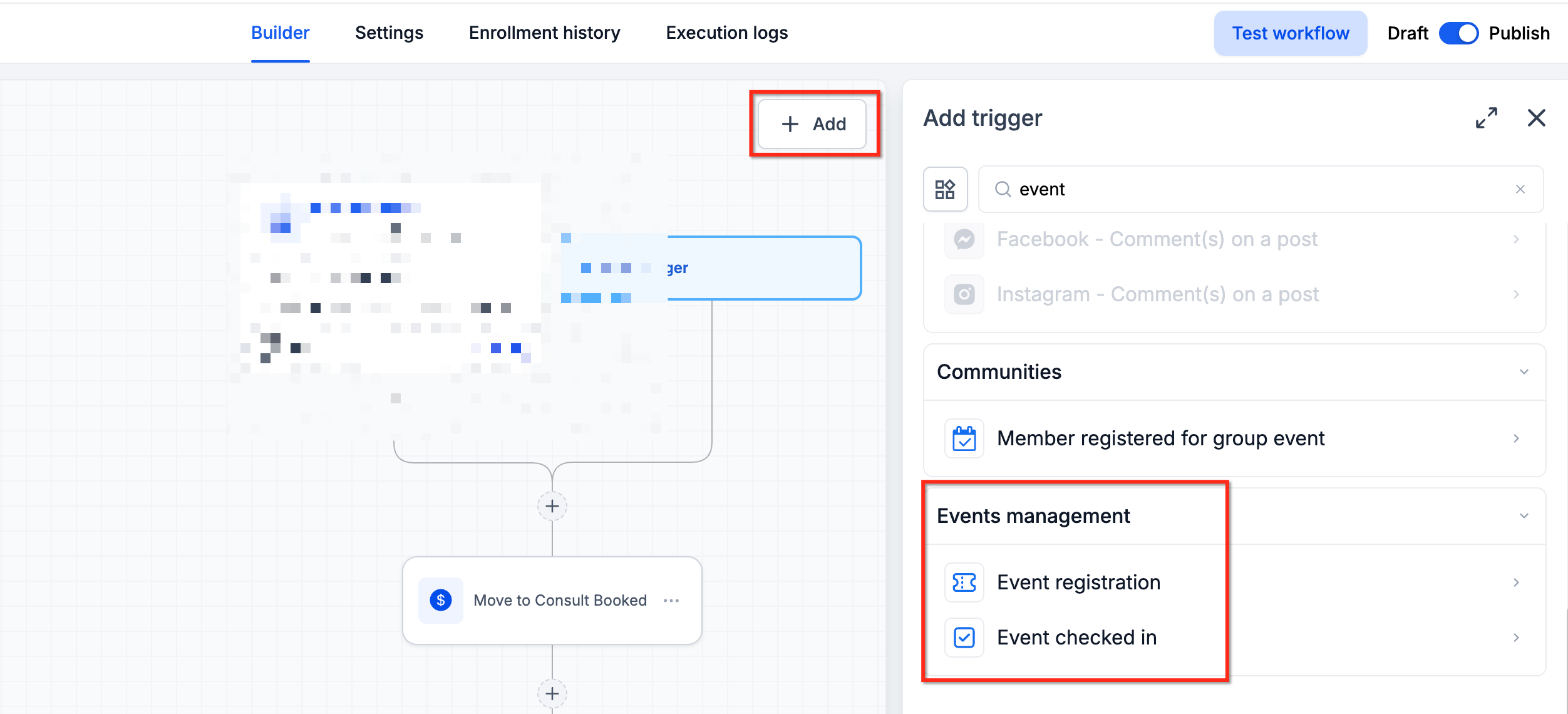
Step 3: Configure Trigger Filters (Optional)
Add filters to narrow the conditions that start your workflow. You can filter by event, ticket category, registration status, or booking information.
Step 4: Add Workflow Actions
Add actions appropriate to your event process. Examples include:
Send Email
Send SMS
Update contact fields
Add tags
Create opportunities
Assign tasks
Arrange the actions in the order they should execute.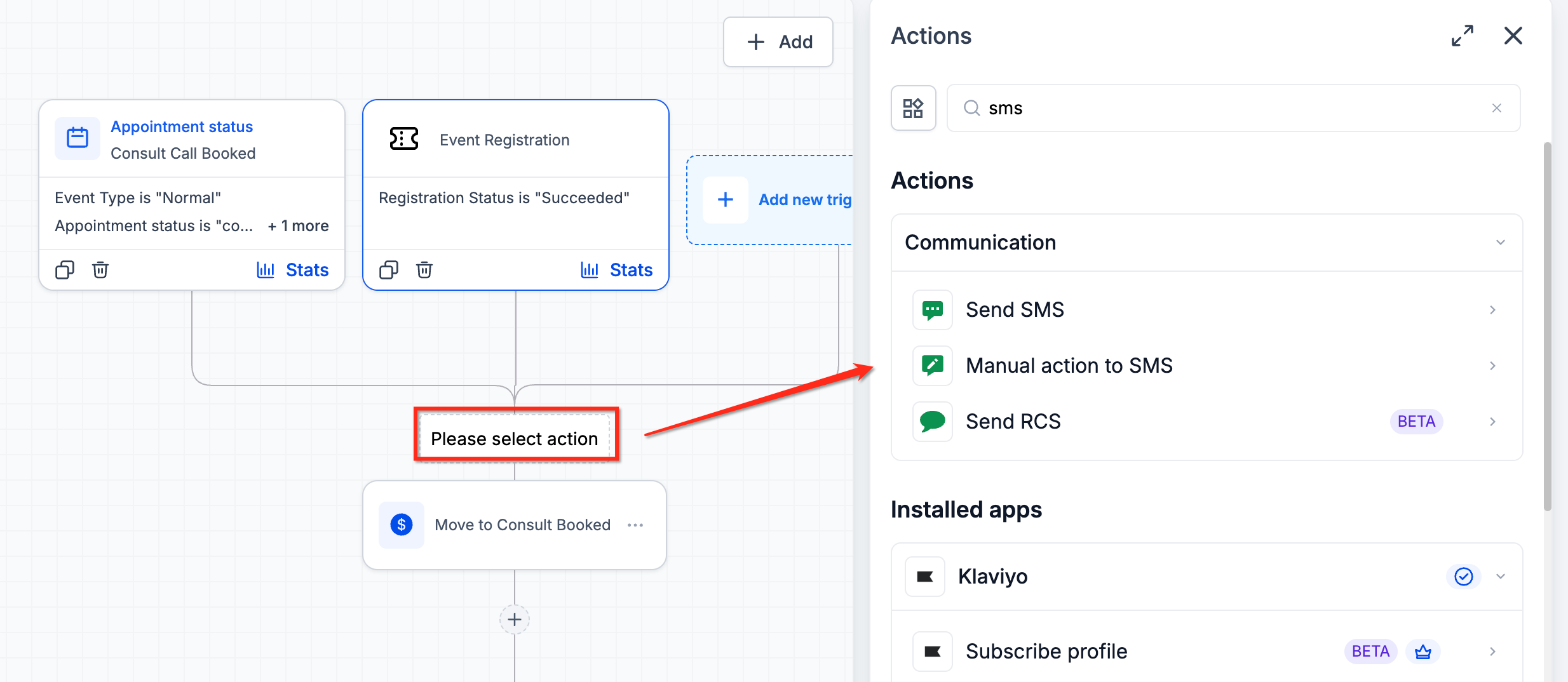
Step 5: Configure Conditional Paths
Add workflow conditions that evaluate event information, such as the event name, location, or ticket category. Create separate paths when different attendee groups require different communications or follow-up actions.
Step 6: Add Event-Relative Wait Actions
Add a Wait action and configure its timing relative to the event. You can schedule actions before the event, at its scheduled time, or afterward. Save the action after configuring the timing.
Step 7: Test and Publish
Use the workflow testing option or create a test registration.
Confirm that the expected trigger starts the workflow.
Check the filters, conditions, and action sequence.
Verify that timing-based actions behave as intended.
Click Publish when the configuration is ready.
Common Event Automation Use Cases
1. Registration Confirmations
Send an email or SMS after registration. Personalize the message with available event information and relevant attendance instructions.
2. Pre-Event Reminders
Create a reminder sequence that runs at scheduled intervals before an event. For example, send communications seven days, three days, and two hours before the scheduled start.
3. Ticket-Specific Attendee Journeys
Use ticket information to personalize automation. You might send VIP attendees additional preparation materials while standard attendees receive general event instructions.
4. Check-In Automation
Start a workflow when an attendee checks in. Use it to send welcome messages, provide event resources, or notify team members.
5. Post-Event Follow-Ups
Schedule messages following the event to request feedback, share recordings, or provide additional resources.
6. CRM and Sales Follow-Ups
Use event activity to update contacts, apply tags, create opportunities, assign tasks, or initiate follow-up communications.
Frequently Asked Questions
Do I need a separate workflow for each event?
Not necessarily. A workflow can accommodate different events using filters and conditions that evaluate event-specific information.
Can I personalize messages with event information?
Yes. Event information, including names, dates, locations, and ticket details, can be used within supported workflow messaging actions.
What happens when an attendee registers after the event date?
Event-relative timing requires special consideration when a scheduled wait time has already passed. Review the applicable Wait action settings and test how the workflow handles these contacts.
Can different ticket categories receive different reminders?
Yes. Use ticket-related conditions to create separate workflow paths and configure the relevant communications for each category.
Can I automate recurring events?
Yes. Event automation can use the registration or check-in activity associated with an individual event occurrence and its scheduled timing.
Can event workflows work alongside other automations?
Yes. You can configure separate workflows for different activities and coordinate their outcomes through contact updates, tags, and other workflow actions.
How can I stop communications after a registration is canceled?
Configure appropriate workflow exit conditions or goal-based completion using registration status information, where supported. Test the cancellation behavior before publishing.