
Email AI lets you create email campaigns from a simple text prompt. Tell it what you need — a newsletter, a product launch, a welcome email — and it generates a polished, mobile-friendly email template built around your request and your brand.
Once the email is ready, you can keep chatting with the AI to make changes, edit the HTML code directly, adjust typography, colors and spacing with Visual edits, or convert the template to the Design editor.
What Is Email AI?
Email AI is an AI-powered email builder inside Marketing → Emails. Instead of starting from a blank canvas or a template, you describe the email in plain language and the AI generates a complete, beautifully designed email for you.
With Email AI you can:
- Generate a full email template from a single prompt
- Apply your saved brand board (logo and brand colors) automatically
- Make changes by chatting with the AI — no design skills needed
- View and edit the email's HTML code side by side with a live preview
- Fine-tune typography, colors and padding with Visual edits
- Convert the result to the drag-and-drop Design editor
You may see a Visible to agency users label on the Email AI screens. This indicates the feature is currently shown to agency-level users.
Create an Email with AI
Go to Marketing → Emails. From the Statistics or Campaigns tab, click the Create with AI button next to Create campaign.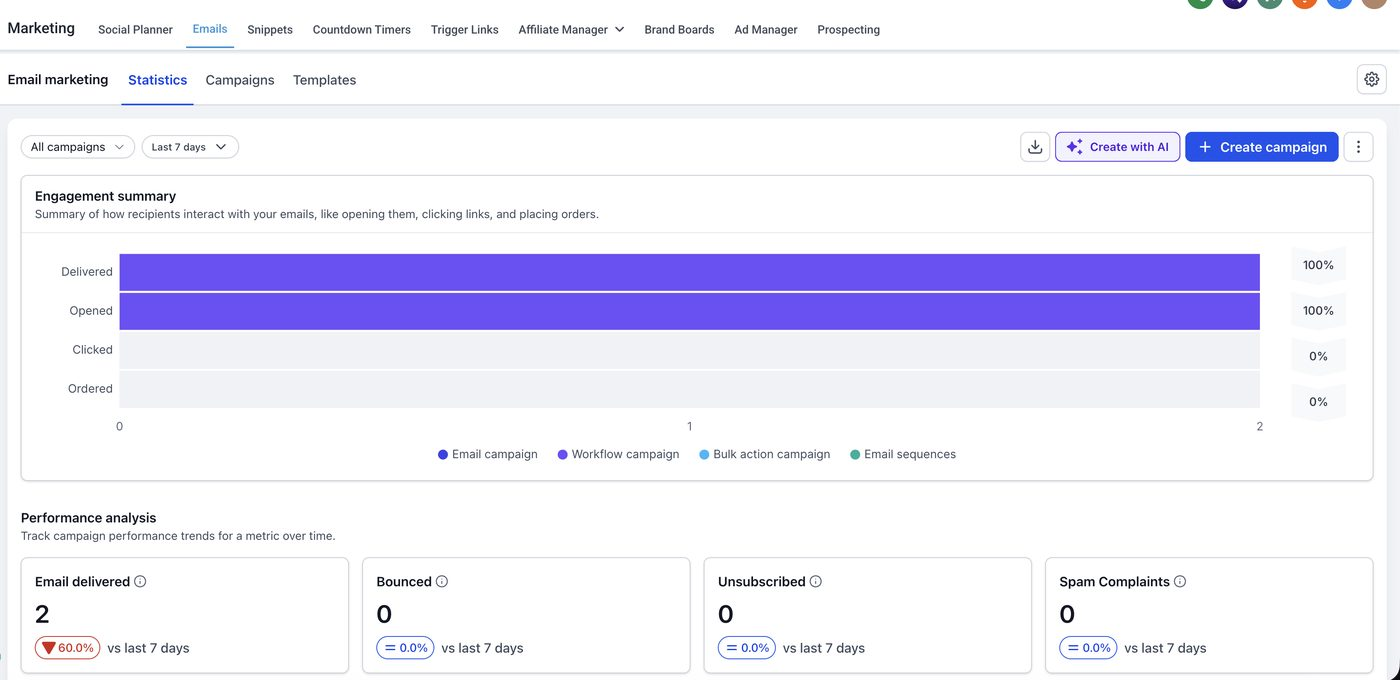
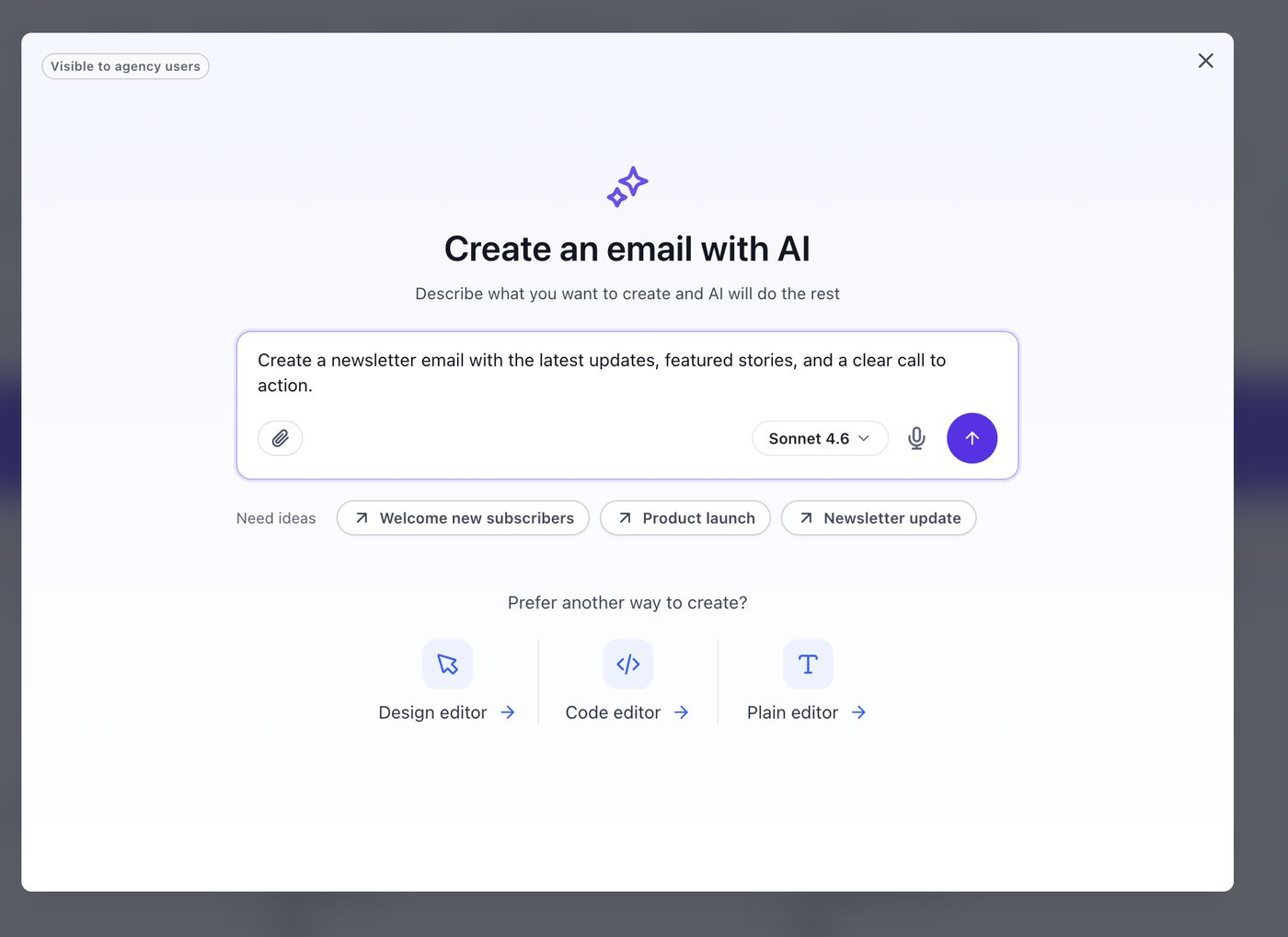
The Create an email with AI popup opens. Type your prompt in the Describe the email box. Be specific about the purpose, sections and call to action you want.
Need inspiration? Click one of the Need ideas suggestions — Welcome new subscribers, Product launch or Newsletter update — to pre-fill a prompt. You can also attach a reference file with the paperclip icon, dictate your prompt with the microphone, or choose the AI model from the model dropdown.
Click the arrow (submit) button to run your prompt. The editor opens and Email AI starts building your email.
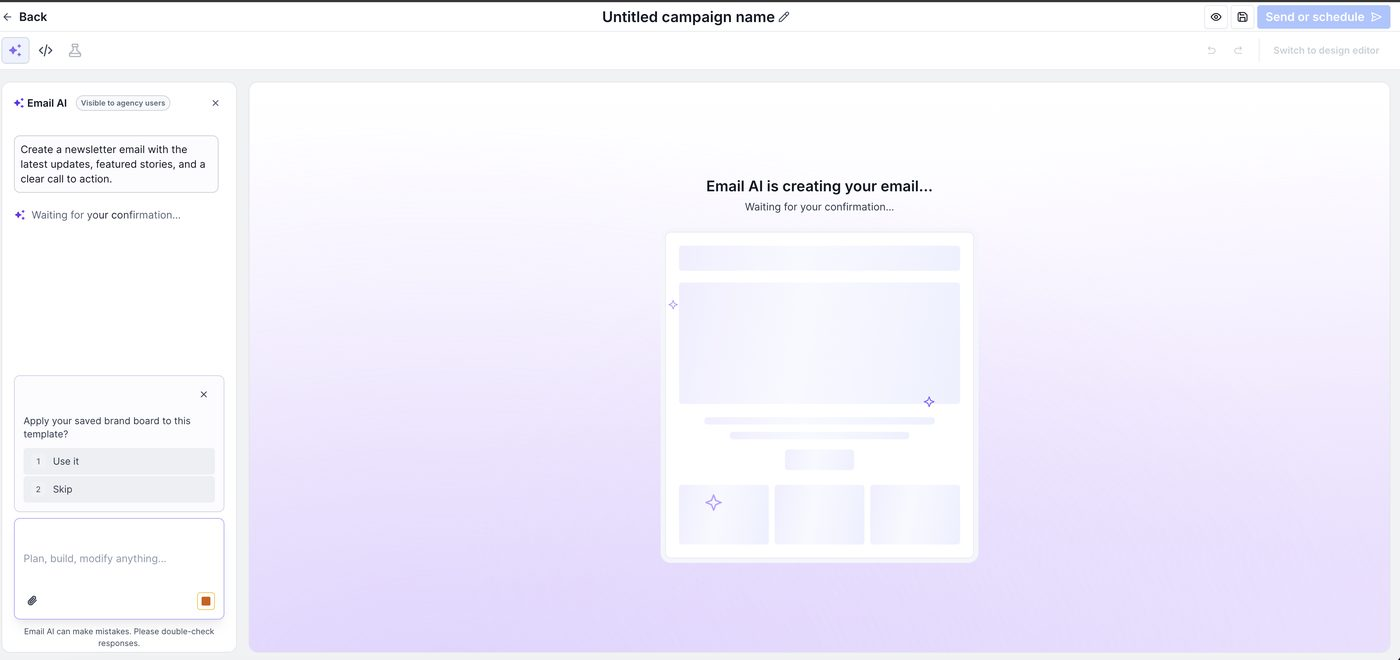
In the Email AI panel on the left, the AI may ask a few quick questions before it builds your email — for example, Apply your saved brand board to this template? Choose an option (such as Use it or Skip). The status shows Waiting for your confirmation… until you respond, and then processing continues.
Once generation finishes, your email appears in the builder preview and the Email AI panel summarizes what it created — such as the brand logo and colors applied, hero section, content blocks, call-to-action and footer with unsubscribe link.
Refine Your Email by Chatting with AI
Your email content and builder are now ready. To make changes, simply type what you want in the Plan, build, modify anything… box in the Email AI panel and send it. The AI updates the email in the preview.
Examples of what you can ask:
- “Change the headline to something more exciting.”
- “Add a third featured story card about our upcoming webinar.”
- “Make the call-to-action button green and say Register Now.”
- “Shorten the intro paragraph and make the tone more casual.”
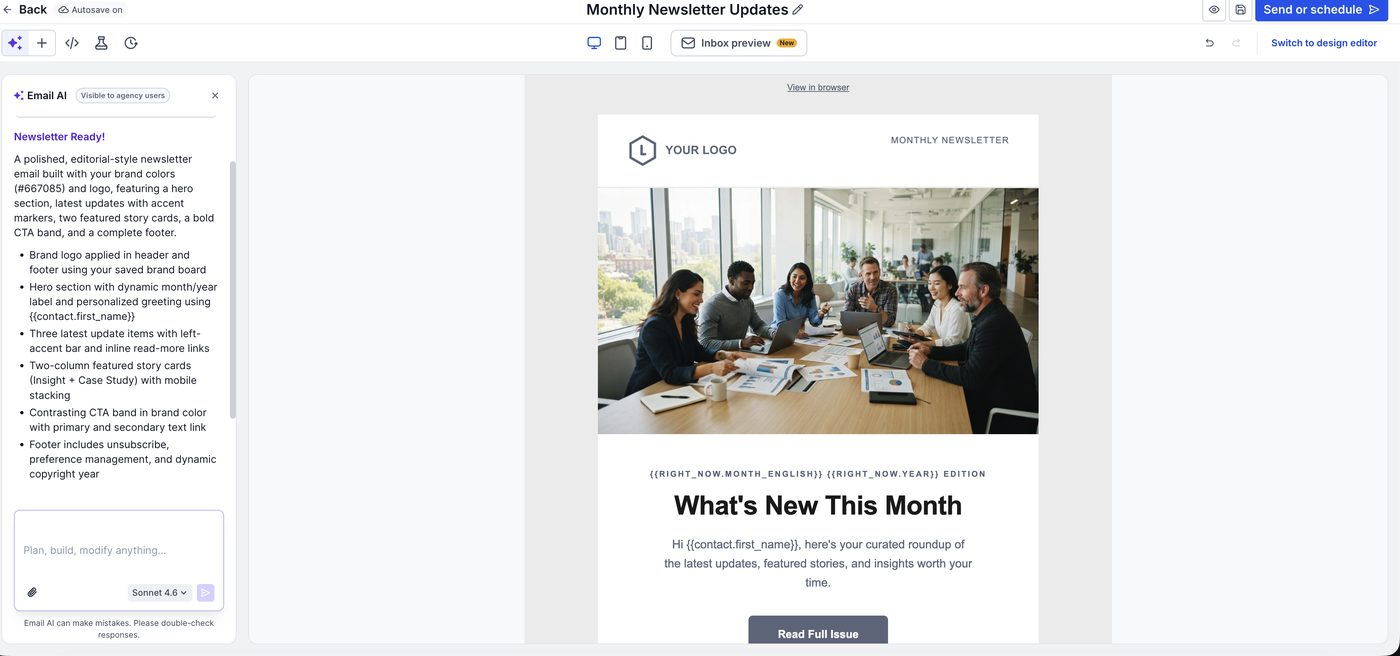
Use the desktop, tablet and mobile icons at the top to preview how the email looks on each device, and Inbox preview to see how it appears in the inbox. Autosave keeps your work saved, and the undo/redo buttons let you step back through changes.
Click any element in the preview (for example, a heading) to attach it to your chat message. The AI then knows exactly which element you want to change. Email AI can make mistakes, so always review the final email before sending.
Edit the HTML Code and Use Visual Edits
Besides chatting with the AI, you have full flexibility to edit the email yourself.
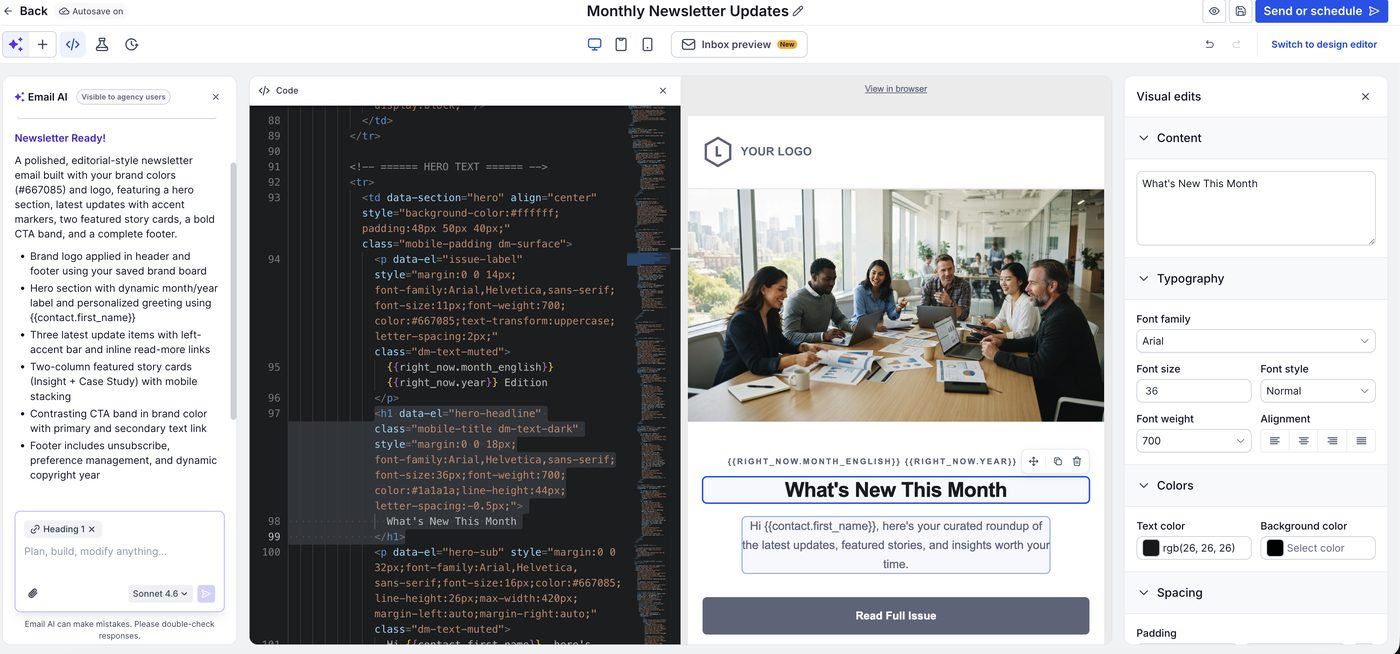
Click the </> Code icon in the top toolbar to open the code panel. You'll see the full HTML of your email template next to the live preview. Edit the code directly and the preview updates as you go. Selecting an element in the preview highlights its matching code.
Click any element in the preview to open the Visual edits panel on the right. From here you can change:
- Content — the text of the selected element
- Typography — font family, font size, font style, font weight and alignment
- Colors — text color and background color
- Spacing — padding around the element
Hovering over a selected element also shows quick actions to move, duplicate or delete it.
Convert the Template to the Design Editor
Prefer drag-and-drop editing? You can convert your AI-generated email into the Design editor.
- Click Switch to design editor in the top-right corner of the editor.
- A confirmation popup explains that a copy of the template will be created and opened in the Design editor.
- Click Continue to convert, or Cancel to stay in the AI editor.
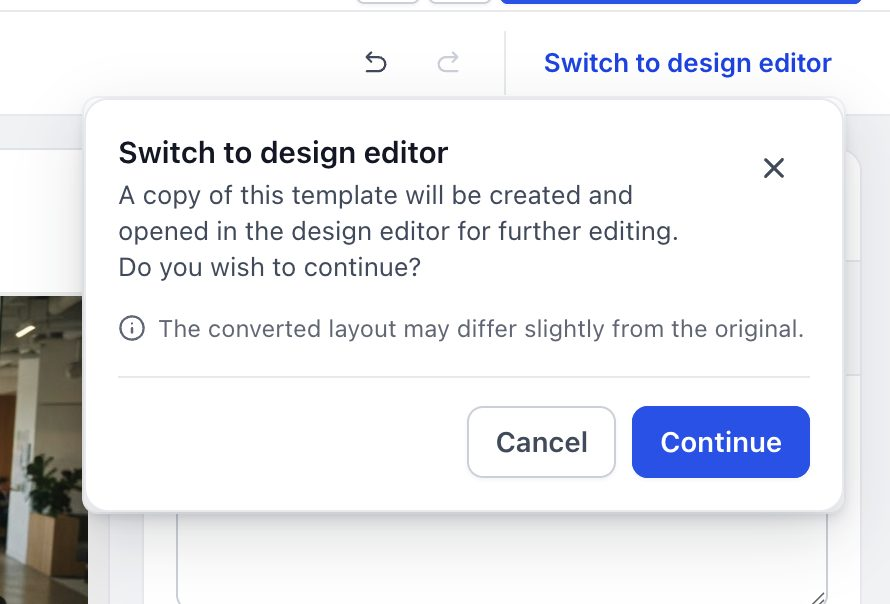
The converted layout may differ slightly from the original. Because a copy is created, your original AI-generated template stays unchanged — review the converted version before sending.