
You can now create A/B tests directly from the Email AI panel using plain-language prompts. Once Email AI has drafted your email, just ask it to set up a test — it walks you through a short set of questions and configures everything automatically.
This article covers how to A/B test subject lines, how to A/B test email content, and where to review and edit each variation before sending.
Before You Start
A/B testing through Email AI works on an email that Email AI has already drafted. Make sure you have:
- An email campaign open in the email builder.
- The Email AI panel open (the sparkle icon in the top-left toolbar).
- Your email drafted by Email AI — for example, a monthly newsletter generated from a prompt.
You can run a subject-line test and a content test on the same email. Set up the subject-line test first, then ask Email AI to add a content test.
A/B Test Your Subject Line
In the Email AI chat box (Plan, build, modify anything…), type a prompt such as "Let's do A/B testing for subject line" and send it. Email AI shows Waiting for your confirmation… and opens a short question card.
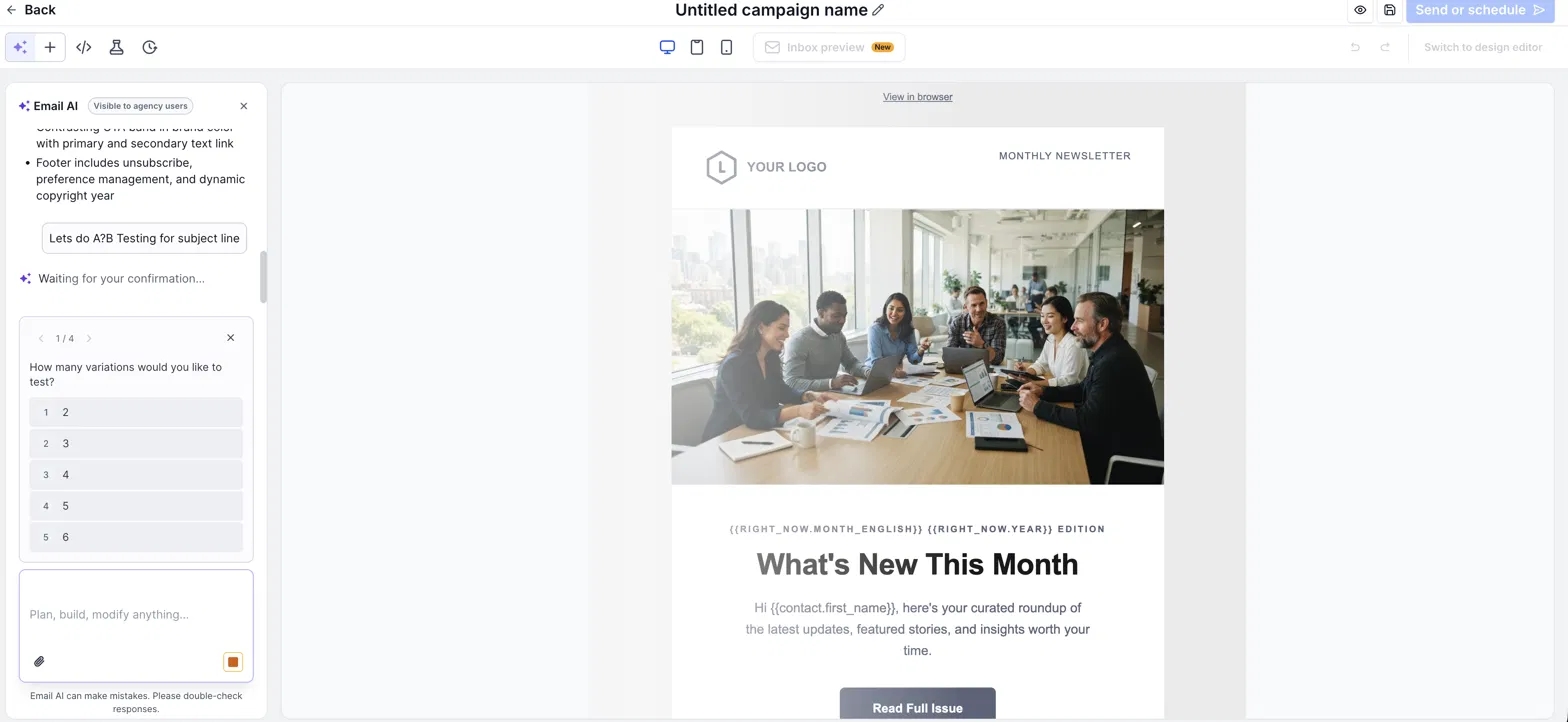
Pick an option on each card, or type your own answer. Use the arrows at the top of the card to move between questions.
| Email AI asks | What it controls |
|---|---|
| How many variations would you like to test? | Number of subject-line versions (2 to 6). |
| What percentage of your audience should receive the test variations? (10%–90%) | The test group size. It is split evenly across versions; the rest of the list later receives the winner. |
| How long should the test run before picking a winner? | The test duration (for example, 4 hours). |
| How should the winner be selected? | The winning metric (for example, open rate). |
| What should the subject lines play up? | The angle Email AI writes toward — for example curiosity, urgency, or a clear summary. |
Email AI summarizes your choices and asks you to confirm, for example: "Create a subject-line test: 4 versions (A, B, C, D), 50% of your list — 12.5% each, running 4 hours, winner by open rate?" Confirm to create the test.
Email AI replies with Your subject line test is set up, listing the versions, audience split, winning metric, and each subject line (A, B, C, D). You can edit any of them in the A/B panel, or tell Email AI what to change.
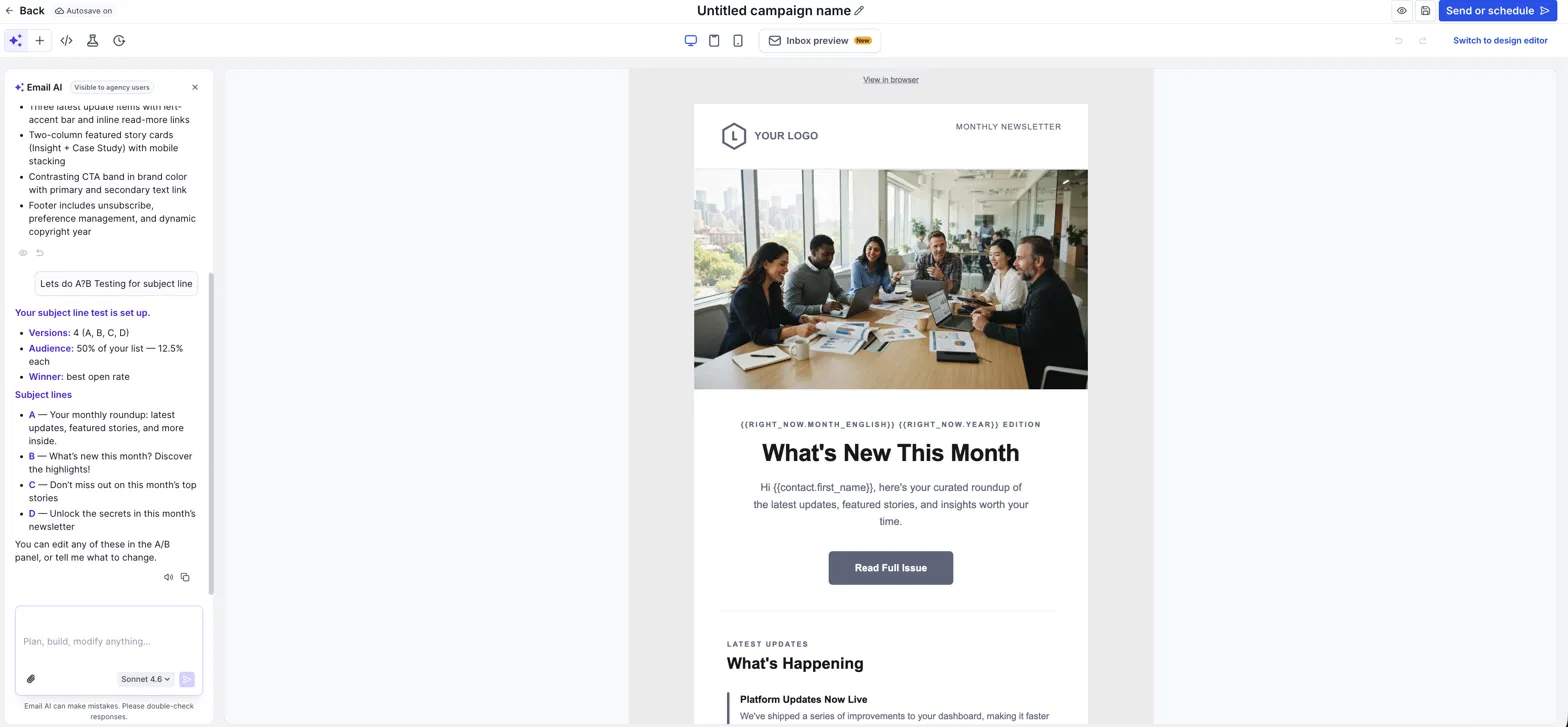
Don't like a version? Ask Email AI directly — for example, "Make version D shorter and add an emoji" — and it will rewrite just that subject line.
Review Subject Lines in the Send or Schedule Window
The subject lines Email AI created are carried into the sending step. Click Send or schedule (top right) and look at the Subject line field. You'll see each version labelled A, B, C, D, with the share of the audience each one receives (for example, 12.50%).
You can edit any subject line right here before sending, then complete the rest of the form (sender name, sender email, preview text, recipients) as usual.
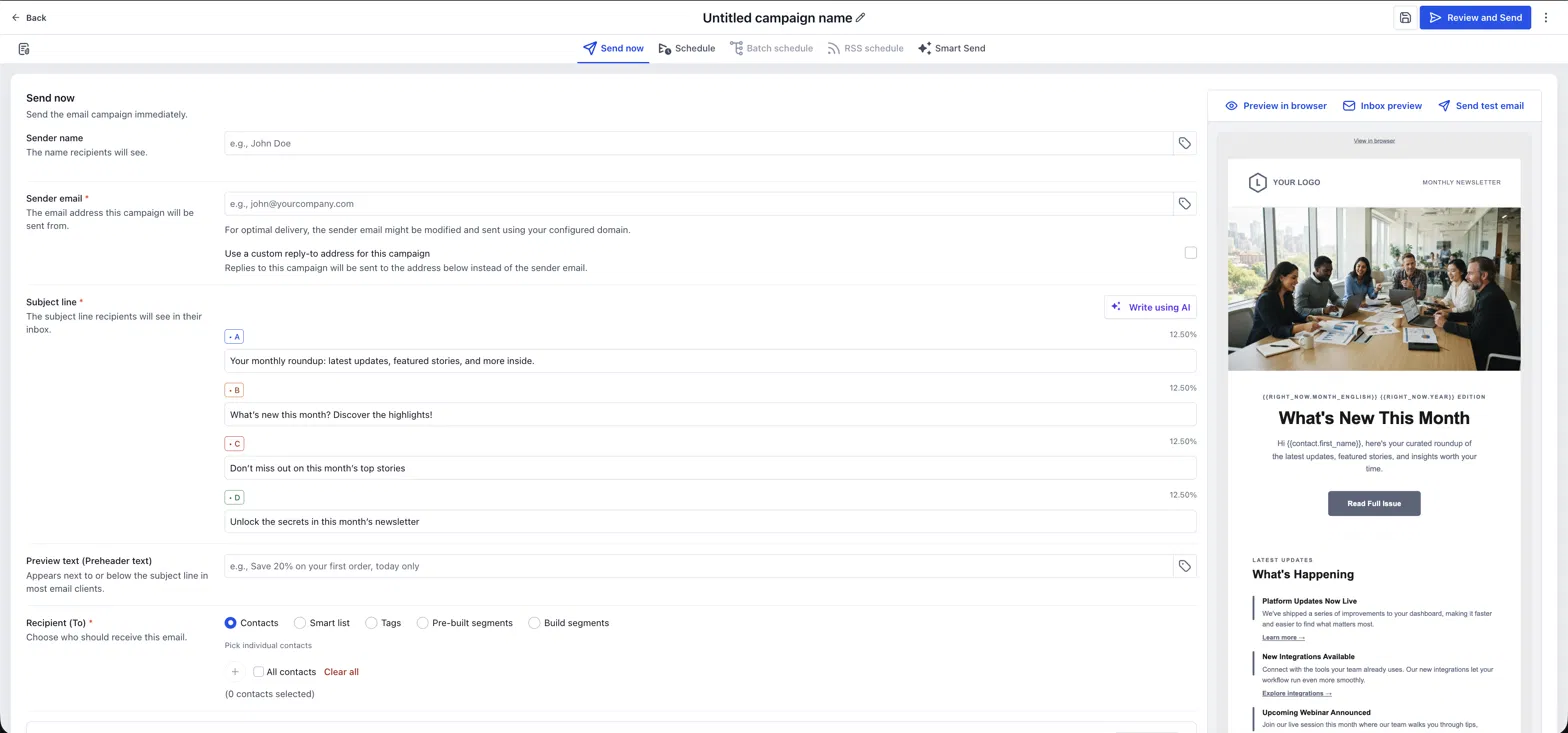
Fill in a Preview text as well. It appears next to the subject line in most inboxes and is shared by all versions, so keep it neutral enough to work with each subject line.
A/B Test Your Email Content
In the same Email AI chat, type a prompt such as "Let's also do A/B testing for content" and send it.
Email AI asks four questions:
- How many variations would you like to test?
- What percentage of your audience should receive the test variations? (10%–90%)
- How long should the test run before picking a winner?
- How should the winner be selected?
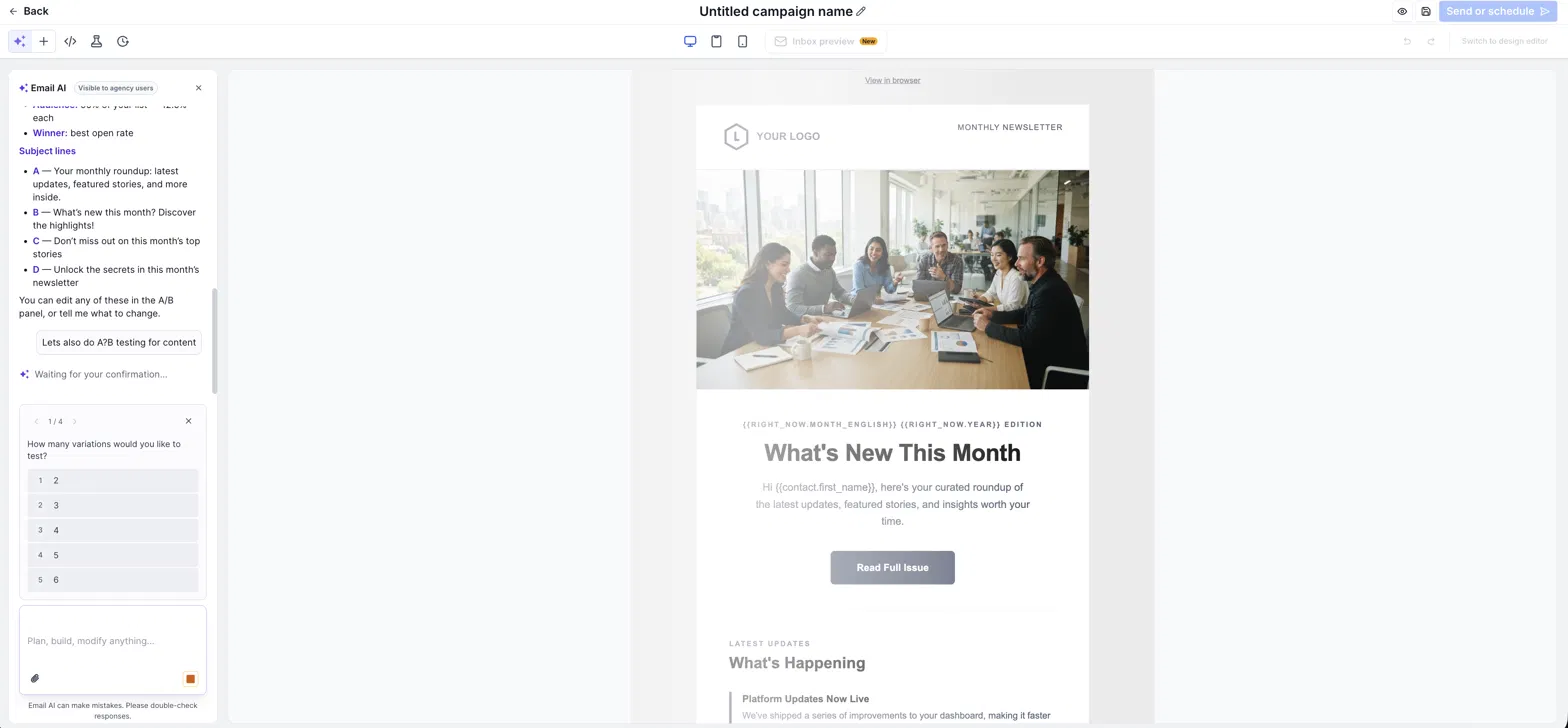
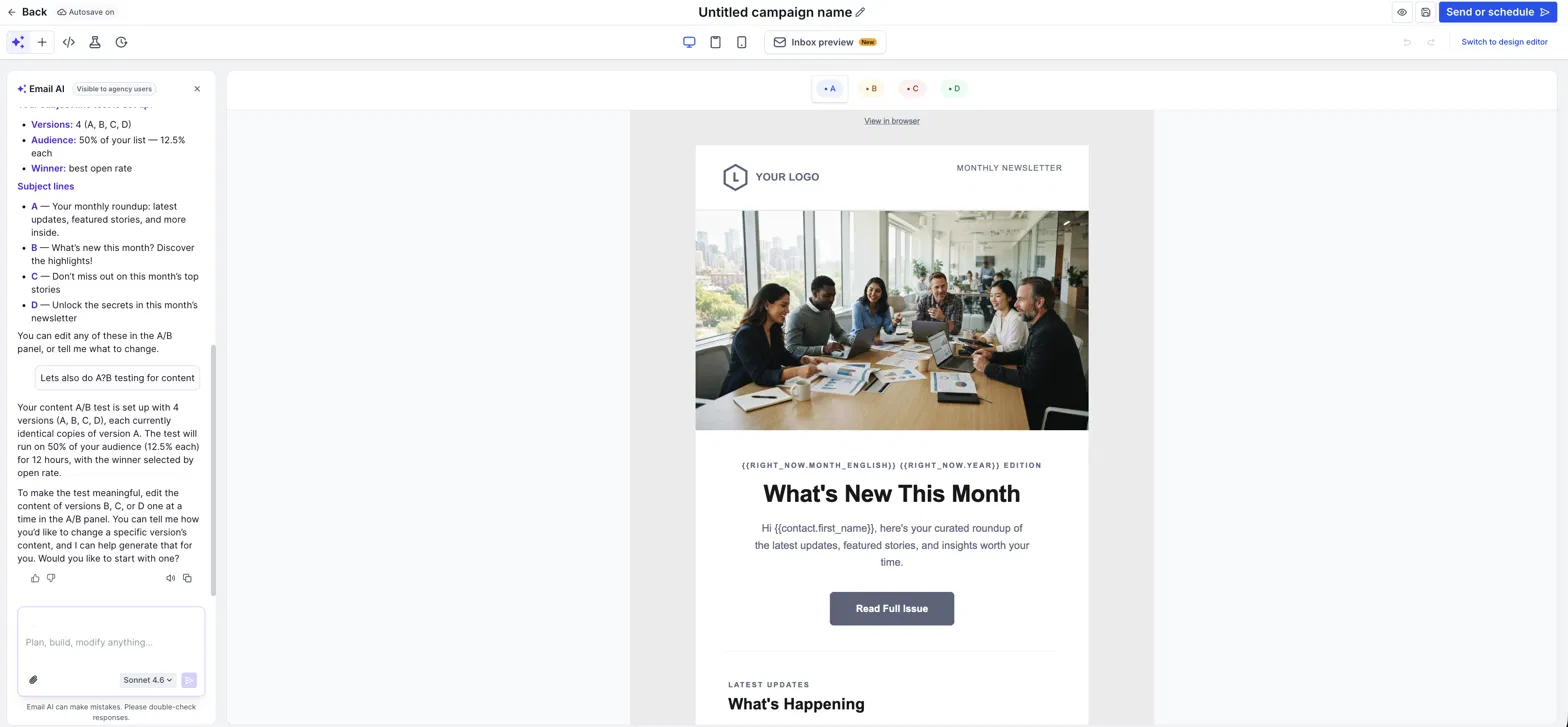
After you confirm, Email AI creates the content variations — for example, 4 versions (A, B, C, D) sent to 50% of your audience (12.5% each), running for 12 hours, with the winner picked by open rate. Version tabs A, B, C, D appear above the email preview.
When first created, versions B, C, and D are identical copies of version A. The test only tells you something once you change the content of the other versions — see the next section.
Edit Your Content Variations (A, B, C, D)
Click a version tab above the preview to switch to it, then edit that version's content. You can do this two ways:
- Ask Email AI — for example, "In version B, change the headline to focus on our new integrations" or "Make version C's button say Register Now."
- Edit manually — select the version tab and change the content directly in the builder.
Change one thing per version where you can (the headline, the hero image, or the button text). If every version differs in many ways, you won't know which change made the winner win.
That's it — your subject-line and content A/B tests are ready. Click Send or schedule, choose your recipients, and send. After the test window ends, the winning version goes to the rest of your audience automatically.