
You can now build a complete email sequence using Email AI. Instead of adding each step by hand, you type a short prompt, answer a few quick questions, and Email AI lays out the sequence on the canvas, writes the emails, and schedules it once you approve.
This article walks through the full flow, from opening Create with AI to a scheduled sequence.
Open Create with AI
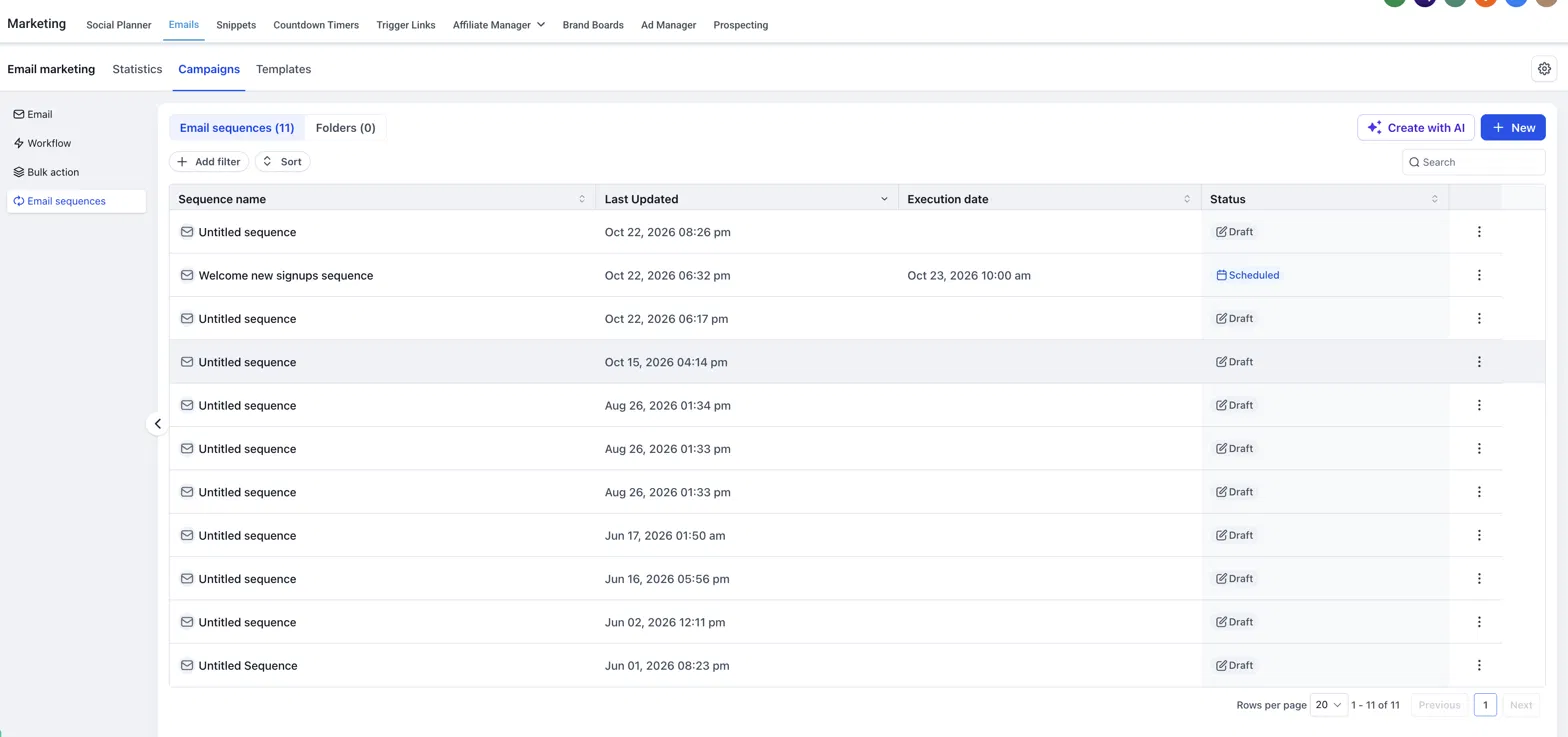
Go to Marketing → Emails → Campaigns → Email sequences. This page lists all your sequences with their last-updated date, execution date and status (Draft or Scheduled).
Click Create with AI at the top right, next to the + New button.
Describe your sequence
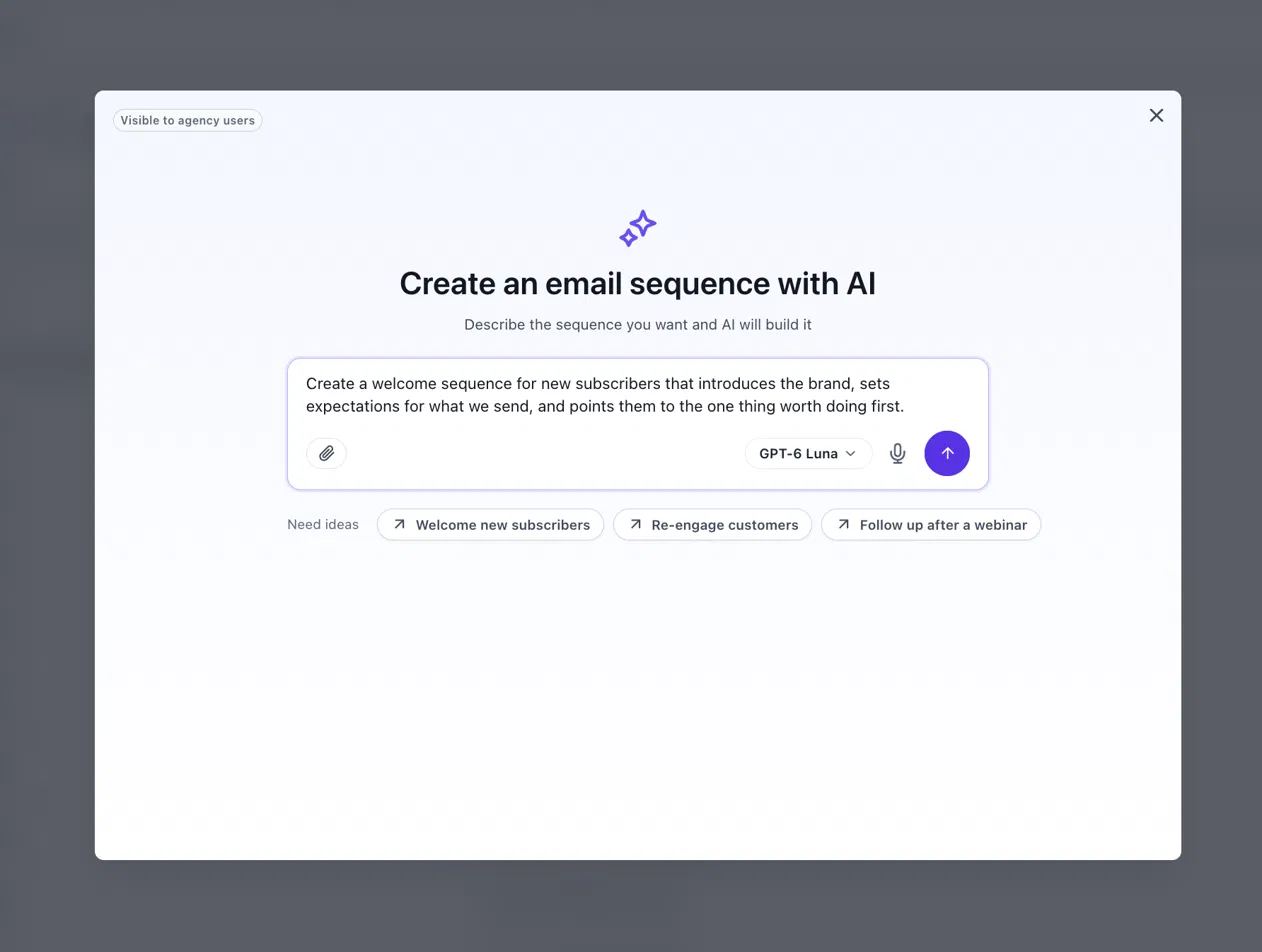
The Create an email sequence with AI window opens. Type what you want the sequence to do, then click the Generate (arrow) button.
- Prompt box — describe the goal, audience and what each email should achieve.
- Need ideas — click a starter such as Welcome new subscribers, Re-engage customers or Follow up after a webinar to prefill the prompt.
- Attachment (paperclip) — add reference material for the AI.
- Microphone — dictate your prompt instead of typing.
- Model selector — choose which AI model builds the sequence.
“Create a welcome sequence for new subscribers that introduces the brand, sets expectations for what we send, and points them to the one thing worth doing first.”
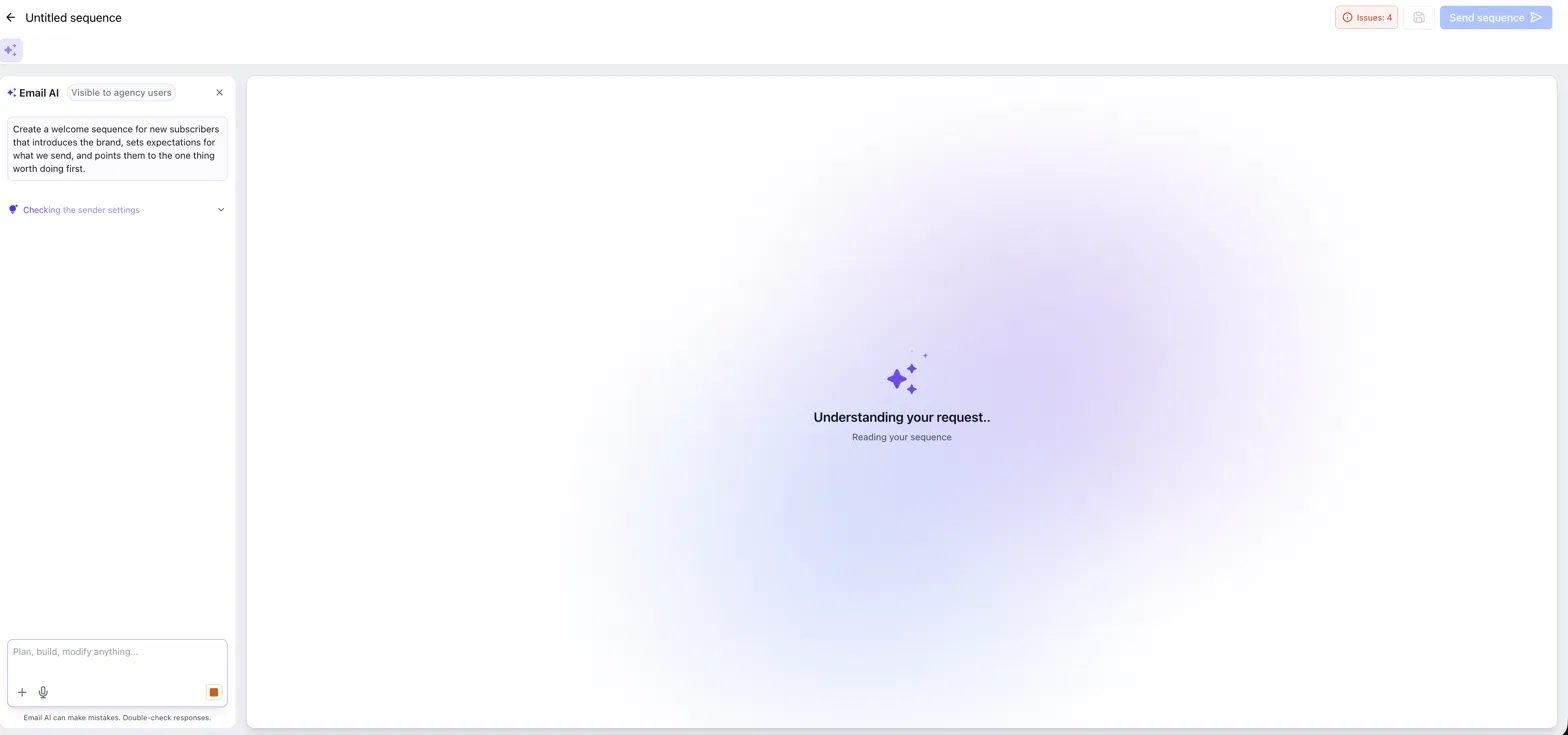
The sequence editor opens with the Email AI panel on the left. Email AI reads your request and checks your sender settings before it starts asking questions.
Answer the setup questions
Email AI asks a few quick questions to set up the sequence. Tap an answer, or choose Something else to type your own.
Choose the audience for the sequence.
Pick one of your verified sender addresses. Only verified addresses are offered.
Set the date and time for the first email. The time follows your account's time zone (for example, 23 October 2026, 10:00 AM, Asia/Kolkata).
Choose a pre-built engagement segment. Each option shows how many contacts it currently holds:
- Contacts engaged in the last 7 days
- Contacts engaged in the last 30 days
- Contacts engaged in the last 60 days
- Subscribers engaged in the last 5 campaigns
- Subscribers unengaged in the last 5 campaigns
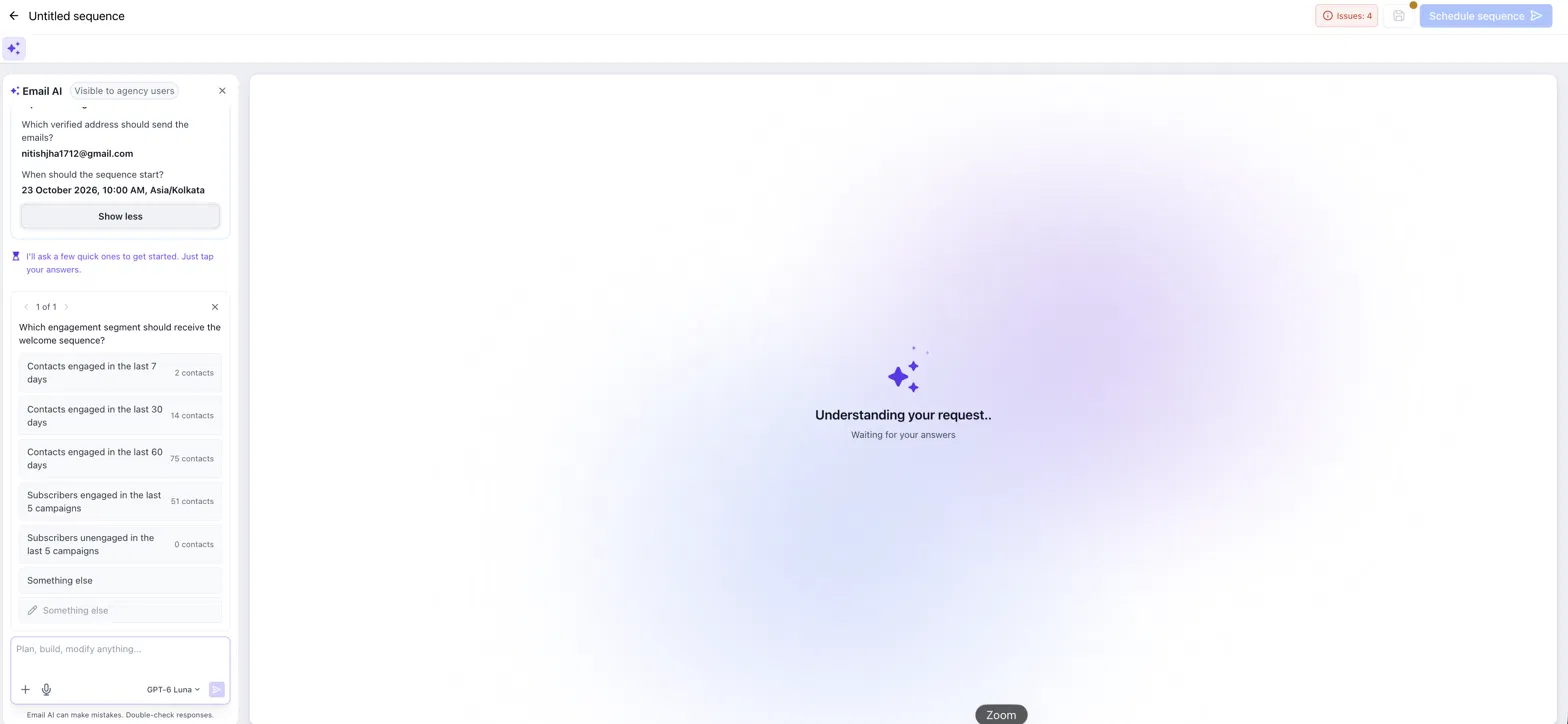
A segment with 0 contacts will not send anything. Check the contact count next to each option before you choose.
Review the plan and approve AI to write emails
Email AI places the plan on the canvas. For a welcome sequence you might see four steps, for example:
| Step | Sends on | Condition |
|---|---|---|
| 1. Welcome to the brand | 23 October 2026 | Sequence trigger |
| 2. What to expect | 26 October 2026 | Previous email is delivered |
| 3. Your first step | 30 October 2026 | Previous email is delivered |
| 4. Where to next | 6 November 2026 | Previous email is delivered |
Click Set sequence trigger to review the settings in the Sequence editor on the right: the schedule date and time, the recipients (pre-built segment and contact count) and Stop on reply, which pauses the sequence for any contact who replies.
Email AI also tells you which defaults it assumed, such as a friendly tone, weekday-only sending and click tracking on. Use the suggestion chips (Change sending time?, Adjust weekday-only sending?, Limit to specific segments?, Modify friendly tone?) or type in the chat box to change anything.
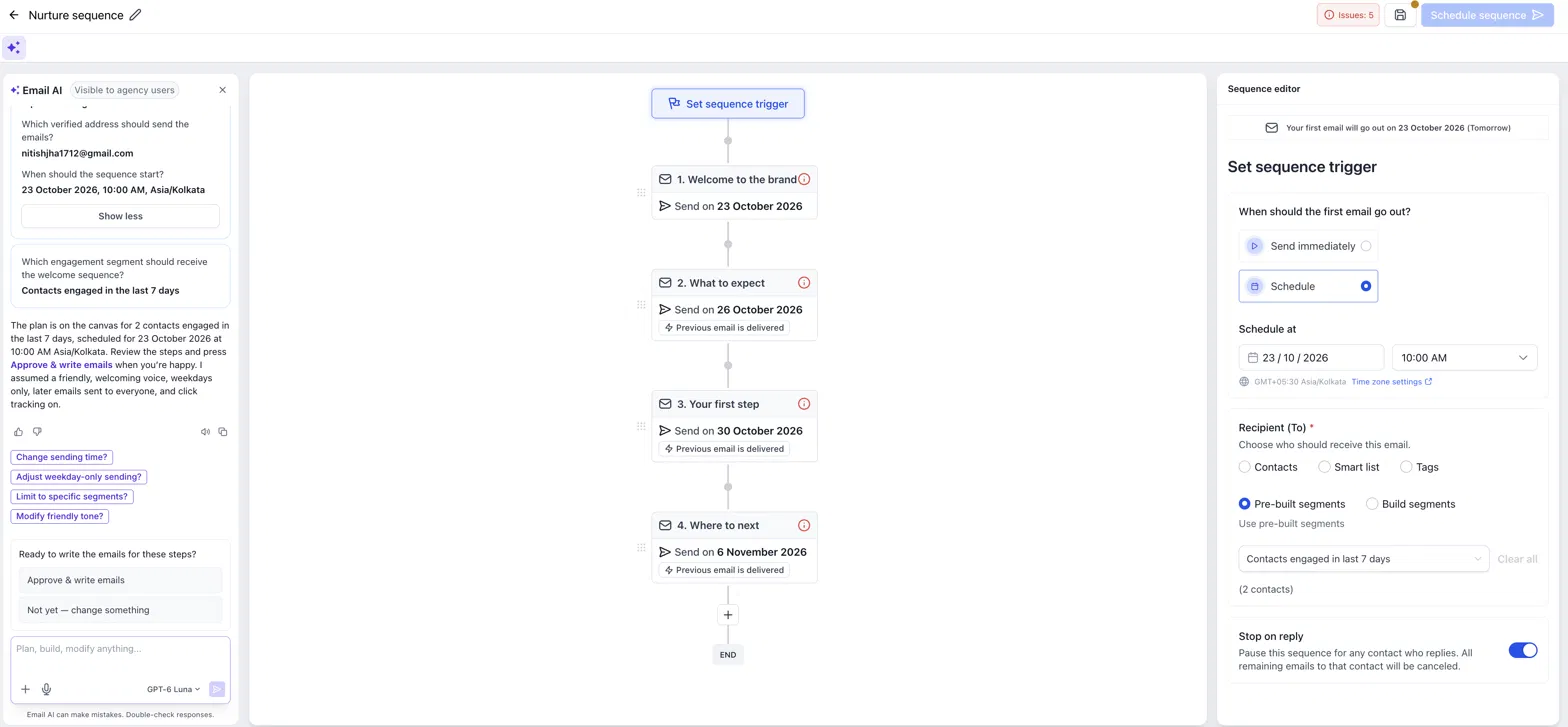
When the plan looks right, answer Ready to write the emails for these steps? with Approve & write emails. Choose Not yet — change something if you want to adjust the plan first. Email AI then writes each email and applies a template to every step.
The red Issues counter at the top right shows what still needs attention, such as steps without email content. Once the emails are written and the issues are resolved, the counter disappears and the Schedule sequence button becomes active.
Confirm and schedule the sequence
Click any step to review its template, sender name and sender email in the Sequence editor. Email AI then asks you to confirm the send, for example:
Send “Nurture sequence” to 2 contacts on Fri 23 Oct 2026 at 10:00 AM IST? This cannot be undone.
- Yes, send it — schedules the sequence.
- No, leave as draft for now — saves it as a draft to finish later.
- Something else — type a different instruction.
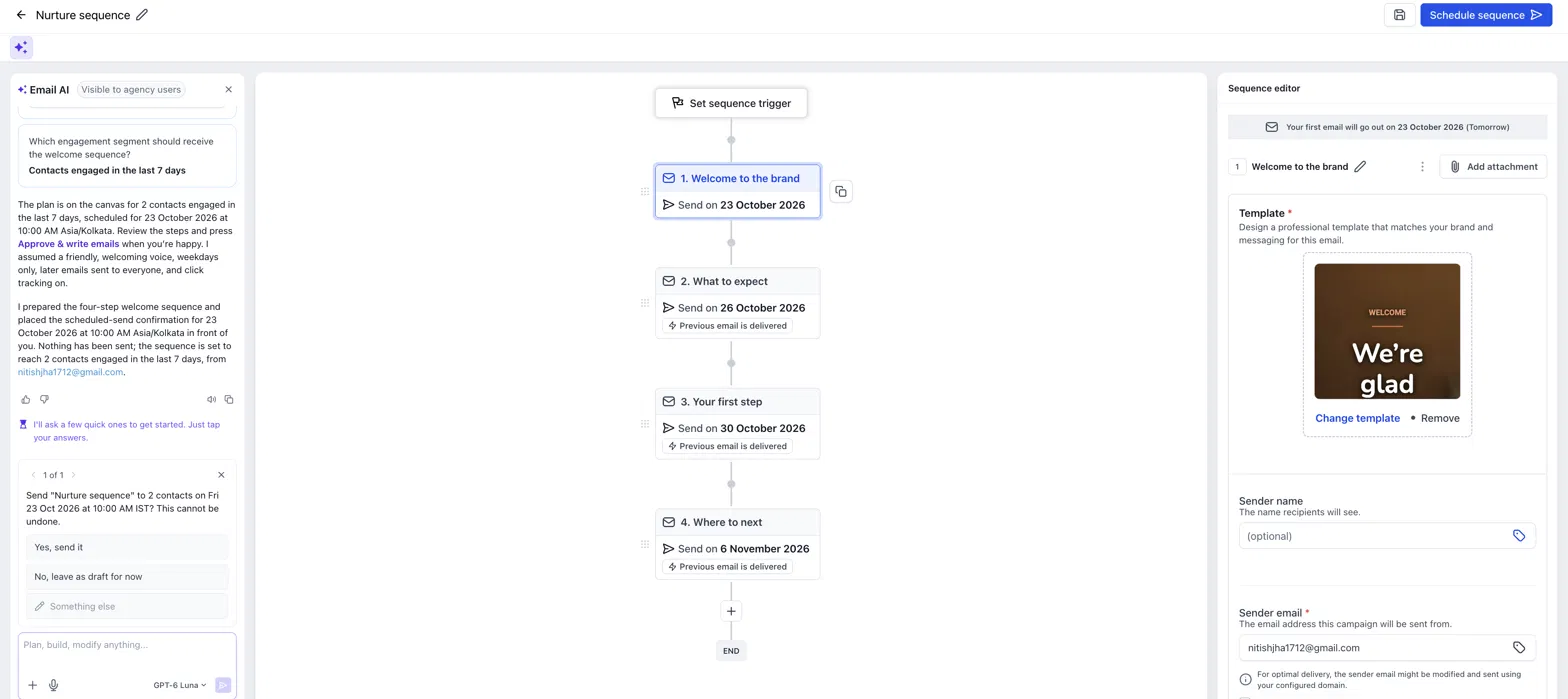
Check the recipient count, sender address and start time before you click Yes, send it. Once the sequence goes out, sent emails cannot be recalled.
After you confirm, Email AI runs a pre-flight check and schedules the sequence. It confirms the scheduled date and time and the sender address used for Step 1. The sequence now shows as Scheduled on the Email sequences page, with its execution date.
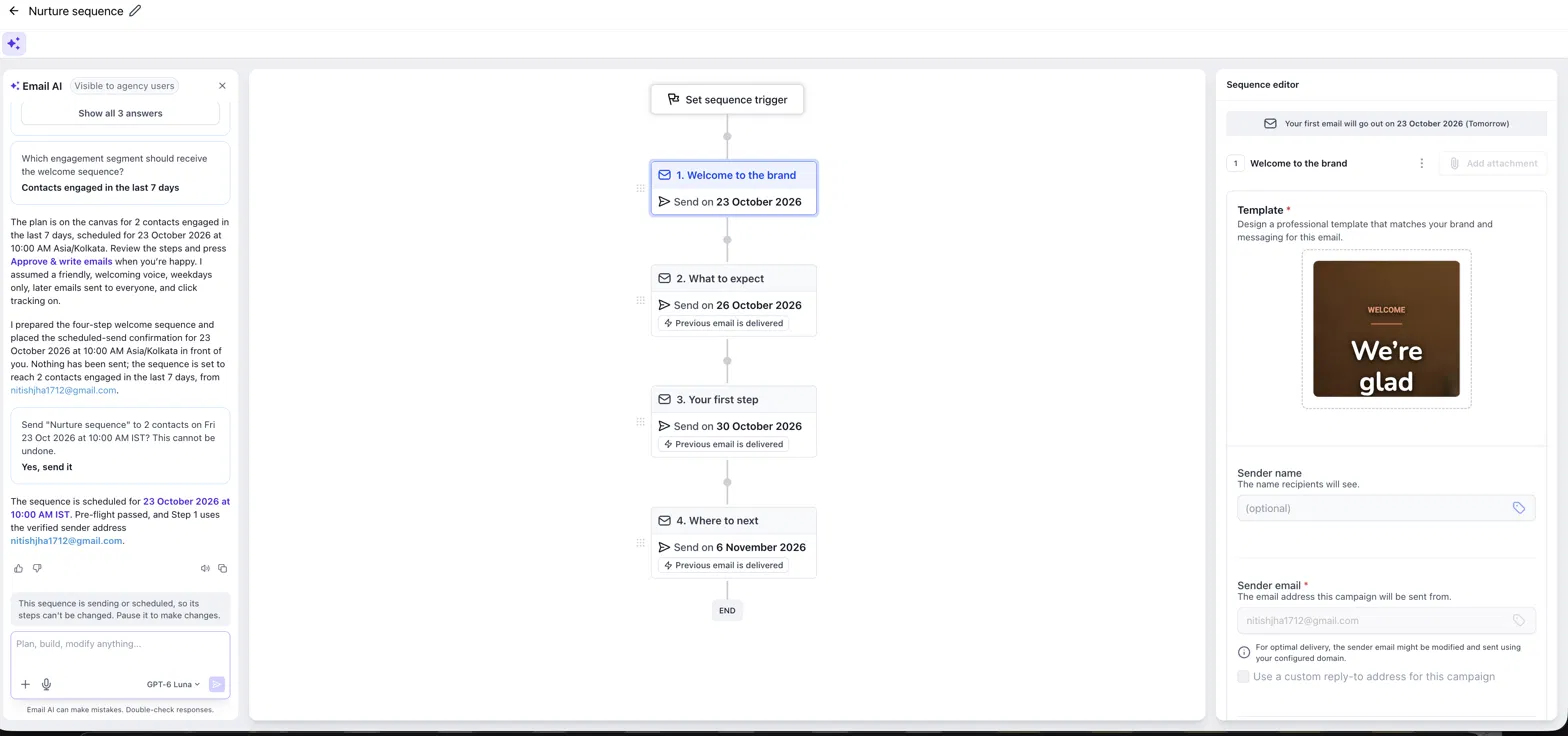
While a sequence is sending or scheduled, its steps are locked. To make changes, pause the sequence first.
Your AI-built sequence is scheduled. The first email goes out at the time you chose, and each following step sends after the previous email is delivered.