
Community Polls let you collect feedback by asking questions directly in Community posts. Members can vote on answer choices and participate without leaving the Community feed. You can configure multiple-answer voting, control whether members see results, and set a closing date where supported. This guide explains how to create and publish polls on the web and supported mobile apps, review voting settings, and understand what happens after publishing.
TABLE OF CONTENTS
- What Are Polls in Community Posts?
- Key Benefits of Community Polls
- Prerequisites and Limitations
- How to Create Polls in Community Posts
- Frequently Asked Questions
- Need Help?
What Are Polls in Community Posts?
Community Polls are interactive posts that let members vote on questions directly within a Community. They help you collect opinions, encourage participation, and keep feedback in the same place as other Community discussions.
You can create polls from the supported web Community experience and compatible mobile applications. Poll creators can configure voting preferences and result visibility using the controls available in their interface.
The documented web poll editor supports:
- Answer Options: Add between 2 and 10 answer choices.
- Flexible Voting: Allow members to select one answer or multiple answers.
- Result Visibility: Choose whether members can view poll results.
- Optional Closing Time: Set an end date and time for voting.
- Post-Publication Editing: Edit published polls to add answer options.
Some of these settings are also available in supported mobile poll editors. The documented numerical limits apply to the web editor; mobile limits should be confirmed separately.
Key Benefits of Community Polls
Community Polls make it easier to gather feedback and encourage participation without directing members to an external survey. They also give poll creators control over how members vote and view results.
- Native Poll Creation: Create polls directly within the Community post composer.
- Flexible Voting: Allow members to choose one or multiple answers, depending on the selected settings.
- Result Visibility Controls: Decide whether members can see vote counts and poll results.
- Scheduled Closing: Set an optional end date and time to close voting automatically.
- Post-Publication Updates: Edit published polls and add answer options using the documented web experience.
- Supported Mobile Access: Create and publish polls from compatible Community mobile applications while away from your computer.
Prerequisites and Limitations
Before creating a poll, confirm that you can access the Community where you want to publish it. The poll editor and its available settings depend on the interface you use.
- Community Access: You need access to the Community and the ability to create posts in the intended location.
- Supported Web Interface: The documented web poll-creation process uses the updated Community experience.
- Supported Mobile Application: The mobile instructions apply when your Community application provides the Create poll feature.
- Web Answer Limits: The documented web editor supports 2 to 10 answers, with a maximum of 100 characters per answer.
- Platform Differences: Poll controls and limits may differ between the web and mobile interfaces. Use the settings available in your editor.
Important: If the Poll option is missing from the web post composer, confirm that you are using the updated Community experience. Mobile poll creation requires a supported application with the poll editor available.
How to Create Polls in Community Posts
You can create a Community Poll by opening a post composer, adding answer choices, and choosing the available voting settings. Follow the steps for the web or mobile experience you are using.
Create a Poll on the Web
The updated web Community interface lets you create polls, organize answer choices, configure voting, and choose whether results are visible before publishing.
- Go to Memberships → Communities → Groups.
- Find the Community Group where you want to publish the poll and click Login to open it.
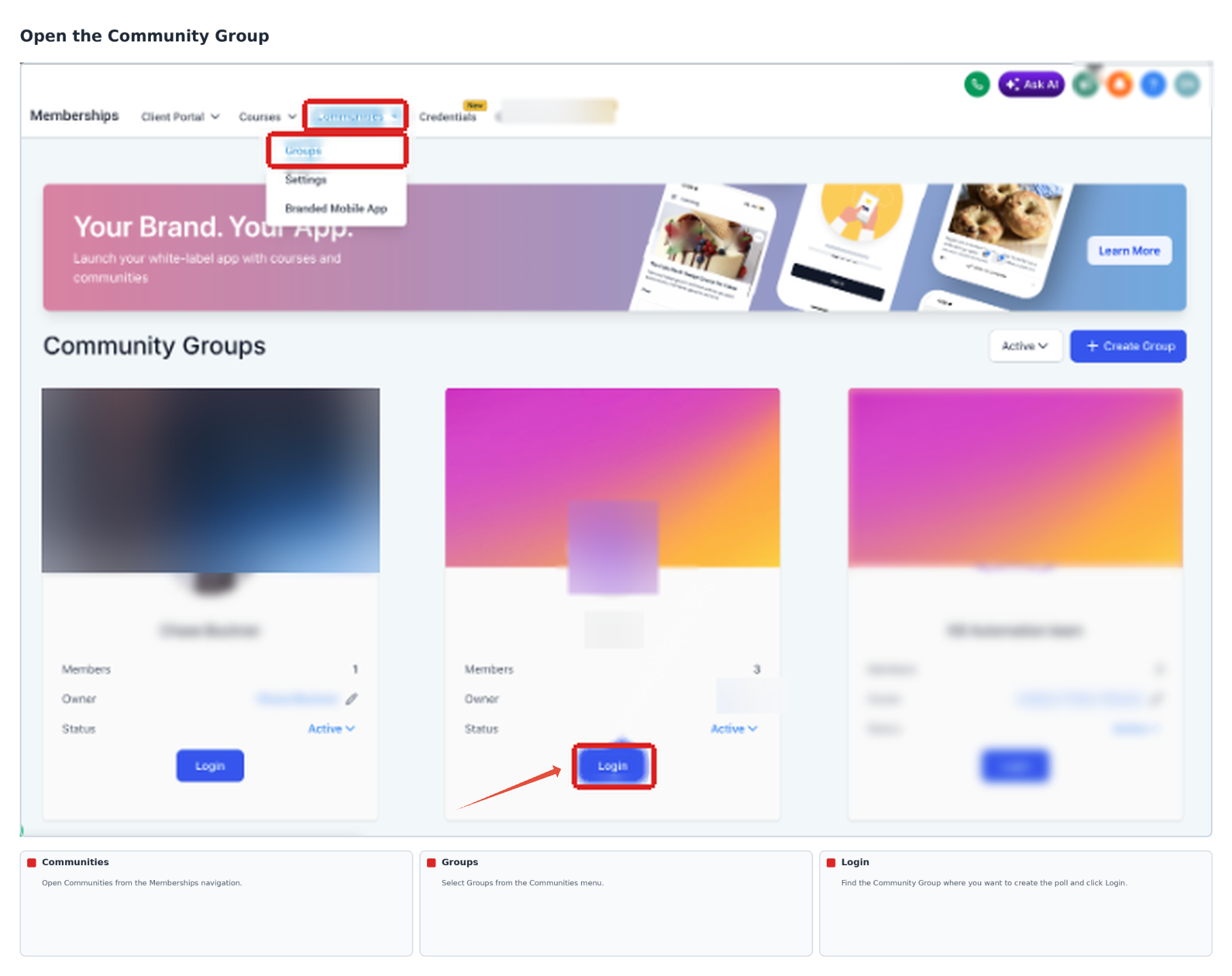
- Inside the Community, click Create a post.
- Enter the post Title and Description. Use the description to explain the question or provide any information members need before voting.
- Click Poll in the post composer to add a poll.
- Enter your answer choices. The documented web editor supports between 2 and 10 options.
- Reorder or delete answer choices as needed before publishing.
- Turn on Allow multiple answers if members should be able to select more than one choice. Leave it off if members should select only one answer.
- Turn Allow Members to See Results on or off to control whether members can view poll results.
- If you want voting to end automatically, configure the available poll end date and time settings.
- Review the post title, description, answer choices, and voting settings. Click Post to publish the poll in the Community feed.
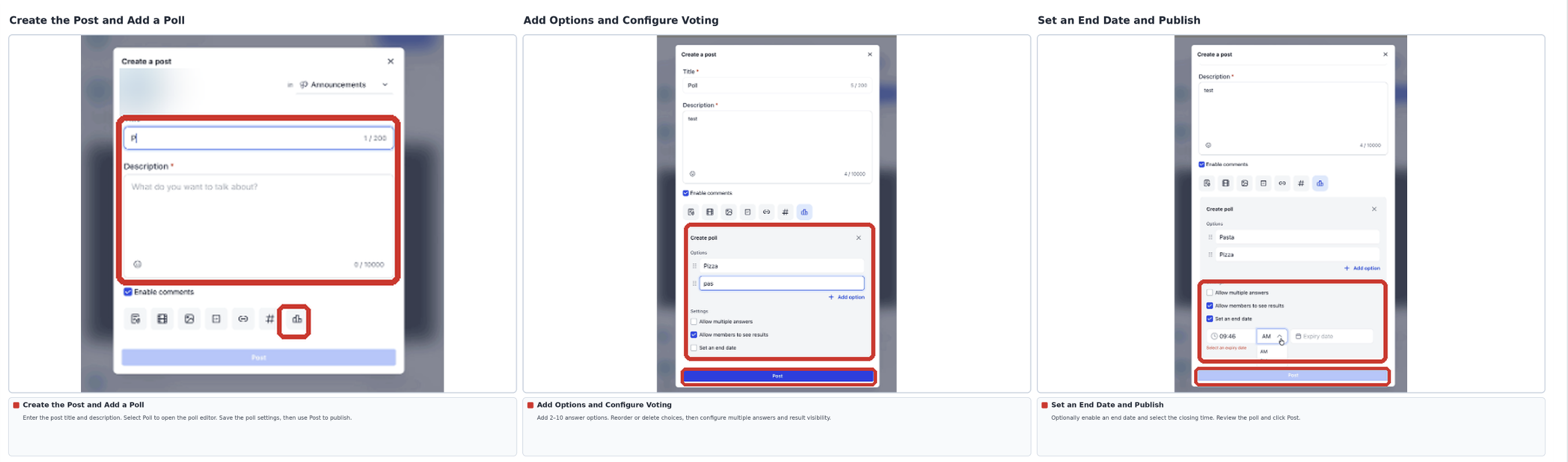
After publishing, members can vote on the available answer choices. The poll's result visibility and end-date settings determine what members can see and when voting closes.
Create a Poll on a Supported Mobile App
When your Community mobile application supports poll creation, you can add a poll directly to a Community post. The documented mobile workflow includes answer choices, voting settings, channel selection, and publishing controls.
- Open the supported Community mobile application and sign in.
- Select Communities from the bottom navigation.
- Open the Community where you want to create a poll.
- Start a new Community post to open the Create post screen.
- Use the channel selector at the top of the post composer to choose the destination Community channel.
- Enter the post title and the question or description you want members to respond to.
- Open the Create poll panel from the post composer.
- Enter the answer choices that members can vote on.
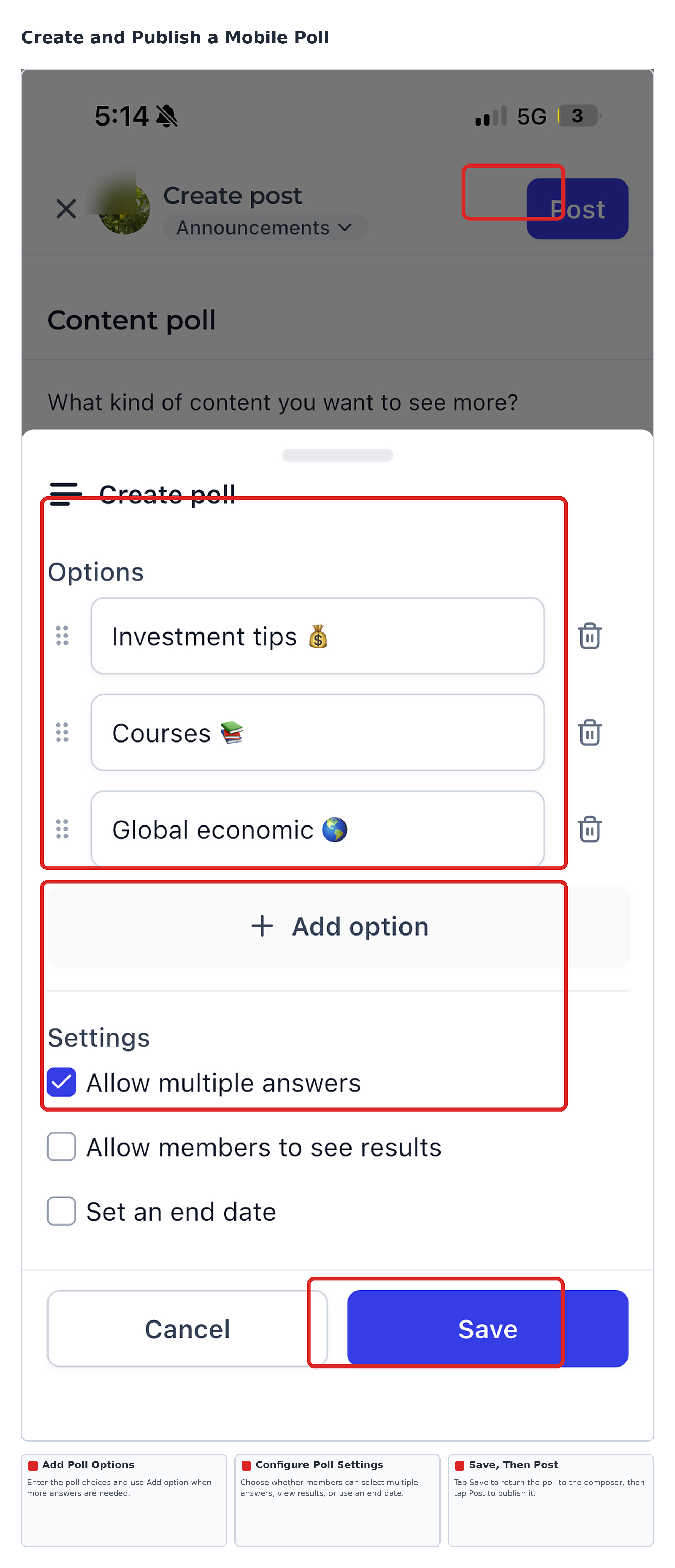
- Tap Add option to include more answer choices. Use the available reorder and delete controls to organize the options.
- Review the poll settings:
- Allow multiple answers: Let members select more than one answer.
- Allow members to see results: Control whether members can view the poll results.
- Set an end date: Choose when voting should close.
- Allow multiple answers: Let members select more than one answer.
- Tap Save to save the poll settings and return to the post composer.
- Review the title, selected Community channel, and poll details. Tap Post in the upper-right corner to publish the poll.
- Return to the Community feed and confirm that the poll appears in the intended channel. Review the question, answer choices, and displayed vote count.
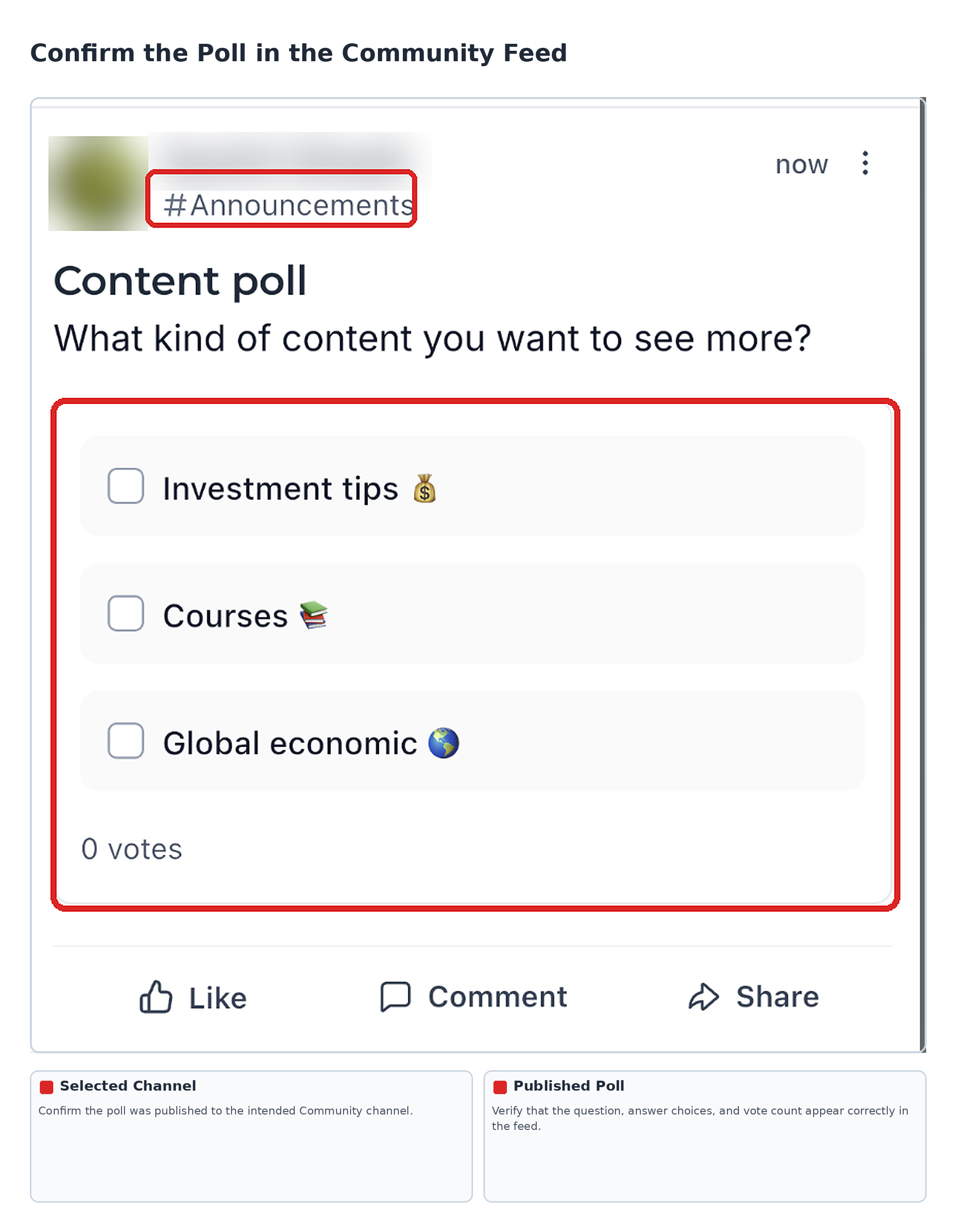
The published poll appears within the selected Community channel. Members can vote using the available answer choices according to the configured settings.
Frequently Asked Questions
Q: How many options can I add to a poll?
The documented web poll editor supports between 2 and 10 answer options. Confirm the available limits separately when using a mobile editor.
Q: How long can each answer option be?
Each answer option can contain up to 100 characters in the documented web editor.
Q: Can members select more than one answer?
Yes. Enable Allow multiple answers to let members choose multiple options. This setting is documented in the web editor and shown in the supported mobile poll editor.
Q: What happens when member result visibility is turned off?
Members can still vote, but they cannot view vote counts or live percentages while poll results are hidden.
Q: What happens when a poll reaches its end date?
The poll is marked Closed, and members can no longer vote.
Q: Can I edit a poll after publishing it?
Yes. The documented web experience allows poll creators to edit published polls and add new answer options.
Q: Can members change their vote?
Yes. Members may be asked to confirm before changing their vote.
Need Help?
If you cannot create, publish, or participate in a Community Poll, review the Community interface and voting settings. The following checks can help identify common issues.
- Poll Option Is Missing: Confirm that you are using the updated web Community experience or a supported mobile application that includes poll creation.
- Cannot Open the Intended Community: Review the available groups and confirm that you can access the Community where you want to publish.
- Poll Does Not Appear in the Feed: Check that the post was published to the intended Community or channel.
- Members Cannot Select Multiple Answers: Review the Allow multiple answers setting.
- Members Cannot See Results: Review Allow Members to See Results or the equivalent setting in the supported editor.
- Members Cannot Vote: Check whether the poll has reached its configured end date and is marked Closed.
- Mobile Poll Controls Are Missing: Confirm that your Community mobile application supports the documented poll-creation features.
If the issue continues, contact support. Include the affected Community, your browser or mobile application, the poll settings involved, and any relevant screenshots or error messages.