
Courses on supported mobile apps let you open learning materials, navigate lessons, complete activities, and track progress from an iOS or Android device. The Courses area brings together course overviews, syllabuses, lessons, and learning activities. Where available, the Course Miniplayer helps you resume playback and continue listening while navigating course content. This guide explains how to access courses, use the syllabus and Miniplayer, participate in discussions, complete assessments, and review learning progress.
TABLE OF CONTENTS
- What Are Mobile Courses?
- Key Benefits of Mobile Courses
- Prerequisites and Limitations
- How to Access Courses on Mobile
- How to Navigate Courses and Lessons
- How to Use the Course Miniplayer
- How to Complete Learning Activities
- How to Review Course Progress
- Mobile Navigation and Learning Experience
- Frequently Asked Questions
- Need Help?
What Are Mobile Courses?
Mobile Courses provide a learning experience within supported iOS and Android applications. Learners can open their available courses, follow lessons, complete supported activities, and view learning progress directly from a mobile device.
Course content is organized into modules and lessons. Depending on the course, learning materials can include text, audio, video, quizzes, assignments, and discussions.
The updated mobile learning experience also includes the Course Miniplayer, which supports continued listening while navigating through course content.
Key Benefits of Mobile Courses
Mobile Courses bring learning materials and activities into one experience. They help learners move between lessons, participate in course activities, and monitor their progress without repeatedly returning to separate screens.
- Convenient Course Access: Open available courses directly from a supported mobile application.
- Organized Lesson Navigation: Use the Syllabus to find modules, lessons, quizzes, and assignments.
- Multiple Lesson Formats: Access text, audio, and video learning materials through the supported course interface.
- Continued Listening: Use the Course Miniplayer to resume audio and continue listening while moving through the Courses experience.
- Interactive Learning: Participate in comments and complete quizzes and assignments from your mobile device.
- Progress Visibility: Review available completion indicators to understand how much of a course you have finished.
Prerequisites and Limitations
Before opening a course, confirm that your mobile application supports the Courses experience and that you have access to the learning material. Available navigation controls and features may vary between application versions.
- Supported Mobile Application: Use an iOS or Android application that provides the documented Courses experience.
- Sign-In Access: Sign in with the credentials associated with your learning access.
- Course Availability: The course you want to open must be available to you.
- Updated Interface: Use a supported application version that includes the learning features described in this guide.
- Course Miniplayer: The documented Miniplayer supports continued listening while navigating within the Courses experience.
Important: Background playback, screen-lock playback, and playback outside the Courses experience are not established by this guide. The Miniplayer instructions apply only where the feature is available in your mobile application.
How to Access Courses on Mobile
Start from the Courses area to find learning materials available to you. Depending on the supported application version, Courses may appear on an app-selection screen or in the bottom navigation.
- Open your supported learning application on an iOS or Android device.
- Sign in using your account credentials.
- Select Courses from the app-selection screen or bottom navigation, depending on the interface displayed.
- Browse the available courses and select the course you want to open.
- Review the course overview. Select Start Learning to begin when that option is displayed.
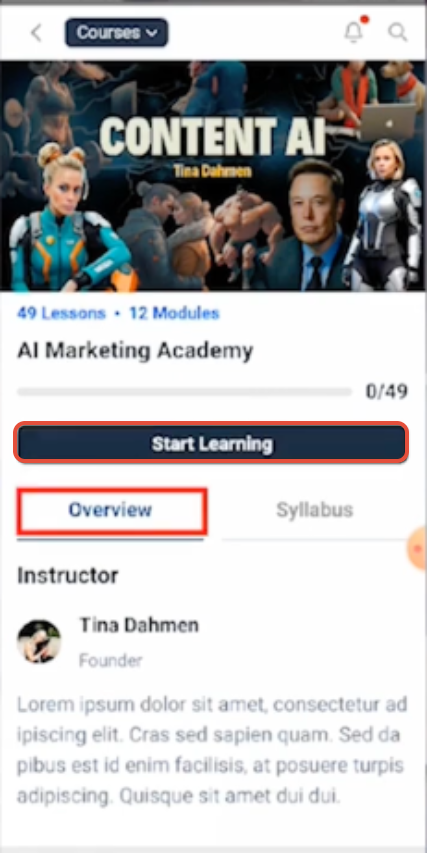
The course overview can display the number of lessons and modules, current completion progress, and available navigation options.
How to Navigate Courses and Lessons
The mobile course interface keeps lesson content and course navigation together. Use the Syllabus to find available lessons and learning activities without repeatedly returning to the course overview.
Use the Course Syllabus
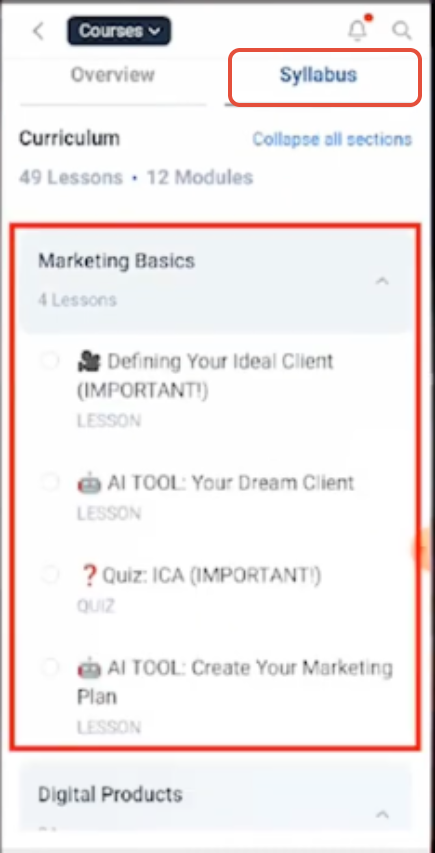
The Syllabus organizes learning content into sections or modules. Expanding or collapsing sections helps you focus on the material you want to open.
- Open Courses and select the course you want to study.
- Select the Syllabus tab to view the course curriculum.
- Expand a course section to display its available lessons and activities.
- Select a lesson, quiz, or other available activity to open it.
- Collapse sections when you want to simplify the course outline.
Supported Lesson Types
Courses can contain different lesson formats. The mobile learning interface provides the appropriate reading or playback experience for each supported type.
- Text Lessons: Read written course materials in a mobile-friendly layout.
- Audio Lessons: Listen to course content using the available playback controls.
- Video Lessons: Watch video content in a responsive player with supported full-screen playback.
Select the lesson you want to review from the Syllabus to open its available content.
How to Use the Course Miniplayer
The Course Miniplayer helps you continue listening while navigating the Courses experience. It keeps playback controls available as you move through supported course content and helps you resume listening where you left off.
Start Playback and Continue Learning
Begin playback from an available lesson, then use the Miniplayer to control your listening experience as you navigate.
- Open your supported mobile learning application and select Courses.
- Open the course you want to continue.
- Select the lesson you want to listen to.
- Start the content using the available playback control.
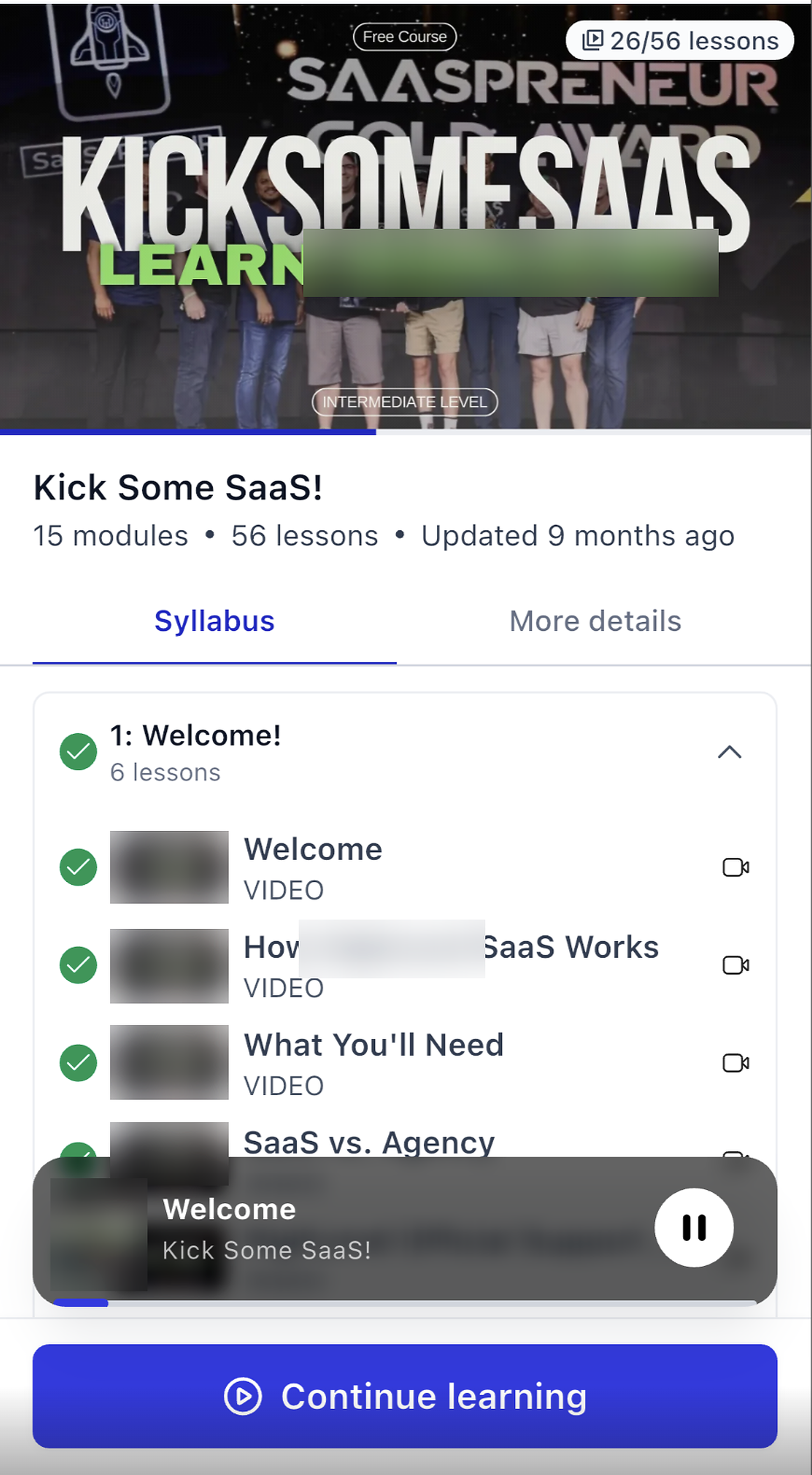
- Continue navigating through the Courses experience while the Miniplayer remains available.
- Use the Miniplayer's playback control to pause or continue listening.
Note: The documented Miniplayer supports listening while moving through the Courses experience. Do not assume playback continues when the device is locked, the application is in the background, or you leave Courses.
How to Complete Learning Activities
Courses can include discussions, quizzes, and assignments alongside regular lessons. These activities allow you to respond to learning materials and review available assessment results directly from your mobile device.
Participate in Course Comments
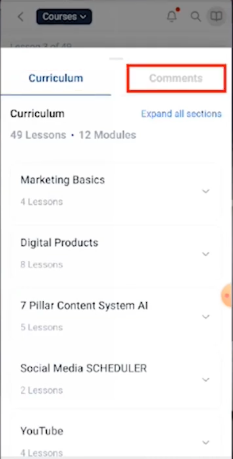
Comments let learners take part in discussions about course content. The mobile interface provides a comments area where supported discussions and replies can appear.
- Open the relevant course content.
- Select Comments when the comments tab is available.
- Review the existing conversation.
- Use the available reply controls to respond to an individual comment.
Complete Course Quizzes
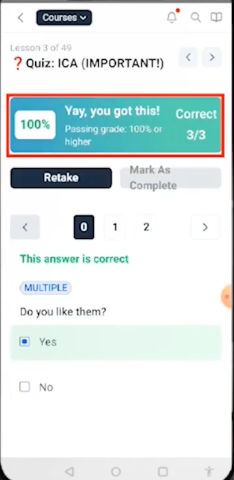
Quizzes provide a way to review your understanding of course material. The mobile quiz interface supports question navigation and displays available results after completion.
- Open the course and locate an available quiz through the Syllabus.
- Open the quiz and work through its questions using the available answer controls.
- Complete the quiz using the controls presented in the assessment.
- Review the available results, which can include your score, correct answers, and question navigation.
Submit Course Assignments
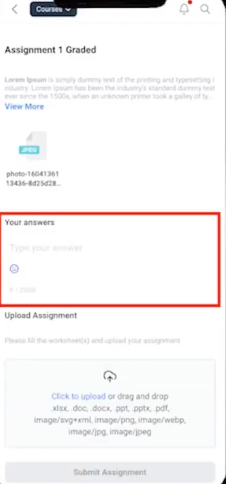
Assignments can include written responses and supported file uploads. Complete the requested work in the mobile course interface and review its available status after submitting it.
- Open your course and select an available assignment.
- Read the assignment instructions and identify the required response.
- Enter your written answer when a text response is requested.
- Upload any required supported files using the available upload control.
- Select Submit Assignment when your response is ready.
Review Assignment Status
After submission, an assignment can display its current review status. This helps you understand whether the assignment is still awaiting review.
- Return to the assignment you submitted.
- Review the displayed status when available.
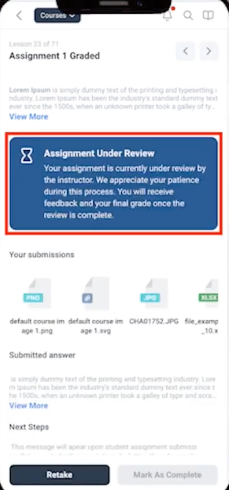
An Assignment Under Review message indicates that the submitted work is awaiting review.
How to Review Course Progress
Course progress indicators show how much learning content you have completed. Reviewing progress helps you understand your current position and return to unfinished material.
- Open the supported mobile learning application.
- Locate the available Course Progress indicator or open the relevant course overview.
- Review the displayed completion information.
- Return to the course or select Start Learning when available to continue.
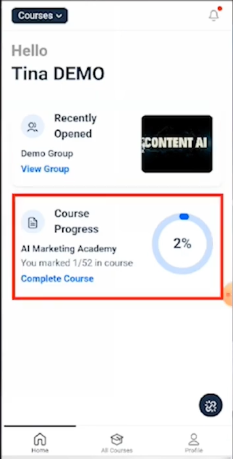
Depending on the course view, progress information can include a completion percentage or the number of completed lessons.
Mobile Navigation and Learning Experience
The updated mobile learning experience brings course content and supported Community features into one application. Available navigation options depend on the interface and version you use.
Move Between Supported Areas
Use the application's available navigation controls to access the learning and Community experiences provided to you.
- Courses: Open available courses and learning content.
- Communities: Access Community spaces available to you.
- App Navigation: Switch between supported sections using the app-selection screen or available navigation tabs.
Updated Learning Experience
The updated mobile course experience includes improved loading states and navigation between learning activities. These changes are intended to make transitions between lessons, quizzes, assignments, and other course content feel smoother.
Keep the supported mobile application updated to access the latest available version of its learning interface.
Frequently Asked Questions
Q: Where can I find my courses on mobile?
After signing in to a supported mobile application, select Courses from the app-selection screen or bottom navigation, depending on the version displayed.
Q: How do I view all lessons in a course?
Open the course and select the Syllabus tab. Expand or collapse sections to review the lessons and activities inside each module.
Q: What is the Course Miniplayer?
The Course Miniplayer helps you resume course content and continue listening while navigating through the supported Courses experience.
Q: Can I continue listening while navigating between course lessons?
Yes. Where the Course Miniplayer is supported, it allows continued listening while navigating within Courses. Playback outside the Courses experience is not established by this guide.
Q: How do I check the status of an assignment?
Open the assignment you submitted. When available, its current status appears directly in the assignment interface, including an Assignment Under Review message when the work is awaiting review.
Q: Where can I see my course progress?
Check the available Course Progress indicator or course overview. These areas can display the amount of learning content you have completed.
Q: Why don't I see the updated course experience?
Confirm that your mobile application supports the updated Courses experience. Update the application to the latest available version and verify that you have access to the course you want to open.
Need Help?
If you have trouble accessing courses, playing lessons, completing activities, or viewing progress, start by checking the available course and application controls.
- Courses Is Missing: Check the app-selection screen and bottom navigation for Courses. Confirm that your application supports the documented learning experience.
- A Course Is Missing: Confirm that you are signed in with the intended credentials and have access to that course.
- Lessons Are Difficult to Find: Open the course's Syllabus tab and expand the relevant modules.
- The Miniplayer Is Missing: Confirm that you are using a supported mobile learning interface and that playback has started in an eligible lesson.
- Playback Does Not Continue: Review the available Miniplayer controls while remaining within the Courses experience.
- Quiz Results Are Missing: Confirm that the quiz has been completed and review the available results screen.
- An Assignment Cannot Be Submitted: Check the required response fields and any supported file uploads before using the submission control.
- Assignment Review Status Is Missing: Open the submitted assignment and review the available status information.
- Course Progress Is Unclear: Review the course overview or available Course Progress indicator to locate completion information.
- The Mobile Experience Looks Different: Confirm that you are using a supported, updated application version.
If the issue continues, contact support. Include the course name, mobile device, application version, affected lesson or activity, and any relevant screenshots or error messages.