
Profile Cards and Business Cards make it easy to share personal and business contact information through a digital page, link, or QR code. When you first access this feature, the available cards are generated automatically using existing information. You can personalize card details, add links, share QR codes, and review scan activity. This guide explains how to access, customize, and share your cards, including how to collect contact information using Exchange Contact.
TABLE OF CONTENTS
- What Are Automatically Generated Profile and Business Cards?
- Key Benefits of Profile and Business Cards
- Prerequisites and Limitations
- How to Access and Use Your Cards
- Save Contact and Exchange Contact
- Frequently Asked Questions
- Need Help?
What Are Automatically Generated Profile and Business Cards?
Profile Cards and Business Cards are digital contact cards that let you share information through a link or QR code. When an authorized user accesses the card feature for the first time, the system automatically generates the available cards using existing information.
Each card serves a different purpose:
| Card Type | Information Displayed | Purpose |
|---|---|---|
| Profile Card | Personal information, such as your name, title, and contact details. | Share your professional contact information with others. |
| Business Card | Business information and available contact details. | Provide visitors with a digital way to access business information. |
Each card has its own shareable link, downloadable QR code, and scan analytics. After automatic creation, you can update the information and appearance of cards you have permission to manage.
Key Benefits of Profile and Business Cards
Automatically generated cards reduce the work needed to create digital contact information. They also provide customization, sharing, and optional lead collection features.
- Automatic Card Creation: Access available Profile and Business Cards without building them manually.
- Easy Sharing: Copy a card link or download a QR code to share digitally or through printed materials.
- Custom Links: Add websites, booking pages, portfolios, and supported social profiles such as Instagram, Facebook, LinkedIn, X, and YouTube.
- Contact Saving: Allow visitors to save your contact details directly to their devices.
- Optional Lead Collection: Use Exchange Contact to collect information from visitors who choose to submit a contact form.
- Scan Analytics: Review QR code scan activity for individual cards.
- Flexible Customization: Update card details, links, colors, and available appearance settings after creation.
Supported QR codes can also be saved to compatible digital wallets when that option is available.
Prerequisites and Limitations
Before accessing your cards, make sure the feature is available to you and that you have the required permissions. Viewing and editing are separate capabilities, so available actions depend on your access.
- QR Codes Access: You need access to the QR Codes feature and permission to use the relevant card.
- View Permission: Allows you to access and share a permitted card and review available information.
- Manage Permission: Is required to edit a card's details, appearance, and available settings.
- Save Contact: Is enabled automatically on Profile and Business Cards.
- Exchange Contact: Is disabled by default and must be enabled if you want visitors to submit their information.
- Card Availability: The cards and actions displayed depend on your permissions.
- Existing QR Codes: Permissions specific to automatically generated cards do not change permissions for manually created QR codes.
Note: If you do not have permission to access either card, the QR icon may not appear. Contact support if you need help confirming access to this feature.
How to Access and Use Your Cards
Profile and Business Cards are generated automatically when the feature is accessed for the first time. After they become available, you can review their information, customize their appearance, and share them using the available controls.
Access Your Profile and Business Cards
Use the QR control in the top navigation area to open the card interface. The cards available to you depend on your permissions.
- Open the profile menu from the top navigation area.
- Click the QR icon to open the card interface.
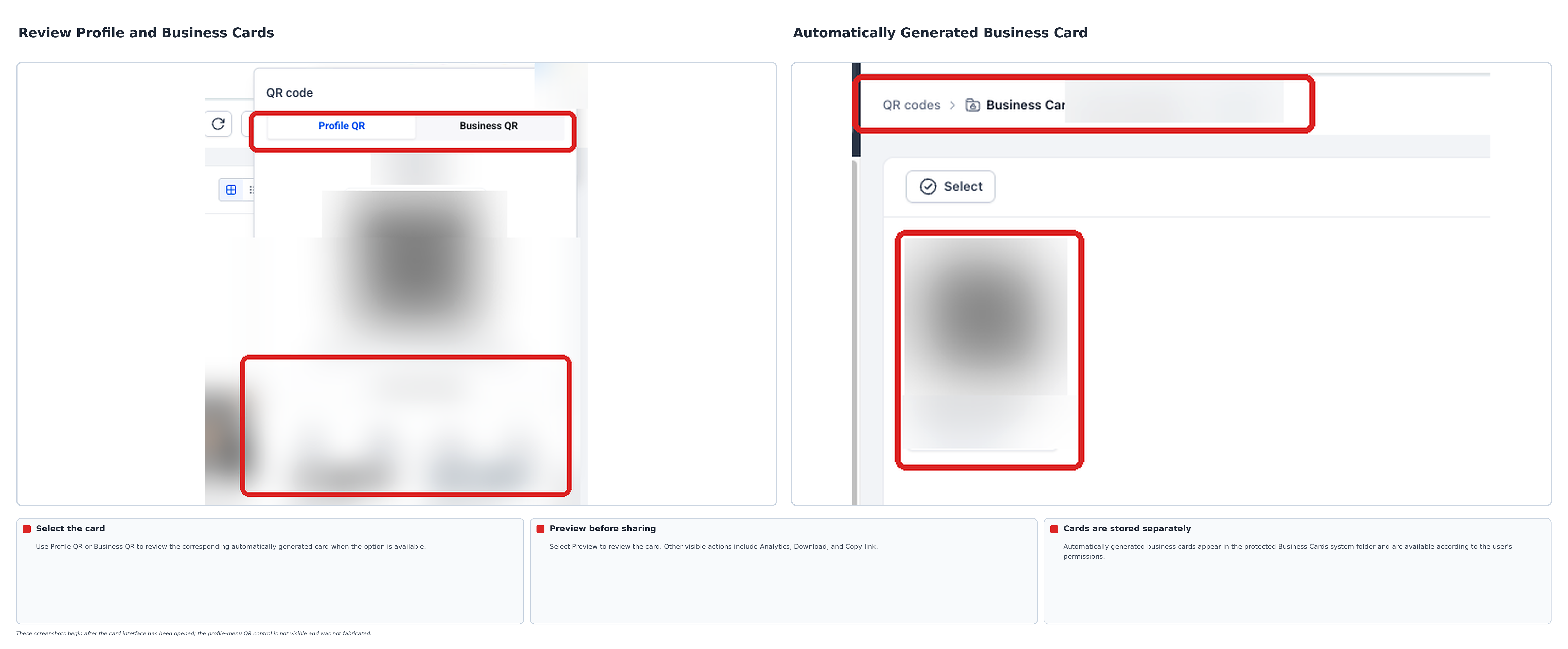
- On first access, the available Profile and Business Cards are generated automatically using existing information.
- Select Profile QR or Business QR to review the corresponding card when those options are available.
- Use Preview to review the card before sharing it.
Customize Your Profile and Business Cards
Cards remain editable after automatic creation. If you have Manage permission, you can update the information, add useful links, and adjust the card's visual appearance.
- Open the profile menu and select the QR icon.
- Select Profile QR or Business QR to find the card you want to customize.
- Open the card editor using its available edit control.
- Update the personal or business information displayed on the card.
- Add supported links, such as your website, booking page, portfolio, or social profiles.
- Review the available appearance settings. Adjust colors and card design as needed.
- Save your changes.
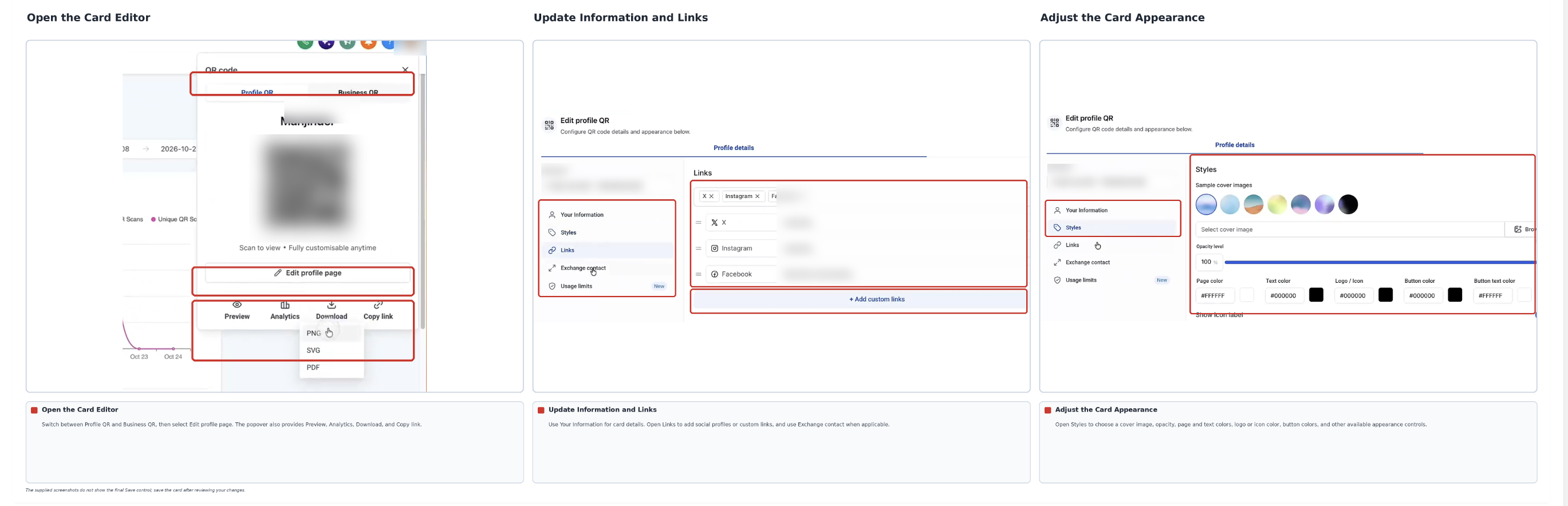
Your changes update the card without requiring you to create a new one.
Enable Exchange Contact to Collect Leads
Exchange Contact allows visitors to submit their contact information when viewing your digital card. When someone completes the configured form, a contact record is created in the CRM and associated with the card that generated the submission.
- Open the profile menu and select the QR icon.
- Select the card you want to configure and open its editor.
- Open Exchange contact in the card settings and enable the feature.
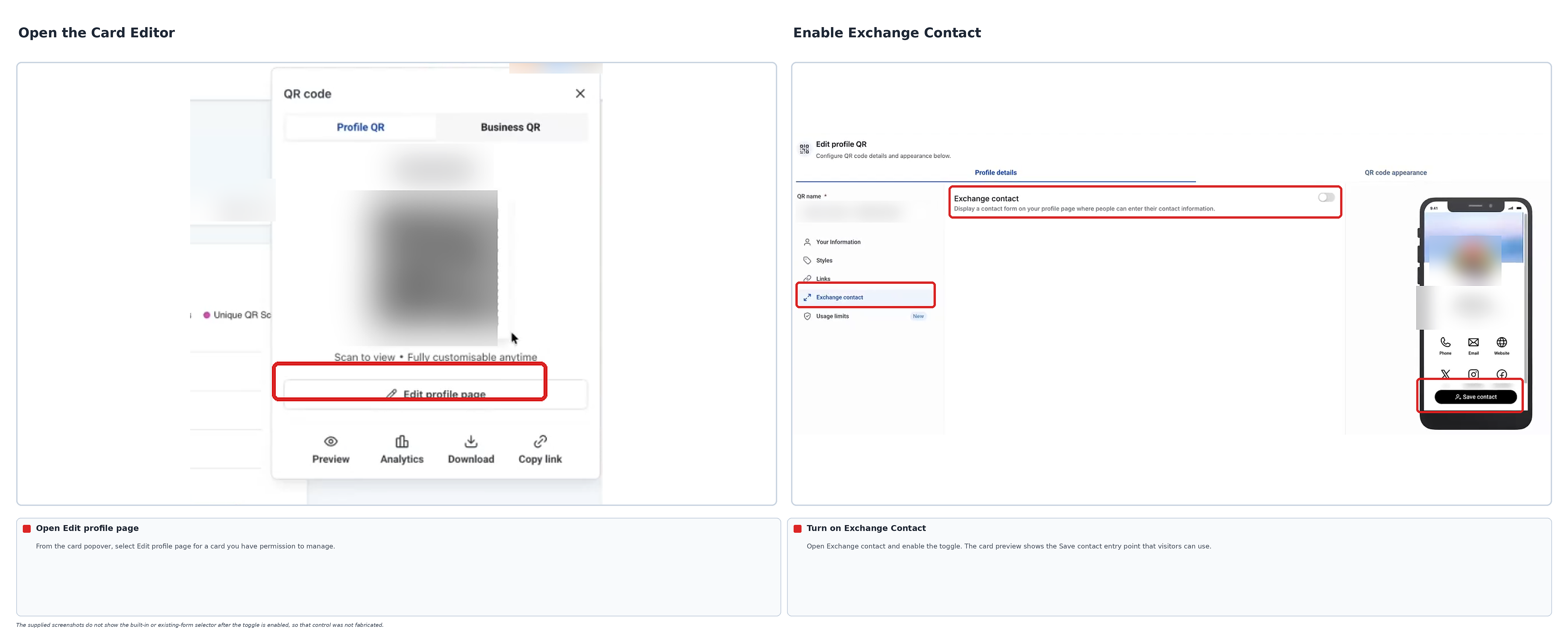
- Choose the available built-in contact form or select an existing form.
- Review the form configuration and save your changes.
Visitors can then use the configured Exchange Contact form to submit their information when viewing your card.
Important: Exchange Contact is optional. Visitors can still use Save Contact to save your details without submitting their own contact information.
Share Your Cards and Review Scan Activity
Each digital card provides a shareable link and QR code. You can use these options to share contact information online, in messages, or through printed materials.
- Open the profile menu and select the QR icon.
- Select the Profile QR or Business QR card you want to share.
- Click Preview to review the card before distributing it.
- Click Copy link to copy the card's shareable URL, or select Download to save its QR code.
- Share the link digitally or include the QR code in printed materials.
- Select Analytics to review the card's recorded scan activity.
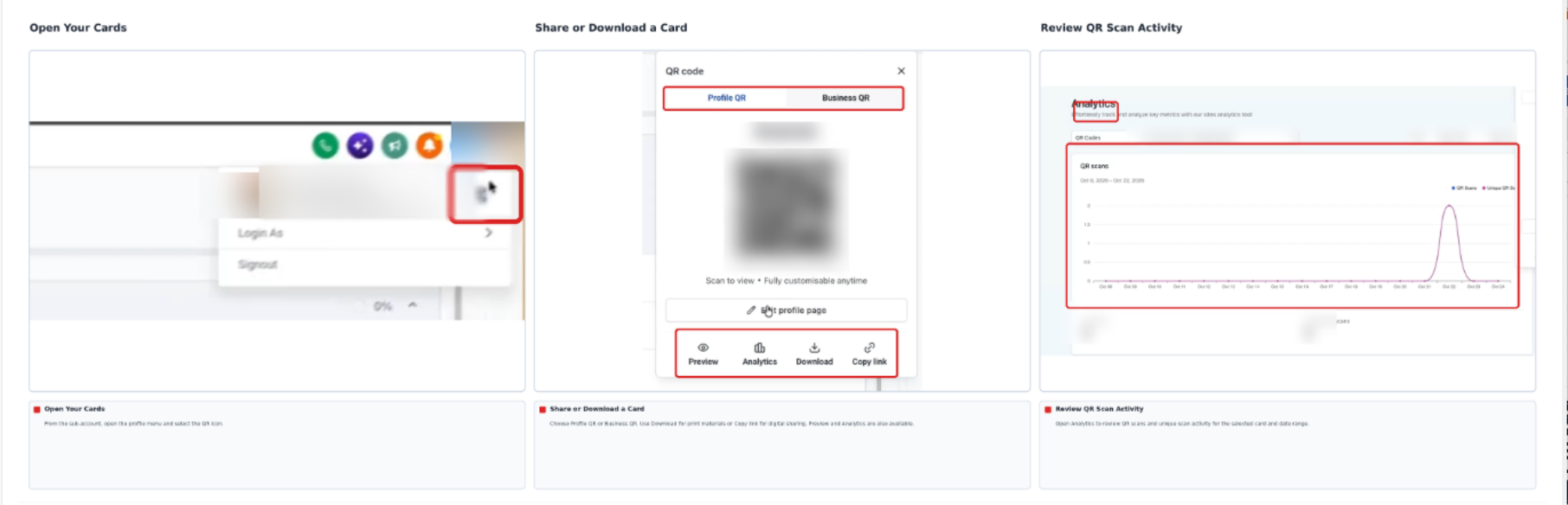
Scan analytics help you understand how often a card is scanned. If Exchange Contact is enabled, submitted contact forms provide a separate way to identify visitors who shared their information.
Save Contact and Exchange Contact
Digital cards provide two different ways to exchange contact information. Understanding the difference helps you choose whether you only want to share your details or also collect information from visitors.
| Feature | What It Does | Default Setting |
|---|---|---|
| Save Contact | Allows visitors to save the contact information displayed on your card to their device. | Enabled |
| Exchange Contact | Allows visitors to submit their information using a configured form. | Disabled |
Save Contact is useful when you want to share information without requiring visitors to enter their details. Exchange Contact is useful when you also want to collect information from interested visitors.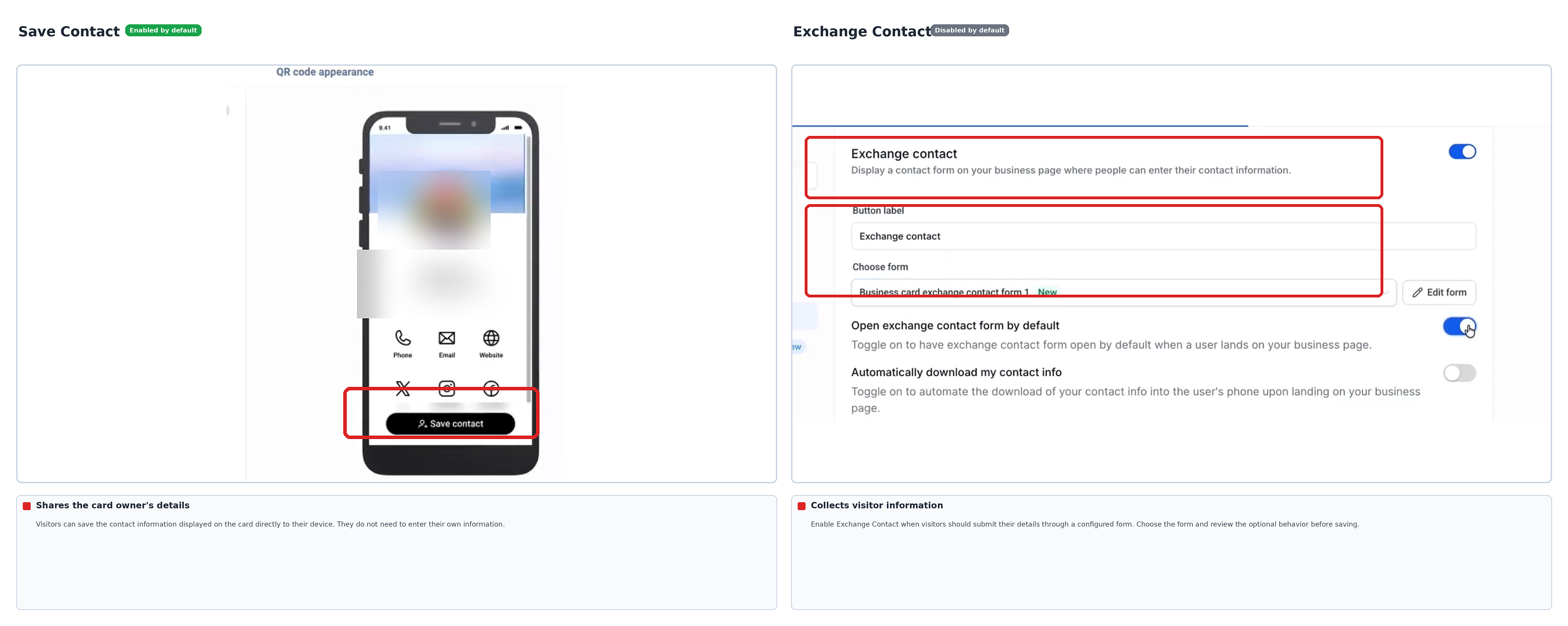
When Exchange Contact is enabled, you can configure the available form option to determine how visitors submit their information.
Frequently Asked Questions
Q: Do I need to create my Profile and Business Cards manually?
No. When the automatic card feature is available, the cards are generated using existing information when an authorized user first accesses the QR card interface.
Q: Why can't I see the QR icon?
The QR icon may be hidden when you do not have the required QR Codes access or card permissions. Contact support if you need help confirming access.
Q: What is the difference between a Profile Card and a Business Card?
A Profile Card presents personal contact information, such as your name and title. A Business Card presents business contact details. Both can provide a shareable link and QR code.
Q: Can visitors save my contact information without sharing theirs?
Yes. Save Contact is enabled automatically. Exchange Contact is a separate, optional feature for collecting visitor information.
Q: Can I use an existing form with Exchange Contact?
Yes. You can choose an existing form or use the available built-in form option when configuring Exchange Contact.
Q: Can I edit a card after it has been generated?
Yes. Users with the appropriate Manage permission can edit card information, links, and appearance after automatic creation.
Q: How do I check how often my card has been scanned?
Open the QR card interface, select the relevant card, and click Analytics to review available scan activity.
Q: Do these card permissions affect manually created QR codes?
No. The permissions specific to automatically generated Profile and Business Cards do not change the permissions for manually created QR codes.
Need Help?
If your cards are unavailable or do not work as expected, check the available QR controls, card permissions, and configuration before sharing them again.
- QR Icon Is Missing: Confirm that you have the required access to the QR Codes feature and the relevant card.
- A Card Is Missing: Review the available Profile QR and Business QR options. The cards shown depend on your access.
- Card Cannot Be Edited: Confirm that you have the appropriate Manage permission for the card.
- Information Is Incorrect: Open the card editor, update the available details, and save your changes.
- Exchange Contact Is Not Available: Review the card's Exchange Contact settings and confirm that the feature is enabled.
- Contact Information Is Not Collected: Review the configured Exchange Contact form and verify its settings.
- QR Code Needs to Be Shared: Use Copy link to share the digital card or Download to save its QR code.
- Scan Information Is Missing: Open Analytics for the relevant card and review the available activity.
If the issue continues, contact support. Include the card type, the action you attempted, and any relevant screenshots or error messages.