
WhatsApp · Flows
Using CRM Forms in WhatsApp Flows
Let customers complete forms directly inside WhatsApp — no external website required. Select an existing CRM form or create a new one, preview the supported fields, and collect responses in Forms → Submissions.
In this article
- What Are WhatsApp Flows?
- Before You Begin
- Step 1 — Open WhatsApp Flows
- Step 2 — Select or Create a Form
- Step 3 — Review the WhatsApp Preview
- Step 4 — Review and Publish the Flow
- Step 5 — Send the Form Through a Template
- Where to View Form Submissions
- What Happens When the Original Form Changes?
- Troubleshooting
- Frequently Asked Questions
What Are WhatsApp Flows?
WhatsApp Flows provide an interactive experience inside WhatsApp. Customers tap a button in your message to open a guided set of questions, enter their information, and submit their responses without leaving the app.
With this integration, the CRM uses the supported fields from your form to build that experience. It does not embed the complete web form exactly as it appears on your website.
Example
A service business sends a lead qualification form through WhatsApp. The customer opens it, answers the available questions, and submits their response. The submission is saved in the CRM and associated with the correct contact.
Before You Begin
- Confirm your WhatsApp account is connected in the CRM and that your user has access to the relevant WhatsApp and Forms settings.
- Review the information you need to collect before choosing a form. Some CRM form fields are not included in this integration.
- Before sending business-initiated messages, ensure you have the recipient's permission to receive communications from your business.
Open WhatsApp Flows
In the relevant sub-account, navigate to Settings → WhatsApp → Flows and start creating a new Flow.
Give the Flow a descriptive name — such as New Customer Inquiry or Lead Qualification — then continue to the form-selection step.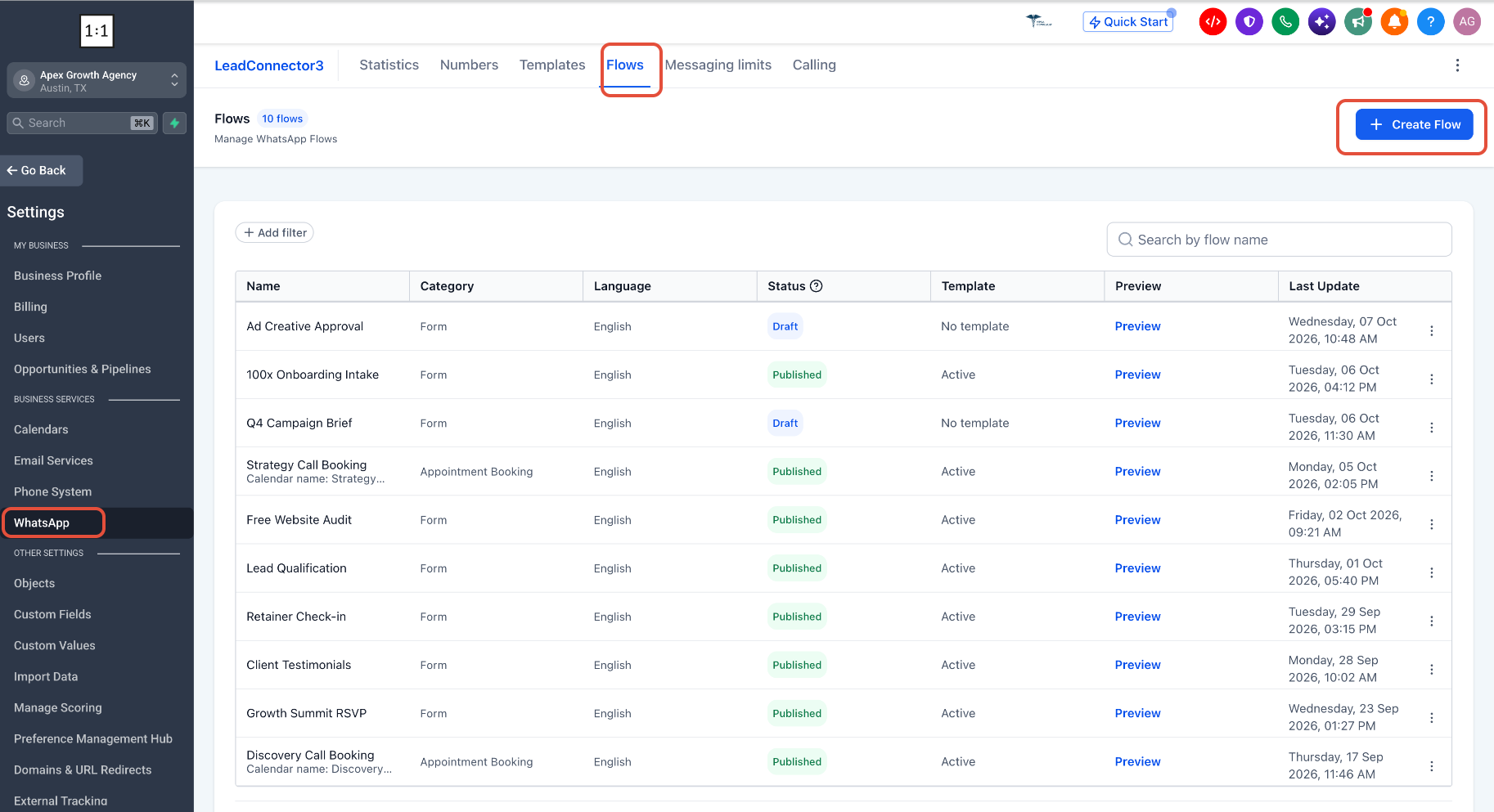
Select an Existing Form or Create a New One
Use an Existing Form
Select the CRM form you want to use. The Flow builder checks its fields and displays the supported content in the WhatsApp preview. Unsupported fields are excluded from the WhatsApp experience.
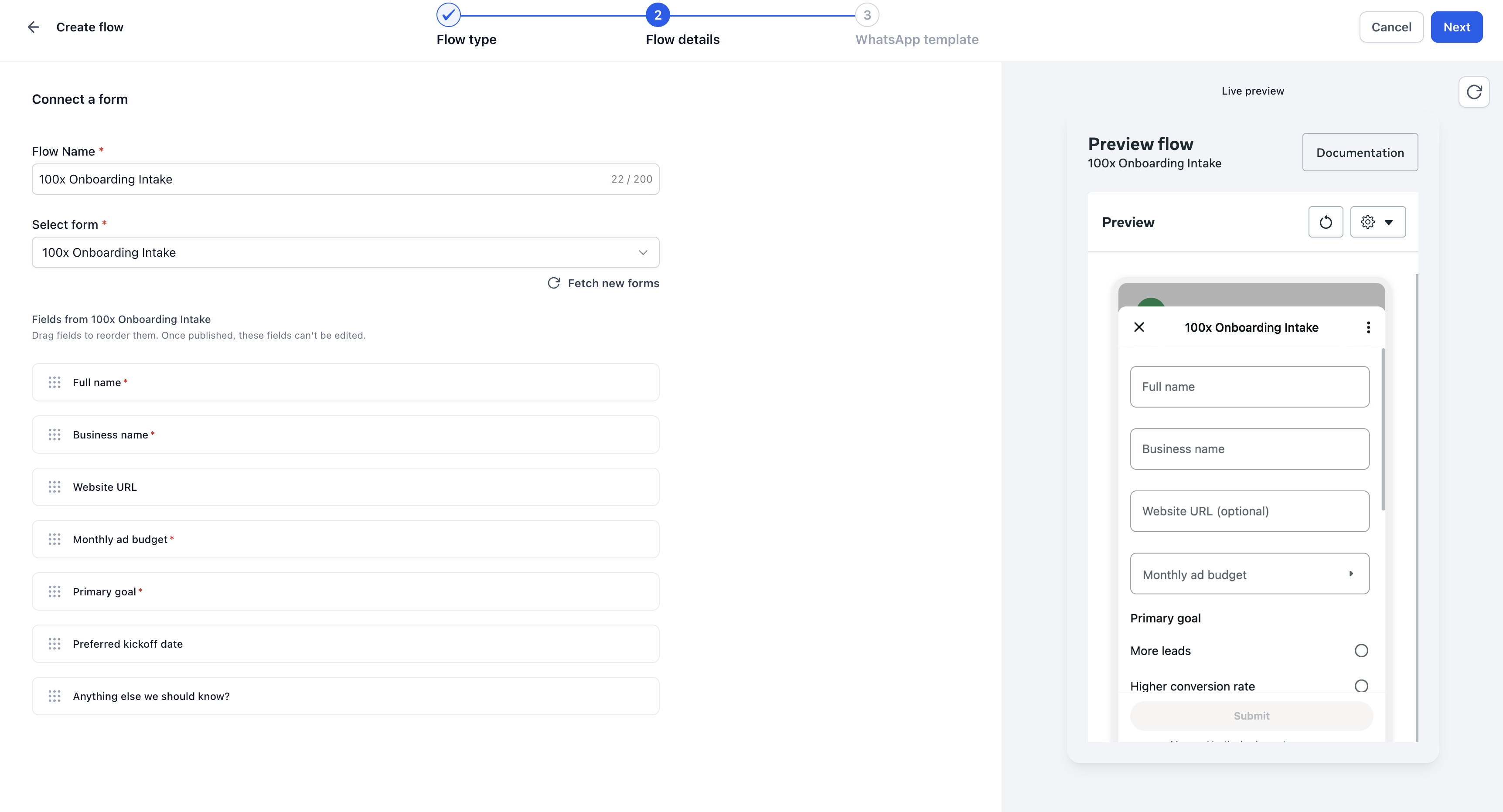
Tip
Build the form around the information you actually need. Check the WhatsApp preview before publishing, even when the form was created specifically for this channel.
Review the WhatsApp Preview
The real-time preview shows how the supported form content will appear to customers in WhatsApp. Review the questions, available inputs, and any warnings about excluded fields. Confirm that customers can still provide all the information your business needs.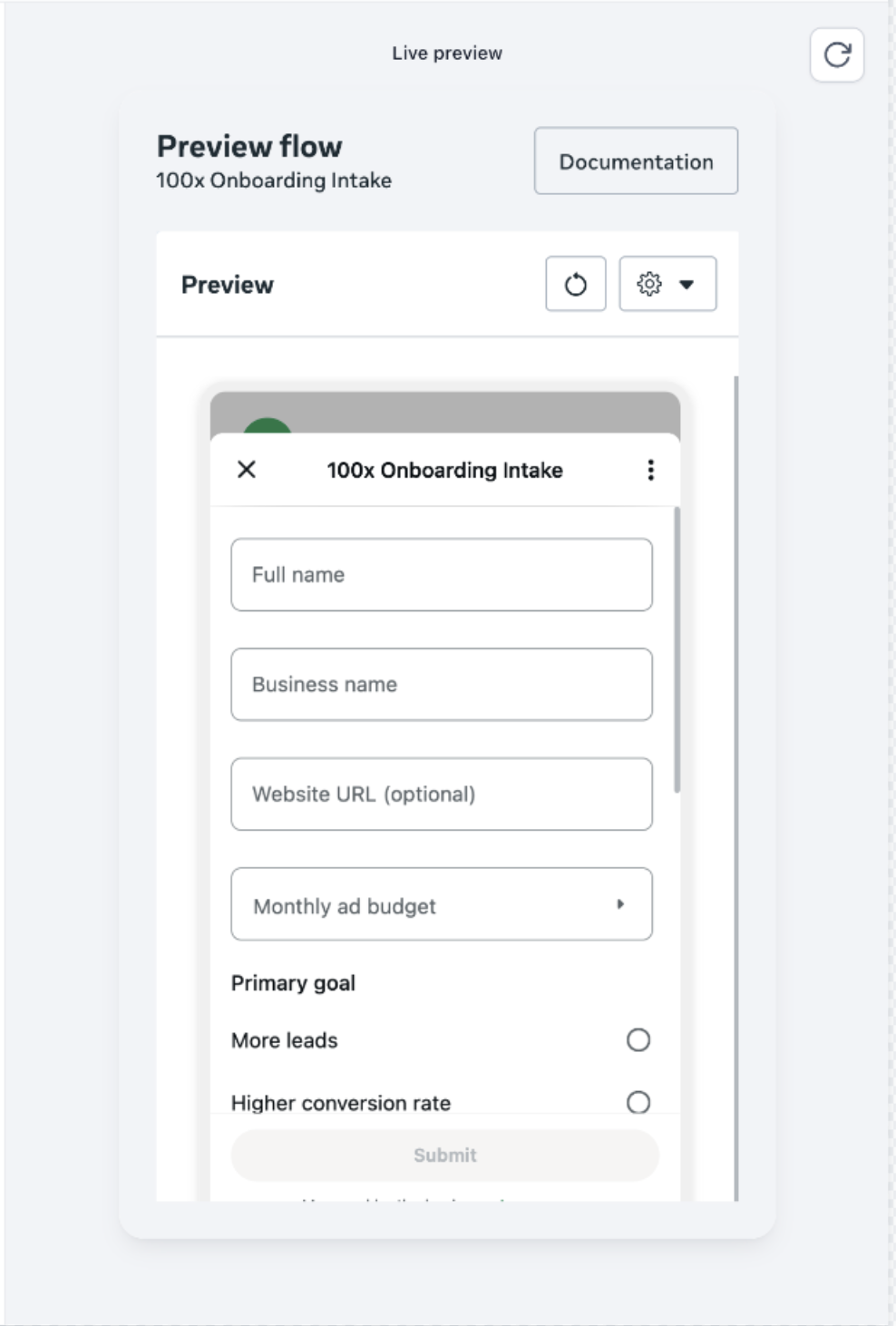
Important
A field appearing in the CRM form builder does not guarantee that it will appear in WhatsApp. Use the WhatsApp preview and field warnings to verify what customers will receive.
Fields Not Included in This Integration
The following CRM form fields or elements are excluded from the form-to-Flow integration:
| Field or element | What happens in the WhatsApp Flow |
|---|---|
| Signature | The signature field is not displayed or collected. |
| Sell Products | The product-selling element is not included. |
| Collect Payments | The payment element is not included. |
| Rating | The rating field is not displayed. |
| HTML | The custom HTML element is not included. |
| CAPTCHA | The CAPTCHA element is not displayed. |
| Source | The Source field is not included. |
| Terms & Conditions (T&C) | The T&C element is not displayed or collected. |
| File Upload | The file-upload field is not displayed or collected. |
Note
These are limitations of this CRM integration, not a statement that Meta's entire Flows platform lacks these capabilities. For example, Meta separately documents media-upload components for Flows.
What Happens When an Unsupported Field Is Required?
An unsupported field is excluded even when it is marked as required in the original form. The WhatsApp submission can proceed without a value for that excluded field.
For example, a form may require a signature on your website. When used through this integration, the signature field is omitted, and the customer can submit the supported questions without signing.
Important
A successful WhatsApp submission does not mean an omitted signature, agreement, or payment was collected. When that information is essential to your process, collect it separately through an appropriate supported method before treating the process as complete.
Create WhatsApp Template
Once the flow is created, Create the template 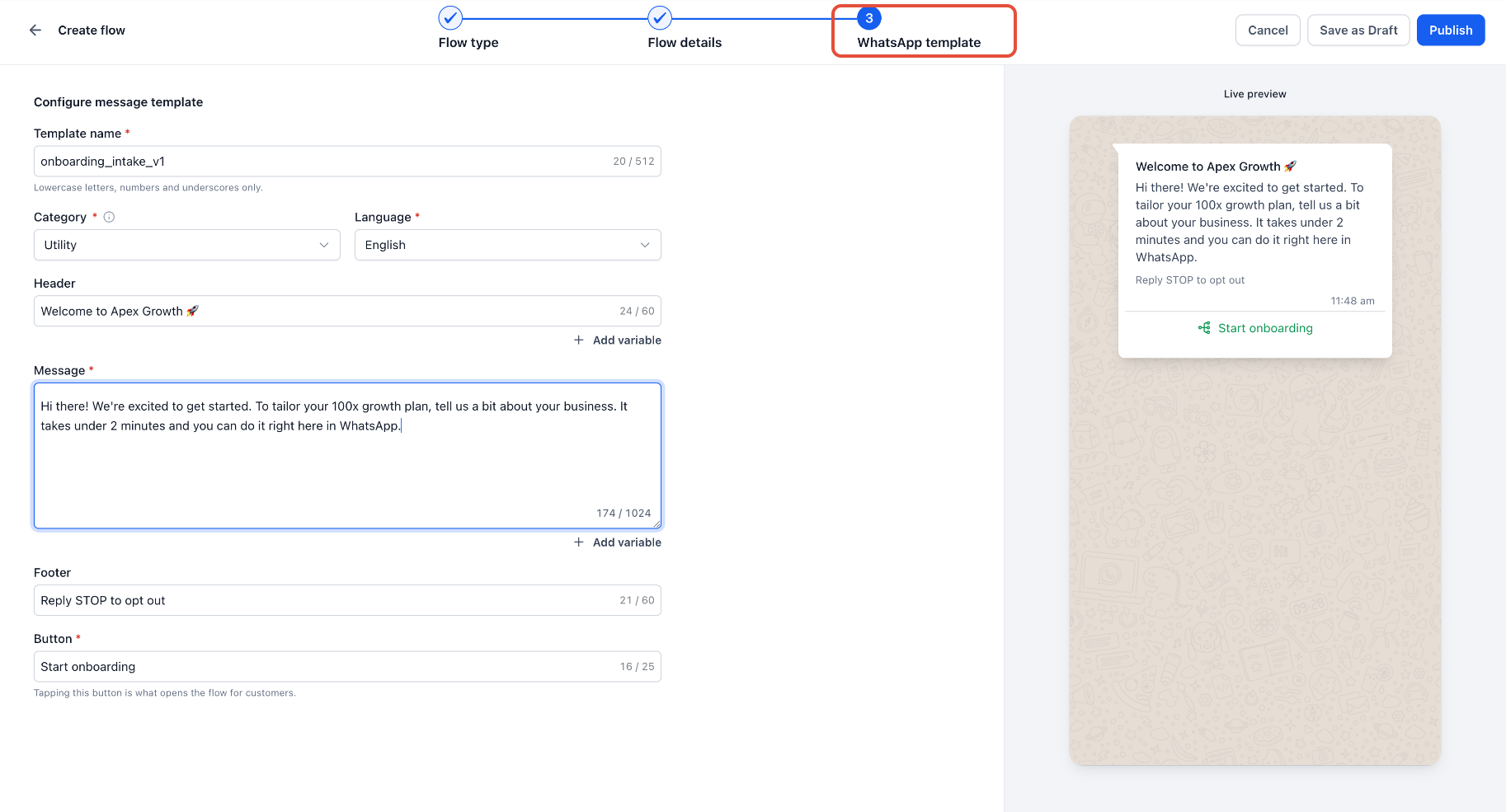
Note
Publishing a Flow and approving its message template are separate steps. The template must pass Meta's review before it can be sent as an approved template message.
Once approved and available in the template selector, open the contact's WhatsApp conversation, select the template, review the message, and send it. The customer taps the button, completes the form inside WhatsApp, and submits their responses.
Recommended
Send the Flow to an internal test contact first. Complete it and confirm that the submission appears under the expected form and contact before sending to customers.
Where to View Form Submissions
Navigate to Sites → Forms → Submissions. Locate the relevant form and open an individual submission to review its details.
Completed WhatsApp Flow submissions are saved against the corresponding form and mapped to the correct contact.
Responses reflect the fields included in the published Flow version. Fields excluded from the WhatsApp experience are not collected through that submission.
What Happens When the Original Form Changes?
Editing the original CRM form does not automatically change a Flow that has already been published.
| Change to the original form | Effect on the published WhatsApp Flow |
|---|---|
| Add a new field | The new field is not automatically added to the published Flow. |
| Edit an existing question | The published Flow continues using its published version. |
| Remove a field from the form | The published Flow is not automatically updated to remove it. |
| Remove a field after collecting responses | Previously collected data remains available in Forms → Submissions. |
To send updated questions, prepare and publish a Flow using the updated form, then ensure future messages reference the intended published version.
Do not assume that saving changes in the form builder updates an existing WhatsApp Flow.
Troubleshooting
| Issue | What to check |
|---|---|
| The form-selection option is missing | Confirm that the feature is enabled for the sub-account and that your user has the necessary access. |
| Some fields are missing from the preview | Review the unsupported-field warnings. Only fields supported by this integration are included. |
| A required signature or other unsupported field was skipped | This is expected for excluded fields. Confirm whether your business needs a separate step to collect that information. |
| The customer sees an older question | Check which published Flow the message references. Changes to the original form do not automatically update it. |
| The Flow cannot be published | Review and resolve the validation errors shown in the builder. |
| The message template cannot be sent | Check its Meta approval status and confirm that it references the intended published Flow. |
| A submission cannot be found | Confirm that the customer completed the final submission step, then check the correct sub-account and form in Forms → Submissions. |
When Contacting Support
Include the Location ID, form name, Flow name, template name, approximate submission time and timezone, and the exact error message. Add a screenshot or recording where helpful, and avoid sharing unnecessary customer information.
Frequently Asked Questions
Do I need to recreate my existing form?
No. You can select an existing CRM form. However, only the fields supported by this integration are included in the WhatsApp Flow.
Will the form look exactly like my website form?
No. Customers interact with a WhatsApp Flow rather than an embedded copy of the web page. Review the WhatsApp preview to confirm the experience.
Can customers upload files, sign, or pay through this integration?
Not through the corresponding CRM form fields listed in the exclusions table above. Those elements are excluded from this integration.
Will removing a field from the original form delete previously collected responses?
No. Previously collected data remains available in Forms → Submissions, even when the field is later removed from the original form.
Does publishing the Flow send it to customers automatically?
No. Publishing prepares the Flow for use. You still need to send a message that opens it. Meta treats publishing and sending as distinct operations.