
Create WhatsApp Limited-Time Offer (LTO) templates with visible expiration details and countdown timers for time-sensitive promotions. These Marketing templates can display promotional codes and interactive buttons in the customer's chat. This guide explains how to create, submit, and send approved LTO templates through supported messaging workflows. It also covers device compatibility, delivery restrictions, expiration behavior, and troubleshooting.
TABLE OF CONTENTS
- What Are Limited-Time Offer Templates?
- Key Benefits
- How the Template Looks to the Customer
- Prerequisites and Limitations
- How to Create an LTO Template
- How to Send an LTO Template
- Constraints and Limitations
- Use Cases
- Frequently Asked Questions
- Need Help?
What Are Limited-Time Offer Templates?
A Limited-Time Offer (LTO) template is a Meta-supported WhatsApp Marketing template that displays offer expiration information and a running countdown timer. Unlike standard Marketing templates, an LTO template makes the offer deadline visible inside the customer's conversation.
LTO templates can include a Copy code button, allowing customers to copy a promotional code with a single tap. The illustrated templates also include a website button that opens the offer's destination page.
Limited-Time Offer templates are available under the Marketing category and require Meta approval before sending.
On supported mobile devices, WhatsApp updates the countdown as the deadline approaches. The timer changes appearance during the final hour before the offer expires.
Key Benefits
Limited-Time Offer templates help customers understand promotional deadlines and interact with offers directly from WhatsApp. Their reusable structure also supports campaigns that share the same approved message format.
- Visible expiration: Show customers when an offer is scheduled to end.
- Live countdown: Display the remaining offer time within supported WhatsApp mobile apps.
- Easy code copying: Let customers copy promotional codes using a supported Copy code button.
- Reusable templates: Use an unchanged approved template for supported future campaigns with updated offer details.
- Multiple sending options: Send approved templates through supported Conversations, Workflows, Bulk Actions, and Calendar messaging flows.
How the Template Looks to the Customer
An approved Limited-Time Offer template combines promotional content with an expiration display and supported actions. The exact appearance depends on the configured template and the recipient's WhatsApp device.
| Component | What the Customer Sees |
|---|---|
| Header | An image or video, when configured. |
| Offer Details | The offer heading, expiration information, and countdown display. |
| Body | Offer text with supported personalization variables, such as a customer name or promotional code. |
| Buttons | Actions such as Copy code and Visit website, according to the configured template. |
Phone View
The following example shows Limited-Time Offer messages displayed in WhatsApp on a mobile phone, including the expiration text and available buttons.
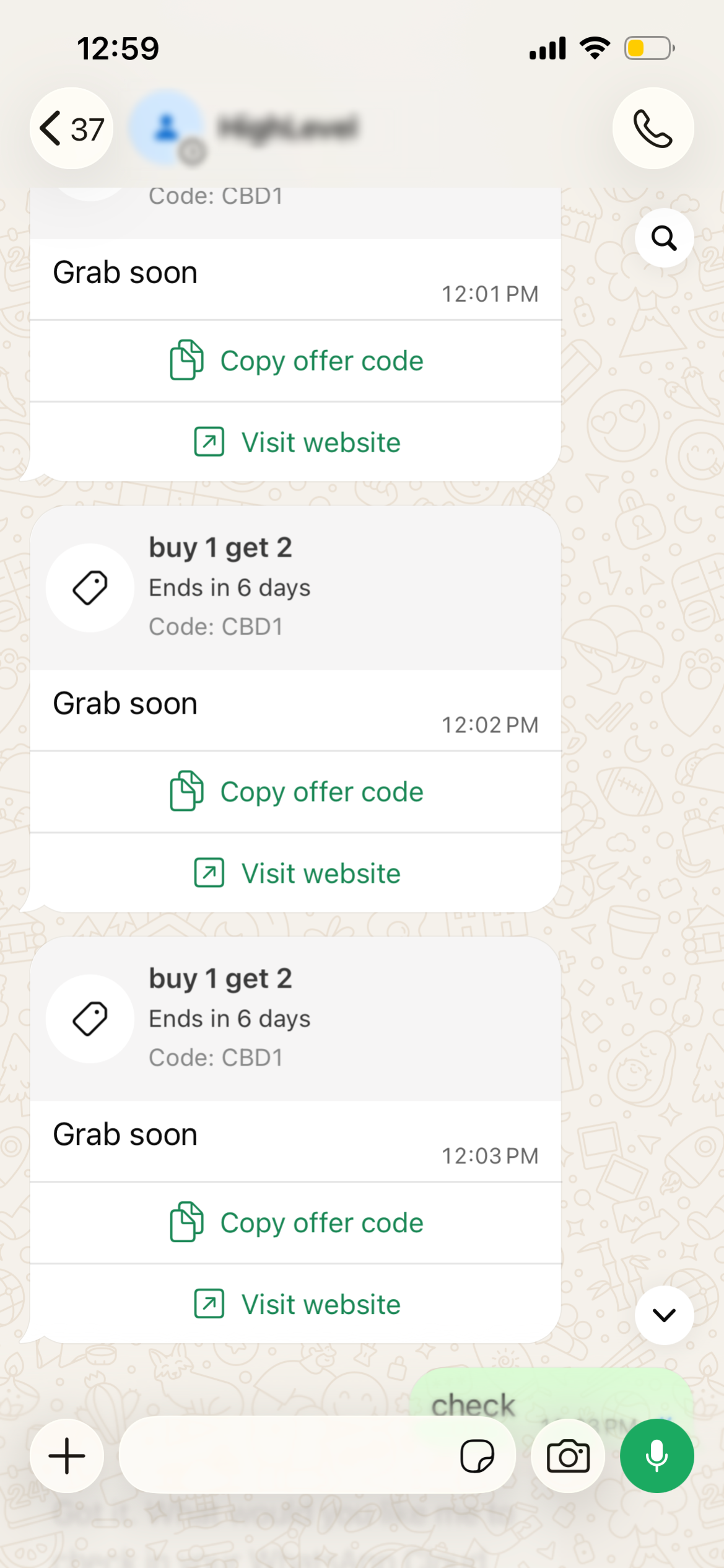
Availability note: The native countdown is supported in WhatsApp for iOS and Android. WhatsApp Web and desktop may display an unsupported-message notice instead of the Limited-Time Offer content.
Prerequisites and Limitations
Before creating a Limited-Time Offer template, make sure WhatsApp is connected, you have permission to manage templates, and your promotional information is ready. Review the applicable recipient restrictions before planning a campaign.
- WhatsApp connection: WhatsApp onboarding must be complete.
- Template permissions: Your user role must have the Create/Edit WhatsApp Templates permission in Roles & Permissions.
- Offer information: Prepare the offer message, promotional code, expiration details, and any header media.
- Recipient consent: Contacts must have opted in to receive WhatsApp messages from your business.
- Template availability: The Limited time offer option must be available in the WhatsApp template builder.
- Approval: The completed template must be approved by Meta before it can be sent.
Important: Meta currently blocks WhatsApp Marketing template delivery to U.S. phone numbers. Because Limited-Time Offer templates use the Marketing category, they cannot be delivered to U.S. recipients while this restriction remains in effect.
How to Create an LTO Template
Create a Limited-Time Offer template by selecting the Marketing category, choosing the LTO template type, configuring the message, and submitting the completed template for approval.
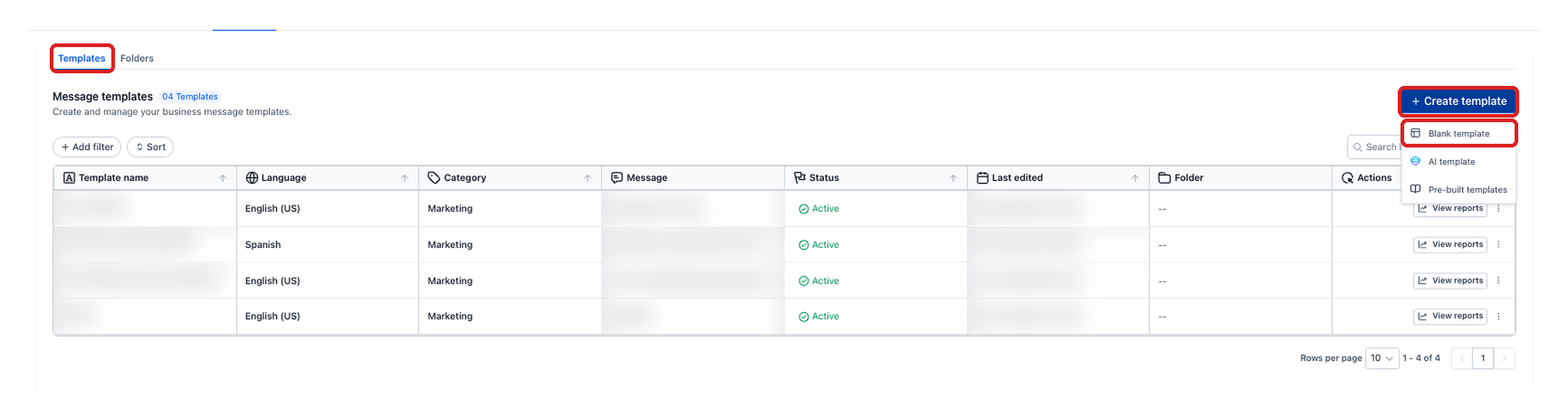
Step 1: Open the Template Builder
Begin in WhatsApp Settings to access the available template types.
- From the navigation menu, select Settings.
- Open WhatsApp.
- Select Templates.
- Click Create Template.
- Select Blank Template.
Step 2: Set Up the Template
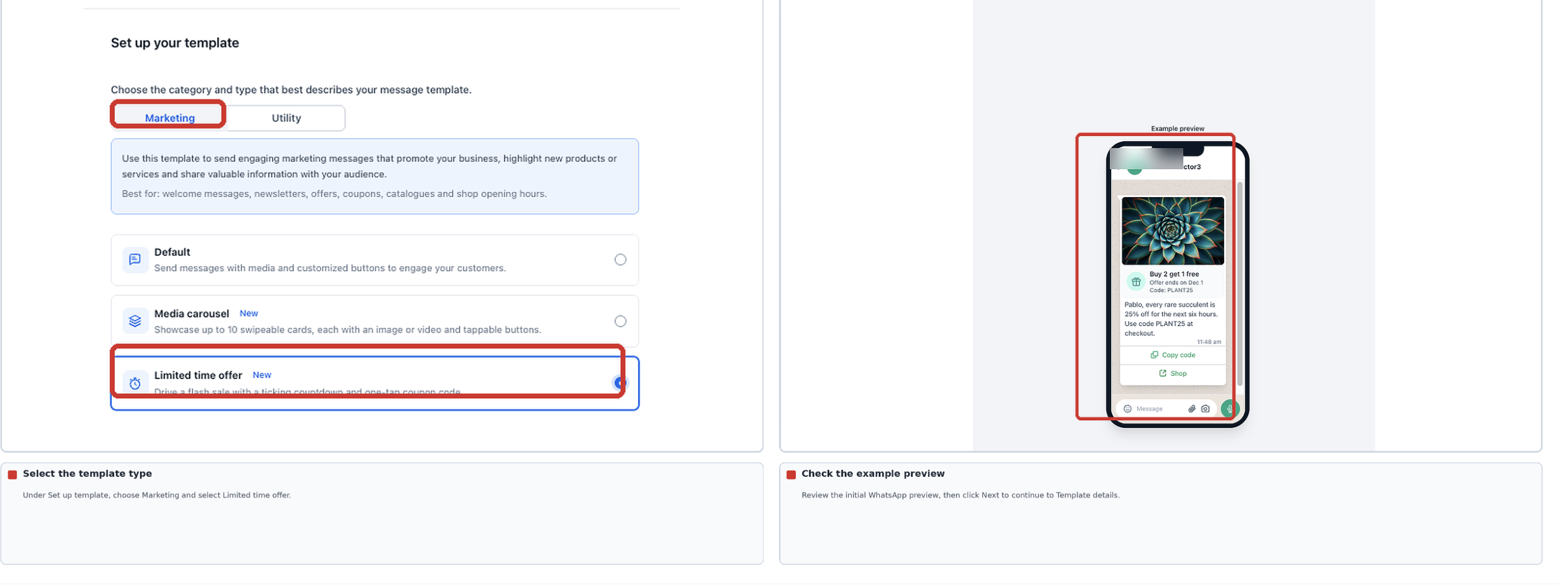
Select the Marketing category and the Limited-Time Offer template type before configuring the message details.
- On the Set up template screen, select Marketing.
- Choose Limited time offer from the available template types.
- Click Next.
Step 3: Configure Template Details
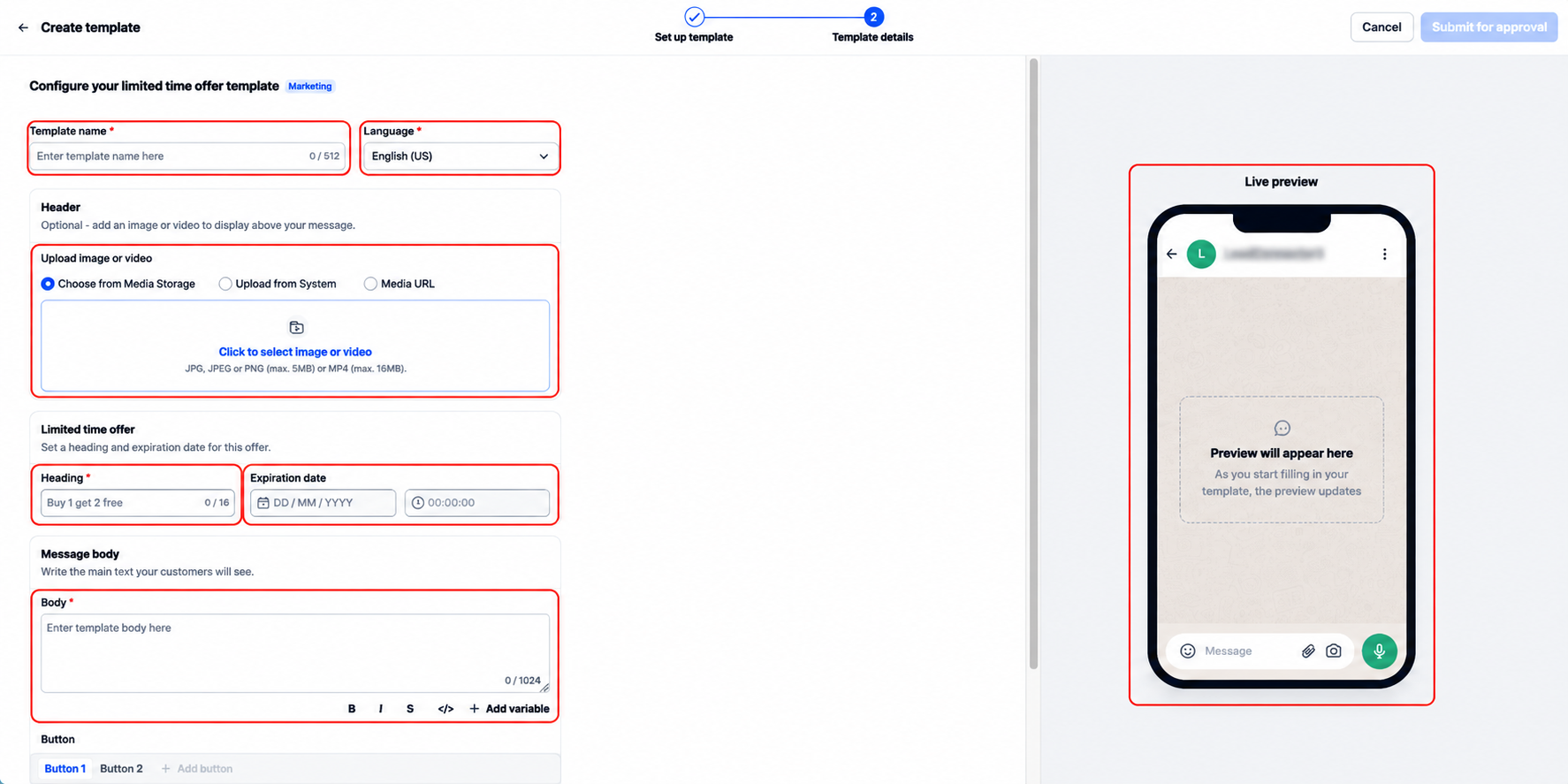
The Template details screen contains the offer settings, message content, buttons, and preview. Complete the available fields before submitting the template.
- Enter the Template name.
- Select the Language.
- Under Header, add an image or video if needed.
- In the Limited time offer section, enter the offer Heading.
- Review the Expiration date and time fields shown in the editor.
- Under Message body, enter the promotional message.
- Add supported personalization variables where needed.
- Enter realistic sample values for the variables.
- Configure the available Copy code and URL button fields as required by the editor.
Example: A message can use {{1}} for a customer's name and {{2}} for a promotional code. Provide sample values so the template can be reviewed correctly.
Important: Limited-Time Offer templates do not support a footer component. Do not add a footer, because the template may be rejected during Meta review.
Step 4: Preview and Submit
Review the completed template before submitting it. The live preview helps identify content and formatting issues.
- Review the Live preview.
- Confirm the offer heading, message, sample values, expiration information, and configured buttons.
- Correct any displayed validation errors.
- Click Submit for approval.
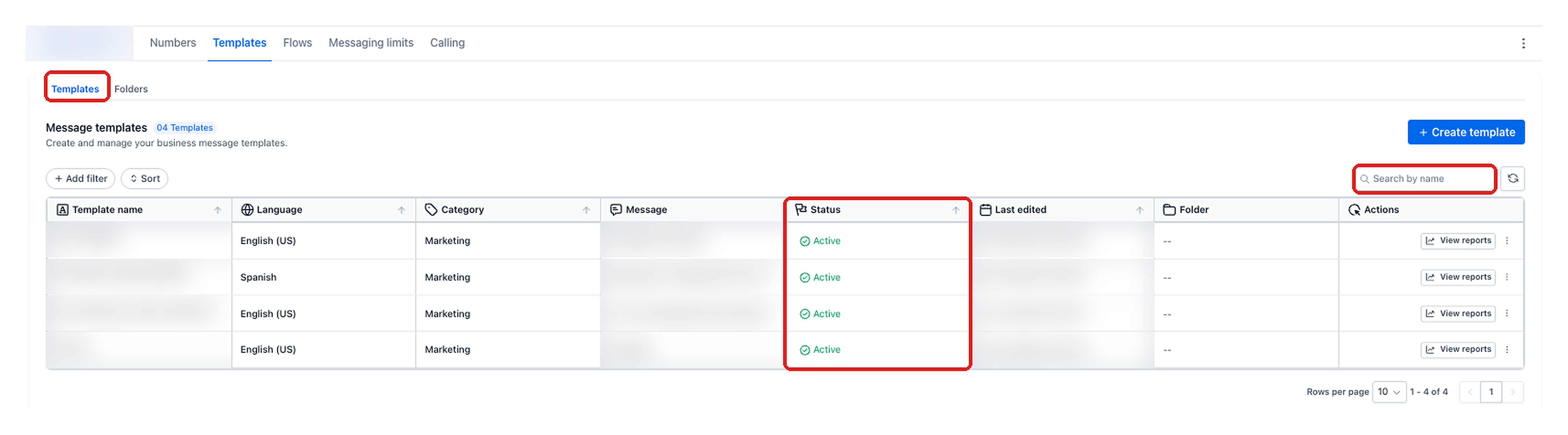
Step 5: Monitor Approval Status
Check the template's status to determine whether it is ready to use or needs additional changes.
- Open Settings > WhatsApp > Templates.
- Find the submitted template.
- Review its current approval status.
- If the template is In Review, allow the Meta review process to continue.
- When the template is Approved, it becomes available for supported sending flows.
- If it is Rejected, review the reason provided, correct the issue, and follow the available resubmission process.
Using AI: The AI template writer can also help generate Limited-Time Offer drafts, including an offer heading, promotional code, expiration information, and image. Review generated content and edit it as needed before submitting it for approval.
How to Send an LTO Template
Once Meta approves an LTO template, you can select it in supported WhatsApp messaging flows. The expiration information used by WhatsApp is associated with the message when it is sent, while the editor also displays expiration fields during template creation.
For each campaign, verify the applicable deadline, promotional code, and recipient eligibility. The available controls for reviewing or supplying these values may differ between sending flows.
From Conversations
Use Conversations to select an approved Limited-Time Offer template for an individual recipient and review the message before sending.
- From the navigation menu, select Conversations.
- Open the recipient's conversation.
- Select WhatsApp as the messaging channel.
- Open the WhatsApp template option in the conversation composer.
- In Send WhatsApp Template, open Select WhatsApp Template.
- Select the approved Limited-Time Offer template.
- Review the message content, media, and Preview.
- If needed, click Replace Image to change the image for this send.
- Verify the applied offer deadline and promotional code before sending.
- Click Send.
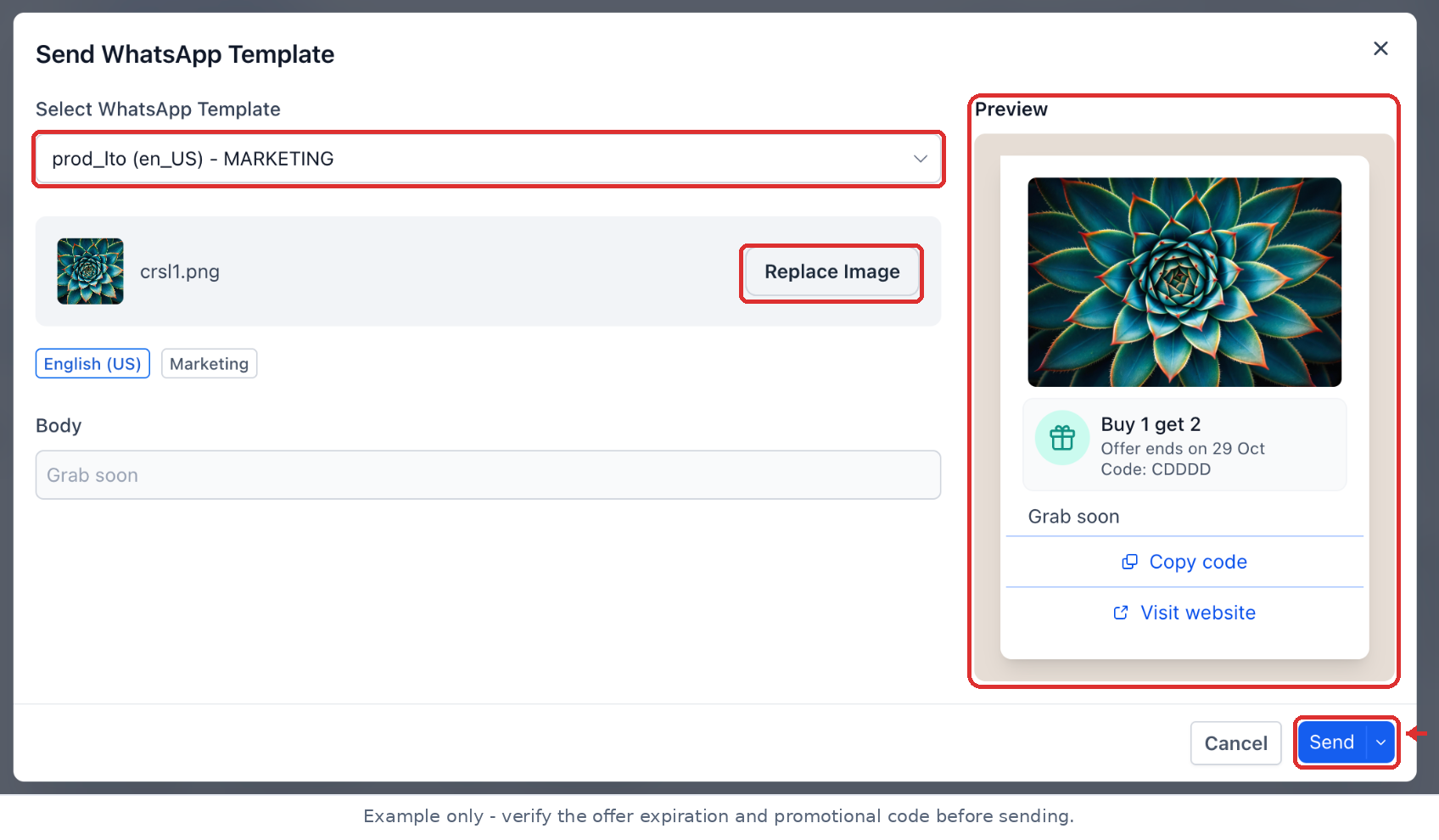
Important: The illustrated sending dialog does not display a separate editable expiration field. Confirm that the correct deadline is applied to the message before sending. Do not assume the deadline can be changed in this dialog unless the control is available.
Through Workflows
Workflows can use approved WhatsApp templates to send messages automatically after supported triggers and actions. Check the selected template and offer details before activating the workflow.
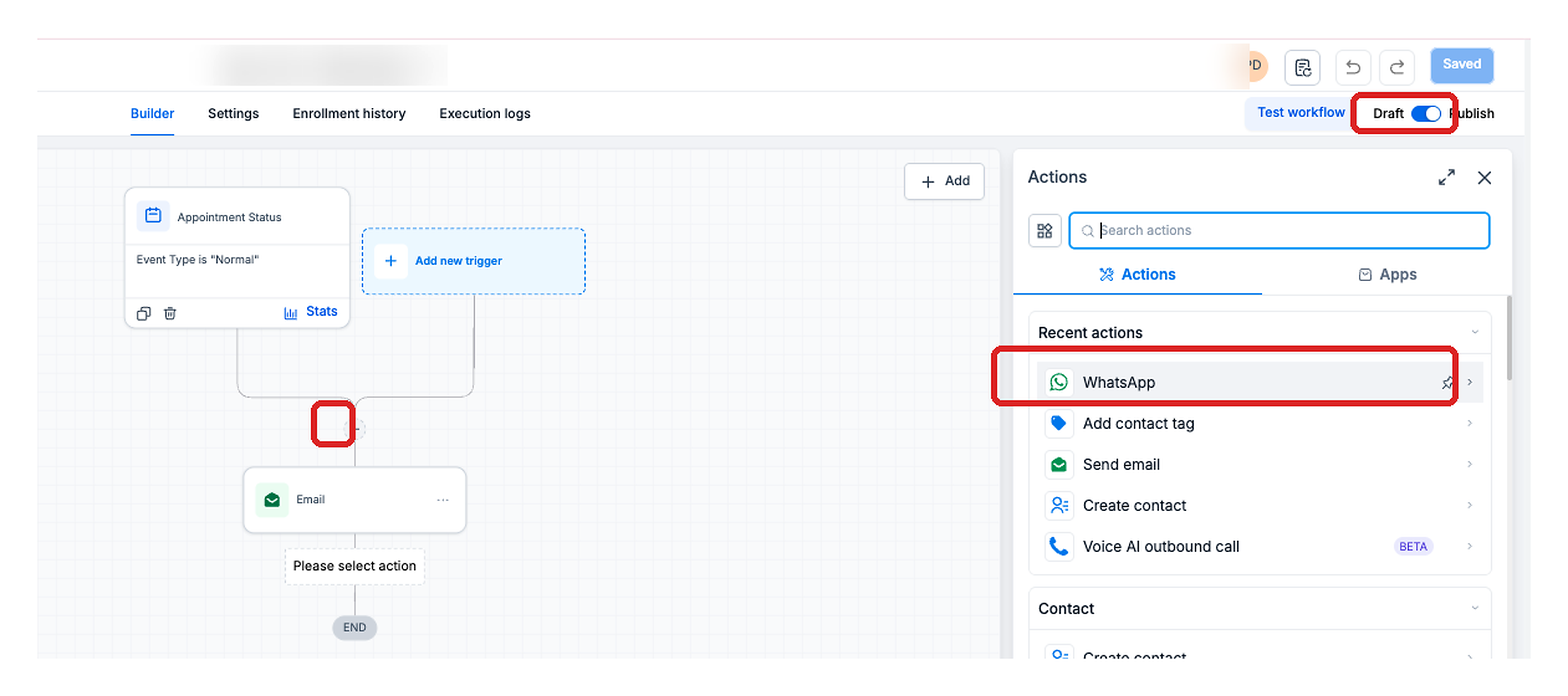
- From the navigation menu, open Automations > Workflows.
- Open the workflow you want to configure.
- Click the + button to add an action.
- Select WhatsApp as the action type.
- Under WhatsApp Template, choose the approved Limited-Time Offer template.
- Review the available offer code, expiration, and message settings.
- Verify the values the workflow will use before activation.
- Save the action and publish the workflow when it is ready.
Through Bulk Actions
Use a WhatsApp Bulk Action when you need to send an approved LTO template to a selected group of eligible contacts.
- Open Contacts.
- Select the intended audience.
- Start the available WhatsApp Bulk Action.
- Select the approved Limited-Time Offer template.
- Review the offer information, expiration details, and promotional code where supported.
- Confirm that the audience is eligible to receive WhatsApp Marketing messages.
- Launch or schedule the campaign using the available controls.
Through Calendar WhatsApp Sends
Approved Limited-Time Offer templates can also be used in applicable Calendar WhatsApp sending flows. Select the approved template and review the recipient, offer information, and expiration details before sending.
Tip: An unchanged approved LTO template can be reused for supported future campaigns. Confirm the offer deadline and promotional code for each send, rather than assuming the values from an earlier campaign will be applied.
Constraints and Limitations
Limited-Time Offer templates must follow Meta's category, approval, recipient, and device requirements. Review these restrictions before creating or sending a campaign.
- Marketing category only: LTO templates are not available as Utility or Authentication templates.
- U.S. recipient restriction: WhatsApp Marketing template messages cannot be delivered to recipients with U.S. phone numbers while Meta's restriction remains in effect.
- No footer: LTO templates do not support a footer component.
- Mobile display: The native countdown is supported on WhatsApp for iOS and Android. Web and desktop clients may display an unsupported-message notice.
- Meta approval: A template must be approved before use. An unchanged approved template can be reused for supported future sends.
- Button configuration: The editor provides Copy code and URL button controls. Complete any fields marked as required by the current template builder.
- Expiration handling: The template builder displays expiration settings, while the expiration supplied with an outgoing message determines the offer deadline used by WhatsApp.
- Expired offers: An offer with an elapsed deadline may appear as expired. Sending is not guaranteed to be blocked solely because the deadline has passed.
- WhatsApp messaging limits: Applicable Meta messaging limits continue to apply to supported LTO sends.
Use Cases
Limited-Time Offer templates are useful for promotions that have a clear deadline. The countdown helps recipients understand the remaining time without relying only on urgency language in the message body.
- Flash Sales: Share a short-duration promotion with an offer code and visible countdown.
- Abandoned Cart Recovery: Use a supported Workflow to send a time-limited incentive after a cart is abandoned.
- Appointment Promotions: Promote available appointments or openings with a deadline for redeeming an offer.
- Seasonal Campaigns: Send eligible recipients a weekend or holiday promotion through supported Bulk Actions.
- Membership Renewals: Share a renewal promotion with a defined expiration date.
Frequently Asked Questions
Q: Do I need a new template for every promotion?
No. An unchanged, approved Limited-Time Offer template can be reused for supported future campaigns. Verify the offer deadline and promotional code for each send.
Q: Why can't my customer see the countdown timer?
The native countdown is supported in WhatsApp for iOS and Android. WhatsApp Web and desktop may display an unsupported-message notice. Ask the recipient to view the message in the WhatsApp mobile app.
Q: Can I add a footer to an LTO template?
No. Limited-Time Offer templates do not support footers. Remove any footer content before submitting the template for approval.
Q: What happens when the countdown reaches zero?
The countdown stops, and WhatsApp displays the offer as expired. The message remains visible in the recipient's conversation.
Q: Can I create an LTO template under Utility or Authentication?
No. Limited-Time Offer templates are available only under the Marketing category.
Q: Does the LTO template format guarantee faster approval?
No. Limited-Time Offer templates still go through Meta's review process. Follow the applicable category, content, and variable requirements before submitting.
Q: Do LTO messages count toward WhatsApp messaging limits?
Yes. Applicable WhatsApp messaging limits continue to apply. These limits can affect the number of supported messages that can be sent.
Q: Which buttons appear in the LTO template builder?
The illustrated builder provides Copy code and URL button controls. Complete the fields required by your current editor and review the resulting actions before submitting.
Q: Can I send Limited-Time Offer templates to U.S. phone numbers?
Not while Meta's restriction on WhatsApp Marketing template delivery to U.S. numbers remains in effect. LTO templates belong to the Marketing category.
Q: What happens if I send an offer with an expired deadline?
The message may still be accepted, but WhatsApp can display the offer as expired. Verify the deadline before sending to avoid distributing an outdated promotion.
Need Help?
If the Limited time offer option is unavailable, check that WhatsApp is connected and your role has permission to create and edit templates. If a submission is rejected, review the template status and the reason provided by Meta.
If a send fails or the displayed deadline is incorrect, review the recipient's eligibility, the approved template, the promotional code, and the expiration details available in your sending flow.
If the issue continues, contact support with the template name, relevant sending workflow, and the exact error message. Avoid sharing sensitive customer information, passwords, access tokens, or other credentials.