
The updated WhatsApp template builder lets you create and edit message templates with a live phone preview. Dynamic media URLs allow an approved template to use different images, videos, or documents for individual contacts. Instead of creating a separate template for each media asset, you can map supported dynamic values that resolve when the message is sent. This guide covers template creation, AI generation, media mapping, personalized bulk messages, and troubleshooting.
TABLE OF CONTENTS
- What Is the WhatsApp Template Builder?
- Key Benefits
- Prerequisites and Limitations
- What's New
- Rebuilt Create and Edit Experience
- Live Phone Preview
- Dynamic Media URLs
- Personalized Images in Bulk
- Where to Find It
- How to Use Dynamic Media
- Why This Matters
- Frequently Asked Questions
- Need Help?
What Is the WhatsApp Template Builder?
The WhatsApp template builder lets you create and edit message templates for supported WhatsApp communication. Templates can contain a message header, body text, variables, media, and optional buttons. Templates are submitted for Meta approval before they can be used for supported sends.
The updated creation experience includes a live phone preview and supports dynamic media URLs. Dynamic media allows the same approved template to reference different media for each contact, using values that resolve when the message is sent.
Key Benefits
The updated builder simplifies template preparation and helps you personalize media without maintaining a separate approved template for every recipient-specific asset.
- Guided template creation: Configure the template category and type, then complete its message details.
- Live phone preview: Review the message layout while editing the header, body, media, and buttons.
- Dynamic media: Use supported custom fields and dynamic values to provide contact-specific media URLs.
- Reusable approved templates: Keep the approved template structure while changing the resolved media URL for individual recipients.
- Personalized bulk messaging: Send individually generated images through supported bulk actions.
- Clearer troubleshooting: Identify missing or inaccessible media URLs when a message fails.
- Consistent editing experience: Use the updated template builder across supported creation and editing workflows.
Prerequisites and Limitations
Before creating or sending a WhatsApp template, confirm that WhatsApp is configured and that you can access the template builder. Dynamic media also requires a valid media URL and supported variable mapping.
- WhatsApp access: The WhatsApp integration must be configured before creating or sending templates.
- Template approval: New templates require Meta approval before use in supported sending workflows.
- Template editing: Available editing actions depend on the template's current status.
- Variable mapping: Dynamic media values must be mapped using the controls supported by the relevant template and sending workflow.
- Public media access: Resolved media URLs must be accessible to Meta without authentication.
- Supported media: The resolved URL must point to a media file supported by the selected template header and applicable WhatsApp requirements.
- Missing or invalid URLs: Empty, inaccessible, or invalid resolved URLs can cause message delivery to fail.
- Sending surfaces: Media mapping and override controls may differ between Workflows, Conversations, Bulk Actions, and other supported sending areas.
Important: A publicly accessible URL can expose its contents to anyone who obtains the link. Do not publish confidential files or identity documents through an unrestricted URL solely to use dynamic media. Follow your organization's information-sharing requirements.
Note: Template variable validation and media URL validation do not guarantee approval or delivery. Other template, media, and messaging restrictions still apply.
What's New
The updated builder changes how templates are created and previewed. Dynamic media also changes how recipient-specific images and documents are supplied when messages are sent.
- Rebuilt builder: A guided creation flow separates initial template setup from message details.
- Live phone preview: Review the WhatsApp message layout while working on the template.
- Dynamic media URLs: Media headers accept supported dynamic values that resolve for each contact at send time.
- Clear failure behavior: Missing or invalid media values can produce sending errors instead of delivering the intended asset.
Rebuilt Create and Edit Experience
The updated template creation process guides you through Set up template and Template details. The first step establishes the template category and type. The second step contains the template content, media settings, variables, optional buttons, and live preview.
Two-Step Template Creation
Begin by selecting the template category and type. Continue to Template details to configure the message and review how it will appear in WhatsApp.
- Step 1 — Set up template: Choose the category and template type, then select Next.
- Step 2 — Template details: Configure the template name, language, header, message body, variables, sample values, and optional buttons.
How to Create a WhatsApp Template
Create a template from WhatsApp Settings, review its contents and sample values, and submit it for approval.
- From the navigation menu, select Settings.
- Open WhatsApp, then select Templates.
- Click Create Template, then select Blank Template.
- Under Set up template, choose the appropriate template category and type.
- Click Next.
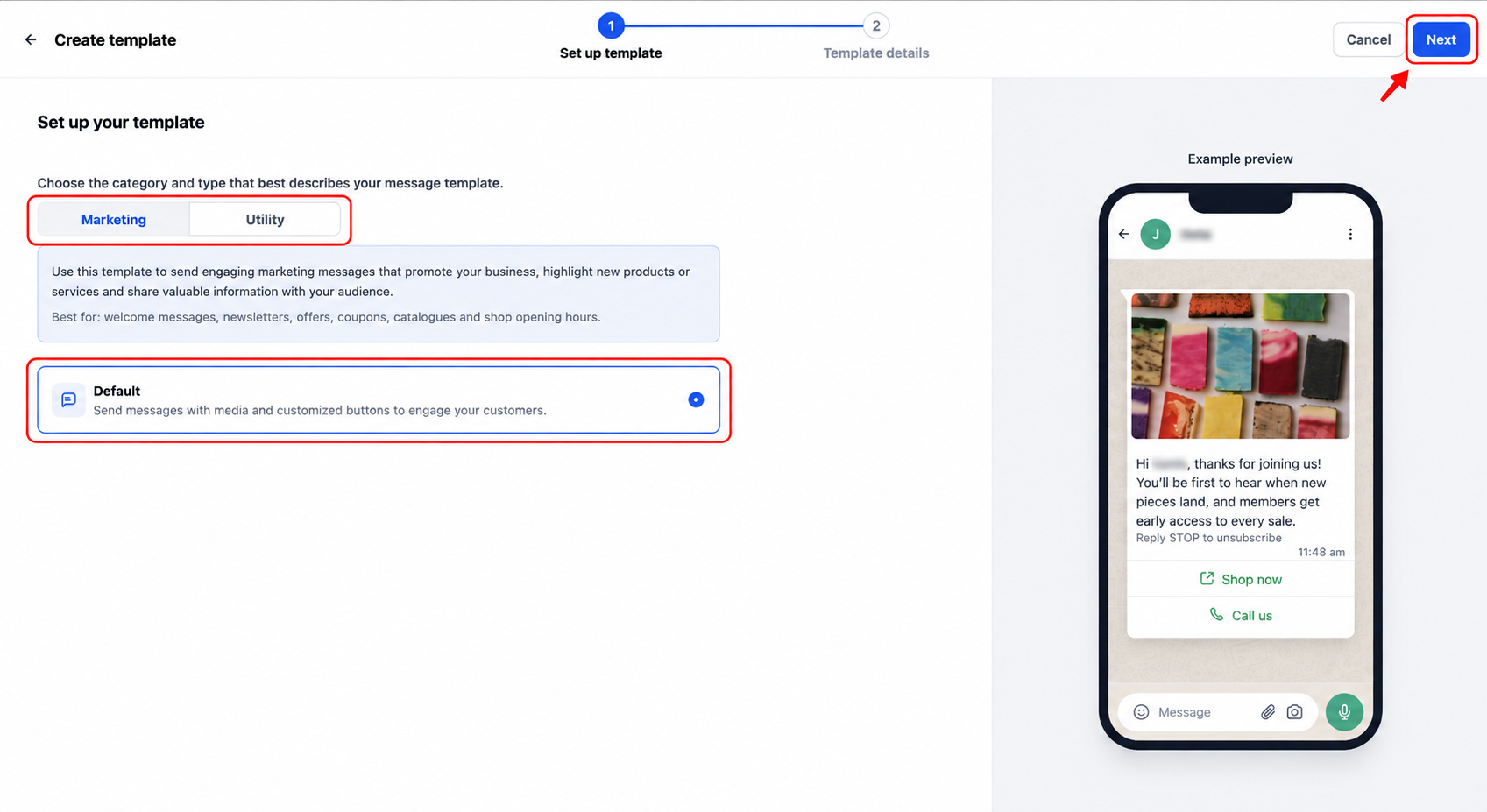
- On the Template details screen, enter the Template name and select the Language.
- Configure the Header, message body, variables, and optional buttons.
- Enter sample values for variables where required.
- Review the Live preview and correct any validation errors.
- Click Submit for approval.
Important: Check the template category, message content, variables, sample values, and media settings before submission. Meta reviews submitted templates for applicable content and policy requirements.
How to Edit a WhatsApp Template
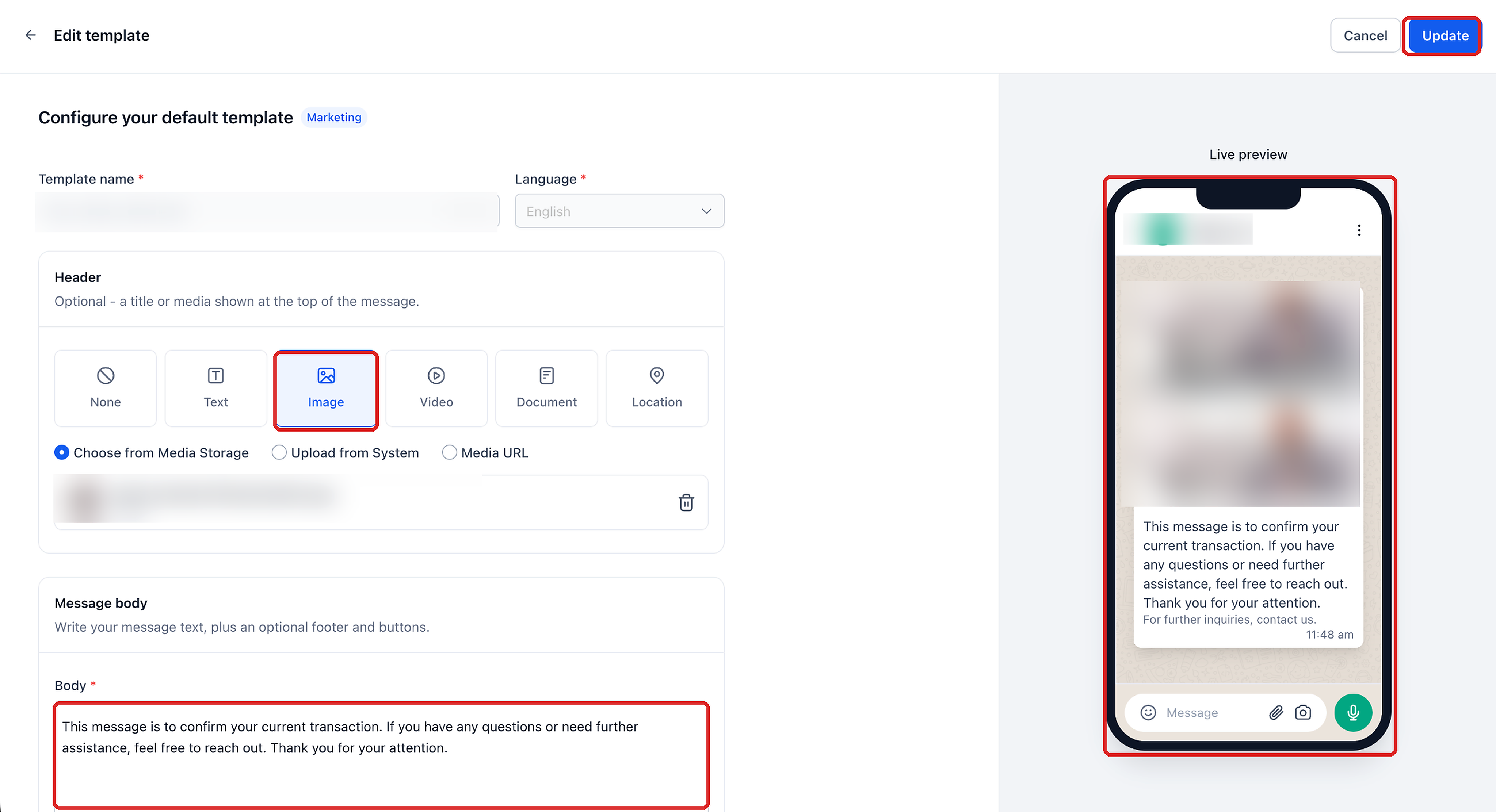
Existing templates can be edited when their status allows changes. Review the available fields before updating a template.
- Open Settings > WhatsApp > Templates.
- Find the template and open its three-dot menu.
- Select Edit template, if the action is available.
- Update the relevant template fields.
- Review the Live preview and correct any displayed validation errors.
- Click Update.
Consistent Across Authoring Surfaces
The updated template builder is also used in supported AI template creation and Reputation workflows. This provides a consistent way to prepare message content and review the live preview.
Note: This update focuses on template creation and editing. Template library and folder management are covered by a separate feature update.
Create a WhatsApp Template With AI
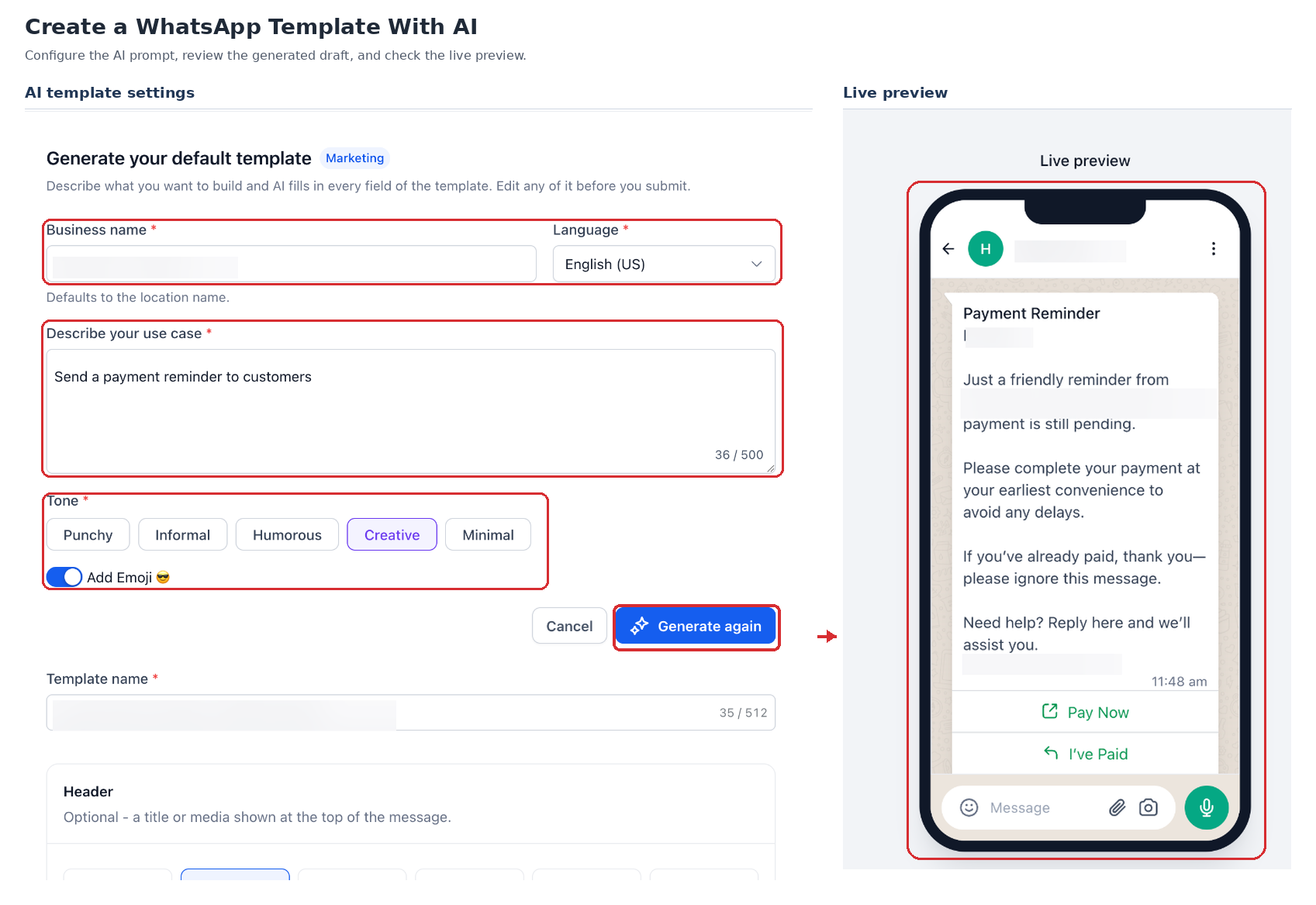
AI template creation helps you prepare a message draft using a business description, use case, language, and tone. You can review and edit the generated content before submitting the template for approval.
- Open Settings > WhatsApp.
- Select Create AI Template, if available.
- Complete the initial template setup and continue to Generate template.
- Enter the Business name, select a Language, and complete Describe your use case.
- Choose a Tone and optionally enable Add Emoji.
- Review the generated message and Live preview.
- Select Generate again if you want another generated version.
- Make any necessary edits and click Submit for approval when the template is ready.
Live Phone Preview
The template builder shows how a WhatsApp message will appear as you configure its content. The preview helps you identify layout and content issues before submitting the template.
The Set up template screen includes an Example preview. On the Template details screen, the Live preview updates while you edit the header, message body, media, and buttons.
Dynamic values may produce different final content for each contact at send time. The preview represents the configured template and the sample values available in the builder.
If the preview is blank or does not update: Confirm that you are working in the template creation or editing interface under Settings > WhatsApp > Templates. Review the available content fields and validation messages.
Dynamic Media URLs
Dynamic media allows supported WhatsApp template headers to use custom fields and dynamic values instead of a single fixed media URL. When the message is sent, the value resolves for the individual contact and supplies a concrete media URL.
One Template Instead of Many
Without dynamic media, sending a different image or document through a fixed-media template may require creating another template and submitting it for approval.
With dynamic media, a single approved template can use different contact-specific media URLs. The approved template structure remains the same while the resolved media changes for each recipient.
Supported Sending Surfaces
Dynamic media URLs are supported in WhatsApp template sending workflows that accept media header values or overrides. The available mapping controls may differ depending on where the message is sent.
- Workflows
- Conversations
- Bulk Actions
- Calendar Appointments
- Reputation Review Requests
- Missed Call Text Back
Clear Failure Behavior
The resolved media URL must point to a supported file that Meta can access without authentication. If the value is empty, invalid, or inaccessible, the message can fail instead of delivering the intended media.
Providing a valid media URL satisfies the media-access requirement, but other template and sending restrictions still apply.
What Resolves Successfully vs. What Fails
Review the resolved URL for the affected contact when troubleshooting a dynamic media send.
- Supported public HTTPS URL: A publicly reachable HTTPS URL containing a supported media file can be used.
- Private or restricted URL: A Drive link or other URL requiring authentication cannot be downloaded by Meta and can cause the send to fail.
- Empty field: A missing resolved value cannot provide the required media.
- Invalid media URL: A URL that does not point to supported, accessible media can cause the send to fail.
If sending fails with a message such as "please provide a valid public url", review the selected field mapping and the value resolved for that contact.
Confirm that the field is not empty, that the URL uses the supported format, and that Meta can retrieve the file without signing in.
Personalized Images in Bulk
You can combine dynamic media URLs with an image personalization service to generate recipient-specific images. The template remains the same, while each contact's resolved URL points to their personalized image.
For example, a service such as NiftyImages can create image variations from a reusable design and contact-specific values. Map the personalized image URL to the supported template media field and send it through a bulk action.
What Your Contacts Actually See
Each recipient receives media generated from their own mapped information, even though the approved WhatsApp template is shared.
- Shaun: Receives an image containing the message "Here's a special offer for you, Shaun."
- Sana: Receives the same design personalized with her name.
- Alex: Receives a version personalized with his details.
Personalized media can also be used for:
- Individual discount codes.
- Event tickets containing the attendee's seat information.
- Course certificates displaying the recipient's name.
- Renewal dates matched to each contact's record.
- Product images selected according to a contact's previous purchase.
Note: Each image must still be available through a supported media URL when the message is sent.
Where to Find It
The template builder can be opened from WhatsApp Settings and other supported messaging workflows. Use the entry point relevant to the task you are completing.
| Surface | Navigation Path |
|---|---|
| Template Builder | Settings > WhatsApp > Templates > Create Template or Edit template |
| AI Template Builder | Settings > WhatsApp > Create AI Template |
| Reputation | Reputation > Settings > WhatsApp Requests > Open WhatsApp Template Builder |
| Missed Call Text Back | Settings > Phone System > Voice > Voicemail & Missed Call TextBack > Missed Call Text Back > Customize |
How to Use Dynamic Media
Dynamic media works best when the value assigned to each contact resolves to an accessible, supported media URL. You can map an entire media URL from a contact field or configure a URL containing supported dynamic placeholders.
Use Contact-Specific Documents
Use a contact-specific URL when each recipient should receive a different file, such as an approved invoice, event ticket, or certificate. Make sure the file is suitable for delivery through a publicly accessible media URL.
- Store the supported public HTTPS media URL in a contact custom field.
- Open the WhatsApp template or supported sending workflow that accepts a media header value.
- Map the relevant media or header field to the contact custom field instead of entering one fixed URL.
- Send the approved template through a supported Workflow, Bulk Action, or Conversation flow.
- At send time, the media URL resolves for the individual contact.
Important: Do not use an unrestricted public URL for confidential files or personal identity documents. Confirm that the file is approved for the access method required by WhatsApp media delivery.
Example: Use a Dynamic Media URL in the Builder
The updated template builder supports dynamic values in media URLs. In the illustrated example, a numbered placeholder in an image URL is mapped to a contact field.
- From the navigation menu, open Settings > WhatsApp > Templates.
- Click Create Template, then continue through Set up template to Template details.
- Under Header, select Image, Video, or Document, as applicable.
- Select Media URL.
- Enter a publicly reachable HTTPS URL containing a supported numbered placeholder where required.
- Use the variable mapping control to map the placeholder to the appropriate contact field.
- Enter a sample value and review the Live preview.
- Finish the remaining template fields and click Submit for approval.
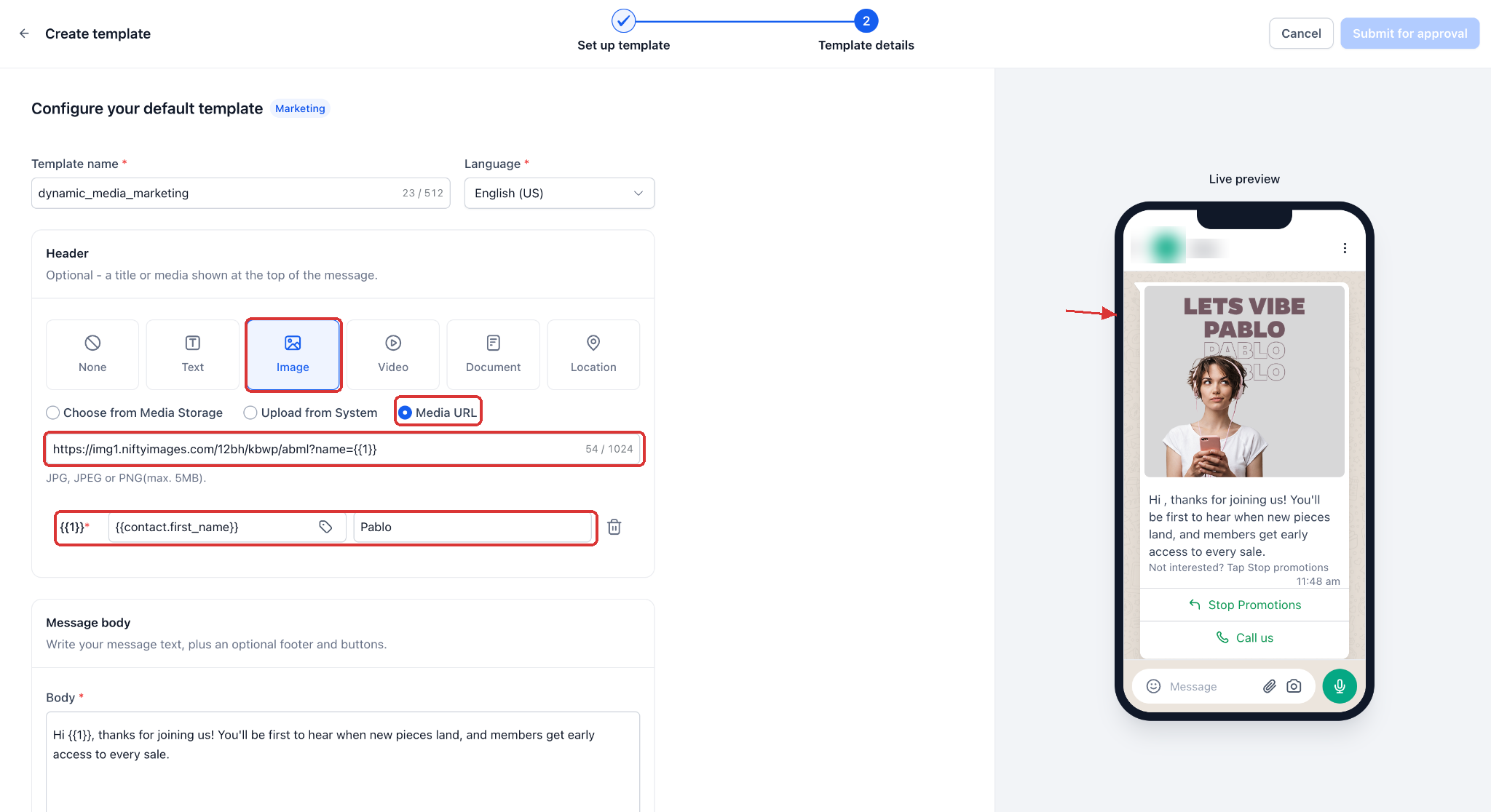
In the screenshot, the media URL contains {{1}}. That numbered placeholder is mapped to {{contact.first_name}} with a sample value for the preview.
A contact custom field can also store the complete public media URL. This is a separate use case from placing a numbered placeholder inside the URL. Available mapping and override controls depend on the sending workflow.
Use Personalized Images at Scale
Create a reusable image design and use dynamic contact information to provide a personalized image URL for each recipient.
- Create an image design in a supported image personalization service, using placeholders for the contact's name or another relevant detail.
- Configure the personalized image URL as the template's media header value, using supported variable mapping or custom fields.
- Confirm that the resolved media URLs are publicly accessible and point to supported image files.
- Run a supported Bulk Action using the approved WhatsApp template.
Each contact can receive an image generated from their own mapped information without requiring a separate template for every media variation.
Requirement: The resolved media URL must be accessible to Meta without authentication. Private links, login-protected files, empty values, and unsupported media URLs can cause sends to fail.
Why This Matters
Dynamic media reduces the need to create separate WhatsApp templates for individual media assets. This makes it easier to maintain approved message structures while delivering media that is relevant to each contact.
- Personalized campaigns: Send recipient-specific images in supported bulk messaging workflows.
- Contact-specific documents: Use appropriate, approved media URLs for files intended for individual recipients.
- Fewer duplicate templates: Reuse the approved message structure while changing the resolved media asset.
- Consistent automations: Reference dynamic values instead of manually replacing a fixed media URL for each variation.
- Better previewing: Review the template's layout and example content before submitting it for approval.
- Clearer troubleshooting: Check the resolved media URL when a send fails because the referenced file is unavailable or invalid.
To begin, open Settings > WhatsApp > Templates, create a supported template, and test your dynamic media configuration before using it in a larger send.
Frequently Asked Questions
Q: Can one approved WhatsApp template send different images to different contacts?
Yes. With supported dynamic media mapping, the same approved template can resolve a different media URL for each contact when the message is sent.
Q: Does the template builder show a live preview?
Yes. The Template details screen includes a live phone preview that updates as you edit supported message content, media, and buttons. Sample values may differ from the final values resolved at send time.
Q: What type of media URL should I use?
Use a publicly accessible HTTPS URL that points to a supported media file. Meta must be able to retrieve the file without authentication.
Q: What happens if a contact's media URL is missing or invalid?
The send can fail because the required media cannot be retrieved. Review the selected field mapping, the resolved value, and the file's accessibility.
Q: Can I use a contact custom field to store an entire media URL?
Yes. Supported sending workflows can use a contact custom field containing a full public media URL. This differs from mapping a numbered placeholder inside a media URL.
Q: Can I use dynamic media in bulk WhatsApp messages?
Yes. Dynamic media is supported in Bulk Actions and other documented WhatsApp template sending workflows. Available mapping controls can vary by sending surface.
Q: Does using dynamic media remove the need for Meta template approval?
No. The template must still be approved. Dynamic media allows the approved template to reference different media assets without creating a separate template for every contact-specific file.
Q: Can I create a WhatsApp template using AI?
Yes, where the AI template creation action is available. You can provide a use case, select a tone, review the generated content, and submit the completed template for approval.
Need Help?
If the template builder does not show an expected action, confirm that you opened the correct WhatsApp template creation or editing screen. Review the template's current status and any validation messages before making changes.
If a dynamic media message fails, check the selected custom field or variable mapping. Confirm that the resolved URL is not empty, that the file is supported, and that Meta can access it without signing in.
If the issue continues, contact support with the template name, sending workflow, exact error message, and a screenshot of the relevant configuration. Do not include private documents, passwords, access tokens, or sensitive customer information.