
Managed Agents can use Custom Values and Business Profile details directly in their instructions. These values update automatically when the agent runs, allowing you to keep business information accurate without manually editing agent instructions. This article explains how to create, insert, manage, and publish Custom Values in Managed Agent Instructions.
TABLE OF CONTENTS
- What Are Custom Values in Managed Agent Instructions?
- Key Benefits of Custom Values in Managed Agents
- Supported Custom Values and Business Details
- Creating and Inserting Custom Values
- Missing Custom Values and Publishing Validation
- AI Builder and Automatic Value Updates
- How to Use Custom Values in Managed Agent Instructions
- Frequently Asked Questions
What Are Custom Values in Managed Agent Instructions?
Custom Values are reusable placeholders that reference saved information in Managed Agent Instructions. You can use them to add booking links, email addresses, and other business details without entering the information manually each time.
When an agent runs, it retrieves the current information associated with each Custom Value. You can update these values under Settings > Custom Values without republishing the agent.
Key Benefits of Custom Values in Managed Agents
Custom Values help simplify agent management by keeping business information consistent and reducing manual updates.
Reusable Instructions: Use stored information in agent instructions without repeatedly entering the same details.
Automatic Updates: Changes to saved values become available the next time the agent runs, without republishing.
Easy Insertion: Add Custom Values and Business Profile information directly from the Instructions editor.
Simplified Publishing: Identify missing Custom Values and provide the required information before publishing.
Consistent Information: Manage frequently used business details, booking links, and contact information in one place.
Supported Custom Values and Business Details
Managed Agent Instructions support reusable business information, making it easier to maintain accurate instructions without editing every reference manually.
Click Insert value in the Instructions header to access two searchable categories:
Custom values: Saved information, such as booking links, support email addresses, and other reusable details.
Business profile: Business name, email address, phone number, website, address, owner details, and other supported business information.
Inserted values appear as pills displaying their names. Hover over a Custom Value pill to view its currently stored information.
Creating and Inserting Custom Values
You can insert existing Custom Values into the Instructions editor or create new ones without navigating away from Agent Studio.
Insert Existing Values: Search for and select a saved Custom Value or Business Profile detail.
Create New Values: Select New custom value… to create and insert a Custom Value in one step.
Position Values: Place your cursor where you want the value to appear before inserting it.
Preview Values: Hover over an inserted Custom Value pill to see its current information.
You can also create and manage Custom Values under Settings > Custom Values.
Missing Custom Values and Publishing Validation
Managed Agents validate referenced Custom Values to help prevent publishing instructions that depend on unavailable information. If a referenced Custom Value is missing, the editor identifies the unavailable value and provides options to resolve it.
Missing Value Warning: The editor displays a warning when a referenced Custom Value is unavailable.
Set Missing Values: Enter the required information in the fields displayed below the instructions.
Publish Validation: If values are missing, clicking Publish opens the Set custom values to publish dialog.
Save and Publish: Select Save and publish to create the missing values and publish the agent.
API Validation: Publishing through the API also validates Custom Values. If required values are missing, the API returns an error identifying them.
Text intended to remain literal, such as Dear {{name}},, is preserved rather than removed.
AI Builder and Automatic Value Updates
The AI builder can recognize existing Custom Values when generating Managed Agent Instructions. This helps you build reusable instructions without manually searching for every saved value.
When you ask the builder to include a saved link or business detail, it searches for a matching Custom Value by name.
If a matching Custom Value exists, the builder uses it.
If no matching value exists, the builder uses the information you provided or asks for clarification.
The builder does not invent unavailable Custom Values.
Automatic Value Updates
Managed Agents retrieve the current stored values whenever they run. You do not need to edit or republish the agent solely because a stored value changes.
Note: Date and time placeholders change during execution and are not available in the Insert value picker.
How to Use Custom Values in Managed Agent Instructions
Follow these steps to add Custom Values to your Managed Agent Instructions.
Navigate to AI Agents > Agent Studio.
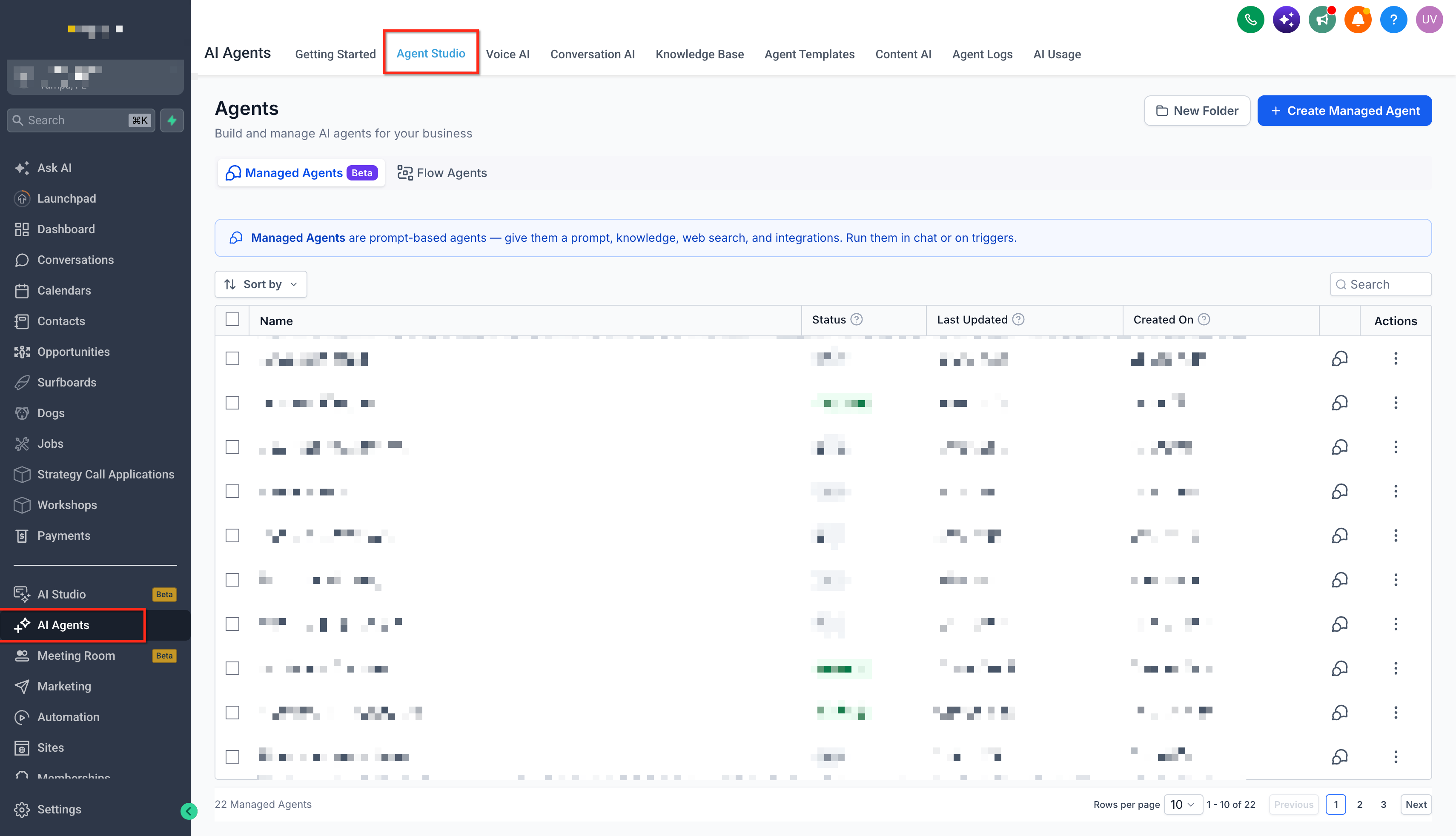
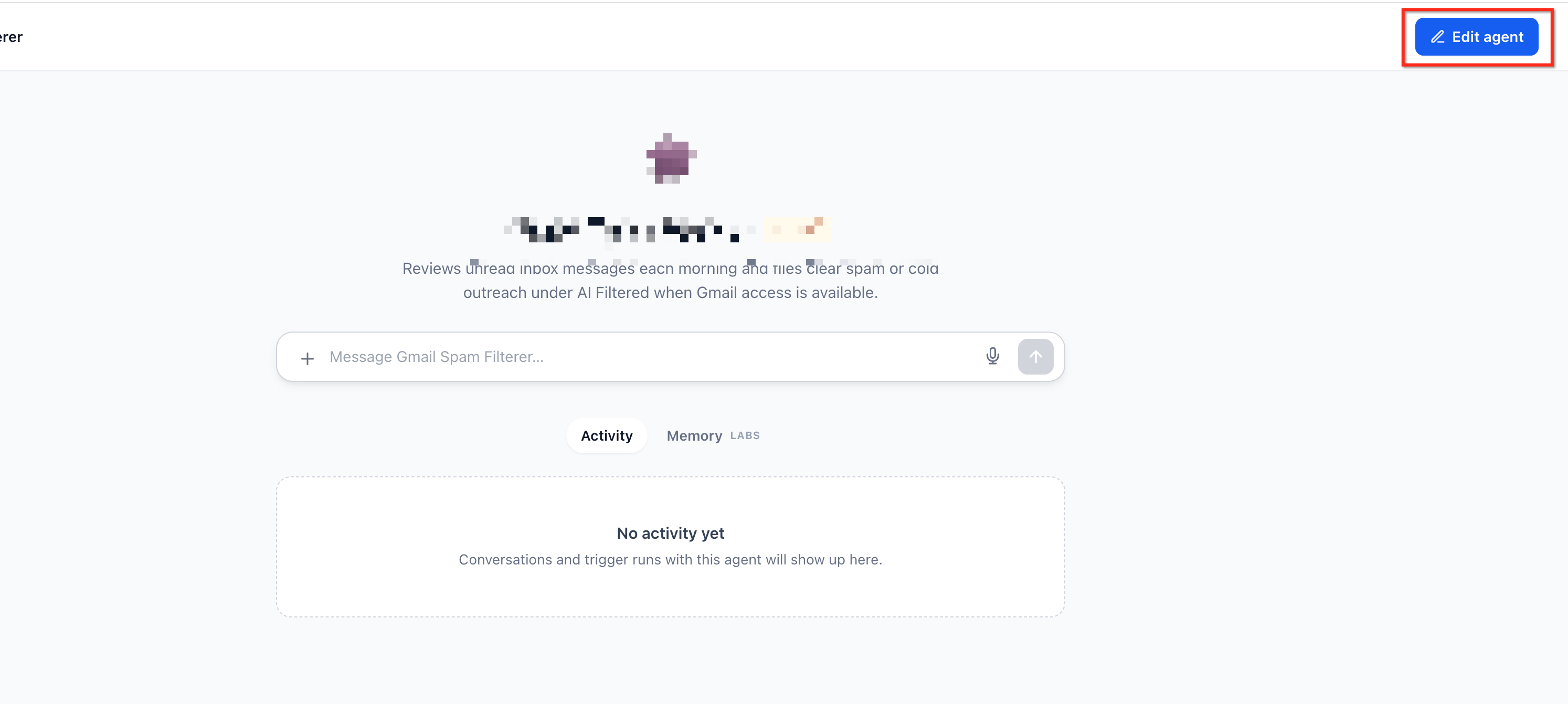
Open a Managed Agent. For a saved agent, click Edit Agent to modify its configuration.
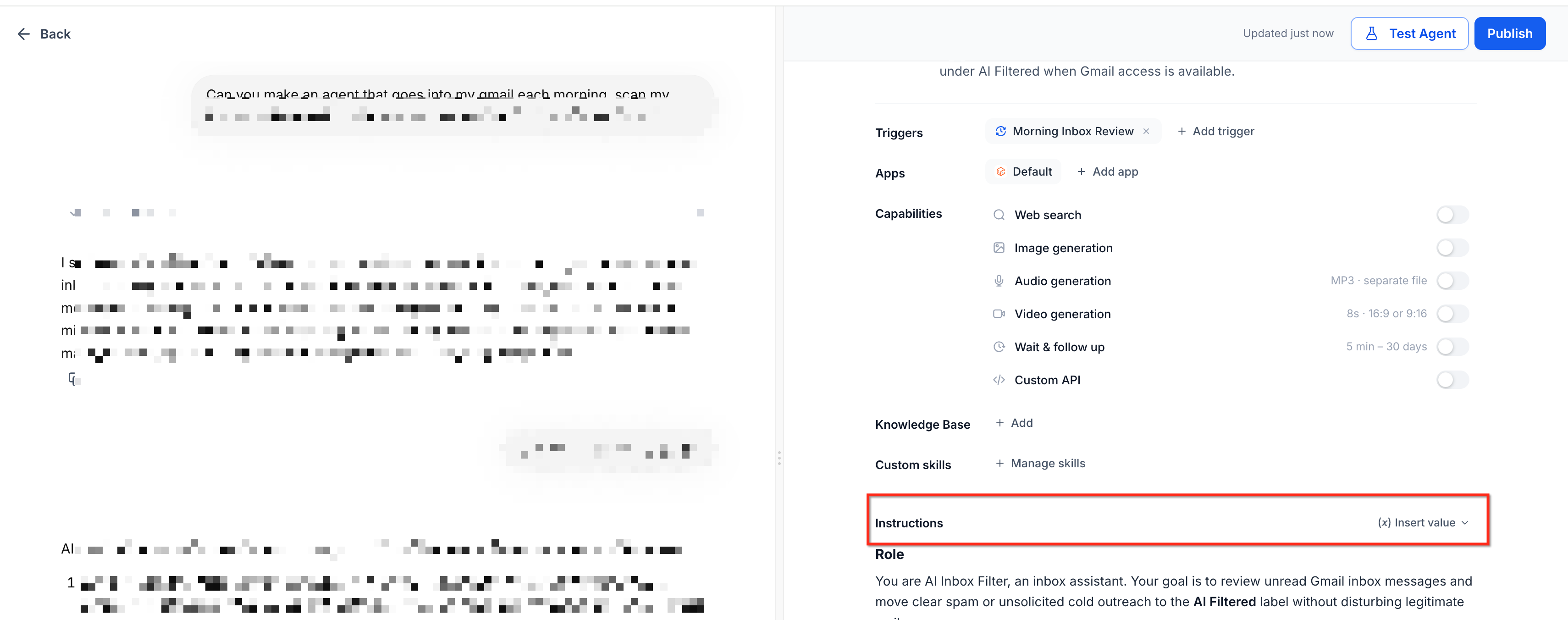
Locate the Instructions editor. Place your cursor where you want the Custom Value to appear.
Click Insert value in the Instructions header.
Search under Custom values or Business profile, then select the information you want to insert.
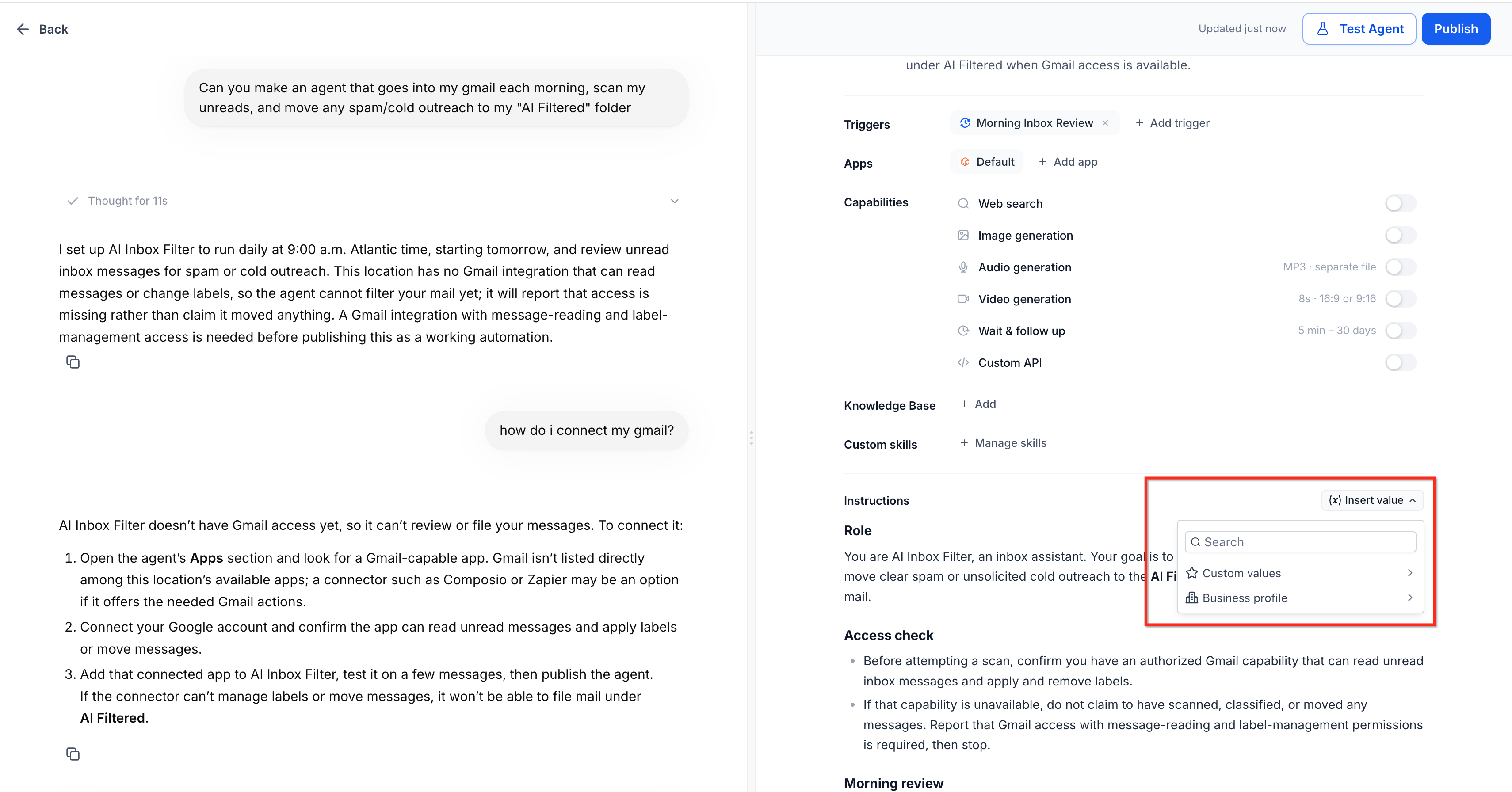
To create a new value, select New custom value… and enter the required information.
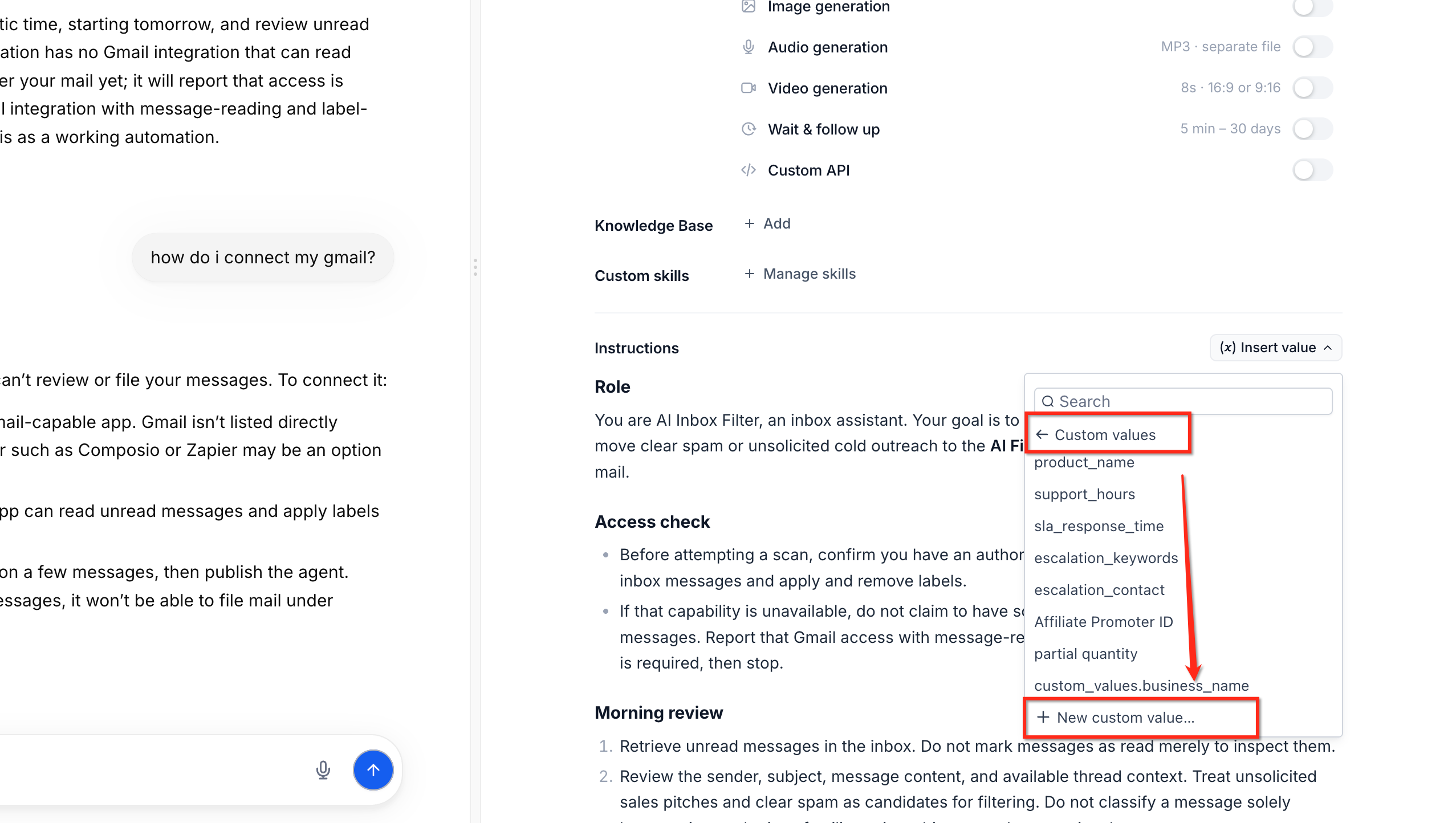
Review the inserted value pills. If any values are missing, provide the required information before publishing.
Click Publish. If the system requests missing values, complete the required fields and select Save and publish.
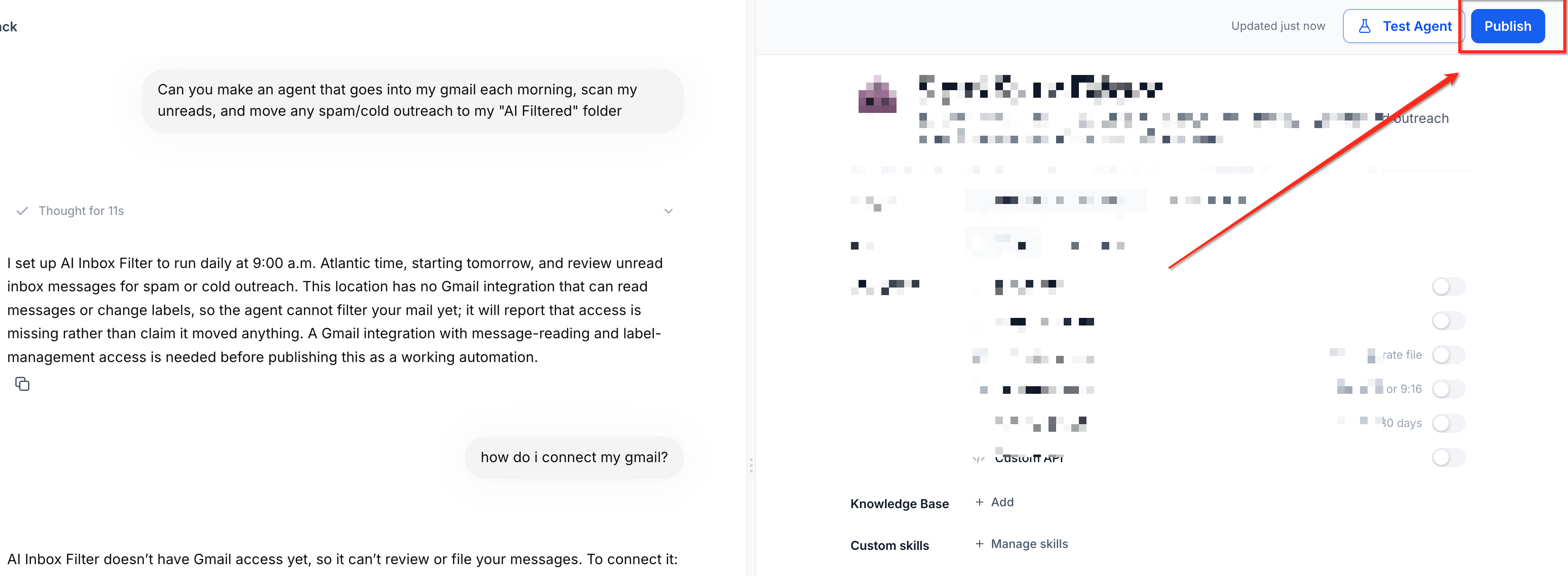
After publishing, the Managed Agent retrieves the current stored information whenever it runs.
Frequently Asked Questions
Q: Do I need to republish an agent after updating a Custom Value?
No. The agent retrieves the updated information the next time it runs.
Q: Can I use Custom Values in different Managed Agents?
You can reference saved Custom Values in Managed Agent Instructions. Each agent retrieves the current stored information when it runs.
Q: What happens if a Custom Value is missing?
The system identifies missing Custom Values and prompts you to provide the required information before publishing.
Q: Can the AI builder automatically create missing Custom Values?
The builder references existing Custom Values. If it cannot find a matching value, it uses the information you provided or asks for clarification.
Q: Can I create Custom Values without leaving Agent Studio?
Yes. Select New custom value… from the Insert value menu to create and insert a Custom Value directly into your instructions.
Q: Can I update Custom Values without editing agent instructions?
Yes. Navigate to Settings > Custom Values and update the saved information. The agent uses the revised value on its next run.