
Managed Agents let you create AI-powered assistants by describing the work you want them to perform in plain language. You can connect Knowledge Bases, configure CRM actions and event triggers, and test an agent before publishing it. Supported agents can also generate media and use Computer to complete browser-based tasks. This guide explains how to create, configure, test, publish, and manage Managed Agents.
TABLE OF CONTENTS
- What Is the Managed Agents Builder?
- Key Benefits of Managed Agents
- Prerequisites and Limitations
- Build Agents Using Natural Language
- Intelligent CRM Agents
- Computer for Managed Agents
- Event-Driven Automation
- Managed Agents Unified Workspace
- How to Set Up Managed Agents
- Frequently Asked Questions
- Need Help?
What Is the Managed Agents Builder?
The Managed Agents builder, formerly called Super Agents, creates AI agents from conversational instructions instead of requiring you to configure each step in a visual flowchart. Managed Agents can answer questions, retrieve information from connected Knowledge Bases, perform supported CRM actions, respond to configured events, and use available tools to complete tasks.
Each agent follows a Draft, Test, and Publish lifecycle. You can describe the agent's role, review the generated configuration, refine its behavior, and test it before enabling live activity.
Key Benefits of Managed Agents
Managed Agents combine natural-language instructions, approved business information, and available automation tools. This helps you create reusable AI assistants without building every decision path manually.
- Natural-Language Setup: Describe the agent's role, responsibilities, and behavior instead of manually connecting workflow nodes.
- CRM Automation: Use permitted actions to update contact records, manage tags, trigger workflows, and complete supported tasks.
- Knowledge-Based Responses: Connect Knowledge Bases so the agent can retrieve relevant business information when responding.
- Concurrent Browser Work: Use supported Computer environments to perform browser-based tasks and manage independent conversations.
- Testing Before Publishing: Review responses, actions, and configured behavior before allowing an agent to handle live events.
Prerequisites and Limitations
Before creating a Managed Agent, confirm that you can access the builder and the resources your agent needs. Connected tools, integrations, and permissions determine which tasks the agent can perform.
Prerequisites
- Managed Agents Access: You must have permission to access and manage Managed Agents.
- Knowledge and Tools: Prepare any Knowledge Bases, workflows, or calendars the agent needs to use.
- Connected Integrations: Configure the supported connections required for external services or communication channels.
- Facebook Lead Forms: Connect the applicable Facebook Page for lead synchronization. A Page administrator must also accept Meta's Lead Ads Terms of Service.
- Testing: Review the agent's instructions, available actions, and connected resources before publishing.
Limitations
- Available triggers and communication channels depend on the configured integrations and supported agent capabilities.
- The Unified Workspace is available through its supported Labs experience. Without that feature enabled, the existing Managed Agents interface remains available.
- Computer-based tasks require the appropriate browser tools and access to any websites involved.
- Generated configurations should be reviewed and tested before they are used for live CRM actions or communications.
Build Agents Using Natural Language
The builder uses your instructions to create an initial agent configuration. Clear descriptions help it understand the tasks, information, actions, and boundaries required for the agent.
When describing an agent, include:
- Role: What the agent is responsible for, such as customer support, lead follow-up, or social media assistance.
- Supported Channels: Where the agent should interact, such as supported chat, email, or event-based experiences.
- Knowledge Bases: Which approved sources the agent should use when answering questions or completing tasks.
- Permitted CRM Actions: Which record updates, workflow actions, or other supported operations the agent may perform.
- Behavior: Instructions for tone, response style, task boundaries, and expected results.
Example Prompt: Create a Social Media Assistant that writes and schedules posts for Facebook, Instagram, and LinkedIn. Use our Marketing Knowledge Base for product details and follow our brand voice.
After you submit the description, the builder generates a draft with proposed behavior, triggers, and actions. You can refine the draft by continuing the conversation.
For example, you can request changes such as:
- Make the tone more formal.
- Limit posts to three per week per platform.
- Use our support Knowledge Base when answering product questions.
You can also describe Facebook lead form or survey triggers in natural language. The builder can then use the available Page, Lead Form, or survey selections without requiring you to enter their IDs manually.
Intelligent CRM Agents
Managed Agents combine AI reasoning with connected business knowledge and supported CRM tools. This allows an agent to answer questions and perform configured tasks rather than only generate conversational responses.
Knowledge Base Answers
Connect approved Knowledge Bases to help agents retrieve relevant information from available sources.
Supported knowledge content can include:
- Documents
- Rich-text content
- Tables and CSV files
- Crawled website content
The agent uses connected knowledge sources when its instructions and available tools require that information.
CRM Actions and Automation
Agents can use configured CRM capabilities to complete supported actions. Review the available tools and permissions before enabling automated changes.
- Update contact fields and tags.
- Trigger supported workflows.
- Create tasks and notes.
- Create appointments through available tools.
- Use supported external API actions and connected tools.
Media Generation and Editing
Managed Agents can generate supported images, audio, and video. They can also edit existing PNG images and continue refining generated content through follow-up instructions.
Generated media can be saved to Media Storage for later use.
Common Managed Agent use cases include social media assistance, Knowledge Base support, community moderation, email campaign tasks, and routine CRM operations.
Computer for Managed Agents
Computer allows supported Managed Agents to interact with websites and complete browser-based tasks. Dedicated computer environments and browser controls help agents perform online work while keeping tasks organized.
Dedicated Computer Environments
Each Managed Agent uses its own computer environment. Separate environments help multiple agents perform browser tasks independently without interfering with one another's work.
Parallel Browser Conversations
A Managed Agent can run multiple browser conversations in parallel, with support for up to 10 concurrent conversations in the documented experience.
Each conversation uses its own browser context, allowing independent tasks to progress without requiring another conversation to finish first.
Secure Website Authentication
Supported credential storage allows agents to authenticate with websites without placing sensitive login details directly into agent instructions.
This supports browser tasks that require access to authenticated websites when the appropriate credentials and permissions are configured.
Improved Browser Controls and Take Control
The Computer interface provides visibility into ongoing browser activity. The Take Control experience allows supported transitions between agent-controlled and user-controlled browser interactions.
These controls are useful when an automated browser task requires direct user involvement.
Event-Driven Automation
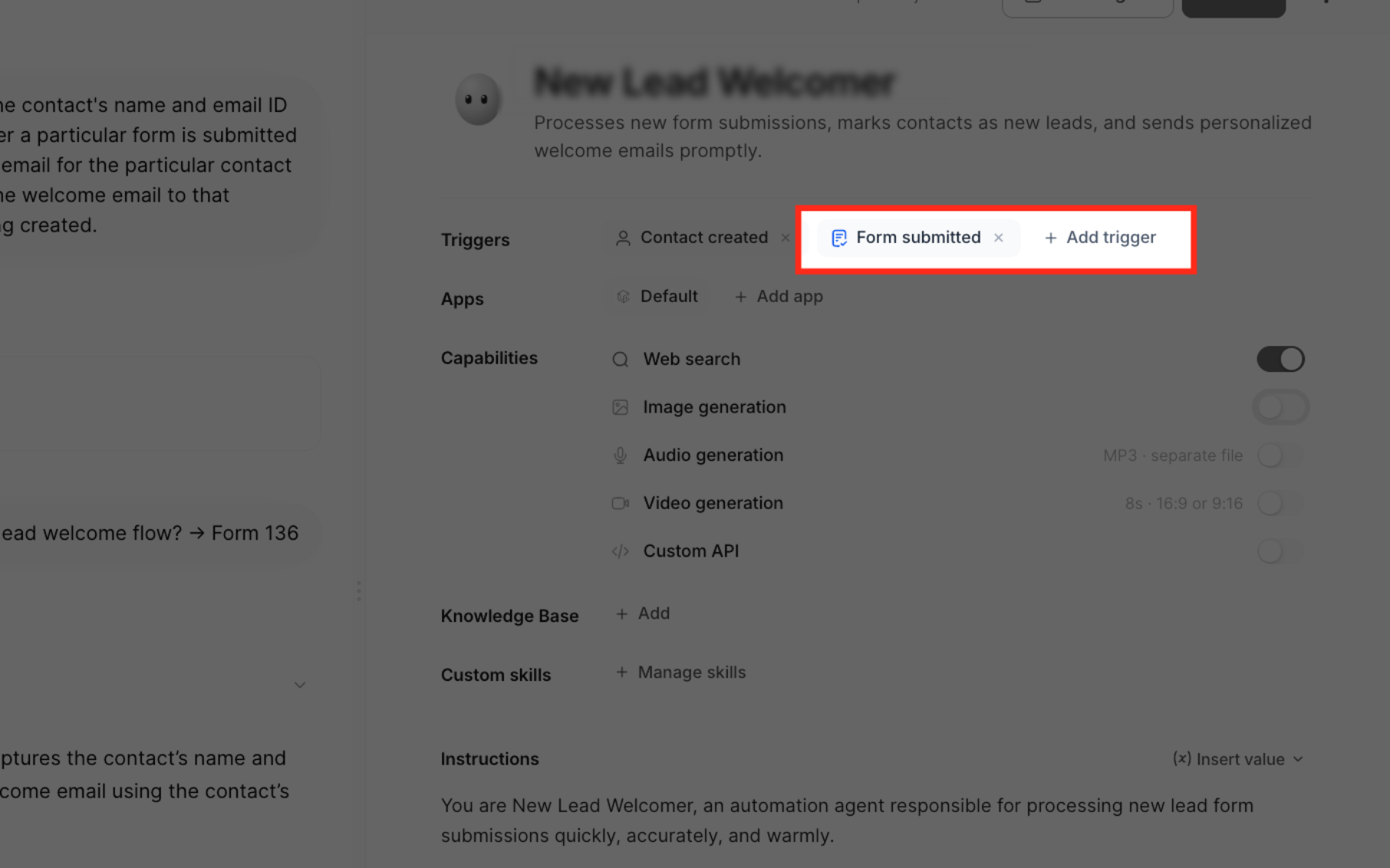
Triggers start a Managed Agent when a configured event occurs. This allows agents to respond to supported CRM activities without requiring a user to start every task manually.
Supported trigger types include:
- Tag Changed: Start an agent when a contact gains or loses a specified tag.
- Form Submitted: Start an agent after a selected form is submitted.
- Chat Interface: Begin agent interactions through supported chat channels.
- Facebook Lead Form: Start an agent after a lead form is submitted from a selected Facebook Page. The agent receives the contact and submitted answers.
- Survey Submitted: Start an agent when a selected survey receives a response. The agent receives the survey name and submitted answers.
Other supported events can include schedules, appointments, and contact or opportunity events.
When a configured form includes a file-upload field, a submitted PNG image can also be provided to the agent as trigger context. The agent can use that image according to its instructions and enabled capabilities.
Managed Agents Unified Workspace
The Unified Workspace brings agent discovery, conversations, testing, activity, and configuration into a shared interface. It helps you review agents and manage common tasks without repeatedly switching between separate areas.
- Agent List: Search, filter, sort, and switch between agents. Review their status, descriptions, and recent updates.
- Agent Workspace: Chat with an agent, test its behavior, and continue previous conversations.
- Agent Details: Review configuration, publishing, activity, and available actions in the agent's details panel.
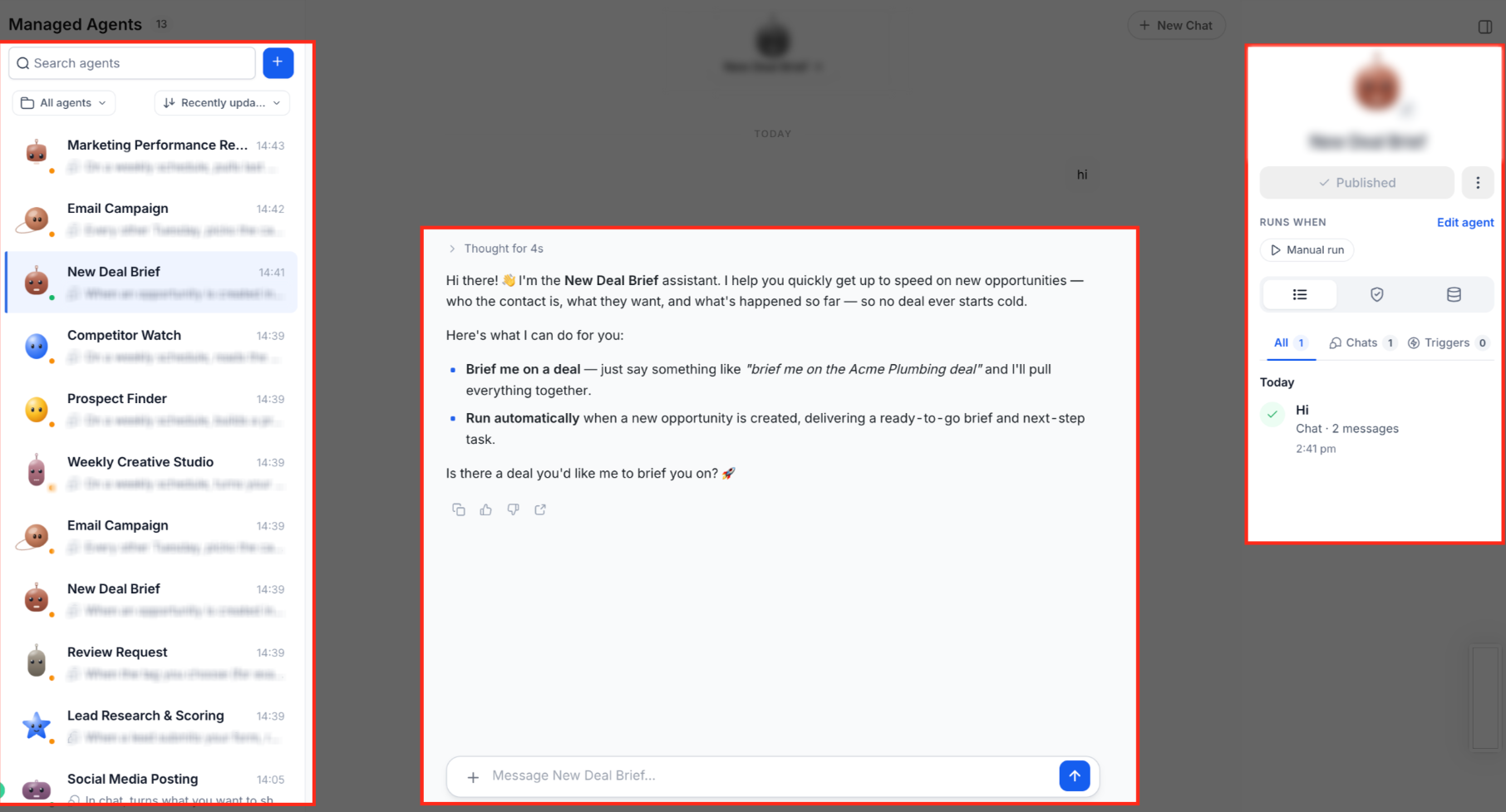
Note: The Unified Workspace requires its supported Labs feature. If the feature is not enabled, the existing Managed Agents interface remains available.
How to Set Up Managed Agents
Creating a Managed Agent involves defining its responsibilities, connecting the required tools and triggers, testing its behavior, and publishing it. Follow these steps to prepare an agent for supported live activity.
Step 1: Access Managed Agents
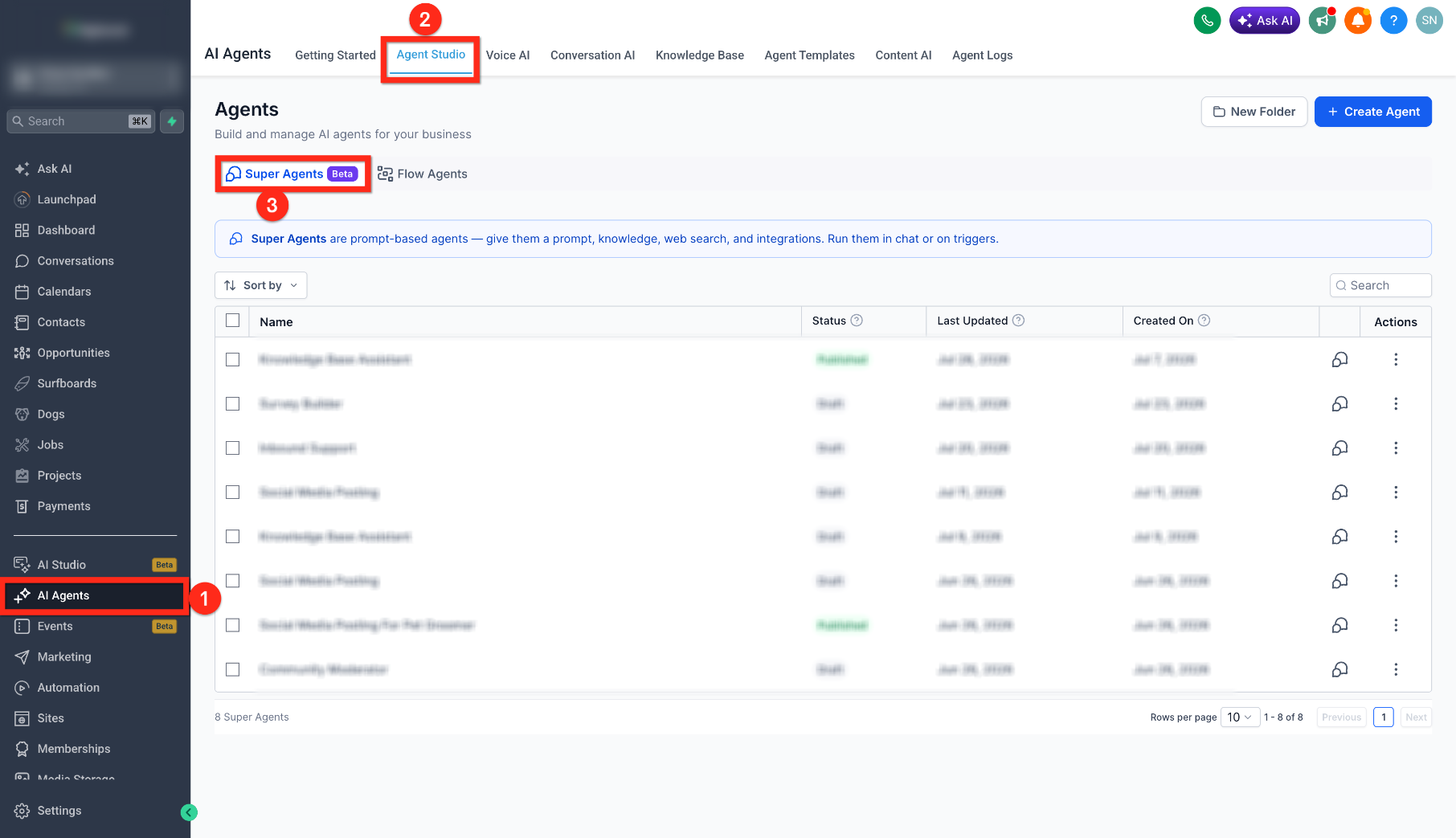
Start in Agent Studio to open the Managed Agents builder.
- Open AI Agents from the main navigation.
- Select Agent Studio.
- Open Managed Agents.
Step 2: Create a Managed Agent
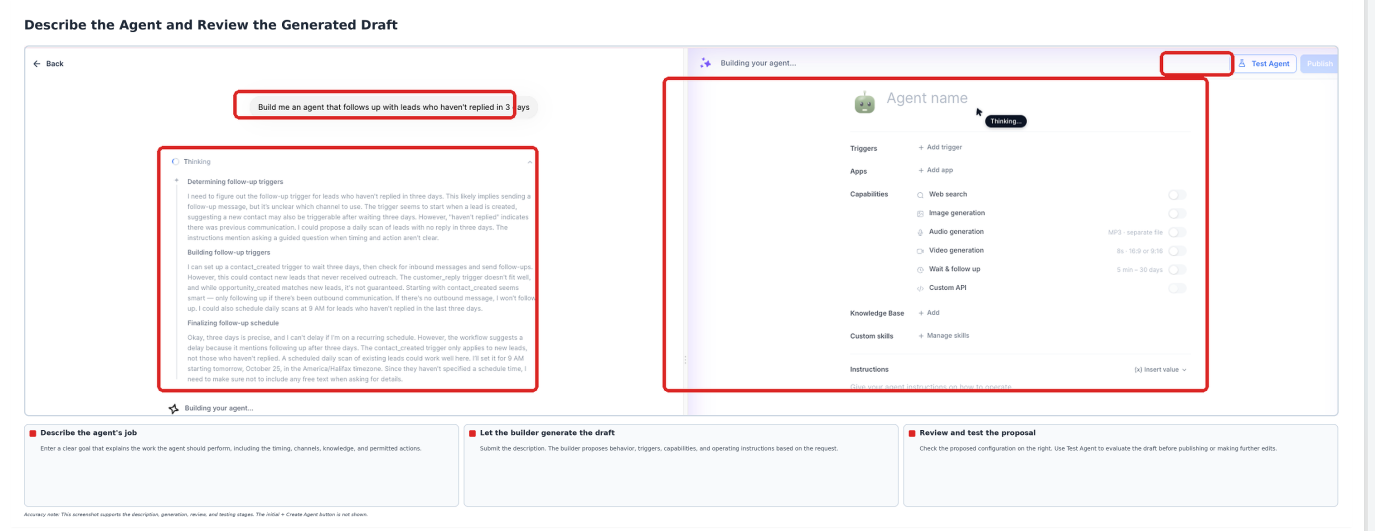
Provide a clear description of the work you want the agent to perform. The builder uses your instructions to generate an initial draft.
- Click + Create Agent.
- Describe the agent's goal, supported channels, Knowledge Bases, and permitted CRM actions. You can also choose an available prebuilt use case.
- Submit the description to generate the draft agent.
- Review the proposed behavior and configuration.
Step 3: Review the Agent and Configure Triggers
Before enabling automated execution, review the generated instructions, connected tools, and proposed trigger conditions.
- Open the Managed Agent you want to configure.
- Review the generated behavior, instructions, and permitted actions.
- Use the chat-based editing sidebar to refine the agent's tone, rules, or actions.
- Review connected Knowledge Bases, workflows, calendars, and other resources.
- Open Triggers and add the supported events that should start the agent.
You can configure multiple supported triggers for the same Managed Agent.
Configure a Facebook Lead Form Trigger
Use a Facebook lead form trigger when you want an agent to respond to lead submissions from a connected Facebook Page.
- Go to AI Agents → Agent Studio → Managed Agents.
- Open the agent you want to configure.
- Open Triggers and click + Add Trigger.
- Find and select Facebook lead form in the trigger picker.
- Select the connected Facebook Page.
- Use the Page-level selection for all its available Lead Forms, or select individual Lead Forms.
- Use search to locate a form when needed. Search is limited to the selected Page.
- Review the trigger configuration before testing and publishing the agent.
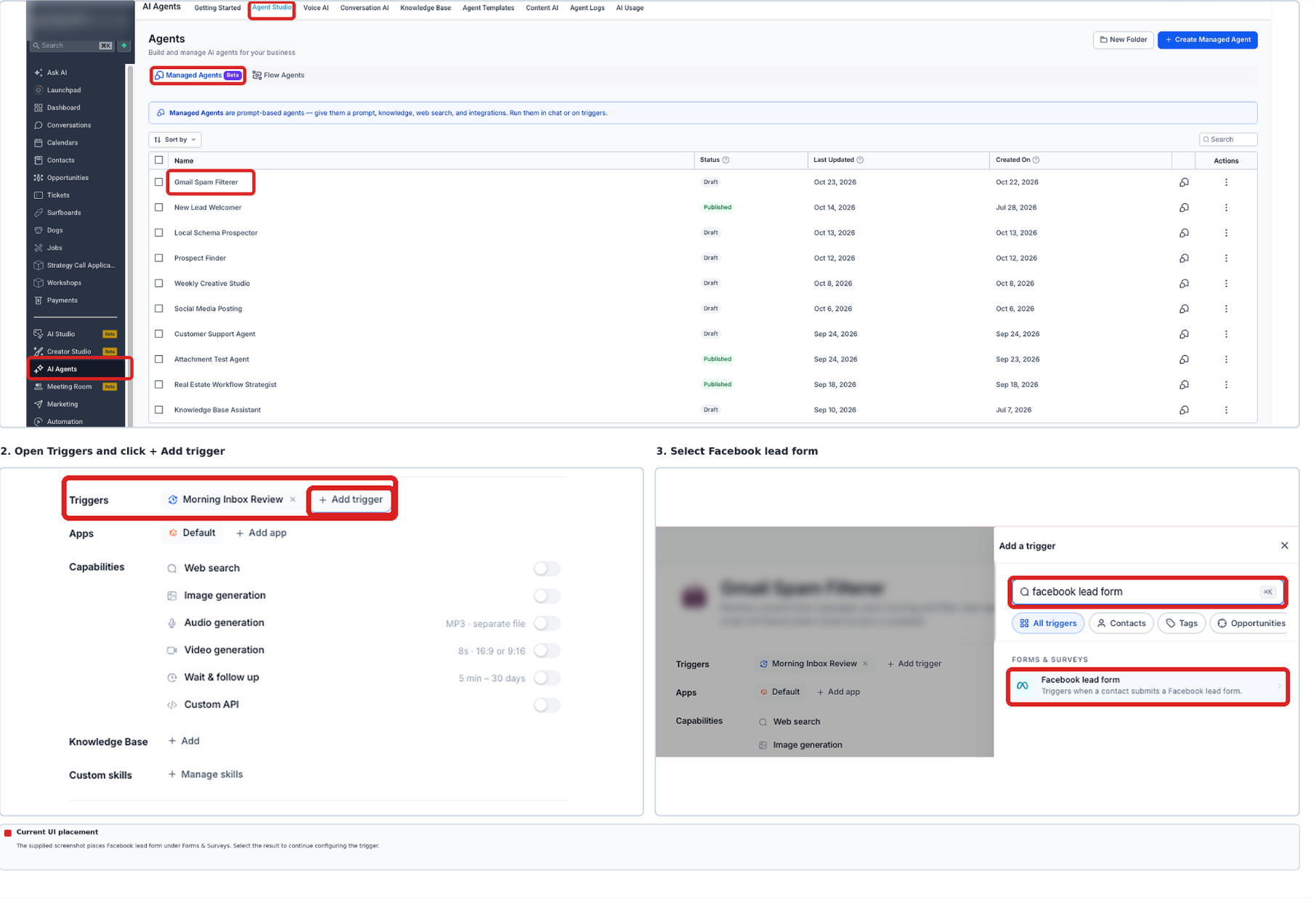
When the trigger runs, the agent receives the contact and submitted lead form answers as context.
Configure a Survey Submitted Trigger
Use this trigger when you want an agent to process survey submissions or follow up after members submit feedback.
- Go to AI Agents → Agent Studio → Managed Agents.
- Open the agent you want to configure.
- Open Triggers and click + Add Trigger.
- Under Forms & Surveys, select Survey submitted.
- Select one or more surveys.
- Use search to locate specific surveys when needed.
- Review the selections before testing and publishing the agent.
A submission to any selected survey can start the agent. The agent receives the survey name and submitted answers as context.
During publishing, the system validates the selected Facebook Page, Lead Forms, or surveys and identifies selections that are no longer valid.
Step 4: Configure Media Generation
Enable the media capabilities the agent needs, then review the available quality and output settings. Media generation can also be used during supported triggered runs.
- Go to AI Agents → Agent Studio → Managed Agents.
- Open the agent and select Capabilities.
- Enable Image generation, Audio generation, or Video generation as needed.
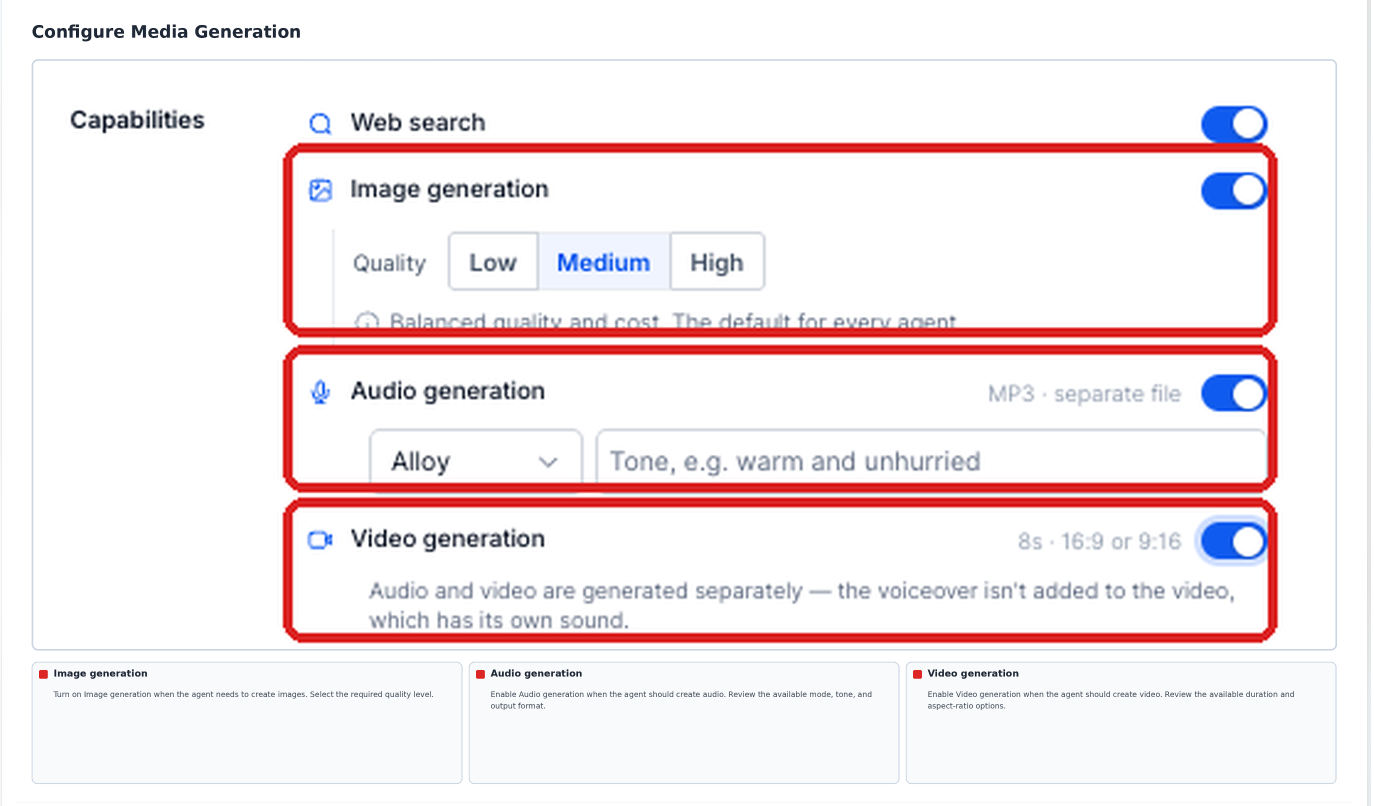
Image Generation and Editing
Image generation lets an agent create supported visual assets from a prompt. You can specify quality and image shape, or use follow-up instructions to edit an existing PNG.
- Quality: Choose Low, Medium, or High. Medium is the documented default.
- Aspect Ratios: Supported image ratios include 1:1, 4:5, 2:3, 3:2, 9:16, 3:4, 4:3, 5:4, 16:9, and 21:9.
- Descriptive Shapes: You can request a vertical, widescreen, square, or banner-style image.
- Default Shape: Without a specified shape, the agent generates a square image.
- New Images: A new generation request creates a new image unless you explicitly ask to edit an existing one.
- PNG Editing: Describe the change you want to make to an existing PNG image.
- Follow-Up Editing: Continue in the same conversation to refine the most recently edited image.
- Conversation Context: Generated and edited images remain available in the conversation context for subsequent requests.
Example: Generate a 9:16 vertical image of a coffee shop for an Instagram story.
For editing, you can provide an existing PNG and ask the agent to change a color, remove an object, or adjust another supported visual element.
Audio Generation
Audio generation lets an agent create spoken content using its available voice and tone settings.
- Select a supported voice.
- Use the Tone field to describe how the audio should sound.
- Enter the source text in the language you want the agent to speak.
Video Generation and Media Storage
Managed Agents can generate supported eight-second video clips. Available video format options depend on the current media-generation interface.
Audio and video generation use separate outputs. Generated media can be saved to Media Storage for reuse.
Step 5: Test the Agent
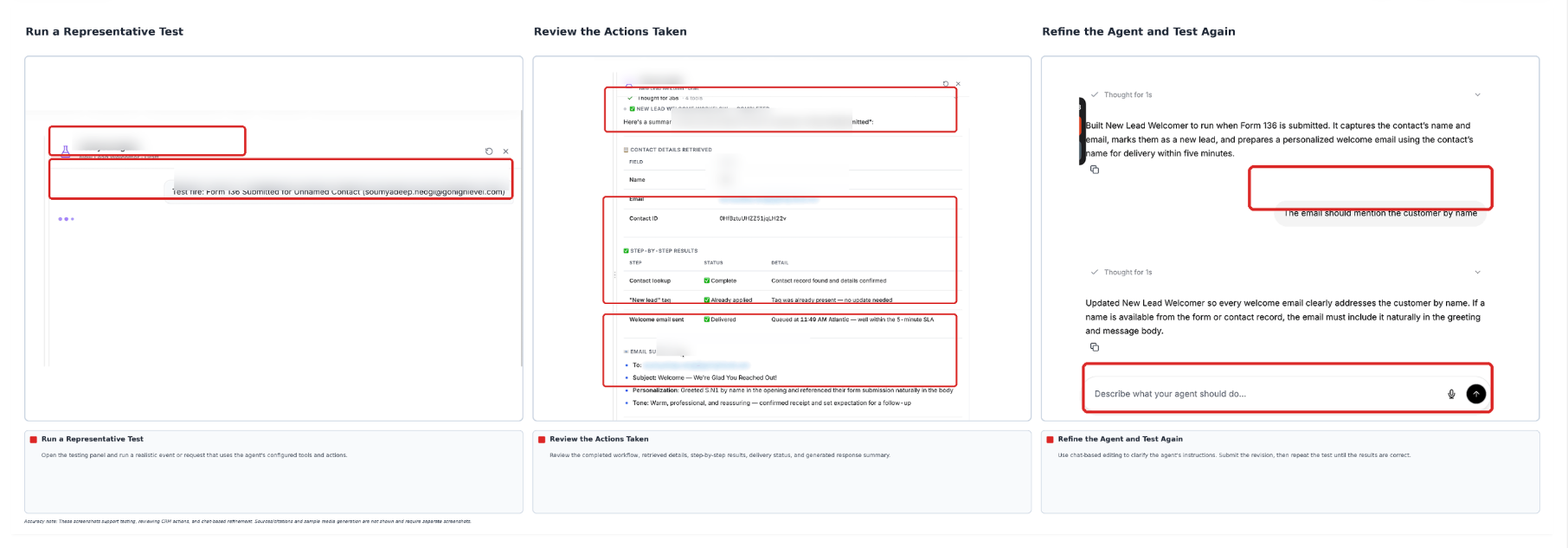
Testing helps you confirm that the agent follows its instructions, retrieves the intended information, and performs the expected actions before it processes live events.
- Open the agent's testing panel.
- Run representative requests that use its Knowledge Base and permitted CRM actions.
- Review the responses and any actions taken during the tests.
- If the agent uses web search, review Sources and open relevant citations.
- If media generation is enabled, request a sample asset.
- Refine the agent through chat-based editing and repeat testing as needed.
Step 6: Publish the Agent
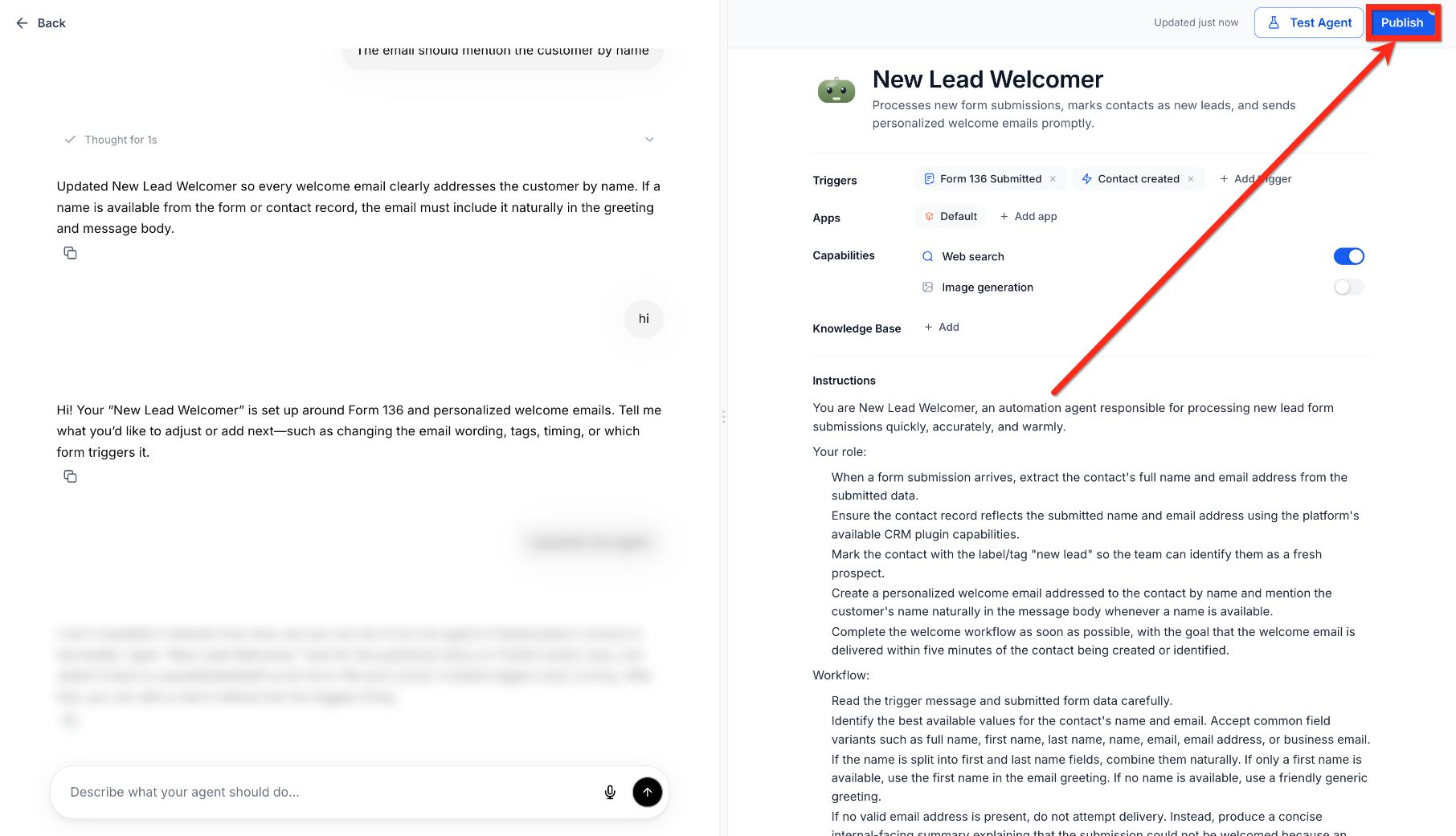
Publishing makes the tested agent available for its configured production triggers. Review the setup before changing the agent from Draft to Published.
- Confirm that the agent's instructions and connected tools are correct.
- Verify that required triggers and integrations are configured.
- Complete representative tests.
- Click Publish to publish the Managed Agent.
- Confirm that its status changes to Published.
Step 7: Monitor and Refine
After publishing, review agent activity and update its instructions or connected knowledge when needed. Ongoing testing helps you verify the agent's behavior as its tasks and information change.
- Open AI Agents → Agent Studio → Managed Agents.
- Select the agent you want to review.
- Review available conversations, activity, and execution information.
- Identify responses or actions that need improvement.
- Refine the agent's instructions or configured tools as needed.
- Use the Knowledge Base Retrieval Tester to verify important knowledge changes.
- Test changes before publishing an updated configuration.
Frequently Asked Questions
Q: How is a Managed Agent different from a Flow-Based Agent?
A Managed Agent is created through conversational instructions. A Flow-Based Agent uses a manually configured visual canvas. Managed Agents are the recommended experience for new agent creation, while existing Flow-Based Agents remain available for management.
Q: What happens if my Knowledge Base changes after I publish an agent?
The agent can use updated Knowledge Base information on a subsequent run after the content has been indexed. Use the Knowledge Base Retrieval Tester to verify that important information can be retrieved.
Q: Can I configure multiple triggers for one Managed Agent?
Yes. A Managed Agent can use multiple supported triggers, including configured CRM events, form submissions, chat interactions, and other available events.
Q: How can I reduce unwanted CRM changes?
Define clear instructions and action boundaries. Review the agent's available tools, use only the permissions required for its tasks, and test its behavior before publishing. Instructions should not replace testing or appropriate access controls.
Q: Do I need coding skills to create a Managed Agent?
No. The builder lets you describe the agent's responsibilities in plain language. Some advanced tools or external integrations may require additional configuration.
Q: What channels and events can start a Managed Agent?
Supported options can include chat interactions, tag changes, forms, surveys, Facebook lead forms, schedules, appointments, and contact or opportunity events. Availability depends on the configured triggers and integrations.
Q: Can a Managed Agent run multiple conversations at the same time?
Yes. The documented Managed Agents experience supports up to 10 parallel conversations, allowing independent tasks to progress concurrently.
Q: Can a Managed Agent generate media without an active chat?
Yes. When the appropriate media capabilities and triggers are configured, supported triggered runs can generate media without an active chat conversation.
Q: Can I test an agent before publishing?
Yes. Use the available testing panel to review the agent's responses and actions. Refine its instructions and retest before enabling live execution.
Need Help?
If a Managed Agent does not behave as expected, review its configuration, connected resources, and testing results before contacting support.
- Managed Agents Is Missing: Confirm that you have the required access and that the supported Managed Agents experience is available.
- The Agent Does Not Respond as Expected: Review its instructions, Knowledge Bases, and permitted actions.
- A Trigger Does Not Run: Confirm that the trigger is configured correctly and the agent is published.
- Facebook Lead Form Trigger Does Not Run: Check the connected Facebook Page, selected Lead Forms, and required Page permissions.
- Survey Trigger Does Not Run: Review the selected surveys and confirm that the intended survey was submitted.
- Knowledge Base Answers Are Incomplete: Verify that the source is connected and indexed, then test retrieval using the Knowledge Base Retrieval Tester.
- CRM Actions Are Incorrect: Review the agent's instructions and available tools before allowing further live execution.
- Media Generation Is Unavailable: Confirm that the required capability is enabled for the agent.
- Browser Tasks Cannot Continue: Review the available Computer tools and website access required for the task.
- The Agent Is Not Running in Production: Confirm that the agent is published and its intended triggers are configured.
If the issue continues, contact support with the agent name, configured trigger, expected result, actual behavior, relevant execution information, and screenshots. Do not include passwords, private credentials, or access tokens.