
QR codes for Calendars, Services, and Rentals make it easier to connect customers directly to your booking experiences. You can create QR codes for supported scheduling and booking destinations or access prebuilt QR codes from the associated product. Prebuilt QR codes are already linked to their destinations and provide access to scan activity, design customization, and downloads. This guide explains how to create, access, customize, and manage these QR codes.
TABLE OF CONTENTS
- What Are QR Codes for Calendars, Services, and Rentals?
- Key Benefits of QR Codes for Calendars, Services, and Rentals
- Prerequisites and Limitations
- Supported QR Code Destinations
- How to Create a QR Code
- How to Access Prebuilt QR Codes
- View Scan Activity, Customize, and Download QR Codes
- Find Prebuilt QR Codes in the QR Codes List
- Frequently Asked Questions
- Need Help?
What Are QR Codes for Calendars, Services, and Rentals?
QR codes for Calendars, Services, and Rentals allow customers to access supported booking and scheduling destinations by scanning a QR code. This provides a convenient way to share booking experiences without requiring customers to enter a booking link manually.
You can create QR codes through the QR Code Builder or use prebuilt QR codes available directly within supported Calendars, Services, and Rentals.
Prebuilt QR codes are automatically connected to their respective destinations, eliminating the need to manually create and configure a separate QR code for each supported booking experience.
Key Benefits of QR Codes for Calendars, Services, and Rentals
QR codes simplify how you share booking destinations while making it easier to monitor engagement and manage codes from supported booking tools.
- More booking destinations: Create QR codes for supported Calendar, Service, Rental, and related booking destinations.
- Ready-to-use QR codes: Access prebuilt QR codes that are already connected to their destinations.
- Direct product access: Open QR codes directly from supported Calendars, Services, and Rentals.
- Scan insights: Review Scans and Last scanned information from the QR code experience.
- Easy customization: Edit the QR code design without manually recreating its booking destination.
- Flexible downloads: Download supported QR codes as PNG, SVG, or PDF.
- Centralized visibility: Find prebuilt and manually created QR codes from the main QR Codes area.
Prerequisites and Limitations
Before creating or sharing a QR code, make sure the booking destination you want customers to access is available. Selecting the appropriate QR code type and resource helps direct customers to the intended booking experience.
- Have an existing Calendar, Service, Rental, or another supported booking destination.
- Available destination options depend on the QR code type you select.
- Prebuilt QR codes are already connected to their corresponding supported booking destinations.
- You can continue creating QR codes manually through the QR Code Builder.
Note: Always scan a QR code before sharing or printing it to confirm that it opens the intended booking destination.
Supported QR Code Destinations
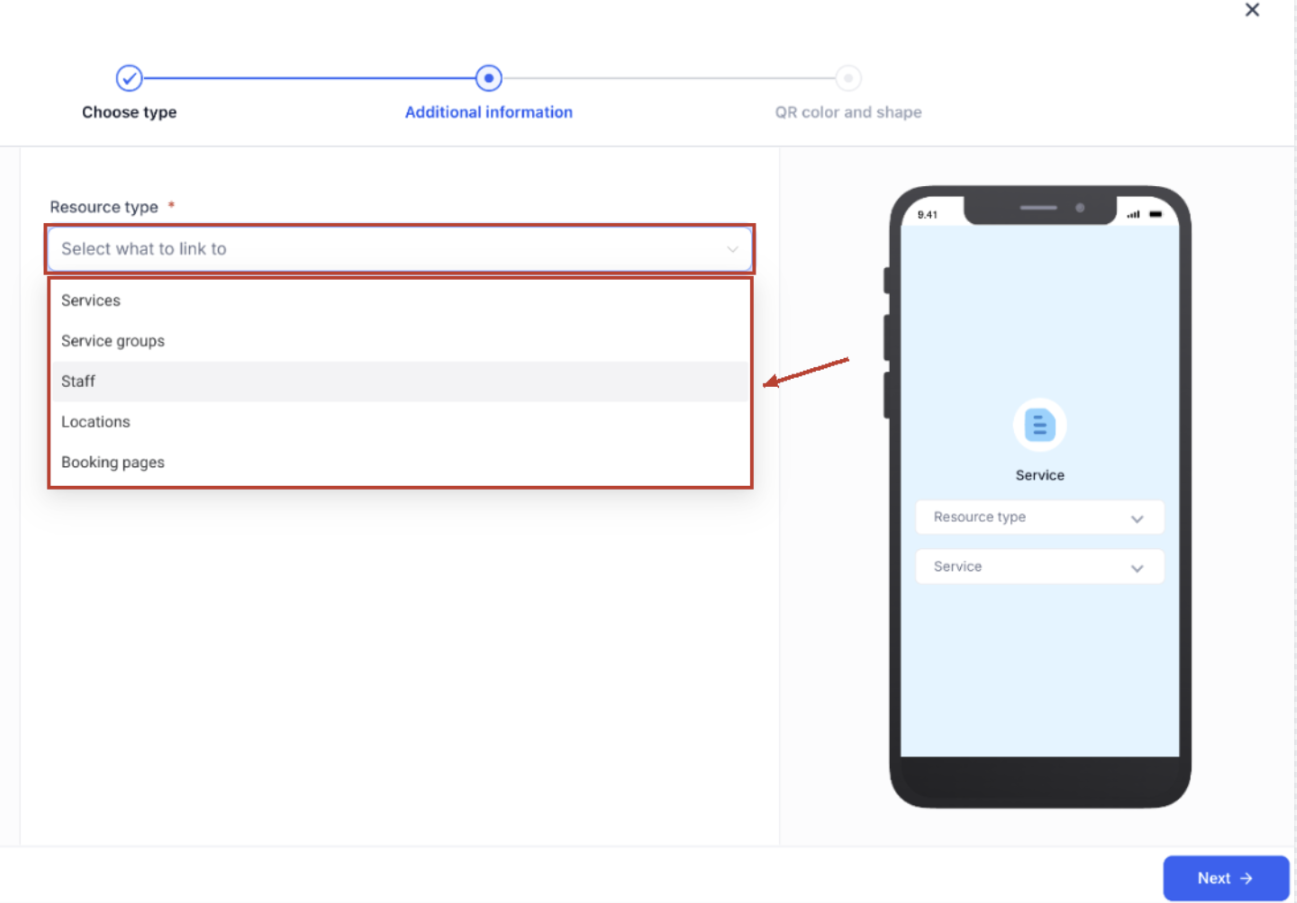
The QR Code Builder includes dedicated Calendar, Service, and Rental QR code types. Each type provides destination options based on the booking resources it supports.
| QR Code Type | Destination Options |
|---|---|
| Calendar | Calendar Groups and Calendars |
| Service | Services, Service Groups, Staff, Locations, and Booking Pages |
| Rental | Supported Rental booking destinations |
How to Create a QR Code
Use the QR Code Builder when you want to choose a booking destination manually and customize the QR code before sharing it. You can select a QR code type, choose its destination, and configure its appearance.
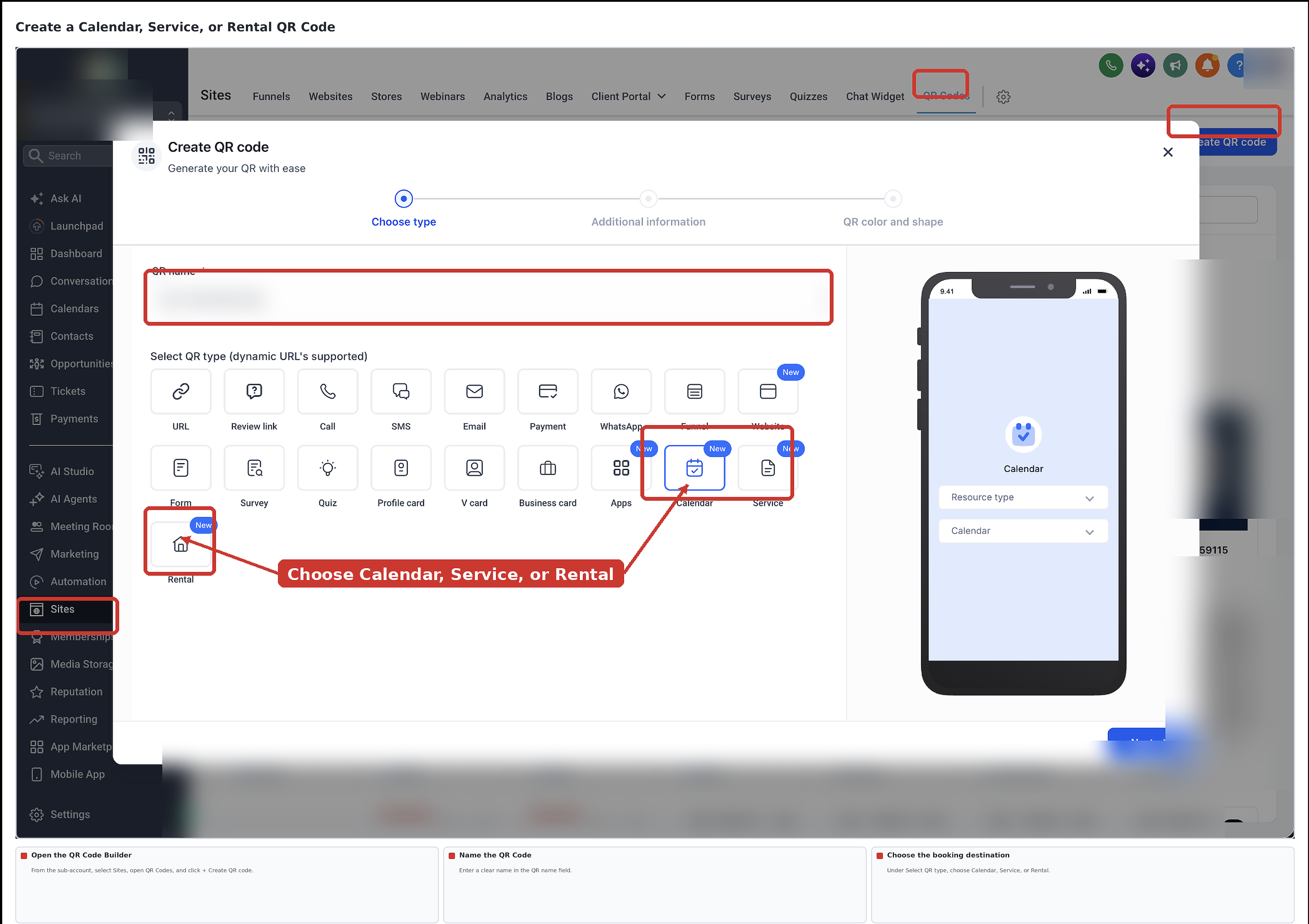
- From the left navigation menu, select Sites.
- Select QR Codes from the top navigation menu.
- Click + Create QR code.
- Enter a name in the QR name field.
- Under Select QR type, select Calendar, Service, or Rental.
- Click Next.
- Under Additional information, select the Resource type you want the QR code to open.
For a Calendar QR code, you can select Calendar groups or Calendars. For a Service QR code, the supported options include Services, Service groups, Staff, Locations, and Booking pages.
- Select the specific booking destination. For example, if you selected Calendars, choose the Calendar you want the QR code to open.
- Click Next to continue to QR color and shape.
- Customize the QR code as needed.
- Click Save to create the QR code.
- Scan the QR code to confirm that it opens the correct booking destination before sharing it.
How to Access Prebuilt QR Codes
Supported Calendars, Services, and Rentals can also provide prebuilt QR codes. These codes are already connected to their corresponding destinations, allowing you to access them without manually creating a new code.
Access a Calendar QR Code
Calendar QR codes can be accessed through the Calendar sharing options. This provides a convenient way to retrieve the code directly from the Calendar you want customers to book.
- From the left navigation menu, select Calendars.
- Open Calendar Settings.
- Select Calendars.
- Locate the Calendar you want to share.
- Click the Calendar's sharing icon in the Actions column.
- Select the QR code tab.
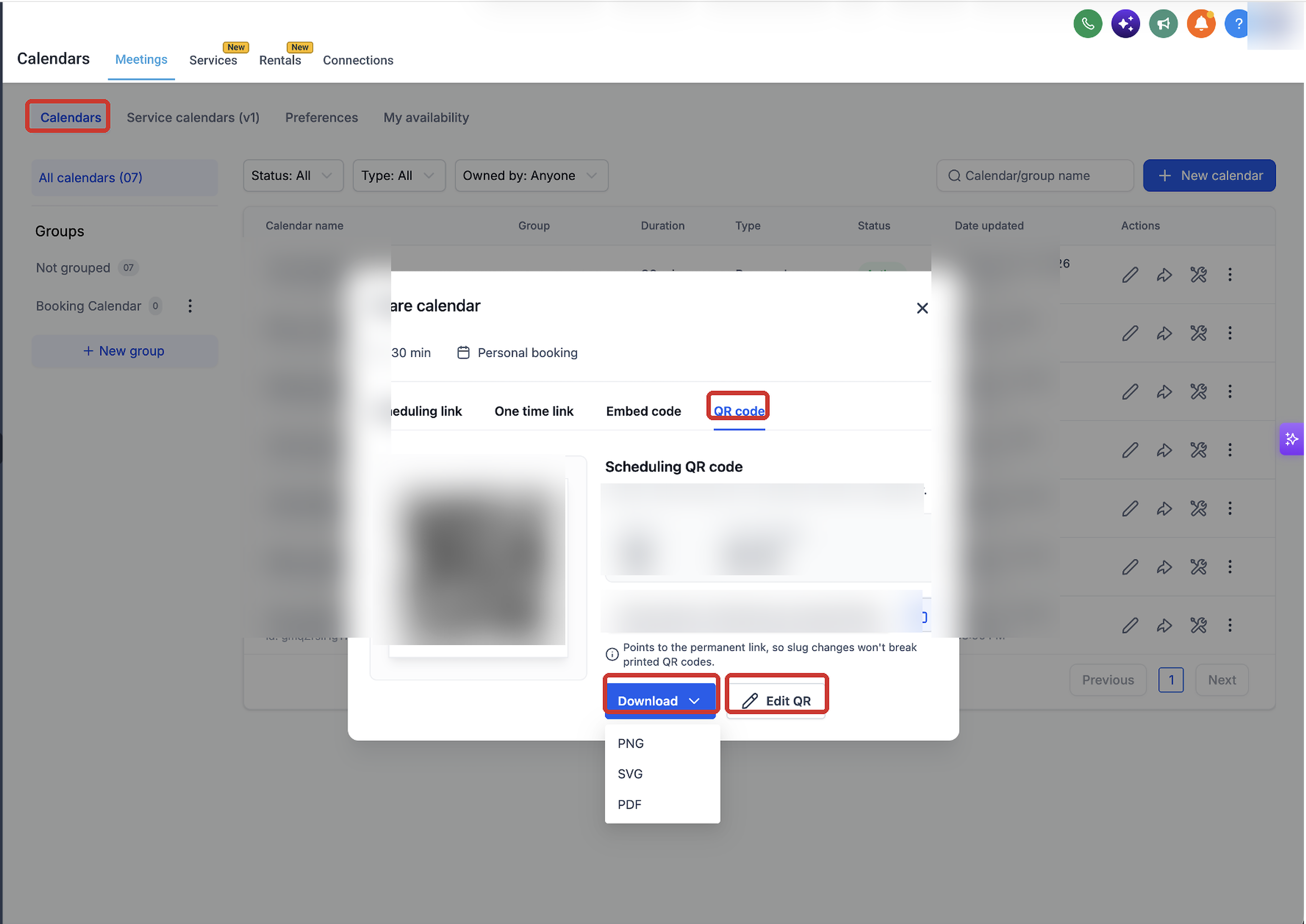
The QR code view provides access to the Calendar's QR code, scan activity, permanent QR link, download options, and QR code editing controls.
Access a Service QR Code
Prebuilt QR codes for supported Services are associated with their booking destinations. You can locate these codes from the centralized QR Codes area.
- From the left navigation menu, select Sites.
- Select QR Codes.
- Under System Folders, open the Services folder.
- Locate the QR code associated with the Service you want to share.
Access a Rental QR Code
Prebuilt QR codes for supported Rentals are associated with their booking destinations. The centralized QR Codes area provides a way to find codes associated with Rentals.
- From the left navigation menu, select Sites.
- Select QR Codes.
- Under System Folders, open the Rentals folder.
- Locate the QR code associated with the Rental you want to share.
View Scan Activity, Customize, and Download QR Codes
The QR code experience provides tools for reviewing scan activity, downloading QR codes, and updating their appearance. These options help you manage supported QR codes without manually recreating their booking destinations.
Review QR Code Activity
Scan information helps you understand when customers interact with a QR code. For supported prebuilt QR codes, the available information includes:
- Scans: The number of recorded scans for the QR code.
- Last scanned: The most recent date the QR code was scanned.
Download a QR Code
Download options let you save a QR code for printed materials or digital channels. The Calendar sharing window provides access to the supported download formats.
- From the left navigation menu, select Calendars.
- Open Calendar Settings.
- Select Calendars.
- Locate the Calendar you want to share.
- Click the Calendar's sharing icon in the Actions column.
- Select the QR code tab.
- Click Download.
- Choose one of the available formats:
- PNG
- SVG
- PNG
Customize a QR Code
You can update a QR code's design using the available editing controls. This helps you adjust its appearance while retaining its connection to the associated booking destination.
- From the left navigation menu, select Calendars.
- Open Calendar Settings.
- Select Calendars.
- Locate the Calendar you want to share.
- Click the Calendar's sharing icon in the Actions column.
- Select the QR code tab.
- Click Edit QR.
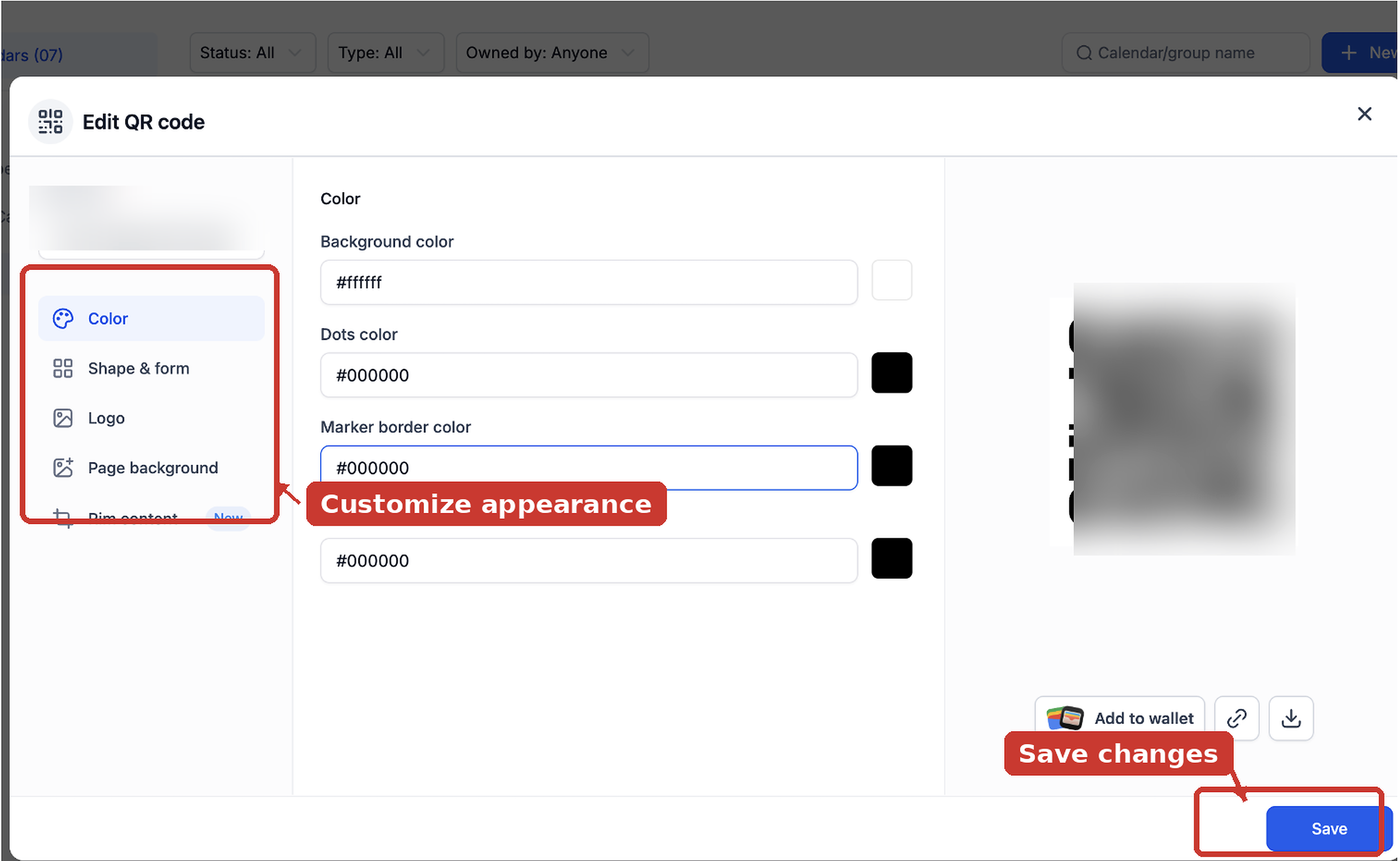
- Choose the design area you want to customize:
- Color
- Shape & form
- Logo
- Page background
- Rim content
- Color
- Make the desired changes.
- Click Save.
- Scan the updated QR code to verify that it opens the intended booking destination.
Find Prebuilt QR Codes in the QR Codes List
Prebuilt QR codes are also available from the centralized QR Codes area, alongside codes created manually. The available folders and list controls make it easier to locate QR codes associated with specific booking products.
- From the left navigation menu, select Sites.
- Select QR Codes.
- Use the available folders, search, filters, or views to locate the QR code you need.
The QR Codes page includes system folders for supported QR code categories, including:
- Calendars
- Rentals
- Services
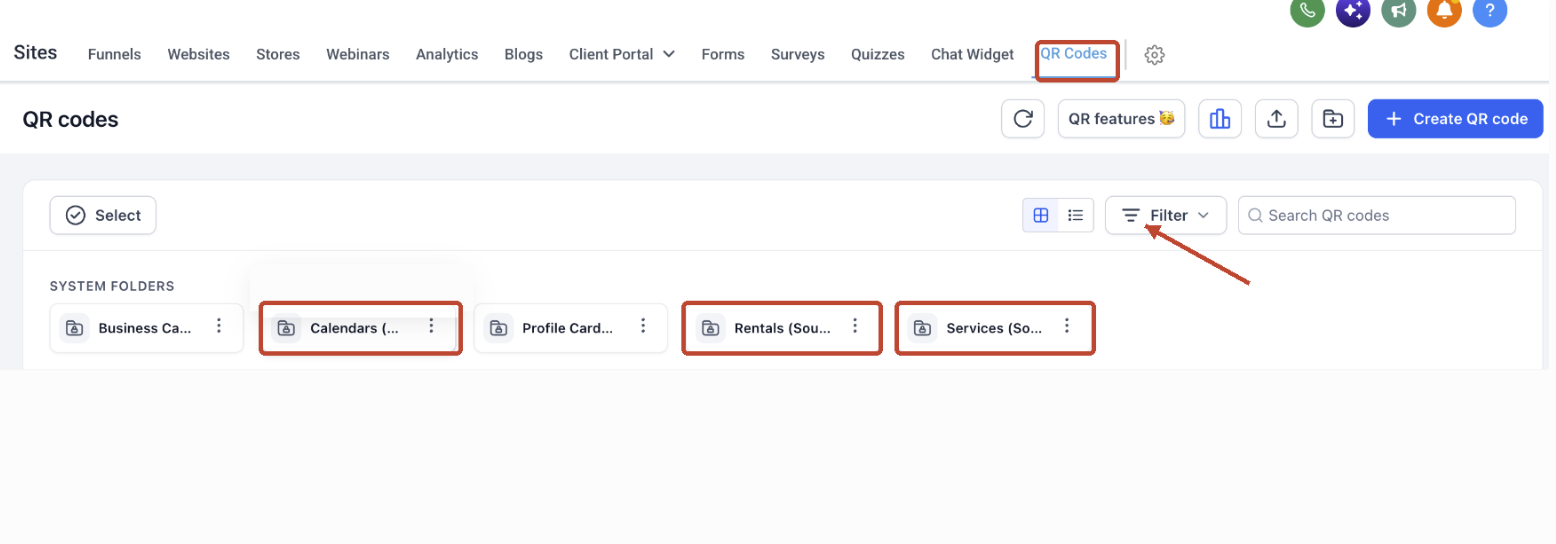
Open the relevant system folder to narrow the list to QR codes associated with that booking product.
Frequently Asked Questions
Q: Do I need to manually create a QR code for every Calendar, Service, or Rental?
No. Prebuilt QR codes are available for supported destinations and are already connected to their respective booking experiences. Manual creation remains available through the QR Code Builder.
Q: Can I create a QR code for a Calendar Group instead of an individual Calendar?
Yes. When creating a Calendar QR code, the Resource type options include Calendar groups and Calendars.
Q: Which Service destinations can I use?
The Service QR code type supports Services, Service groups, Staff, Locations, and Booking pages.
Q: Can I track QR code activity without opening the main QR Codes page?
Yes. Supported prebuilt QR codes provide scan information directly from the associated booking product, including Scans and Last scanned.
Q: Can I customize a prebuilt QR code?
Yes. Select Edit QR to update available settings such as color, shape and form, logo, page background, and rim content.
Q: Which QR code download formats are available?
Supported QR codes can be downloaded as PNG, SVG, or PDF.
Q: Where can I find prebuilt QR codes later?
You can access supported prebuilt QR codes from their associated booking products or from the centralized Sites → QR Codes area.
Need Help?
If you have trouble creating, accessing, customizing, or downloading a QR code, contact support for assistance. Include the QR code type, the booking destination you are working with, and a description of the issue to help with troubleshooting.