
Dashboard widgets help you track important business metrics in one place. The Widget Gallery makes it easier to find the right widgets by showing chart previews and descriptions before you add them. You can search by reporting goal, browse recommended widgets, filter by reporting module, or switch between Gallery and List views. This guide explains how to find, add, customize, and organize dashboard widgets using the Widget Gallery.
TABLE OF CONTENTS
- What Is the Widget Gallery?
- Key Benefits of the Widget Gallery
- Prerequisites and Limitations
- How to Add Dashboard Widgets
- Using the Widget Gallery in Custom Reports
- Frequently Asked Questions
- Need Help?
What Is the Widget Gallery?
The Widget Gallery is a visual library of built-in reporting widgets available when creating or editing dashboards and Custom Reports. It helps you find reporting metrics and understand how they will appear before adding them.
Each widget includes a preview of its chart style and a description of what it measures, allowing you to compare the available options before making a selection.
You can browse recommended widgets, search by reporting purpose, filter by module, and switch between Gallery and List views.
Key Benefits of the Widget Gallery
The Widget Gallery simplifies dashboard creation by helping you discover reporting widgets without relying on trial and error. Previewing and filtering widgets makes it easier to build dashboards around the metrics you want to monitor.
- Visual previews: See whether a widget uses a number, donut chart, bar chart, line chart, or another supported visualization.
- Widget descriptions: Use the information icon to understand what a widget measures.
- Intent-based search: Search using terms related to your reporting goal instead of relying only on widget names.
- Recommended widgets: Discover suggested widgets and popular starter options in the recommendations area.
- Flexible browsing: Switch between Gallery and List views or browse reporting categories.
- Module filters: Narrow widget results across supported reporting modules.
- Quick adding: Use the available add control to place a widget on your dashboard.
- New widget indicators: Identify recently released widgets when a New tag is displayed.
Prerequisites and Limitations
Before adding widgets, make sure you can access and edit the dashboard you want to customize. Dashboard permissions and widget-specific settings determine which editing options are available.
- You need Edit or Full dashboard permission to make changes. View permission is read-only.
- You can add widgets to an existing dashboard or create a new dashboard.
- Available configuration options depend on the widget you select.
- The Widget Gallery is available in dashboards and Custom Reports.
How to Add Dashboard Widgets
Use the following steps to open the Widget Gallery, find relevant reporting widgets, and add them to your dashboard. The gallery includes recommendations, visual previews, search, and filtering tools to make widget selection easier.
Step 1: Open Your Dashboard
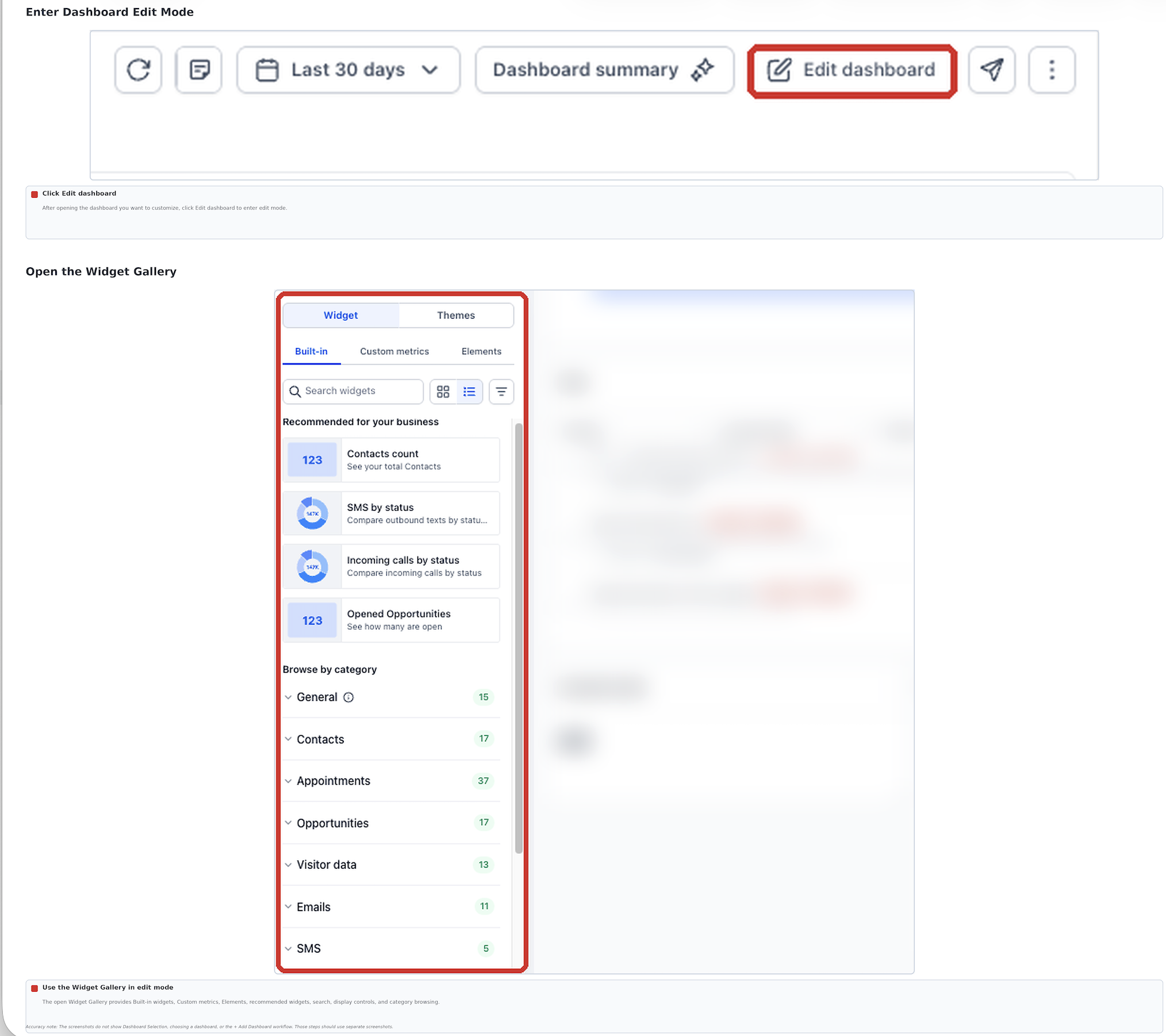
Start by opening the dashboard you want to customize and entering Edit mode. The dashboard editor provides access to built-in widgets and the tools used to organize the reporting layout.
- From the left navigation menu, select Dashboard.
- Open the Dashboard Selection menu.
- Select the dashboard you want to customize.
- Click Edit Dashboard to enter Edit mode.
- In the dashboard editor, select the Widget tab, then select Built-in if it is not already selected.
The Widget Gallery displays its search field, view options, recommended widgets, and reporting categories.
Step 2: Browse Recommended Widgets
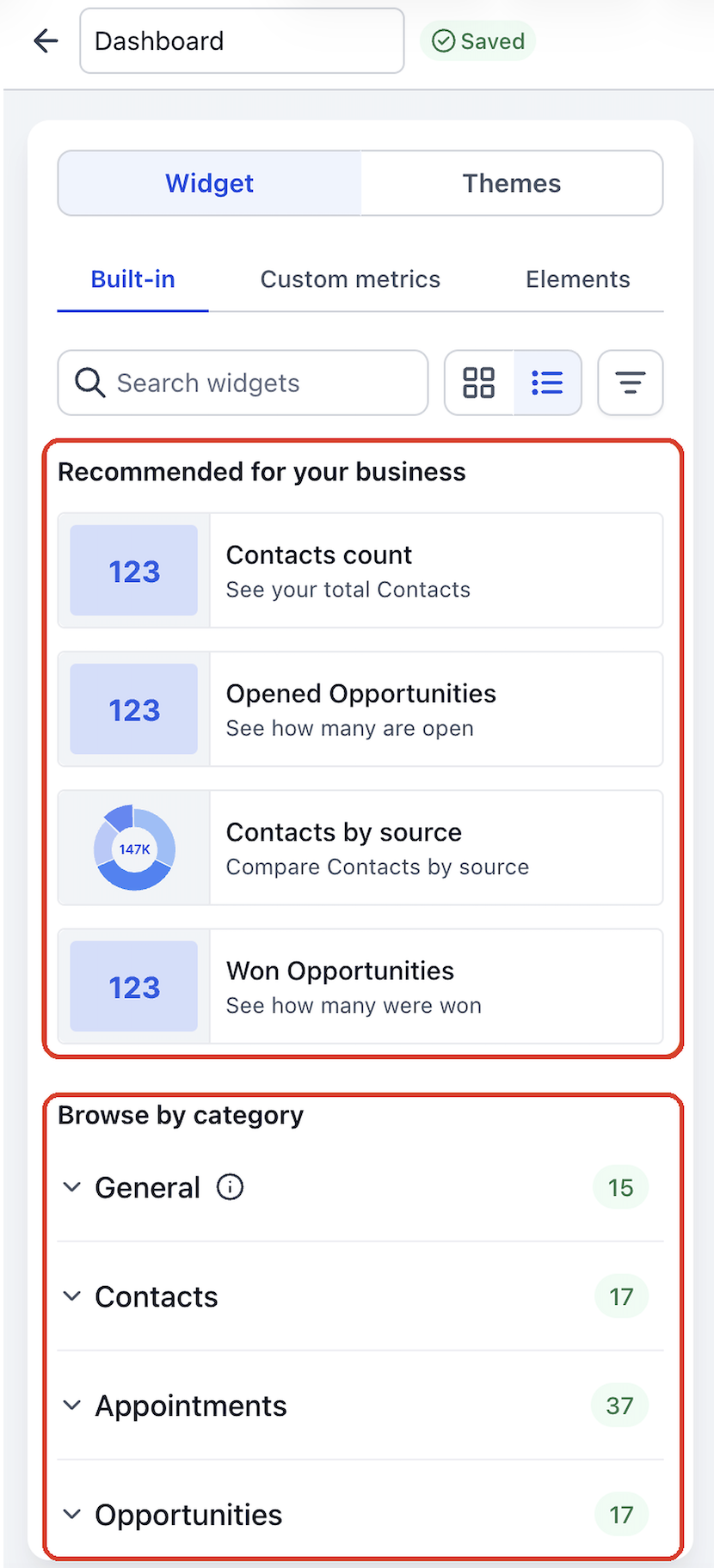
The Recommended for your business area highlights suggested reporting widgets. Recommendations can vary with available business activity, and popular starter widgets may appear when there is limited activity.
Examples of recommended widgets include:
- Contacts count: View the total number of contacts.
- Opened Opportunities: View the number of currently open opportunities.
- Contacts by source: Compare contacts based on their source.
- Won Opportunities: View the number of opportunities marked as won.
Below the recommendations, Browse by category organizes widgets into expandable reporting categories. Select a category to review the widgets associated with that reporting area.
Step 3: Preview Widgets in Gallery View
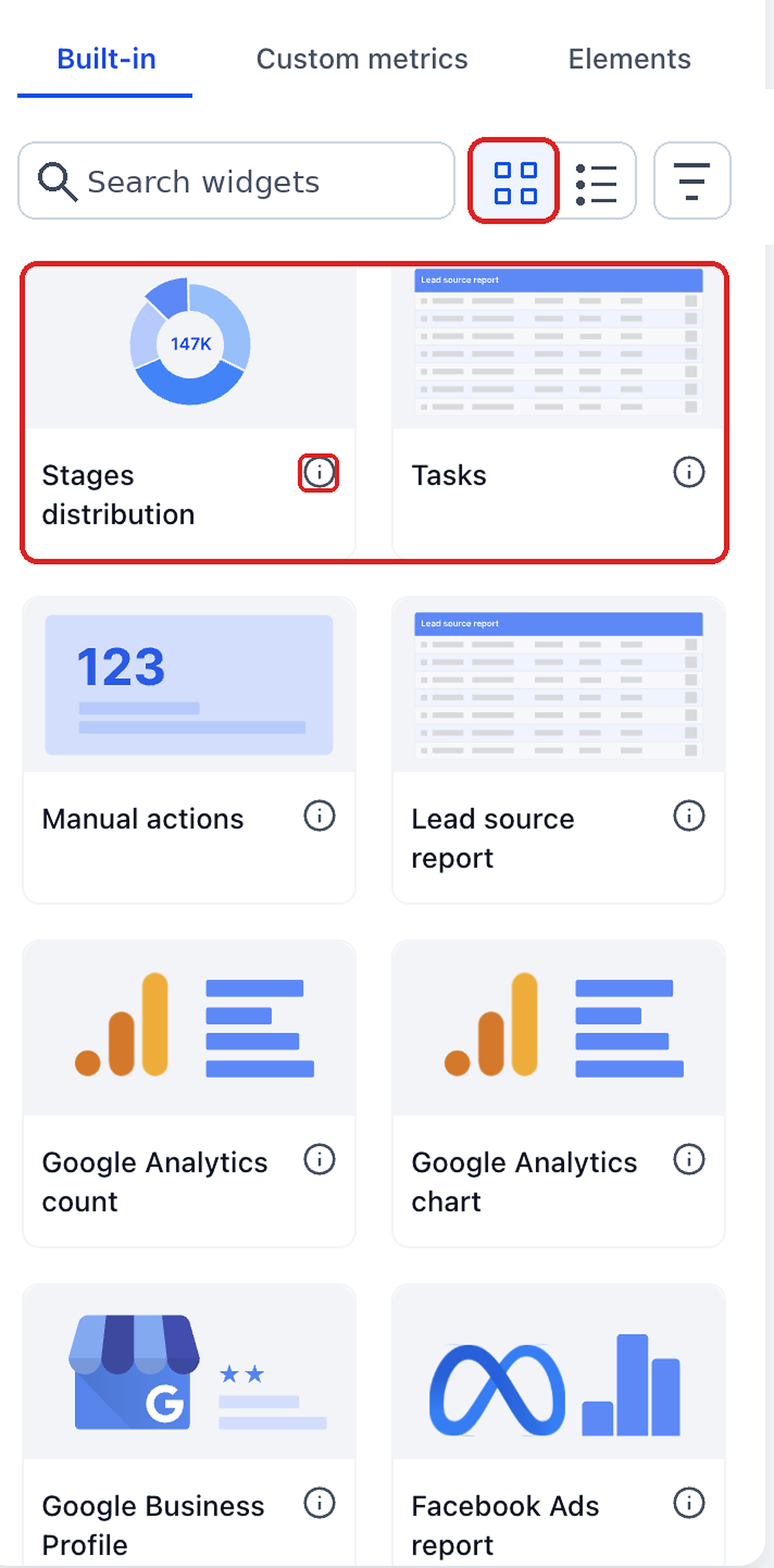
Gallery view displays widgets as visual cards, making it easier to compare different reporting formats before adding them to your dashboard. Each card provides a visual preview and identifying information.
- In the Widget Gallery, select the Gallery view icon beside the search field.
- Browse the available widget cards.
- Review each widget's chart preview and name.
- Click the information icon to learn what the widget displays.
- Look for the New tag, when displayed, to identify recently released widgets.
Step 4: Search and Filter Widgets
Use search and module filters to narrow the Widget Gallery to the reporting metrics that matter most to you. These tools help you find widgets by purpose, category, or reporting module.
Search for a Widget
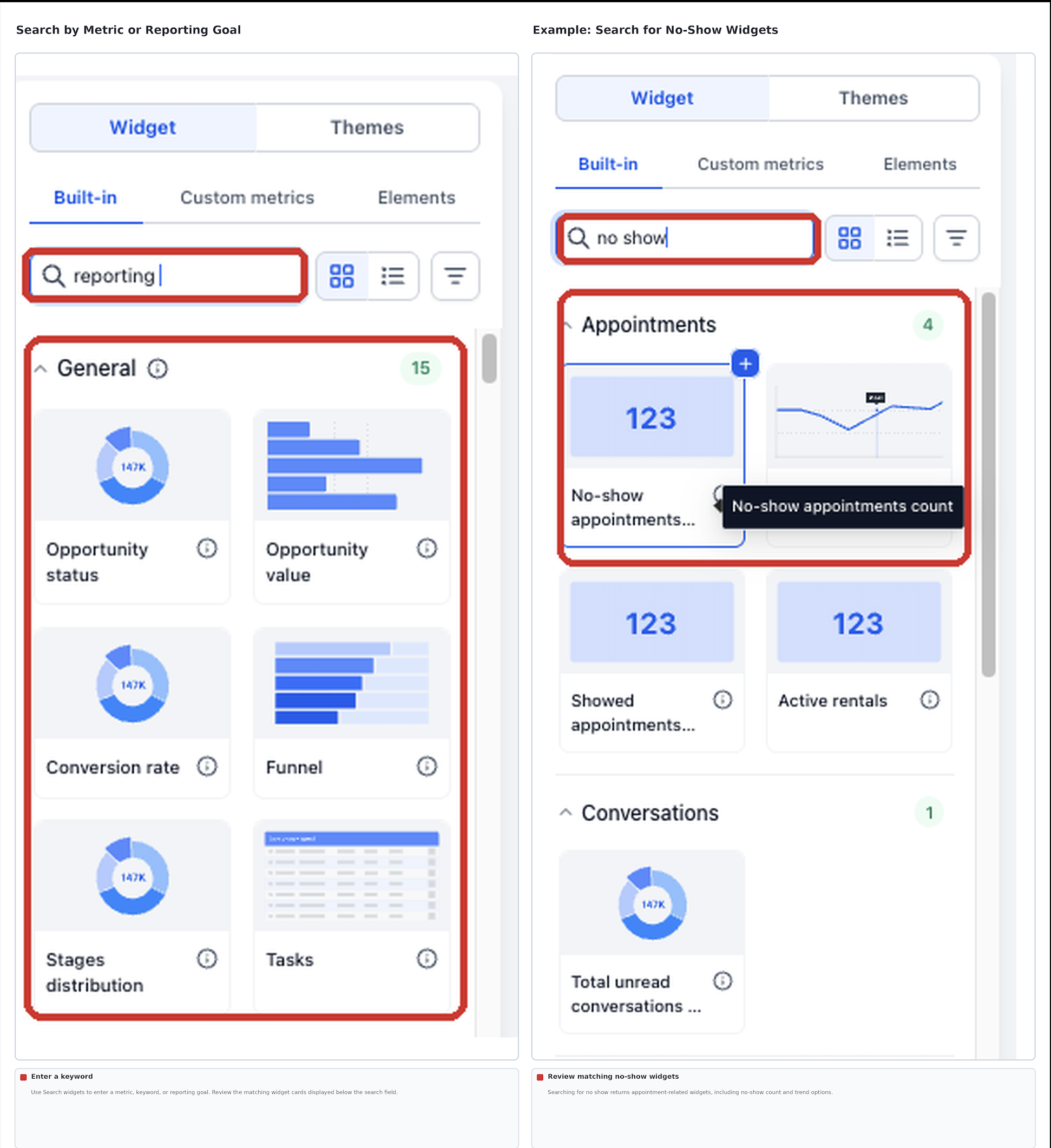
- In the Widget Gallery, click the Search widgets field.
- Enter a metric, keyword, or reporting goal.
- Review the matching widgets displayed in the results.
For example, searching for no show can help you find appointment-related widgets for no-show counts and trends over time.
Filter by Module
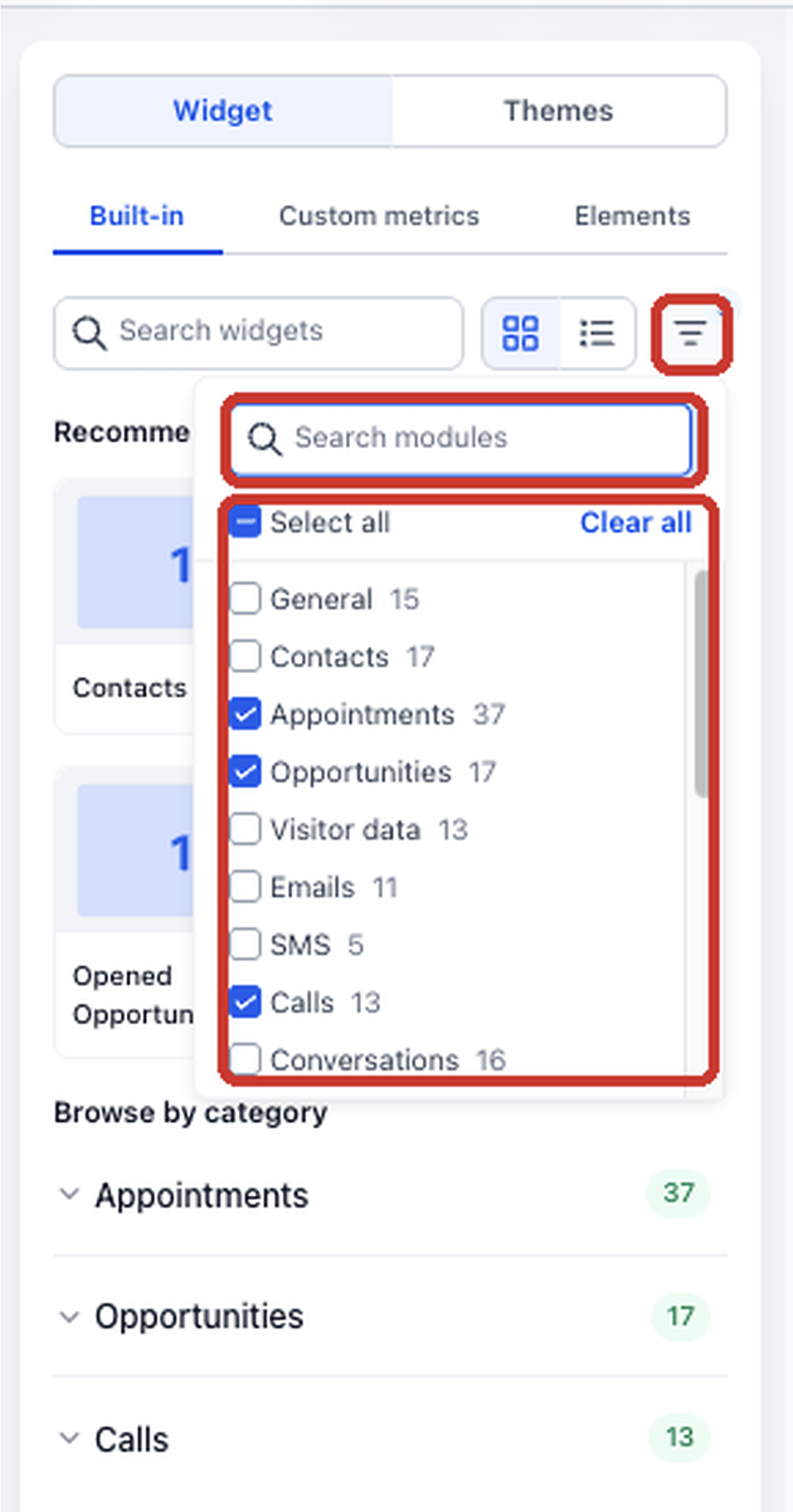
- In the Widget Gallery, click the filter icon beside the Gallery and List view options.
- Use Search modules to find a reporting category when needed.
- Select the checkboxes for the modules you want to include.
- Use Select all or Clear all to adjust the selection quickly.
- Review the widgets displayed for the selected modules.
The Widget Gallery includes the following reporting modules:
| Module | Module | Module |
|---|---|---|
| General | Contacts | Appointments |
| Opportunities | Visitor Data | Emails |
| SMS | Calls | Conversations |
| Payments | Meta Ads | Google Ads |
| Social Planner | Reputation | Google Analytics |
The module filter also displays the number of available widgets associated with each reporting area. The displayed counts may differ as available widgets change.
Step 5: Switch to List View
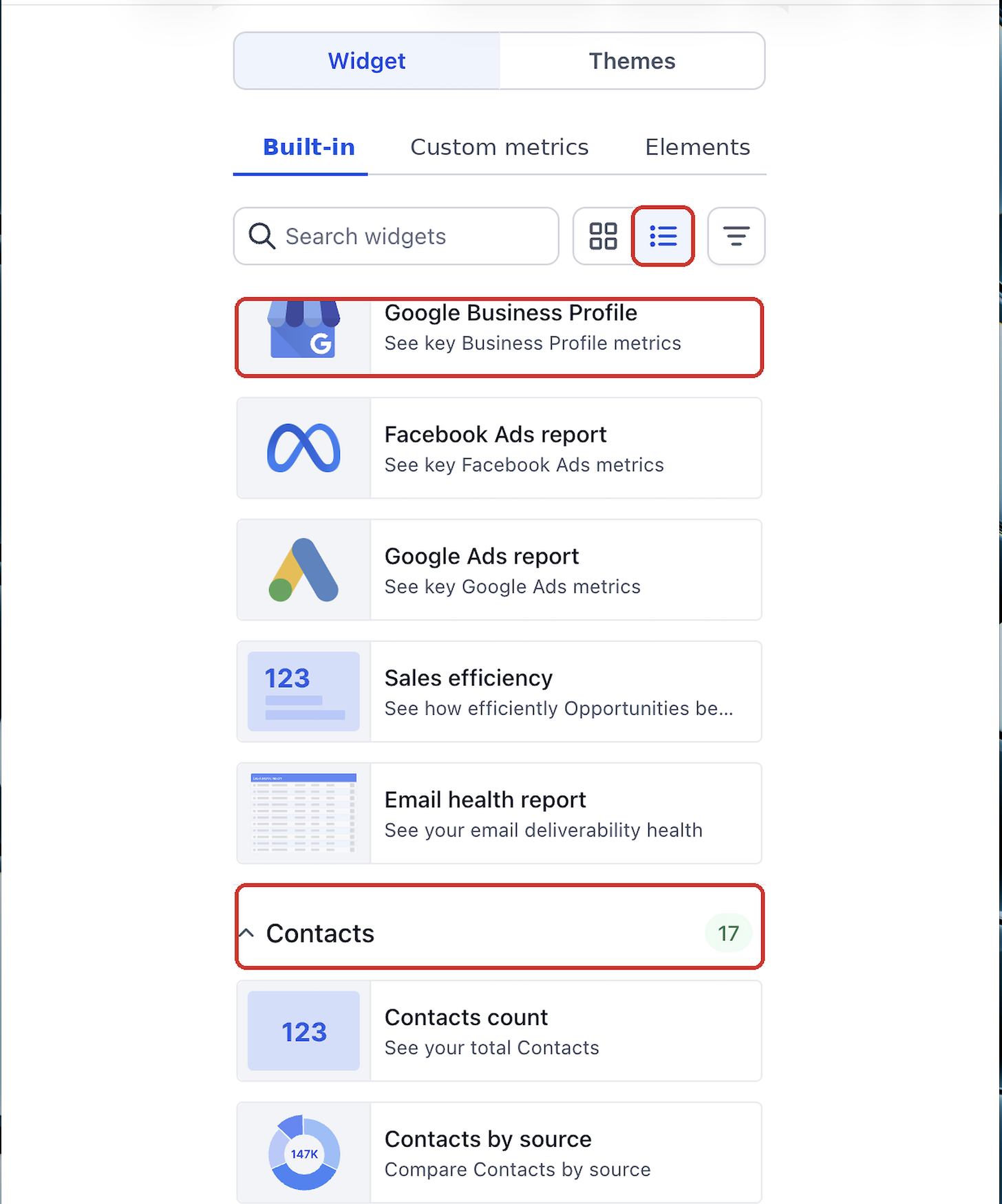
List view displays widgets in a compact format with smaller previews and descriptions. This view is useful when you want to review more widget options without relying on large chart cards.
- In the Widget Gallery, select the List view icon beside the Gallery view icon.
- Browse the widgets in the available reporting categories.
- Expand or collapse categories to narrow the list.
- Review each widget's name and description before selecting it.
You can switch back to Gallery view whenever you prefer larger visual previews.
Step 6: Add a Widget to Your Dashboard
Once you find a widget that matches your reporting goal, you can add it directly from the Widget Gallery. This allows you to build your dashboard using the available reporting visualizations.
- In the Widget Gallery, locate the widget you want to add using Gallery or List view.
- Review the widget's preview and description.
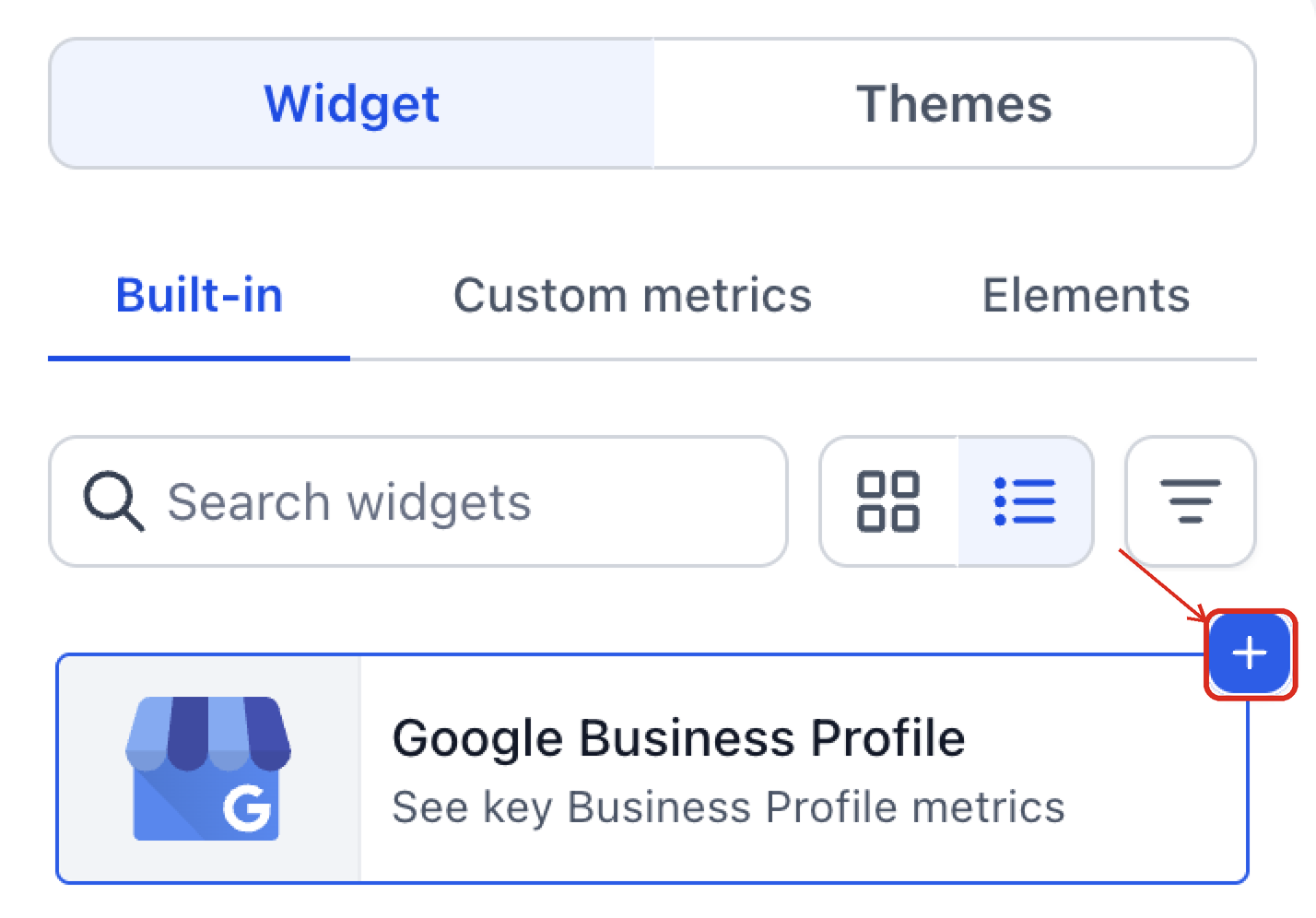
- Hover over the widget to display the available add control.
- Click the + icon to add the widget to the dashboard.
- Repeat these steps to add any additional widgets.
The added widget appears on your dashboard, where you can arrange or customize it as needed.
Step 7: Customize and Save Your Dashboard
After adding widgets, customize their settings and arrange the dashboard to make important metrics easier to review. Widget configuration options vary depending on the selected visualization and reporting metric.
Customize a Widget
- From the left navigation menu, select Dashboard.
- Open Dashboard Selection and choose the dashboard you want to customize.
- Click Edit Dashboard.
- Locate the widget you want to customize.
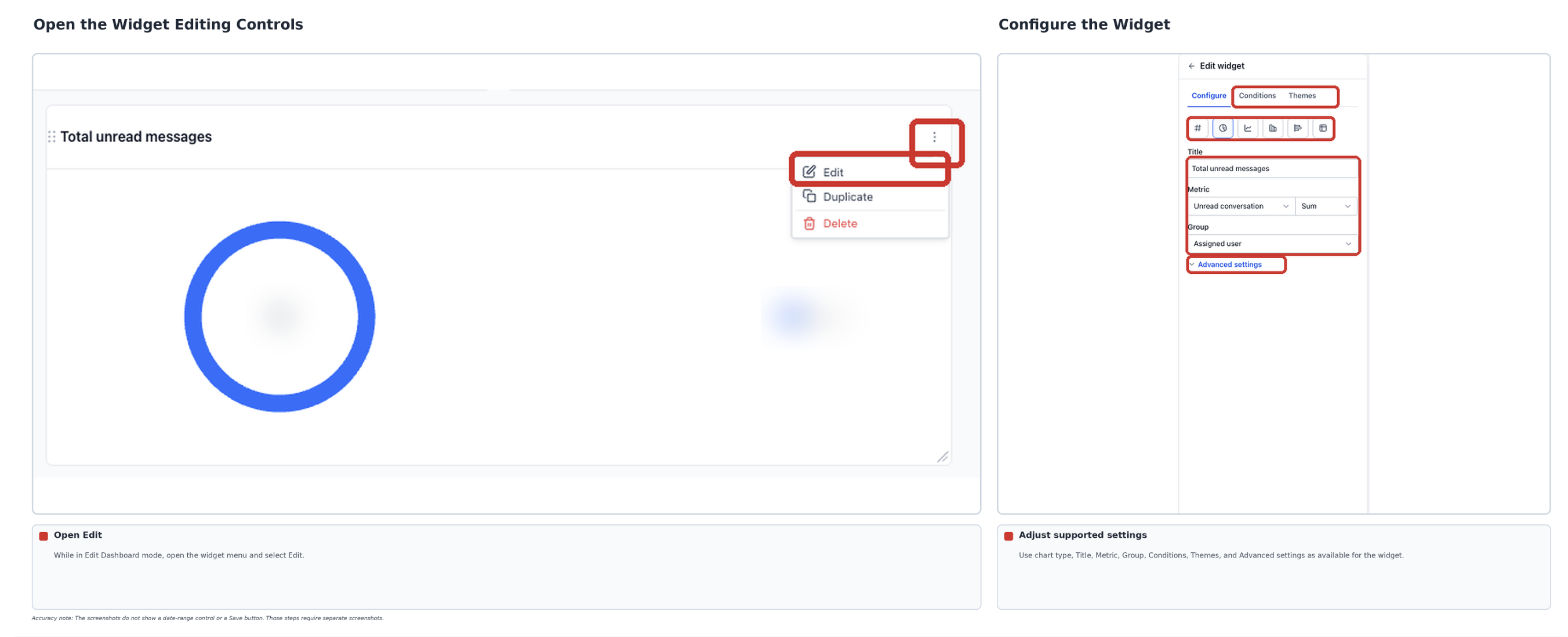
- Click the widget's three-dot menu.
- Select Edit.
- Use the available Configure, Conditions, or Themes options to adjust the widget.
Depending on the widget, configuration options can include:
- Title: Change the widget's displayed name.
- Metrics: Adjust the information measured by the widget.
- Chart settings: Change supported visualization settings.
- Date range: Adjust the reporting period when available.
- Conditions: Apply supported filters to refine the displayed data.
- Make the desired configuration changes.
- Click Save to save the widget configuration.
Arrange Your Dashboard
You can reposition and resize widgets to create a reporting layout that fits your needs.
- While in Edit Dashboard mode, locate the widget you want to move.
- Drag the widget using its available drag area to reposition it.
- Use the widget's resize control to adjust its size.
- Repeat the process for other widgets as needed.
- Confirm that your dashboard changes are saved. If the editor displays Save Changes, click it. Otherwise, verify the Saved status.
Note: Available widget settings and saving controls can vary depending on the widget and dashboard editor.
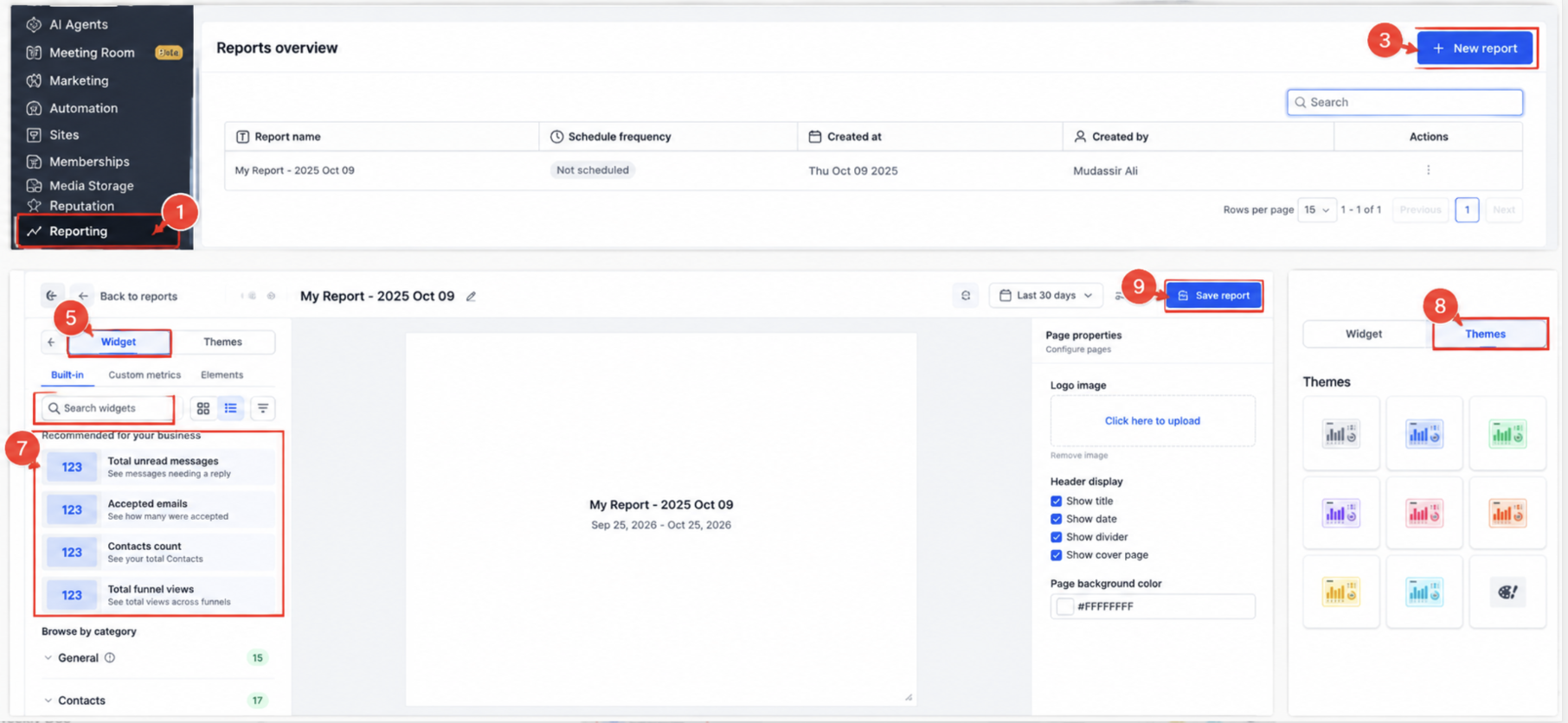
Using the Widget Gallery in Custom Reports
The Widget Gallery is also available when creating or editing Custom Reports. You can browse built-in reporting widgets, review previews and descriptions, and use the available search and category tools to locate relevant reporting metrics.
- From the left navigation menu, select Reporting.
- Open Custom Reports.
- Click + New report to create a report, or select an existing report to edit.
- If creating a new report, choose From Scratch to start with a blank report.
- In the Report Builder, select the Widget tab.
- Select Built-in to browse the available reporting widgets.
- Browse recommended widgets, use Search widgets, or filter by reporting module.
- Review the widget previews and descriptions, then select the widget you want to use.
- Use the Report Builder's available widget controls to add and configure the selected widget.
- When you finish editing the report, click Save report.
The Themes, Custom metrics, and Elements options remain available alongside the built-in widget library, providing additional report customization options.
Frequently Asked Questions
Q: Can I preview a widget before adding it?
Yes. Gallery view displays visual previews of built-in widgets. You can also select a widget's information icon to learn what the widget displays.
Q: Can I search for widgets without knowing their exact names?
Yes. Enter a reporting goal or related keyword, such as no show, into the Search widgets field to find relevant widgets.
Q: What is the difference between Gallery view and List view?
Gallery view emphasizes larger visual widget previews. List view displays widgets in a more compact format with their names and descriptions.
Q: Are recommended widgets always the same?
No. The recommendations area can display suggested widgets based on available business activity. Popular starter widgets may also appear when there is limited activity.
Q: Do module filters change the data displayed in existing dashboard widgets?
No. Module filters help you find widgets inside the Widget Gallery. To refine the data displayed by an existing widget, use its supported configuration or Conditions settings.
Q: Can I use the Widget Gallery in Custom Reports?
Yes. The Widget Gallery is available when creating and editing Custom Reports. You can access built-in reporting widgets from the Report Builder.
Need Help?
If you cannot find a widget, check your search terms, reporting categories, and selected module filters. If you cannot edit a dashboard, confirm that you have the necessary dashboard permissions.
For additional assistance with the Widget Gallery, contact support. Include the widget name, the dashboard or report you are working with, and a description of the issue to help with troubleshooting.