
Overview
You can now bring your existing product reviews into LeadConnector by uploading a single CSV file. Each review is matched to a product in your store using the product's handle (also called the slug), so ratings and testimonials show up on the right product page.
This is useful if you are moving your store from another platform, or if you collected reviews in a separate review tool and want them in one place. Rows that can't be matched to a product are skipped, and the rest of the file still imports.
Before you start
Make sure the products you're importing reviews for already exist in your store. The import never creates new products, so a review for a product that isn't there yet gets skipped.
You'll need:
A store in your account with the products already added
The handle (URL slug) of each product, which goes in the Handle column of your CSV
Your reviews saved as a .csv file, one review per row
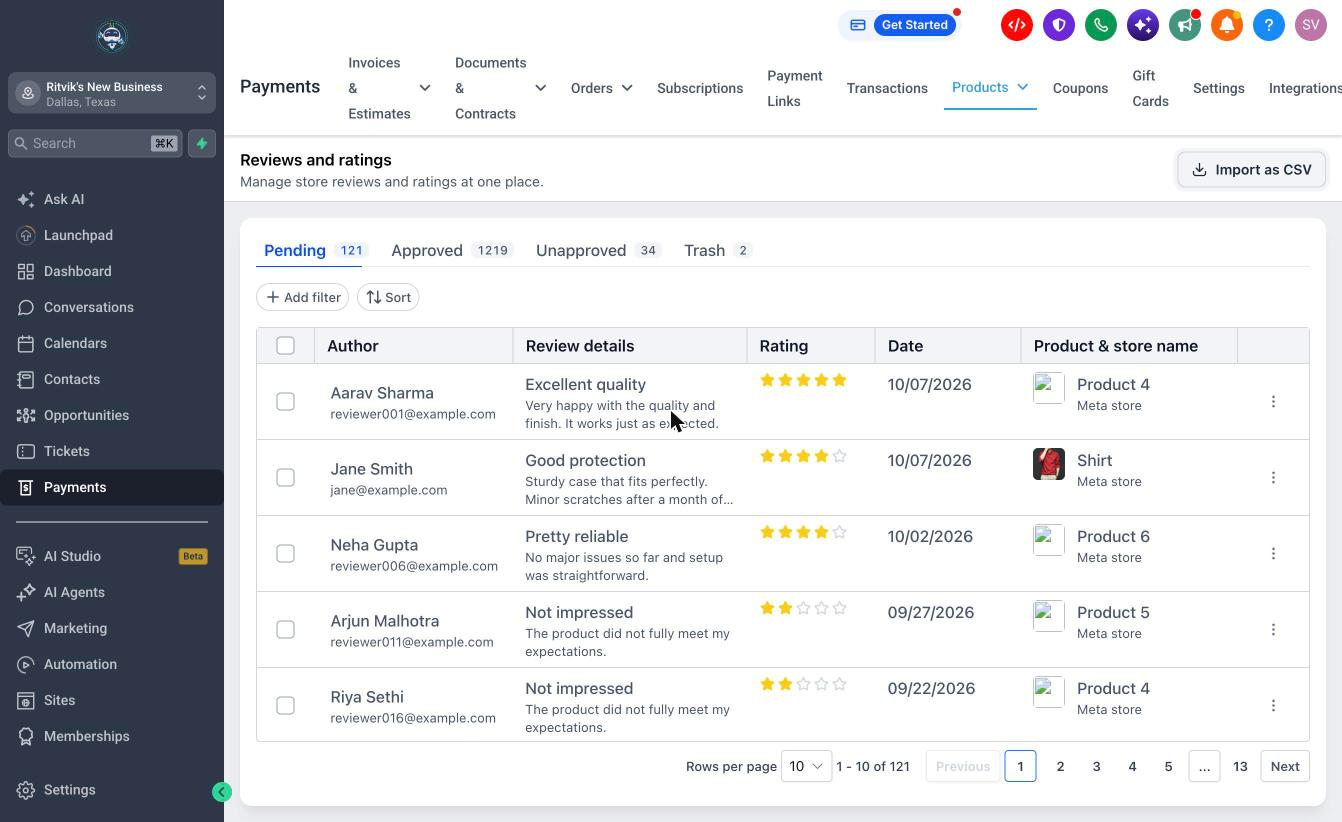
To find the import option, go to Payments > Products > Reviews. The Import as CSV button is in the top-right corner of the Reviews and ratings page.
Prepare your CSV file
Your file needs the same 10 columns as the sample CSV, with the same header names in the same order. The easiest way to get this right is to click Download sample CSV in the import window and paste your reviews into it.
Here's what a correctly formatted file looks like:
Handle,Overall Rating,Name,Email,Contact Number,Headline,Detailed Review,Status,Review Date,Source
product-1,5,John Doe,john@example.com,+12025319551,Amazing sound quality,These headphones have incredible bass and clarity. Best purchase this year!,Approved,2026-10-27,Amazon
product-2,4,Jane Smith,jane@example.com,+13105877890,Good protection,Sturdy case that fits perfectly. Minor scratches after a month of use.,Pending,2026-10-27,Shopify
product-3,3,Alex Johnson,alex@example.com,+14157243600,Decent cable,Works fine for charging but data transfer could be faster.,Approved,2026-10-27,Website
Tip: if a review's text contains commas, wrap that cell in double quotes so the columns don't shift. Most spreadsheet apps do this for you when you save as CSV.
Import your reviews
Go to Payments > Products > Reviews and click Import as CSV.
In the Import reviews by CSV window, pick the store you want to import into from Select a store to import reviews into. Handles in your file are matched against this store's products only.
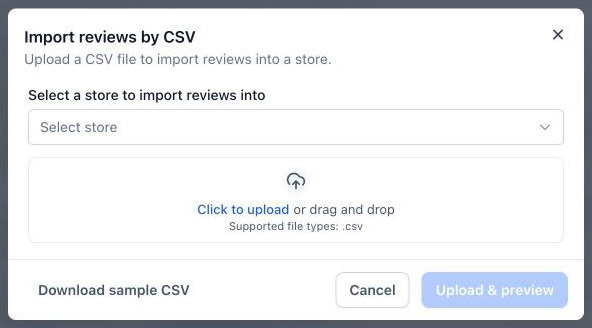
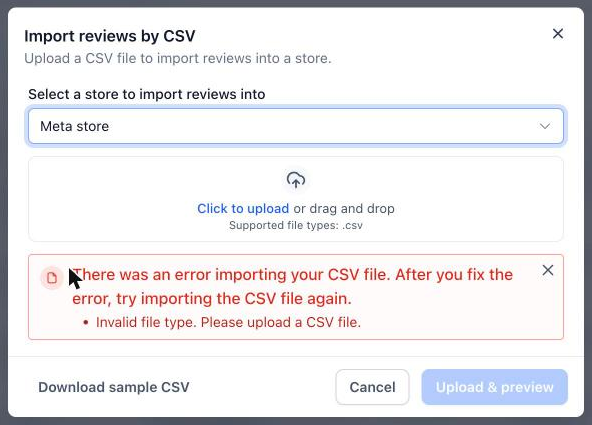
Click Click to upload or drag your file into the upload area. You can upload one .csv file at a time. A green check appears next to the file name once it's attached.
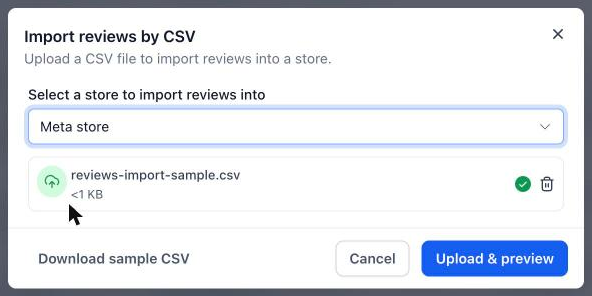
Click Upload & preview. Your file is checked first. If anything needs fixing, you'll see the errors in the same window (see Fix import errors below).
Review the preview. It shows the first 5 reviews from your file, the product each one matched to, and the total number of reviews about to be imported.
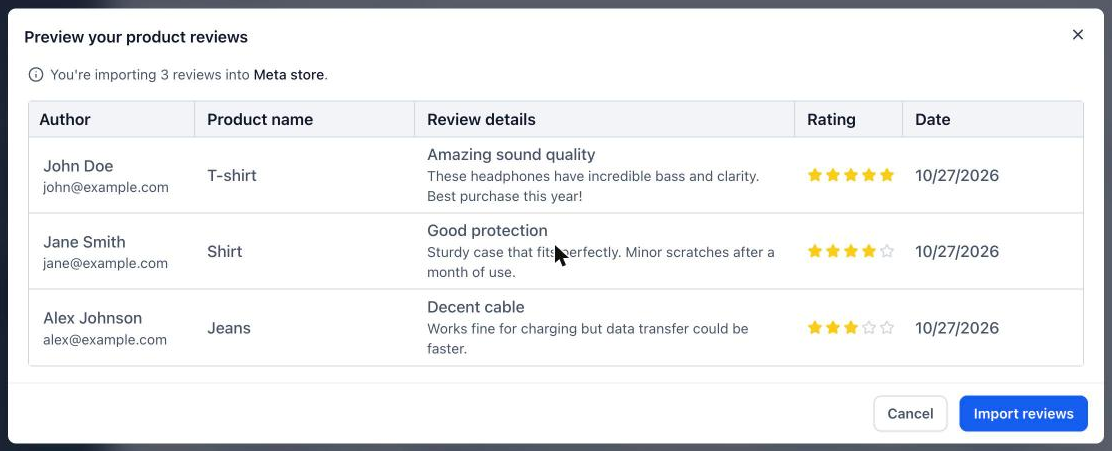
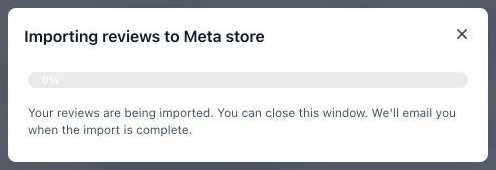
Click Import reviews. A progress bar shows while the import runs. You can close this window at any time; the import keeps going in the background and you'll get an email when it's done.
After the import
When the import finishes, a message at the top of the page tells you how many reviews were imported. Your reviews appear on the Reviews and ratings page under the tab that matches the Status you set in the CSV: Pending, Approved, Unapproved or Trash.
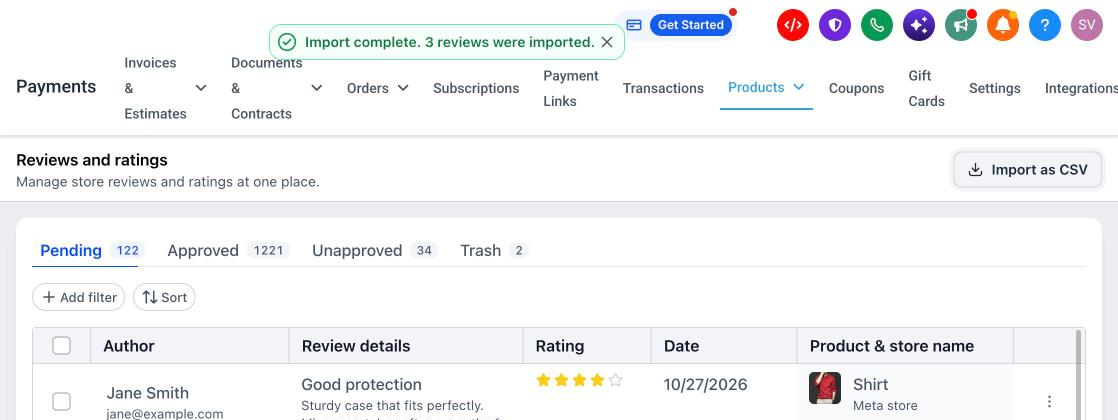
Imported reviews work like any other review. You can approve, unapprove, reply to or move them to trash from the same page.
If some rows were skipped, the message shows how many were imported, skipped and failed, for example: Import complete: 1 review imported, 1 skipped, 0 failed.

For larger files, you don't need to keep the page open. Close the progress window and carry on working; we'll email you when the import is complete.
Fix import errors
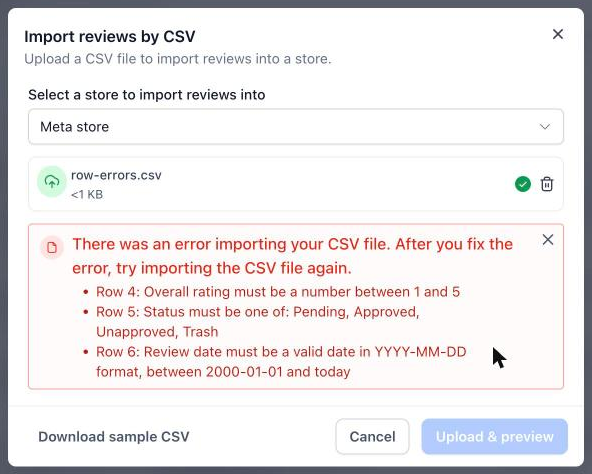
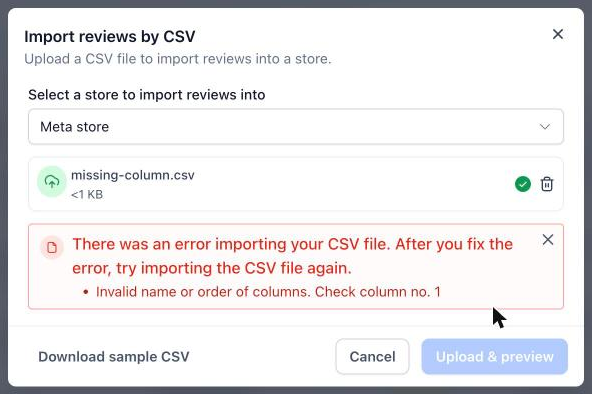
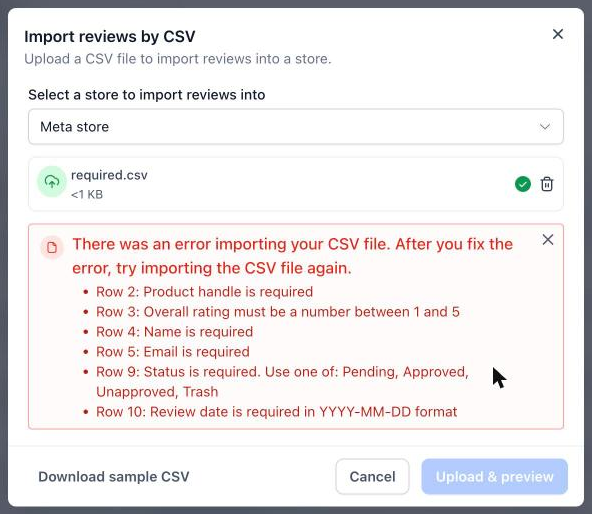
When you click Upload & preview, your file is checked before anything is imported. If a check fails, nothing is imported. You'll see a list of errors with the row number for each one. Row 1 is your header row, so the first review is row 2.
Fix the rows in your file, remove it with the trash icon, and upload it again.
Reviews for products that aren't in the store
If a handle in your file doesn't match any product in the selected store, that row isn't treated as an error. The preview shows a warning with the number of rows that will be skipped, and you can still import the rest.
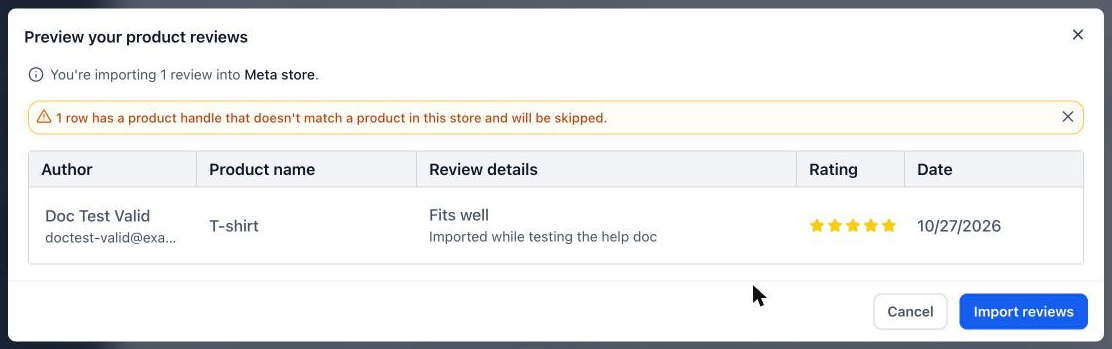
To import the skipped reviews, add the missing products to your store (or correct the handles in your file). Then import a new file that contains only those rows, so you don't create duplicates of the reviews that already went in.
FAQs
Can I import reviews directly from another platform or review app? Not directly. Export your reviews from the other platform as a CSV, rearrange the columns to match the sample CSV, and import that file.
Can I upload more than one file at a time? No. Each import takes one .csv file. If your reviews are spread across several files, import them one after another.
Can one file hold reviews for more than one store? No. Each import goes into the store you select, and handles are matched against that store's products only. Split your reviews into one file per store.
Will the import create products that don't exist yet? No. Rows with an unknown handle are skipped. Add the products first, then import those rows.
Why does the preview show only 5 reviews? The preview is a quick check that your columns and products are matching correctly. It shows the first 5 rows, and the message above it shows the total number of reviews that will be imported.
Do I have to wait on the page while the import runs? No. You can close the progress window. The import continues in the background and you'll get an email when it's complete.