
The Workflows API lets you create, read, update, publish and delete workflows in a sub-account, and read each workflow's execution logs and statistics, from your own code or tools. This guide covers who can use it, how to get a token, what each endpoint does, how to try it in the API docs, how to edit a workflow safely, and the limits that apply. The full reference is in the Workflows API documentation.
Important: The Workflows API is in private beta and enabled for selected sub-accounts only. Other sub-accounts get a 403 response with the code
WORKFLOW_API_NOT_ENABLED_FOR_LOCATION. That isn't a token or scope problem: the sub-account isn't in the beta. Contact support to join the private beta.
What is the Workflows API?
The API describes each workflow as a definition: its name, triggers, actions (steps), the edges that connect the steps, and its settings. You can read a definition, change it and send it back, because what the API returns is exactly what it accepts.
The API also returns each workflow's execution logs: who entered it, what happened at each step and which steps failed, and statistics such as enrollments, completions and failures per step.
A workflow created through the API is a normal workflow. It appears in the Workflows list, opens in the builder, and its runs show in Execution logs.
Key Benefits of the Workflows API
- Build workflows from your own tools: create workflows from templates or your own app, without the builder.
- Roll out changes at scale: deploy and update the same workflow across sub-accounts.
- Catch problems early: check a workflow for errors before saving it, and track failing steps from your own monitoring.
- Control access: five scopes let each token do only what it needs.
Before You Start
- Make sure the sub-account is in the private beta (see above).
- In the sub-account, go to Settings → Private Integrations and create an integration. Under Scopes, search for workflows and select the scopes you need. A sub-account OAuth access token also works.
- Copy the token and send it as a bearer token:
Authorization: Bearer <your token>. - Add the header
Version: v3and the query parameterlocationId=<sub-account ID>to every request. The base URL ishttps://services.leadconnectorhq.com.
| Scope in Private Integrations | Scope | Allows |
|---|---|---|
| View Workflows | workflows.readonly | Browse step types, search workflows and read definitions |
| Edit Workflows | workflows.write | Create, update and validate workflows |
| Publish Workflows | workflows.publish | Publish workflows and set them back to draft |
| Delete Workflows | workflows.delete | Delete workflows |
| View Workflow Logs | workflows.logs | Read execution logs and statistics |
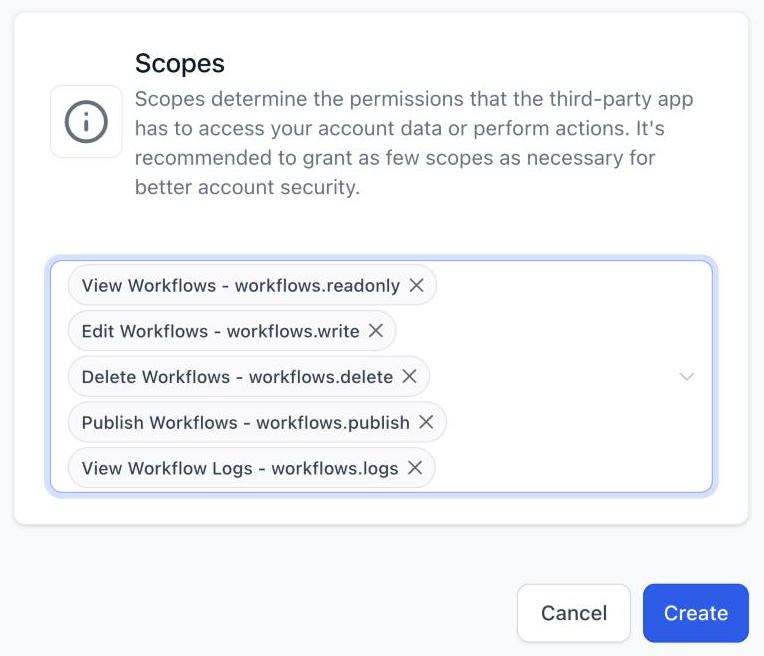
Tip: Log records include contacts' names and emails, so grant View Workflow Logs only to integrations that need it. A token keeps the scopes it was created with. To add a scope, update the integration and issue a new token.
Available Endpoints
| What you can do | Endpoint |
|---|---|
| Browse the triggers and actions available in the sub-account, with their fields | GET /workflows/step-types |
| Check a definition for errors without saving anything | POST /workflows/definition/validate |
| Find workflows by name, status, folder or date | POST /workflows/search |
| Create a workflow from a definition | POST /workflows/ |
| Read a workflow's definition | GET /workflows/{workflowId}/definition |
| Replace a workflow's definition | PUT /workflows/{workflowId}/definition |
| Publish a workflow, or set it back to draft | PUT /workflows/{workflowId}/status |
| Delete a workflow | DELETE /workflows/{workflowId} |
| See who entered a workflow, what happened at each step and which steps failed | GET /workflows/{workflowId}/logs |
| Count log records by outcome, step, step type, removal reason or time | GET /workflows/{workflowId}/logs/aggregate |
Try It in the API Docs
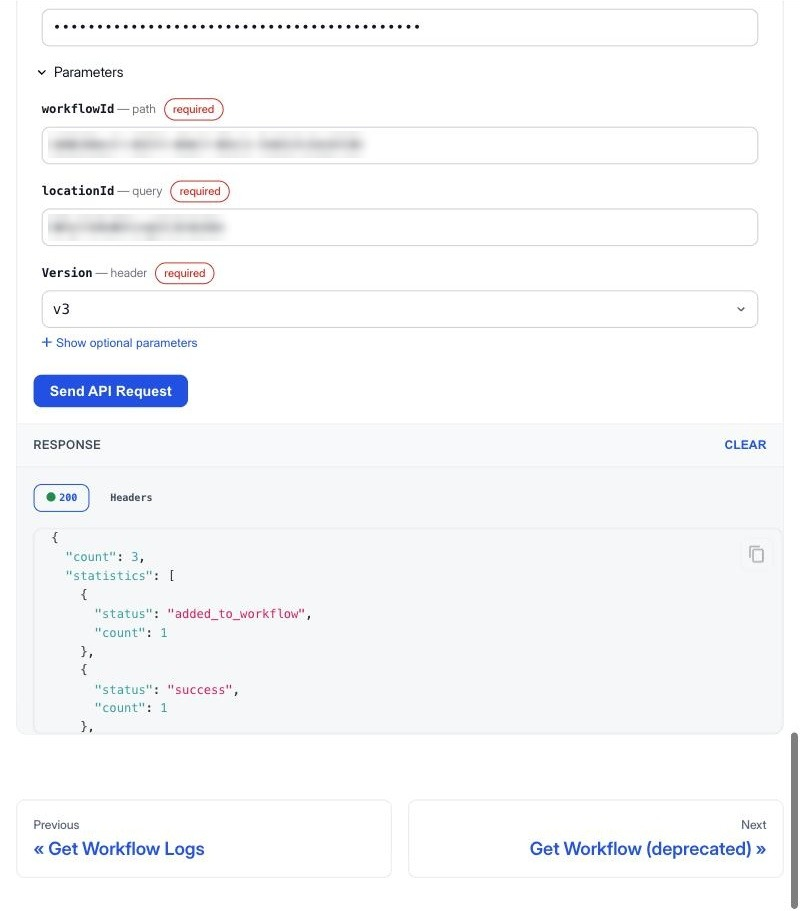
Every endpoint page in the Workflows API documentation has a request panel, so you can make real calls without writing code.
- Open an endpoint, for example Get Workflow Definition.
- Paste your token in Bearer Token.
- Fill in the parameters, such as workflowId and locationId, and choose v3 under Version.
- Click Send API Request. The response appears below the button.
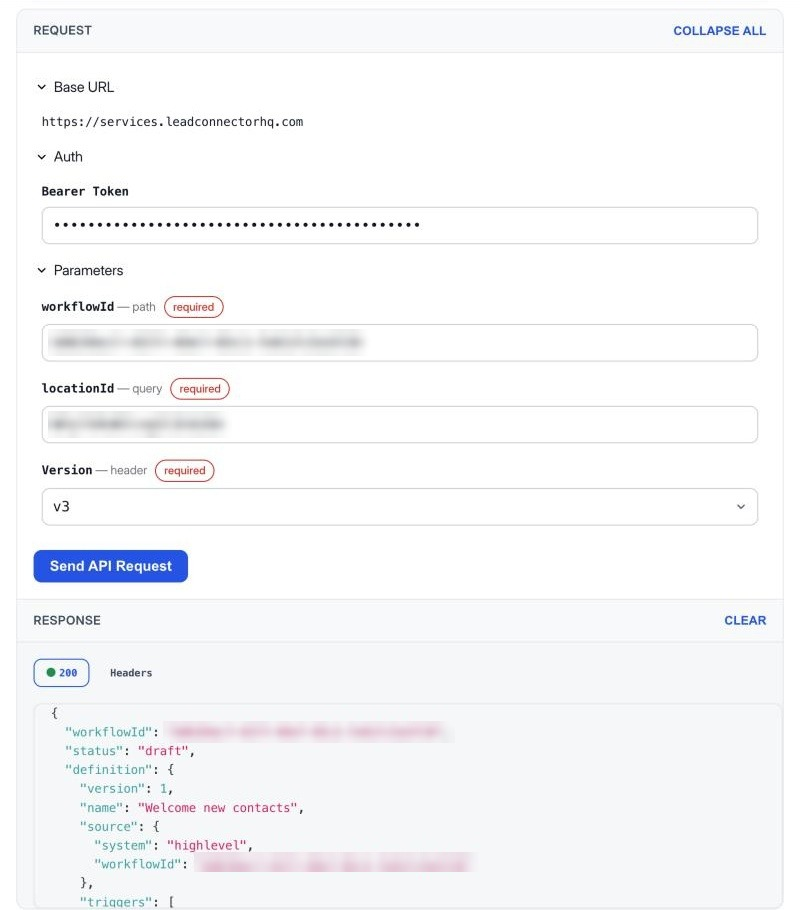
Note: Requests sent from the docs are real. Create, update, publish and delete change the sub-account, so try them on a test workflow.
How To Create and Publish a Workflow
- Call Get Step Types to find the trigger and action keys and the fields each one needs.
- Build the definition and check it with Validate Workflow Definition. Nothing is saved. The response has
valid, a list oferrorsand a list ofwarnings. - Call Create Workflow. New workflows are always created as drafts. The response returns the saved definition with the IDs LeadConnector assigned to each step.
- Call Update Workflow Status with
{"status": "published"}. Publishing checks the whole workflow again before it goes live.
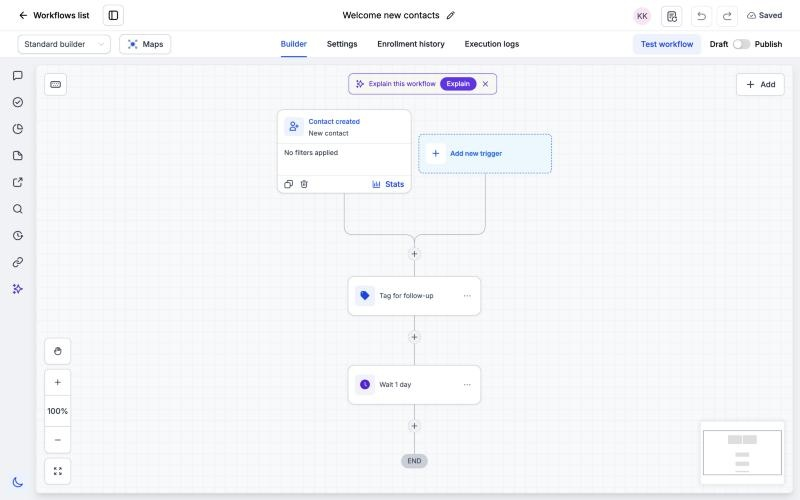
A definition for a two-step workflow looks like this:
{
  "name": "Welcome new contacts",
  "source": { "system": "my-app" },
  "triggers": [ { "type": "contact_created", "name": "New contact" } ],
  "actions": [
    { "id": "tag-for-follow-up", "type": "add_contact_tag", "name": "Tag for follow-up",
      "attributes": { "tags": ["follow-up"] } },
    { "id": "wait-one-day", "type": "wait", "name": "Wait 1 day",
      "attributes": { "type": "time", "startAfter": { "when": "after", "type": "days", "value": 1 } } }
  ],
  "edges": [ { "from": "tag-for-follow-up", "to": "wait-one-day" } ]
}
source is required: set system to the name of your app or script. Once created, the workflow opens in the builder like any other.
Reading Validation Results
- Errors block saving. Each one has a
messageand thestageof the check that failed. Errors about a step or an asset also carry aruleId(for exampleASSET_SMS_TEMPLATE_NOT_FOUND), the step'sstepId,stepNameandstepType, and theassetTypeandassetIdwhen relevant. Errors about how steps connect carry apath, such asedges[0].to. - Checks run in stages. When one stage fails, later stages don't run. After you fix the errors, validate again to see anything else.
- Warnings don't block saving, but read them. A step type the API doesn't recognize is a warning, not an error: the step is saved as a note and does nothing. A tag that doesn't exist yet is also a warning; the tag is created when the step first runs.
Editing a Workflow Safely
Update Workflow Definition replaces the whole workflow. Any step that isn't in your request is deleted. Four rules keep your edits safe:
- Read before you write. Get the current definition, change it, and send the whole definition back.
- Use the step IDs LeadConnector returns. The IDs you send when you create a workflow are replaced. Take step IDs from the create response or from Get Workflow Definition.
- Send
versionback unchanged. If someone edited the workflow in the builder after you read it, your update is rejected (422, "Your version is outdated") instead of overwriting their change. Read it again and retry. Publishing and setting to draft also change the version. - Set it to draft first. A published workflow can't be overwritten (409). The order is: set to draft → read the definition → update it → publish.
While a workflow is a draft, its triggers are off, and contacts already in it pause at their next step. They continue from that step when you publish it again. If your update removes the step a contact is paused on, that contact won't continue.
Note: App steps only accept an app account that is already connected in the sub-account. Delete Workflow works on drafts and published workflows alike, with no need to set it to draft first. Deleting is permanent and stops every contact currently in the workflow.
Reading Logs and Statistics
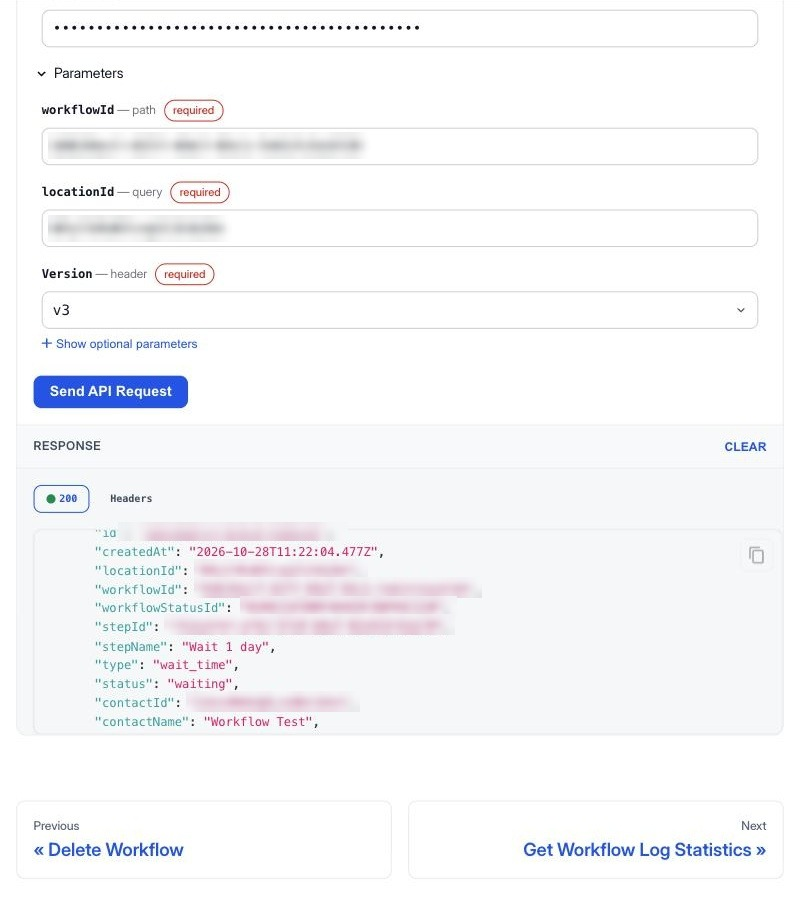
Get Workflow Logs lists each step of each run, newest first: the step name and type, its outcome, the contact's name and email and, for failed steps, the error. Get Workflow Log Statistics counts log records grouped by status, step, step type, removal reason, and week, day or hour.
| Question | Endpoint | Parameters |
|---|---|---|
| Who entered the workflow? | Logs | statuses=added_to_workflow |
| Which steps failed, and for whom? | Logs | statuses=error,failed,failed_retry_limit_reached |
| What happened to one contact? | Logs | contactId=<contact ID> |
| How many contacts enrolled each week? | Statistics | statuses=added_to_workflow&groupBy=week |
| How many failures per step? | Statistics | statuses=error,failed,failed_retry_limit_reached&groupBy=stepId |
| Why did contacts leave? | Statistics | types=remove_from_workflow&groupBy=removedReason |
Each request covers up to 30 days (the last 30 days by default) and can go back up to 60 days. Logs are paged with a cursor: send action=next with the values from nextCursor until nextCursor is null.
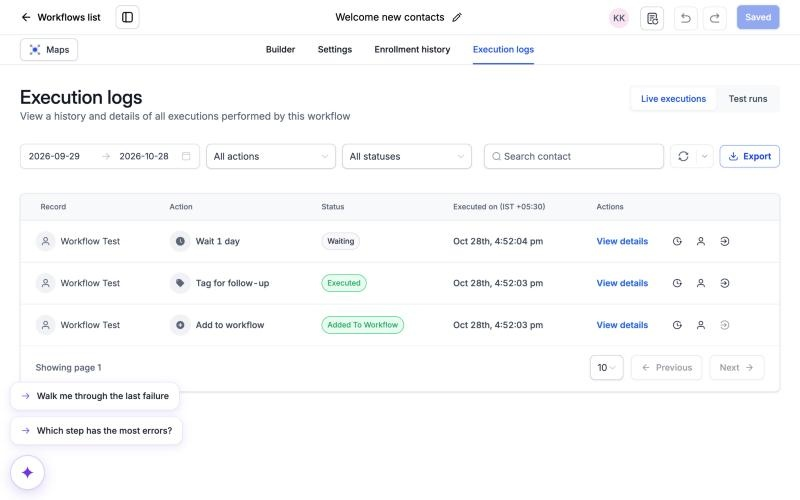
Get Workflow Logs returns live runs, the same records as the Live executions view of a workflow's Execution logs. Runs started with Test workflow in the builder aren't included.
Rate Limits
- Your integration's limits apply to every public API call. By default that is 100 requests per 10 seconds and 200,000 per day for each sub-account.
- The Workflows API adds a budget per sub-account: 30 reads and 10 writes per 10 seconds. Validate counts as a write.
- Get Workflow Logs allows 20 requests per 10 seconds and 60 per minute. Get Workflow Log Statistics allows 5 per 10 seconds, 10 per minute and 1,000 per day.
- Over a limit, you get a 429 response. Wait 10 seconds and retry, unless the daily quota is used up.
Common Use Cases
Use Case 1: Roll Out a Standard Workflow
Goal: Give every client sub-account the same onboarding workflow.
Setup: Read the definition from your template sub-account → create it in each enabled client sub-account → publish it.
Example: An agency updates its review-request workflow once, then pushes the new version to 40 client sub-accounts in a single script run.
Use Case 2: A Weekly Failure Report
Goal: Spot broken steps before clients notice.
Setup: Count failures per step with Get Workflow Log Statistics → list the affected contacts and errors with Get Workflow Logs → send the summary to your team.
Example: Every Monday a script finds that the "Send welcome email" step failed 42 times because of invalid email addresses, and lists the contacts to clean up.
Use Case 3: Workflows Built by Your Own App
Goal: Set up automation for a client the moment they sign up in your product.
Setup: Your app looks up the available steps → validates its definition → creates and publishes the workflow in the client's sub-account.
Frequently Asked Questions
Q: Why do I get 403 with WORKFLOW_API_NOT_ENABLED_FOR_LOCATION?
A: The sub-account isn't in the Workflows API private beta. Your token and scopes are fine. Contact support to join the beta.
Q: Why do I get 403 "The token does not have access to this location"?
A: The locationId isn't the sub-account the token was created in. Use that sub-account's ID, or a token from the sub-account you're calling.
Q: Why do I get 401?
A: The token is missing or invalid ("Invalid JWT"), it doesn't have the scope the endpoint needs, or the Version: v3 header is missing ("version header was not found").
Q: Can I edit a published workflow?
A: Set it to draft first, then read, update and publish it again.
Q: Why are my step IDs different from the ones I sent?
A: LeadConnector assigns its own step IDs when it saves a workflow. Use the IDs from the create response or from Get Workflow Definition.
Q: Can I use a workflow's name instead of its ID?
A: No. Use Search Workflows to find the ID.
Q: Can I add a contact to a workflow with these endpoints?
A: No. Adding and removing contacts is done through the Contacts API.
Q: Is there a way to test a workflow without saving it?
A: Yes. Validate Workflow Definition runs every check a save would run and saves nothing.
Q: Why doesn't Get Workflow Logs show my test run?
A: It returns live runs only. Runs started with Test workflow in the builder show under Test runs in the workflow's Execution logs.
Need Help?
If a call fails in a way this article doesn't explain, contact support with the full response body, including the message, any ruleId, path and stage in errors[], and the traceId.