
The LeadConnector MCP server now includes workflows. Connect an AI assistant such as Claude, ChatGPT or Cursor, and ask it to find a workflow, explain which steps failed and for whom, count enrollments, or build, update and publish a workflow for you. This guide covers how to connect, what the assistant can do with workflows, and the limits that apply.
Important: Workflows in the MCP server are in private beta. Workflow requests use the Workflows API, which is enabled for selected sub-accounts only. In other sub-accounts they are refused with
WORKFLOW_API_NOT_ENABLED_FOR_LOCATION. Contact support to join the private beta.
What Can an AI Assistant Do with Workflows?
- Find workflows by name, status, folder or date.
- Explain a workflow by reading its full definition: triggers, steps, branches and settings.
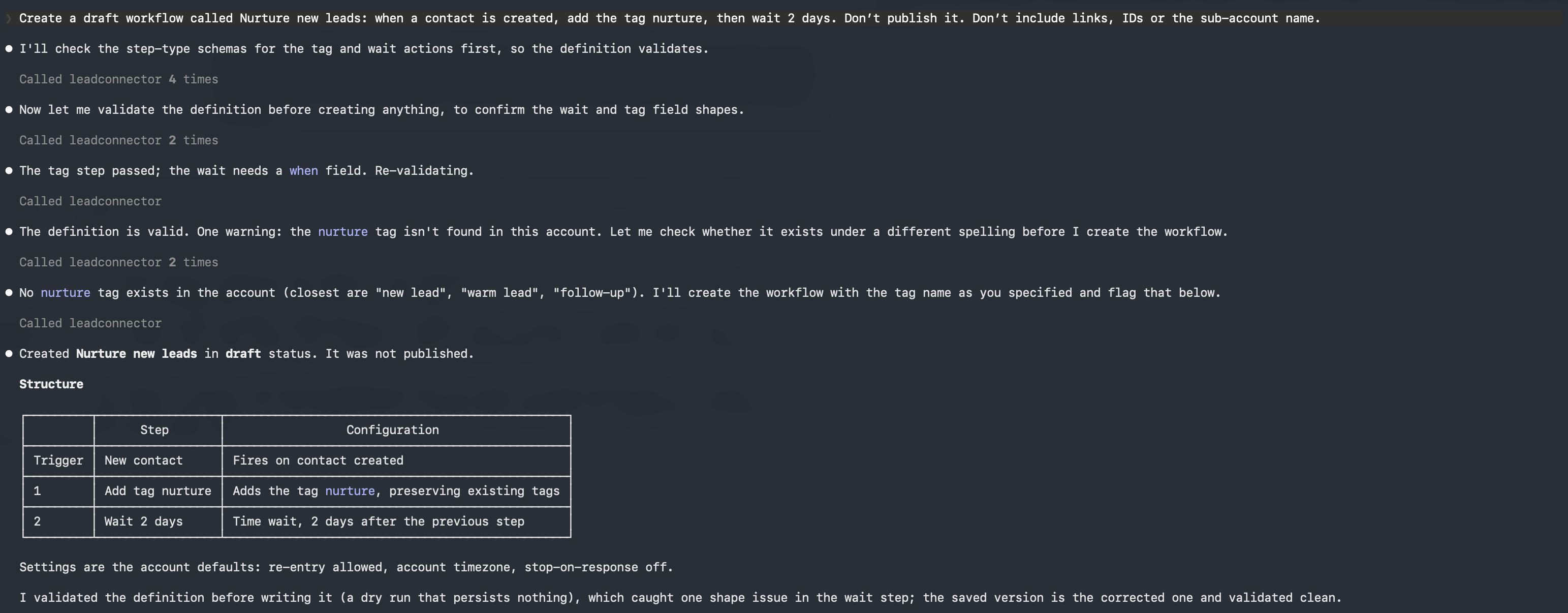
- Build a workflow from a description. The assistant looks up the triggers and actions available in the sub-account, checks the workflow for errors, then saves it as a draft.
- Update a workflow, and publish it or set it back to draft.
- Delete a workflow.
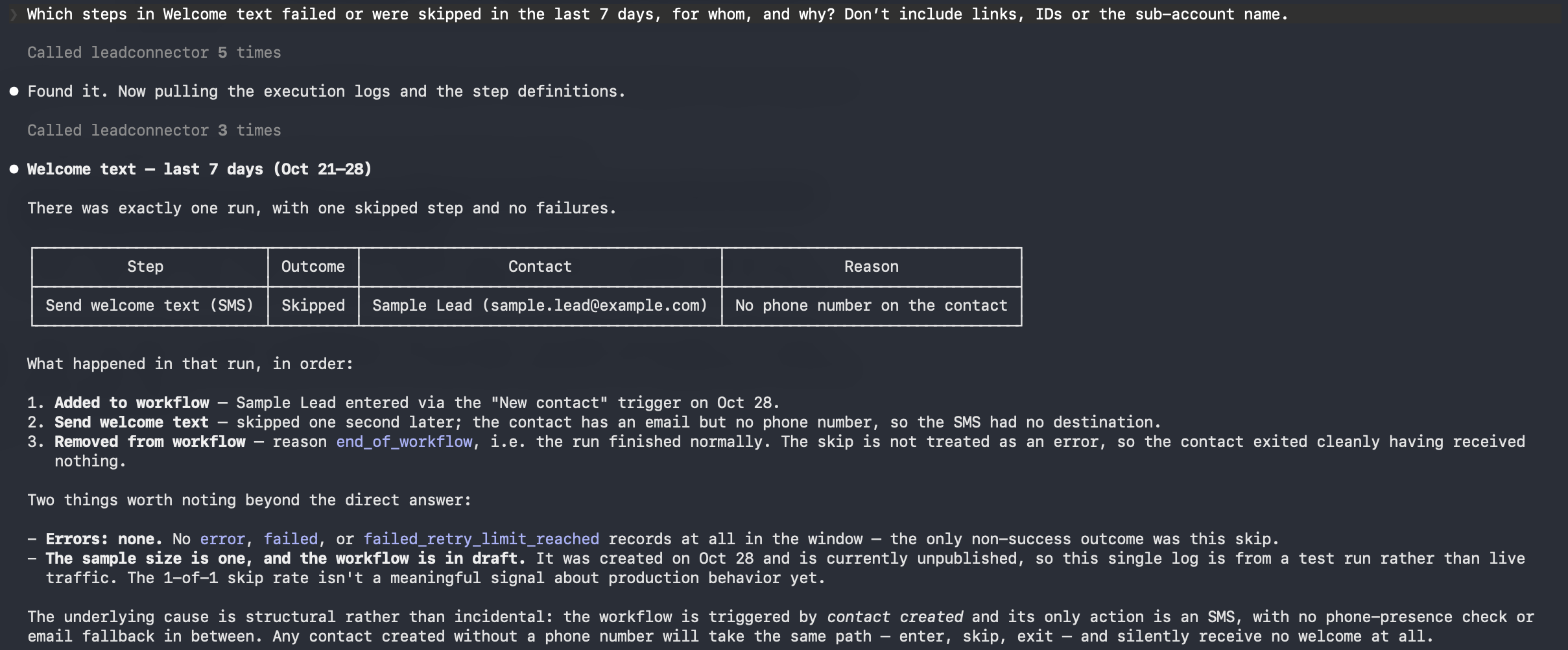
- Read execution logs: who entered a workflow, what happened at each step and which steps failed, with the error.
- Count results: enrollments, completions and failures per step, by hour, day or week.
Adding a contact to a workflow, or removing one, is done through the contact operations.
Connecting Your AI Assistant
Each AI client has its own server URL. You sign in with your LeadConnector account, choose the sub-account the connection can use, and approve the permissions. No API key is needed.
Claude
- In Claude, go to Settings → Connectors and choose Add custom connector.
- Enter the server URL
https://services.leadconnectorhq.com/mcp/anthropic/v2. - Click Connect, sign in, choose the sub-account and approve the permissions.
- Start a new chat and ask about your workflows.
In Claude Code, run claude mcp add --transport http leadconnector https://services.leadconnectorhq.com/mcp/anthropic/v2. A browser opens to sign in the first time you use it.
ChatGPT
- In ChatGPT, go to Settings → Security and login and turn on Developer mode.
- Open ChatGPT Plugins, click the plus button and create a new plugin.
- Enter a name and description. Under Connection, add
https://services.leadconnectorhq.com/mcp/openai/v2/as the MCP server URL and create the connection. - Sign in, choose the sub-account and approve the permissions.
- Start a new conversation and add the LeadConnector connection from the tools menu.
Cursor and Other Clients
Cursor uses https://services.leadconnectorhq.com/mcp/cursor/v2, added to .cursor/mcp.json. Codex and other OpenAI-compatible clients use the ChatGPT URL. LeadConnector is also an official app in Muse and Grok Bot. Setup steps for every client are in the LeadConnector MCP Server documentation.
Tip: The assistant can only do what the permissions you approve allow. Reading workflows, changing them, publishing them, deleting them and reading execution logs each have their own permission.
How It Works
The server gives the assistant four tools: list_locations, search_operations, describe_operation and execute_operation. Behind them are more than 550 operations across LeadConnector, including the workflow operations. The assistant searches for the operations it needs, reads how each one works, then runs it. Each request works in one sub-account. Sensitive and irreversible operations, such as deleting a workflow, ask for extra confirmation.
Example Prompts
| Ask | What the assistant does |
|---|---|
| "Which steps in my New Lead Nurture workflow failed this week, and for whom?" | Reads the logs for failed steps and lists each step, contact and error. |
| "How many contacts entered Webinar Follow-up each week this month?" | Counts enrollments grouped by week. |
| "Why did contacts leave the Onboarding workflow before the end?" | Counts removals by reason. |
| "Create a draft workflow that tags new contacts webinar-lead and sends a welcome SMS." | Looks up the steps, checks the workflow for errors and saves it as a draft for you to review. |
| "Publish the Webinar Follow-up workflow." | Checks the whole workflow again and publishes it. |
Things to Know
- New workflows are always created as drafts. Publishing is a separate request.
- To change a published workflow, it is set to draft first. While it's a draft, its triggers are off and contacts in it pause at their next step until it's published again.
- An update replaces the whole workflow. If someone edits the same workflow in the builder at the same time, the update is rejected rather than overwriting their change.
- Workflows the assistant creates are normal workflows: review them in the builder before publishing.
- App steps can only use app accounts that are already connected in the sub-account.
- Deleting a workflow is permanent and stops everyone currently in it.
- Logs cover up to 30 days per request and go back 60 days. They show live runs, not runs started with Test workflow. Log records include contact names and emails.
Frequently Asked Questions
Q: Which AI assistants can I use?
A: Claude (Claude.ai, Claude Code and Cowork), ChatGPT and Codex, Cursor, and other clients that can connect to a remote MCP server. Muse and Grok Bot have official LeadConnector apps.
Q: Can the assistant work across several sub-accounts?
A: Each request works in one sub-account. Agency connections that cover several sub-accounts from one connection are rolling out: when you connect as an agency, choose the sub-accounts to include, then name the sub-account in your request. If your sign-in only offers one sub-account, that option isn't on for you yet.
Q: The assistant says the workflow API isn't enabled for my location. What do I do?
A: The sub-account isn't in the Workflows API private beta, which workflow requests over MCP rely on. Contact support to join the beta.
Q: Can the assistant publish or delete a workflow without asking me?
A: It can only do what the permissions you approved allow, and irreversible operations such as deleting ask for extra confirmation. Review drafts in the builder before you ask it to publish.
Q: Where can I see the full list of operations?
A: Ask the assistant to search the workflow operations, or see the Workflows API documentation.
Need Help?
If the assistant can't find your workflows, check that you chose the right sub-account when connecting and approved the workflow permissions. If a request fails, ask the assistant to show the full error and include it, with the traceId if there is one, when you contact support.
Related article: Workflows API – Create, Publish and Monitor Workflows by API