
The Prospect AI Activity Center helps you monitor how AI agents discover business prospects and perform during each execution. The redesigned dashboard displays agent summaries, discovery statistics, execution history, and upcoming schedules. When an agent does not find prospects, the Activity Center provides diagnostic information and recommendations for improving future results. This guide explains how to review agent cards, inspect activity, find discovered prospects, and use dashboard metrics.
TABLE OF CONTENTS
- What Is the Prospect AI Activity Center?
- Key Benefits
- Prerequisites and Limitations
- How to Access and Use the Activity Center
- Redesigned AI Agent Cards
- Summary and Activity Tabs
- Execution History and Recommendations
- Dashboard Metrics and Search
- Frequently Asked Questions
- Need Help?
What Is the Prospect AI Activity Center?
The Prospect AI Activity Center provides visibility into AI agent performance and prospect discovery activity. It shows when agents run, how many prospects they discover, which business categories they find, and why some runs may not return results.Selecting an agent opens its details view instead of immediately entering edit mode. The Summary and Activity tabs let you review configuration, discovery statistics, execution history, and scheduling before making changes.
The dashboard also provides overall agent metrics and search tools for finding individual agents.
Key Benefits
The Activity Center helps you understand agent performance without opening each agent's configuration. You can review results, investigate unsuccessful runs, and access discovered prospects from the dashboard.
- Enhanced Agent Cards: Review prospect totals, recent execution information, upcoming schedules, and agent specialization.
- Summary and Activity Views: Examine agent configuration, prospect statistics, discovery criteria, and execution history.
- Actionable Diagnostics: Review explanations and recommendations when an agent does not discover prospects.
- Dashboard Visibility: Monitor total agents, active agents, discovered prospects, and monthly lead activity.
- Quick Prospect Access: Open the list of businesses discovered by an individual agent.
- Agent Search and Filtering: Locate agents using the available dashboard search and filtering controls.
Prerequisites and Limitations
Before reviewing agent activity, make sure Prospecting and Prospect AI are available in your interface. The information displayed depends on your configured agents and their execution history.
- Feature access: Prospecting and the Prospect AI tab must be available to you.
- Existing agents: At least one AI agent is needed to review individual agent activity.
- Execution history: Run results become available after agents complete discovery activity.
- Scheduling: Upcoming execution details depend on each agent's configured schedule.
- Discovery results: Prospect totals and business categories depend on completed runs.
- Recommendations: Suggested adjustments depend on the diagnostic information available for an execution.
Note: If Prospect AI is unavailable, contact support to confirm feature access.
How to Access and Use the Prospect AI Activity Center
Open Prospect AI from the Marketing menu to review configured agents. From the dashboard, you can examine agent details, execution results, and discovered prospects.
Open the Prospect AI Dashboard
The dashboard provides an overview of your agents and their discovery activity.
- From the left navigation menu, select Marketing.
- Select Prospecting.
- Open the Prospect AI tab.
- Review the available agent cards and dashboard metrics.
- Locate the AI agent you want to review.
- Select its card to open Agent details.
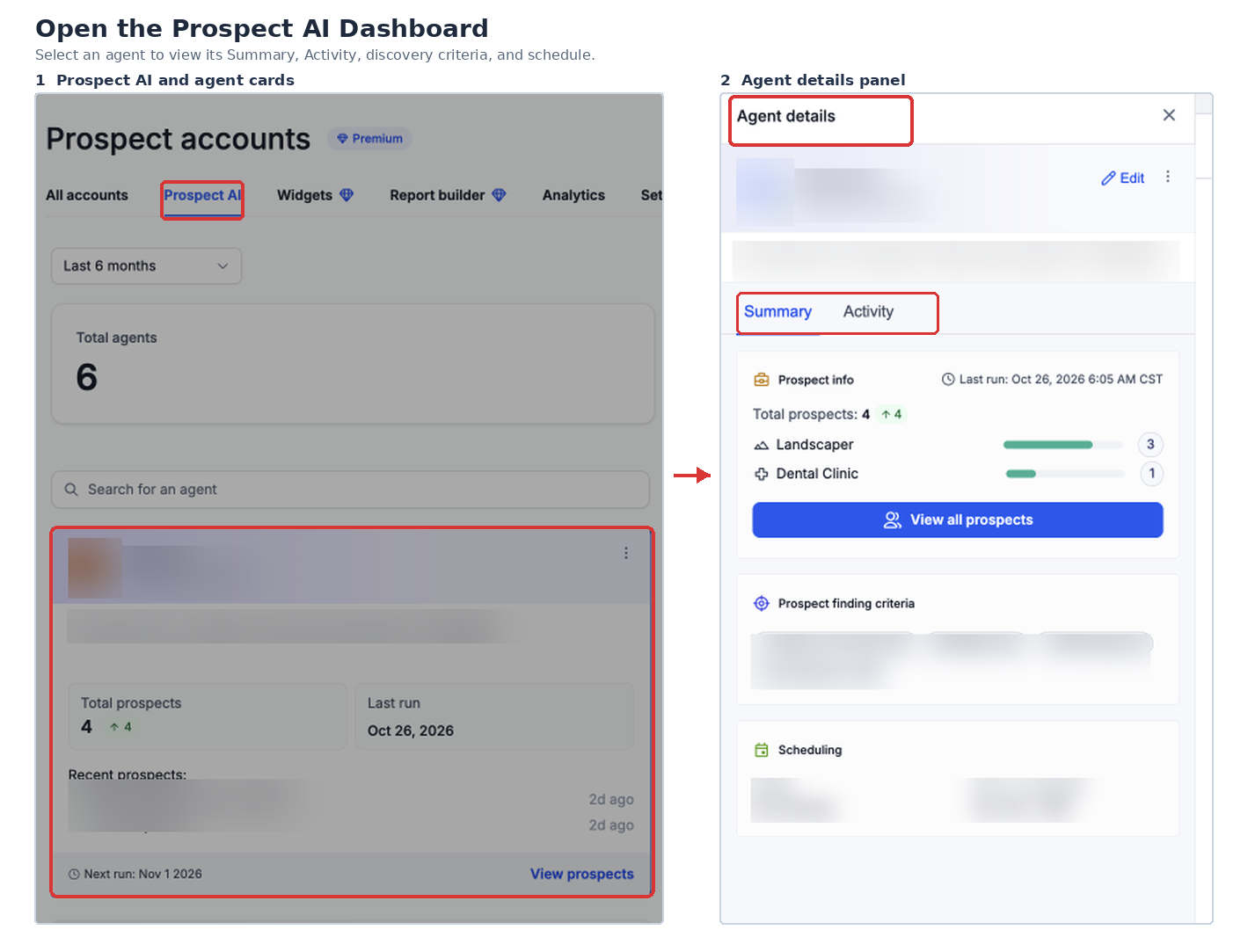
Note: If no agents exist, the dashboard may display Create your first AI Agent or New AI sales agent, depending on its state.
Review an Agent's Details
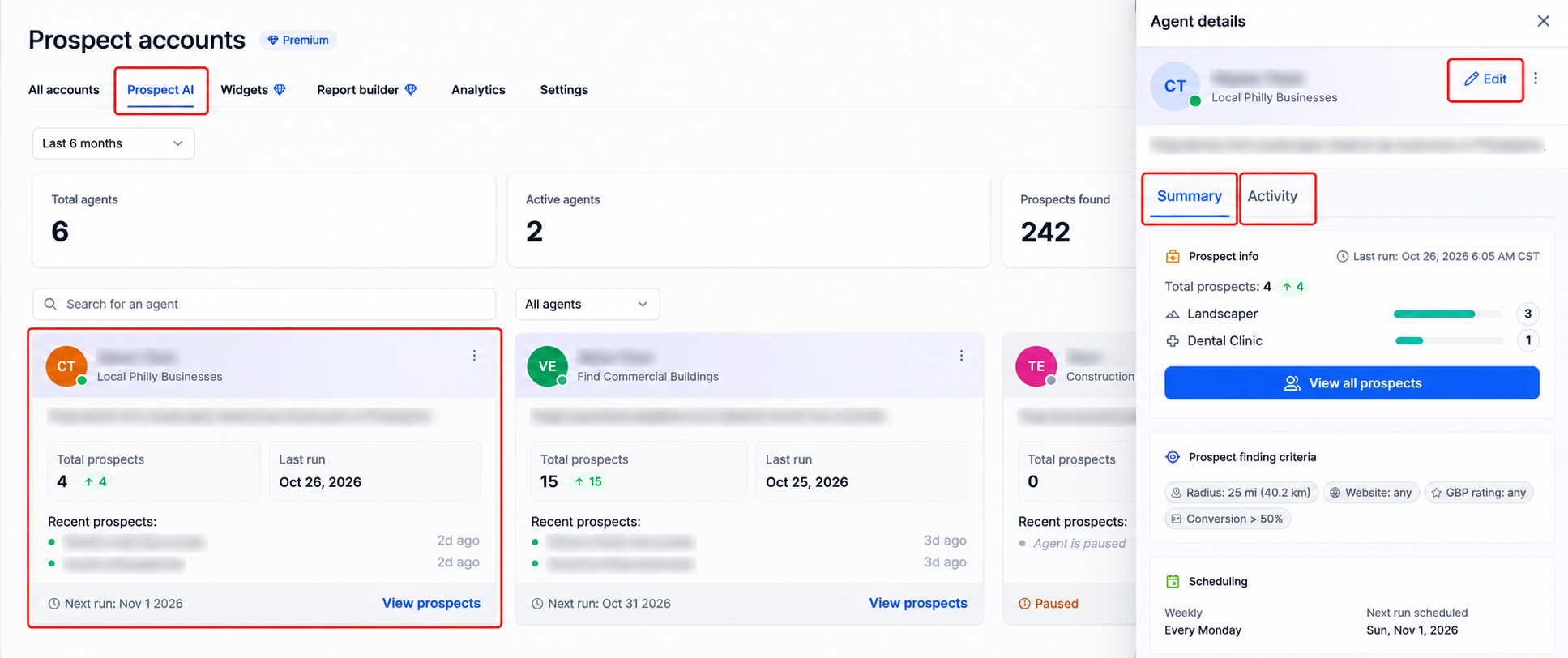
The agent details view separates configuration information from execution history. Review these tabs before deciding whether the agent needs changes.
- Open Marketing > Prospecting > Prospect AI.
- Select an existing AI agent.
- Open Summary to review configuration, discovery statistics, and scheduling.
- Open Activity to review previous runs and upcoming schedules.
- Select Edit when you need to change the agent's configuration.
Redesigned AI Agent Cards
Redesigned agent cards display performance and scheduling information directly on the Prospect AI dashboard. This helps you identify agents and review recent discovery results without entering edit mode.
- Total Prospects Discovered: The cumulative number of prospects discovered by the agent.
- Last Run: The most recent execution information displayed on the card.
- Next Scheduled Run: When the agent is expected to run again.
- Agent Description and Specialization: The agent's purpose and the types of businesses it targets.
- View Prospects: A quick action for opening the list of businesses discovered by the agent.
View All Prospects Discovered by an Agent
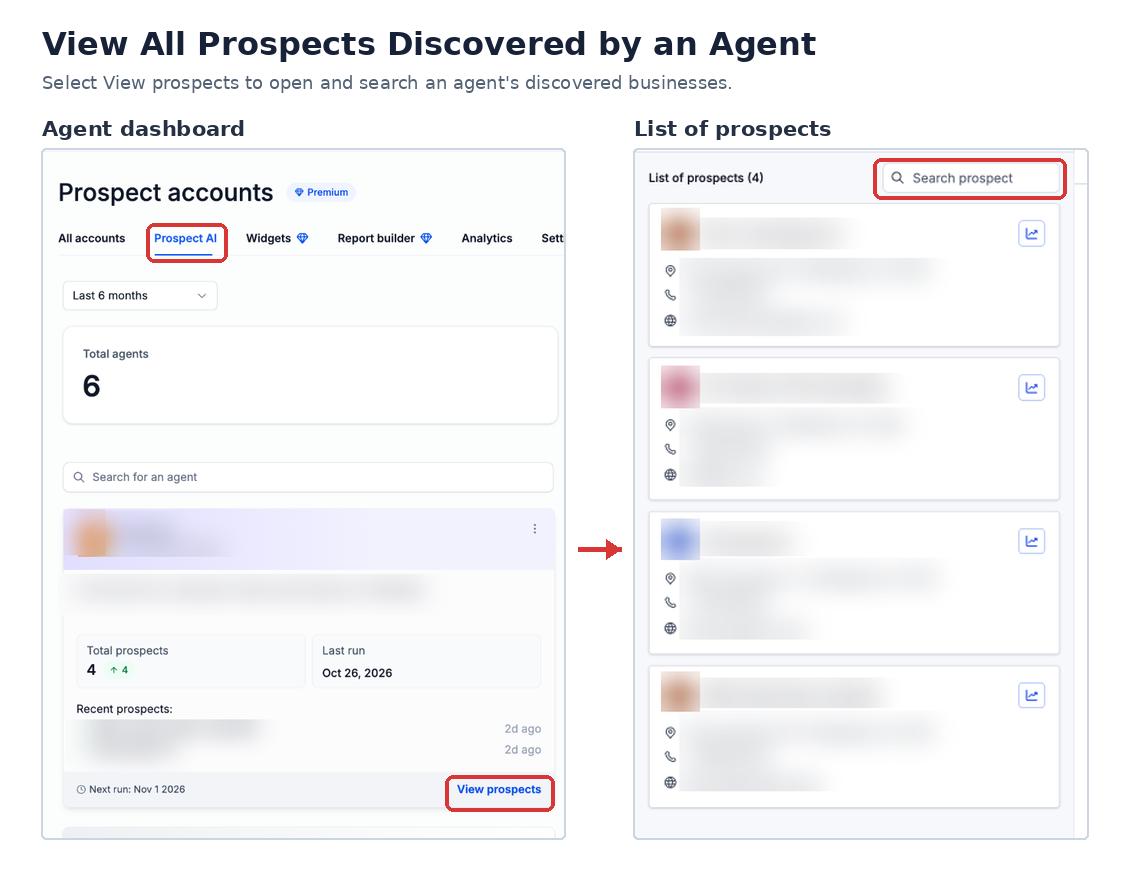
Use View prospects to access businesses discovered by a specific agent. The available prospect list provides discovery information and search functionality.
- Select Marketing from the left navigation menu.
- Open Prospecting.
- Select Prospect AI.
- Locate the agent whose results you want to review.
- Click View prospects.
- Review the available prospects.
- Use Search prospect when the search field is available.
Summary and Activity Tabs
Each agent provides separate views of its configuration and execution activity. These tabs help you understand how an agent is configured and how its discovery runs have performed.
Summary Tab
The Summary tab provides an overview of the agent's prospect statistics, discovery criteria, and schedule.
- Prospect Information: Review total discovered prospects and available business-category breakdowns.
- Search Radius: Review the geographic area used for discovery.
- Website Requirements: Review any configured website-related criteria.
- Google Business Profile Rating: Review the business rating requirements.
- Conversion Criteria: Examine applicable prospect qualification settings.
- Scheduling: Review the agent's schedule and next planned run.
- View All Prospects: Open the list of discovered businesses.
Activity Tab
The Activity tab displays previous runs, upcoming schedules, results, and available diagnostic information. Use it to understand how an agent has performed over time.
- Execution History: Review previous runs and recorded results.
- Run Status: Use available All, Success, and Failed views.
- Upcoming Schedules: Review planned agent executions.
- Discovery Results: Examine the number of prospects found and available business-category details.
- Diagnostic Information: Review explanations and recommendations for runs that did not return prospects.
Execution History and Recommendations
The Activity Center provides a record of agent executions and their discovery results. When an agent does not find prospects, diagnostic information can help identify settings to review.
Review Execution Results
The execution history provides information about past runs and upcoming schedules.
- Last Execution: The most recent recorded execution.
- Next Scheduled Run: The next planned execution time.
- Prospects Found: The number of qualifying prospects discovered.
- Business Categories: The types of businesses identified during discovery.
- Execution Logs: Recorded results, statuses, and available explanations.
Review Recommendations When No Prospects Are Found
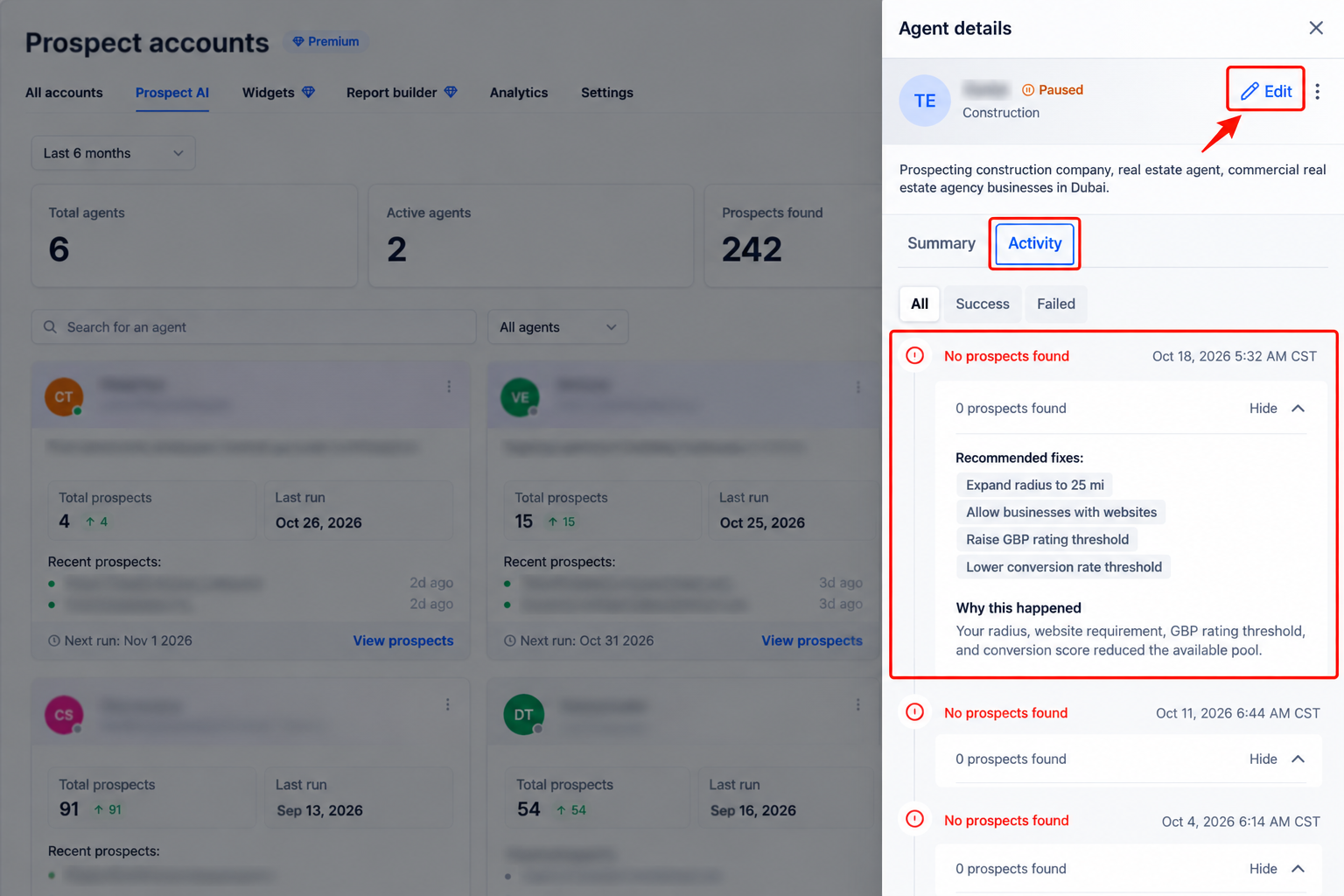
When an agent returns no results, the Activity Center may recommend adjusting discovery criteria. Review the diagnostic information before changing the agent.
- Open Marketing > Prospecting > Prospect AI.
- Select the relevant AI agent.
- Open Activity.
- Locate the run that returned no prospects.
- Review its recorded outcome and diagnostic information.
- Read any recommendations shown for the run.
- If changes are needed, select Edit to review the agent's discovery criteria.
Common Recommendations
Available recommendations may suggest changes to geographic targeting, business qualification criteria, or lead usage.
- Increase Search Radius: Expand the geographic area considered by the agent.
- Relax Conversion Score Filters: Broaden the qualification criteria used to select businesses.
- Lower Google Business Profile Rating Requirements: Allow businesses with lower ratings to qualify.
- Review Monthly Lead Usage: Check available lead-generation activity and applicable limits.
- Review Agent Allocation: Examine available controls for distributing lead activity across agents, where supported.
Important: Broader search criteria can change which businesses qualify as prospects. Review the recommendations against your intended targeting requirements.
Dashboard Metrics and Search
The Prospect AI dashboard displays metrics across configured agents. Use these summaries to monitor discovery activity and identify agents that need closer review.
Dashboard Metrics
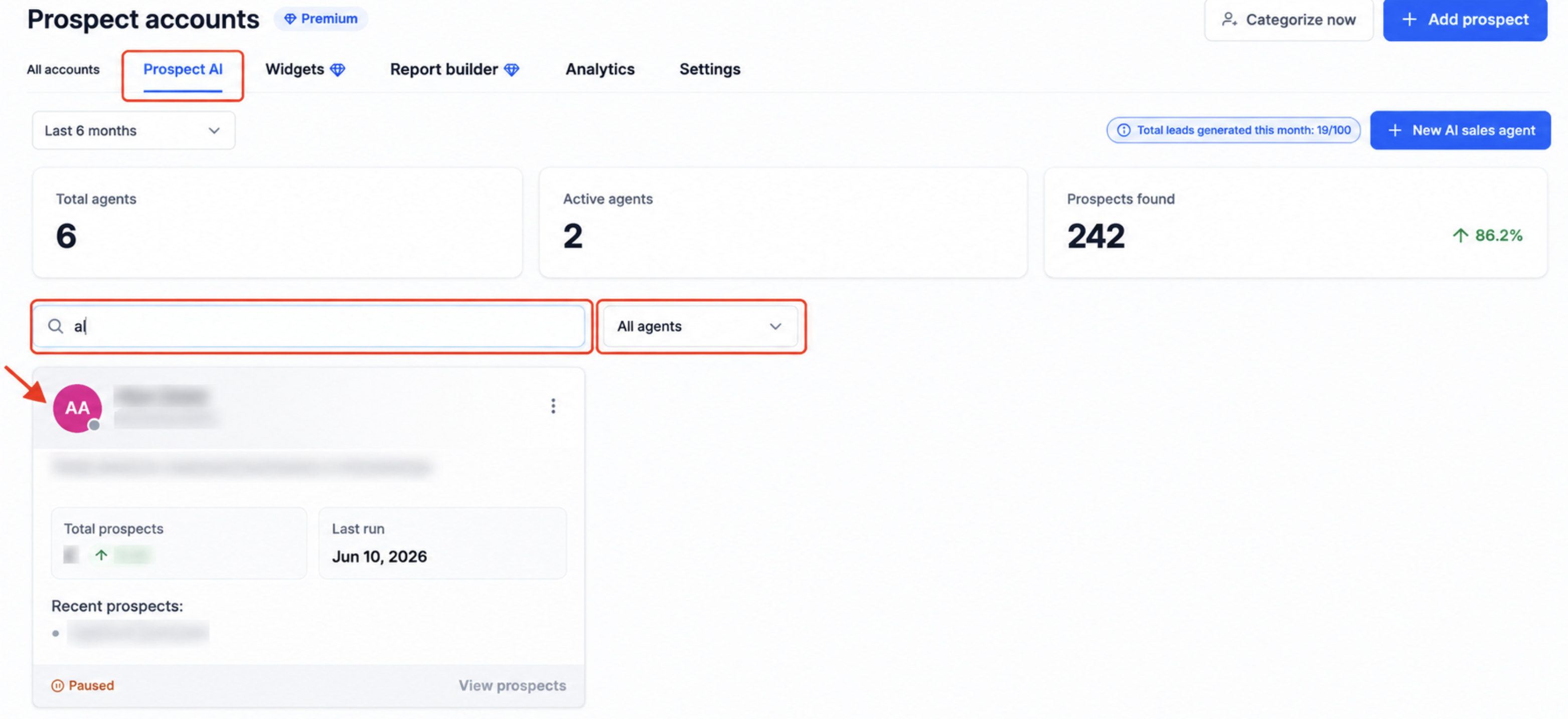
- Total Agents: The number of configured AI agents.
- Active Agents: The number of currently active AI agents.
- Prospects Found: The total number of prospects discovered across agents.
- Total Leads Generated This Month: The number of leads generated during the current month.
Search and Filter Agents
Use the dashboard search field and available filters to locate an agent without opening each agent's details.
- Open Marketing > Prospecting > Prospect AI.
- Locate Search for an agent.
- Enter the agent name or relevant search text.
- Use All agents to review available filtering options.
- Select the matching agent to open its details.
Frequently Asked Questions
Q: Do I need to create a new agent to use the Activity Center?
No. Open an existing agent to review its Summary and Activity tabs.
Q: Where can I review previous AI agent runs?
Open Marketing > Prospecting > Prospect AI, select an agent, and open Activity. Review previous executions, upcoming schedules, and available results.
Q: Why is my AI agent finding no prospects?
The Activity tab may explain why a run returned no results. Review the recommendations and any suggested adjustments to search radius, conversion score, or business rating filters.
Q: How do I view all prospects discovered by an agent?
Locate the agent on the Prospect AI dashboard and select View prospects. Review the available results and use the search field when provided.
Q: What information appears in the Summary tab?
The Summary tab displays available configuration details, prospect statistics, discovery criteria, scheduling information, and access to discovered prospects.
Q: Can I filter the Activity tab by run status?
Yes. The documented Activity view includes All, Success, and Failed options.
Q: Does selecting an agent immediately open edit mode?
No. Selecting an agent opens its details view. Select Edit when you need to modify its configuration.
Q: When do completed execution results appear?
The Activity Center displays recorded results after agent runs complete. Upcoming scheduled runs appear separately from completed execution history.
Need Help?
If an agent is not discovering prospects, review its Activity tab, execution history, and available recommendations. Check the discovery criteria and dashboard metrics for information that may explain the outcome.
If you cannot access Prospect AI or need help understanding a run result, contact support. Include the agent name, approximate run date, recorded status, and a description of the issue.