
This guide explains how to manually create a Rental booking from the Appointments List View or Calendar View. You will learn how to select customers, add rental listings, choose booking dates, and review reservation details. Manual bookings provide flexibility for special scheduling requests while continuing to respect buffer times and inventory availability. The guide also covers optional intake forms, internal notes, payment summaries, booking statuses, and how to save a reservation.
TABLE OF CONTENTS
- What Is Manual Rental Booking?
- Key Benefits of Creating a Booking
- Prerequisites and Limitations
- How to Create a New Booking
- Sections of the Create Booking Form
- Customer Details
- Attach a Form to a Rental Booking
- Listings Section
- Internal Notes
- Payment Summary
- Set Booking Status
- Save and Confirm
- Frequently Asked Questions
- Need Help?
What Is Manual Rental Booking?
Manual Rental Booking allows you to create customer reservations directly from the Appointments List View or Calendar View. When creating a booking manually, you can override certain scheduling restrictions normally applied to rental listings.
This means you can:
- Create bookings outside business operating hours.
- Set custom start and end times even when a listing's time selector is disabled.
- Create bookings with durations different from the fixed durations configured for a listing.
- Override minimum and maximum booking durations, minimum scheduling notice, and the maximum advance booking window.
- Continue to respect pre-buffer and post-buffer times when checking availability.
Example: If a listing's default rental time is 9:00 AM–11:00 PM and the time selector is disabled, you can manually create a booking from 7:00 AM–1:00 PM. If the configured durations are four hours or one day, you can also manually book two hours or two days.
This flexibility supports special customer requests while maintaining the availability safeguards used for existing reservations.
Key Benefits of Creating a Booking
Manually creating Rental bookings helps your team accommodate scheduling exceptions, manage available inventory, and capture reservation information before confirming a booking.
- Speed to Schedule: Create reservations directly from the Appointments List View or Calendar View.
- Flexible Scheduling: Set custom start and end times even when listings use fixed durations or disabled time selectors.
- Protection Against Conflicts: Buffer times and inventory availability remain enforced to help prevent overlapping reservations.
- Payment Visibility: Review the Payment Summary and any applicable security deposit before saving.
- Multi-Listing Support: Add multiple listings, each with its own dates, times, and quantities, within one booking.
- Immediate Team Visibility: Saved bookings appear in the Appointments List View and Calendar View.
- Optional Intake Forms: Attach an available customer intake form during booking creation.
Prerequisites and Limitations
Before manually creating a Rental booking, make sure Rentals is available in your Calendars interface and that you have the relevant listing and customer information. Some scheduling restrictions can be overridden, but availability safeguards still apply.
- Rental Access: The Rentals scheduling type must be available in Calendars.
- Rental Listings: You need an available listing to include in the reservation.
- Customer Information: Select an existing contact or create a new contact during booking creation.
- Scheduling Overrides: Manual bookings can override configured operating hours, fixed durations, minimum scheduling notice, and advance booking windows.
- Inventory and Buffers: Inventory availability and configured pre-buffer and post-buffer times remain enforced.
- Optional Intake Forms: Forms can be attached while creating the booking, but cannot be added or edited afterward.
Important: Overriding a scheduling restriction does not remove inventory or buffer checks. Review the selected listing and rental period before saving.
How to Create a New Booking
You can open the New Booking screen from either the Appointments List View or Calendar View. Both entry points lead to the manual Rental booking process.
Option 1 — From the Appointments List View
Use the Appointments List View to create a reservation from the list of Rental bookings.
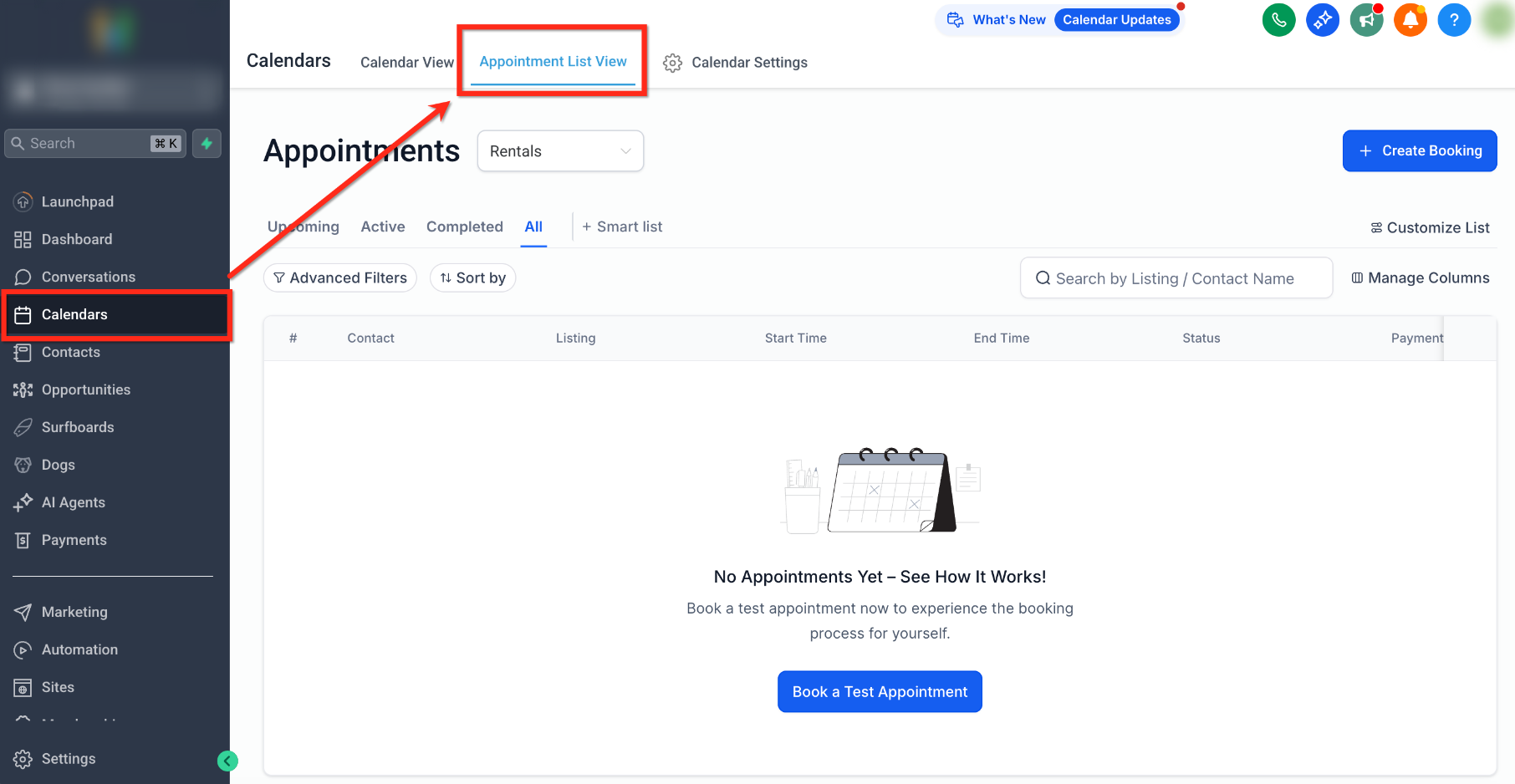
- From the left navigation menu, select Calendars, then open Appointment List View.
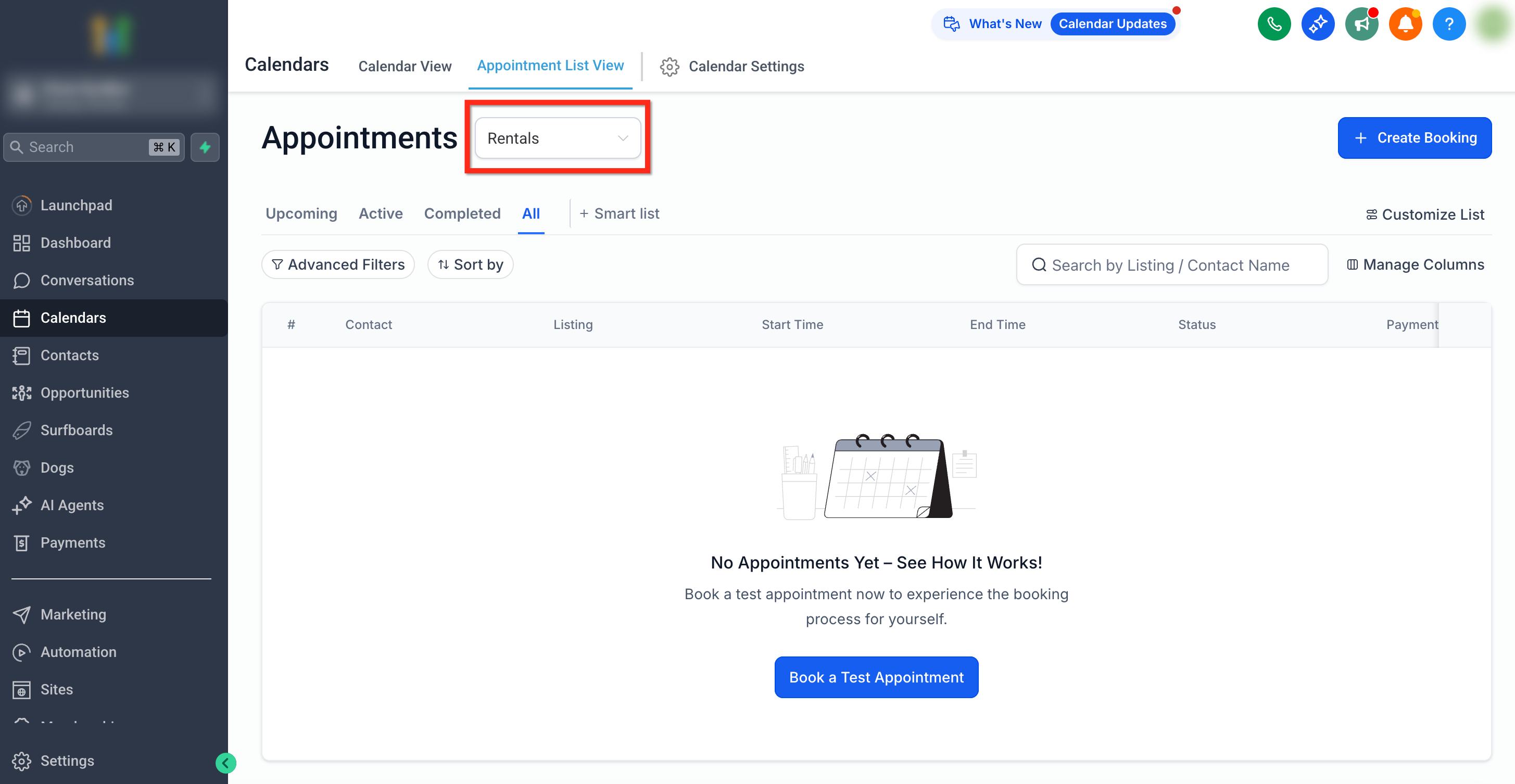
- Select Rentals from the scheduling-type dropdown.
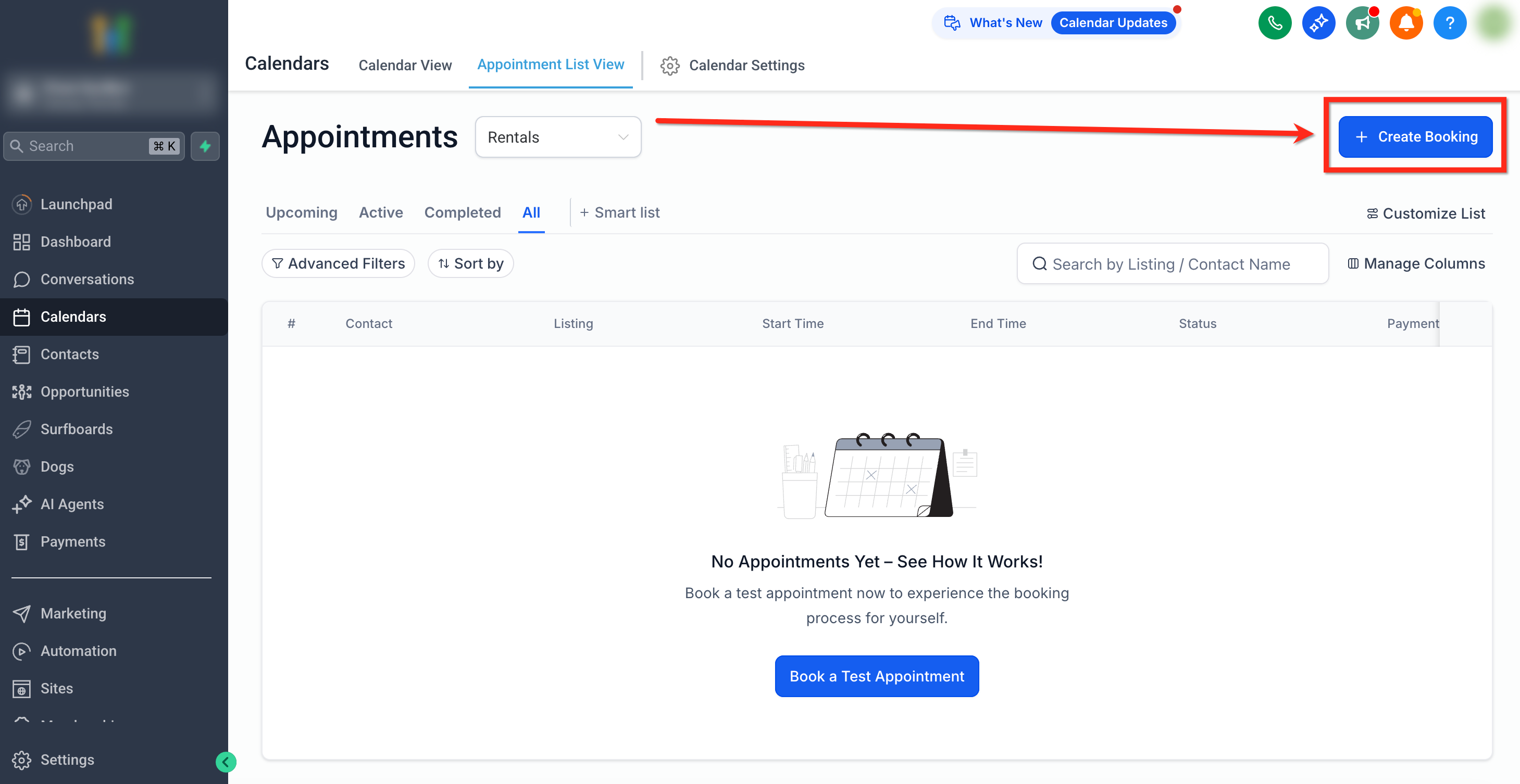
- Click + Create Booking in the top-right corner.
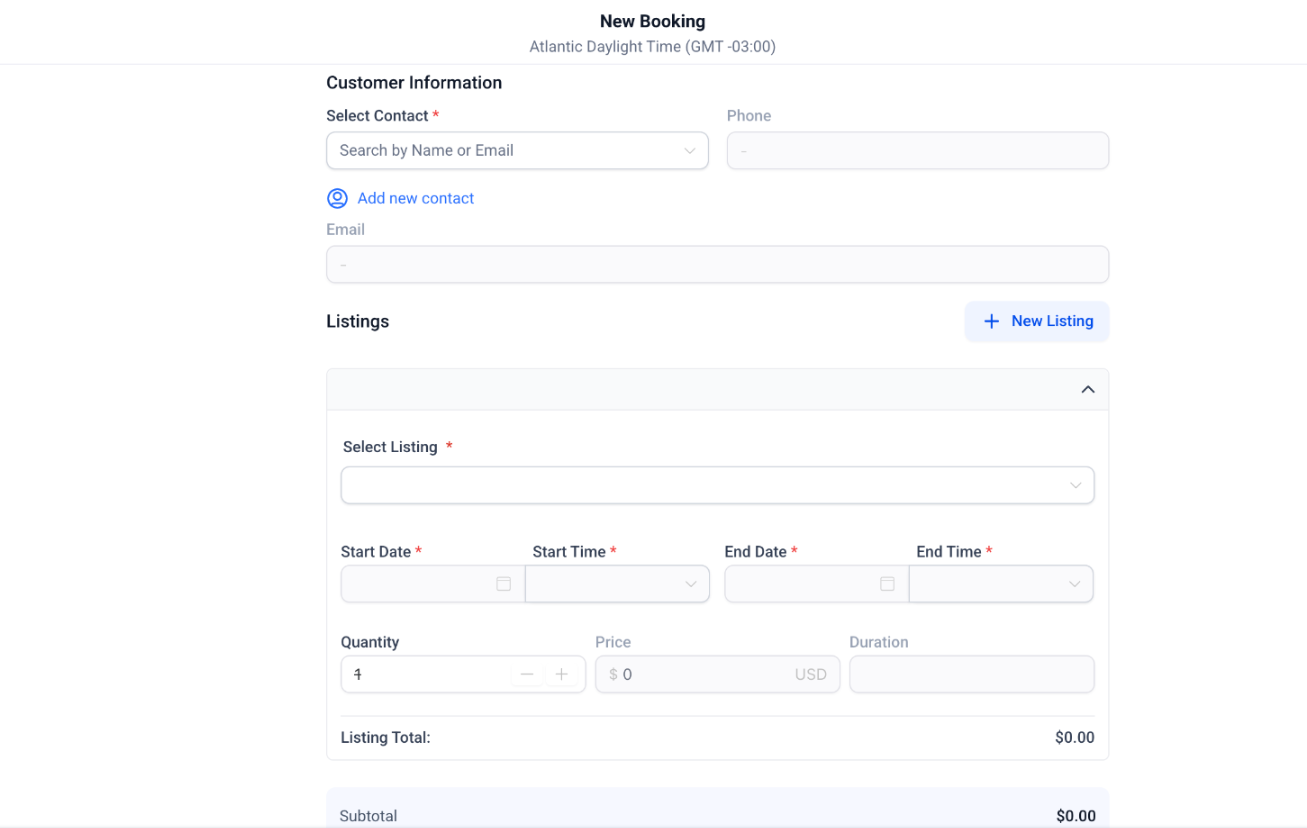
- The New Booking screen opens.
Option 2 — From Calendar View
Use Calendar View to create a reservation while reviewing scheduled Rental activity.
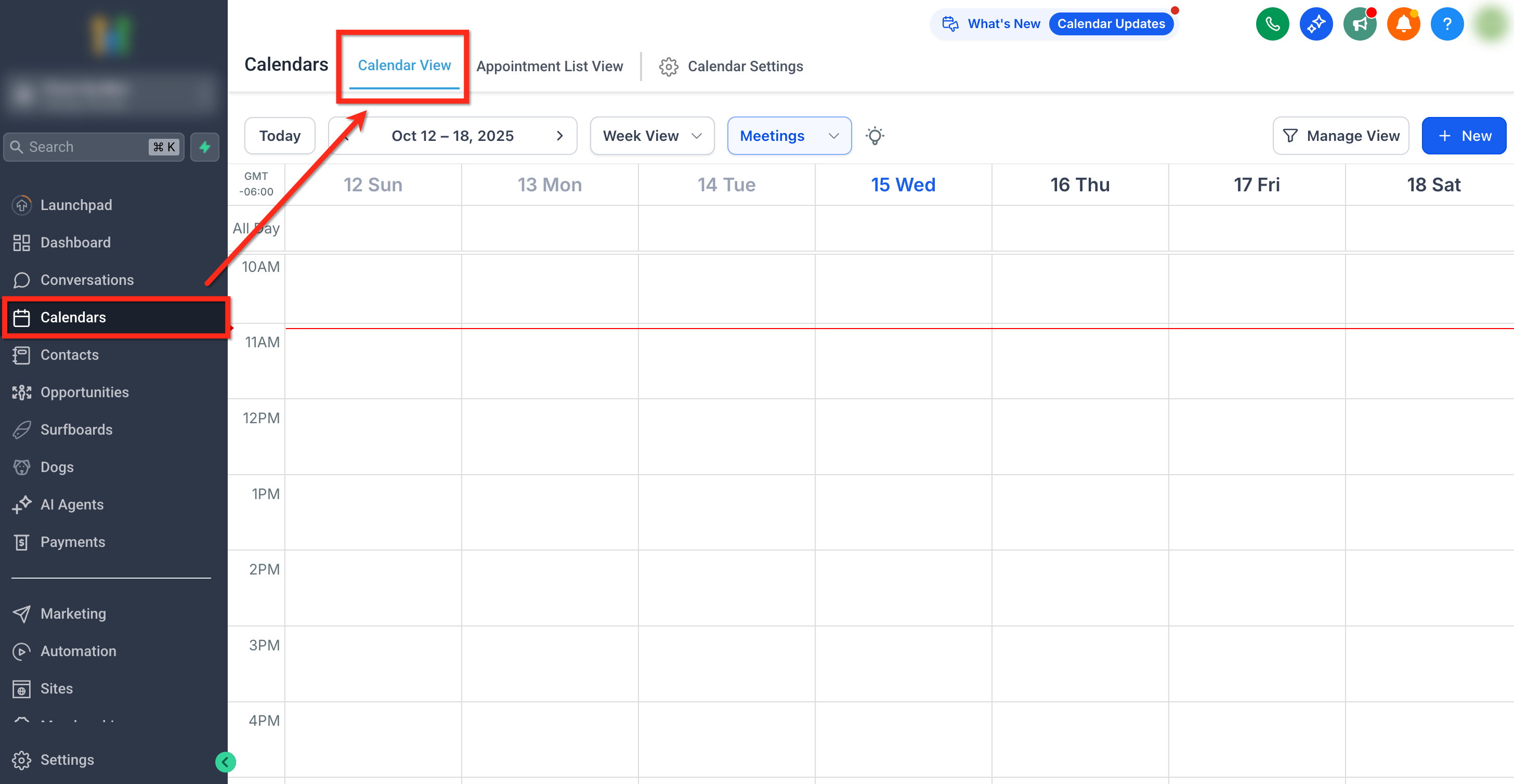
- From the left navigation menu, select Calendars, then open Calendar View.
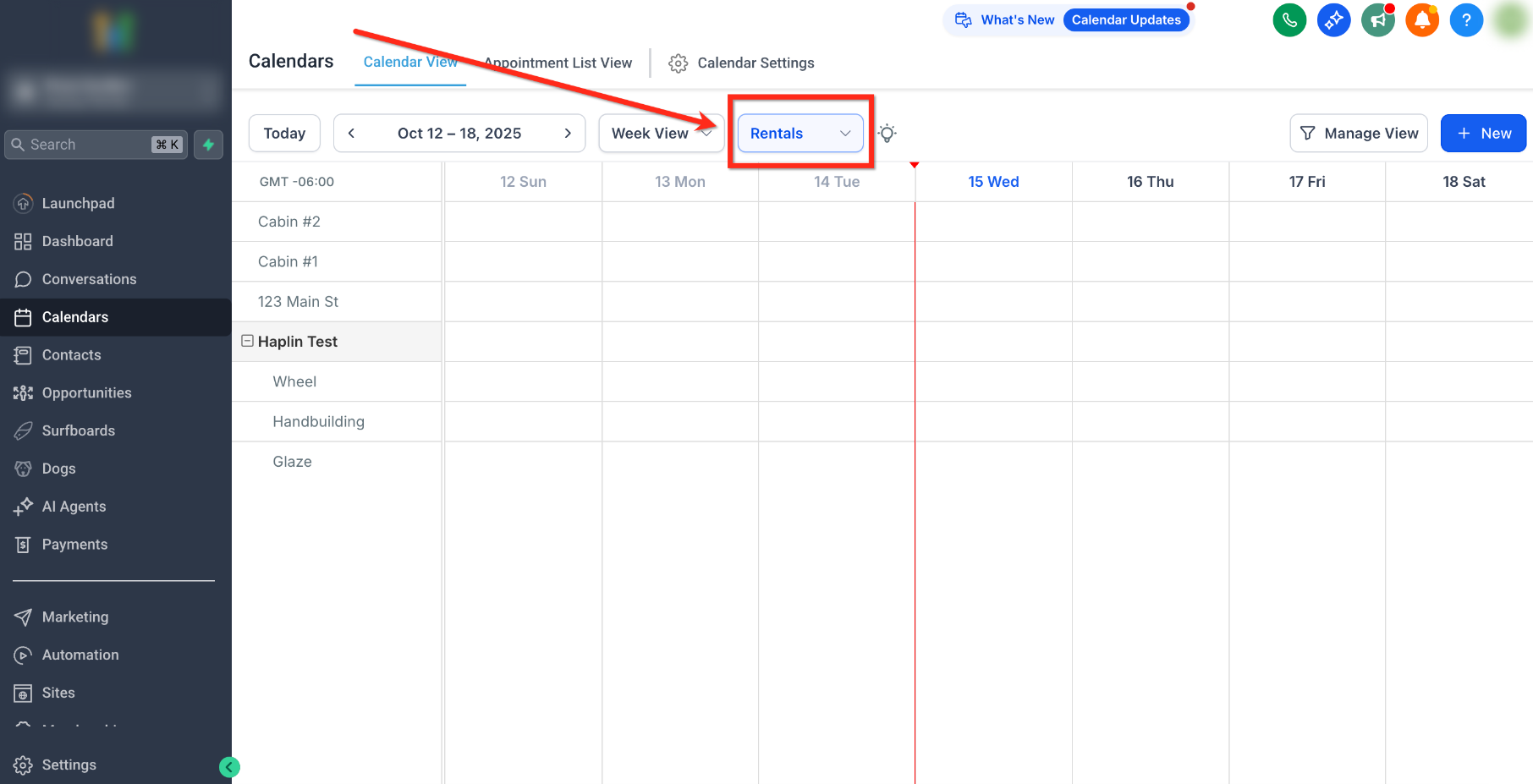
- Select Rentals from the scheduling-type dropdown.
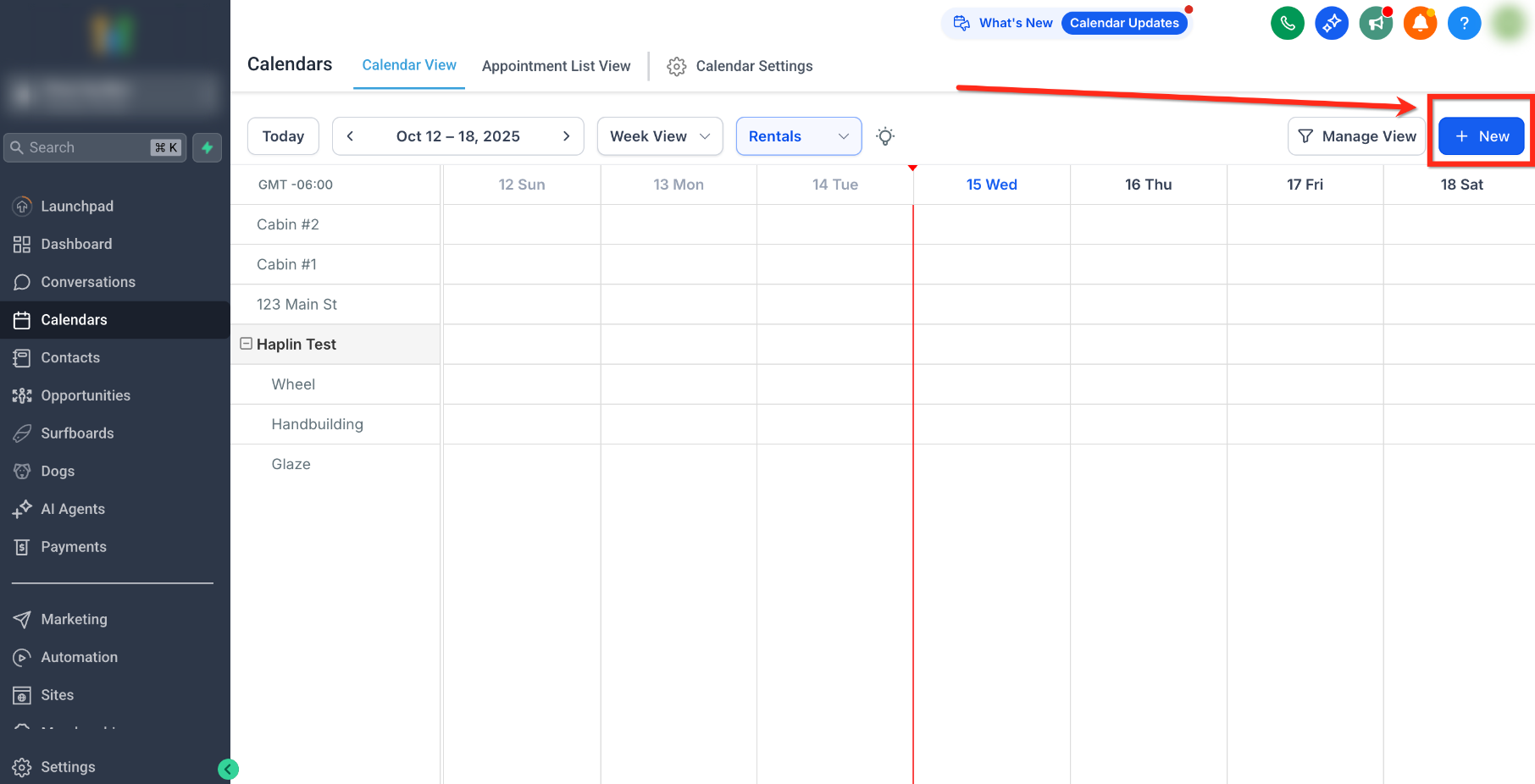
- Click + New in the top-right corner.
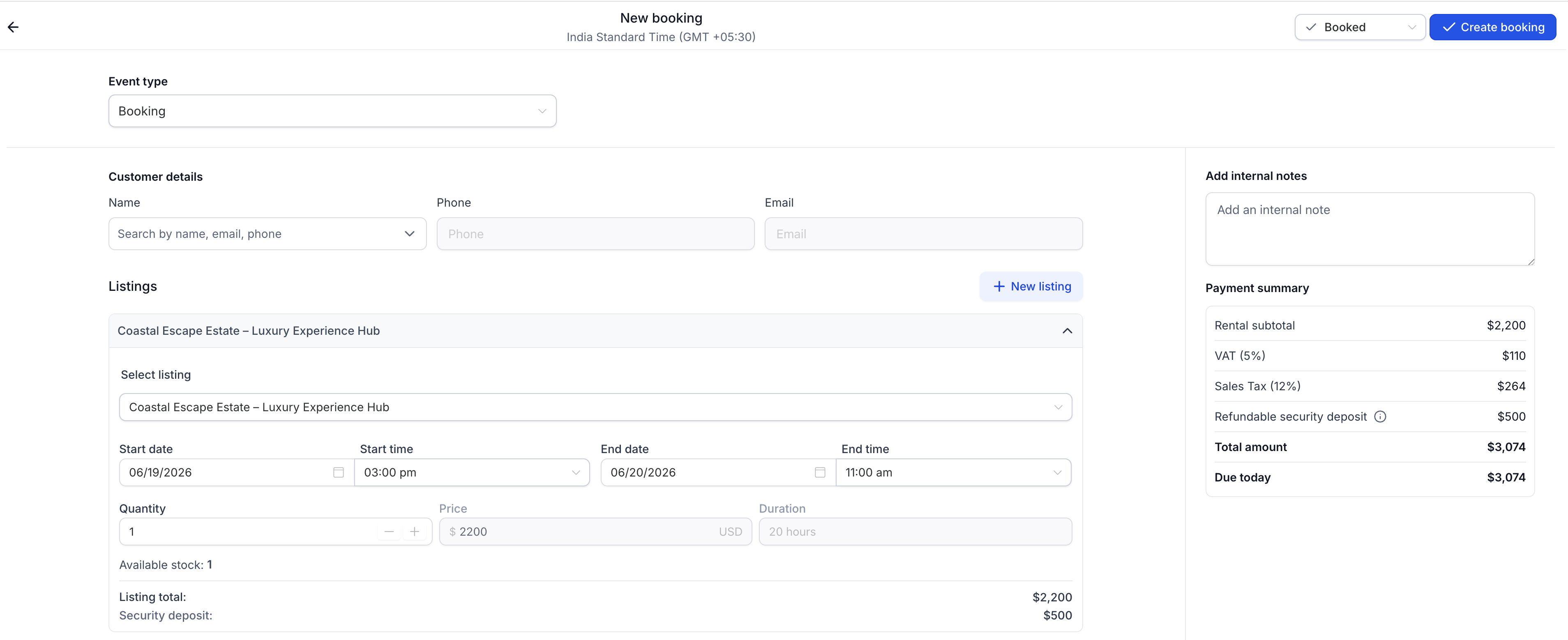
- The New Booking screen opens.
Sections of the Create Booking Form
The New Booking form groups customer information, rental listings, optional intake responses, notes, and payment details. Review these sections before saving the reservation.
The booking screen includes:
- Customer Details
- Booking form (optional)
- Listings
- Internal Notes
- Payment Summary
- Set Booking Status
Each section is explained below.
Tip: If you need to make a listing unavailable for maintenance or internal use, create a Blocked slot instead of a customer booking. Blocked slots reduce availability without creating a customer reservation or order.
Customer Details
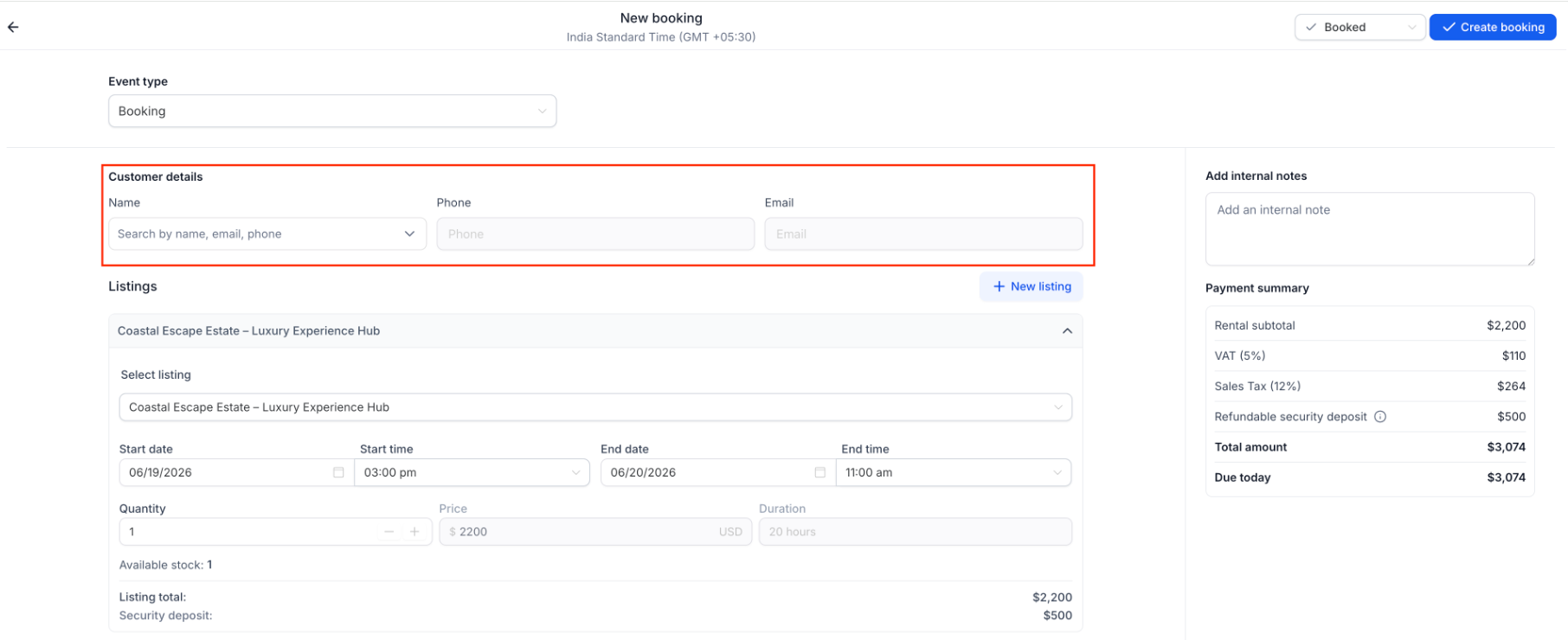
Enter or select the customer making the reservation. Accurate contact information helps ensure booking communications reach the correct person and supports prefilled fields when an intake form is attached.
Fields:
- Select Contact:Search existing contacts and select the appropriate record.
- If the customer does not have a contact record, select Add New Contact to create one.
- If the customer does not have a contact record, select Add New Contact to create one.
- Phone and Email: These details are populated from the selected contact.
Tip: Confirm the customer's contact details before saving the booking so supported reminders and confirmations reach the intended person.
Attach a Form to a Rental Booking
When manually creating a Rental booking, you can attach an optional intake form without requiring the customer to open a separate booking page. The configured form is preselected, and supported contact fields, including first name, last name, email, and phone, are populated from the selected contact.
- From the left navigation menu, open Calendars.
- Open Appointment List View and select Rentals. You can also use Calendar View and select Rentals.
- Click + Create Booking from Appointment List View or + New from Calendar View.
- Under Customer details, select the contact.
- In the Booking form section, click Attach form.
- Review the preselected form or choose another available form from the Booking form dropdown.
- Review the prefilled customer details and complete any remaining applicable fields on the customer's behalf.
- Click Attach form at the bottom of the form window.
- Confirm that the selected form appears in the Booking form section.
- Complete the remaining listing, status, and booking details before saving.
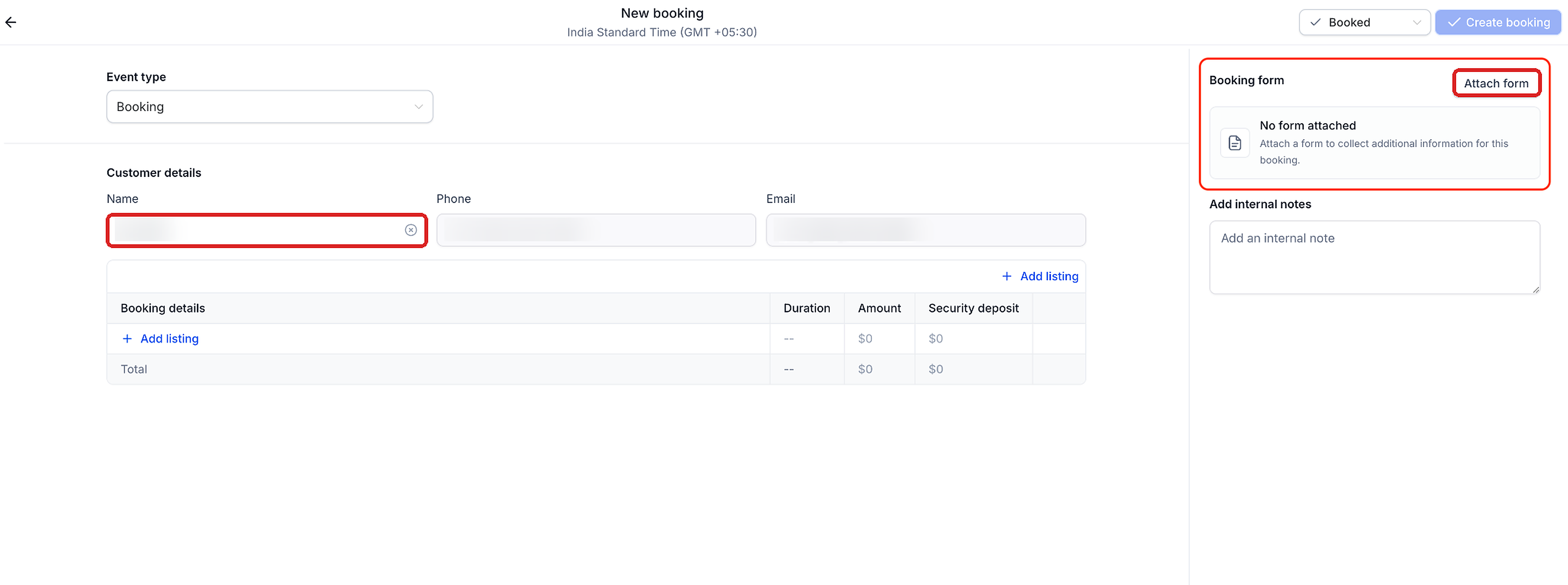
Important: Form attachment is optional and available only during booking creation. You cannot add a form to an existing booking or edit a submitted form afterward.
Note: CAPTCHA, product-selling, and payment elements do not appear inside the embedded form. Separate payment and product controls on the main booking screen are unaffected.
Listings Section
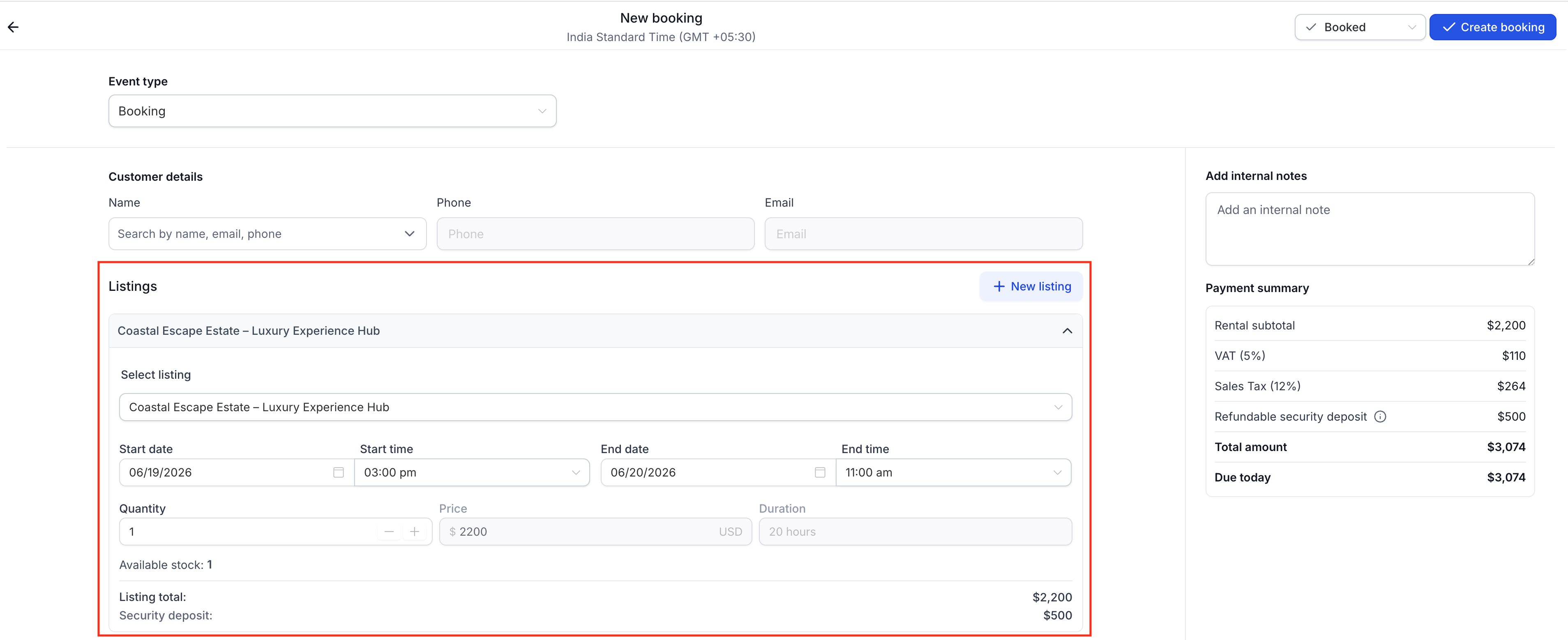
Select the rental listing or listings you want to book and specify the relevant quantity, dates, times, and available options. The selected details determine availability and contribute to the booking summary.
Steps to Add a Listing
The Listings section lets you select an available rental item and define its booking period.
- In the Listings section, select the available control to add a listing.
- Choose the Listing Name from the dropdown.
- Select a Variant, if applicable.
- Enter the Quantity to be booked.
- Define the Start Date, Start Time, End Date, and End Time.
- The time picker appears even when the listing's time selector is disabled.
- Manual bookings support custom times and durations beyond configured fixed durations or rental hours.
- Inventory must be available for the selected rental period.
- The Duration calculates automatically from the selected period and can be adjusted manually.
- The time picker appears even when the listing's time selector is disabled.
- Review the automatically updated Listing Total.
- Review the Security Deposit field when applicable.
Important: Manual bookings can override configured duration limits, scheduling notice, and booking windows. However, pre-buffer and post-buffer times remain enforced to help avoid conflicts with existing reservations.
Adding Multiple Listings
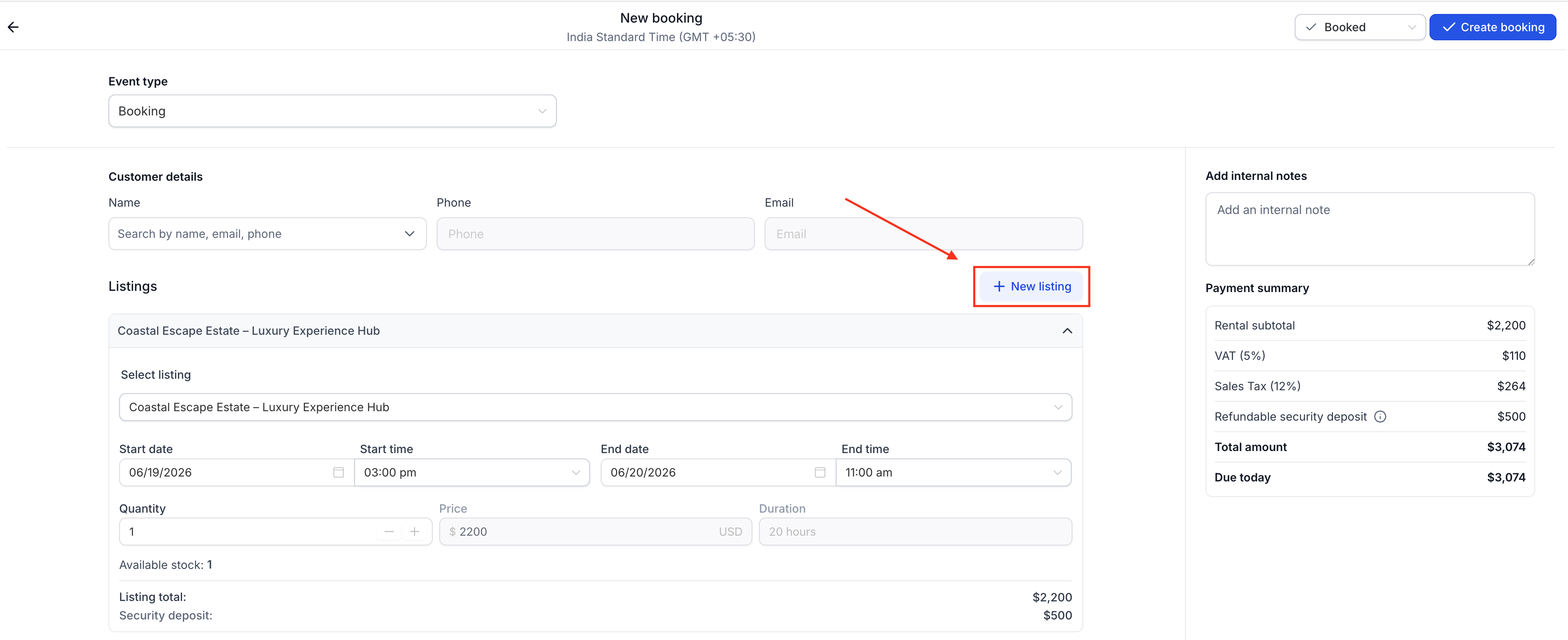
Multiple listings can be included in a single Rental booking. Each listing can have its own schedule and quantity.
- Click the add-listing action, shown as + New listing in the supplied booking screenshot, to include another rental item.
- Choose the listing and complete its required details.
- Set the appropriate start and end times and quantity for each listing.
- Review the combined booking details in Payment Summary.
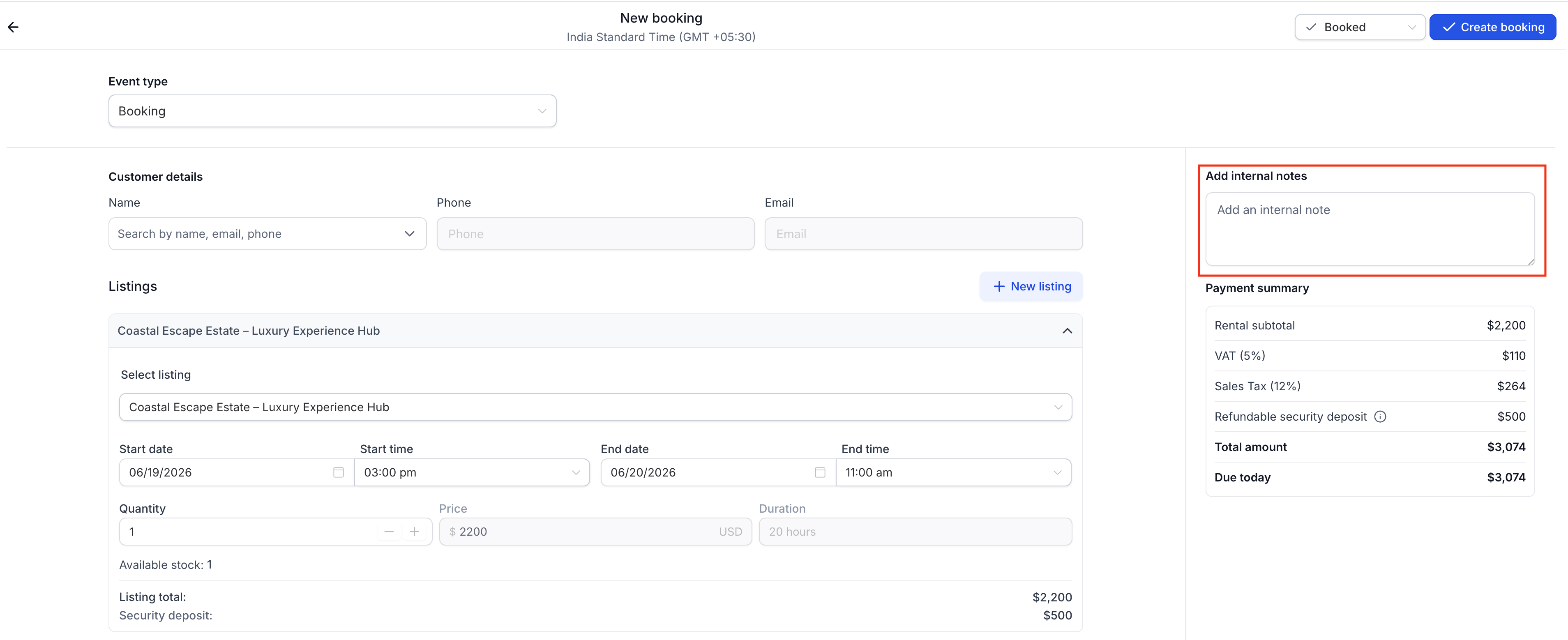
Internal Notes
Use Internal Notes to record information that helps your team manage the reservation. These notes can include special instructions, customer requests, or operational reminders.
- Add Internal Note: Enter the relevant instructions or reservation information in the internal notes field.
Payment Summary
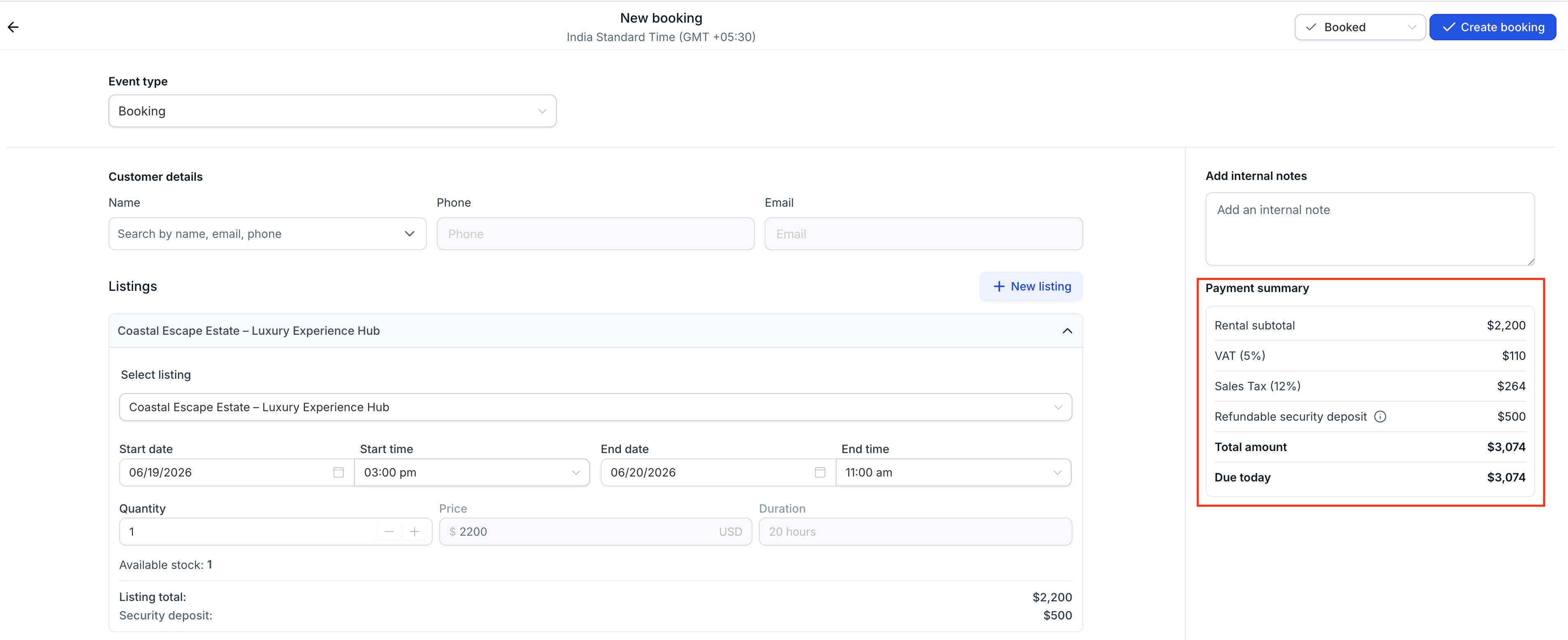
The Payment Summary consolidates the booking's payment information and any applicable security deposit. Review the displayed fields before saving the reservation so you understand the recorded payment details.
Displayed Fields:
- Rental Subtotal: The combined subtotal for the selected rental listings.
- Security Deposit: The applicable deposit associated with the booking. Depending on the configured deposit mode, this may be collected upfront or charged later when a card is on file.
- Total Amount: The total displayed for the booking, including applicable upfront charges.
- Due Today: The remaining amount currently due.
Note: When the security deposit mode is set to Card on File, the Payment Summary excludes that deposit from the Total Amount. The deposit can be collected later when explicitly charged.
Set Booking Status
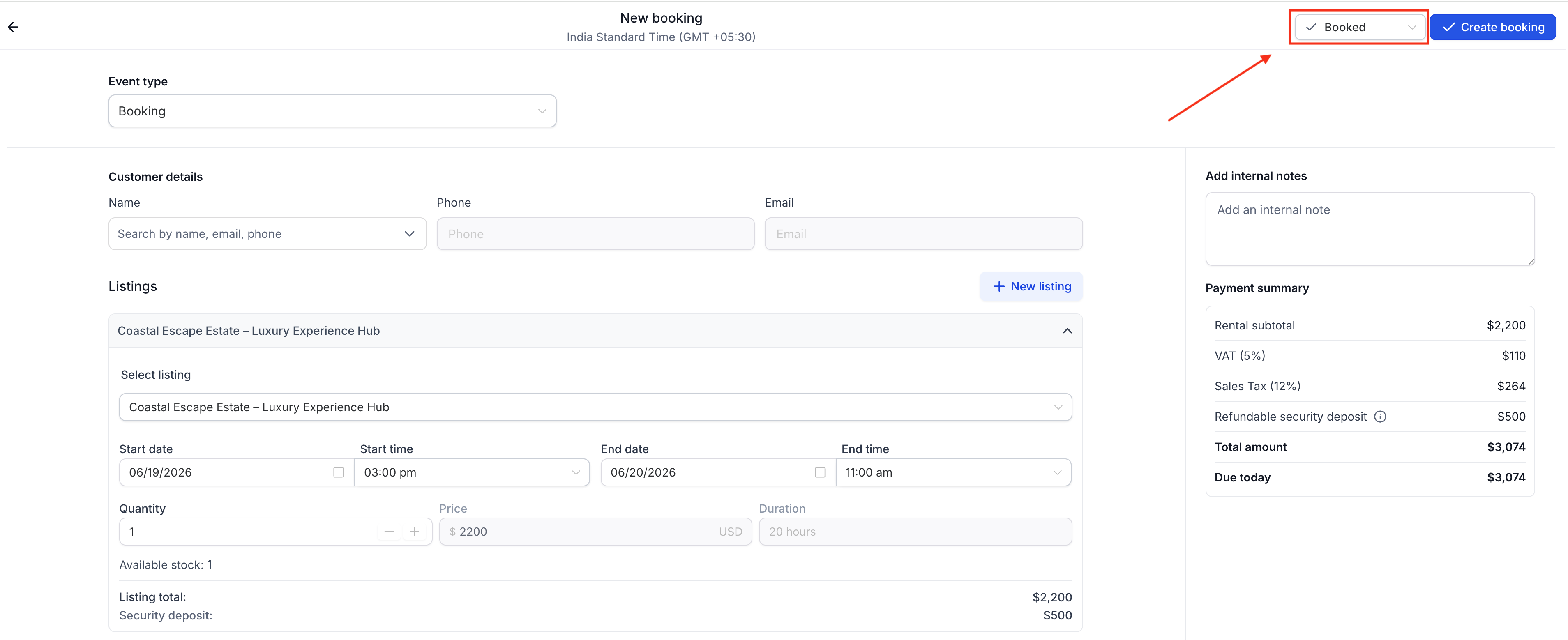
Select an initial booking status to identify whether the Rental reservation is tentative or confirmed before you save it.
- Unconfirmed: Records the booking without immediately confirming it. Use this for tentative reservations.
- Booked: Confirms the reservation immediately.
These options allow you to record tentative bookings or finalize confirmed reservations as needed.
Save and Confirm
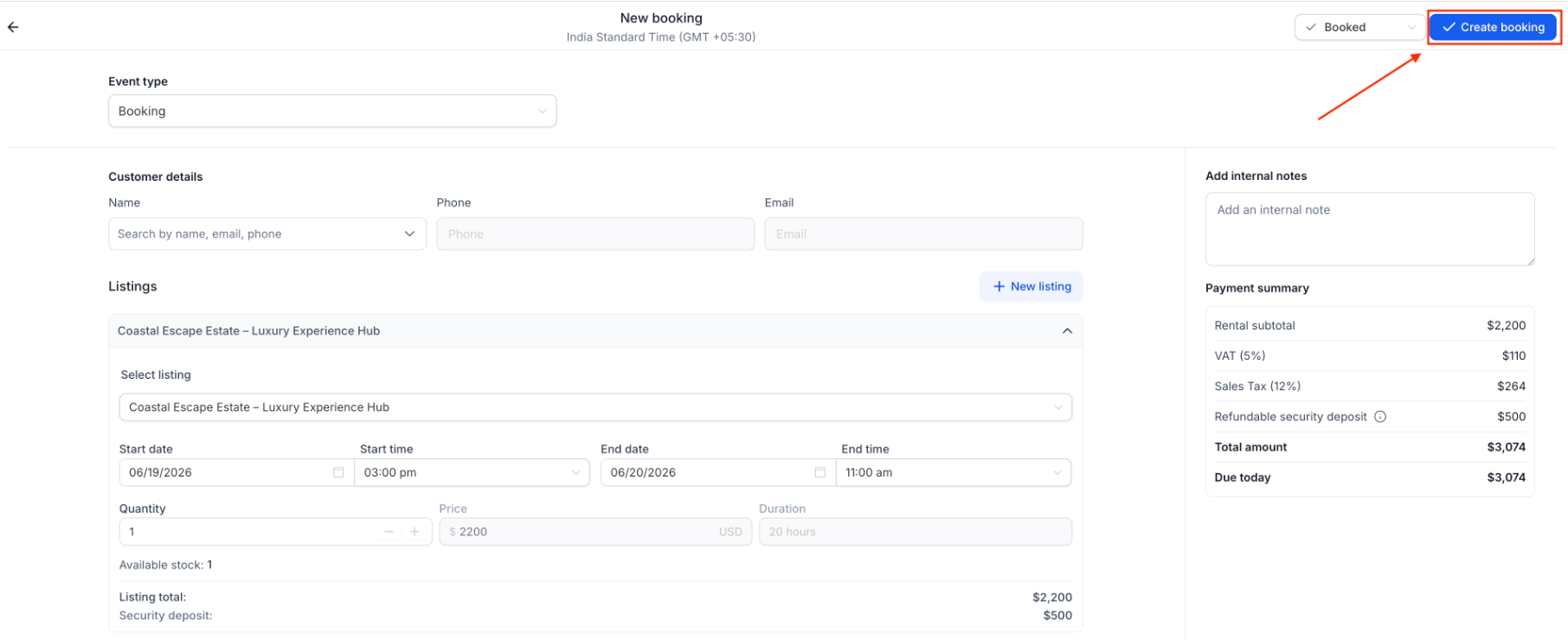
Review all booking details before submitting the reservation. Once saved, the booking becomes available in the Appointments List View.
- Review the selected customer, rental listings, quantities, dates, times, and booking status.
- If you attached a form, confirm that it appears in the Booking form section.
- Review the Payment Summary and any applicable notes.
- Click Create booking to save the reservation.
- Return to Calendars > Appointment List View and select Rentals to review the saved booking.
Frequently Asked Questions
Q: Can I create a booking without collecting payment immediately?
Yes. You can save the booking without collecting payment immediately and return to Edit Booking later to manage the outstanding balance or deposit.
Q: Why isn't the security deposit appearing in Payment Summary?
Review the deposit settings in Rental Global Settings and check the selected listing variant's deposit configuration. The displayed total also depends on whether the deposit is collected upfront or handled through Card on File.
Q: What happens if a booking overlaps a buffer or inventory is unavailable?
The booking may show an error or prevent saving. Adjust the selected times to respect the buffer period or select a quantity supported by available inventory.
Q: How are bookings with multiple listings displayed?
Each listing can appear as a separate row with its own booking and payment information. The booking may show a Partially Paid status when payment information differs across listings.
Q: Can I manually book outside configured business hours?
Yes. Manual Rental bookings can override configured operating hours, fixed durations, and certain scheduling restrictions. Buffer times and inventory availability still apply.
Q: Can I add more than one listing to a Rental booking?
Yes. Use the add-listing control to include additional rental items. Each listing can have its own dates, times, and quantity.
Q: Is an intake form required for a manually created Rental booking?
No. Form attachment is optional. You can create a Rental booking without attaching a form.
Q: Can I add or edit an attached form after creating the booking?
No. Attach and complete the form during booking creation. You cannot add a form to an existing booking or edit its submitted form afterward.
Need Help?
If you cannot create a Rental booking, review the selected listing, available inventory, booking dates, buffer times, and required customer information.
If you need assistance with form attachment, booking status, or payment details, contact support. Include a description of the issue and the relevant booking information without sharing sensitive customer details.