
Organize WhatsApp message templates using folders, subfolders, and the updated template-management interface. You can browse directories, filter and sort template lists, and identify where individual templates are stored. Move templates and folders as your collection grows without changing their message content or approval status. This guide also explains how to access delivery reports and review template performance.
TABLE OF CONTENTS
- What Are WhatsApp Template Folders?
- Key Benefits of WhatsApp Template Management
- Prerequisites and Limitations
- How to Organize WhatsApp Templates Using Folders
- Open WhatsApp Template Settings
- Create a New Folder
- Create Subfolders
- Use Breadcrumb Navigation
- Navigate Templates and Folders Within a Directory
- Filter WhatsApp Templates
- Sort WhatsApp Templates
- Find a Template's Folder
- Move a Template into a Folder
- Move Folders into Other Folders
- View Template Performance Metrics
- Delivered Message Count
- Weekly Delivery Trends
- Flexible Folder Creation
- Frequently Asked Questions
- Need Help?
What Are WhatsApp Template Folders?
WhatsApp Template Folders allow you to create custom folders and subfolders for organizing WhatsApp message templates. You can group templates by campaign, department, language, use case, or another structure that fits your workflow.
The updated Templates and Folders interface lets you open directories directly, browse their contents, filter and sort templates, and identify a template's folder. You can also move templates and folders between directory levels.
These tools help keep larger template collections organized and make individual templates easier to find.
Key Benefits of WhatsApp Template Management
Folder management and the updated template list help you organize, locate, and review WhatsApp templates without navigating through an entire collection.
- Improved Organization: Group templates by campaign, department, language, or use case.
- Nested Folders: Create folders inside other folders to build a flexible directory structure.
- Faster Template Management: Add, move, and locate templates using organized directories.
- Flexible Folder Creation: Create new folders while organizing templates or moving items.
- Breadcrumb Navigation: See your current folder path and return to parent folders.
- Template Reporting: Open individual template reports to review available delivery and engagement information.
- Filtering: Narrow template lists by category, language, status, and date.
- Sorting: Arrange templates by name, language, category, status, or last edited date.
- Folder Visibility: Identify a template's directory using the Folder column.
- Folder-Scoped Views: Browse templates and subfolders belonging to the selected directory.
Prerequisites and Limitations
Before organizing WhatsApp templates, confirm that the Templates area is available and that you have the required management permissions. Folder organization affects how templates are displayed and stored, not their message content.
- WhatsApp Templates Access: You must be able to open the WhatsApp Templates area in Settings.
- User Permissions: Available management actions depend on the WhatsApp permissions assigned to your user.
- Template Content: Moving a template between folders does not change its message content.
- Template Status: Folder organization does not change Meta approval status.
- Filters and Sorting: These options affect the displayed list, not the underlying templates.
- Folder-Scoped Navigation: When you open a folder, its Templates and Folders tabs show items belonging to that directory.
- Reporting: Available template analytics may depend on reporting availability and regional limitations.
How to Organize WhatsApp Templates Using Folders
Use the WhatsApp Templates area to create directories, browse folder levels, and manage individual templates. The following procedures cover the available organization and reporting controls.
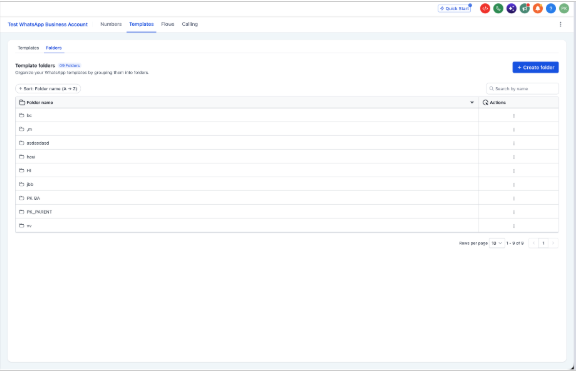
1. Open WhatsApp Template Settings
Start from the WhatsApp Templates area to access the template list and folder directory.
- From the navigation menu, select Settings.
- Open WhatsApp.
- Select the top-level Templates tab.
- Use the inner Templates and Folders tabs to switch between the template list and folder directory.
2. Create a New Folder
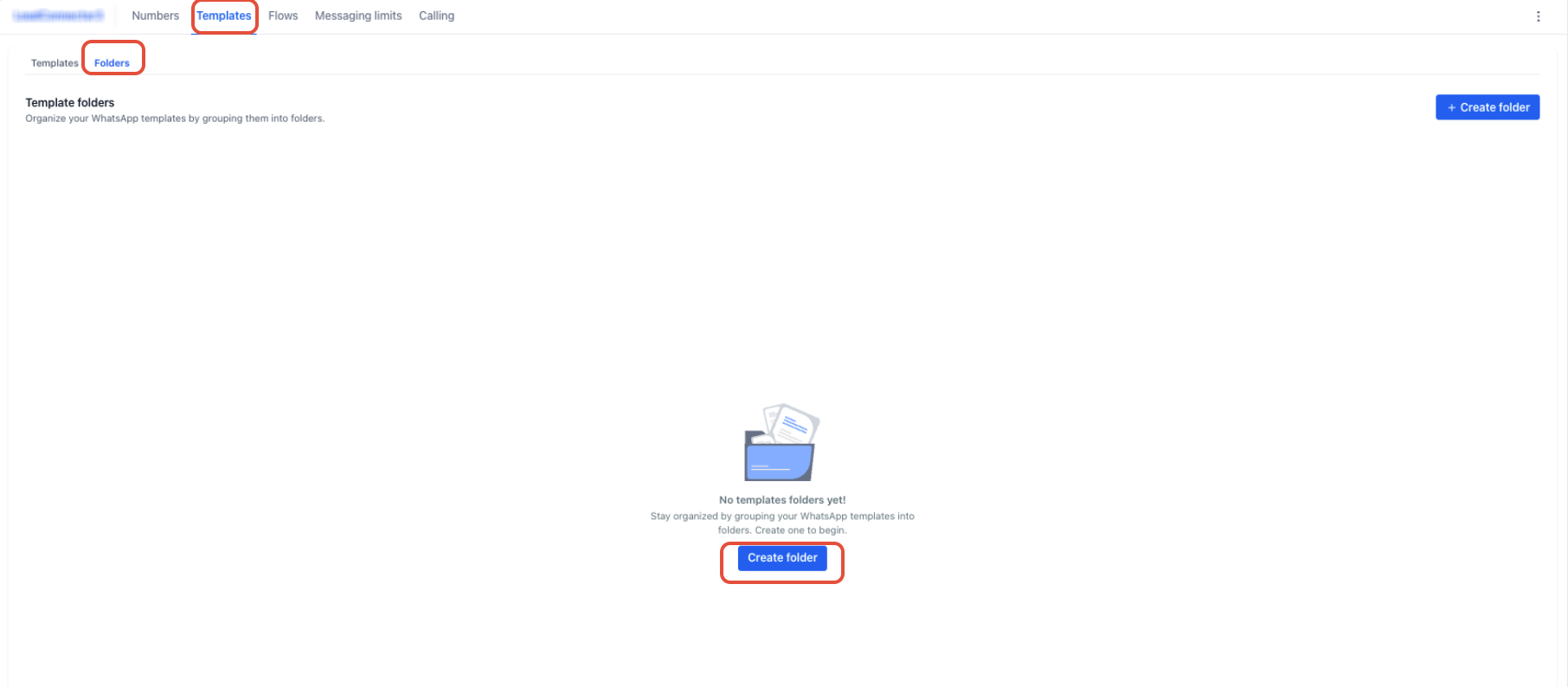
Create a folder to group related WhatsApp templates. Folder names can reflect a campaign, department, language, or another useful category.
- Open Settings > WhatsApp > Templates.
- Select the inner Folders tab.
- Click Create folder.
- Enter a name for the folder.
- Click Create to save it.
3. Create Subfolders
Subfolders let you organize related templates within a larger folder. You can use multiple folder levels to keep different campaigns or categories separate.
- Open Settings > WhatsApp > Templates.
- Select the inner Folders tab.
- Click the name of an existing folder to open it.
- Click Create folder.
- Enter the subfolder name.
- Select Create.
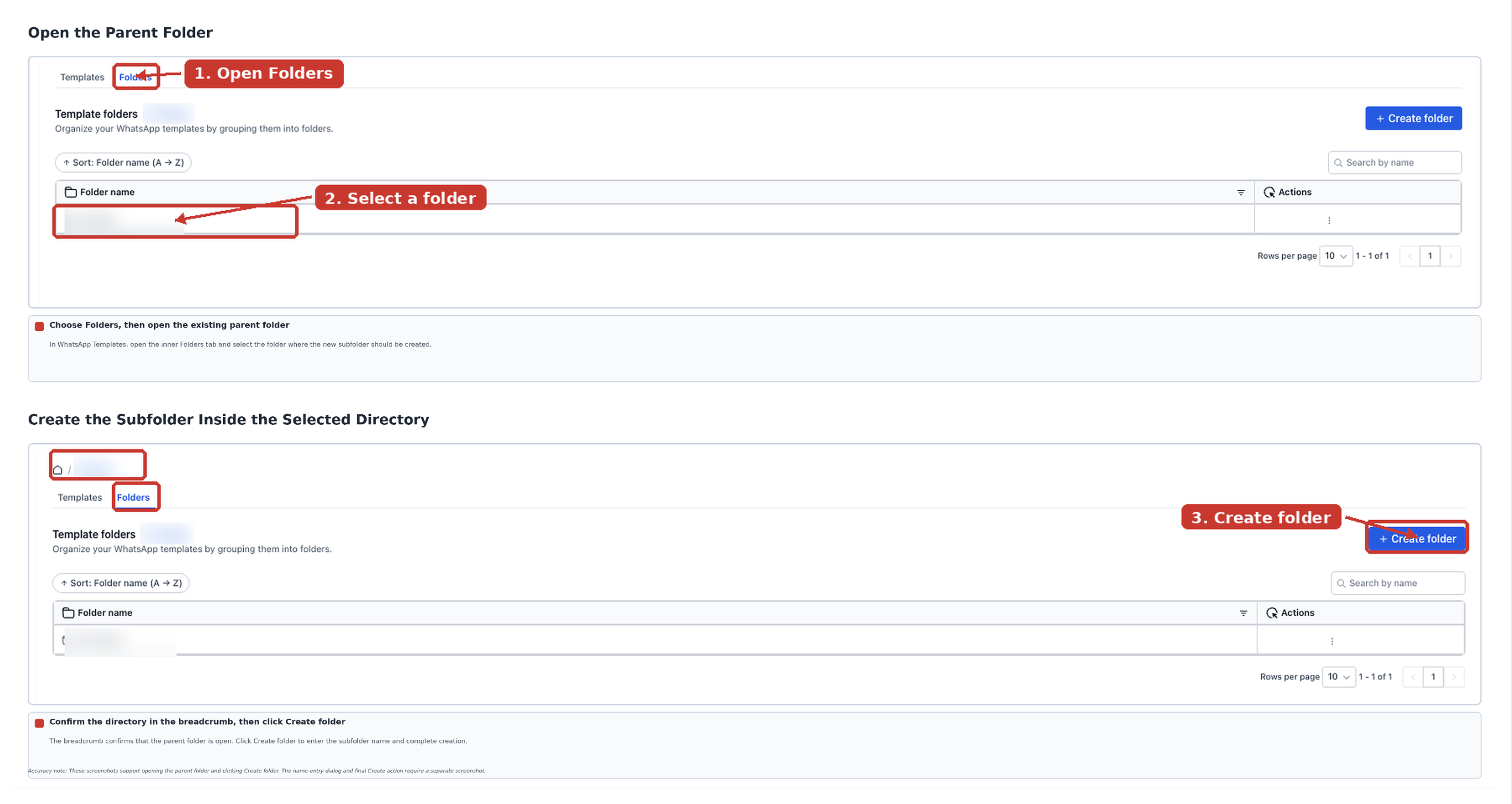
Note: You can create multiple levels of folders and subfolders to organize your template collection.
4. Use Breadcrumb Navigation
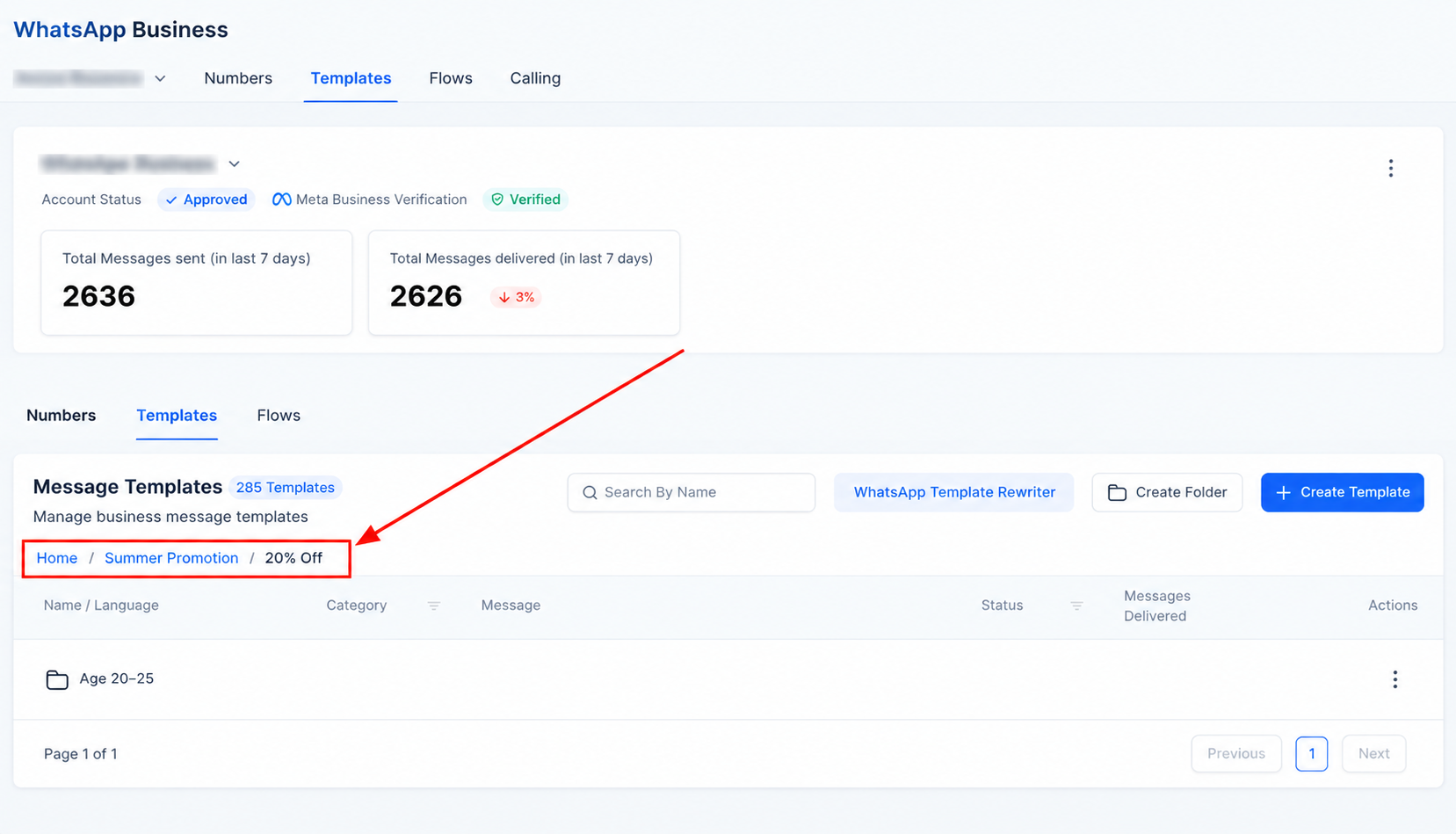
Breadcrumbs show your current position within the folder directory. Use them to move back through the folder structure without returning to the beginning each time.
- Open Settings > WhatsApp > Templates > Folders.
- Select the folder you want to browse.
- Find the breadcrumb trail above the folder contents.
- Click a parent folder or the home level to return to that directory.
5. Navigate Templates and Folders Within a Directory
When you open a folder, the inner Templates and Folders tabs display the items belonging to that selected directory. This helps you browse large collections without viewing unrelated folders or templates.
- Open Settings > WhatsApp > Templates.
- Select the inner Folders tab.
- Click a folder name to enter that directory.
- Select Folders to view its subfolders.
- Select Templates to view templates stored in that folder.
- Use the breadcrumbs to return to a parent directory or the home level.
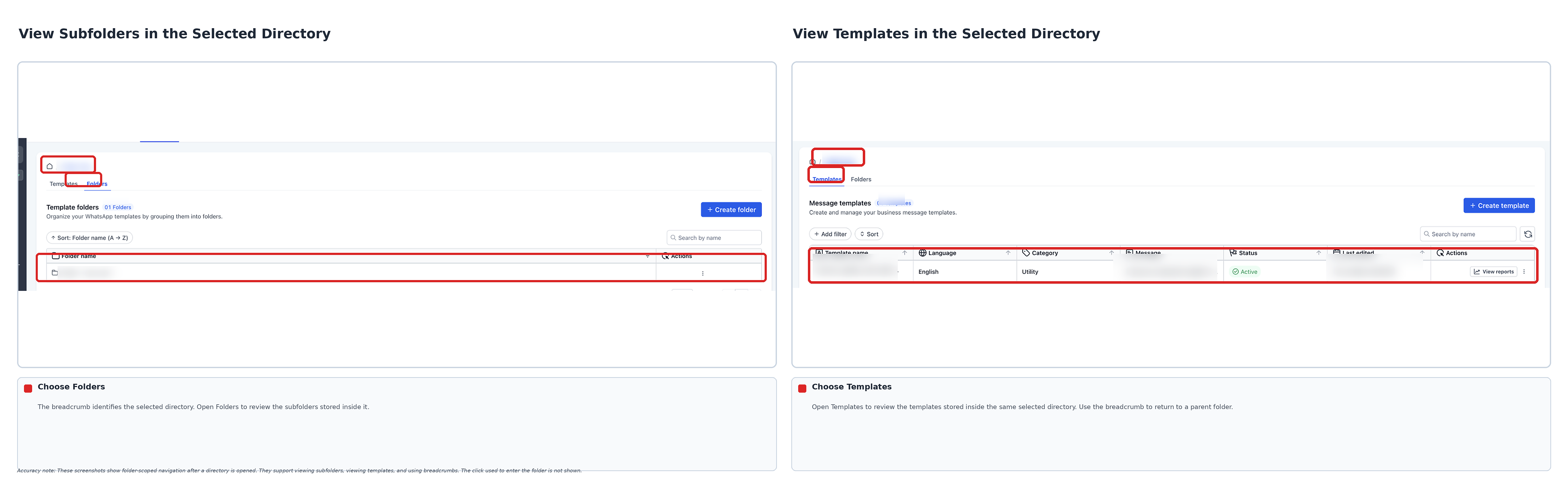
Tip: If a selected folder contains no templates or subfolders, the corresponding tab displays an empty state. Return to a parent folder to continue browsing.
6. Filter WhatsApp Templates
Filters help you narrow the template list using specific attributes. This is useful when you have templates in different languages, categories, or approval states.
- Open Settings > WhatsApp > Templates.
- Select the inner Templates tab.
- Click + Add filter.
- Select the filter field you want to use.
- Choose the available criteria for that field.
- Review the filtered template list.
Available filter fields include:
- Category: Narrow templates by message category.
- Language: Find templates using the selected language.
- Status: View templates with a selected status.
- Date: Apply the available date-based filtering options.
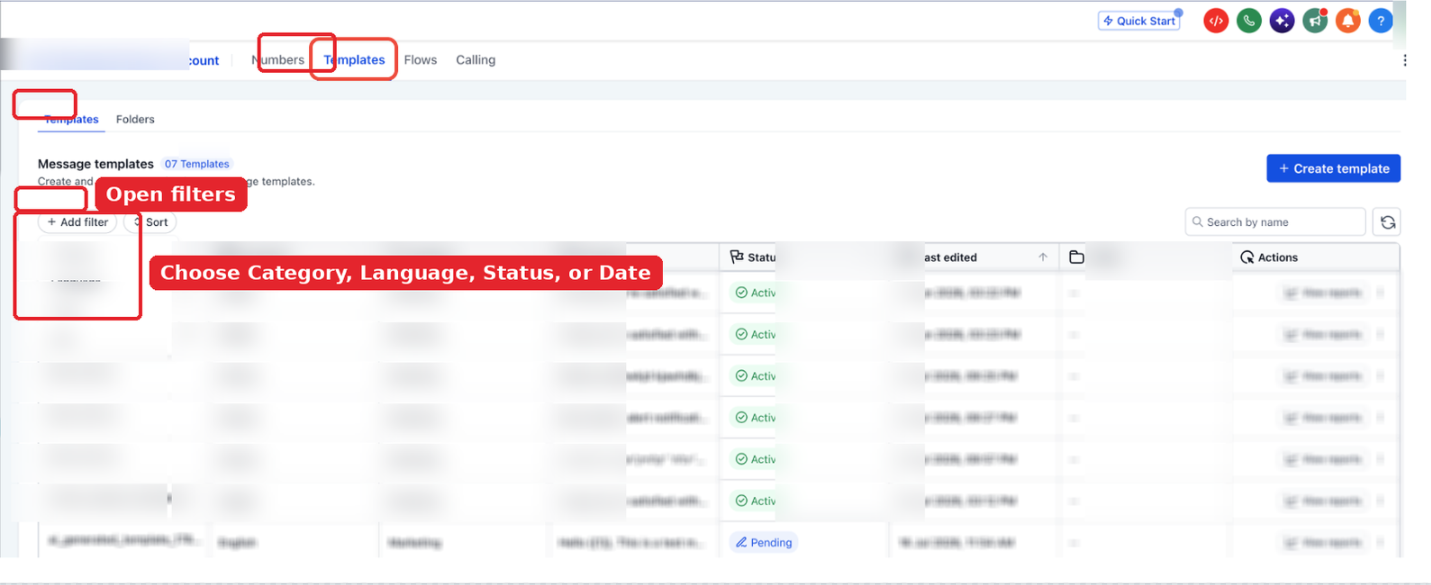
Note: The filter menu uses the label Date. The Templates table also has a separate Last edited column.
7. Sort WhatsApp Templates
Sorting changes the order in which templates appear. Use the available sorting fields to review templates alphabetically or by other listed attributes.
- Open Settings > WhatsApp > Templates.
- Select the inner Templates tab.
- Click Sort above the template list.
- Select the field you want to sort by.
- Review the selected sort direction shown in the menu.
Available sorting fields include:
- Template name
- Language
- Category
- Status
- Last edited
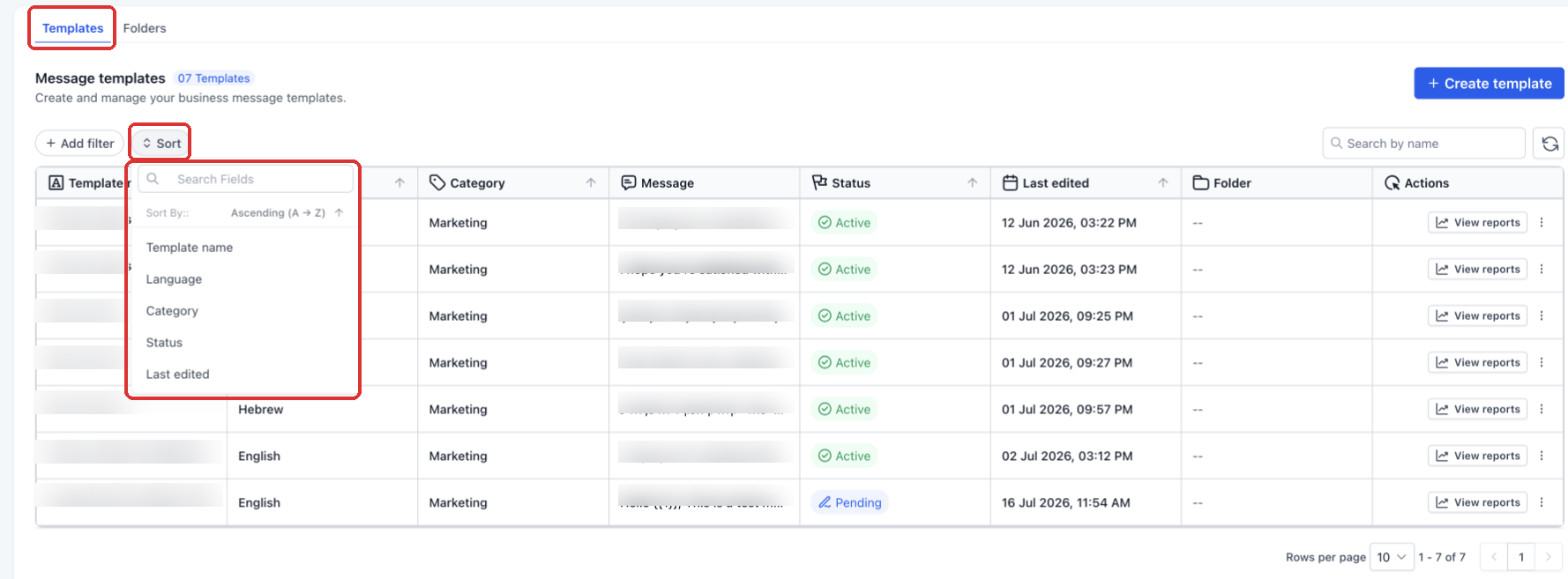
Folder sorting: The inner Folders tab has a separate folder-name sorting control. The interface displays the option Sort: Folder name (A → Z).
8. Find a Template's Folder
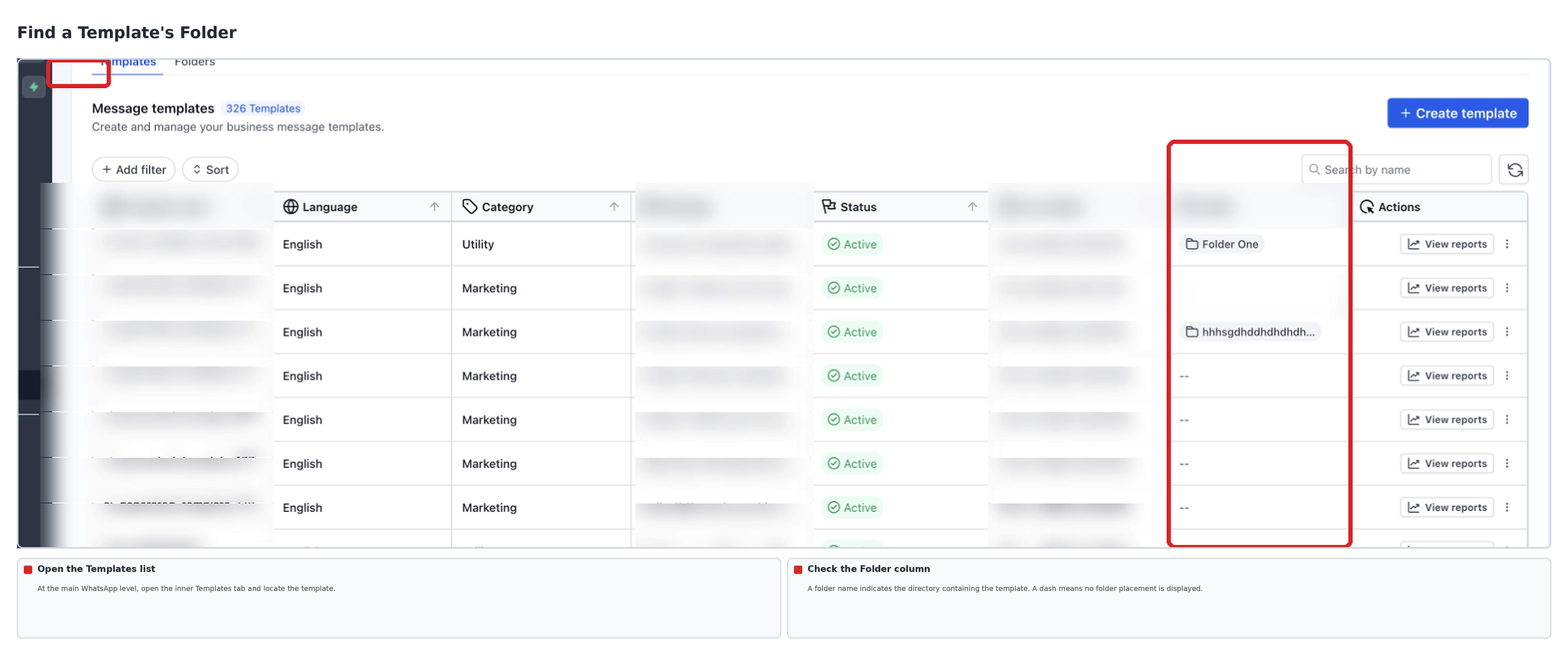
The redesigned Templates list includes a Folder column. Use it to identify where a template is stored without opening each directory individually.
- Open Settings > WhatsApp > Templates.
- Select the inner Templates tab at the main level.
- Locate the template in the list.
- Check the Folder column.
When a template is stored in a folder, its folder name appears in this column. A dash appears when no folder placement is displayed.
9. Move a Template into a Folder
Move existing WhatsApp templates between folders as your organization needs change. Moving a template changes its directory placement without changing the template content or approval status.
- Open Settings > WhatsApp > Templates.
- Select the inner Templates tab.
- Find the template in the main list or its current folder.
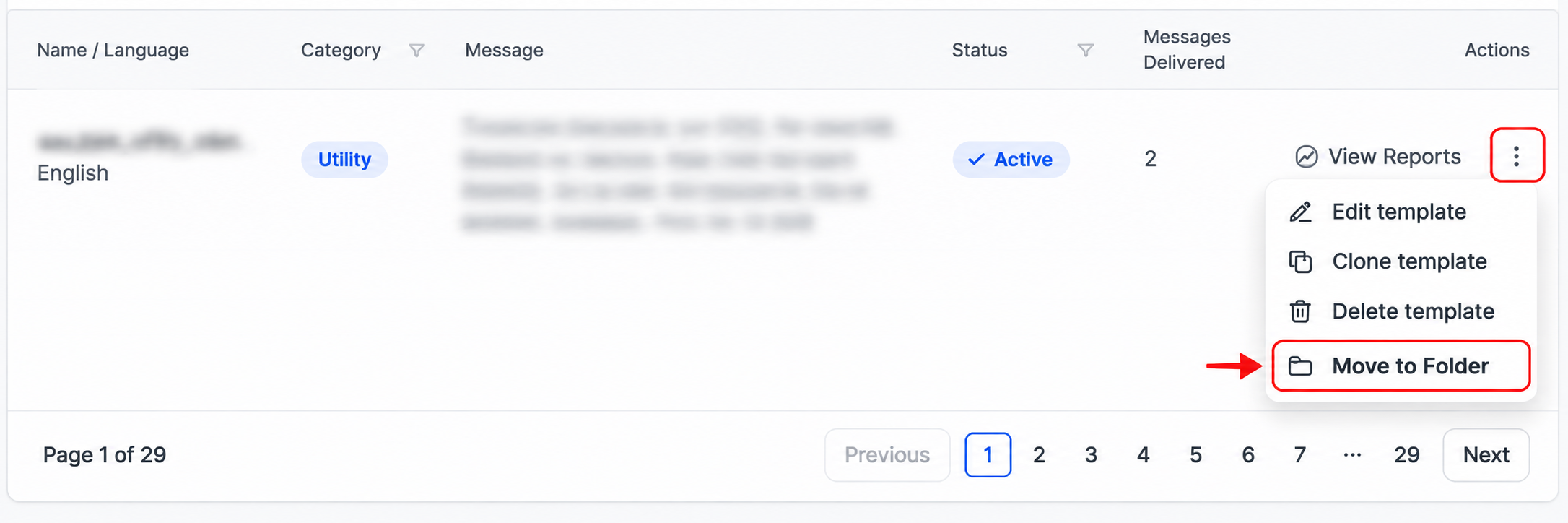
- Click the template's three-dot menu under Actions.
- Select Move to Folder.
- Choose the destination folder or subfolder.
- Click Move to complete the action.
10. Move Folders into Other Folders
You can reorganize the folder structure by moving a folder into another directory or back toward a parent level.
- Open Settings > WhatsApp > Templates.
- Select the inner Folders tab.
- Locate the folder you want to move.
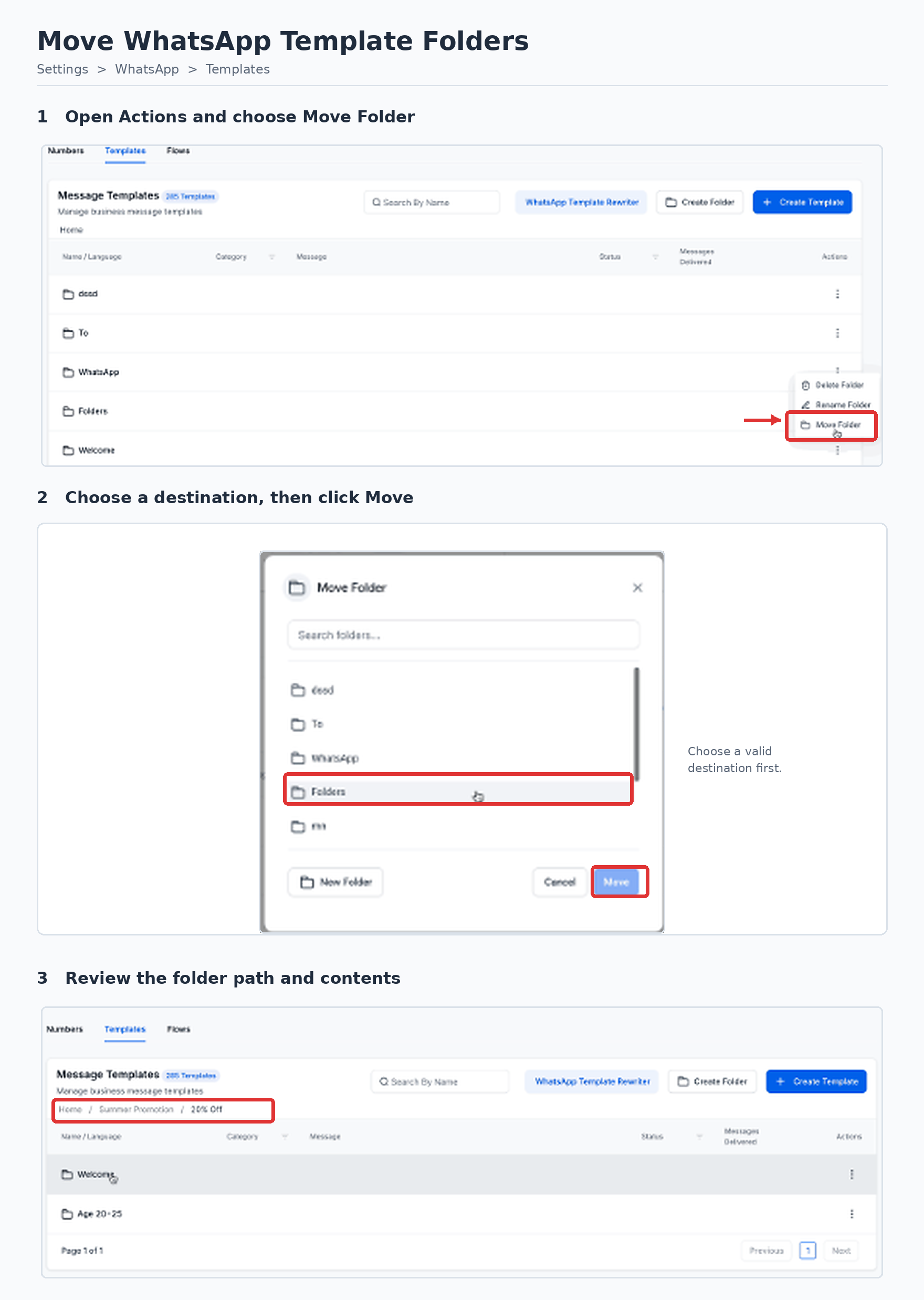
- Click its three-dot menu under Actions.
- Select Move Folder.
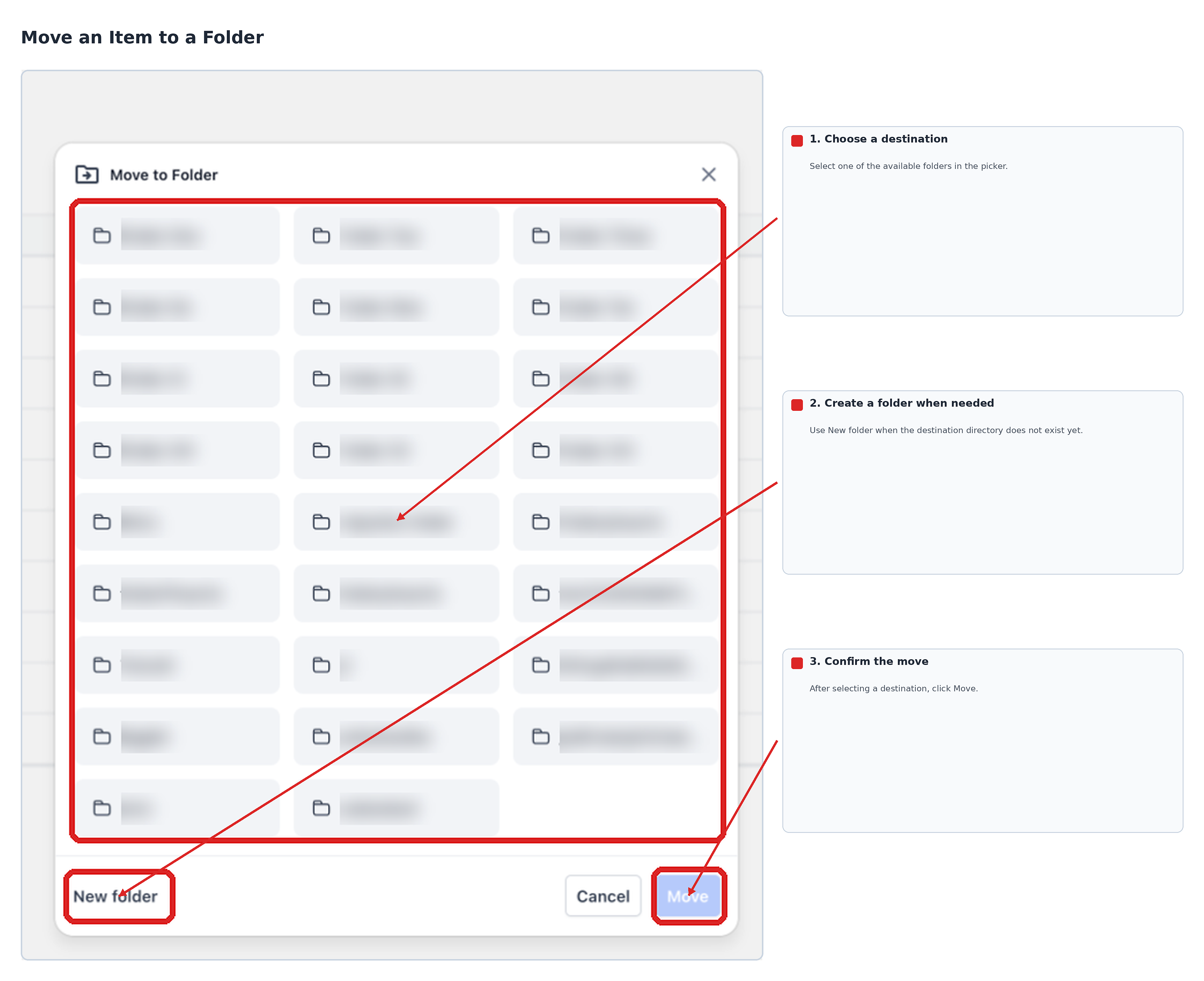
- In the Move to Folder dialog, choose the destination.
- Click Move to confirm the change.
The destination picker also offers a New folder option when you need to create another directory while moving items.
11. View Template Performance Metrics
Template reports provide information about message delivery and engagement. Use the View reports action to review the available results for an individual WhatsApp template.
- Open Settings > WhatsApp > Templates.
- Select the inner Templates tab.
- Locate the template you want to review.
- Open the template's available Actions control.
- Select View reports.
- Use the available report controls to review the selected reporting period.
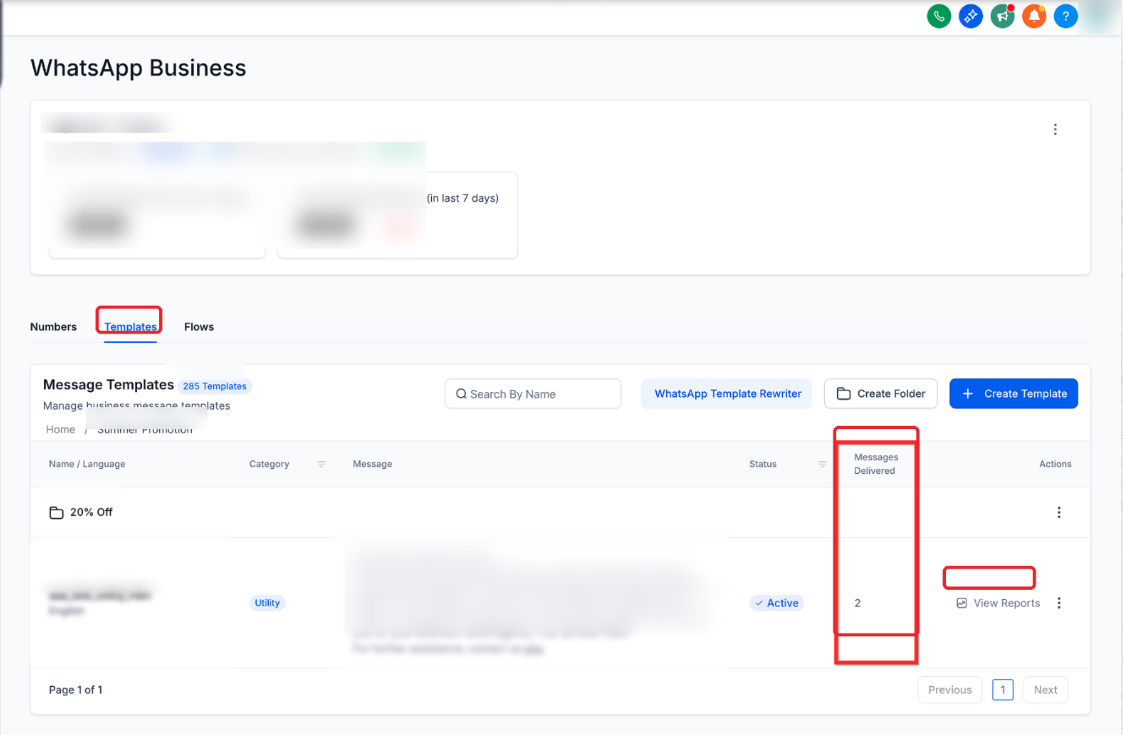
Note: The screenshot above shows an earlier template-list layout. The current interface provides a View reports action, and the available table columns may differ.
Available reporting information may include:
- Messages Sent: Messages sent using the template.
- Messages Delivered: Messages delivered to recipients.
- Messages Read: Messages marked as read.
- Button Clicks: Available engagement information for supported buttons.
Use the report's available date controls to review activity over a selected period.
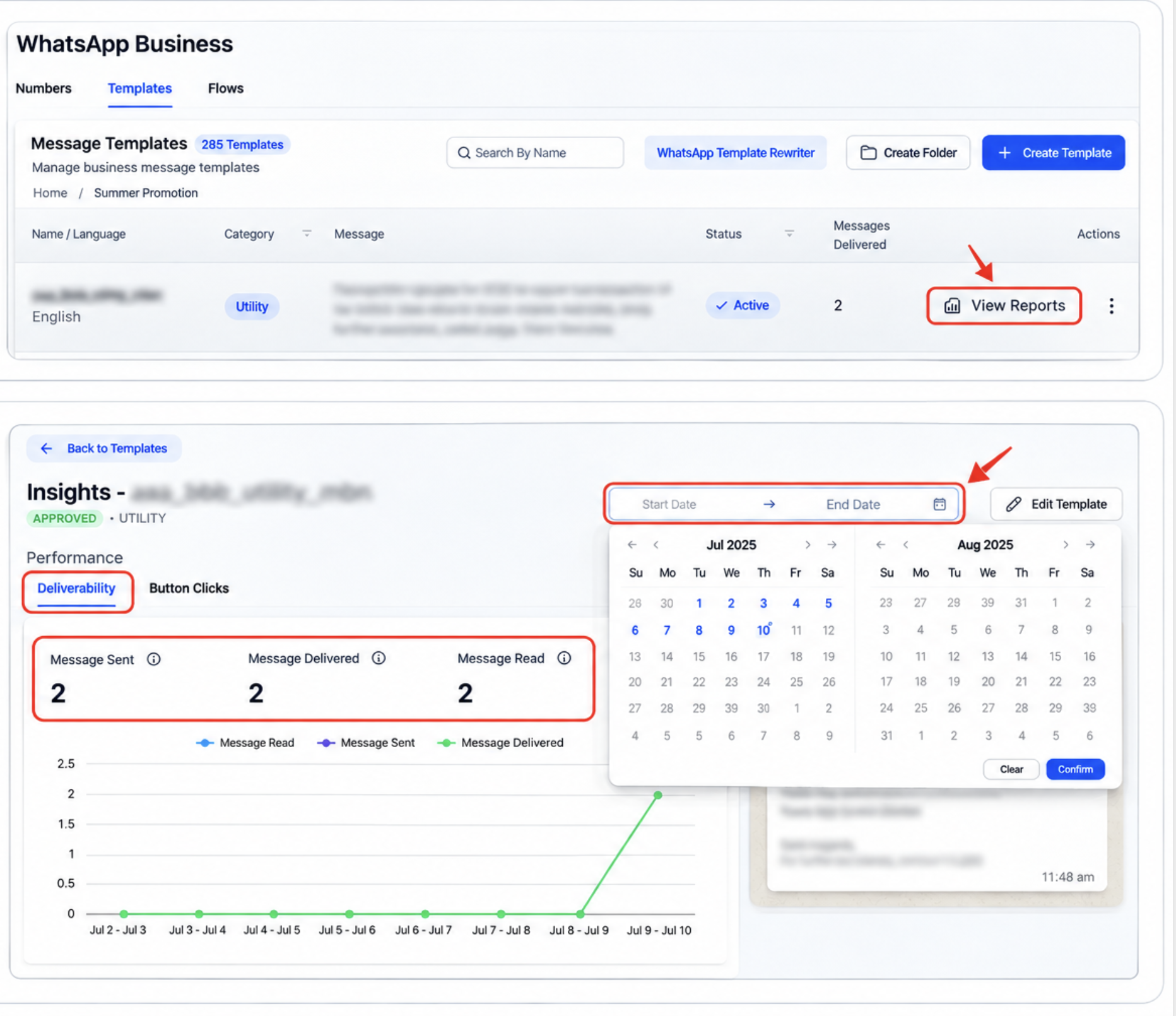
Note: Template analytics have availability and regional limitations. Some metrics may not appear for every template or reporting period.
Delivered Message Count
Delivered-message information helps you understand how frequently a WhatsApp template reaches its recipients. Open the template report to review the available delivered-message count.
- Review the number of messages delivered for a selected template.
- Compare delivery information with sent and read counts where available.
- Use available reporting date controls to examine a specific period.
Note: An earlier template-list layout displayed delivered-message information directly in the table. In the updated interface, use View reports to access the available reporting metrics.
Weekly Delivery Trends
Reviewing delivery activity across different periods helps you identify changes in template usage. Weekly comparisons can help you understand whether delivery activity is increasing or decreasing.
Where weekly comparison indicators are available, they can show how the current week's activity compares with the previous week.
To review delivery activity:
- Open Settings > WhatsApp > Templates.
- Locate the template you want to review.
- Select View reports.
- Use the available date controls to examine the relevant reporting period.
- Review delivery and engagement information for the selected dates.
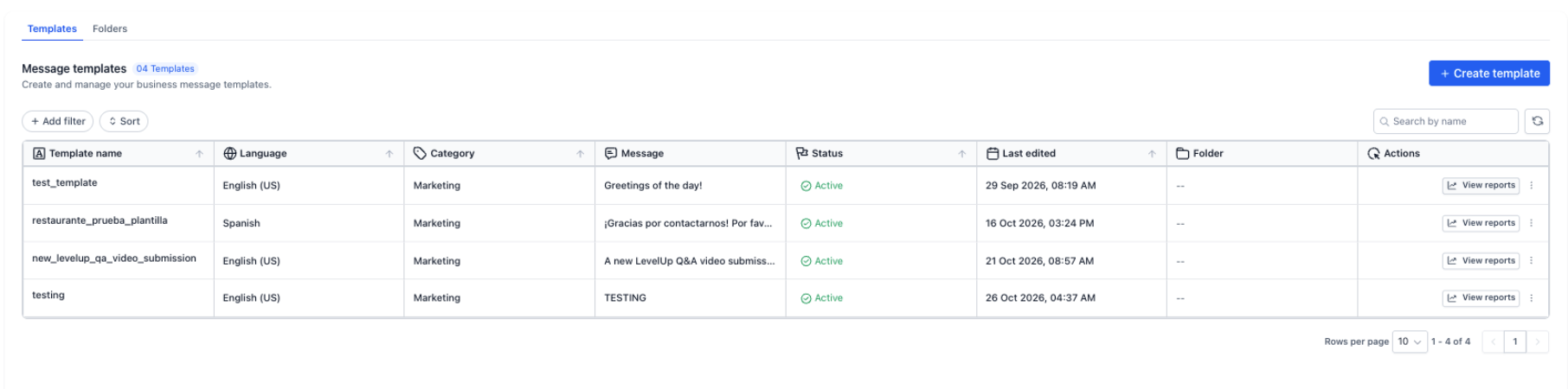
Note: Reporting layouts can differ. If a weekly comparison is not displayed, use the available report date controls to review the relevant periods.
Flexible Folder Creation
You can create folders while organizing templates or moving items between directories. The destination picker includes a New folder option, so you do not always need to return to the main folder list.
- Create Directories: Add new folders as your template collection grows.
- Organize Templates: Move templates into existing folders or subfolders.
- Restructure Folders: Move folders into other directories or toward parent levels.
- Create During a Move: Use New folder in the destination picker when another directory is needed.
Frequently Asked Questions
Q: Can I create folders inside other folders?
Yes. You can create multiple levels of folders and subfolders to organize your WhatsApp templates.
Q: Will moving a template affect its approval or status?
No. Moving a template changes its folder placement, not its content or Meta approval status.
Q: Can I search for a WhatsApp template by name?
Yes. The Templates list provides a Search by name field. When you are inside a folder, its Templates tab displays templates belonging to that directory.
Q: What happens when I switch between Templates and Folders inside a directory?
The Templates tab shows templates in the selected folder. The Folders tab shows the subfolders inside that directory.
Q: Can I rename or delete a folder?
Yes. Open the folder's three-dot menu under Actions and select the applicable folder-management option.
Q: Can I move a folder back toward the main directory?
Yes. Use Move Folder to choose another available destination, including a parent level.
Q: What happens if I delete a folder containing templates?
The templates inside the deleted folder are moved to its parent folder. The templates themselves are not deleted with the folder.
Q: Can I export WhatsApp templates?
Individual template export remains available through the applicable template actions.
Q: Where can I review template delivery and engagement metrics?
Open Settings > WhatsApp > Templates, locate the template, and select View reports. Review the available delivery and engagement information for the chosen period.
Need Help?
If a template or folder is missing, confirm which directory you are viewing and check the current filters. Use the breadcrumb trail to return to a parent directory or the home level.
If a management action is unavailable, review your WhatsApp user permissions. If a report does not display the expected information, check the selected reporting dates and available metrics.
If the issue continues, contact support with a description of the problem and the relevant template or folder name. Include screenshots when helpful, but avoid sharing sensitive customer information.