
Create Website QR codes that link directly to selected website pages without manually entering their URLs. You can generate a QR code from the Website Builder or select a website and page in the QR Code Builder. Page-linked Website QR codes continue opening the correct destination when the page slug or connected domain changes. This guide explains both creation methods, QR code customization, downloads, sharing, wallet support, and management options.
TABLE OF CONTENTS
- What Are Website QR Codes?
- Key Benefits of Website QR Codes
- Prerequisites and Limitations
- How to Create Website QR Codes
- Manage and Customize Website QR Codes
- Frequently Asked Questions
- Need Help?
- Related Articles
What Are Website QR Codes?
Website QR codes link directly to specific website pages rather than relying on a manually entered, fixed URL. This lets you share website pages through printed materials, signage, business cards, and digital channels.
When a page's slug or connected domain changes, its page-linked Website QR code continues directing visitors to the correct page. You do not need to create a replacement QR code just because the page address changes.
Important: The original QR type labeled Website, which accepted a manually entered URL, is now called URL. The new Website type lets you select a website and page directly. Existing QR codes created with the former type continue working as before.
Key Benefits of Website QR Codes
Website QR codes simplify page sharing by connecting QR codes to the underlying website page. They also provide customization and distribution options for online and offline use.
- One-Click Creation: Generate a page-linked QR code directly from the Website Builder.
- Automatic Destination Updates: Keep the QR code connected to its page when the page slug or connected domain changes.
- No Manual URL Entry: Select a website and page directly in the QR Code Builder.
- Custom Appearance: Personalize colors, shapes, logos, backgrounds, and other available design settings.
- Flexible Downloads: Download QR codes in PNG, SVG, or PDF format.
- Digital Wallet Support: Save supported QR codes to Apple Wallet or Google Wallet.
- QR Code Management: Find Website QR codes using the type filter and share them using available link controls.
Prerequisites and Limitations
Before creating a Website QR code, make sure the destination website and page are available. The Website Builder shortcut requires a website with a connected domain.
- Connected Domain: To create a QR code directly from the Website Builder, open a website with a connected domain.
- Existing Website Page: The page you want to share must exist so it can be selected as the QR code destination.
- Website QR Type: Use Website for a page selected from your website collection.
- URL QR Type: Use URL when you want to enter a destination link manually.
- Existing QR Codes: QR codes created with the former Website type continue working after the type is renamed URL.
- Wallet Access: Saved digital wallet passes can be viewed offline, but opening the linked website may still require an internet connection.
How to Create Website QR Codes
There are two supported ways to create a page-linked Website QR code. Use the Website Builder for the page you are editing, or use the QR Code Builder to select an existing website and page.
Method 1: From the Website Builder
The Website Builder provides a shortcut for generating a QR code for the current page. You do not need to manually copy the page URL or select the destination again.
- From the navigation menu, select Sites.
- Open Websites.
- Select a website that has a connected domain.
- Open the Pages tab.
- Choose the page you want to share and click Edit Page.
- In the Website Builder, click the QR code icon beside the page URL.
- In the QR code window, select Download to download the QR code as PNG, SVG, or PDF.
- Alternatively, click Edit QR to open the QR Code Builder's customization step.
- Scan the QR code to confirm that it opens the intended website page.
Important visual distinction: The screenshot below shows a separate QR Code element available through the Website Builder's Quick Add panel. That element is not the QR code icon beside the page URL used in the steps above.
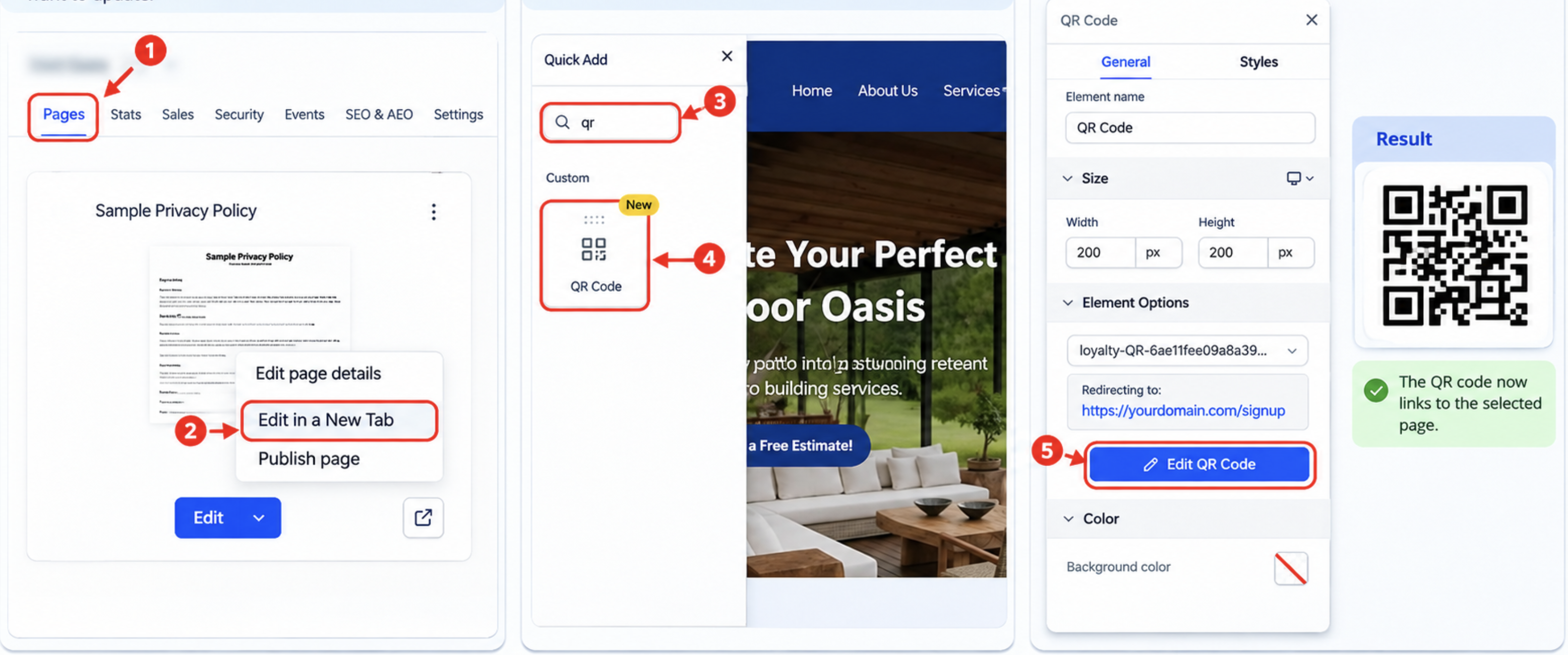
Note: To create a QR code that stays connected to the website page when its slug or domain changes, follow the page URL icon workflow described above.
Method 2: From the QR Code Builder
The QR Code Builder allows you to create a Website QR code by choosing the website and page from the available selections. This avoids manually entering the destination URL.
- From the navigation menu, select Sites.
- Open QR Codes.
- Click Create QR Code.
- Enter a QR name.
- Select the Website QR type.
- Click Next.
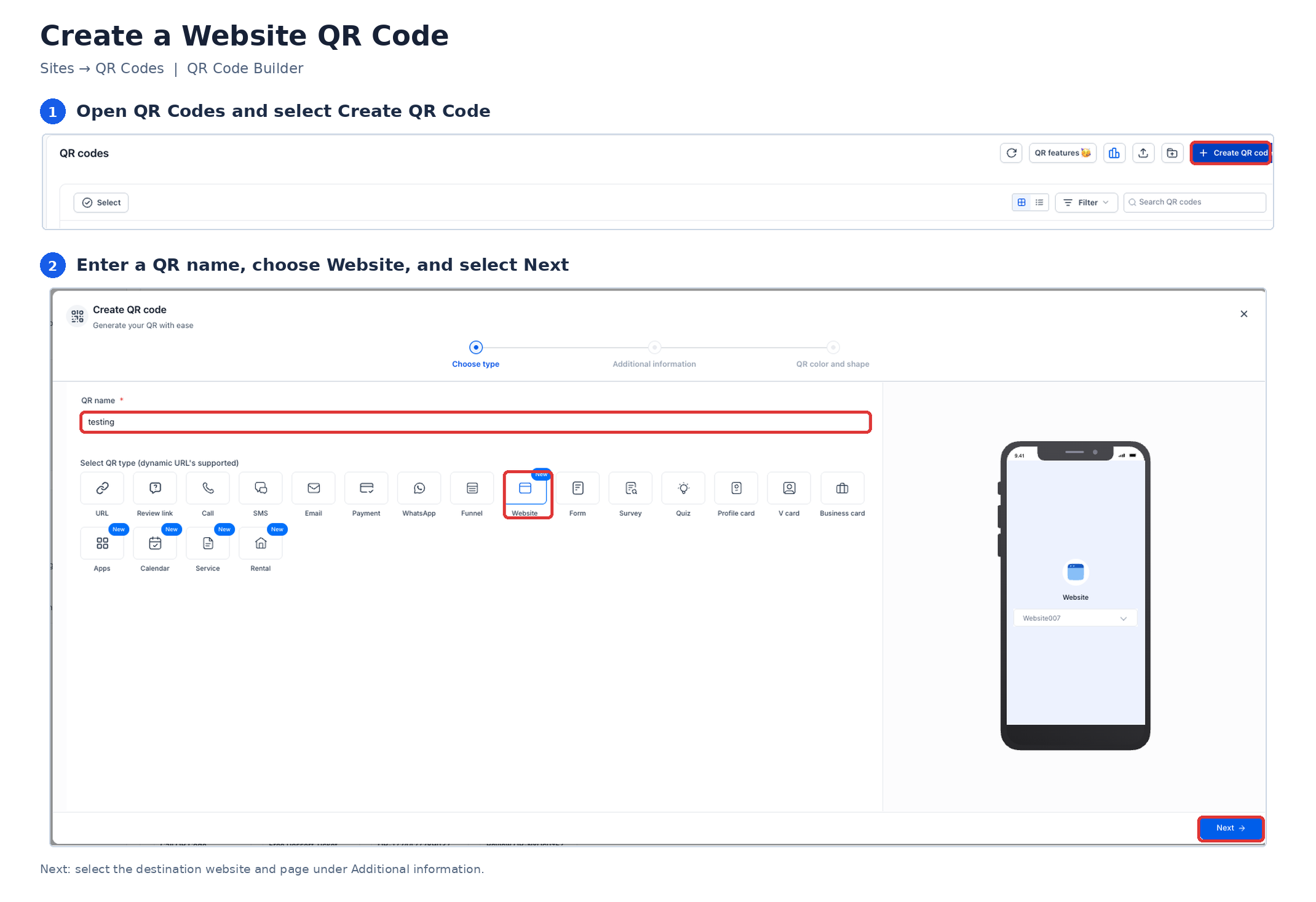
- Under Additional information, locate the Content settings.
- Select the destination Website from the dropdown.
- Select the Page you want the QR code to open.
- Click Next.
- In QR color and shape, customize the QR code's appearance using the available settings.
- Review the QR code preview.
- Click Save.
- Download the saved QR code in your preferred format.
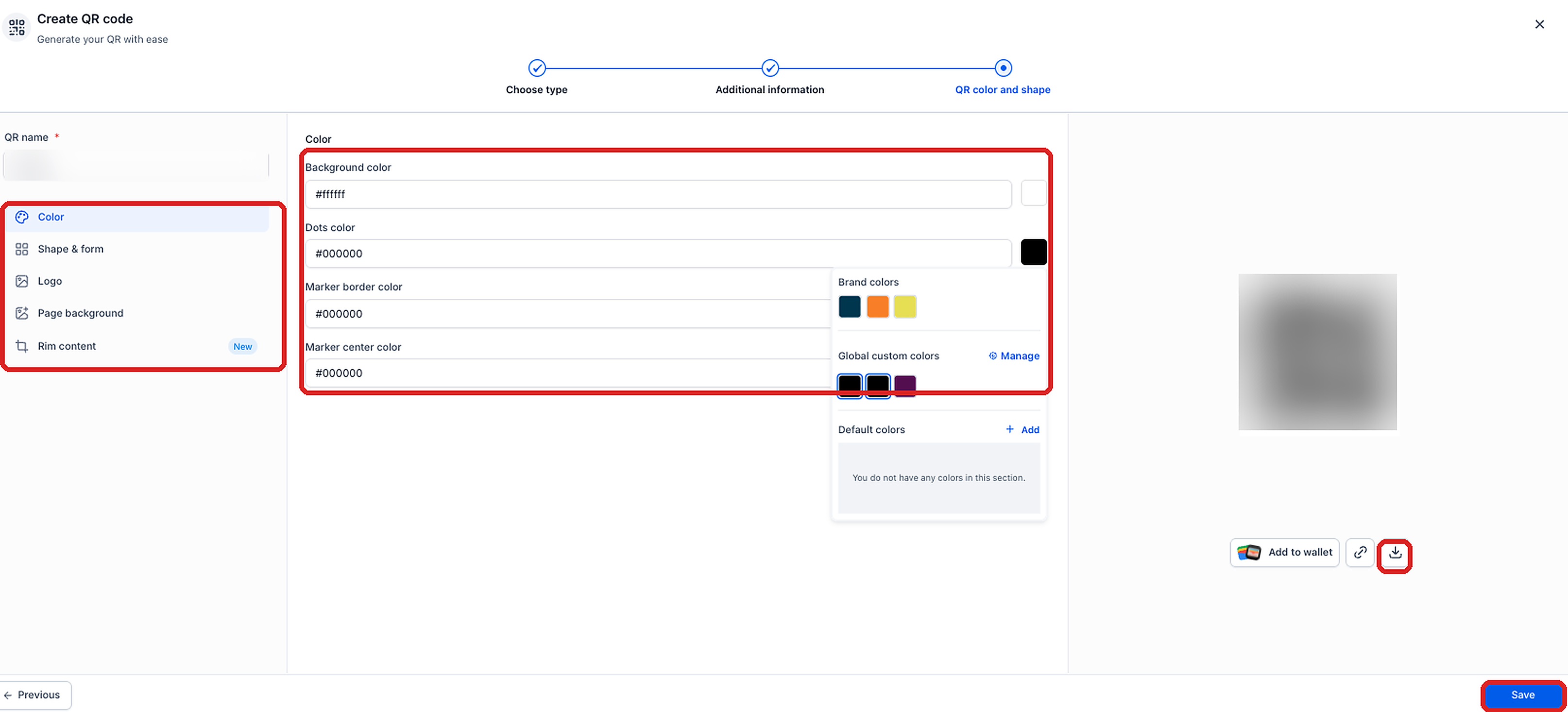
Tip: After saving or downloading the QR code, scan it with a compatible device to confirm that it opens the correct website page.
Manage and Customize Website QR Codes
Once a Website QR code is created, you can update its appearance, download it, save it to a digital wallet, or locate it in the QR Codes library. These tools help you reuse your existing QR codes without rebuilding them for every use.
Customize an Existing QR Code
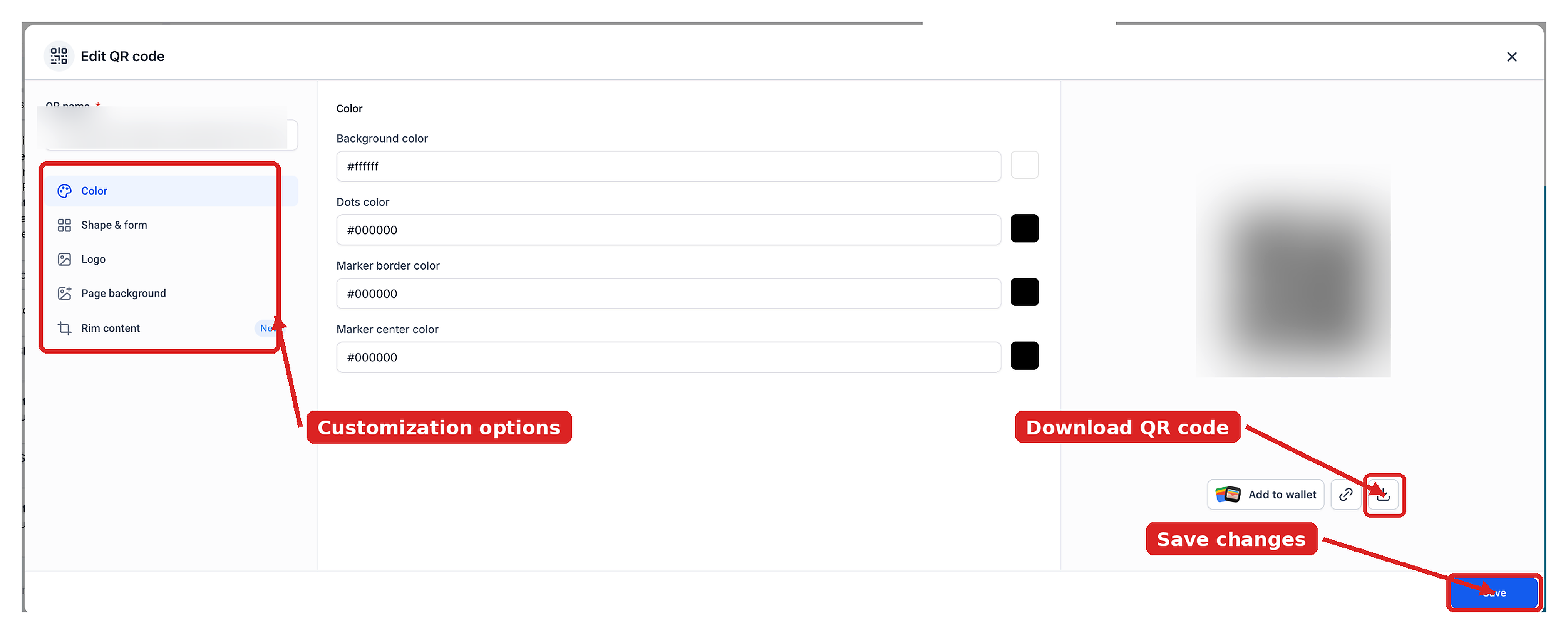
Edit the design of a saved QR code to match your preferred colors and presentation. You can use the QR Code Builder's customization controls without creating an entirely new code.
- From the navigation menu, select Sites.
- Open QR Codes.
- Find the Website QR code you want to customize.
- Click Edit.
- Use the available customization settings:
- Color: Change the available QR code colors.
- Shape & form: Adjust the QR code's supported shapes and design.
- Logo: Add or change the available logo settings.
- Page background: Customize the background.
- Rim content: Configure the available rim settings.
- Color: Change the available QR code colors.
- Review the QR code preview.
- Click Save.
Additional Management Options
The QR Codes library includes options for saving, locating, and sharing QR codes. Use these controls to make Website QR codes easier to access across digital and printed materials.
Add a Website QR Code to a Digital Wallet
You can save a QR code to a compatible digital wallet for convenient access. A Website QR code's wallet pass displays the website and page names.
- Open Sites > QR Codes.
- Locate the Website QR code and click Edit.
- In the editor, select Add to Wallet below the QR code preview.
- Follow the displayed instructions to add the QR code to Apple Wallet or Google Wallet.
Note: You can access a saved wallet pass offline. Opening the website linked to the QR code may still require an internet connection.
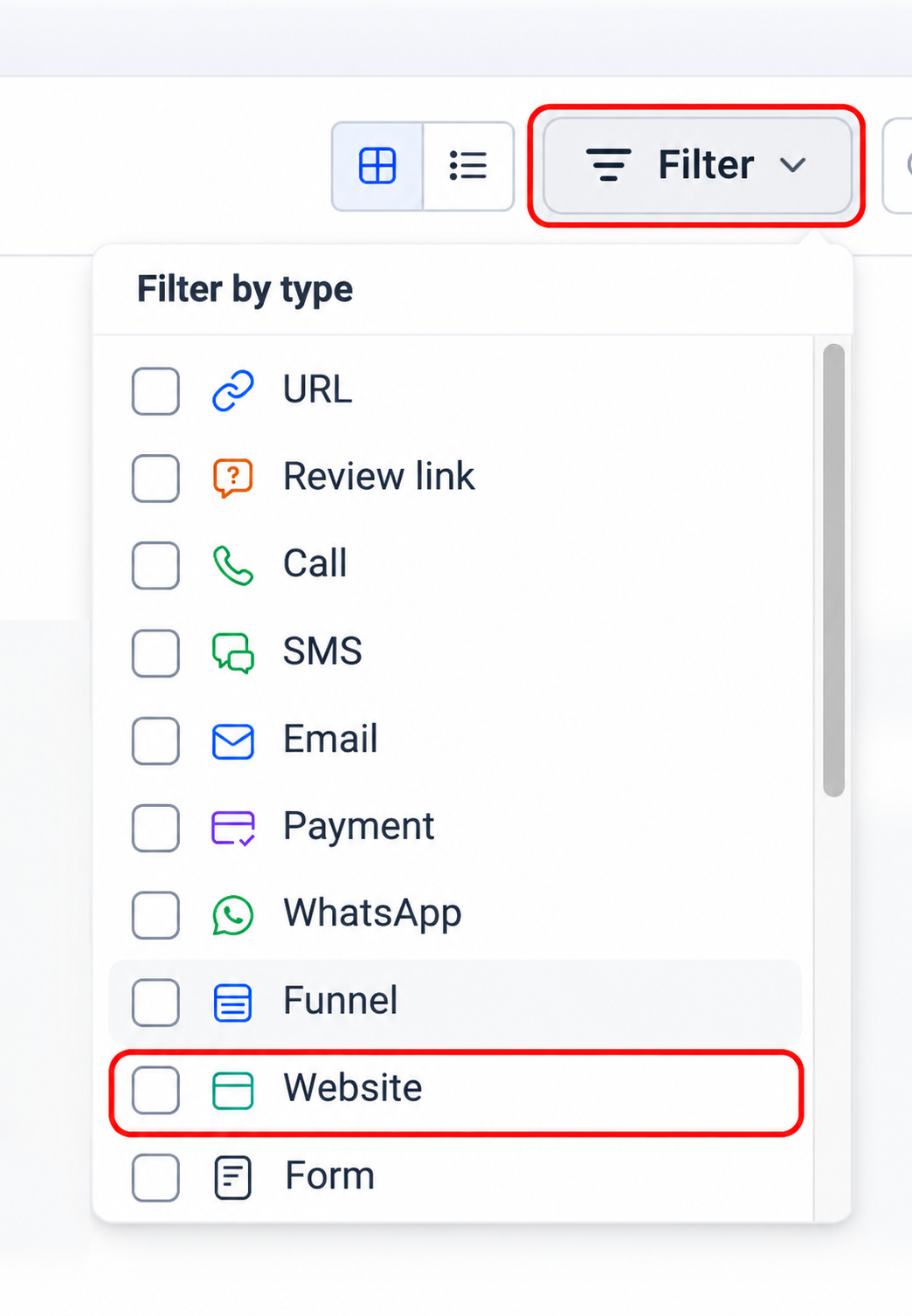
Filter Website QR Codes
Use the QR type filter to find Website QR codes without browsing every QR code in your collection.
- Open Sites > QR Codes.
- Click Filter.
- Under Filter by type, select Website.
- Review the filtered QR code list.
Share a QR Code Link
Use the available copy-link control in the QR code window or library to share a QR code link without downloading the QR image.
Frequently Asked Questions
Q: Can I still create a QR code for a manually entered URL?
Yes. Select the URL QR type. This is the previous Website type, renamed with the release of the new page-linked Website QR type.
Q: Can I create a QR code for a funnel page?
Yes. Select the Funnel QR type instead of Website.
Q: Will my Website QR code still work if I change the page slug or domain?
Yes. A page-linked Website QR code stays connected to its selected page, so it continues opening that page after its slug or connected domain changes.
Q: Do I need to manually enter a website URL?
No. Select the Website QR type and choose the website and page. If you want to manually enter a link, use the URL type instead.
Q: Can I share a QR code without downloading the image?
Yes. Use the available copy-link option from the QR code window or QR Codes library.
Q: Can I access a saved wallet pass offline?
Yes. The wallet pass can be viewed offline, but opening the linked website may require an internet connection.
Need Help?
If the Website QR type does not appear, confirm that you opened Sites > QR Codes and selected Create QR Code. If you are creating a QR code from the Website Builder, check that the website has a connected domain.
If a scan opens an unexpected destination, review the website and page selected for the QR code. Scan the code again after confirming the destination.
If the issue continues, contact support with the QR code name, selected website and page, and a description of the problem. Include a screenshot of the relevant settings when helpful.