
Customize your social media posts for different platforms using Social Planner. Create unique captions and media for each selected channel without creating separate posts.
This guide explains how to customize, review, and publish platform-specific content.
TABLE OF CONTENTS
- What Is the Customize for Each Channel Feature?
- How to Customize Posts for Each Social Channel
- Character Limits of Various Social Media Channels
- Important Considerations
- Frequently Asked Questions
What Is the Customize for Each Channel Feature?
The Customize for Each Channel feature allows you to tailor captions and media for different social platforms within a single post. This helps ensure your content meets each platform's requirements while managing everything from one place.
Key Features and Benefits
Multi-Platform Compatibility: Select multiple social media platforms, such as Facebook, Instagram, and LinkedIn, and customize content according to each platform's requirements.
Content Customization: Create unique captions for each selected channel while accounting for differences in character limits and supported media formats.
Customization Toggle: Enable Customize for Each Channel to create individual content for each platform. Disable it to apply the active channel's content to all selected channels.
Content AI Integration: Use Content AI to generate captions and adapt content length. Content AI supports generating up to 900 words with small, medium, and large output options.
Scheduling Capability: Publish customized content immediately or schedule posts for a later date and time.
Time-Saving Workflow: Manage platform-specific content within a single post instead of creating separate posts for each social channel.
How to Customize Posts for Each Social Channel
Social Planner allows you to customize content for multiple connected social accounts before publishing. Follow these steps to create platform-specific posts.
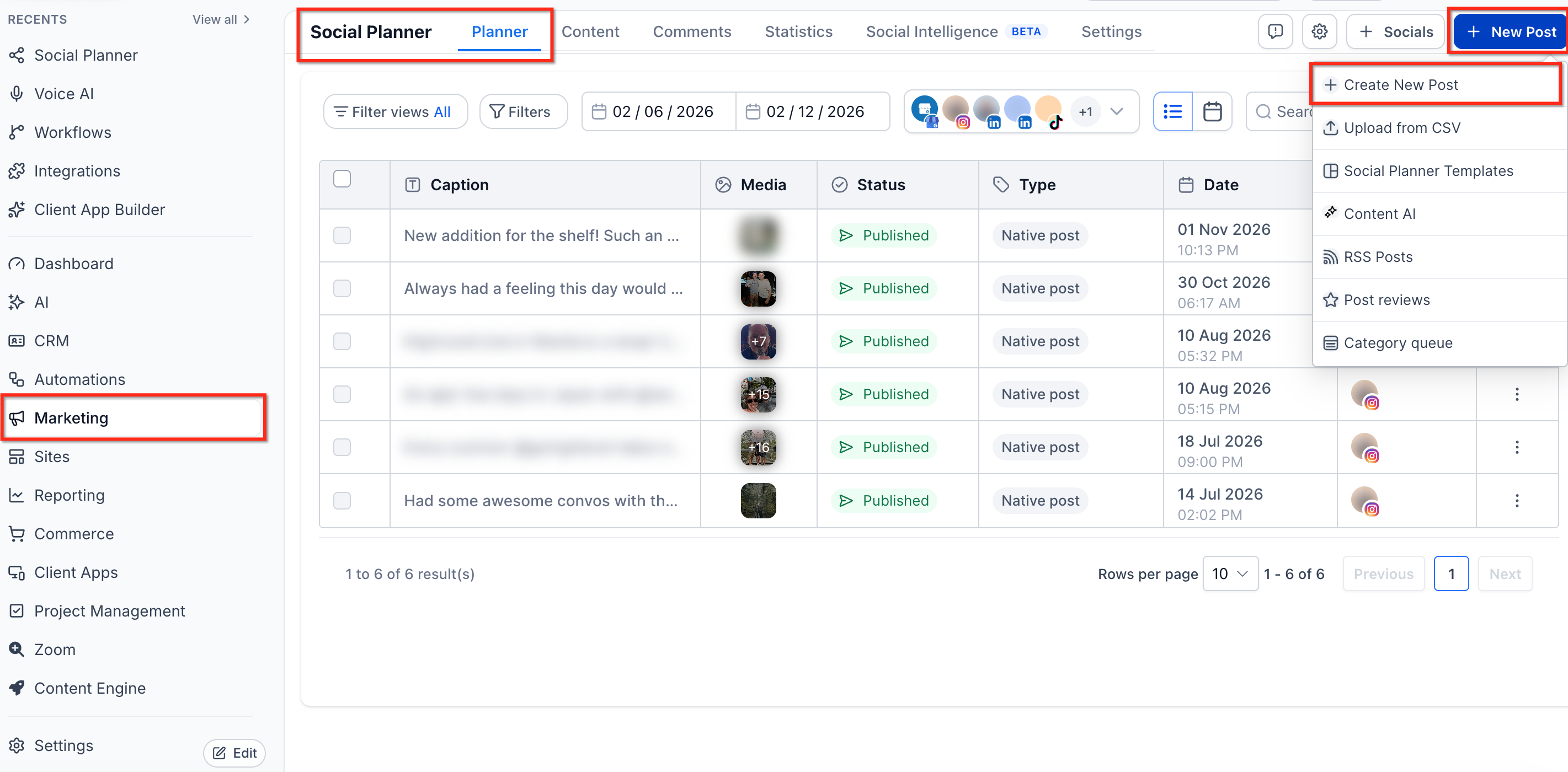
Step 1: Open Social Planner
Navigate to Marketing → Social Planner.
Click + New Post.
Select Create New Post.
Step 2: Select Social Channels
Select the social accounts where you want to publish your content.
Choose at least two social accounts to enable channel-specific customization.
After selecting multiple accounts, locate the Customize for Each Channel toggle in the post composer.
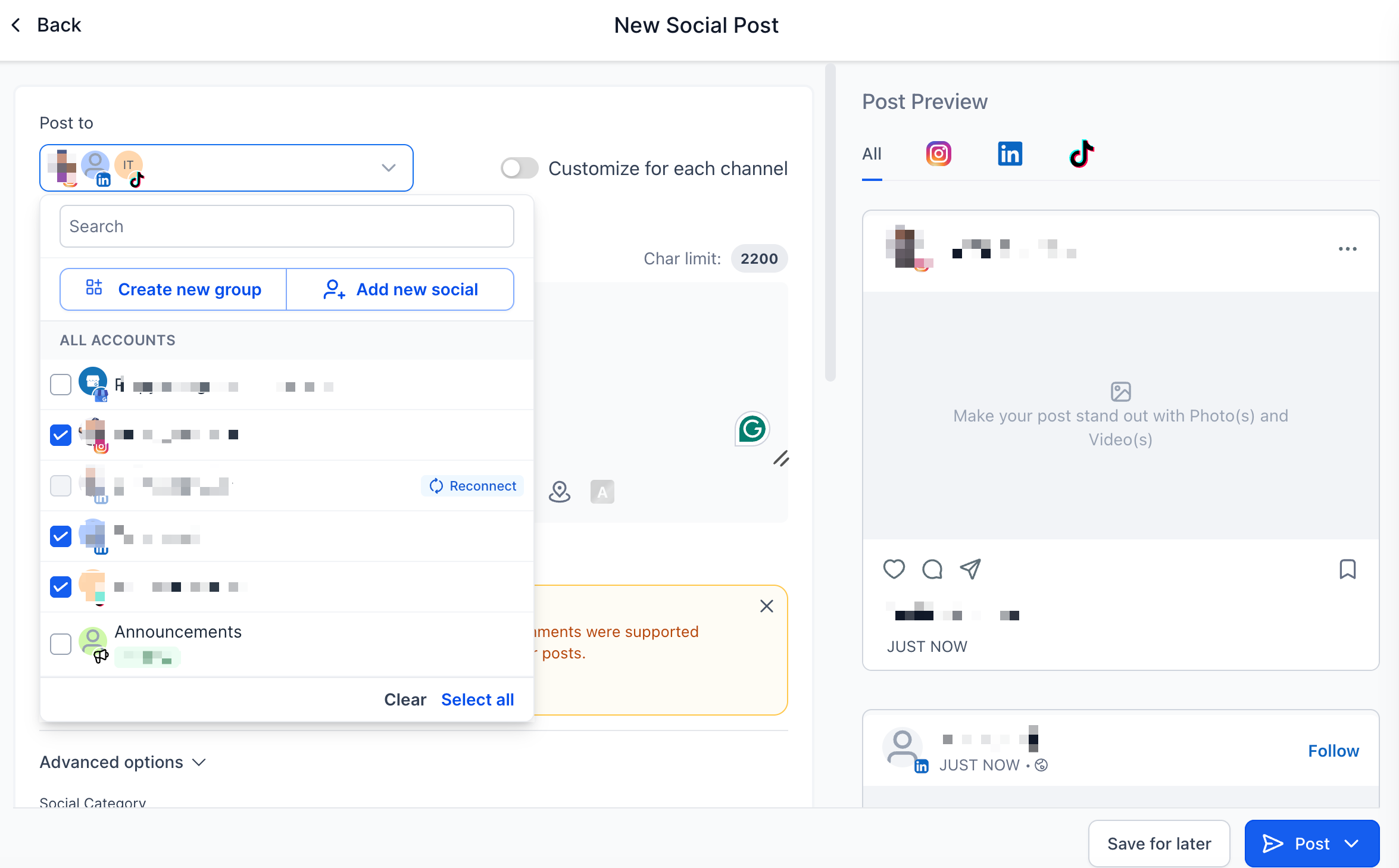
You can select supported platforms such as Facebook, Instagram, LinkedIn, and Google Business Profile.
Note: The customization option appears only when multiple social accounts are selected.
Step 3: Enable Customize for Each Channel
Turn on the Customize for Each Channel toggle.
Select the social channel you want to customize.
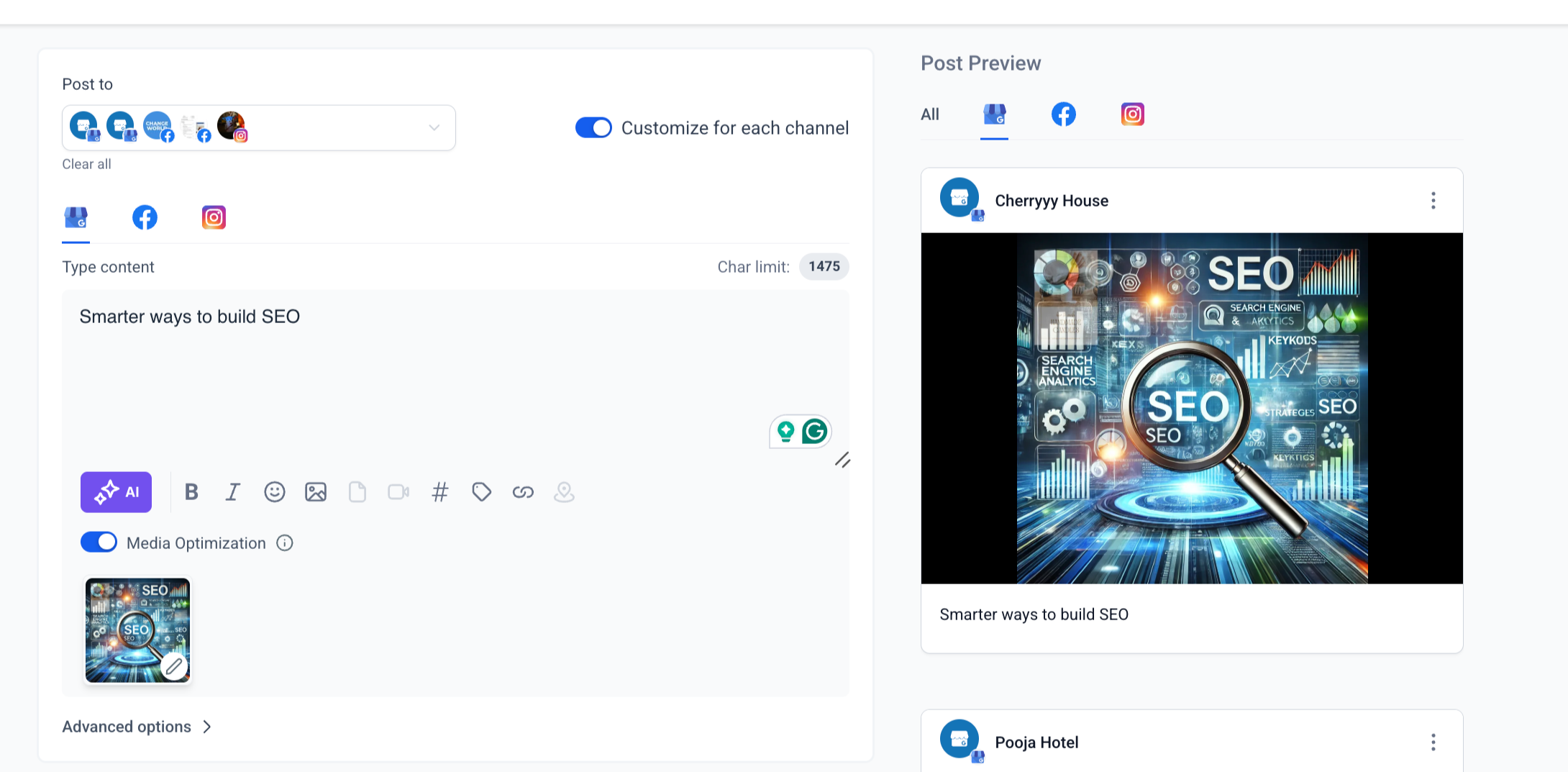
Enter the caption and add media for that channel.
Switch to another selected channel and customize its content.
Repeat the process for each selected social channel.
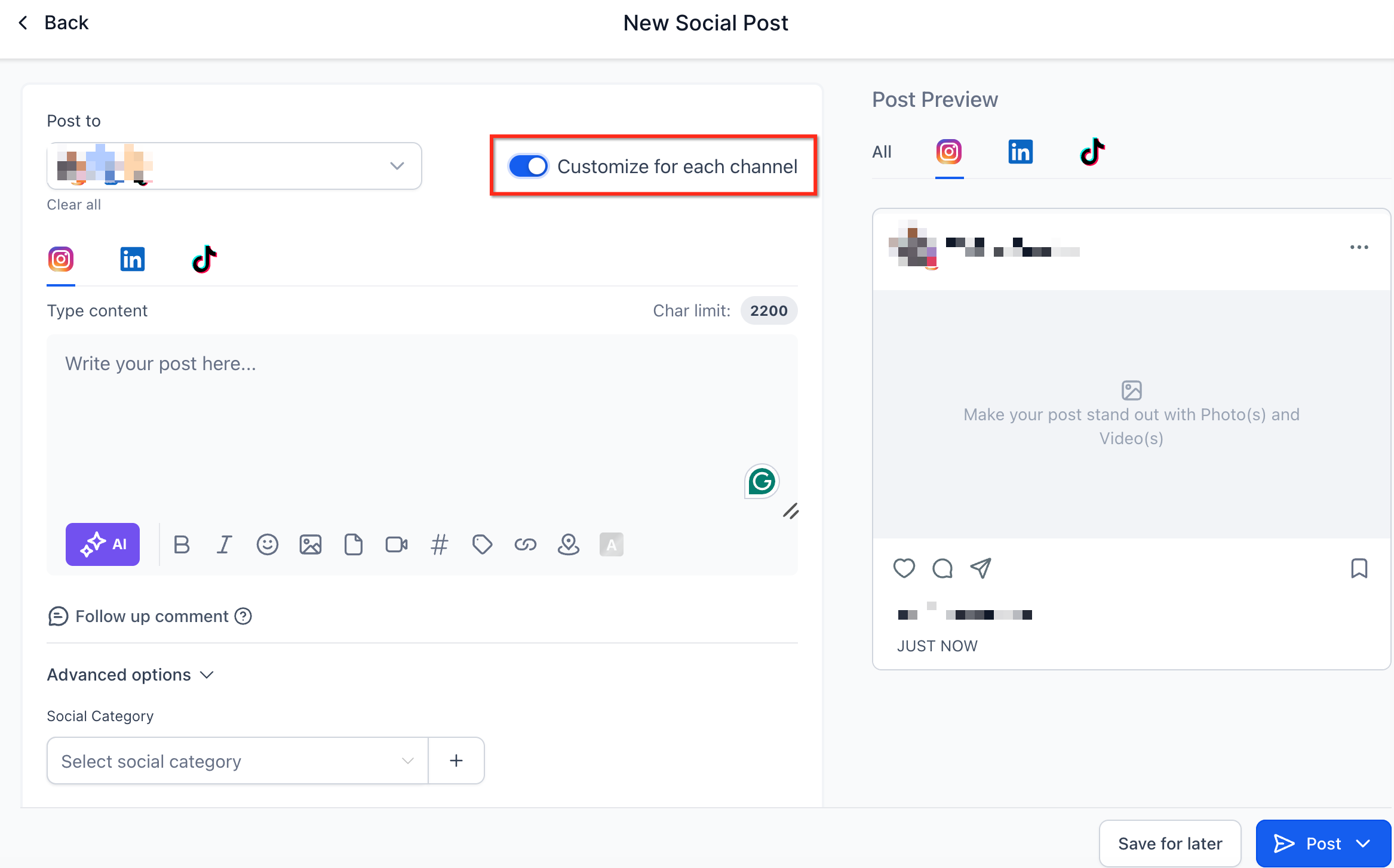
When customization is enabled, you can create unique captions and media for individual platforms while managing them within one post.
Step 4: Create Platform-Specific Content
Write content for each channel based on its character limits, formatting requirements, and audience preferences.
For example, you can create a longer caption for Facebook and a shorter caption for Google Business Profile.
Review each channel's content separately to ensure it meets the selected platform's requirements.
Character Limits of Various Social Media Channels
Different social media platforms have different character limits. Review these limits when creating customized posts.
| Social Media Channel | Character Limit |
|---|---|
| Facebook Pages and Groups | 5,000 |
| Instagram Profiles | 2,200 |
| LinkedIn Pages and Profiles | 3,000 |
| Google Business Profile | 1,500 |
These limits are based on the documented Social Planner requirements and may change as social platforms update their publishing rules.
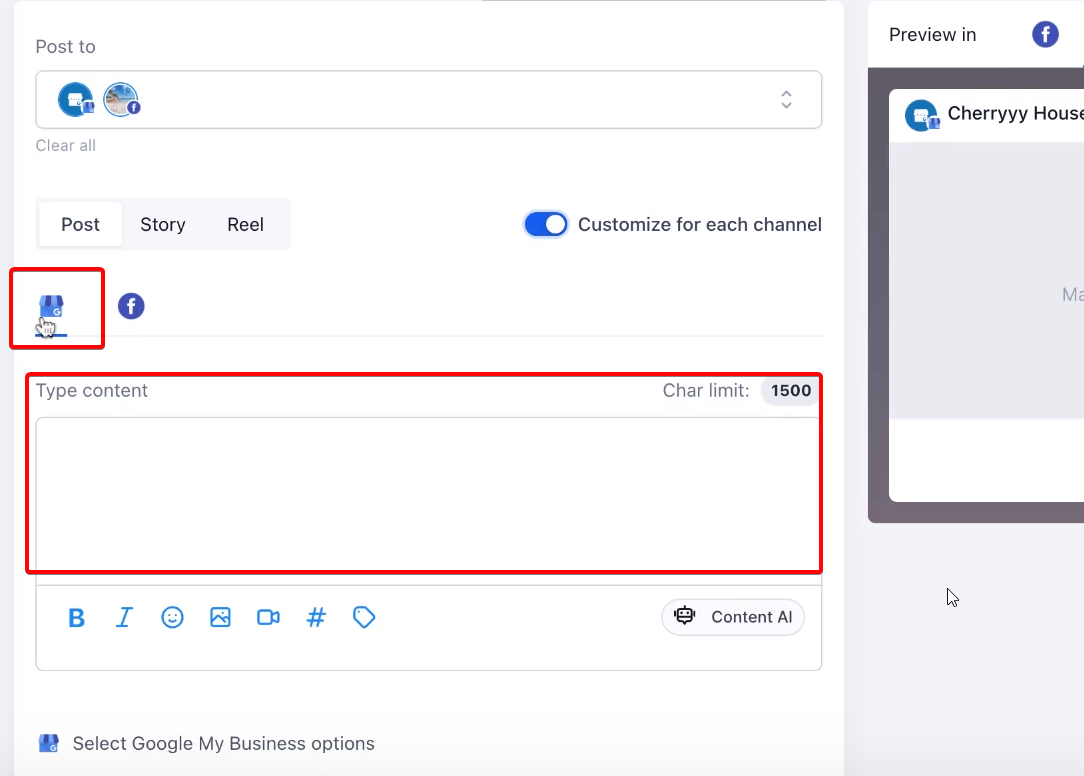
You can view and edit content for each selected channel independently to ensure that posts meet their respective character limits.
Step 5: Add Media to Each Channel
You can add images, videos, or other supported media to your customized posts.
Select the social channel you want to edit.
Use the image or video upload option to add media.
Confirm that the selected media meets the platform's requirements.
Wait for the upload to finish.
Switch to another channel to add or customize its media.
Important:
Switching social accounts while media is uploading may discard the incomplete upload.
Changing the Customize for Each Channel toggle during an upload may remove the incomplete upload.
Switching accounts or changing the customization toggle while a video thumbnail is processing may interrupt thumbnail processing. You may need to apply the thumbnail again.
Allow all media uploads and thumbnail processing to finish before switching accounts or changing customization settings.
Step 6: Use AI (Optional)
AI can help generate or modify captions for your selected social channels.
Select the social channel you want to customize.
Open AI from the post composer.
Generate content based on your requirements.
Choose the appropriate content length, such as small, medium, or large.
Review and edit the generated text to meet the platform's requirements.
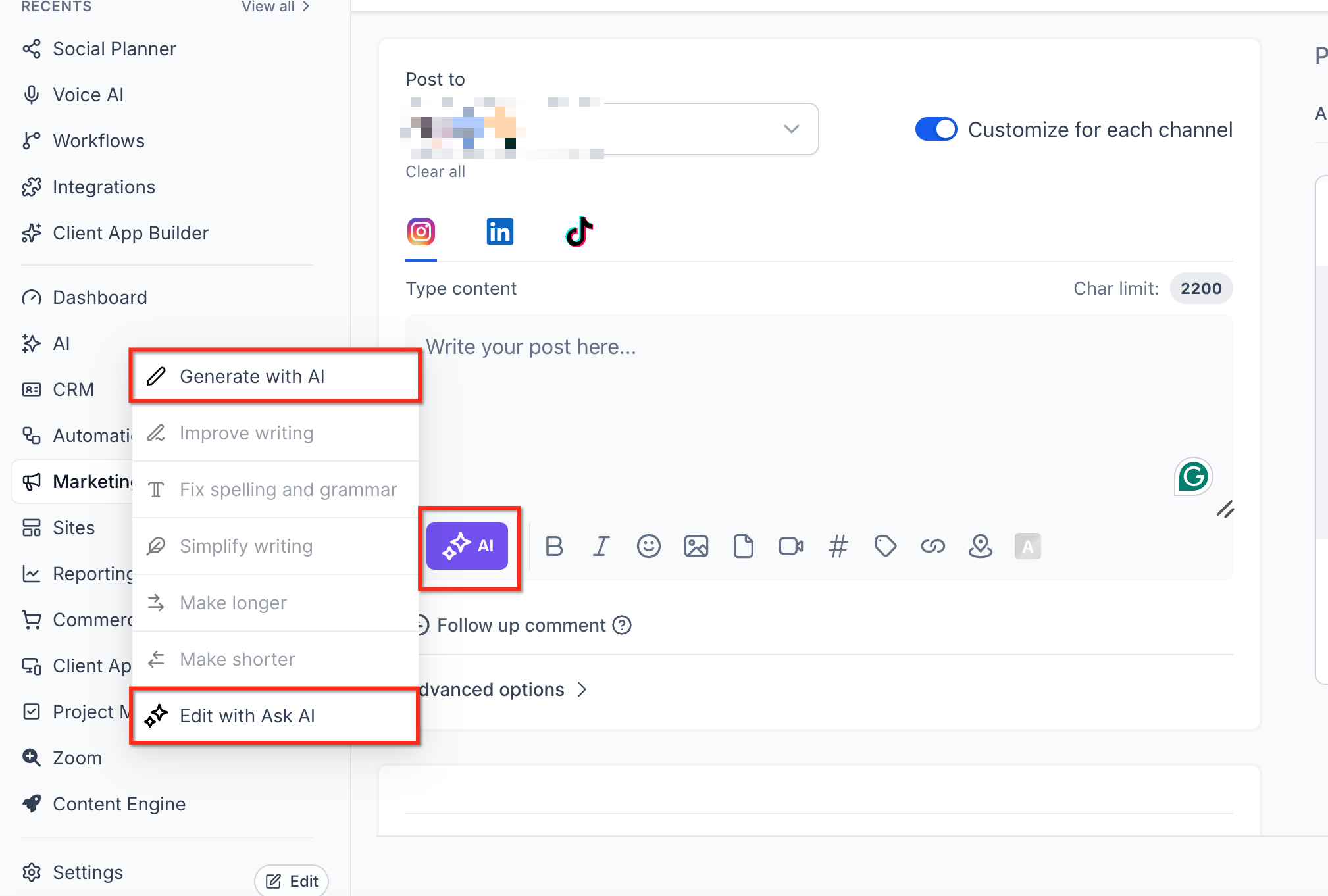
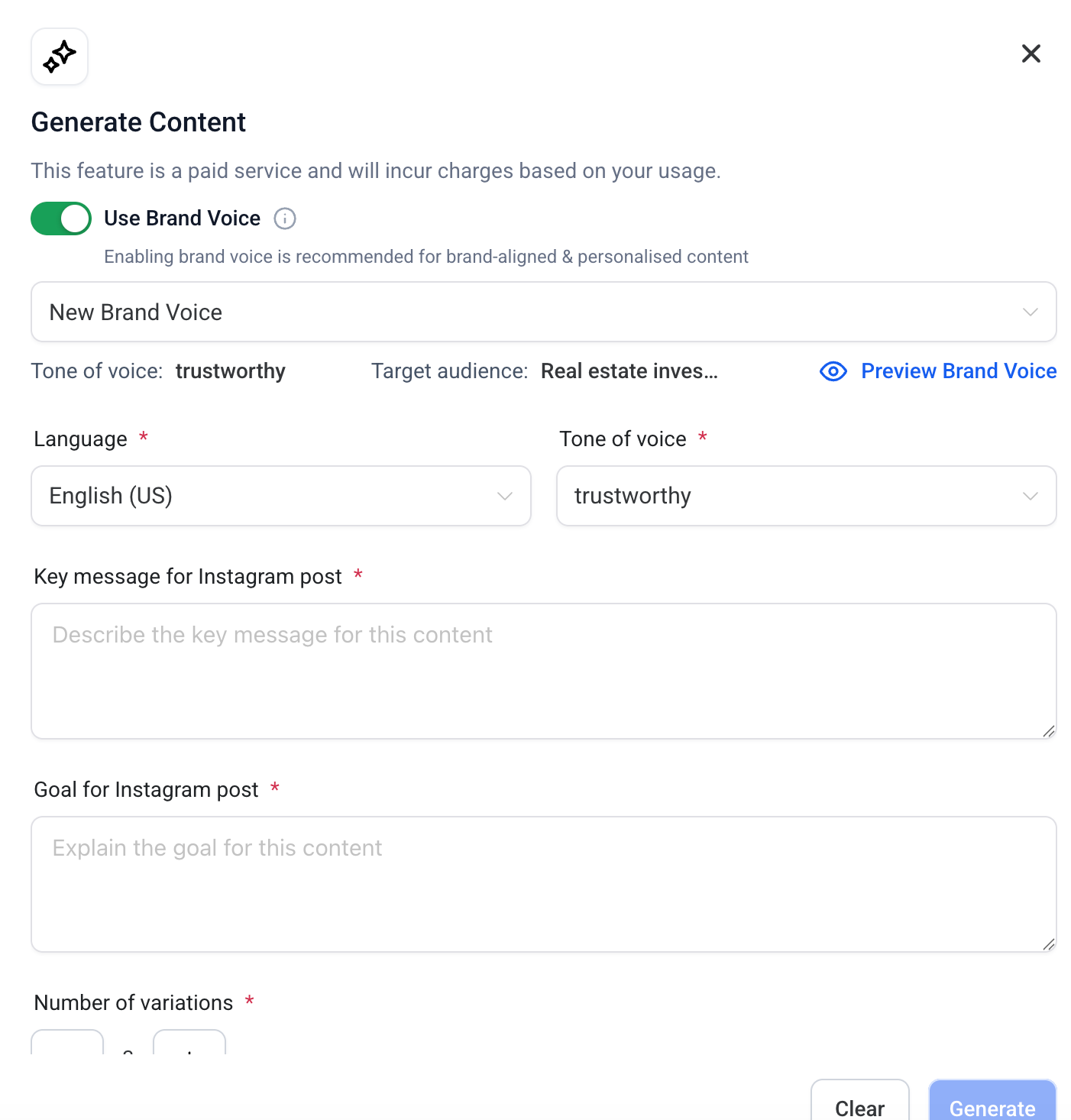
AI supports generating up to 900 words. Review the generated content before publishing to ensure it meets the selected channel's character limit.
Step 7: Review and Publish Your Posts
After customizing the content for each channel:
Review the captions and media for every selected social channel.
Check the content in the Post Preview panel.
Confirm that the captions meet each platform's character limits.
Verify that the images and videos meet the selected platforms' requirements.
Choose to publish immediately or schedule the posts for a later date and time.
Confirm the publishing details.
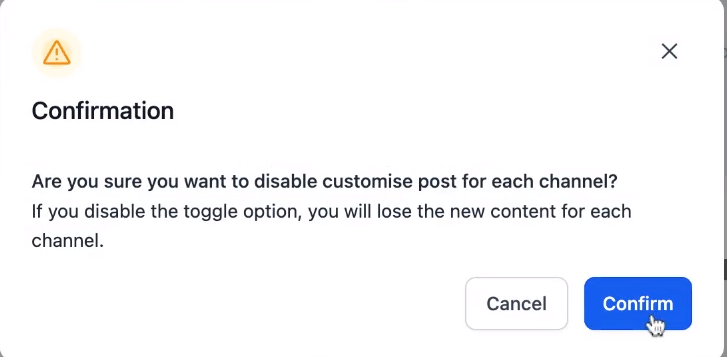
Important: If you turn off Customize for Each Channel, the active channel's content applies to all selected social channels. A warning appears indicating that the other customized content will be lost.
Important Considerations
Each social platform has different content requirements. Review the following details before publishing to help prevent formatting issues or lost changes.
Multiple Social Accounts: Select at least two social accounts to enable Customize for Each Channel.
Turning Off Customization: Disabling the toggle applies the active channel's content to all selected channels and discards the other customized versions.
Media Uploads: Allow images, videos, and thumbnails to finish uploading or processing before switching channels or changing the customization toggle.
Platform Requirements: Review the supported character limits and media formats for each social platform before publishing.
Content Review: Check the captions, media, and previews for every selected channel to ensure the content displays as intended.
Frequently Asked Questions
Q: Why can't I see the Customize for Each Channel option?
The customization option appears when you select multiple social accounts while creating a post. Select at least two accounts to access this feature.
Q: What happens if I turn off customization after editing multiple posts?
The active channel's content applies to all selected social channels. The other customized versions are discarded.
A warning appears before the customized content is lost.
Q: Can I use Content AI to create customized captions?
Yes. You can use Content AI to generate and edit captions for your selected social channels.
Review the generated content to ensure it meets each platform's requirements.
Q: What happens if my content exceeds a platform's character limit?
You must adjust the content to meet the selected platform's character limit before publishing.
Social Planner may display a warning when the character limit is exceeded.
Q: Can I use different images or videos for each social channel?
Yes. When Customize for Each Channel is enabled, you can add different supported media for individual channels.
Ensure each image or video meets the selected platform's requirements.
Q: Can I schedule customized posts for multiple social channels?
Yes. After creating and reviewing the customized content for each channel, you can schedule the posts for a later date and time.
Q: What should I do if my media upload disappears when switching channels?
Allow the media upload to finish before switching social accounts or changing the customization toggle.
If an upload is interrupted, you may need to upload the media again.