Manually Issue Certificates
Print
Modified on: Tue, 3 Nov, 2026 at 11:06 AM
How to Send Manual/Offline Certificates
Step 1: Navigate to Certificates
- Log in to your account.
- From the dashboard, select "Memberships" from the menu.
- Click on "Certificates" to access the certificate management area.
Step 2: Choose or Create a Certificate Template
- You have the option to select an existing certificate template or create a new one from scratch.
Step 3: Send the Certificate
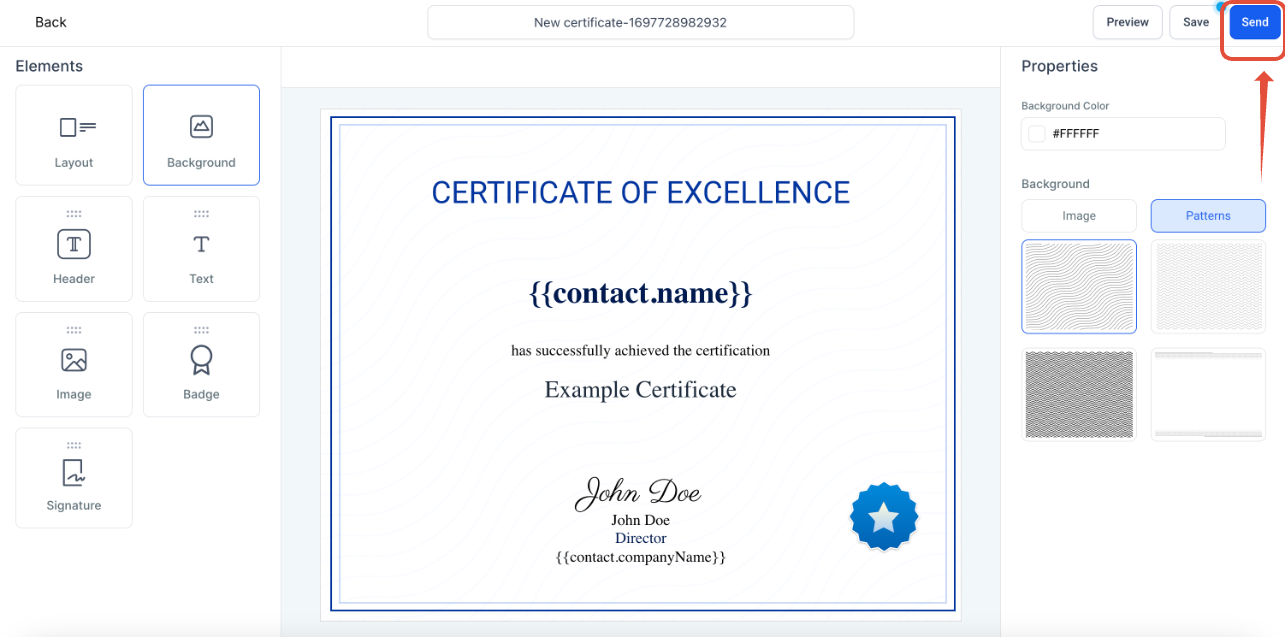
- Once you've chosen or created your certificate template, click on the "Send" button.
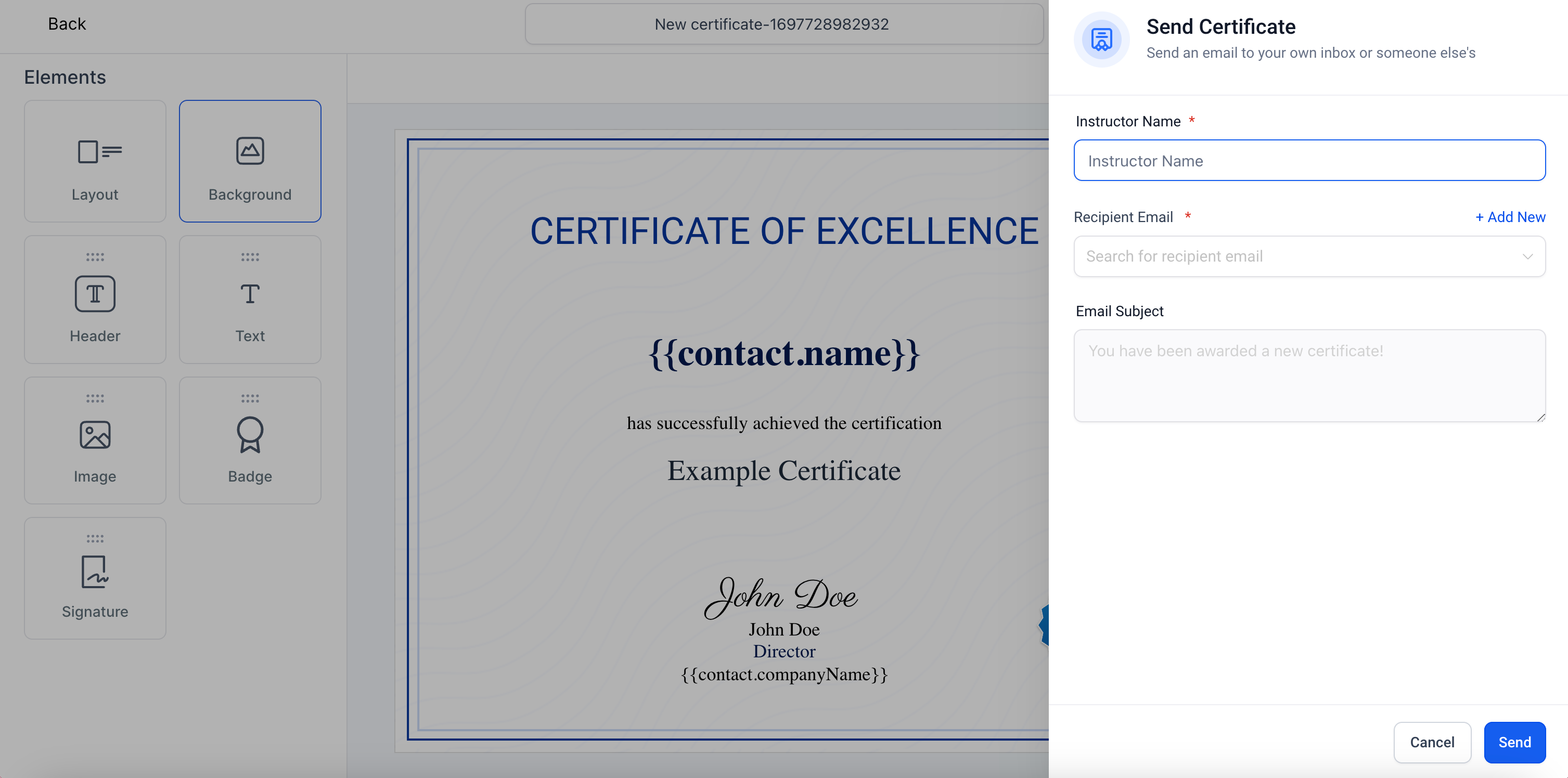
- You'll be prompted to fill in details such as the instructor's name and the recipient's email. If the recipient is not already a contact, you can add them by selecting "Add New".
- After entering the required information, click "Send".
 Step 4: Certificate Delivery
- An email will be dispatched to the learner containing a link to download their certificate in PDF format.
Step 5: Tracking Issued Certificates
- To view a record of all certificates you've sent, navigate back to "Memberships" > "Certificates" and select "Issued Certificates". This section provides a comprehensive list of all certificates issued, allowing for easy tracking and management.
Did you find it helpful?
Yes
No
Send feedback Sorry we couldn't be helpful. Help us improve this article with your feedback.
