
Add location tags to your Facebook and Instagram posts using Social Planner. Location tagging lets you associate social media content with specific places, providing geographic context for your audience. This guide explains how to add location tags and manage the required permissions.
TABLE OF CONTENTS
- What is Location Tagging in Social Planner?
- Key Benefits of Location Tagging
- Supported Social Platforms
- How to Add Location Tags to Social Posts
- Important Considerations
- Frequently Asked Questions
What is Location Tagging in Social Planner?
Location tagging allows you to attach a place or location to supported Facebook and Instagram posts created through Social Planner. This helps viewers identify the location associated with your content.
Why it Matters:
For social media engagement, location tagging can help improve content visibility and create opportunities for interactions such as follows, likes, and comments.
Key Benefits of Location Tagging
Adding locations to social media posts helps provide geographic context and makes your content more relevant to location-specific audiences.
Location Context: Show the place associated with your social media content.
Local Relevance: Connect posts with relevant businesses, venues, or destinations.
Simplified Publishing: Add location tags directly while creating posts in Social Planner.
Centralized Management: Manage content and location settings from one platform.
Supported Social Platforms
Location tagging is available for supported Facebook and Instagram posts. The available options depend on the connected account, publishing permissions, and post format.
Facebook: Supports location tagging for eligible posts.
Instagram: Supports location tagging for eligible posts published through connected Business or Creator accounts.
Note: Location tagging is not documented as available for every Social Planner platform or post format.
How to Add Location Tags to Social Posts
Location tags can be added while creating a Facebook or Instagram post in Social Planner. Selecting the correct social account and location helps ensure that the tag is included when publishing.
Navigate to Marketing → Social Planner.
Click + New Post → Create New Post.
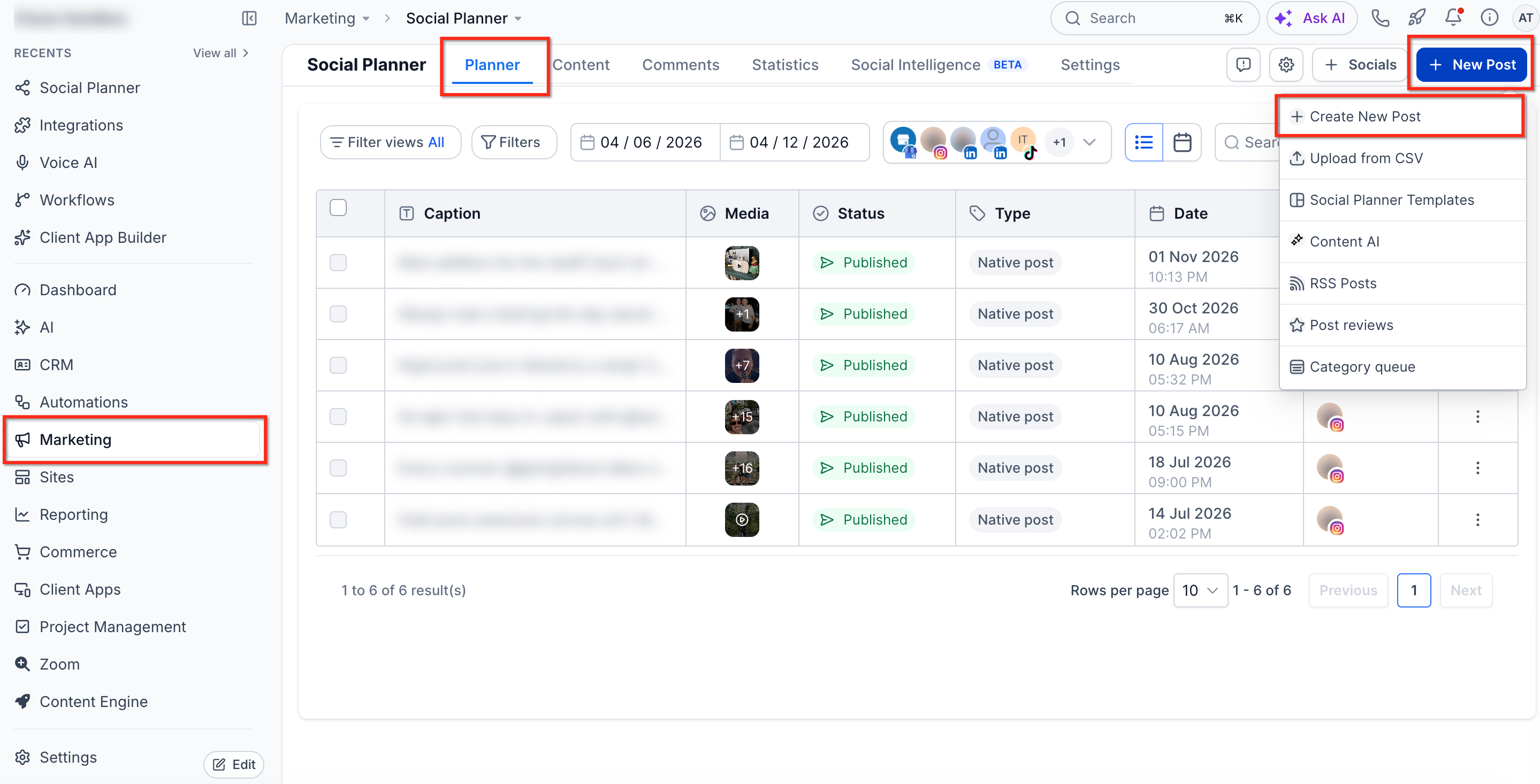
Select your connected Facebook or Instagram account under Post to.
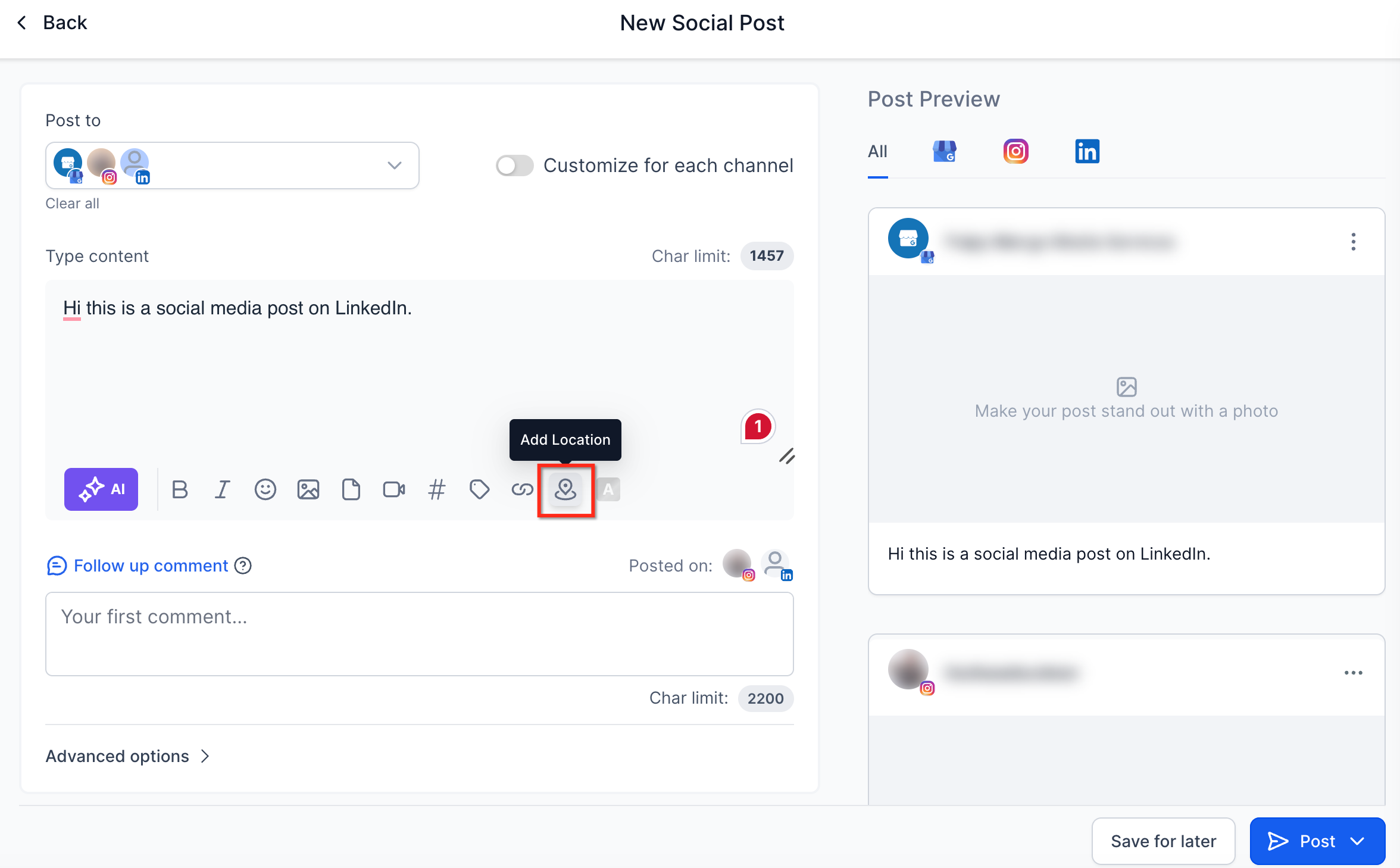
Add your caption, media, and other post details.
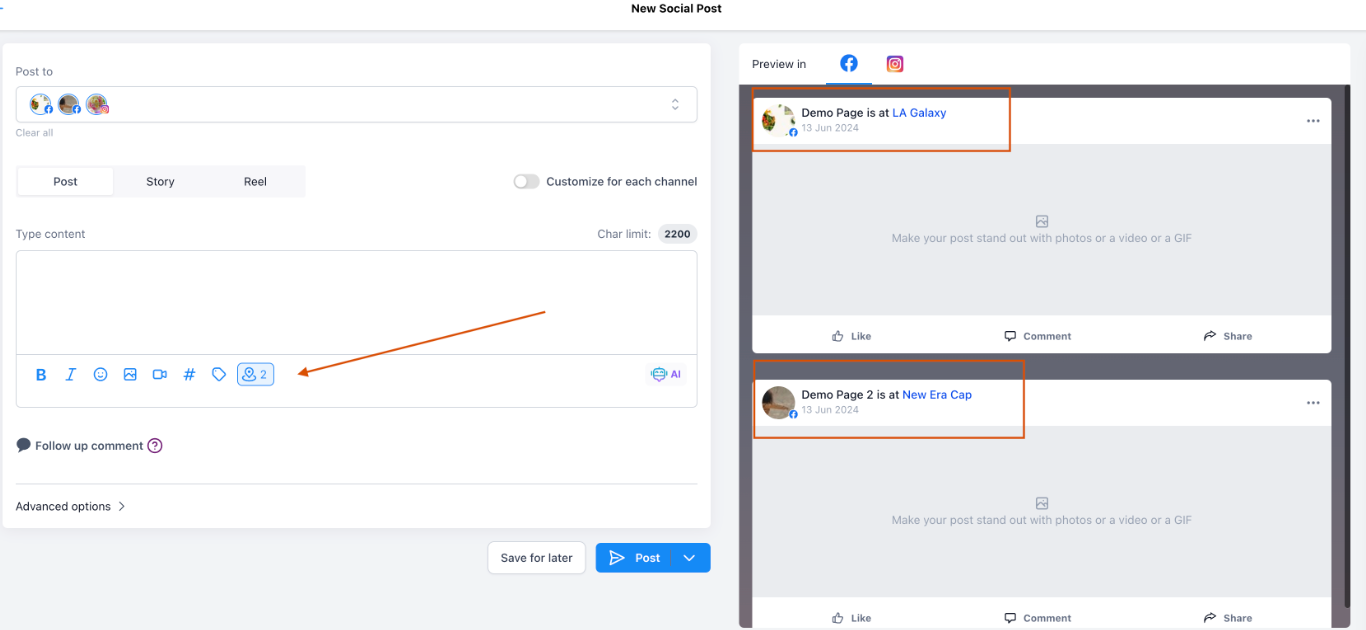
Locate the Location Tagging option, search for the desired place, and select an available location.
Review the selected location and post details, then click Publish Now or Schedule your post.
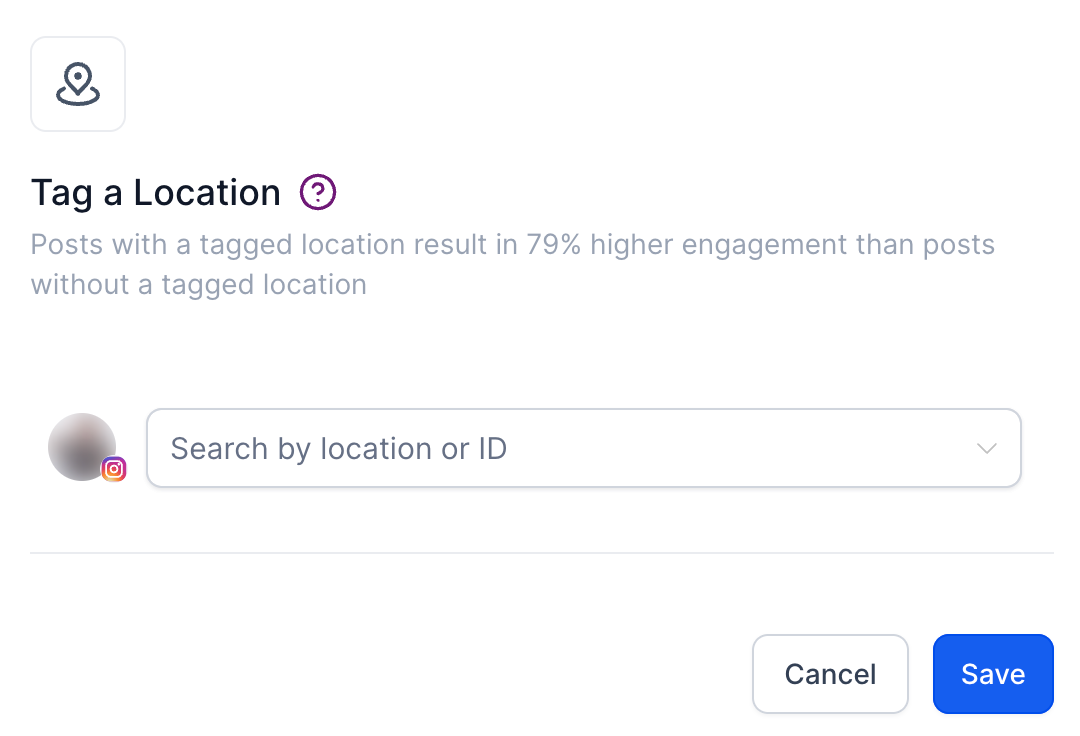
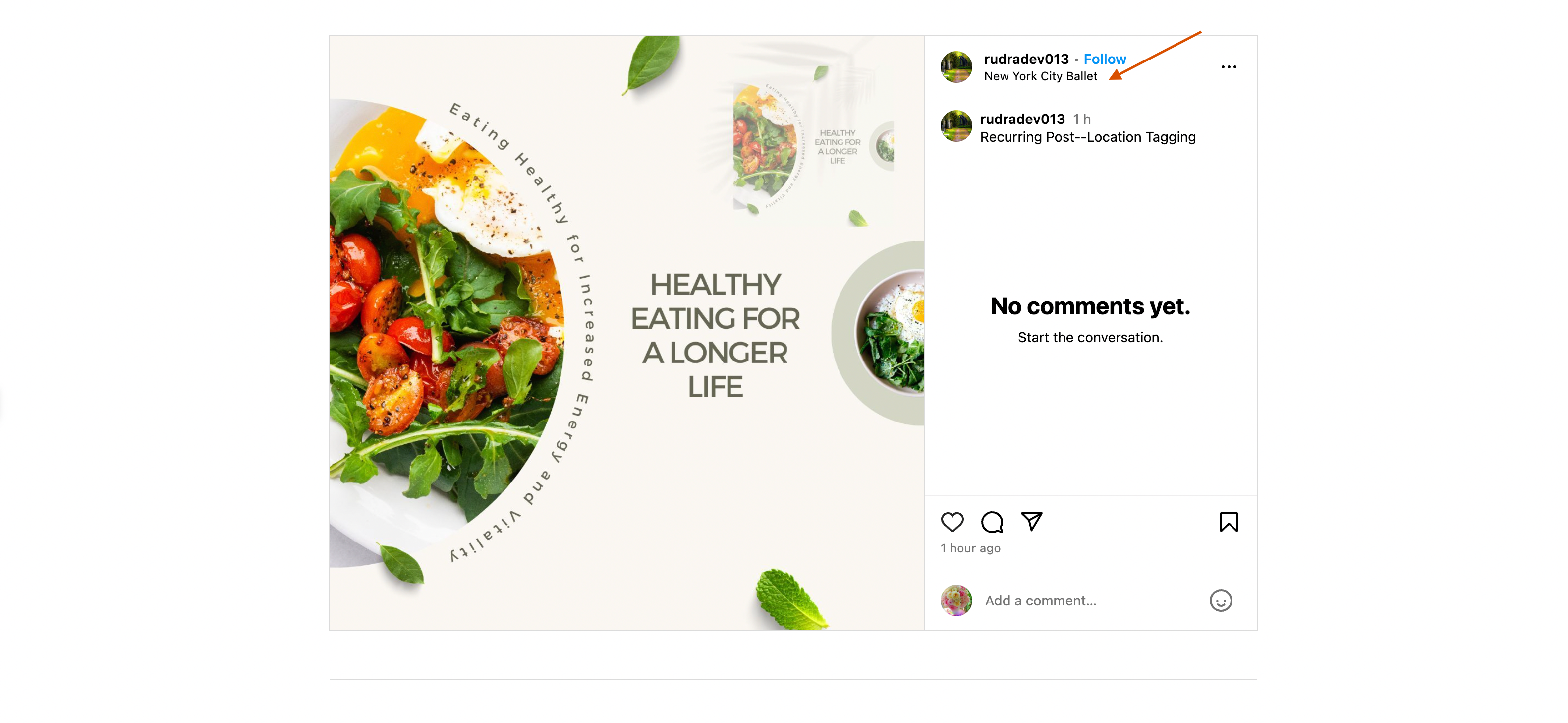
Important: You may be prompted to reauthorize your Facebook or Instagram account to grant additional location-tagging permissions. Complete the authorization process before publishing.
Important Considerations
Location tagging depends on platform permissions and the availability of locations through the connected social account.
Account Permissions: Additional Facebook or Instagram authorization may be required.
Location Availability: Only locations returned by the supported platform's location search can be selected.
Post Formats: Location-tagging availability may vary depending on the platform and post type.
Account Connections: If your social account becomes disconnected, reconnect it through Social Planner Settings.
Post Sync: Location information may not appear on synchronized Instagram posts because of API limitations.
Frequently Asked Questions
Q: Can I add location tags to all social media platforms?
No. Location tagging is currently documented for supported Facebook and Instagram posts.
Q: Why can't I find the location I want to tag?
The location may not be available through the connected platform's location search. Try searching using the full business or place name.
Q: Why am I being asked to reconnect my Facebook or Instagram account?
Location tagging may require additional permissions. Reauthorizing the account allows the necessary access to be requested.
Q: Can I add location tags to Instagram Personal accounts?
Social Planner publishing requires a supported Instagram Business or Creator account. Personal accounts are not supported through the documented Instagram publishing integrations.