
The Unified Client Portal Experience brings members' resources together under one login and introduces a more secure, reliable sign-in process.
With this update, members benefit from two key improvements:
One login, all resources. Members with duplicate contact records associated with the same Client Portal email can access their resources under a single login without switching profiles.
A stronger sign-in. Client Portal sign-in is now more secure, reliable, and consistent across the platform.
TABLE OF CONTENTS
- What's New
- How to Enable the Unified Experience
- The New Client Portal Email Field
- Frequently Asked Questions
- Notes for Support
What's New
One login for everything. Members sign in once to access their courses, communities, memberships, and billing information in one place. This includes resources previously associated with duplicate contact records that share the same Client Portal email.
A unified home for every resource. Content and history previously spread across duplicate profiles now appear together under one login. Members can find their resources without switching between profiles.
A more secure, standardized sign-in. The updated sign-in process provides a more secure, consistent, and reliable experience for members.
A fresh new look — the Compass app. The unified experience includes the redesigned Compass interface, giving members a cleaner, more modern Client Portal.
Reliable contact-to-portal linking. Updating a contact's primary email in the CRM no longer changes or disrupts their Client Portal login. A dedicated Client Portal email field keeps contacts connected to the correct portal account. Updates to this field stay synchronized across related contacts.
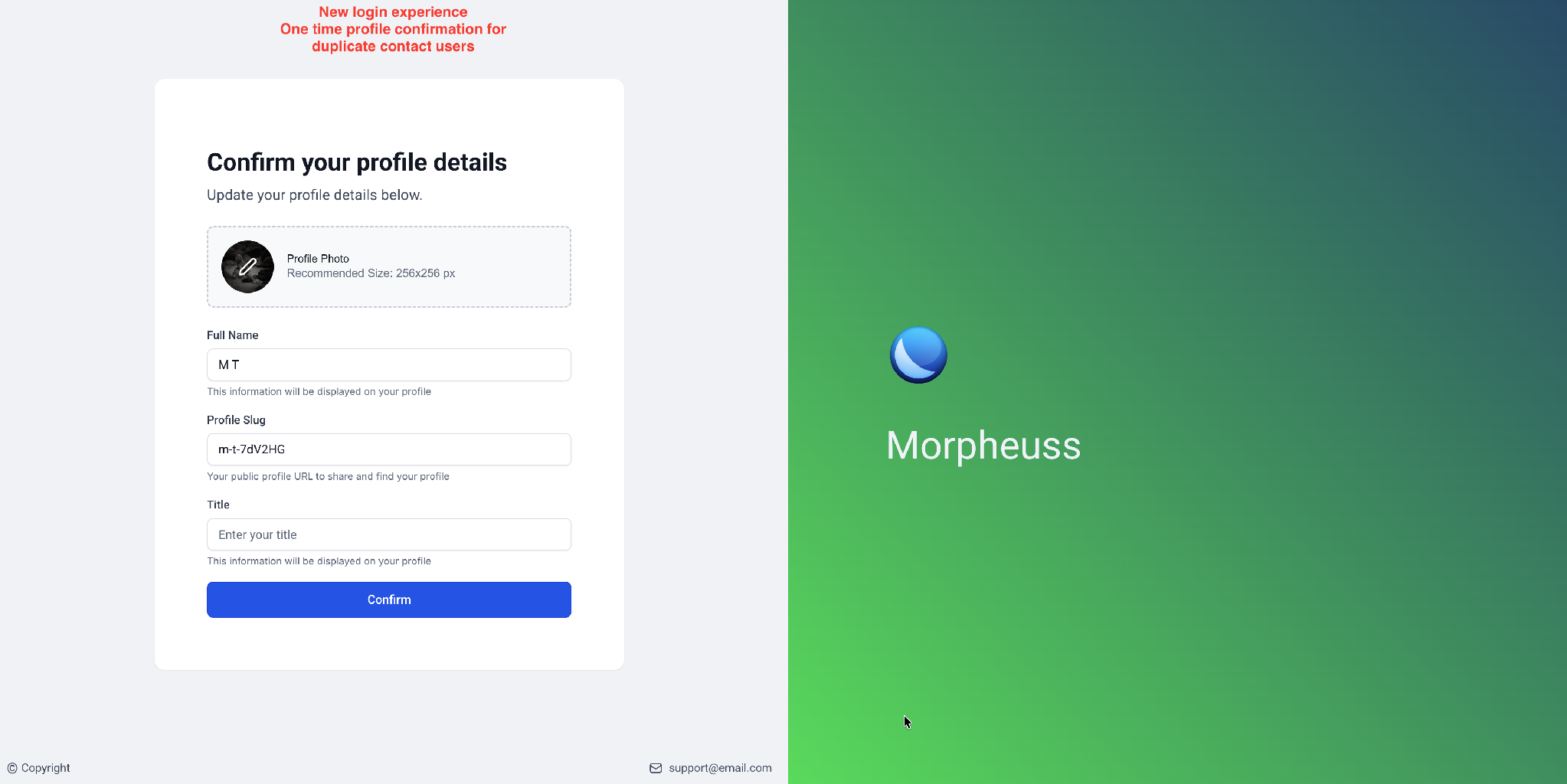
The updated sign-in experience includes a one-time profile confirmation for members with previously duplicated contact records.
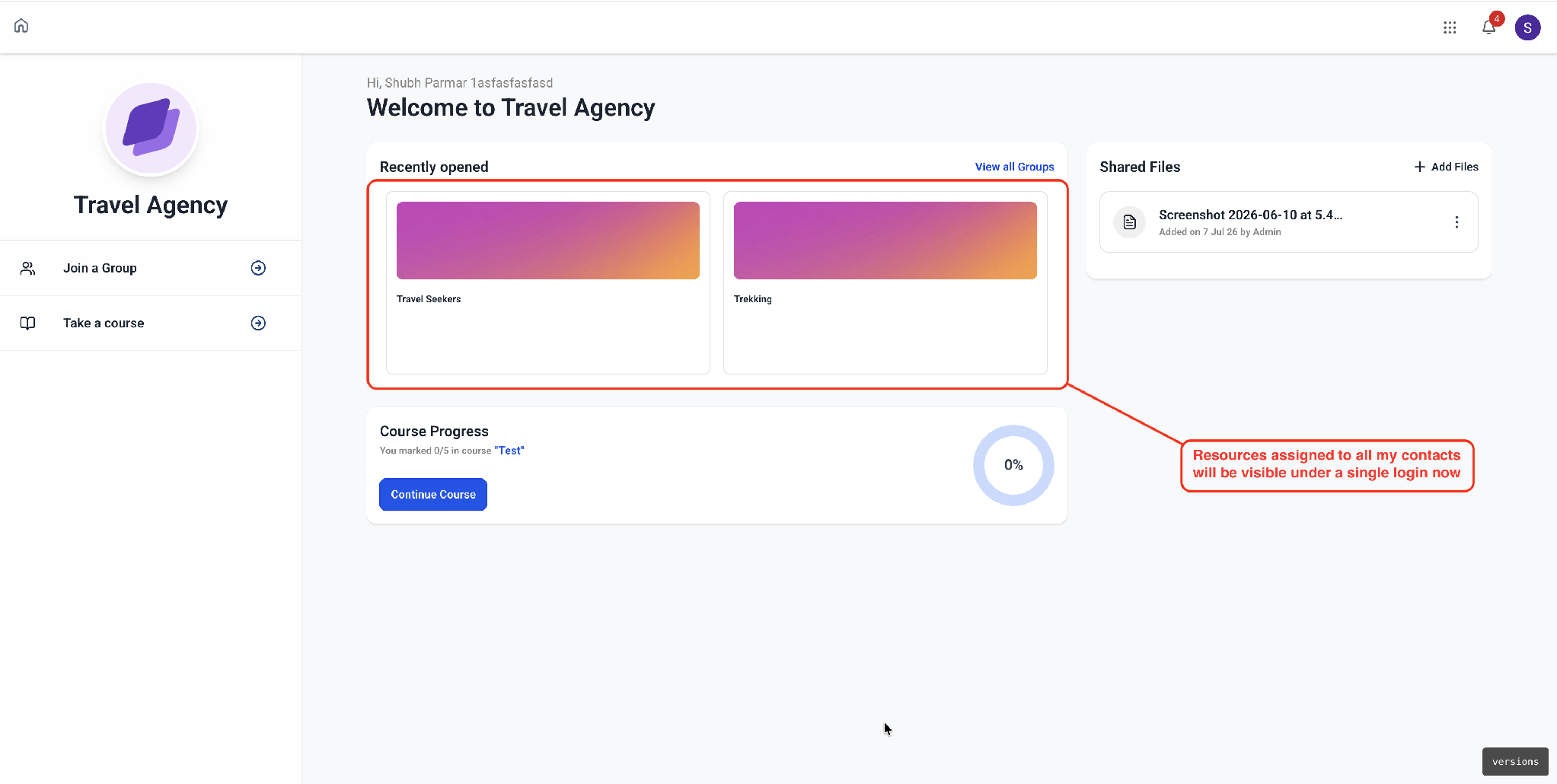
Member view — resources assigned across related contacts appear together under a single login.
How to Enable the Unified Experience
To get started, open the Client Portal dashboard in your account.
Opening the dashboard queues your Client Portal for the upgrade. The migration runs automatically in the background.
Once the migration finishes and the new experience is enabled, members can use the updated Compass interface.
No additional configuration is required, and members do not need to log out.
Step 1 — Open the Client Portal Dashboard
Navigate to Memberships → Client Portal → Dashboard.
Find the announcement for the redesigned Client Portal.
Preview the updated interface before enabling it for members.
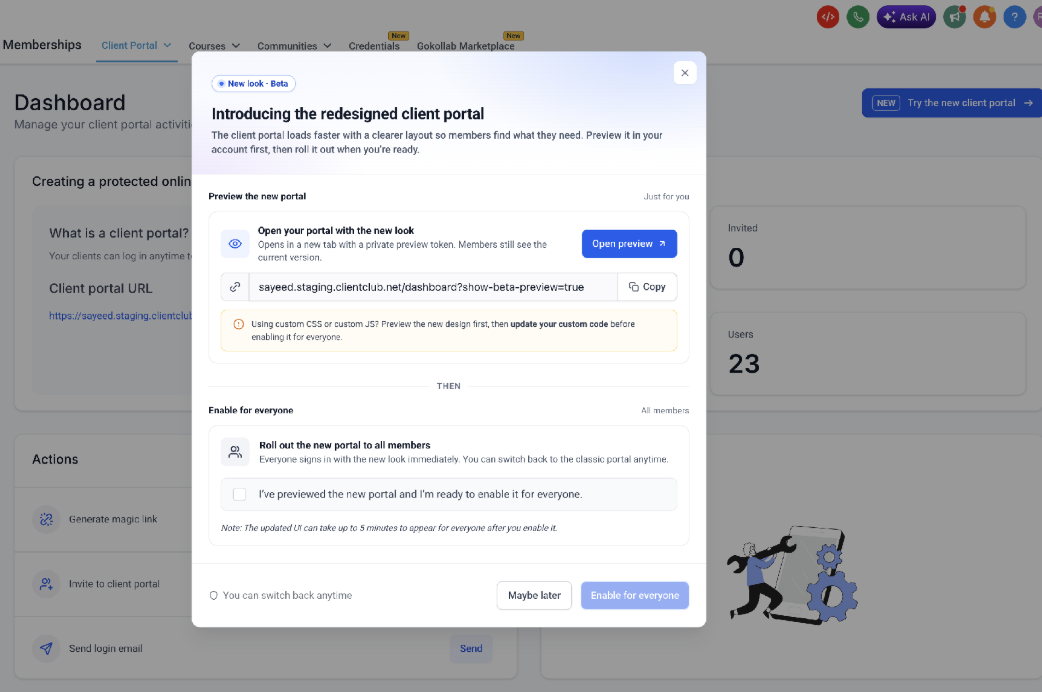
Use the redesigned Client Portal announcement to preview the interface before enabling it for all members.
The announcement includes the following options:
Open preview: Opens the updated portal in a new tab using a private preview token. Members continue to see the current version.
Enable for everyone: Enables the redesigned experience for all members. You can switch back to the classic portal at any time.
Using custom CSS or custom JS? Preview the updated design and make any necessary changes to your custom code before enabling it for everyone.
Note: After enabling the redesigned interface, changes can take up to five minutes to appear for all members.
Step 2 — Let the Migration Finish
Once the Client Portal is queued, migration to the unified experience runs automatically in the background.
The process usually takes a few minutes. You can close the dialog and return later. The migration continues without further action.
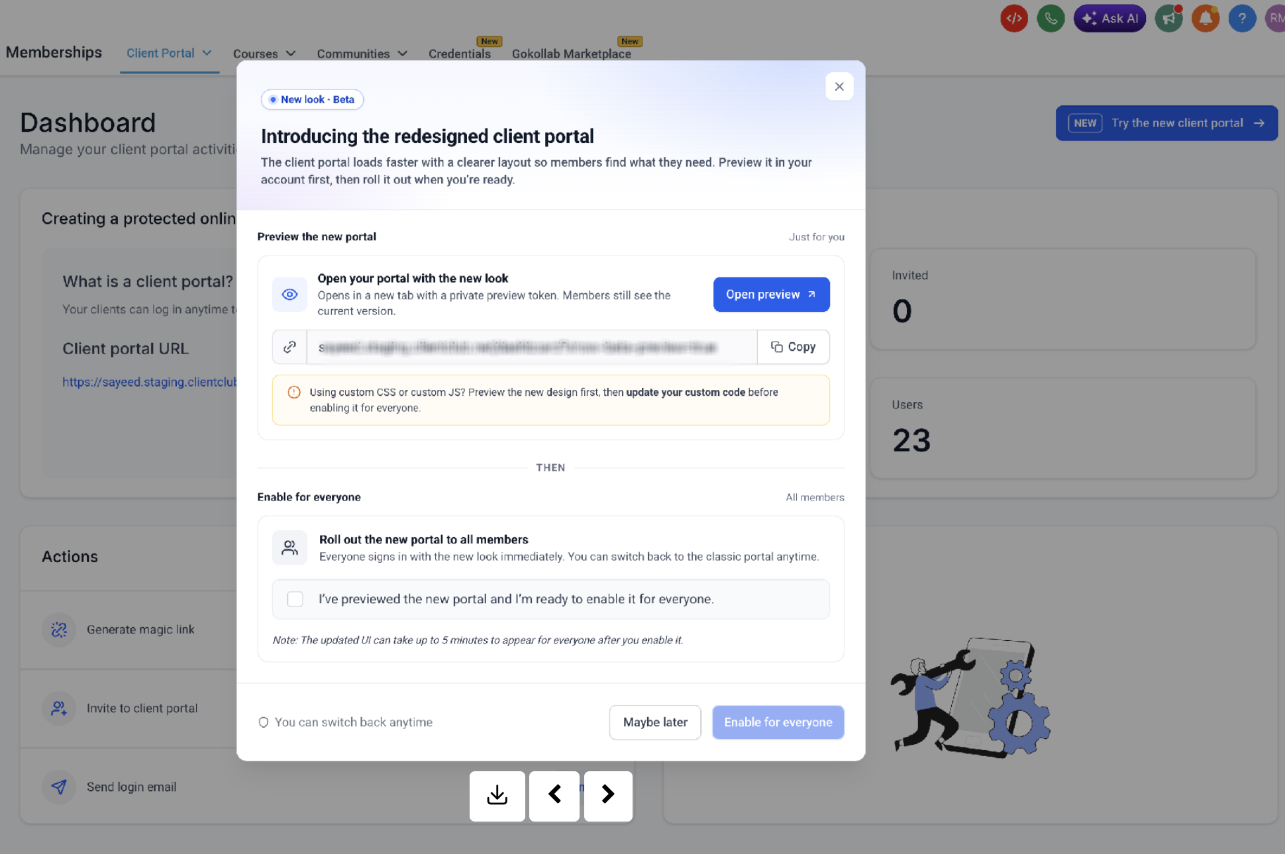
Migration in progress — the upgrade continues in the background without additional action.
Step 3 — Members Log In as Usual
Members do not need to be logged out or invited again.
They can continue signing in with their existing credentials and access their resources under one login.
No additional onboarding is required.
The New Client Portal Email Field
The unified experience introduces a dedicated Client Portal email field on contact records in the CRM.
This field separates a member's Client Portal login identity from their primary contact email.
As a result, changing the primary email on a contact record does not automatically change or disrupt the member's
Client Portal login.
To find the Client Portal email field:
Open the contact record in the CRM.
Select Actions → Client portal.
Locate the Client Portal email field.
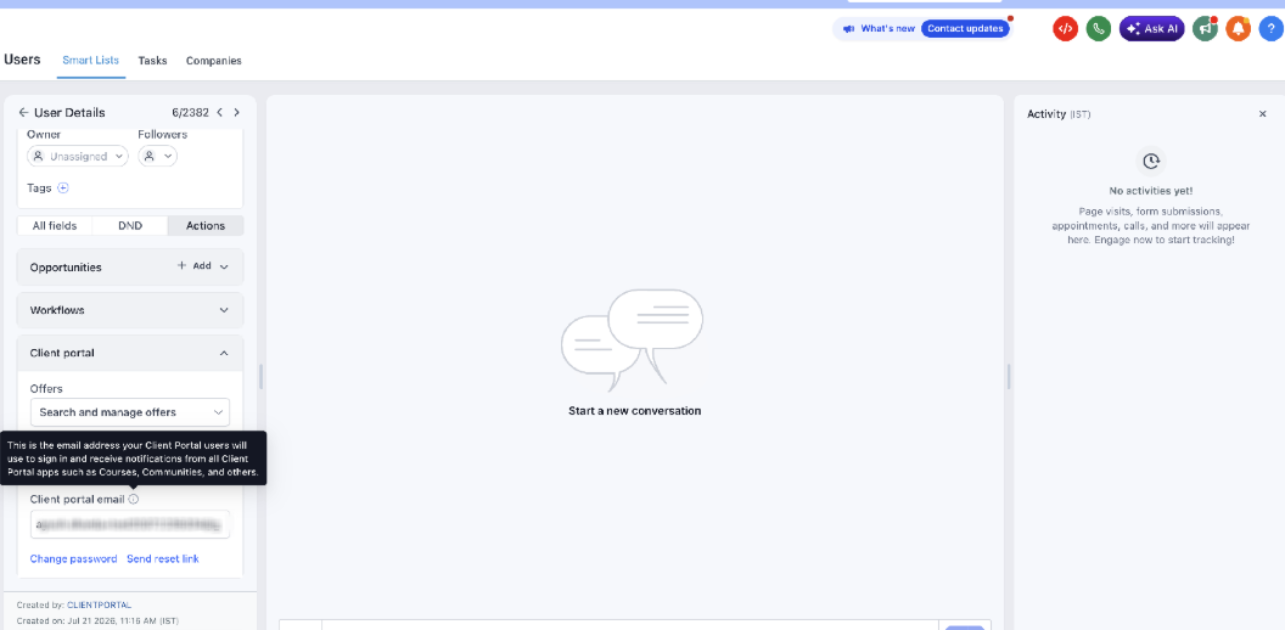
This email address is used to sign in to the Client Portal and receive notifications from Client Portal applications, including Courses and Communities.
From the same panel, you can also:
Change the member's password.
Send the member a password reset link.
Contact record — the dedicated Client Portal email field and password management actions.
Important: Duplicate CRM Contacts Are Not Merged Automatically
The Unified Client Portal Experience brings members' resources together under a single login. However, it does not automatically merge duplicate contact records in the CRM.
If a member has duplicate CRM contact records, those records remain separate.
You must merge duplicate CRM contact records manually when needed.
Frequently Asked Questions
Q. Do members need to be logged out or invited again?
No. Members do not need to log out or receive a new invitation. They can continue signing in as usual.
Q. What happens when a member has multiple duplicate profiles under the same email?
The member signs in once and accesses their courses, communities, memberships, and billing information under a single login.
Content and history previously associated with duplicate profiles appear together.
Q. Does the unified experience merge duplicate contacts in the CRM?
No. The unified experience consolidates member resources under one login, but duplicate CRM contact records remain separate.
You must merge duplicate contact records manually when needed.
Q. Will changing a contact's primary email affect their Client Portal login?
No. The dedicated Client Portal email field keeps the portal login identity separate from the primary contact email.
Updates to the Client Portal email remain synchronized across related contacts.
Q. Can I switch back to the classic portal after enabling the new experience?
Yes. You can switch back to the classic Client Portal interface at any time.
Q. How long does the upgrade take?
The background migration usually takes a few minutes.
After enabling the redesigned interface, the updated appearance can take up to five minutes to become visible to all members.
Q. What should I do if I use custom CSS or JavaScript in the Client Portal?
Preview the redesigned interface using the private preview link.
Review and update your custom CSS or JavaScript as needed before enabling the new experience for everyone.
Notes for Support
Migration not started: The Client Portal is queued for migration when someone first opens its dashboard. Confirm that Memberships → Client Portal → Dashboard has been opened.
Missing member resources: If a member reports missing resources after the upgrade, check whether the related contact records share the same Client Portal email. Resources are unified by portal login identity rather than CRM contact record.
Login issues after an email change: Check the dedicated Client Portal email field on the contact record. This field determines the member's Client Portal login identity.
Styling issues after enabling the new interface: Check whether existing custom CSS or JavaScript needs updating for compatibility with the redesigned Compass interface.