
Use the WhatsApp Media action in Workflows to automatically send images, videos, audio files, and documents to contacts through WhatsApp.
Note: WhatsApp media messages can only be sent during the 24-hour customer service window. This window begins when a contact sends a WhatsApp message and remains open for 24 hours after their most recent message. Outside this window, you can only send approved WhatsApp message templates.
How to Send Images, Videos, Audio, and Documents via WhatsApp
Navigate to Automation.
Click Create Workflow and select Start from Scratch.
Click the + icon to add a new action to your workflow.
Search for WhatsApp: Customer Service Window Check and select the action. This checks whether the contact's 24-hour customer service window is open.
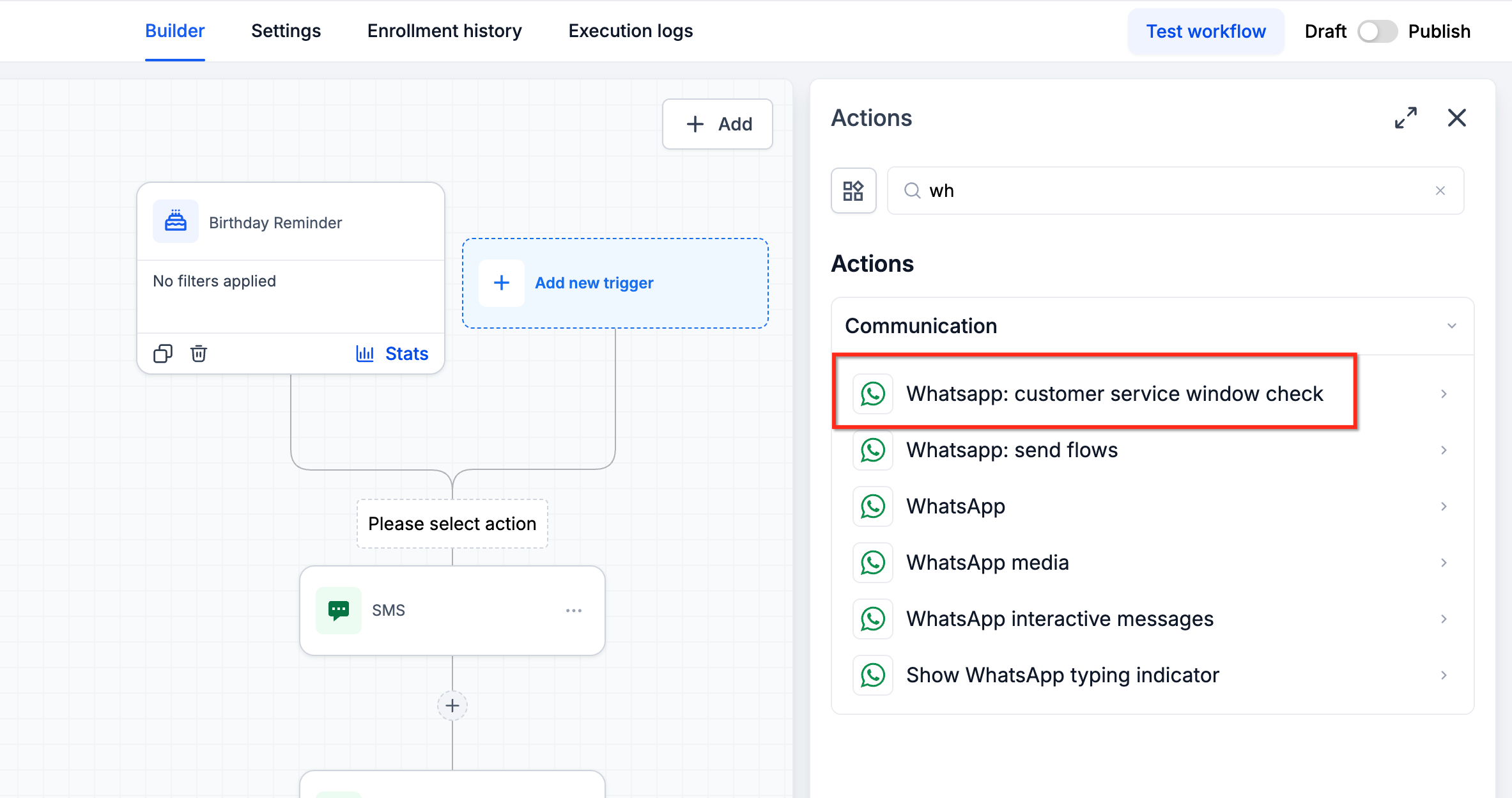
Under the Open branch, click the + icon to add another action.
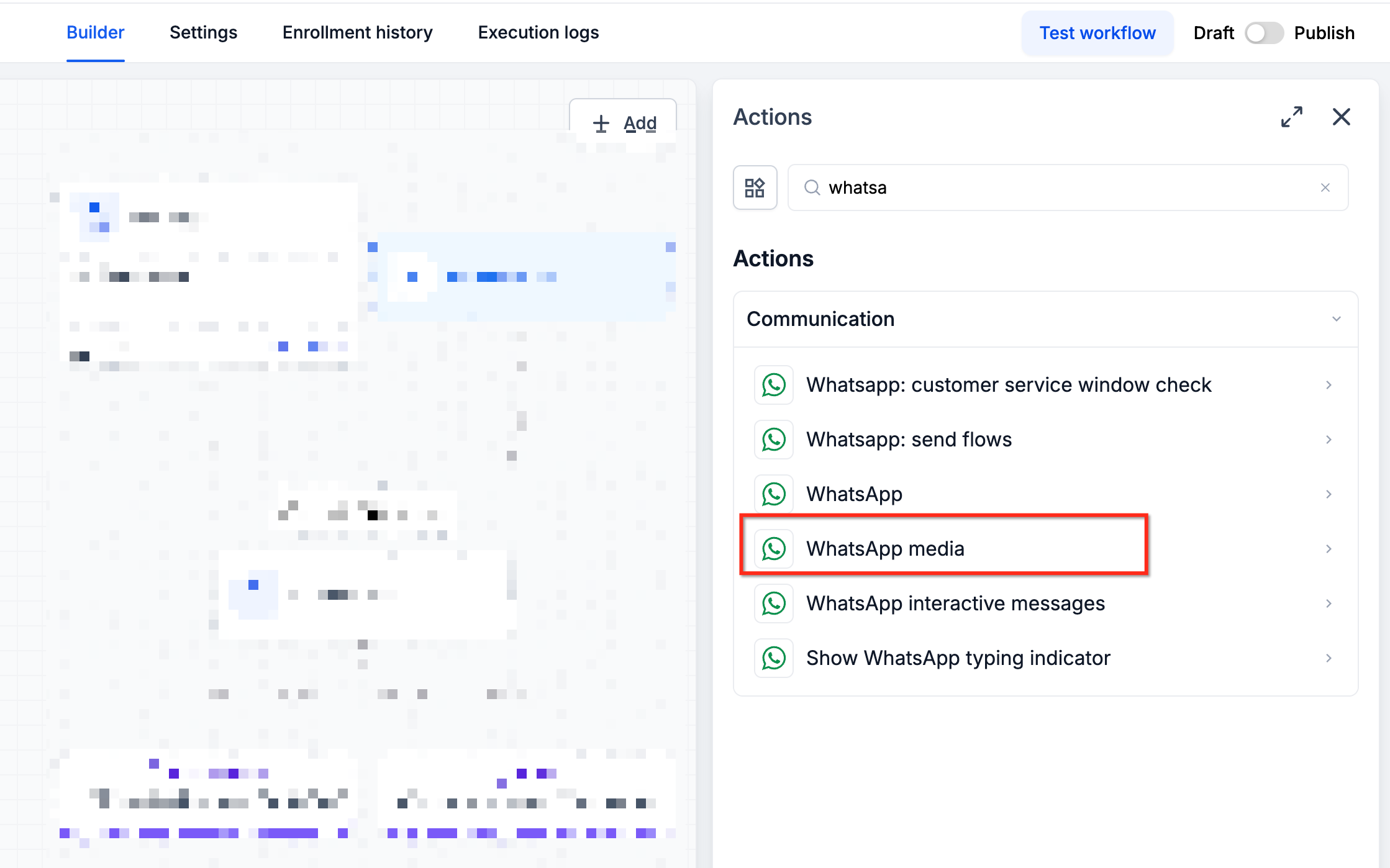
Select WhatsApp Media and configure the following fields:
From Number: Select the connected WhatsApp number you want to use to send the message.
Media Type: Choose the type of media you want to send: Audio, Image, Video, or Document.
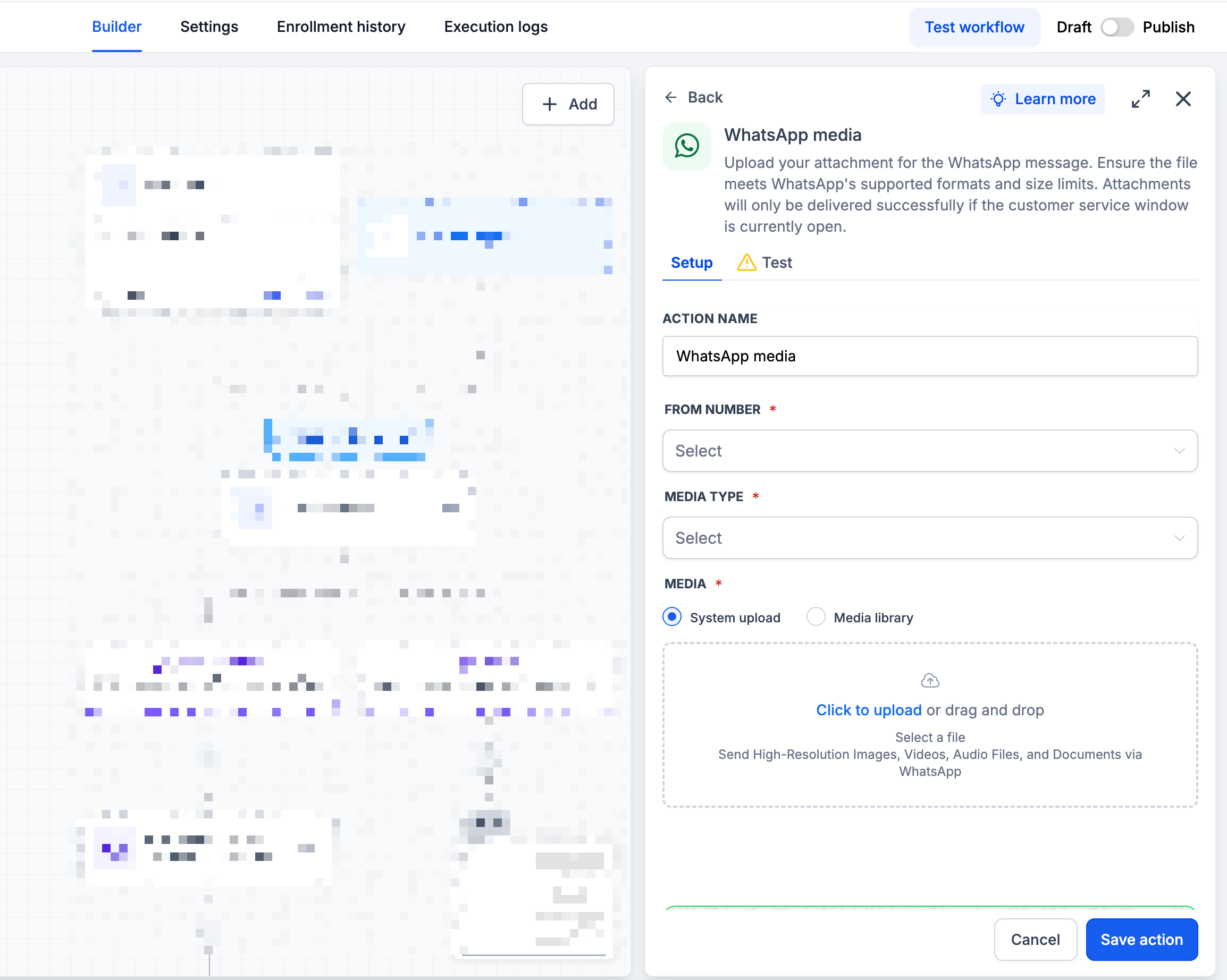
Click Save Action to save your configuration.
Frequently Asked Questions
Q: How can I make sure the workflow sends media only during the customer service window?
Add the WhatsApp: Customer Service Window Check action to your workflow. Place the WhatsApp Media action under the Open branch to send media only while the contact's 24-hour customer service window is active.
Q: Can I test a WhatsApp media message before using the workflow?
Yes. After configuring and publishing your workflow, trigger it under test conditions to verify that the media message sends successfully.
Q: What types of media can I send through WhatsApp?
You can send supported images, videos, audio files, and documents. Select the appropriate option from the Media Type dropdown in the WhatsApp Media action.
Q: How do I select the WhatsApp number used to send a media message?
Open the WhatsApp Media action and select an existing connected WhatsApp number from the From Number dropdown.