
Workflow AI Assistant Performance Analytics helps you understand workflow performance using natural-language questions and execution data. You can review completion rates, contact activity, trigger diagnostics, messaging results, and workflow history without manually searching through multiple logs. The assistant also supports contact journeys, workflow comparisons, version analysis, and downloadable PDF reports. This guide explains how to access Workflow AI, investigate results, compare workflows, and troubleshoot common issues.
TABLE OF CONTENTS
- What Is Workflow AI Assistant Performance Analytics?
- Key Benefits
- Prerequisites and Limitations
- How to Access the AI Assistant
- Performance Insights
- Email and SMS Results
- Branch and Path Insights
- Contact Tracking
- Trigger Diagnostics
- Find Workflows
- Version History
- Download PDF Reports
- Frequently Asked Questions
- Need Help?
What Is Workflow AI Assistant Performance Analytics?
Workflow AI Assistant Performance Analytics is a conversational tool that analyzes workflow execution data and answers performance questions in plain language.
Instead of manually reviewing execution logs, you can ask the assistant about workflow entries, completion rates, trigger activity, contact progress, and email or SMS engagement.
The assistant uses available workflow data to return structured insights, including performance summaries, status breakdowns, and contact-level information.
Workflow AI also supports comparing workflows, investigating changes between saved versions, tracing contact activity, and generating downloadable reports.
Important: Performance analytics queries read workflow information without changing the workflow. Workflow AI's separate building capabilities can create or update workflows when you request supported changes.
When you specify a date range, the assistant uses the configured time zone. If the requested data is unavailable, it identifies the missing information rather than supplying invented metrics.
Key Benefits
Workflow AI Performance Analytics helps you investigate workflow behavior and identify opportunities for improvement. You can examine performance, contact activity, and potential configuration problems without manually combining information from several screens.
- Plain-Language Queries: Ask how a workflow is performing, which contacts encountered errors, or why a trigger is not firing.
- Live Workflow Data: Retrieve insights from available workflow execution data rather than relying on manually assembled reports.
- Period Comparisons: Compare workflow entries, completion rates, and goal conversions across time periods.
- Contact-Level Visibility: Track individual contacts, review their current workflow status, and identify steps where they are waiting or encountered errors.
- Trigger Diagnostics: Investigate whether triggers are firing, how many events qualify, and why some contacts do not enter workflows.
- Workflow Search: Find workflows using names, statuses, tags, triggers, actions, or available editing-history information.
- Contact Journey Debugging: Review the steps a contact followed during a workflow execution or trace activity across multiple workflows.
- Workflow Comparisons: Compare enrollments, completions, completion rates, and error rates to identify performance differences.
- Version Analysis: Review changes between saved workflow versions and investigate whether a change relates to a reported problem.
- PDF Reporting: Generate downloadable reports containing workflow analysis and performance findings.
Prerequisites and Limitations
Before requesting workflow analytics, open the workflow you want to investigate and confirm that the relevant execution data is available. The results depend on the selected workflow, the requested time period, and the information recorded by its executions.
Before You Begin
Check these requirements to make sure the assistant has the information needed for a meaningful analysis.
- Workflow Access: You must be able to open Automation > Workflows and the workflow you want to analyze.
- Workflow AI: The Workflow AI control must be available in the workflow builder.
- Execution Data: Choose a workflow with relevant execution history when requesting performance results.
- Time Period: Identify the date range you want to analyze, such as the last seven or 30 days.
- Contact Information: For contact-specific questions, provide enough identifying information to locate the intended contact.
Limitations to Consider
Workflow AI can analyze the information available for a request, but the quality and completeness of a response depend on the underlying data.
- New workflows or workflows without execution history may not have meaningful performance results.
- Some metrics depend on the types of actions and events included in the workflow.
- Analytics questions do not automatically make changes to workflow configuration.
- A suggested cause of an error should be checked against the actual execution data.
- Reports can contain workflow and contact information, so review them before sharing.
How to Access the AI Assistant
Workflow AI is available from the workflow builder. Open an existing workflow and switch to Chat to ask performance questions or use the suggested prompts.
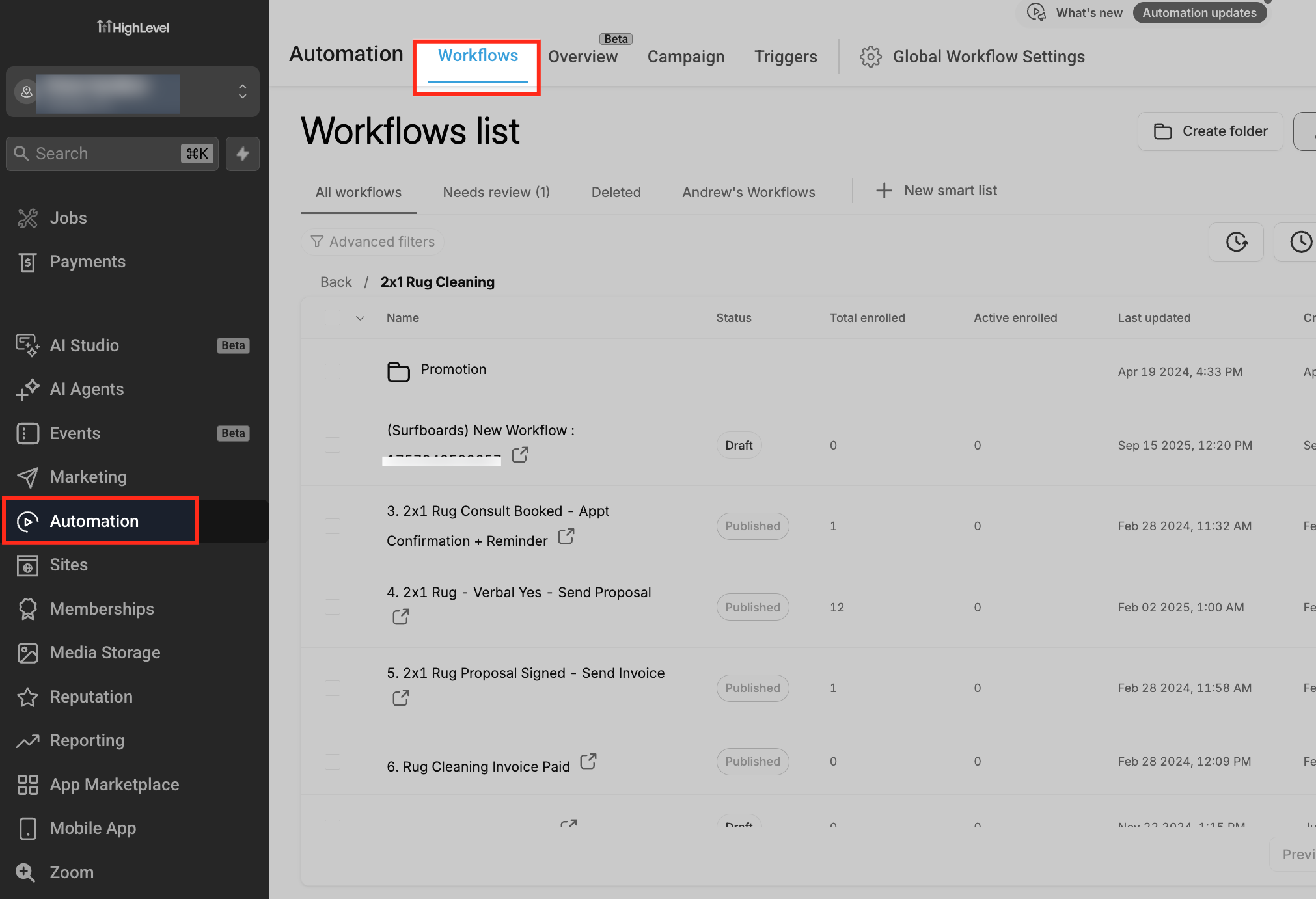
Step 1: Navigate to Automation
Start from the workflow list to find the automation you want to analyze.
- Go to Automation.
- Select Workflows.
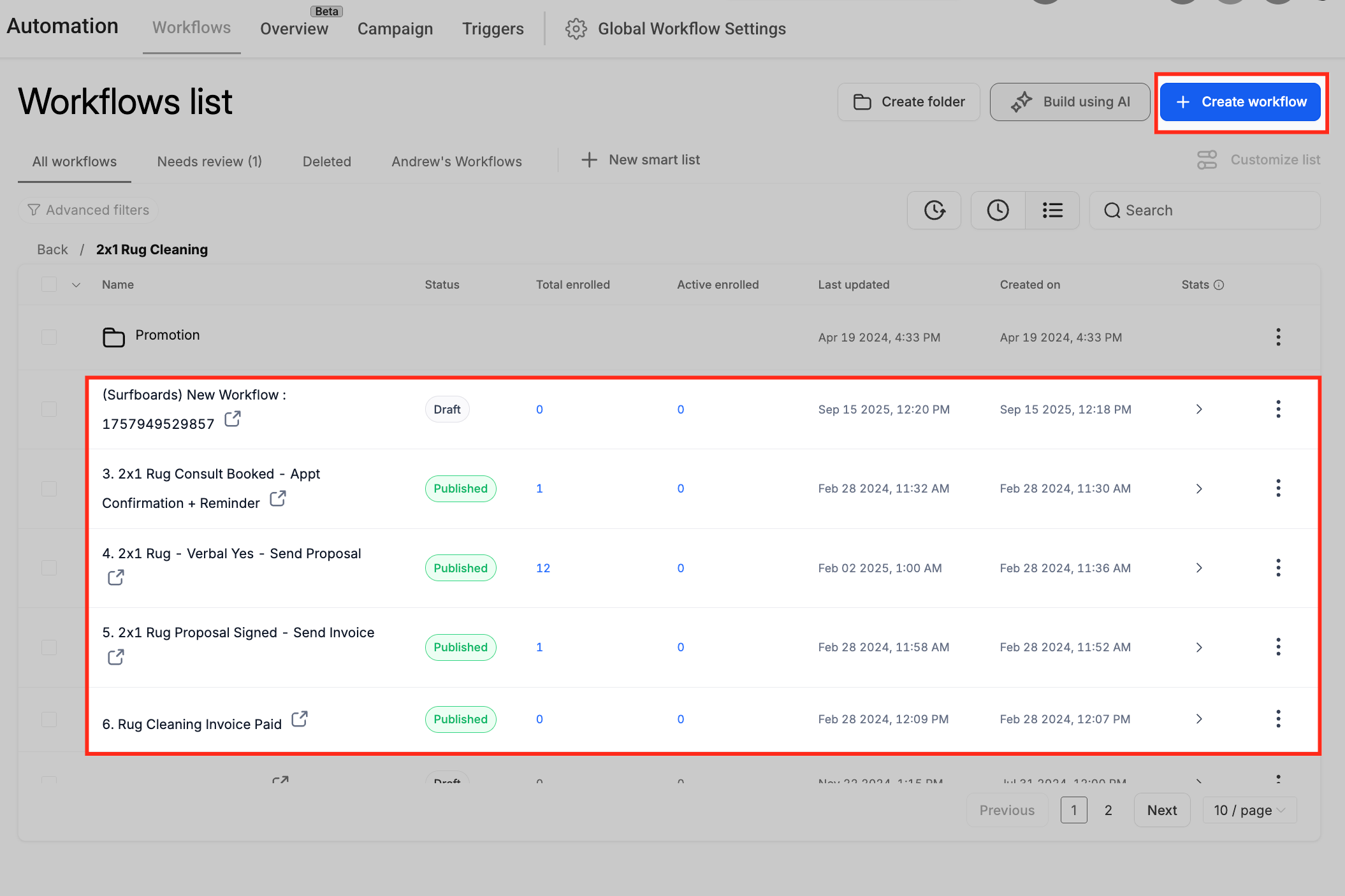
Step 2: Select an Existing Workflow
Choose a workflow with execution history to investigate how it has performed.
- Find the workflow you want to analyze.
- Click the workflow to open it in the builder.
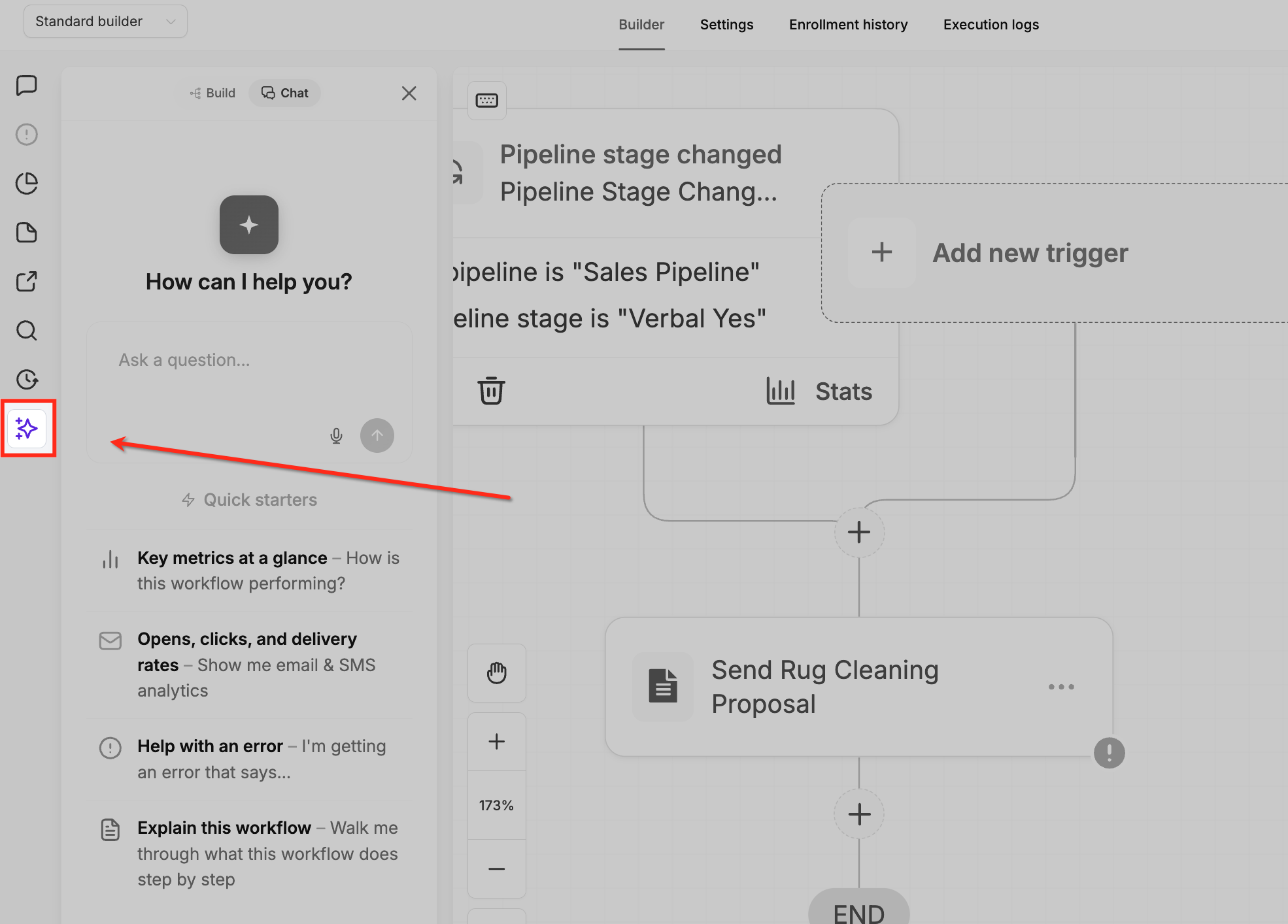
Step 3: Open Workflow AI
Open the assistant from the workflow builder to access its available tools.
- Locate the Workflow AI icon in the builder's left sidebar.
- Click the icon to open the Workflow AI panel.
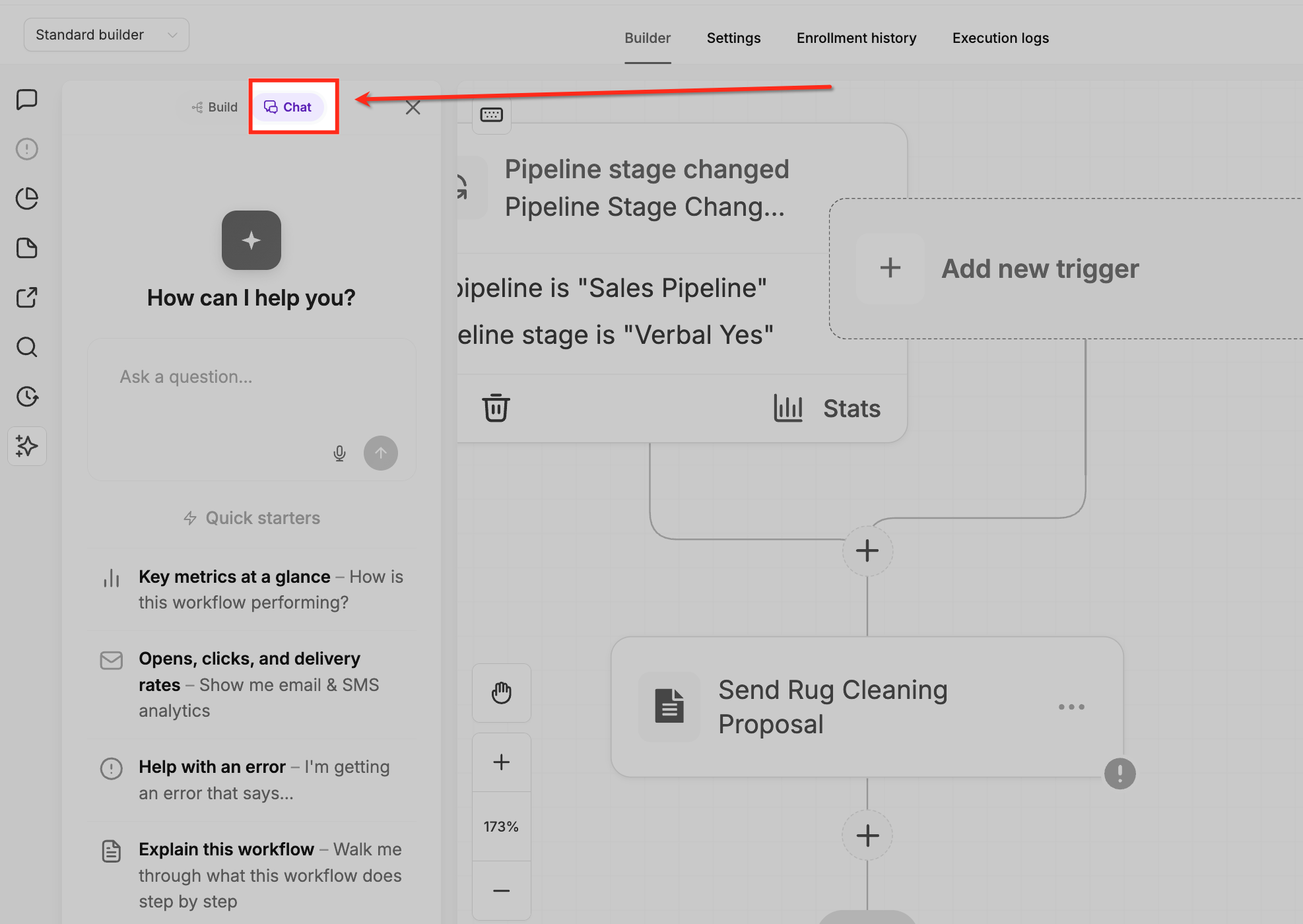
Step 4: Switch to Chat Mode
The Chat interface lets you submit natural-language questions about the workflow.
- Find the available modes in the Workflow AI panel.
- Click the Chat tab.
Step 5: Ask a Performance Question
Enter a question or use a Quick Starter to request workflow insights.
- Click the message input field in the Chat tab.
- Type a performance question, or choose an available Quick Starter.
- Submit the request.
- Review the assistant's response.
Example Quick Starters include Key metrics at a glance and Opens, clicks, and delivery rates.
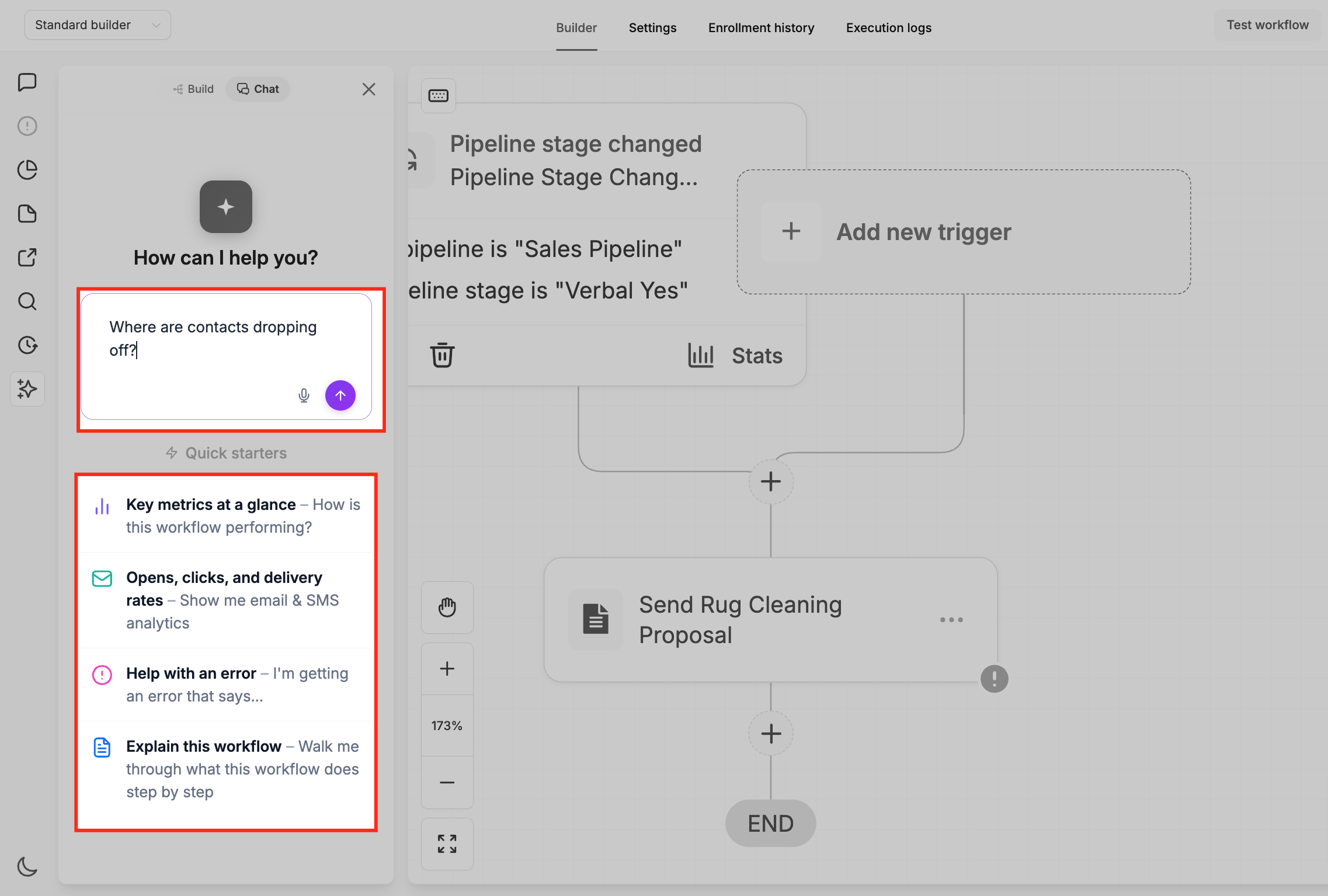
Tip: Start with a question such as "How is this workflow performing?" or "Why aren't contacts entering?" You can then ask follow-up questions to investigate the results.
Performance Insights
Workflow AI provides performance summaries that help you understand how contacts move through a workflow and where problems may occur. You can analyze specific date ranges and compare results across periods.
Review Workflow Performance
Ask Workflow AI about the selected workflow's performance to retrieve available execution metrics.
These metrics can include:
- Total workflow entries.
- Workflow status breakdowns.
- Completion rates.
- Goal conversion counts, when applicable.
- Percentage changes between time periods.
- Contacts waiting at individual steps.
- Steps where contacts encounter errors or leave the workflow.
Example prompts:
- "How is [workflow name] performing?"
- "Show me entries for the last 30 days."
- "What's the completion rate this week versus last week?"
- "Where are contacts dropping off?"
Performance results can include a breakdown of completed, failed, waiting, and skipped executions, along with the available conversion metrics.
The assistant can present trends by week, day, or hour and identify where contacts are currently positioned in the workflow.
Tip: Period comparisons use the equivalent preceding period. For example, asking about the last seven days compares the selected seven-day window against the seven days immediately before it.
Compare Workflow Performance
Workflow AI can compare different workflows to help you identify performance differences and areas that may need attention.
Ask a comparison question in Chat to evaluate:
- Workflow enrollments.
- Completed executions.
- Completion rates.
- Error rates.
You can also request a ranking of published or paused workflows by completion rate. The assistant can identify workflows performing below the median and provide recommendations based on the comparison.
Example prompts:
- "How does this workflow compare to Lead Follow Up?"
- "Which of my workflows perform best?"
Use the comparison to investigate differences in workflow configuration, audience, and execution results before making changes.
Email and SMS Results
Workflow AI can retrieve messaging performance information for supported email and SMS steps. These metrics help you understand engagement and identify potential delivery problems.
Depending on the message type and available events, the assistant can report:
- Delivered messages.
- Email opens.
- Link clicks.
- Replies.
- Bounced messages.
- Unsubscribes.
- Opt-outs.
- Other recorded engagement events.
Example prompts:
- "Show me email results for [step name]."
- "How many SMS messages were delivered?"
- "What's the open rate for the welcome email?"
Use these results to evaluate message performance, review engagement, and investigate delivery or response issues.
Identify Contacts Behind the Metrics
In addition to summary metrics, Workflow AI can help identify the contacts associated with specific workflow events.
For example, ask:
- "Who entered last week?"
- "Which contacts failed at the SMS step?"
The response can include contact names and email addresses from the available workflow execution records.
Branch and Path Insights
For workflows containing conditional branches or split steps, Workflow AI can help you understand how contacts move through different paths.
The assistant can report the percentage of contacts that follow each branch of a supported conditional step.
This information helps you understand whether the workflow's conditions are producing the expected distribution of contacts.
Example prompt:
- "What percentage of contacts took the yes branch?"
Review the results alongside the conditions configured for each branch when troubleshooting unexpected behavior.
Contact Tracking
Workflow AI can help you track individual contacts through workflow executions. This provides visibility into whether a contact completed a workflow, encountered an error, or remains active at a particular step.
You can ask about:
- When a contact entered the workflow.
- Whether the contact completed or failed.
- How long the contact has been in the workflow.
- The contact's current workflow step.
- Contacts waiting at a particular action.
- Contacts who entered during a selected period.
Example prompts:
- "Did [contact name] complete this workflow?"
- "Who entered last week?"
- "Which contacts failed at the SMS step?"
- "Show me everyone waiting at step 3."
See a Contact's Path
Workflow AI can display the steps a contact followed during their latest workflow execution. The results include the timing and outcome of each step, helping you identify where an issue occurred.
The assistant also identifies repeat enrollments so you can distinguish between separate workflow runs for the same contact.
How to View a Contact's Path
Use the Workflow AI Chat interface to request a contact's execution history and open the highlighted path.
- Go to Automation > Workflows.
- Open the workflow you want to investigate.
- Click the Workflow AI icon in the left sidebar.
- Open the Chat tab.
- Ask about a specific contact's activity in the workflow.
- Review the returned step-by-step results, including times and outcomes.
- Click See contact path to open the workflow canvas in a new tab with the contact's path highlighted.
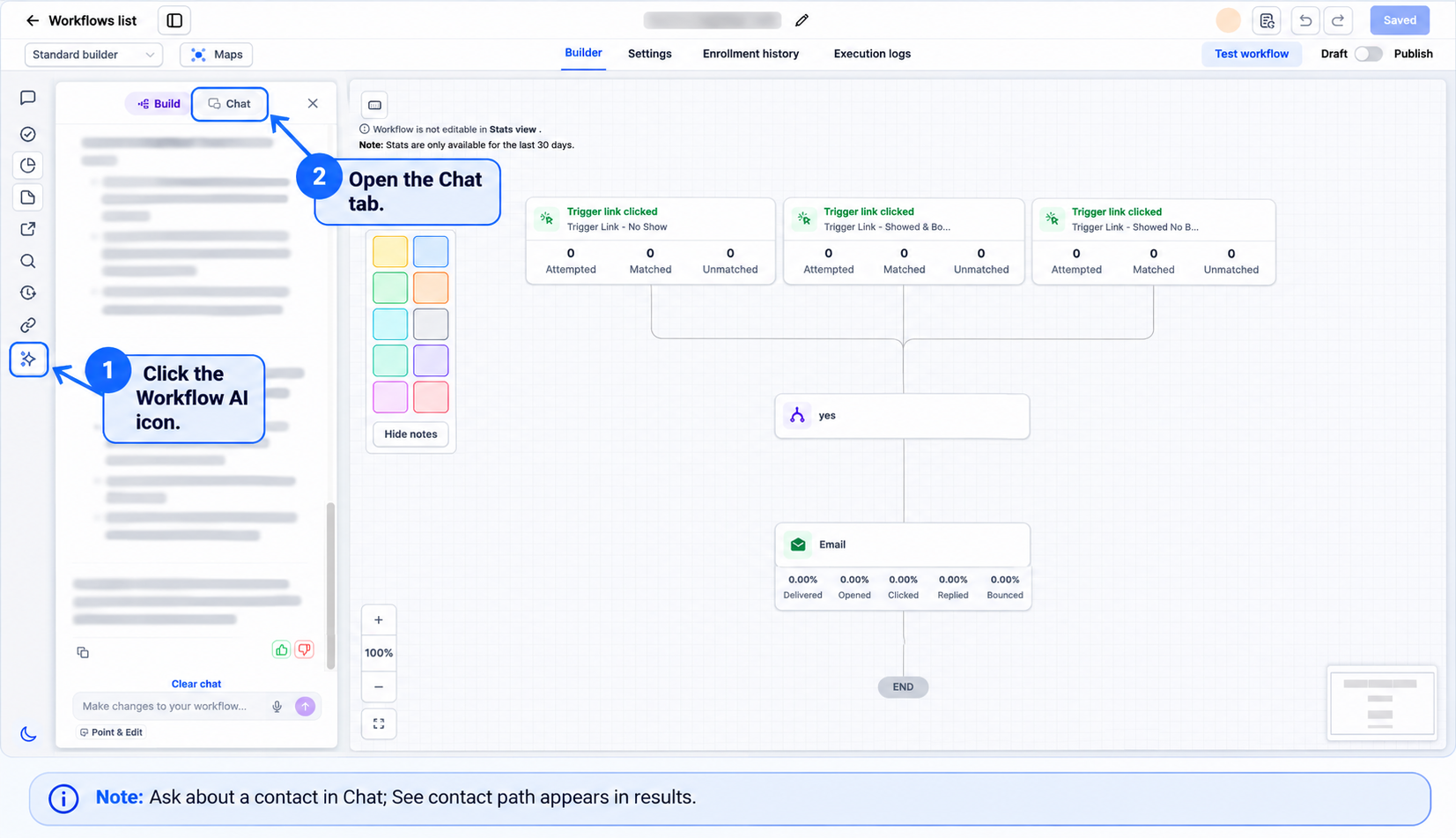
Example prompt:
"Show me the path jane@acme.com took through this workflow."
Use the highlighted path to identify the actions the contact completed, the step where the execution stopped, and any available execution errors.
Cross-Workflow Contact Journeys
Workflow AI can trace a contact's activity across multiple workflows. This helps you understand how separate automations interact with the same contact.
For a selected contact, the assistant can identify:
- Which workflows the contact entered.
- How many times the contact enrolled in each workflow.
- How individual workflow runs ended.
- Whether the contact is currently active in a workflow.
You can also ask which contacts are enrolled in several workflows at the same time. The response can show enrollment counts and identify contacts with the most simultaneous workflow activity.
Example prompts:
- "Show me the journey of jane@acme.com across all the workflows."
- "Who's in three or more workflows?"
Use these insights to understand overlapping automation activity, identify duplicate follow-up paths, and investigate unexpected contact experiences.
Trigger Diagnostics
Trigger diagnostics help you understand why a workflow may not be enrolling as many contacts as expected. Workflow AI can examine trigger activity and identify events that did not meet the required conditions.
The assistant can report:
- Whether the trigger is firing.
- How frequently the trigger fires.
- The percentage of trigger events that qualify.
- Common reasons contacts are rejected.
- Details of individual trigger events.
For an individual event, Workflow AI can compare the value that was checked against the value required by the trigger condition.
Example prompts:
- "Is the trigger firing?"
- "What percentage of trigger fires qualified?"
- "Why are contacts being rejected?"
- "Show me the last trigger fire."
Note: Trigger diagnostics can reveal rejected events that do not appear in standard workflow execution logs. If contacts are not entering a workflow, review whether the trigger fired and whether its qualification conditions were met.
Find Workflows
Workflow AI can help you locate workflows using their names, statuses, configured steps, and available editing-history information.
You can search for workflows by:
- Workflow name.
- Workflow status.
- Tags.
- Included triggers.
- Included actions.
- The user who last edited the workflow.
This is useful when auditing multiple workflows, identifying automations that use a particular step, or reviewing recent workflow changes.
Example prompts:
- "Which workflows use a Wait step?"
- "Which workflows have the Invoice Paid tag?"
- "Show me all active workflows."
- "Which workflows did [team member name] last edit?"
Version History
Workflow AI can analyze saved workflow versions to help you understand what changed and investigate whether an edit may have contributed to an execution problem.
The assistant can identify who edited a workflow and describe differences between its saved versions.
Compare Workflow Versions
Version comparisons highlight configuration changes that may affect workflow behavior.
These comparisons can identify:
- Steps added to the workflow.
- Steps removed from the workflow.
- Steps moved or renamed.
- Changes to fields and settings.
- The user responsible for available recorded edits.
Investigate Whether an Edit Caused a Problem
You can ask Workflow AI whether a specific change may be responsible for an observed error or change in workflow behavior.
The analysis uses one of three confidence labels:
- Direct cause: The available analysis identifies a direct connection between the change and the reported issue.
- Lines up: The change is consistent with the observed issue, but the available information does not conclusively establish causation.
- Can't tell: The available evidence is insufficient to determine whether the change caused the issue.
These assessments help guide troubleshooting but should be reviewed alongside actual execution results. Secret values remain hidden in version comparisons.
Example prompts:
- "Who last edited this workflow?"
- "Compare the last 10 versions of this workflow."
- "Did this edit cause the failure?"
Download PDF Reports
Workflow AI can generate a workflow analysis in Chat and provide a downloadable PDF report. This helps you share findings or retain a record of performance without manually assembling screenshots.
How to Download a PDF Report
Request a PDF when asking for workflow analysis. The assistant displays the results in Chat and provides a download option.
- Go to Automation > Workflows.
- Open the workflow you want to analyze.
- Click the Workflow AI icon in the left sidebar.
- Open the Chat tab.
- Ask for an analysis and include PDF, download, or export in the request.
- Review the analysis displayed in Chat.
- Click Download PDF on the card below the response.
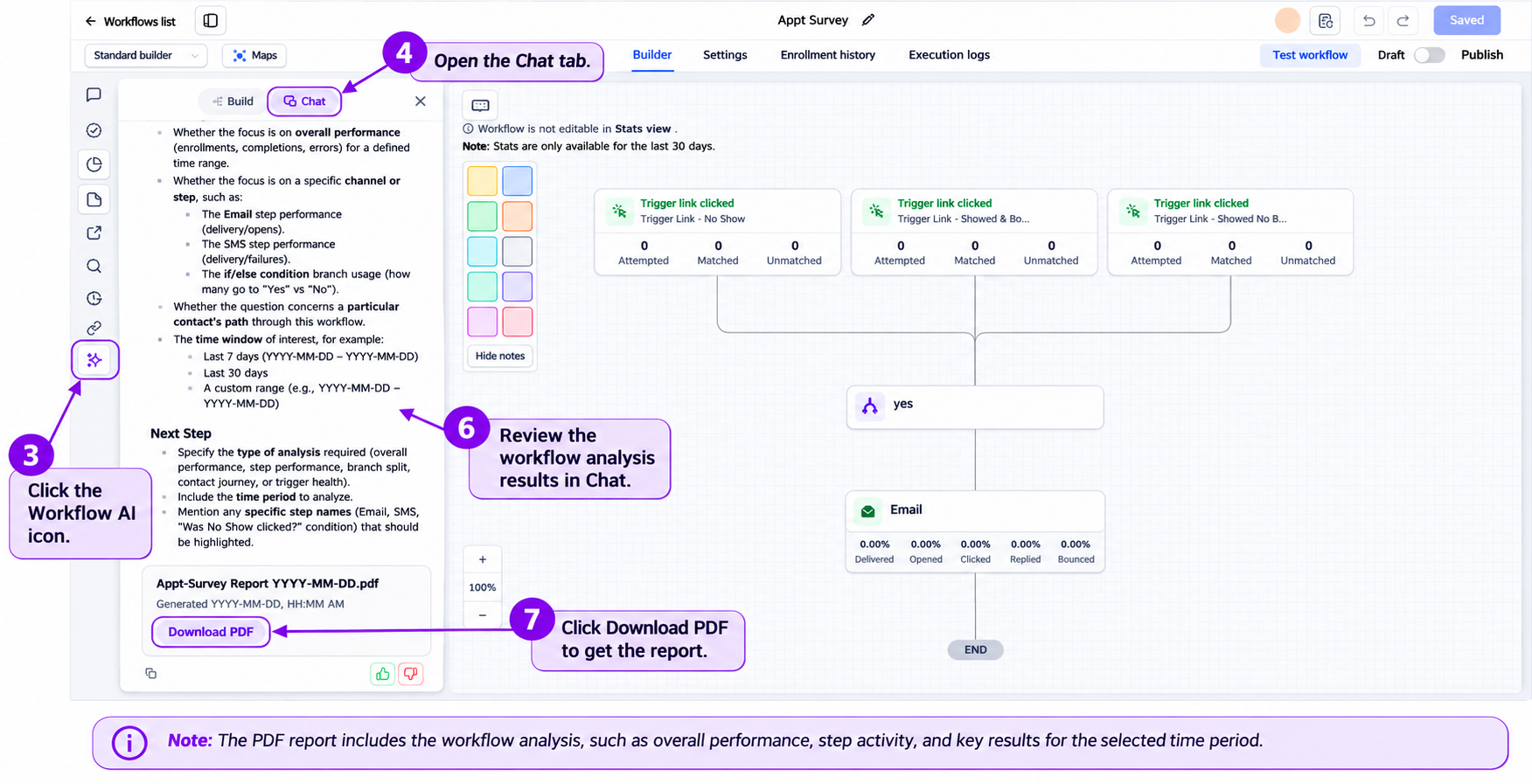
Example prompt:
"Give me a performance report for the last 30 days here, and also as a PDF I can download."
Important: PDF reports may contain contact information and workflow performance details. Share downloaded reports only with people authorized to view that information.
Note: PDF export is documented for this feature. CSV export is not confirmed by the supplied documentation.
Frequently Asked Questions
Q: Does the AI Assistant modify my workflows?
Performance analytics questions read workflow data without modifying its configuration. Workflow AI also provides separate workflow-building capabilities that can create or edit workflows when you request supported changes. Review proposed changes before applying them.
Q: What does "last 7 days" mean?
Workflow AI uses the configured time zone for date calculations. "Last 7 days" means the seven-day period ending at the current moment in that time zone.
Q: What happens if there is no data for my query?
The assistant indicates that the requested data is unavailable and may suggest what to check. For example, verify that the workflow has executions within the selected time period.
Q: How do trigger diagnostics differ from execution logs?
Trigger diagnostics can identify events that fired but did not qualify for workflow enrollment. Standard execution logs focus on contacts that entered the workflow. Diagnostics help explain why a contact may have been rejected before enrollment.
Q: Can I export the data provided by Workflow AI?
Yes. Workflow AI supports downloadable PDF reports. Include "PDF," "download," or "export" in your request. The assistant displays the analysis in Chat and provides a Download PDF card.
CSV export is not confirmed in the supplied feature documentation.
Q: Is there a limit to how many questions I can ask?
Usage limits may apply. If you encounter a limit, follow the guidance displayed in the application or contact support.
Q: What kinds of questions can I ask?
You can ask about workflow entries, completion rates, trigger behavior, contact progress, messaging results, branch activity, workflow searches, and version history.
You can also trace contact paths across workflows, compare workflow performance, review changes between saved versions, identify underperforming workflows, and generate PDF reports.
Q: Can Workflow AI show the path a contact followed?
Yes. Ask about the contact's activity in a workflow, then click See contact path when the option appears. The workflow canvas opens with the relevant execution path highlighted.
Q: Can Workflow AI compare two workflows?
Yes. You can request comparisons involving enrollments, completions, completion rates, and error rates. Workflow AI can also rank supported workflows and highlight performance differences.
Need Help?
If Workflow AI does not return the expected analytics, start by reviewing the selected workflow, requested time period, and available execution history. These checks can help identify common data and configuration issues.
- Workflow AI Is Not Available: Open Automation > Workflows, select a workflow, and check the builder's left sidebar for the Workflow AI icon. If it is unavailable, contact support.
- No Performance Data: Confirm that the selected workflow has execution history within the requested date range.
- Unexpected Completion Rates: Verify the time period and review the available workflow execution results.
- Contacts Are Not Entering: Ask Workflow AI whether the trigger is firing and whether contact events are meeting its qualification conditions.
- A Contact Path Is Missing: Confirm the contact identifier and check whether the contact has relevant workflow activity.
- Messaging Results Are Incomplete: Confirm that the workflow contains the relevant email or SMS step and that the requested events are available.
- Workflow Comparison Is Unclear: Identify the workflows you want to compare and specify the metrics, such as enrollments, completions, or error rates.
- Version Analysis Is Inconclusive: Review the available workflow versions, changed settings, and execution details alongside the assistant's assessment.
- PDF Report Is Missing: Include "PDF," "download," or "export" in your prompt and check the response for the Download PDF card.
If the problem continues, contact support with the workflow name, your question, the expected results, the response you received, and relevant screenshots. Avoid including private credentials or unnecessary contact information.