
The Slack Workflow Action lets you send automated messages to Slack users and channels from workflows. You can send direct messages, notify public channels, or post to private channels when workflow conditions are met. Messages can include contact information and other dynamic values. This guide explains how to connect Slack, configure the action, choose recipients, and troubleshoot common issues.
TABLE OF CONTENTS
- What Is the Slack Workflow Action?
- Key Benefits
- Prerequisites and Limitations
- How to Connect Slack
- How to Set Up a Slack Workflow Action
- Send a Direct Message to a User
- Send a Public Channel Message
- Send a Private Channel Message
- Frequently Asked Questions
- Need Help?
What Is the Slack Workflow Action?
The Slack Workflow Action sends automated messages to a connected Slack workspace. It helps teams receive notifications about workflow events without manually creating each message.
The action supports three messaging events:
- Send Direct Message to User: Send a private message to a selected Slack user.
- Send Public Channel Message: Post a message to a public Slack channel.
- Send Private Channel Message: Post a message to an accessible private Slack channel.
Messages can include custom variables to display available contact or workflow information.
Key Benefits
Automated Slack notifications help teams share important information and respond to events as they happen.
- Automated Notifications: Send messages when workflow conditions are met.
- Targeted Messaging: Notify an individual user or a selected channel.
- Dynamic Content: Add contact information using custom variables.
- Centralized Updates: Keep workflow notifications in Slack.
Common Use Cases
Use the action to notify the appropriate people about business activity.
- Project Management: Notify team members about task assignments and updates.
- Sales: Send alerts when new leads or opportunities require attention.
- Customer Support: Notify support teams about important customer events.
- Human Resources: Send internal onboarding or training reminders.
- IT: Notify technical teams about reported issues.
- Team Announcements: Post updates or reminders to public channels.
Prerequisites and Limitations
Before adding Slack messaging to a workflow, confirm that the intended Slack workspace is connected and the recipient or channel is available.
- Slack Connection: Connect and authorize the Slack workspace you want to use.
- Workflow Access: You must be able to create or edit workflows.
- Valid Recipient: Direct messages require a Slack user who can be identified by the selected method.
- Channel Availability: Public and private channel options depend on the connected Slack account's access.
- Large Workspaces: Use Load More when a user or channel does not appear in the initial search results.
Important: Messages sent to private channels appear as the user who created the Slack integration, not as a bot.
How to Connect Slack
Connect Slack through the available integration settings before using it in a workflow. The updated Marketplace connection experience supports account authorization and connection management.
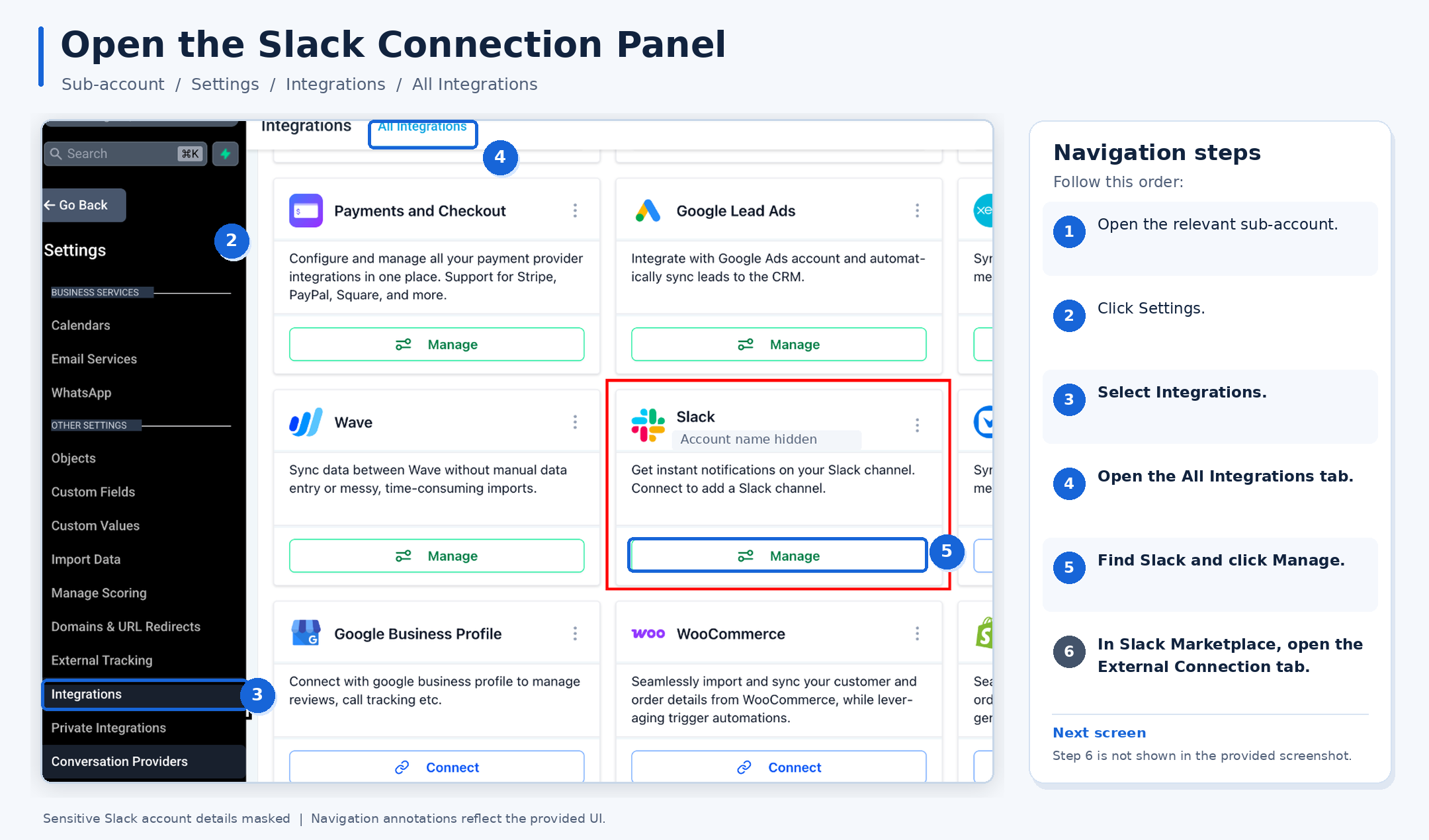
Step 1: Open the Slack Integration
- Click Settings.
- Select Integrations.
- Open the All Integrations tab.
- Find the Slack integration.
- Click Manage.
- In Slack Marketplace, open the External Connection tab.
Step 2: Connect or Review a Slack Account
Use the External Connection tab to check connection status or connect a Slack account.
- If no Slack account is connected, look for Connection Pending.
- Click Connect to Slack to begin authorization.
- Complete the authorization steps for the intended Slack workspace.
- If connected accounts are already listed, use Add Account to connect another account when that option is available.
- Review the connected account information.
The connection list may include:
- Account Name: The connected account's name.
- Email: The email associated with the connection.
- Status: The account's connection status.
- Default: The selected default connection, when supported.
- Search accounts: A control for finding connected accounts.

Note: Existing Slack connections continue working without requiring users to rebuild their workflows solely because of the Marketplace migration. The updated connection interface may differ depending on feature availability.
How to Set Up a Slack Workflow Action
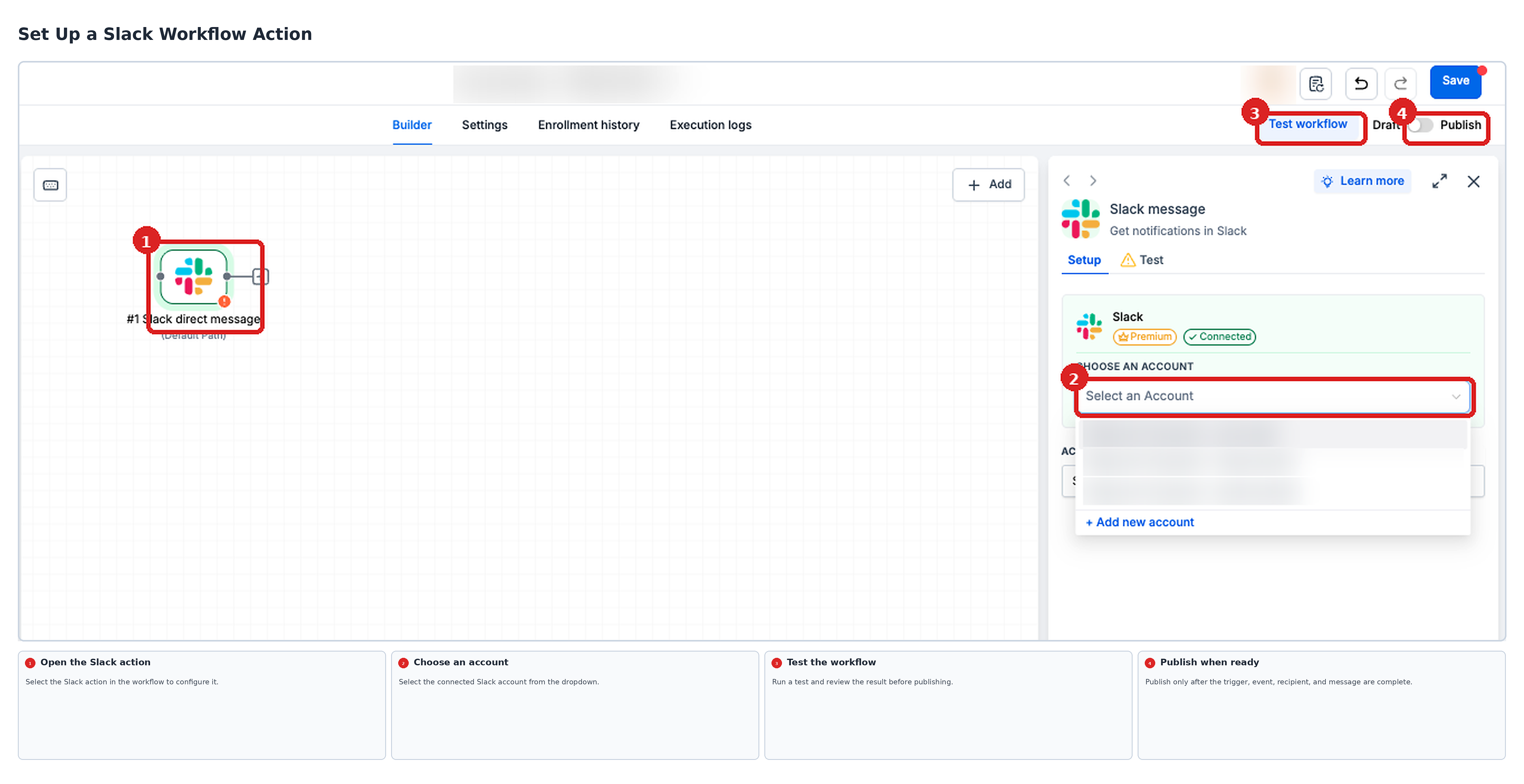
After connecting Slack, add a Slack messaging action to the workflow. Select the connected account and message event before configuring the recipient and message content.
- Go to Automation > Workflows.
- Open an existing workflow or create a new one.
- Configure the workflow trigger that should start the automation.
- Click + Add Action.
- Search for Slack and select the Slack messaging action.
- Under Choose an Account, select the connected Slack account.
- Under Event, choose the message type:
- Send Direct Message to User
- Send Public Channel Message
- Send Private Channel Message
- Configure the recipient or channel using the relevant instructions below.
- Enter the message content and save the action.
- Test the workflow and review its results before publishing.
Send a Direct Message to a User
Use this event to send a Slack message to a specific person. The recipient can be selected directly or identified from information already available in the workflow.
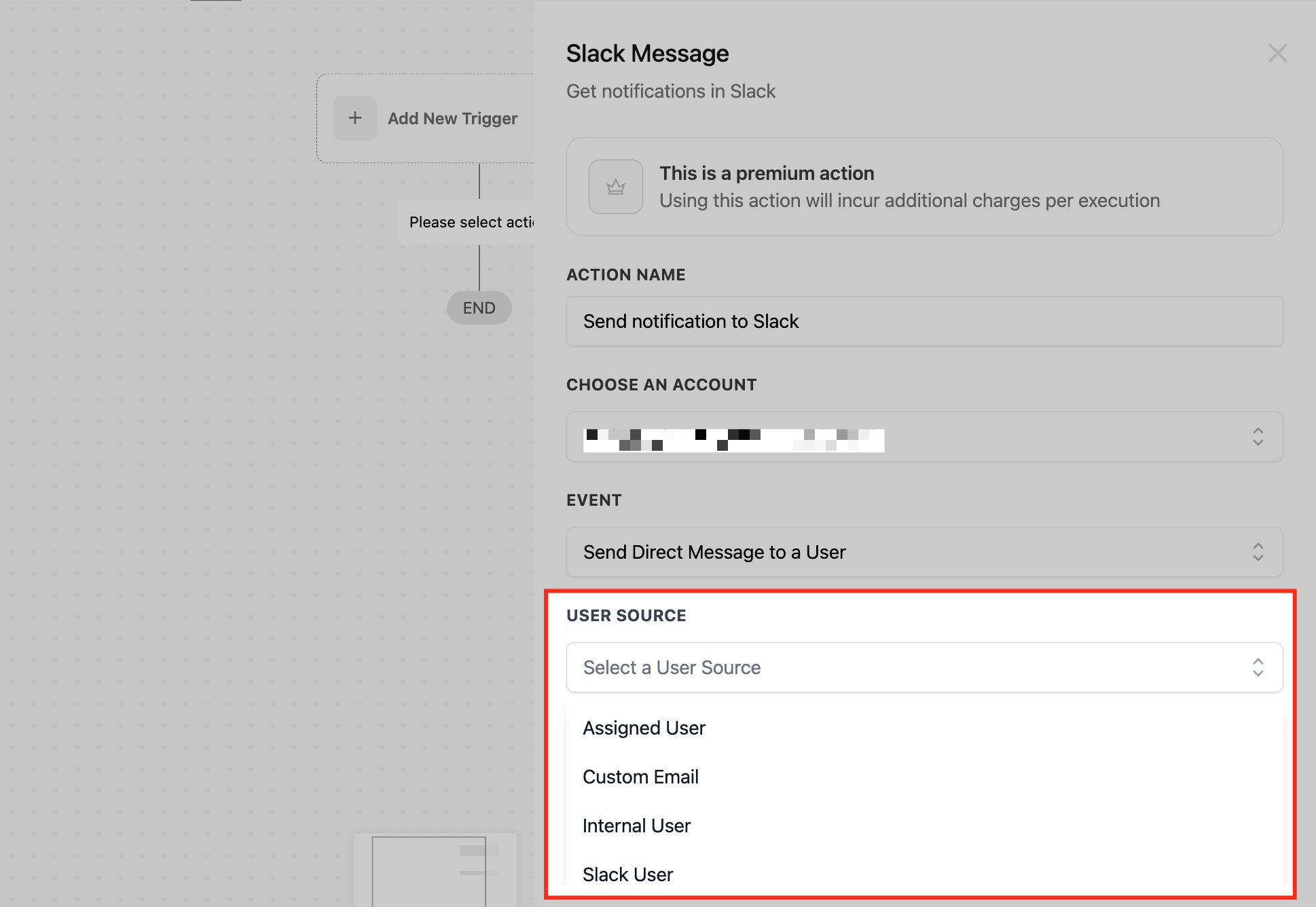
Choose a Recipient Source
- In the Slack workflow action, select Send Direct Message to User.
- Choose one of the available recipient sources:
- Assigned User
- Custom Email
- Internal User
- Slack User
- Assigned User
- Complete the fields for the selected recipient source.
Assigned User
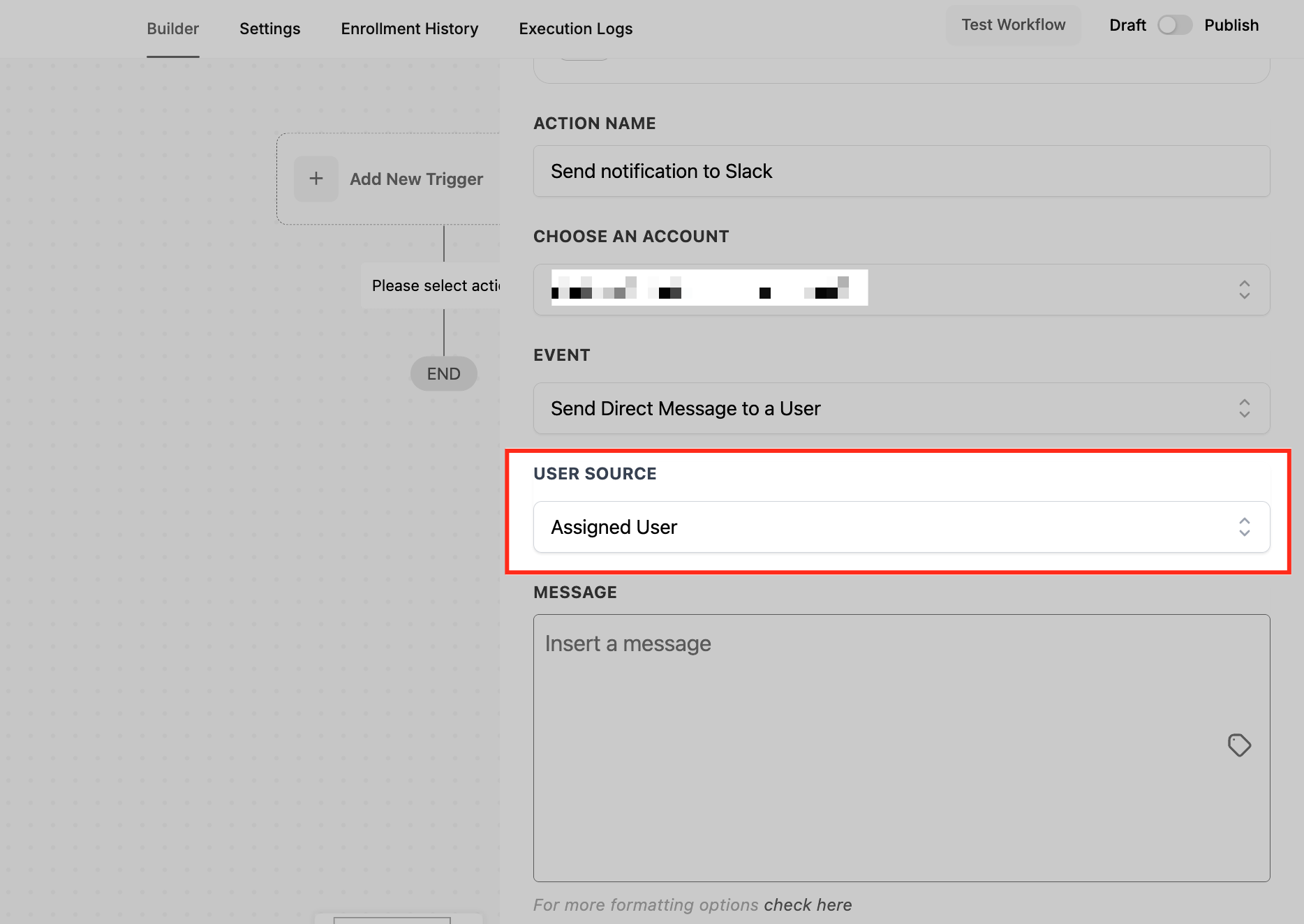
This option sends a notification to the Slack user matching the assigned contact user's email address.
The system uses the assigned user's email, configured in Settings > My Staff > User Info, to find the corresponding Slack user.
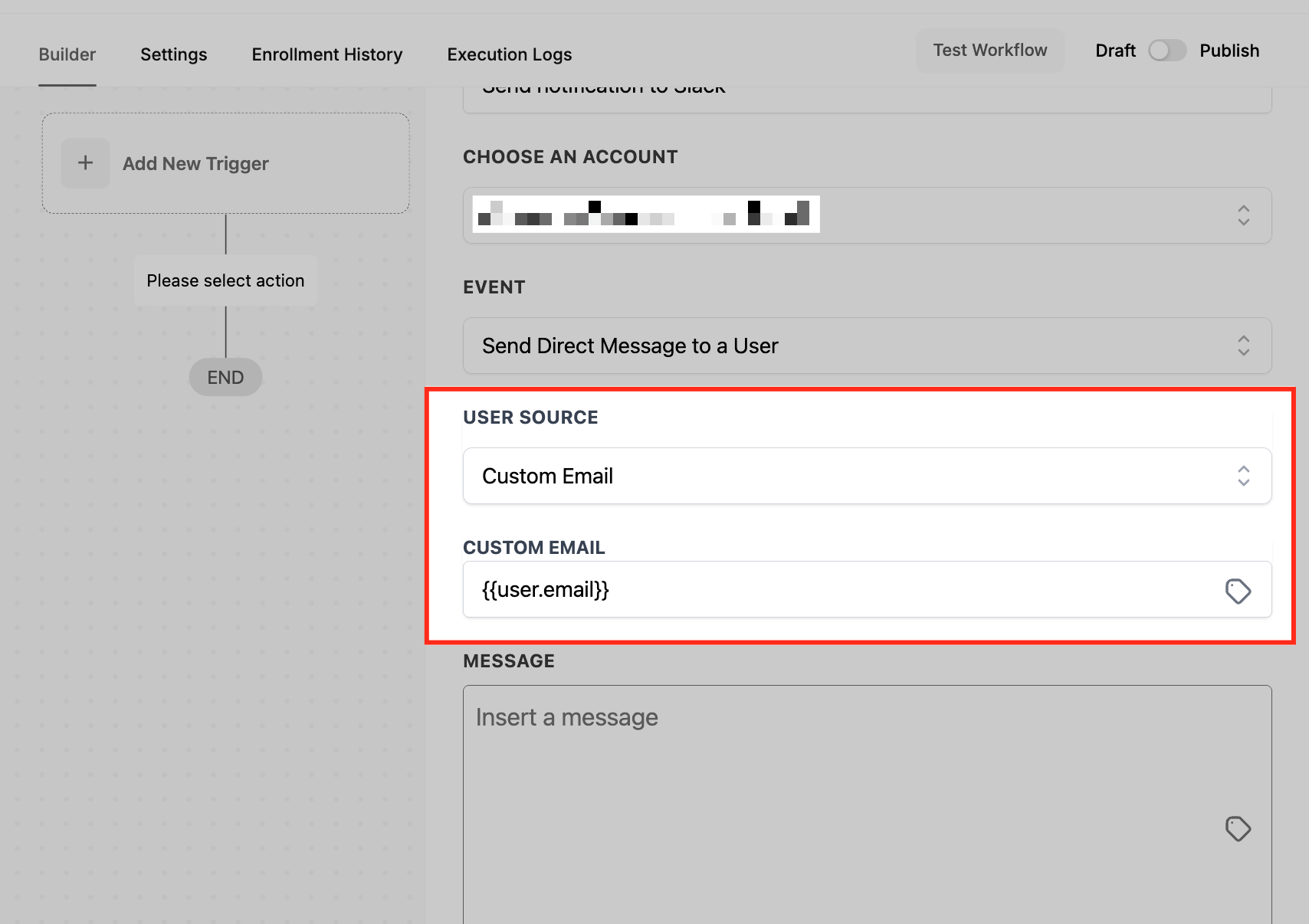
Custom Email
Use Custom Email when the intended Slack recipient is identified by an email address rather than selected directly.
- Select Custom Email.
- Enter the recipient's email address or use the custom variable picker to insert an email dynamically.
- Confirm the email matches a user in the connected Slack workspace.
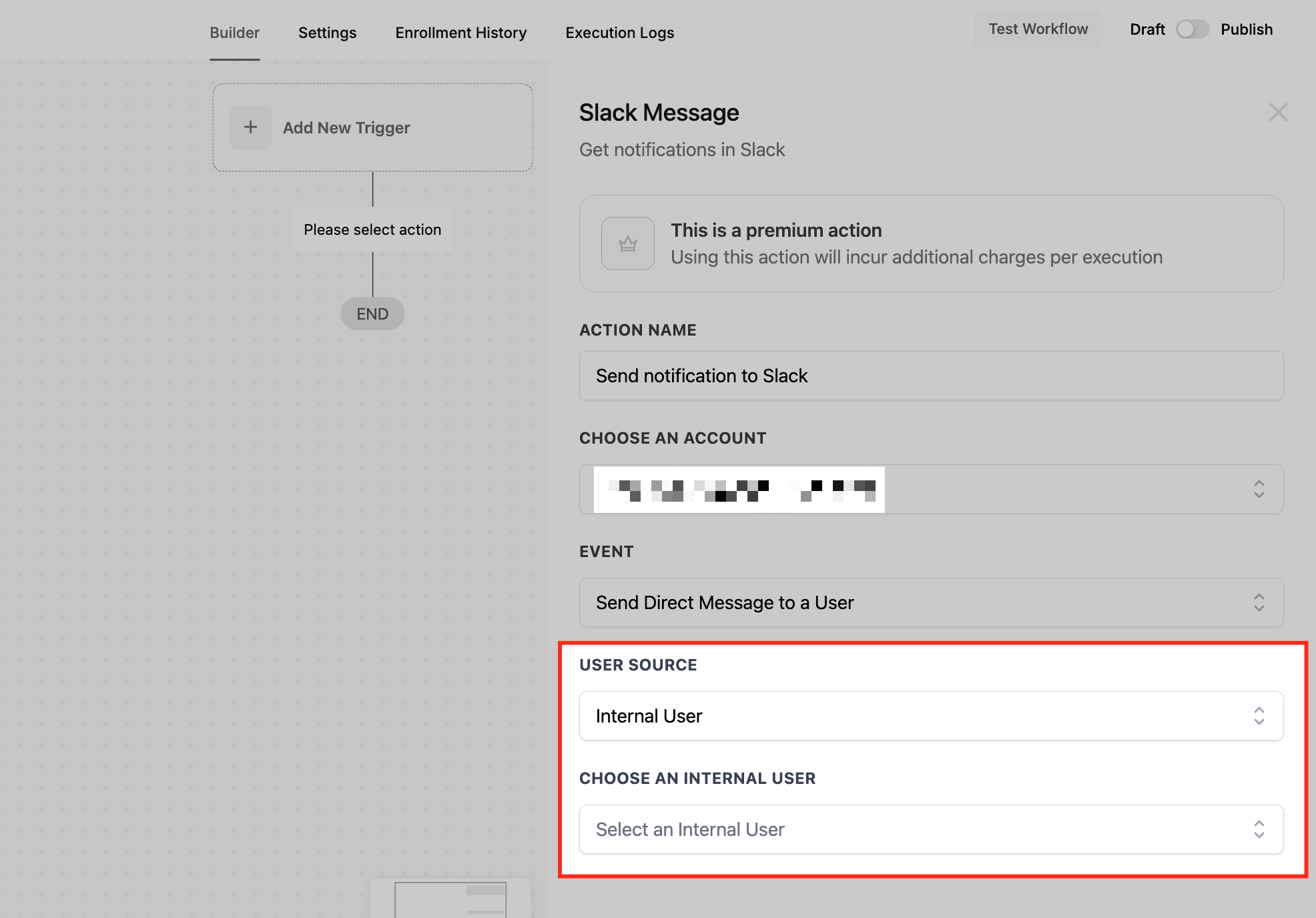
Internal User
Use Internal User to select a user listed in the application. The selected user's email is used to find the matching Slack recipient.
This option is useful when the same team member should receive workflow notifications, such as updates about completed sales or assigned work.
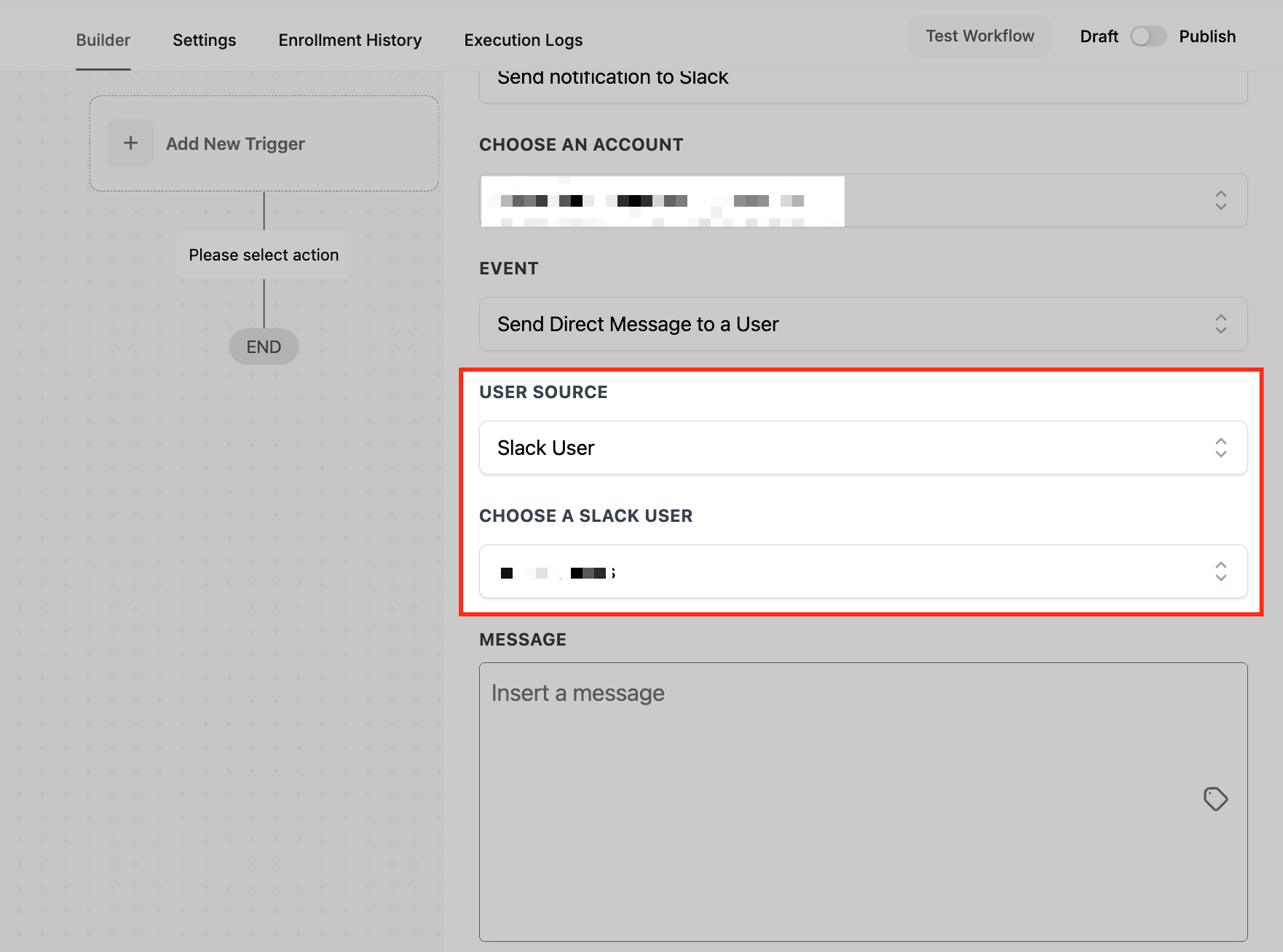
Slack User
Use Slack User to search directly for a person in the connected Slack workspace.
- Select Slack User.
- Search for the recipient by name.
- Select the intended Slack user.
- If the user is not listed, click Load More to retrieve additional results.
Note: Large Slack workspaces with more than 1,000 users may require multiple uses of Load More before the intended recipient appears.
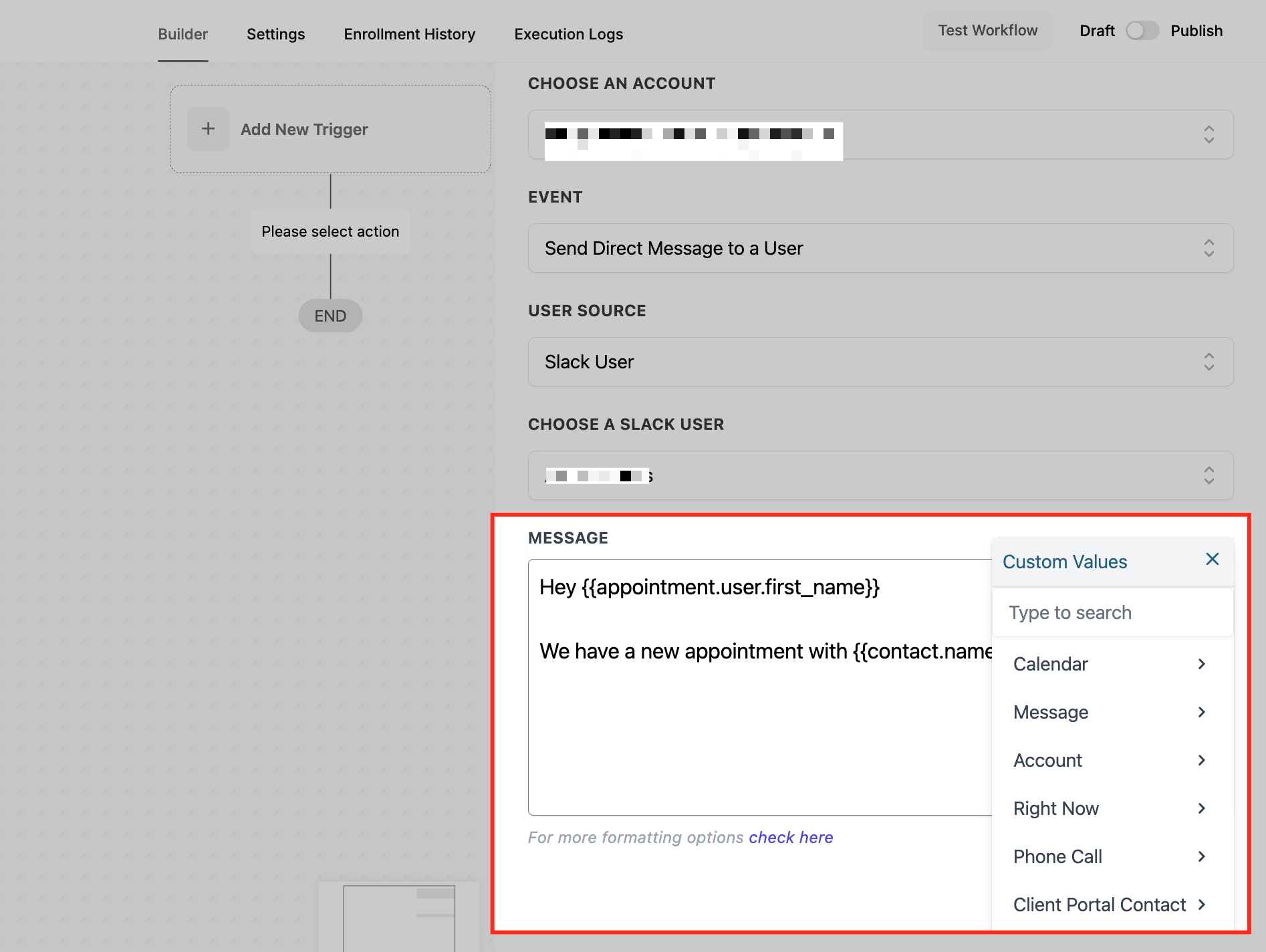
Add Message Content
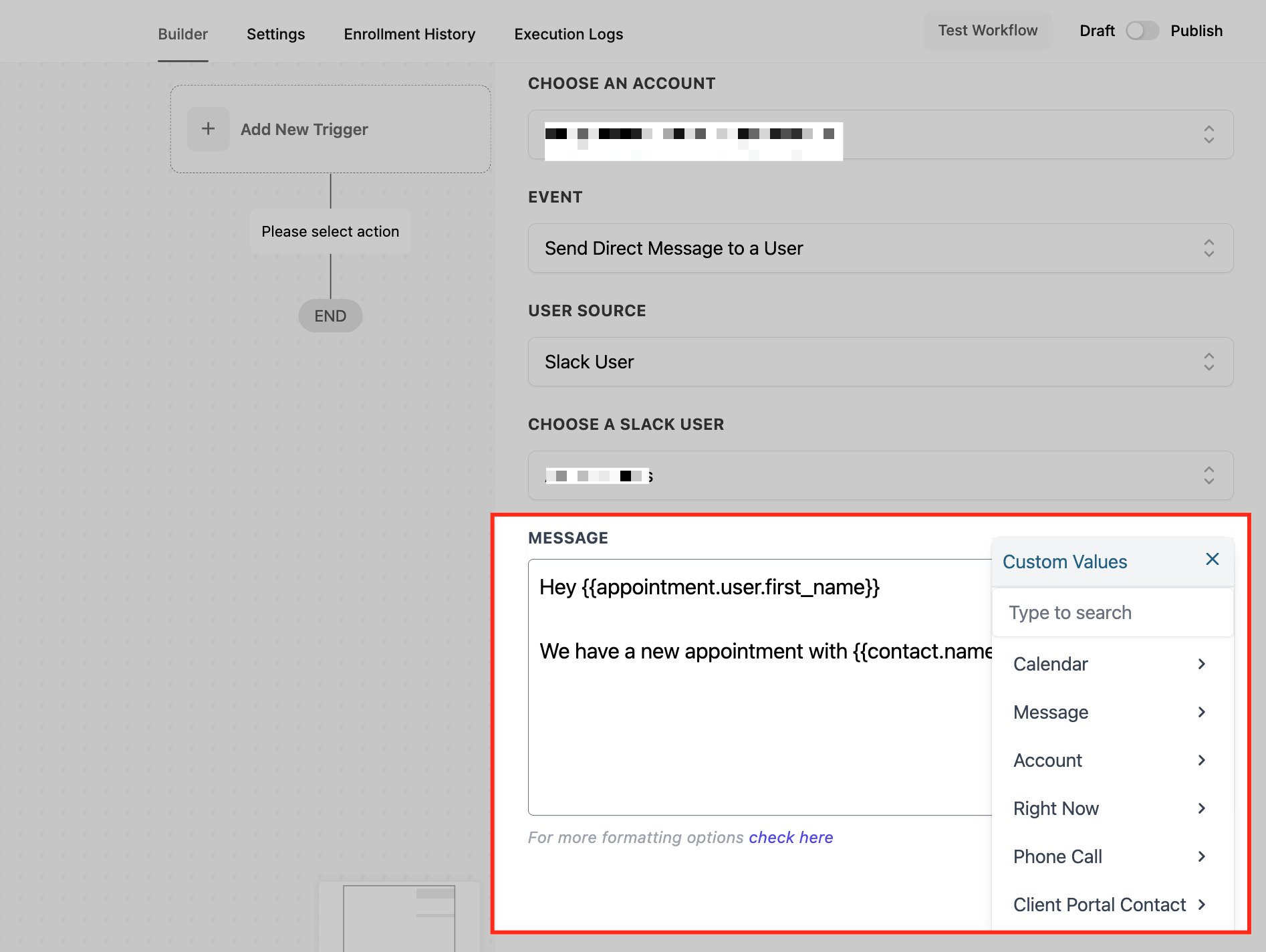
Enter the message to send to the selected recipient. Use the custom variable picker when the message should include dynamic contact or workflow data.
- Find the Message Content field.
- Enter the notification text.
- Use the custom variable picker to insert available contact, opportunity, or other workflow information.
- Review the recipient and message content.
- Save the Slack action.
Send a Public Channel Message
Use this event to send workflow notifications to a public channel in the connected Slack workspace. Public channel messages can be viewed by workspace members who have access to that channel.
Choose a Public Channel
- In the Slack workflow action, choose Send Public Channel Message.
- Open the public channel selector.
- Search for and select the intended channel.
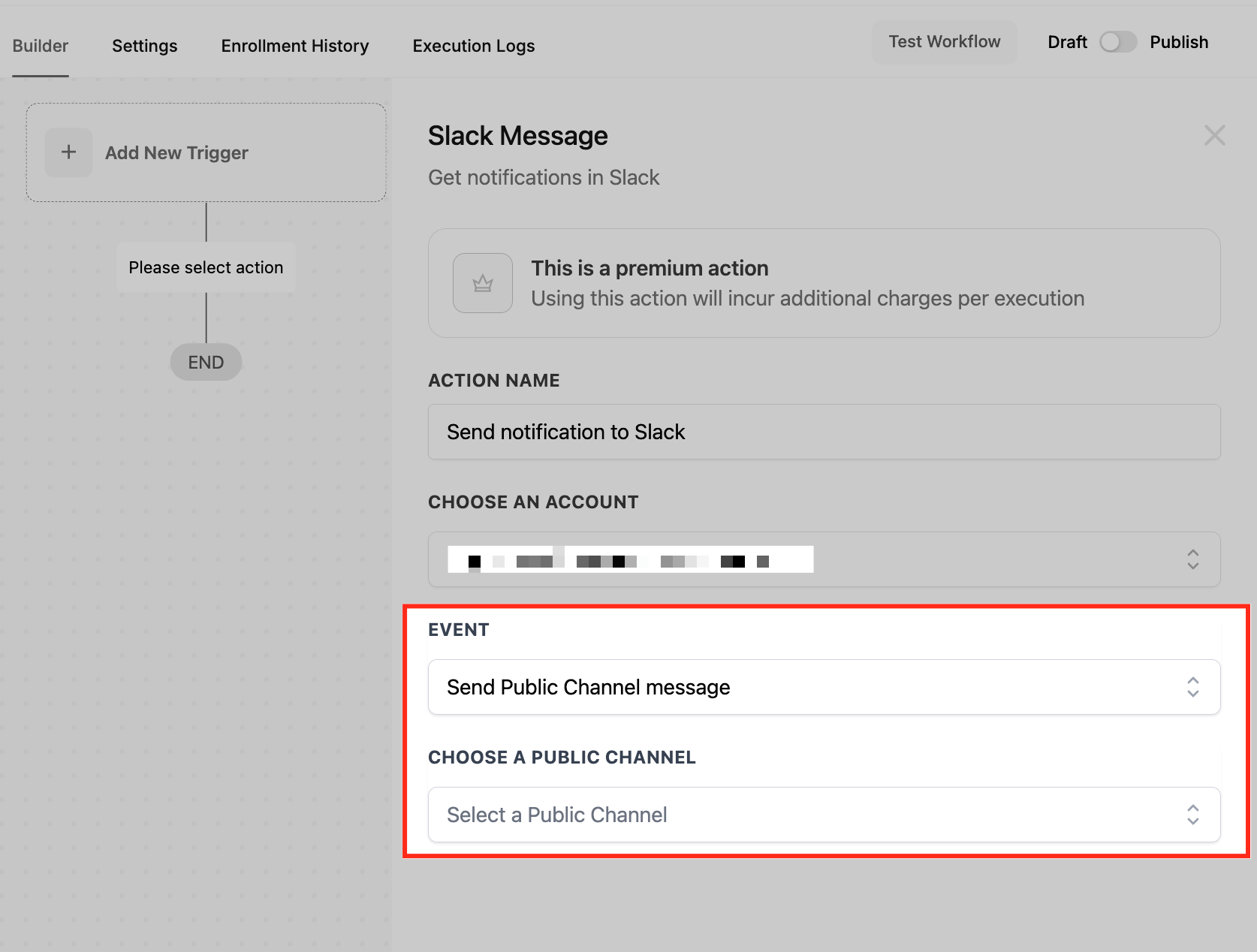
Note: In large workspaces, the channel selector may display only part of the available list. Click Load More until the intended channel appears.

Enter the Public Channel Message
Add the content that should be posted to the channel. Custom variables can include relevant contact or workflow information.
- Find Message Content.
- Enter the channel notification.
- Add custom variables when needed.
- Review the selected channel and message.
- Save the Slack action.
Send a Private Channel Message
Use this event to notify members of an accessible private Slack channel. The message is delivered to the selected channel using the connected Slack integration.
Choose a Private Channel
- In the Slack workflow action, choose Send Private Channel Message.
- Open the private channel selector.
- Search for and select the intended channel.
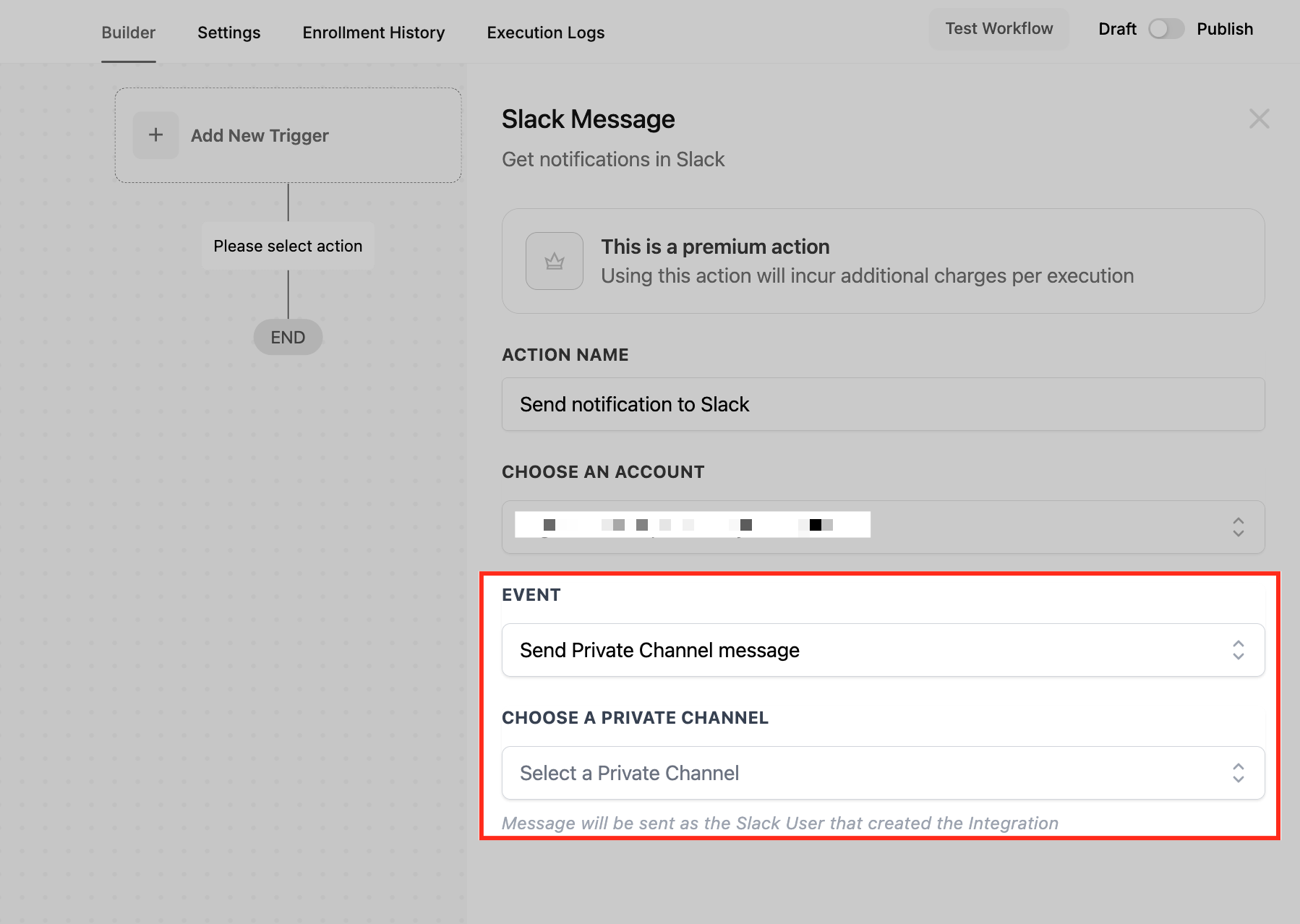
Important: Private channel messages appear as messages from the user who created the Slack integration, not from a bot. Review the connected account before configuring this event.
For large workspaces, use Load More when the intended private channel does not appear immediately. The connected Slack account must have access to the channel.
Enter the Private Channel Message
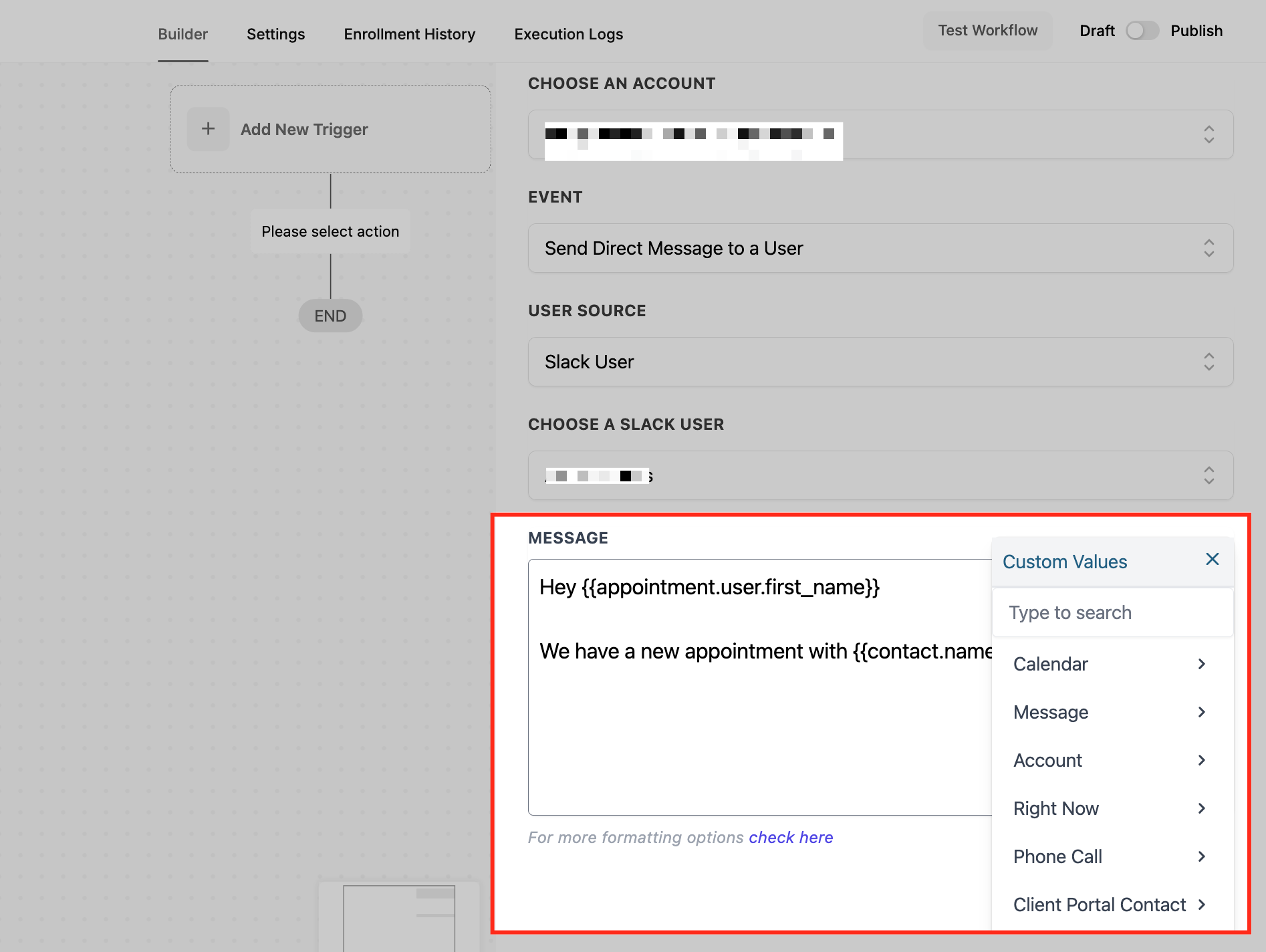
Enter the notification and include available custom variables if the message needs data from the workflow.
- Find Message Content.
- Type the private channel message.
- Insert contact or workflow information with the custom variable picker when needed.
- Review the channel and message content.
- Save the Slack action.
Frequently Asked Questions
Q: What types of Slack messages can I send from a workflow?
You can send a direct message to a user, a message to a public channel, or a message to a private channel.
Q: Can I include contact or workflow information in Slack messages?
Yes. Use the custom variable picker to insert available information into the message content.
Q: What should I do if a Slack user does not appear in the dropdown?
Search for the user and click Load More if needed. Larger workspaces may require additional results to be loaded.
Q: Why can't I find a particular public or private channel?
Use Load More to retrieve additional channels. For a private channel, confirm that the connected Slack account has access.
Q: Will private channel messages appear as bot messages?
No. They appear as messages from the user who created the Slack integration.
Q: Do I need to reconnect Slack after the Marketplace migration?
Existing Slack connections continue working without requiring users to rebuild their workflows solely for the migration.
Q: Can I connect multiple Slack accounts?
Where the updated connection interface supports it, use Add Account in External Connection to authorize another account.
Q: How is a recipient selected with Custom Email?
The action uses the email provided, including a dynamically inserted email when configured, to find the matching Slack user.
Need Help?
If a Slack workflow message is not sent or the intended recipient is missing, review the connection, selected event, and message configuration.
- Slack Connection Missing: Open Settings > Integrations and review the available Slack connection controls.
- Slack Account Not Listed: Confirm that the intended Slack workspace is connected and authorized.
- Recipient Not Found: Check the recipient's email address or use Load More to retrieve additional Slack users.
- Public Channel Not Found: Search for the channel and load additional results when available.
- Private Channel Not Found: Check the connected Slack user's access to the intended channel.
- Unexpected Private Channel Sender: Remember that private channel messages appear as the user who created the Slack integration.
- Custom Variables Are Missing: Review the custom variable selection and the data available when the workflow runs.
- Message Not Received: Confirm that the workflow executed, the Slack action was configured and saved, and the intended recipient or channel was selected.
If the issue continues, contact support with the workflow name, Slack event, expected result, actual result, and relevant screenshots. Do not include passwords, access tokens, or unnecessary private information.