
The Slack Message workflow action sends automated notifications to people and channels in a connected Slack workspace. You can send a direct message to a user or post updates in a private or public channel when a workflow runs. This action helps teams respond to leads, tasks, and business updates without sending each message manually. Learn how to choose a Slack account, configure the action, and manage its connection through Marketplace.
TABLE OF CONTENTS
- What is the Slack Message Workflow Action?
- Key Benefits of the Slack Message Action
- Before You Begin
- Slack Message Action Settings
- How to Set Up the Slack Message Action
- Slack Message Events
- Suggested Workflow Triggers
- Example: Notify a Team About a High-Priority Lead
- Frequently Asked Questions
- Need Help?
What is the Slack Message Workflow Action?
The Slack Message action in the Workflow Builder delivers a message to a selected Slack destination when a contact reaches that workflow step. The destination can be an individual Slack user, a private channel, or a public channel. This allows you to share workflow updates with the people who need to act on them.
Action name: Slack Message
Key Benefits of the Slack Message Action
Automatic Slack messages help teams stay informed about workflow activities without repeatedly checking individual contact records or workflows. Choosing the right destination keeps updates relevant to the person or group responsible for the next step.
- Faster notifications: Send workflow updates to Slack as soon as the configured automation reaches the action.
- Flexible recipients: Deliver messages to an individual user, a private channel, or a public channel.
- Team coordination: Keep sales, support, and operations teams informed of important activities.
- Customizable messages: Include relevant workflow or contact information using supported custom variables.
Before You Begin
A connected Slack account and access to the Workflow Builder are necessary before you can configure and use Slack notifications. Confirm the connection and intended workspace before configuring the action to help ensure messages reach the correct destination.
- Connected Slack account: Make sure the intended Slack account is connected.
- Workflow access: Open or create a workflow where you want the Slack notification to run.
- Destination access: Confirm that the intended Slack user or channel is available to the connected Slack account.
Connect and Manage Slack Through Marketplace
Where the Slack Marketplace connection panel is available, use the following steps to review connected accounts:
- Go to Settings.
- Select Integrations.
- Open the All Integrations tab.
- Locate the Slack integration and click Manage.
- Open the External Connection tab.
- Review the Account Name, Email, and Status fields to identify the intended Slack connection.
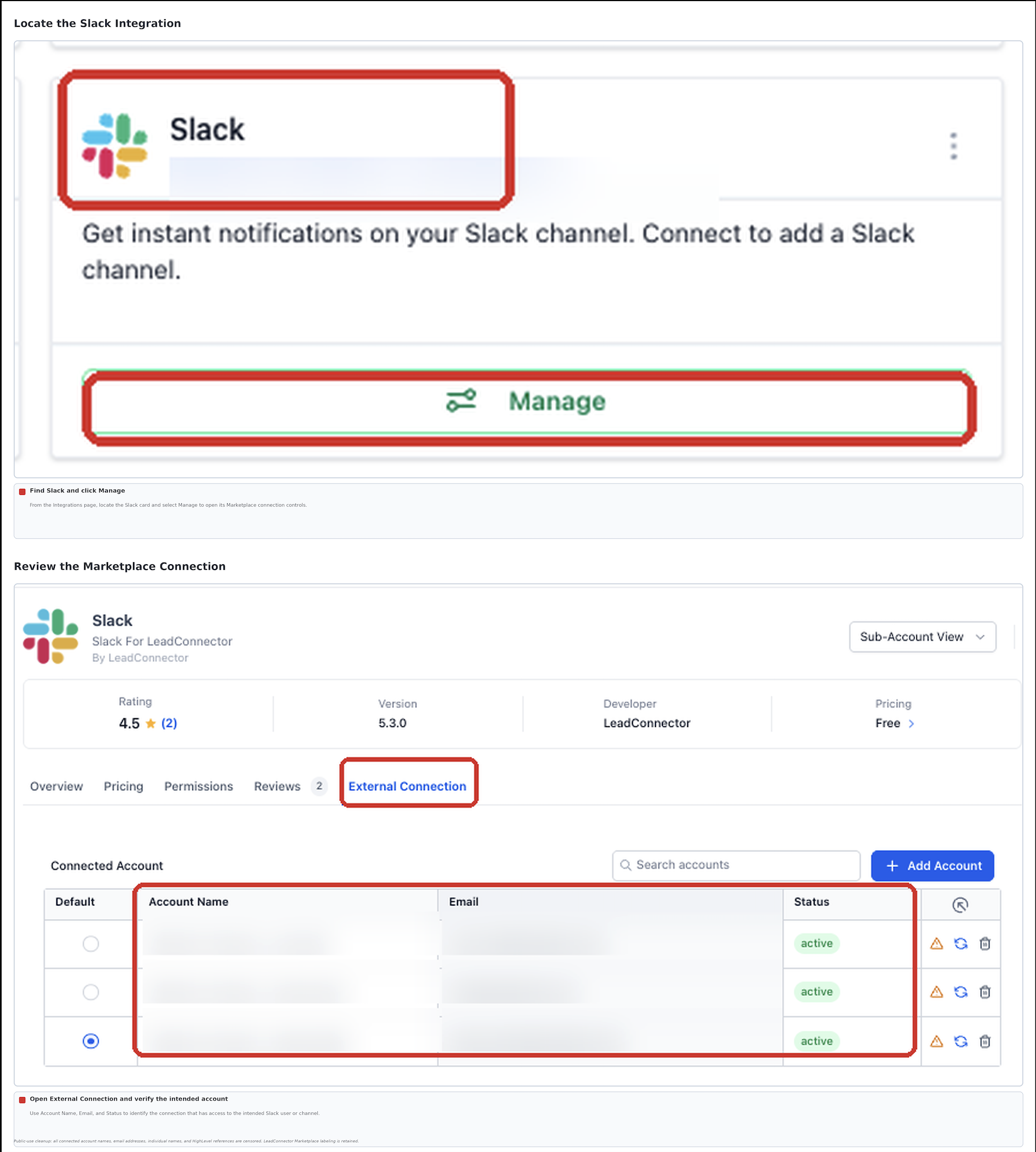
Note: Existing Slack connections and workflows do not require reconfiguration solely because of the Marketplace migration.
Slack Message Action Settings
The action's required fields determine which connected Slack account is used and what type of message the workflow sends. Review these selections before saving the action so the message reaches the intended destination.
 Slack Message action settings in the Workflow Builder.
| Field | Description | Required |
|---|---|---|
| Choose an Account | Select the connected Slack account that will send the message. | Yes |
| Event | Choose whether to send a direct message, a private-channel message, or a public-channel message. | Yes |
How to Set Up the Slack Message Action
The Slack Message action runs as part of a workflow, so both the triggering event and the Slack destination need to be configured correctly. Following this setup order helps ensure that the intended automation sends the correct notification.
- Go to Automation > Workflows and open an existing workflow or create a new one.
- Add or confirm the workflow trigger that should start the automation.
- In the Workflow Builder, click + to add an action, then search for and select Slack Message.
- Choose an Account:Select the connected Slack account you want to use from the dropdown.
- Event: Select Send Direct Message to a User, Send Private Channel Message, or Send Public Channel Message.
- Select the appropriate user or channel and enter the message content using the fields displayed for that event.
- Save the action. Click Test Workflow, select a suitable test contact, and click Run Test. Review the results, save the workflow changes, and publish the workflow when its results are correct.
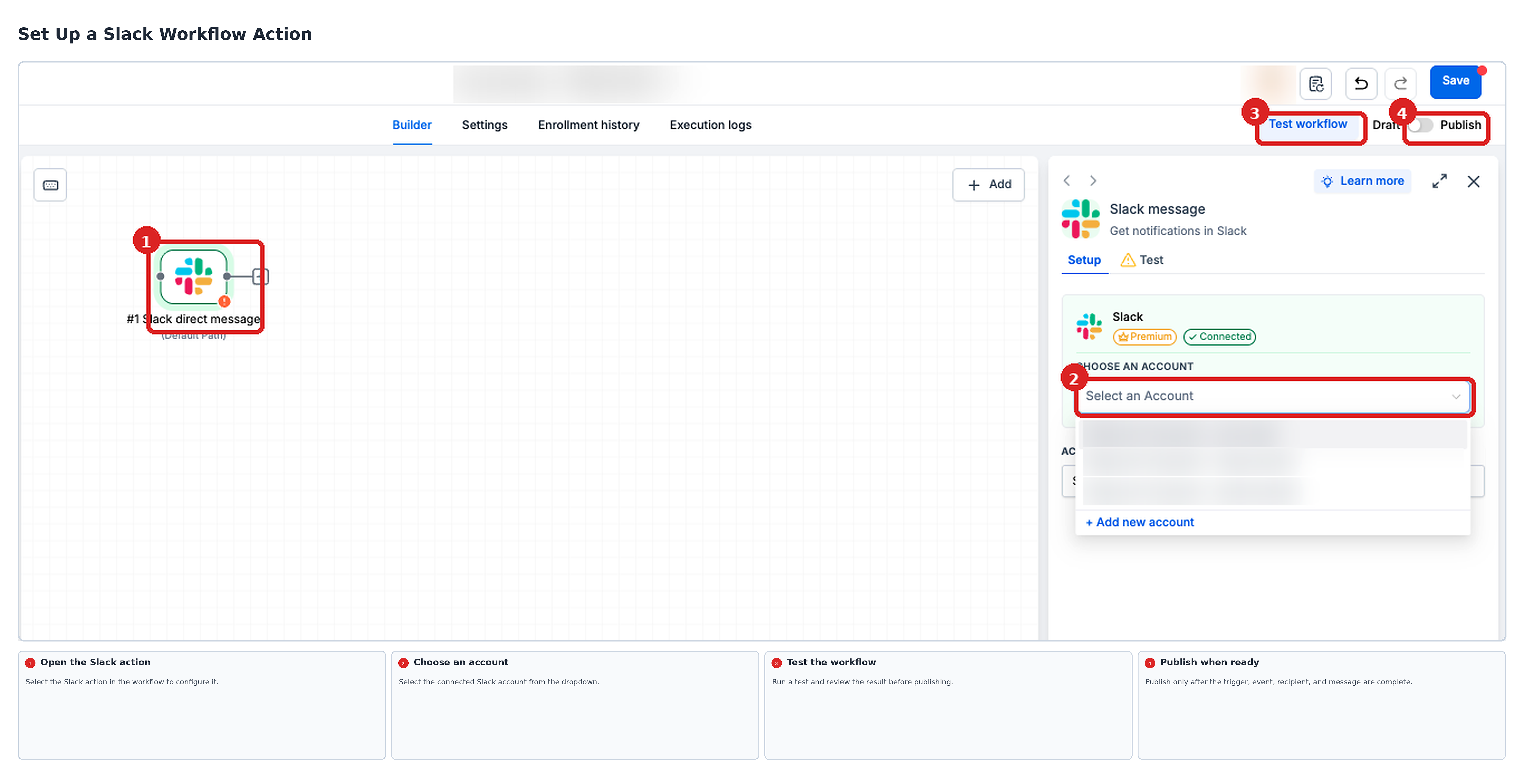
Tip: Test the selected Slack destination and message content before enabling the workflow for live contacts. A successful connection does not by itself confirm that the intended user or channel was selected.
Slack Message Events
Each Slack Message event determines who receives the notification. Choose the event based on whether the message is intended for one person, a restricted team channel, or a public channel in your workspace.
- Send Direct Message to a User: Send a private notification to an individual. Available recipient options include Assigned User, Custom Email, Internal User, and Slack User.
- Send Private Channel Message: Post to a selected private Slack channel. Messages are sent as the user who established the Slack integration, rather than appearing as the bot.
- Send Public Channel Message: Post to a selected public Slack channel for members with access to that channel.
Use the available message fields and custom variable picker to personalize notifications with relevant contact or workflow information.
Suggested Workflow Triggers
Pairing Slack notifications with relevant workflow triggers helps teammates receive updates when they need to take action. The appropriate trigger depends on the business event you want to monitor.
- Task added or assigned: Notify a team channel when someone needs to complete a new task.
- Opportunity status changed: Alert a sales channel when an opportunity changes status or moves to a new stage, using the appropriate workflow trigger.
- Form submitted: Notify a team member or channel when a prospect submits a form.
Select the appropriate workflow trigger and configure its available filters based on the event you want to monitor.
Example: Notify a Team About a High-Priority Lead
A Slack notification can help a team respond quickly when a lead meets a priority condition. For example, a marketing team can receive a message when a new lead enters a workflow with the High Priority tag.
Workflow configuration example:
- Trigger:
Contact Created- Filter: Tag Equals to
High Priority
- Filter: Tag Equals to
- Action:
Slack Message- Choose an Account: Your connected Slack account
- Event:
Send Private Channel Message - Channel:
#marketing-team - Message:
A new high-priority lead has been added. Please check the details.
- Choose an Account: Your connected Slack account
Note: This example assumes the contact has the High Priority tag when the workflow starts. If the tag is added later, consider using the Contact Tag workflow trigger instead.
Frequently Asked Questions
Q: What if the Slack account I need is not available in the dropdown?
Check that the intended Slack account is connected. Where the Marketplace connection panel is available, go to Settings > Integrations > All Integrations, click Manage for Slack, and open External Connection to review the connected-account list.
Q: Do I need to reconnect Slack or rebuild workflows because of the Marketplace migration?
No. Existing connections and workflows do not require reconfiguration solely for the migration. Review the available connection-management controls if you need to manage a specific connection.
Q: Why can't I find a particular Slack user or channel?
Confirm that you are using the correct workspace and that the destination is available to the connected account. In large workspaces, the selection list may require the Load More option to display additional users or channels.
Q: Can I include contact information in Slack notifications?
Yes. Where supported in the message editor, use the custom variable picker to insert contact or other relevant CRM information into the message.
Q: Why does a message in a private Slack channel appear to come from a person rather than a bot?
Private-channel messages use the identity of the user who established the Slack integration.
Need Help?
If the Slack Message workflow action is not sending notifications or is not behaving as expected, review the Slack connection, workflow configuration, and selected message destination before contacting support. These checks help identify common configuration issues that may prevent notifications from reaching the intended recipient.
Verify the following:
- Slack connection: Confirm that the intended Slack account is connected and the correct workspace is selected.
- Workflow trigger: Confirm that the workflow trigger is configured correctly and that the workflow reaches the Slack Message action.
- Message event: Verify that the correct event is selected: Send Direct Message to a User, Send Private Channel Message, or Send Public Channel Message.
- Recipient access: Confirm that the selected Slack user or channel is accessible to the connected account.
- Recipient selection: Use Load More if the intended user or channel is not initially visible in the selection list.
- Message content: Review the message text and any custom variables to confirm that the intended information is included.
- Workflow testing: Test the workflow with a suitable test contact and review the results before publishing.
If the issue continues, contact support with the workflow name, selected Slack message event, expected behavior, actual results, and any displayed error messages. Include relevant screenshots and test details to help identify the issue. Do not share passwords, access tokens, or other sensitive credentials.