
A fast-loading funnel or website helps visitors navigate pages, complete forms, and take action without unnecessary delays. Large images, complex layouts, videos, and third-party scripts can affect loading speed, user experience, and SEO. Built-in performance optimizations help reduce page weight and improve loading behavior. Follow these best practices to optimize your funnels and websites, test performance, and troubleshoot slow-loading pages.
TABLE OF CONTENTS
- What is Funnel and Website Page Speed?
- Key Benefits of Improving Page Speed
- Optimize Images
- Limit Heavy Elements
- Clean Up Your Pages
- Use Built-In Performance Features
- Review Browser and Hosting Optimizations
- Test and Monitor Performance
- Reduced Initial HTML Size
- How to Optimize Funnel and Website Page Speed
- Frequently Asked Questions
- Need Help?
What is Funnel and Website Page Speed?
Funnel and website page speed refers to how quickly a page loads and becomes usable for visitors. Page speed is influenced by image sizes, videos, animations, custom code, tracking scripts, and the number of elements a browser needs to process.
Built-in features such as Image Optimization, Optimize JavaScript, and automatic image lazy loading help pages load more efficiently.
In addition to these features, optimizing page content and reducing unnecessary elements can improve loading times, especially for visitors using mobile devices or slower internet connections.
Note: Page speed results vary depending on page content, third-party integrations, browser conditions, and device performance. Optimizations can improve loading behavior, but specific PageSpeed scores are not guaranteed.
Key Benefits of Improving Page Speed
Optimizing page speed helps reduce unnecessary loading delays and creates a smoother experience for visitors. Faster pages can make it easier for customers to browse content, submit forms, and complete important actions.
- Improved User Experience: Visitors can access page content and interact with important elements with fewer delays.
- Better Conversion Opportunities: Reducing loading friction can help visitors complete forms, bookings, and purchases.
- Improved Mobile Performance: Optimized images and lighter page layouts help reduce loading demands on mobile devices and slower connections.
- Better SEO Performance: Faster loading and improved user experience can support search engine optimization efforts.
- Reduced Page Weight: Smaller files, fewer unnecessary elements, and optimized code reduce the amount of data a browser needs to process.
- Easier Troubleshooting: Regular performance testing makes it easier to identify large files, slow scripts, and other loading issues.
Optimize Images
Images are often among the largest resources on a funnel or website. Using appropriately sized and compressed images reduces the amount of data visitors need to download while preserving the visual quality of your pages.
- Resize Images Before Uploading: Avoid uploading oversized images. Keep image dimensions close to the size at which they will appear on the page.
- Use Compressed Image Formats: Use JPG or WebP for photographs and PNG for graphics that require transparency.
- Limit Unnecessary Images: Remove decorative images that do not provide meaningful value. For example, use one strong hero image instead of multiple large images.
- Optimize Above-the-Fold Images: Keep images visible when the page first loads as lightweight as practical. This helps reduce the resources needed to display the first visible part of the page.
- Review Image Clarity: After enabling image optimization, check that images remain clear and readable on desktop and mobile devices.
Automatic Image Lazy Loading
Automatic image lazy loading helps prevent every image from loading immediately. Images can load as visitors move through a page, reducing unnecessary initial loading work.
Automatic lazy loading applies across:
- Funnels
- Websites
- E-commerce Pages
- Webinar Previews
The platform automatically applies the loading="lazy" attribute to image elements independently of the Image Optimization setting.
Note: Image Optimization and automatic image lazy loading are separate performance behaviors. Turning off Image Optimization does not disable automatic lazy loading.
Limit Heavy Elements
Videos, animations, embedded widgets, and third-party scripts can increase the amount of processing required before a page becomes usable. Reducing unnecessary resource-heavy elements helps keep the initial loading experience lightweight.
- Reduce Video Backgrounds: Use short loops and compressed video files when background videos are necessary.
- Limit Animations: Avoid excessive motion effects or animated elements that increase rendering demands.
- Reduce Third-Party Widgets: Remove unnecessary embedded tools, maps, calendars, and other external widgets.
- Keep Tracking Scripts Minimal: Avoid installing unnecessary tracking scripts or multiple copies of the same script.
- Keep Above-the-Fold Content Lightweight: Prioritize essential text, images, and calls to action in the first visible portion of the page.
- Move Heavy Elements Below the Fold: When appropriate, place resource-heavy forms, calendars, maps, or widgets farther down the page. Test the published page to determine whether this improves initial loading behavior.
Clean Up Your Pages
Unused sections, duplicated elements, and unnecessarily complex layouts can make pages harder to maintain and may increase loading work. Keeping your page structure organized helps visitors focus on important content and makes performance issues easier to identify.
- Remove Unused Sections: Delete hidden, outdated, or duplicated sections that are no longer needed.
- Simplify Layouts: Reduce unnecessary rows, columns, and nested elements.
- Review Page Length: Remove repetitive content or elements that do not support the page's purpose.
- Optimize Downloadable Files: Compress PDFs and other downloadable resources before uploading.
- Remove Unused Custom Code: Delete outdated custom CSS, JavaScript, or embedded integrations that are no longer required.
Use Built-In Performance Features
Built-in page-building and optimization tools can help improve loading behavior and simplify page management. Reviewing these features helps reduce unnecessary external resources and supports more efficient page performance.
Global and Universal Sections
Saved Sections allow you to reuse content blocks without manually rebuilding the same layouts. Global Sections help keep shared content synchronized within a funnel or website. Universal Sections support reuse and synchronized updates across supported assets.
These features primarily improve content management and consistency. Actual page speed still depends on the images, scripts, and elements contained within each section.
Built-In Forms and Surveys
Using built-in Forms and Surveys can reduce reliance on third-party embeds that introduce additional scripts and network requests.
When possible, use built-in elements and test the published page to confirm their effect on loading performance.
Image Optimization
The Image Optimization setting helps images load more efficiently. Keeping this option enabled where appropriate can reduce loading demands, particularly on image-heavy pages.
Image optimization may affect image quality. Review important images after making changes to confirm that they remain clear and readable.
Optimize JavaScript
The Optimize JavaScript setting can delay JavaScript execution or page hydration to reduce blocking work during loading. This may improve page responsiveness, depending on the scripts and elements used.
Custom scripts that depend on immediate execution may require additional testing.
Important: Optimize JavaScript may need to be disabled when critical custom code must run immediately on page load. Test forms, tracking scripts, and custom integrations after changing this setting.
Inspect Network Requests
Browser developer tools can help identify large files, slow third-party scripts, and other resources that affect loading speed.
Open your browser's Developer Tools, select the Network tab, reload the published page, and review requests that take a long time to complete.
Review Browser and Hosting Optimizations
Page performance also depends on how browsers retrieve and reuse resources. Reviewing caching, domain configuration, and redirects can help identify unnecessary delays outside the page's content.
- Browser Caching: Cached assets can help returning visitors load pages faster without downloading every resource again.
- Custom Domain and SSL: Configure a secure custom domain to provide a consistent and trusted visitor experience.
- Avoid Unnecessary Redirects: Make sure visitors reach the intended page without passing through multiple unnecessary redirects.
- Review Resource Delivery: The platform uses a global content delivery network (CDN), but large assets and external requests can still affect loading performance.
Test and Monitor Performance
Performance testing helps identify resources and page behaviors that contribute to slow loading. Regular testing makes it easier to compare improvements and confirm that optimization changes are working as intended.
Use Page Speed Testing Tools
Use performance testing tools to evaluate published funnel and website pages.
- PageSpeed Insights: https://pagespeed.web.dev/
- GTmetrix: https://gtmetrix.com/
For accurate comparisons:
- Test the published page URL.
- Run tests on both desktop and mobile.
- Review recommendations related to images, JavaScript, and resource loading.
- Make targeted changes based on the reported issues.
- Run the tests again and compare the results.
Compare Builder Preview and Published Pages
Builder Preview helps you review page content and interactions while editing. For visitor-facing performance measurements, test the published page URL.
Preview and published pages may operate under different loading conditions. Third-party scripts, embedded content, and browser behavior can influence measured results.
If you use custom JavaScript, verify that it runs at the intended time and that important page interactions continue to function after optimization changes.
Understand PageSpeed Results
PageSpeed reports provide diagnostic information about loading behavior, resource requests, and page responsiveness. Use these findings to identify which improvements are most relevant to your page.
- Largest Contentful Paint (LCP): Review how quickly the page's main visible content appears.
- Total Blocking Time (TBT): Review JavaScript-related blocking work reported during performance testing.
- Cumulative Layout Shift (CLS): Check whether visible elements shift unexpectedly during page loading.
- Resource Requests: Identify large images, scripts, and external files that may delay page loading.
Tip: Use PageSpeed scores as diagnostic indicators rather than guaranteed performance benchmarks. Test your own published pages and compare results after making changes.
Reduced Initial HTML Size
The size of a page's initial HTML document affects how much information a browser must download before rendering content. Reducing unnecessary page data can help improve loading performance, particularly on slower connections.
The platform has optimized the data used to render pages by removing unnecessary fields from the page data response.
This optimization has been reported to reduce the average final HTML document size by approximately 10%, helping make initial page delivery more efficient.
Note: Reduced HTML document size is an automatic performance optimization. No additional configuration is generally required. The reported 10% reduction is an average and may vary by page.
How to Optimize Funnel and Website Page Speed
Optimizing your funnel or website involves reviewing page assets, removing unnecessary elements, checking available performance settings, and testing the published page. Following a consistent process helps identify improvements without disrupting essential functionality.
- Go to Sites and select Funnels or Websites, depending on the page you want to optimize.
- Select the Funnel or Website you want to optimize.
- Open the relevant page or funnel step and click Edit to open the Page Builder.
- Review the images on the page. Resize, compress, or replace oversized images where necessary.
- Review unnecessary videos, animations, widgets, duplicate elements, and third-party scripts. Remove items that are no longer required.
- Simplify the page layout by removing unused sections and unnecessary nested elements.
- Return to the selected funnel or website and open its Settings. Review the available Image Optimization and Optimize JavaScript controls.
- Keep optimization settings enabled where appropriate. If custom scripts or integrations depend on immediate execution, verify their behavior before keeping any JavaScript optimization change.
- Save your settings and page changes. Publish the page when you are ready to make the updated version available to visitors.
- Copy the published page URL.
- Run a performance test using PageSpeed Insights or GTmetrix.
- Review the results on both desktop and mobile. Make further adjustments based on the recommendations.
- Retest the page and verify that forms, buttons, tracking scripts, navigation, and other important interactions continue to work correctly.
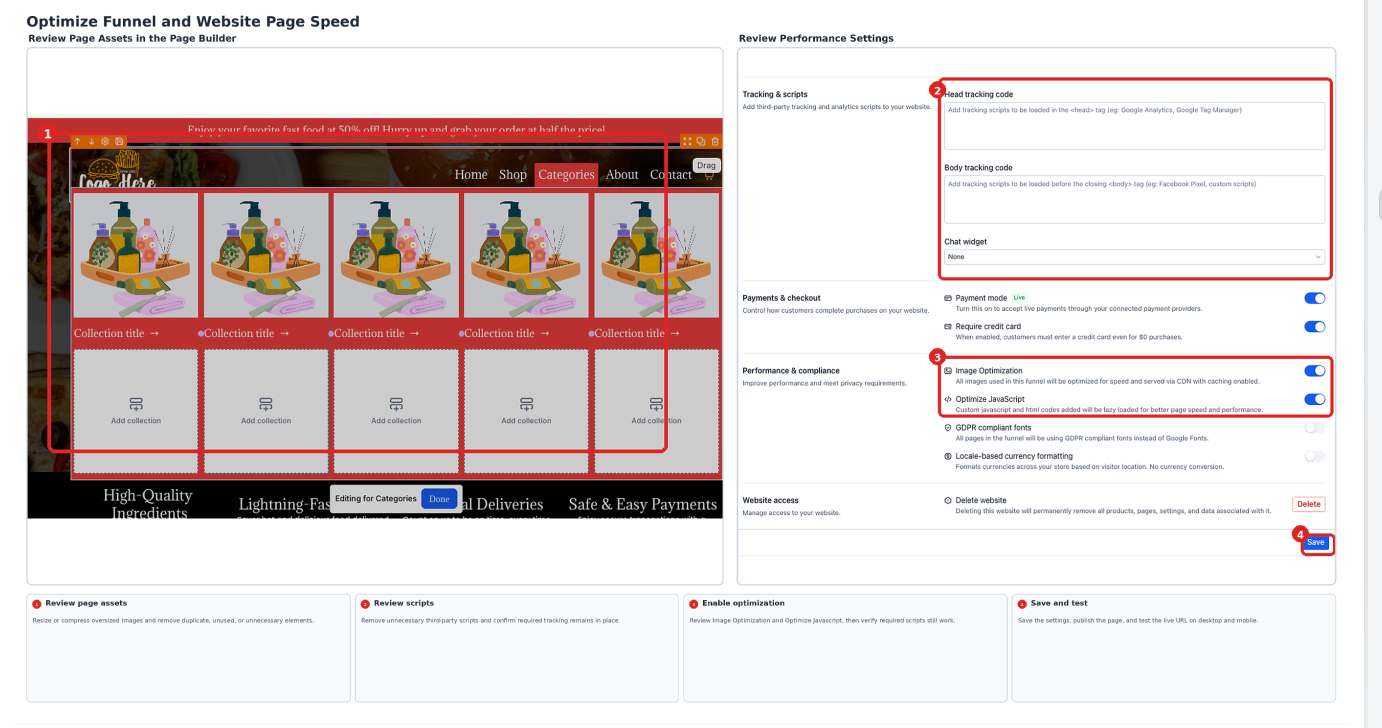
Review page assets and scripts, adjust available performance settings, then save and test your changes.
Tip: Make one group of optimization changes at a time and retest the page. This makes it easier to identify which adjustments improve performance.
Frequently Asked Questions
Q: Does turning off Image Optimization disable lazy loading?
No. Automatic image lazy loading operates independently of the Image Optimization setting. Turning off Image Optimization does not disable automatic lazy loading.
Q: Will every funnel or website receive the same PageSpeed improvement?
No. Results vary depending on page structure, images, scripts, external resources, browser conditions, and device performance. Test your published pages to measure the effect of individual changes.
Q: Can Optimize JavaScript affect custom scripts or integrations?
Yes. Optimize JavaScript may delay script execution or page hydration. Custom code that depends on immediate execution may require additional testing or changes to the setting.
Q: Do Global Sections automatically improve page speed?
Not necessarily. Global Sections primarily support reusable content and synchronized updates. Page speed still depends on the content, images, scripts, and other elements contained within those sections.
Q: Do I need to enable the reduced HTML document size optimization?
No. The reported reduction in average HTML document size is an automatic performance optimization and generally does not require additional configuration.
Q: Why might mobile PageSpeed scores be lower than desktop scores?
Mobile performance can be affected by device processing capabilities, network conditions, image sizes, and resource-heavy page elements. Testing both device categories helps identify differences.
Q: Why does my published page perform differently from Builder Preview?
Preview and published pages may have different loading conditions, scripts, or integrations. For visitor-facing performance measurements, test the published page URL and review the results.
Q: Should I focus only on improving my overall PageSpeed score?
No. Review the diagnostic recommendations and confirm that visitors can load and interact with important page elements. An improved score should not come at the expense of required functionality.
Need Help?
If your funnel or website remains unusually slow after applying these optimizations, review the affected page, its performance settings, and its external resources. Collecting relevant diagnostic information helps support identify appropriate next steps.
Verify the following:
- Published Page: Confirm that you are testing the published page URL and that the latest changes have been published.
- Image Sizes: Check for oversized, uncompressed, or unnecessary images that may be delaying loading.
- Heavy Page Elements: Review videos, animations, embedded widgets, and other resource-heavy elements.
- Tracking Scripts: Check for duplicate or unnecessary tracking code and slow external requests.
- Performance Settings: Review the available Image Optimization and Optimize JavaScript settings. Confirm that required custom scripts still run correctly.
- Page Structure: Remove unused sections, duplicated content, and unnecessary nested elements.
- Domain and Redirects: Check that the published URL reaches the intended page without unnecessary redirects.
- Performance Test Results: Test the page on desktop and mobile using PageSpeed Insights or GTmetrix. Compare the results after making changes.
- Page Functionality: Confirm that forms, buttons, navigation, tracking scripts, and other important interactions continue to work correctly.
If the issue continues, contact support and provide the following information:
- Funnel or Website URL: Include the published link to the affected page.
- PageSpeed Test Results: Share desktop and mobile results from PageSpeed Insights or GTmetrix.
- Steps Already Taken: List the images, scripts, layouts, and settings you have reviewed or adjusted.
- Issue Details: Describe the loading behavior, affected devices and browsers, and any displayed errors.
Include relevant screenshots or performance reports when available. Do not share passwords, access tokens, or other sensitive credentials.