
Launching an email campaign begins with selecting a template, customizing your content, and reviewing the message before sending it. The Email Builder lets you create reusable templates, add images and text, and test your emails. Once your template is ready, you can create a campaign, select recipients, and configure delivery. This guide walks you through the complete process, from choosing a template to launching your campaign.
TABLE OF CONTENTS
- What Is an Email Campaign?
- Key Benefits
- Prerequisites and Limitations
- Start From an Email Template
- Edit and Test Your Email Template
- Dock the Edit Panel and Work with Email AI
- Create an Email Campaign From a Template
- Frequently Asked Questions
- Need Help?
What Is an Email Campaign?
An email campaign is a message created and sent to a selected group of contacts. Campaigns can be built using reusable email templates or designs created from scratch.
The Email Builder provides tools for customizing content, previewing messages, and sending test emails. Once a design is ready, you can use it to create a campaign and configure its delivery.
Key Benefits
Email templates simplify campaign creation by providing reusable designs and editing tools.
- Reusable Templates: Save designs and reuse them in future email campaigns.
- Visual Email Builder: Customize text, images, and layouts.
- Template Library: Browse and search existing designs or start from scratch.
- Preview and Testing: Review email content and send a test before launching.
- Flexible Sending: Configure campaign recipients and send or schedule delivery.
- Language Support: Use localized starter content when a translation is available.
Prerequisites and Limitations
Before creating a campaign, make sure you have access to the email tools and the information needed to prepare your message.
- Access to Marketing > Emails.
- An email template or the content needed to create a design.
- Recipient information for the campaign.
- Sender information for testing and sending emails.
Important: Sending a test email does not launch the campaign. Campaign delivery is configured separately.
Start From an Email Template
Templates provide a starting point for your campaign design. Choose an existing layout from the Template Library or create a new design.
Step 1: Open the Template Library
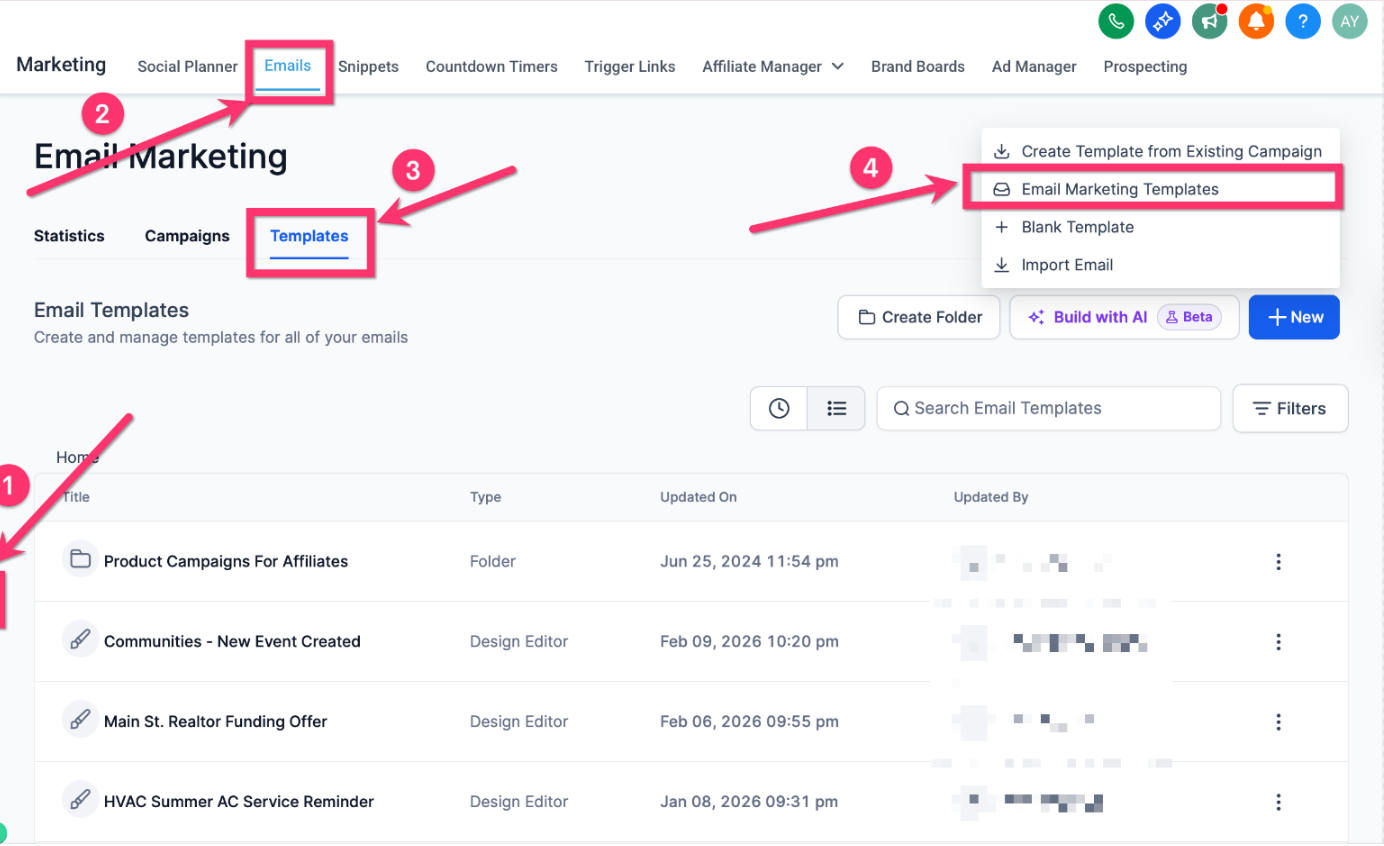
- Navigate to Marketing > Emails.
- Click the Templates tab.
- Click New.
- Select Email Marketing Templates.
Step 2: Choose a Template
- Browse or search the Template Library.
- Select a design that fits your campaign, or choose to create from scratch.
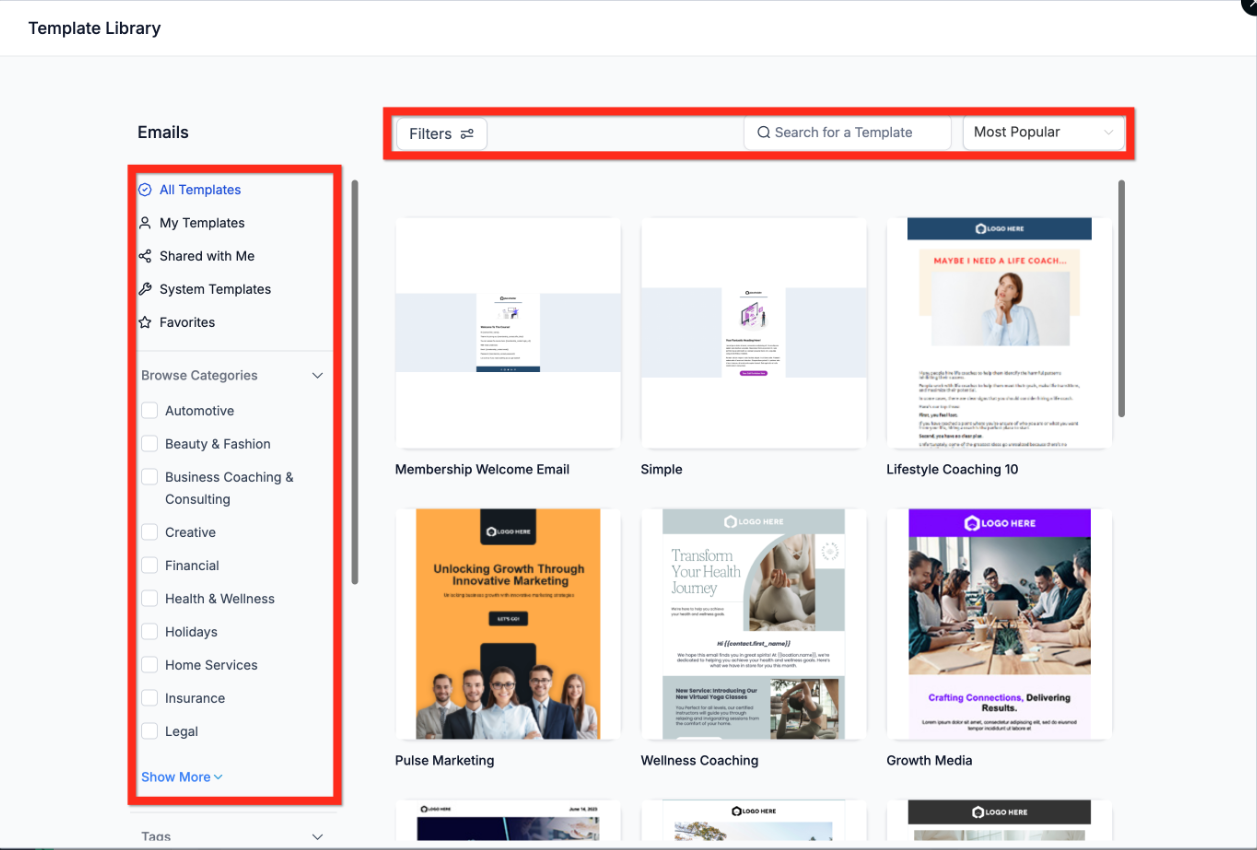
- Click Preview to review the selected design.
- Click Choose template.
- The selected template opens in the Email Builder.
Tip: The Template Library search supports suggestions, recent searches, color-based discovery, and highlighted keyword matches to help you find relevant designs.
Starter-template language: System-provided starter templates use your selected language when a translation is available. If no translation is available, English is used automatically.
Edit and Test Your Email Template
After choosing a template, customize the message and save your changes. Send a test email to review the content before creating a campaign.
Step 1: Edit the Template
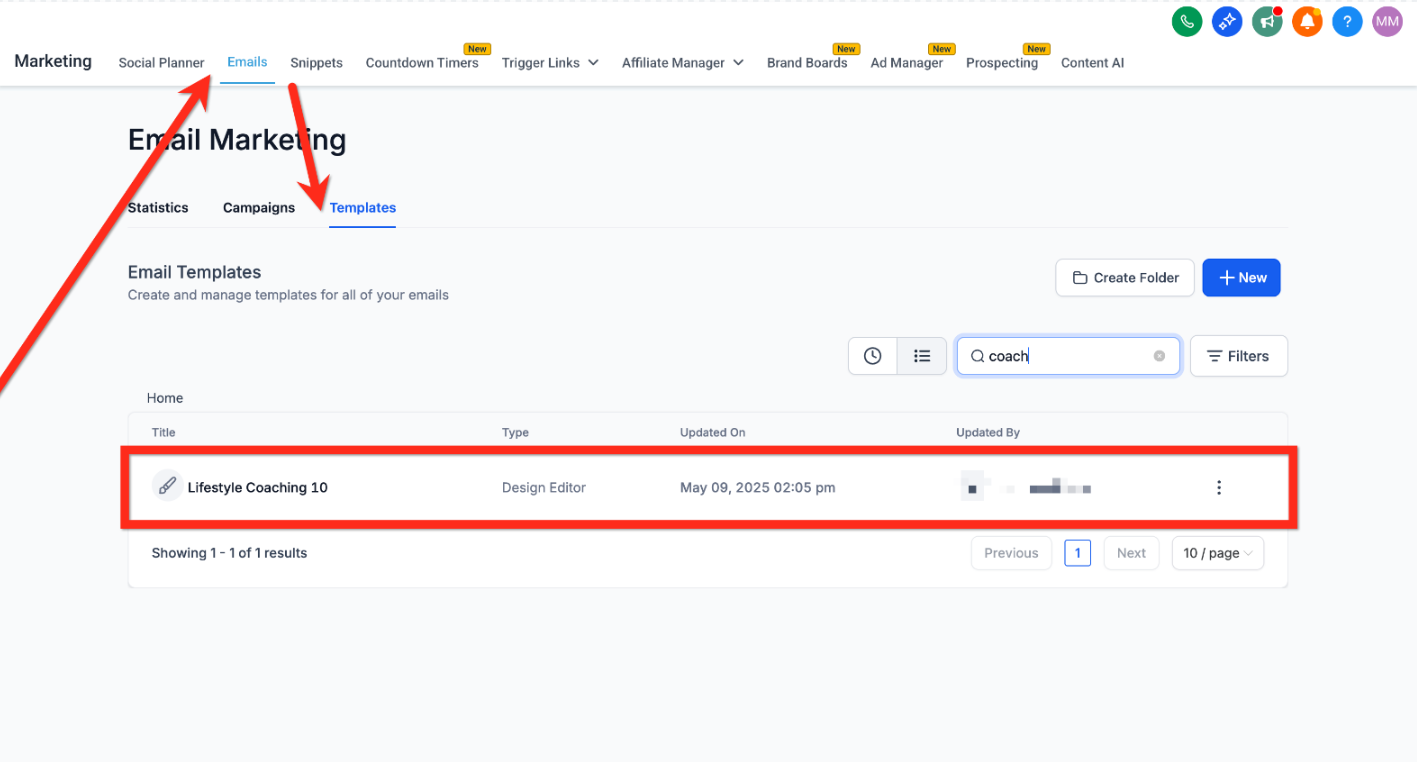
- Go to Marketing > Emails > Templates.
- Open your chosen template in the Email Editor.
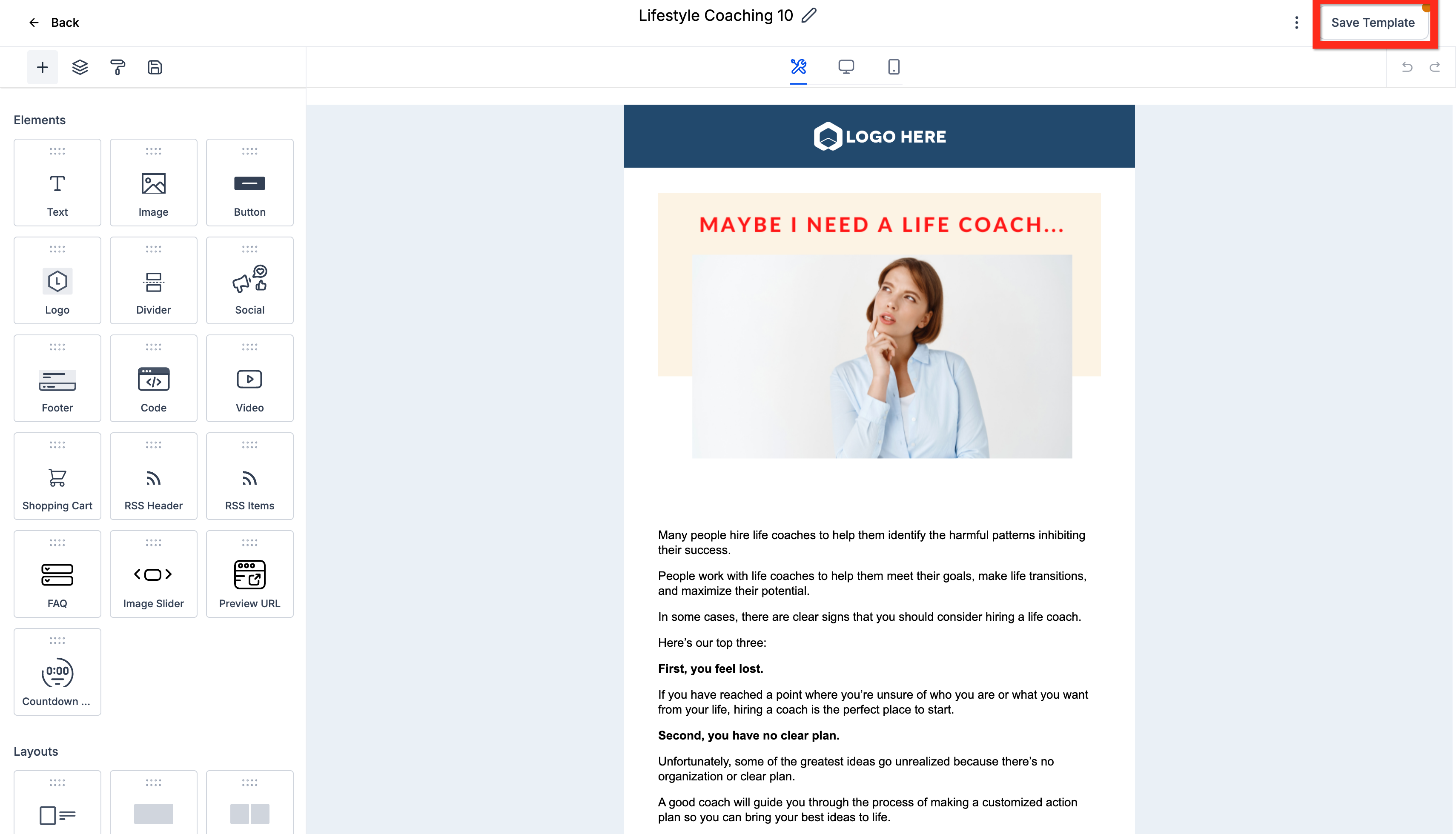
- Customize the template's text, images, and layout.
- Click Save Template to save your changes.
Step 2:
Use a test email to check how the message appears before sending it to your campaign recipients.
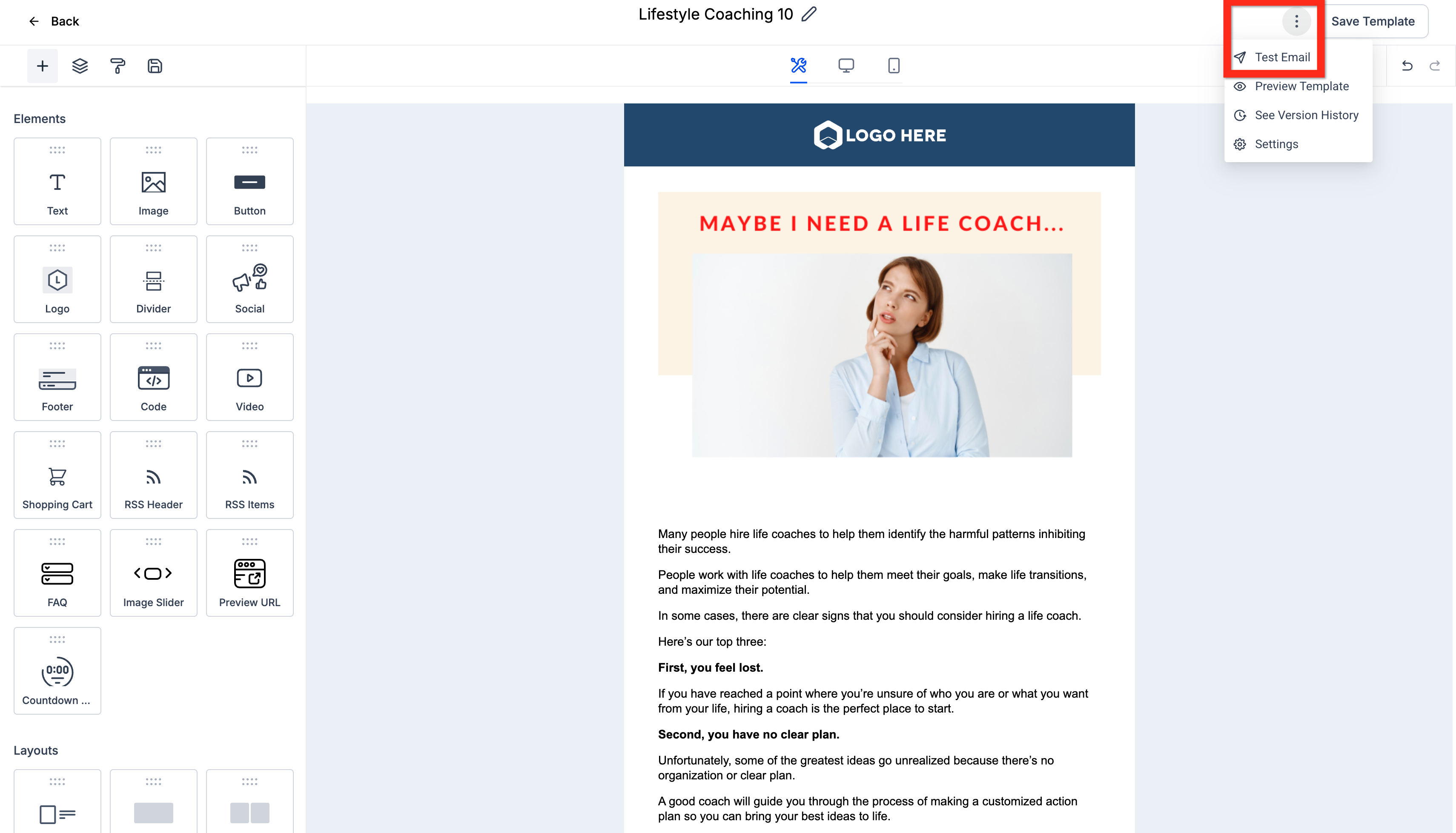
- Click the three-dot action menu in the Email Editor.
- Select Test Email.
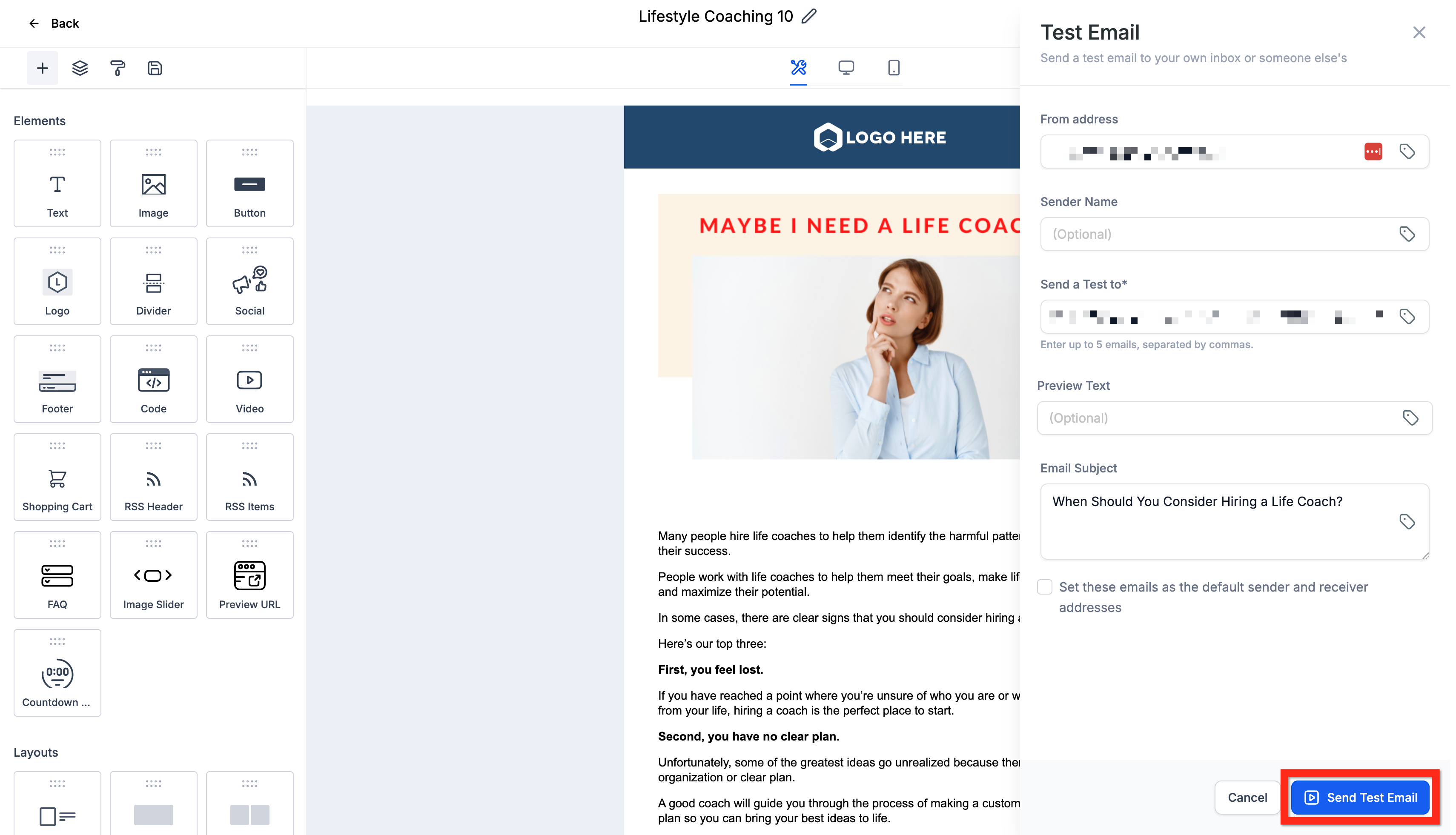
- Enter the required sender information and test recipients.
- Click Send Test Email.
- Review the test email and make any necessary changes.
- Click Back to return to the email campaign area.
Note: A test email is sent only to the test recipients you specify. It does not send the campaign to your audience.
Dock the Edit Panel and Work with Email AI
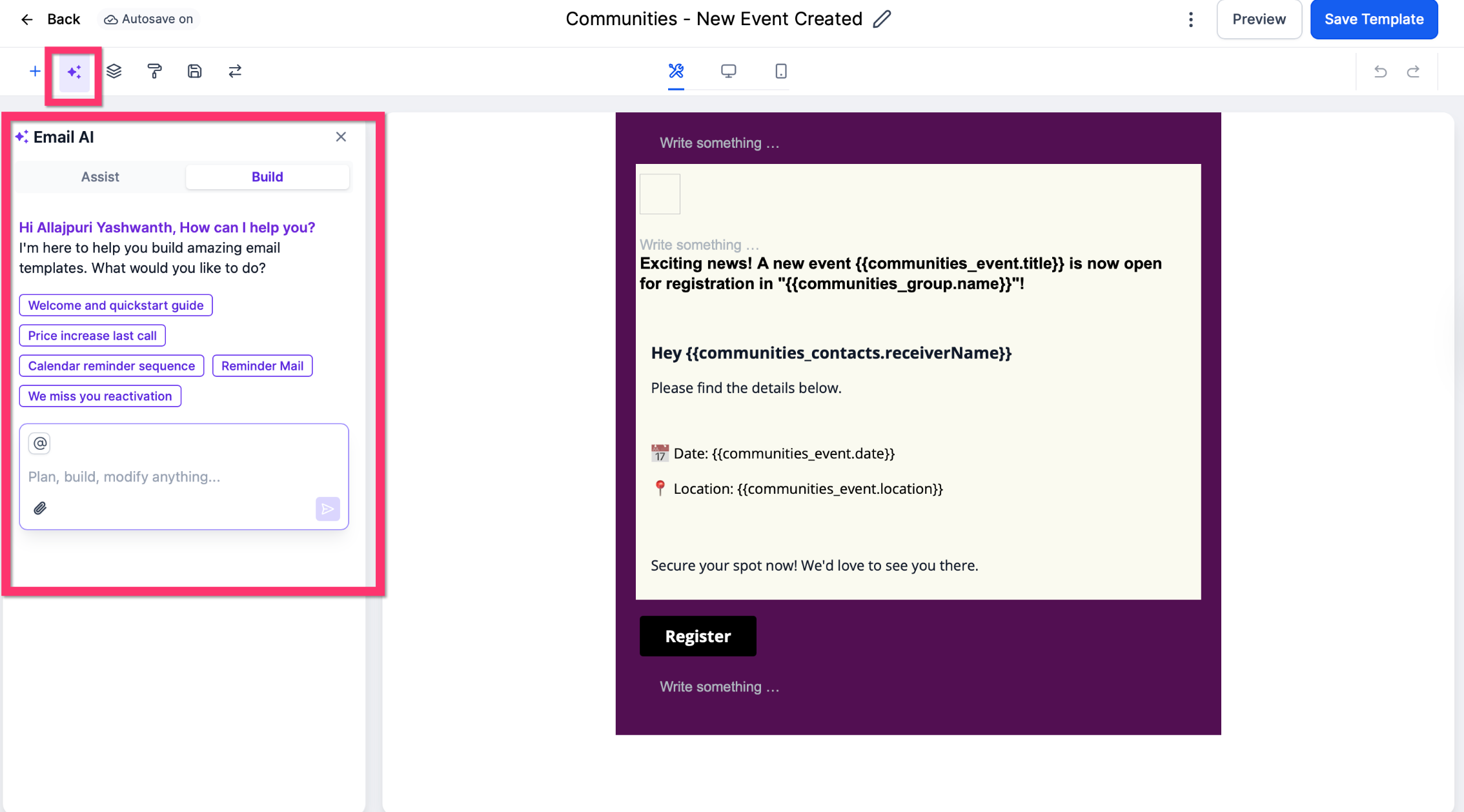
The Email Builder supports moving the edit panel between the left and right sides. When Email AI is available, positioning the panel can help you work with AI-assisted drafting alongside your email design.
- Open a campaign or template in the Email Builder.
- Enable Email AI if you want assisted drafting and the feature is available.
- Use the panel-position control to move the edit panel to the Right.
- Use the same control to move the panel back to the Left when needed.
- Continue editing and preview your email.
Create an Email Campaign From a Template
Once your template is ready, create a campaign using the saved design. You can start in Campaigns or create a campaign directly from the Templates tab.
Step 1: Start a Campaign
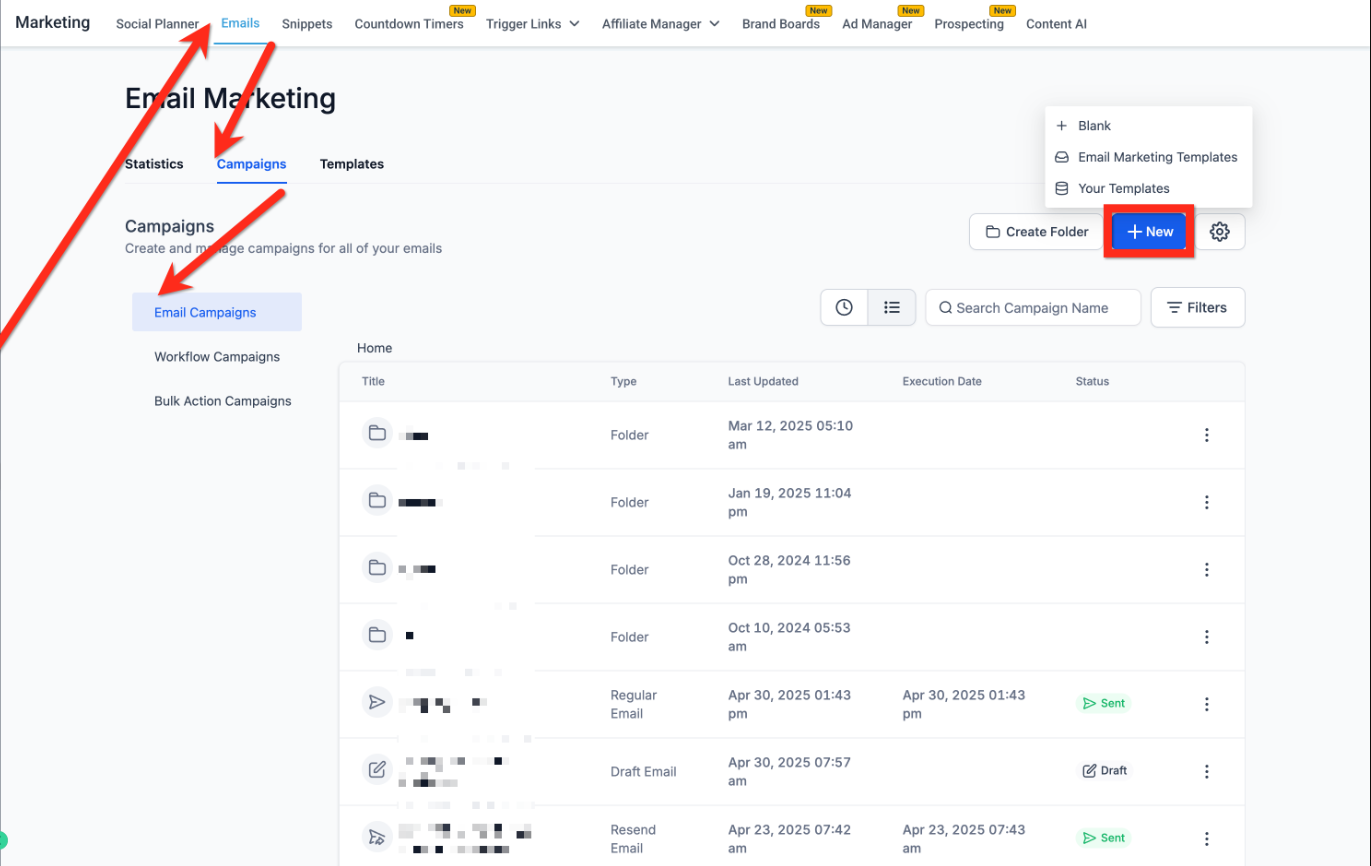
- Go to Marketing > Emails > Campaigns.
- Click New > Select Template.
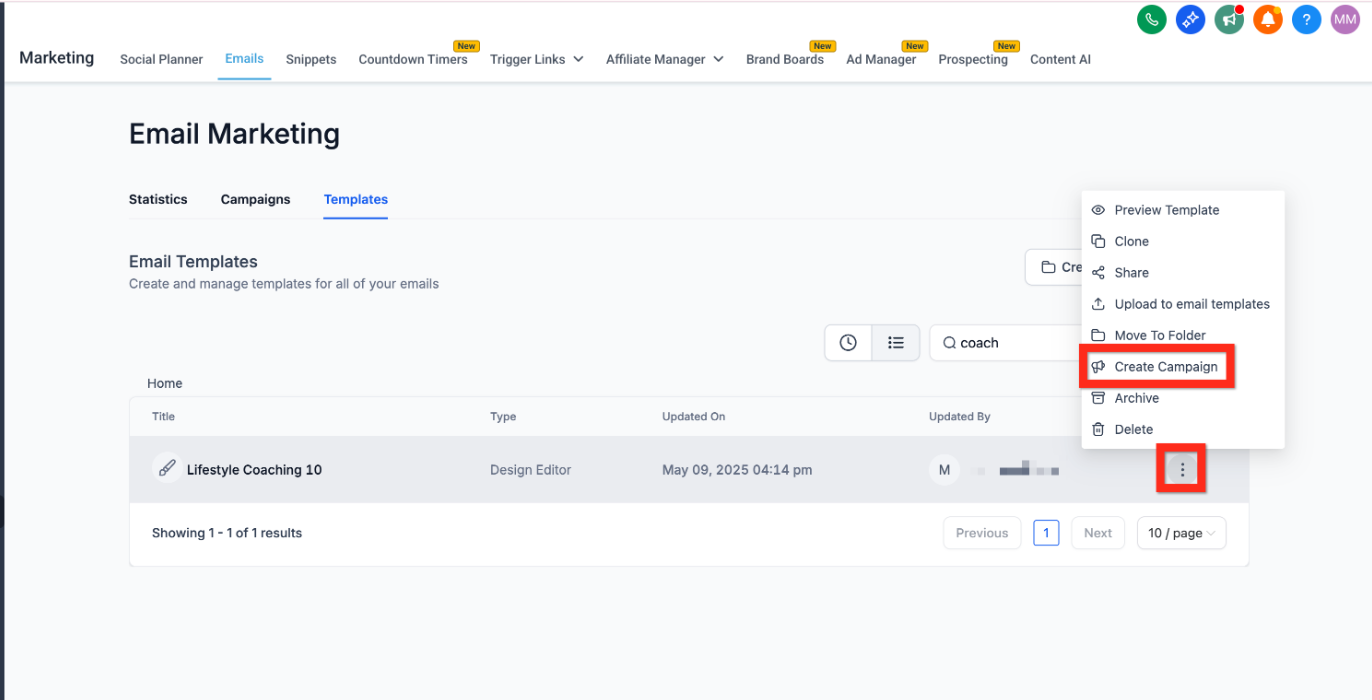
Alternative method: Go to the Templates tab, open the three-dot action menu beside a saved template, and select Create Campaign.
Step 2: Configure Email Delivery
After opening the template as a campaign, configure the recipients and available sending options.
- With your campaign open, click Send or Schedule.
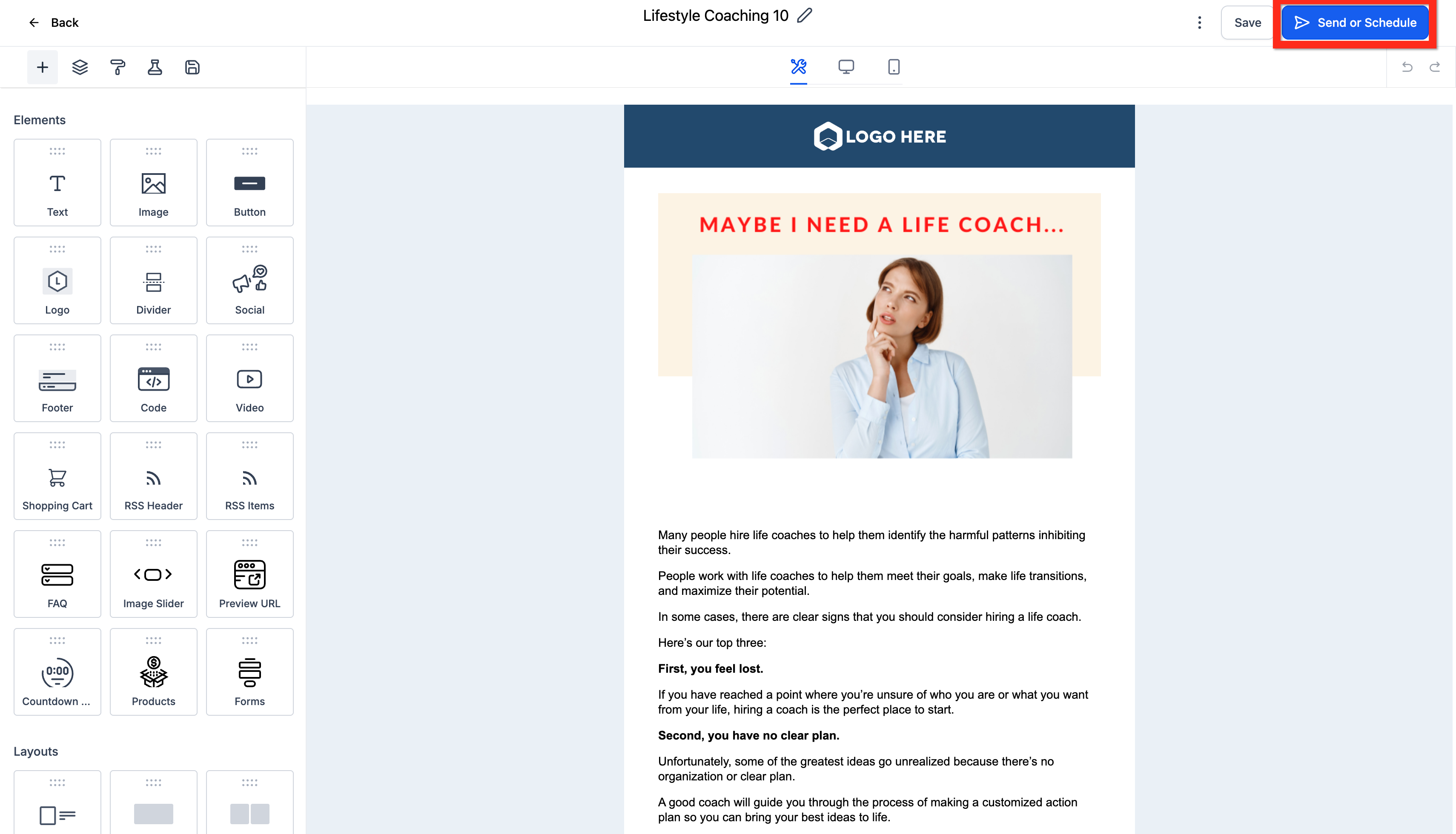
- Configure the available email options, including recipients and tracking.
- Review the campaign information.
- Click Review and Send.

Step 3: Review Campaign Status
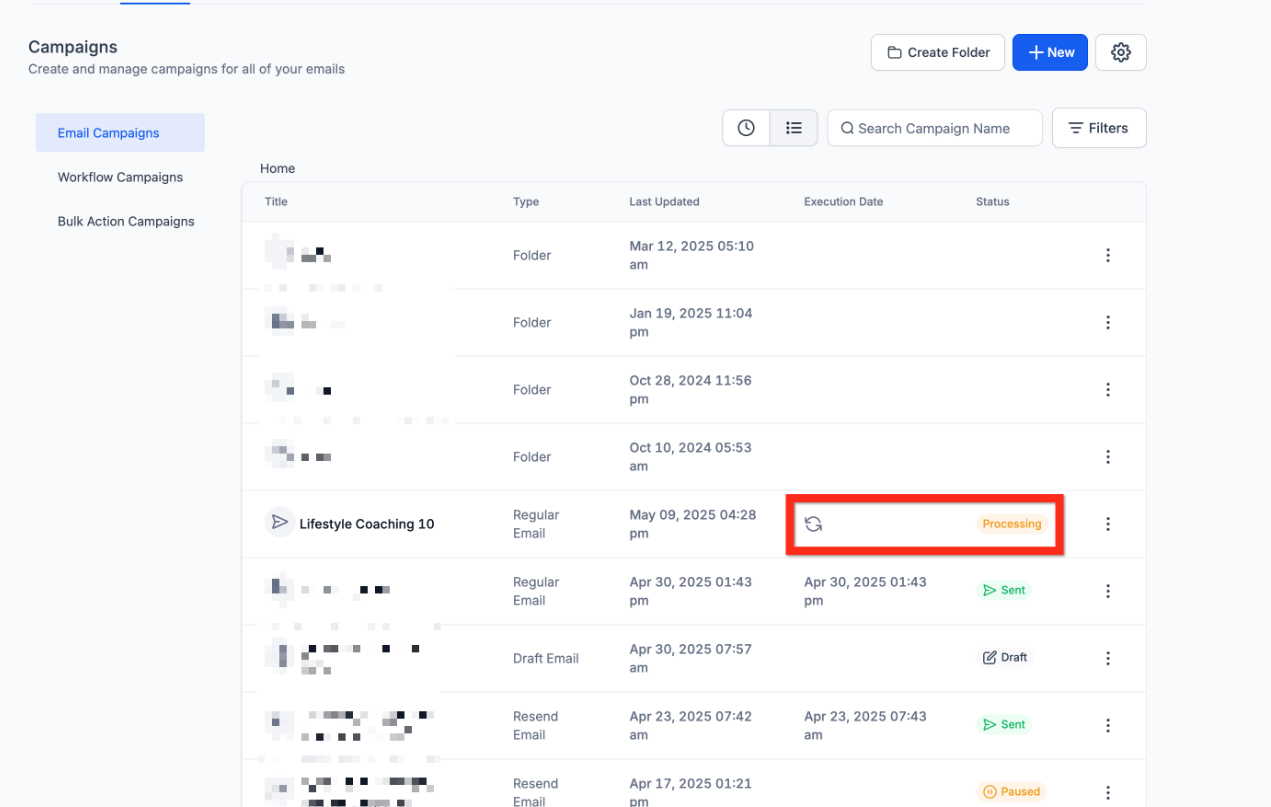
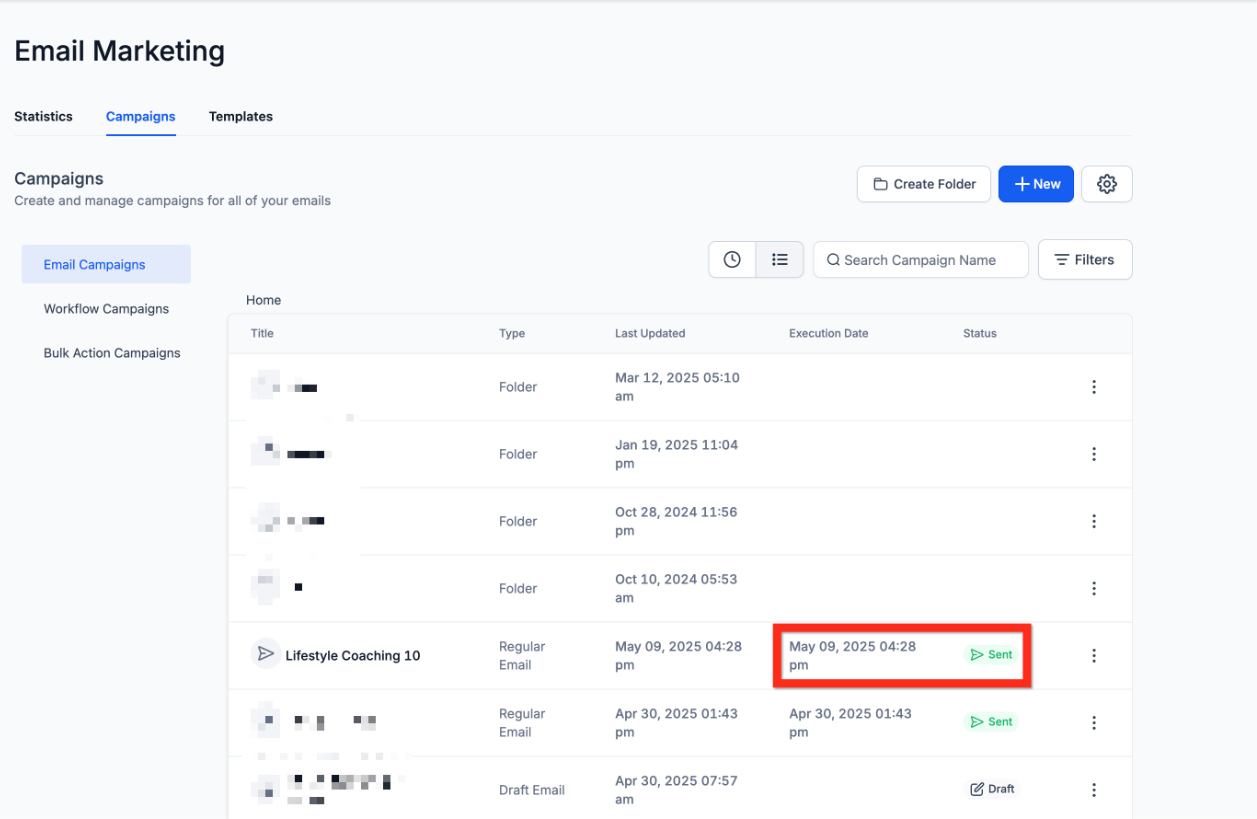
After submitting the campaign, review its status in the email campaign area. The status can change from Sending to Sent as processing completes.
Language Support for New Campaigns
System-provided default content inserted into a new campaign uses your selected language when a translation is available. When a translation is unavailable, the English version is used.
This behavior applies to system-provided content. It does not automatically translate existing, saved, or imported email designs.
Frequently Asked Questions
Q: Does sending a test email launch my campaign?
No. A test email is sent only to the test recipients you specify. Launching a campaign requires using Send or Schedule and the campaign's sending controls.
Q: Can I create a campaign from a template I have already saved?
Yes. Go to Marketing > Emails > Templates, open the three-dot action menu beside the saved template, and select Create Campaign.
Q: Can I start an email without a prebuilt template?
Yes. The Template Library provides an option to create a design from scratch.
Q: What happens when a starter-template translation is unavailable?
English is used automatically when a translation for the selected language is unavailable.
Q: Will existing or imported email designs be translated automatically?
No. The described localization applies to system-provided starter templates and default content inserted into new campaigns. It does not establish automatic translation for existing or imported designs.
Q: Can I change the position of the Email Builder's edit panel?
Yes. When the panel-position control is available, use it to move the edit panel between the left and right sides.
Q: What is the difference between an email template and an email campaign?
A template is a reusable email design. A campaign is a message prepared for delivery to selected contacts.
Need Help?
If you experience problems creating templates, editing emails, or launching a campaign, review the following common issues.
- Template Not Found: Open the Templates tab and search the Template Library.
- Changes Not Saved: Confirm that you clicked Save Template.
- Test Email Not Received: Review the sender and recipient details entered for the test.
- Email AI or Panel Controls Missing: Confirm the feature is available in your Email Builder.
- Campaign Not Ready to Send: Review the recipient selection, sender information, and campaign settings.
- Unexpected Language: Check whether a translation is available for the selected language. System-provided content uses English when a translation is unavailable.
If the problem continues, contact support with the affected template or campaign, relevant error messages, and screenshots of the issue.