
Platform Language determines which language appears in supported areas of the application. You can choose a default language in Business Profile and set a personal preference in My Profile. Supported interface text, system messages, and notifications use available translations, with English as the fallback. This guide explains supported languages, localized features, and how to change your language settings.
TABLE OF CONTENTS
- What Is Platform Language?
- Key Benefits
- Prerequisites and Limitations
- Supported Platform Languages
- How Platform Language Is Applied
- Product Areas Covered by Internationalization
- WordPress Localization
- Funnels and Funnel Stats Localization
- Email App Localization
- How to Set Up Platform Language
- Frequently Asked Questions
- Need Help?
What Is Platform Language?
Platform Language is the preference that controls which available translations appear in supported areas of the application.
The language selected in Settings > Business Profile > Platform Language provides a default. Users can choose a different language under Settings > My Profile > Platform Language.
Supported interface labels, notifications, and system-generated messages follow the applicable language preference. When a translation is unavailable, the content appears in English.
Key Benefits
Choosing a familiar language helps users navigate supported features, understand system messages, and work with multilingual teams.
- Localized Interface: View supported menus, labels, and system messages in your preferred language.
- Personal Language Preferences: Choose an individual language without changing the Business Profile preference.
- Localized Notifications: Receive supported notification titles, messages, and email notifications in your selected language.
- Broad Feature Coverage: Access translated content across supported contact management, marketing, payment, and other product features.
- English Fallback: View the English version when a translation is unavailable.
Prerequisites and Limitations
Platform Language affects supported interface content. Translation coverage and language behavior may differ between product features.
- Available Settings: Use the language preferences available in Business Profile or My Profile.
- Supported Languages: Select from the languages available in the Platform Language menu.
- Translation Availability: Some interface labels or messages may remain in English.
- Separate Language Settings: Features such as the Client Portal may have their own language preferences.
- Existing Content: Changing Platform Language does not automatically translate existing custom-written content.
Important: Platform Language is different from Outbound Communication Language for Custom Values. The latter controls language-sensitive formatting for supported custom values in outbound communications.
Supported Platform Languages
Platform Language supports English and 12 additional language options. French and Portuguese include regional variations.
| Language | Display Name |
|---|---|
| English (default) | English |
| Spanish | Español |
| German | Deutsch |
| French (France) | Français |
| French (Canada) | Français |
| Portuguese (Portugal) | Português |
| Portuguese (Brazil) | Português |
| Italian | Italiano |
| Dutch | Nederlands |
| Swedish | Svenska |
| Danish | Dansk |
| Finnish | Suomi |
| Norwegian | Norsk |
Note: Translation coverage can vary by feature. When a translation is missing, the application uses English (en_US).
How Platform Language Is Applied
Different product experiences may use different language preferences. Understanding which setting applies helps explain why some screens or messages appear in another language.
| Experience | Language Behavior |
|---|---|
| Default Interface Language | Uses Settings > Business Profile > Platform Language where applicable. |
| Personal Interface Language | The language selected in Settings > My Profile > Platform Language takes precedence for the individual user. |
| System Notifications | Supported notification titles and message bodies follow the recipient's Platform Language. |
| Email Notifications | Supported subject lines and notification templates are localized for each recipient. |
| Funnels and Funnel Stats | Uses the location's locale when available, followed by the user's Platform Language and then English. |
| Email Builder System Content | Supported starter templates, default campaign content, and system messages use the selected user language. |
| Missing Translations | The relevant content appears in English. |
Outbound Communication Language for Custom Values
Platform Language controls supported interface and system content. A separate setting determines how supported custom values are formatted in outbound communications.
Review Outbound Communication Language for Custom Values in Settings > Business Profile when configuring language-sensitive custom-value output.
Product Areas Covered by Internationalization
Internationalization supports translated interface content across numerous product areas. Coverage includes the following features, although individual strings may still fall back to English.
- Contacts and Customer Management: Contacts, Contact Details, Smart Lists, Tasks, Bulk Actions, Opportunities, Conversations, Chat Widget, Custom Fields, Custom Objects, and Custom Values.
- Websites, Funnels, and Forms: Websites, Funnels, Forms, Surveys, Form and Survey Builders, Page Builder, Builder Preview, Blogs, Domains, URL Redirects, and QR Code tools.
- Calendars and Marketing: Calendars, Calendar Elements, Email Builder, Template Builder, Content and Social Planner, Countdown Timer, Brand Board, and Ad Manager.
- Documents and Payments: Documents, Proposals, Invoices, Payment Links, Payment Widgets, Store Widgets, Estimates, and Certificates.
- Communities and Courses: Community previews and builders, Courses, Memberships, and supported Client Portal experiences.
- Other Supported Areas: Reporting, Integrations, Reputation, and WordPress.
Note: The Client Portal and related applications can use separate language settings. The Platform Language setting does not necessarily control every portal experience.
WordPress Localization
WordPress-related screens support localized interface content across the documented platform languages.
Additional translation strings have been included to provide more consistent labels and system messages throughout supported WordPress experiences.
As with other localized features, individual content may appear in English when a translation is unavailable.
Funnels and Funnel Stats Localization
Funnels and Funnel Stats use translated system messages to make editing, validation, and troubleshooting easier in supported languages.
Localized content includes:
- Validation Messages: Feedback when information needs to be corrected.
- Error Messages: System messages explaining unsuccessful actions.
- Success Messages: Confirmations when supported actions are completed.
When a location locale is available, it determines the language for these messages. Otherwise, the application uses the user's Platform Language, followed by English when a translation is unavailable.
Email App Localization
The Email app uses the selected language for supported system-provided content. This helps users create campaigns and understand editor messages in their preferred language.
- Starter Email Templates: System-provided starter templates use the selected language when a translation is available.
- Error and Success Messages: Supported prompts, errors, and confirmations appear in the selected language.
- New-Campaign Default Content: System-provided content inserted into a new campaign uses the selected language when available.
- English Fallback: Missing translations use the English version.
Important: This behavior applies to supported system-provided content. Existing, saved, or imported email designs are not automatically translated by changing Platform Language.
How to Set Up Platform Language
You can change Platform Language through Business Profile or choose a personal preference through My Profile. The personal preference takes precedence for the individual user in supported areas.
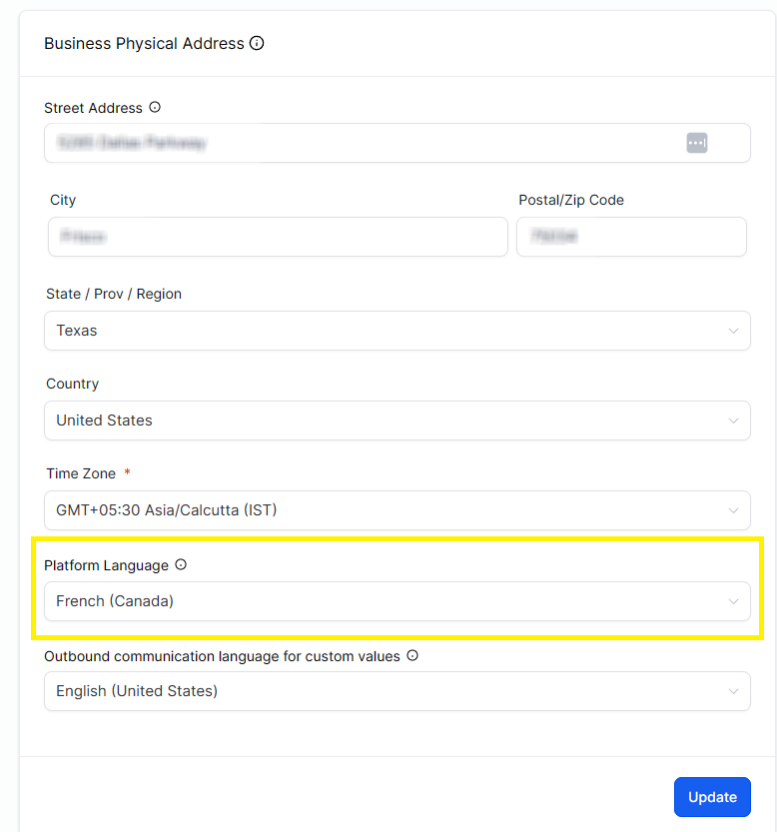
Set the Default Platform Language
Use Business Profile to select the default language for supported interface content.
- Go to Settings.
- Select Business Profile.
- Locate Platform Language.
- Choose the preferred language from the dropdown menu.
- Click Update in the Business Physical Address section to save the change.
Set Your Personal Platform Language
A personal language preference lets you use a different supported language without changing the Business Profile setting.
- Go to Settings.
- Select My Profile.
- Locate Platform Language.
- Select your preferred language.
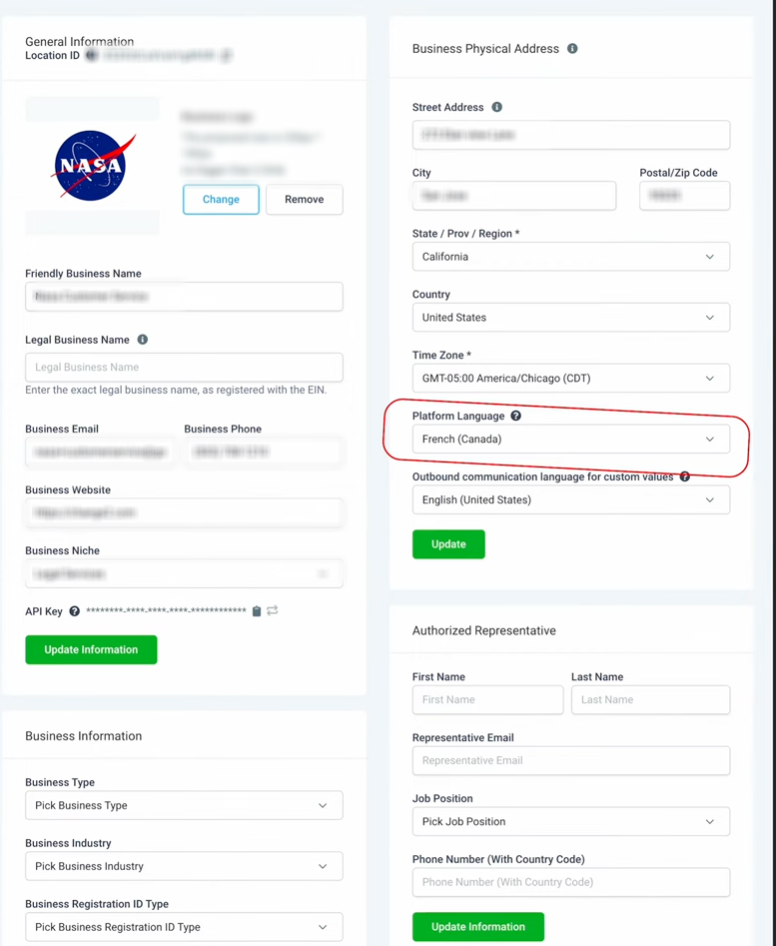
Your personal Platform Language takes precedence over the Business Profile language in supported parts of the application.
Frequently Asked Questions
Q: Why do some words or messages still appear in English?
Some translated strings may not be available. The application uses English when a translation is missing.
Q: Can I choose a different language from the one in Business Profile?
Yes. Go to Settings > My Profile > Platform Language and select your preferred language.
Q: Why might a Funnel Stats message appear in a different language from my profile preference?
Funnels and Funnel Stats use the location's locale first when it is available. If no location locale applies, the user's Platform Language is used, followed by English.
Q: Are Platform Language and Client Portal language settings the same?
No. The Client Portal and related applications can have separate language settings.
Q: Does Platform Language control how dates and times appear in outbound custom values?
Not by itself. Review Outbound Communication Language for Custom Values in Settings > Business Profile for supported date, time, and other custom-value formatting.
Q: Will changing Platform Language automatically translate my existing email designs?
No. The Email app localization described here applies to supported system-provided starter templates, default campaign content, and system messages. It does not automatically translate existing email designs.
Need Help?
If the language displayed in the application does not match your preference, check the settings and translation behavior described below.
- Incorrect Interface Language: Review Settings > My Profile > Platform Language and the language selected in Business Profile.
- Missing Translations: Some content may appear in English when a translation is unavailable.
- Different Funnel Language: Check whether the location locale is taking precedence over your personal Platform Language.
- Unexpected Email Language: Confirm that a translation is available for the selected language. System-provided email content uses English as a fallback.
- Client Portal Language: Review the portal's separate language preferences when applicable.
- Custom Value Formatting: Review Outbound Communication Language for Custom Values in Business Profile.
If a translation is missing, unclear, or incorrect, contact support with the affected page, selected language, a screenshot, and the suggested wording if available.