
The Go To workflow action allows you to redirect contacts to another action within the same workflow. It helps connect different workflow branches, reuse existing actions, and control where contacts continue in an automation.
This article explains how Go To works, how to configure or disconnect it, and how to use it in a workflow.
TABLE OF CONTENTS
- What is the Go To Workflow Action?
- Key Benefits of the Go To Action
- How the Go To Action Works
- How to Set Up the Go To Action
- Example
- Frequently Asked Questions
- Related Articles
What is the Go To Workflow Action?
The Go To action redirects a contact from its current position to another action within the same workflow. It is useful when multiple branches need to connect to an existing action or when a contact needs to return to an earlier step.
The Go To action must be placed at the end of a workflow or branch. It cannot be inserted between existing actions.
Key Benefits of the Go To Action
The Go To action helps simplify workflow paths by connecting actions without requiring you to recreate the same steps in multiple branches.
Flexible Workflow Navigation: Redirect contacts to an earlier or later action within the same workflow.
Reduced Duplication: Connect multiple branches to existing actions instead of recreating them.
Simplified Workflow Structure: Keep related automation paths connected and organized.
Conditional Routing: Use Go To with If/Else branches to direct contacts to the appropriate next action.
How the Go To Action Works
The Go To action creates a connection between its position in the workflow and another action you select. When a contact reaches Go To, the contact proceeds to the connected action.
Go To can redirect contacts to another action within the same workflow.
It can connect different branches of a workflow.
It must be the last action in a workflow or branch.
A Go To connection can be disconnected and reassigned to a different action.
Note: Go To does not transfer contacts to a separate workflow. To add contacts to another workflow, use the Add to Workflow action.
How to Set Up the Go To Action
Configuring Go To requires adding the action at the end of a workflow path and selecting the destination action. The connection determines where contacts continue when they reach Go To.
Navigate to Automation → Workflows.
Open the workflow you want to edit.
At the end of a workflow or branch, click the + icon to add an action.
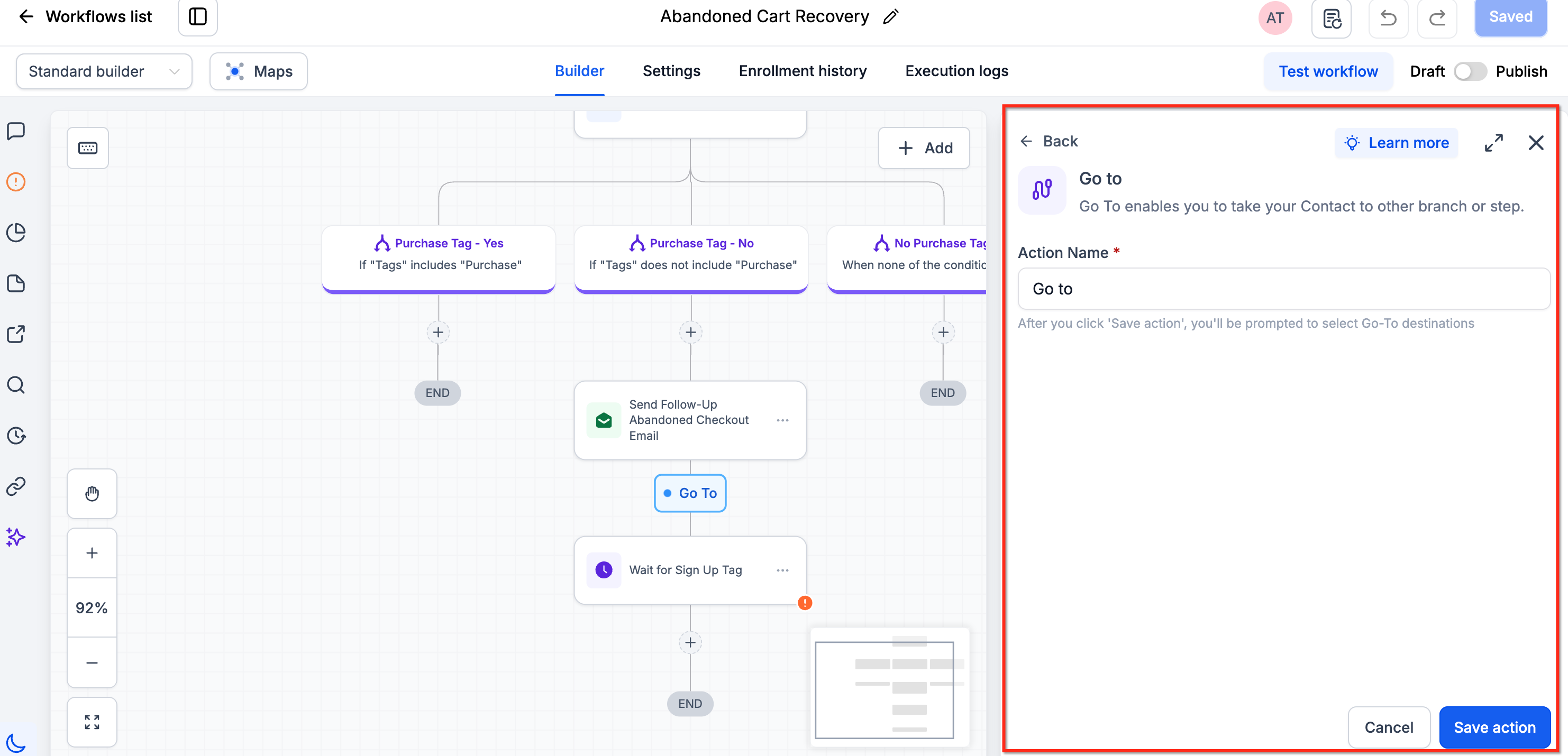
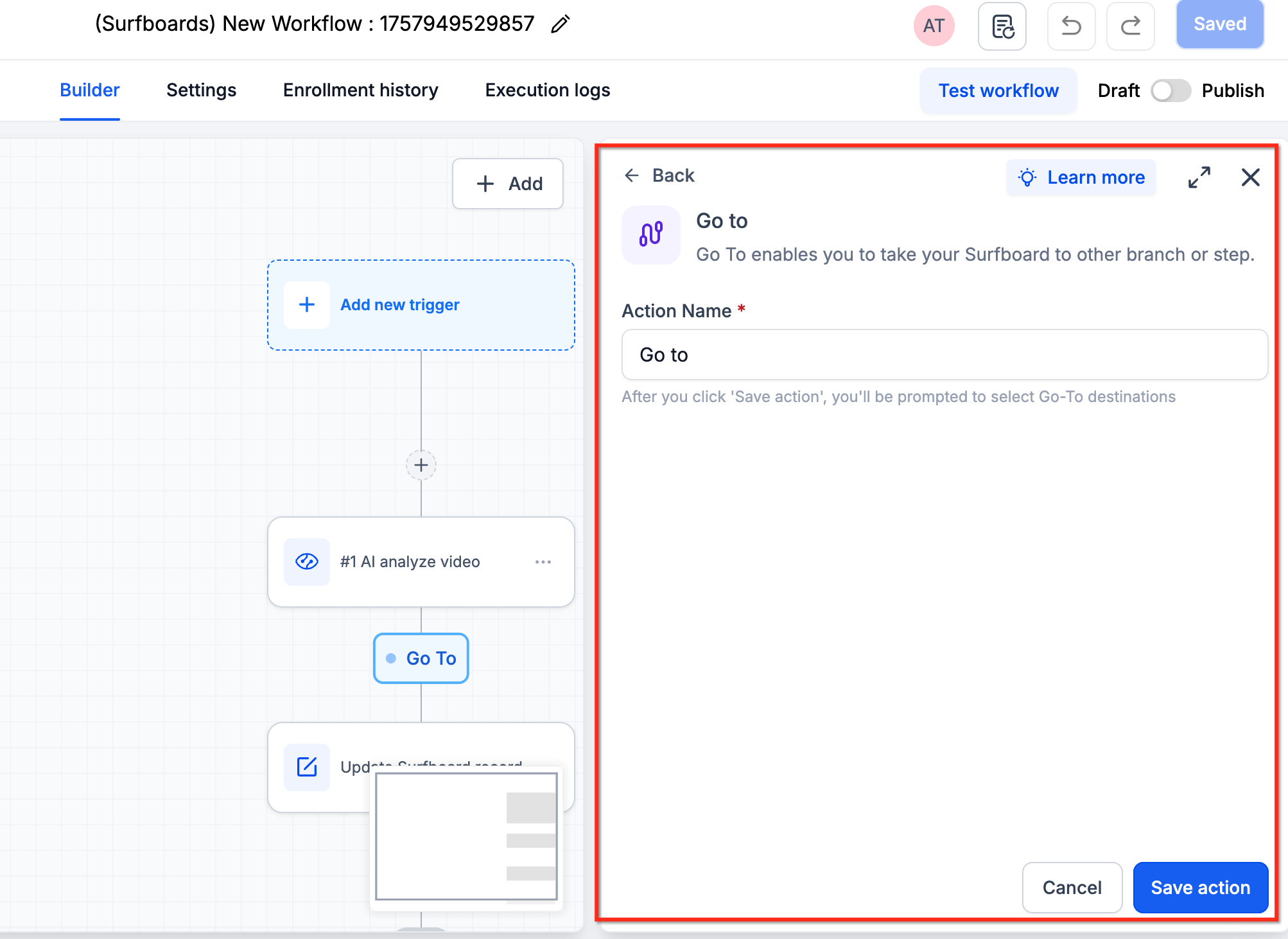
Search for and select Go To from the available workflow actions.
Enter a descriptive name for the action, such as "Go to Wait Action."
Click Save Action to save the configuration.
The available workflow actions will be highlighted. Click the action where you want the contact to continue.
Save your workflow changes.
How to Disconnect or Change a Go To Connection
You can change the destination of an existing Go To action without recreating it.
Open the workflow containing the Go To action.
Locate the Go To action you want to modify.
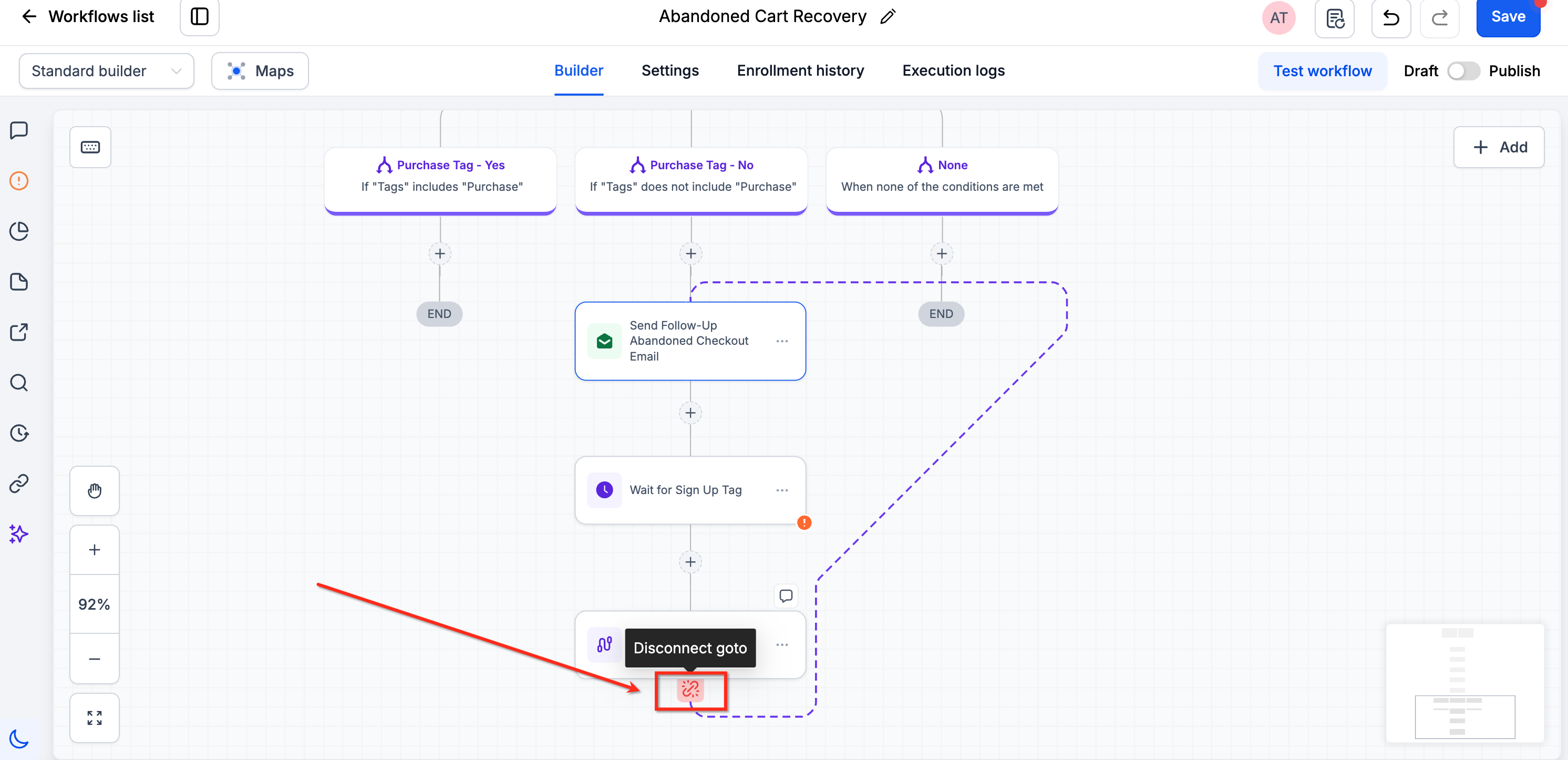
Click Disconnect GoTo beneath the action to remove the existing connection.
Select another action in the workflow as the new destination.
Save your workflow changes.
Example
Sending Abandoned Checkout Reminders to Customers Who Have Not Purchased
Scenario: An online retailer wants to re-engage customers who abandoned their carts while avoiding additional reminder emails to customers who have already completed their purchases.
The workflow uses an If/Else condition to check whether a contact has the "Purchased" tag. The Go To action allows contacts who have purchased to bypass the reminder email and proceed directly to an existing Wait action.
Trigger Setup
Trigger: Abandoned Checkout
Name: Abandoned Checkout
Filters:
Duration (minutes): 10 (trigger the workflow if the checkout remains abandoned for more than 10 minutes).
Workflow Actions
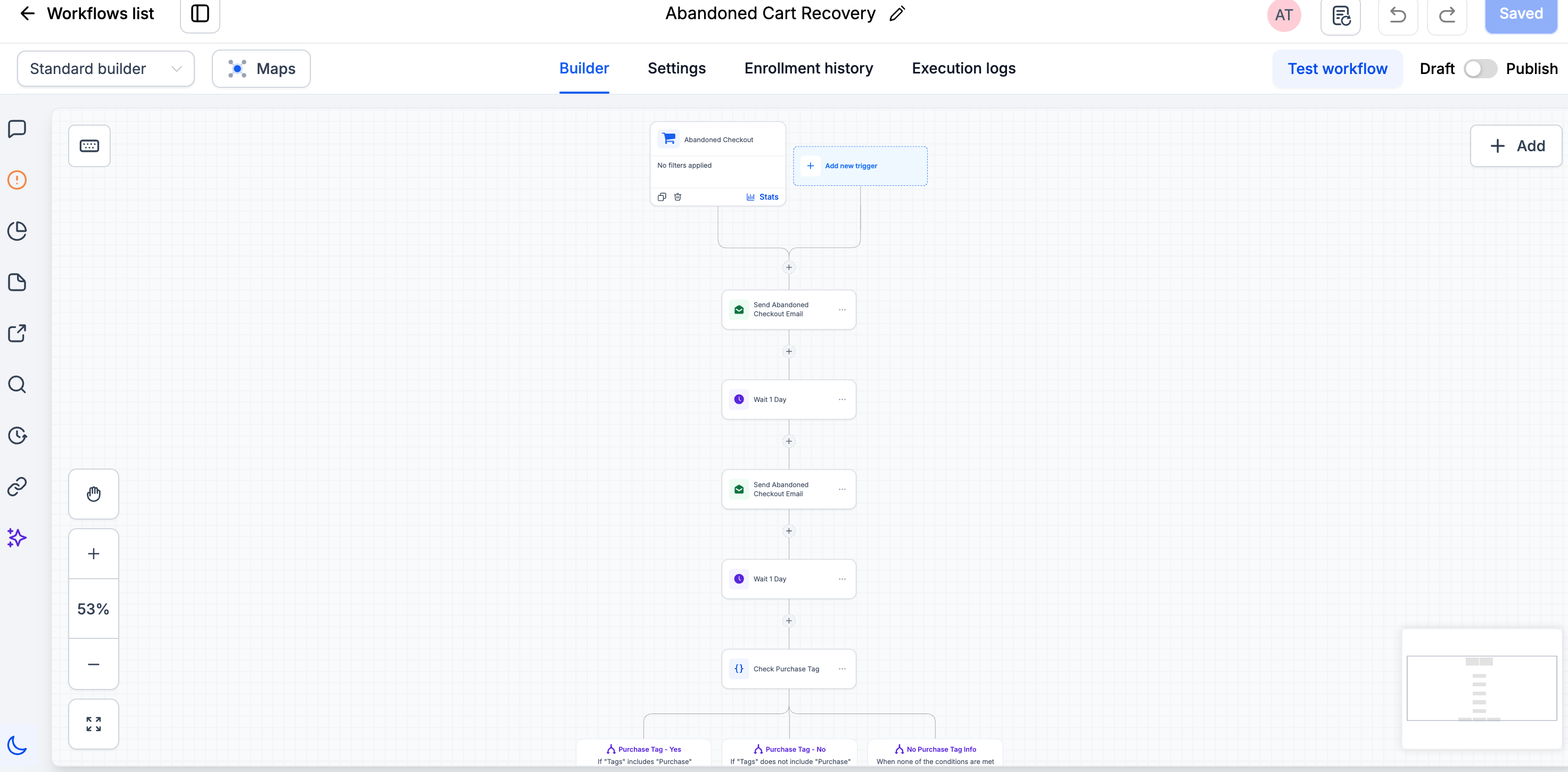
Send Email: Send a personalized email reminding the customer about the items left in their cart.
Wait: Wait for 1 day.
If/Else: Add a condition to check whether the contact has the "Purchased" tag.
Branch 1 (Purchased): Contacts with the "Purchased" tag follow this branch.
Branch 2 (None): Contacts without the "Purchased" tag follow this branch.
Send Email (Branch 2): Send another email reminding contacts who have not purchased about their abandoned carts.
Wait (Branch 2): Add a Wait action with a condition that checks whether the "Purchased" tag has been added.
Go To (Branch 1): Add a Go To action that redirects contacts with the "Purchased" tag directly to the Wait action in Branch 2, bypassing the additional reminder email.
Outcome
This automation helps re-engage customers who abandoned their carts while preventing additional reminder emails from being sent to contacts who have already purchased.
The Go To action connects the two workflow branches without requiring you to recreate the Wait action.
Frequently Asked Questions
Q: Can I use Go To to move contacts into another workflow?
No. Go To redirects contacts between actions within the same workflow. Use the Add to Workflow action to enroll contacts in another workflow.
Q: Why can't I add Go To between two existing actions?
Go To can only be placed at the end of a workflow or branch. It cannot be inserted between actions.
Q: Can Go To redirect contacts to an earlier action?
Yes. You can connect Go To to an earlier action in the same workflow. Make sure the workflow includes appropriate conditions to prevent unintended repeated execution.
Q: Can multiple branches connect to the same action?
Yes. Go To allows different workflow branches to direct contacts to an existing action.
Q: Do I need to recreate the Go To action to change its destination?
No. Use Disconnect GoTo to remove the existing connection, then select a new destination action.
Q: What should I do if I encounter a Loop Lock issue with the Go To action?
A Loop Lock issue may occur when a Go To connection repeatedly sends a contact through the same workflow actions.
Review the Go To destination and any conditions that return the contact to an earlier step. Ensure the workflow has an appropriate exit condition to prevent unintended repetition.
You can also review the workflow's Execution Logs to troubleshoot the contact's path.