
Custom meta tags allow you to add additional metadata to your funnel and website pages. These tags help communicate page information and instructions to search engines, browsers, and other platforms. You can configure them directly through the SEO Meta Data settings without manually editing the page's HTML.
This article explains how custom meta tags work, how to add them, and how to use a noindex directive.
TABLE OF CONTENTS
- What are Custom Meta Tags?
- Key Benefits of Custom Meta Tags
- Understanding Custom Meta Tag Fields
- How to Add Custom Meta Tags
- Frequently Asked Questions
What are Custom Meta Tags?
Custom meta tags are HTML elements that provide information or instructions about a webpage to search engines, browsers, and other services. You can add these tags to individual funnel and website pages through the SEO Meta Data settings.
Custom meta tags supplement standard SEO fields, such as page titles and meta descriptions. Depending on the tag, they can provide additional page information or communicate indexing instructions.
Note: Custom meta tags do not guarantee search engine rankings or specific search result appearances.
Key Benefits of Custom Meta Tags
Custom meta tags provide additional control over the metadata associated with your funnel and website pages.
Additional Page Metadata: Provide information that search engines and other services can interpret.
Indexing Instructions: Use supported directives, such as
noindex, to request that search engines exclude specific pages from search results.Page-Level Customization: Configure different meta tags for individual funnel or website pages.
Simplified Configuration: Add custom meta tags directly through the SEO Meta Data settings without manually editing the page's HTML.
Understanding Custom Meta Tag Fields
Each custom meta tag contains a name and a content value. The name identifies the type of metadata or instruction, while the content specifies its value.
Name: Identifies the meta tag, such as
robots.Content: Defines the value associated with that tag, such as
noindex.
How to Add Custom Meta Tags
Custom meta tags are configured through the SEO Meta Data settings of individual funnel and website pages. Enter the correct tag name and content to add the intended metadata or directive to the page.
Navigate to Sites > Funnels or Sites > Websites.
Select the funnel or website you want to edit.
Open the specific page or funnel step.
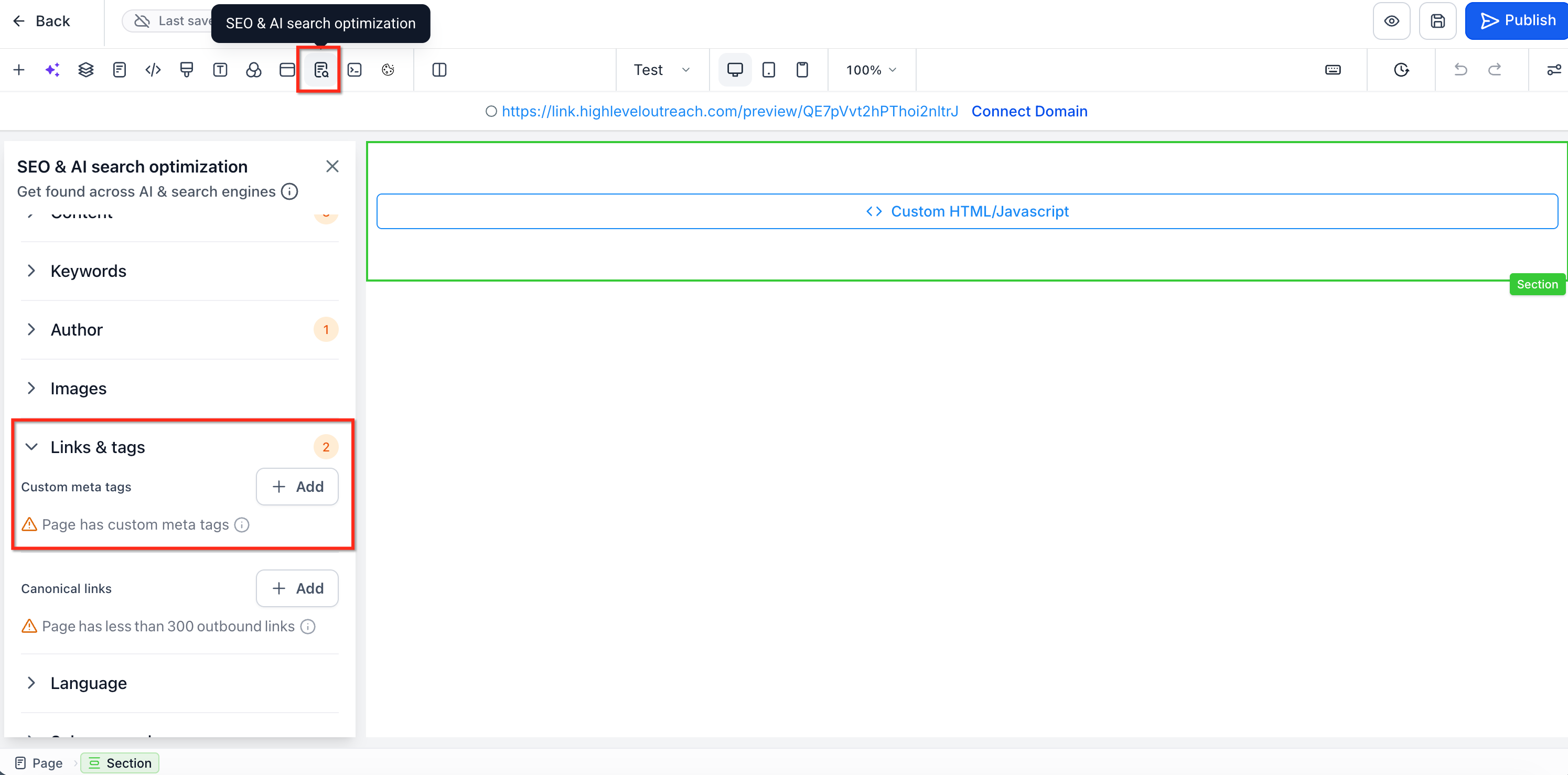
Go to the SEO & AI search optimization tab.
Scroll down and expand the Links and Tags dropdown.
Click + Add next to Custom Meta Tags.
Enter the tag name and content.
Click Add.
Click Update SEO Meta to save your changes.
Example: To request that search engines exclude a particular page from search results, create a custom meta tag with robots as the name and noindex as the content.
Frequently Asked Questions
Q: How long does it take Google to recognize updated meta tags?
The timing depends on when Google recrawls and processes the page. There is no guaranteed timeframe. You can use Google Search Console to inspect the URL and request indexing when appropriate.
Q: Can I add multiple custom meta tags to a page?
Yes. You can add multiple custom meta tags to a page based on your requirements. Make sure the tags contain valid values and do not introduce conflicting instructions.
Q: Will missing custom meta tags negatively affect my SEO?
Not necessarily. Custom meta tags are not required for every page. Missing or incorrect metadata may affect how certain platforms interpret or display page information, but custom meta tags do not directly guarantee better rankings.
Q: What happens when I add a noindex tag?
A noindex tag requests that compliant search engines exclude the page from their search results after processing the directive. The page remains accessible to visitors who have its URL.
Q: Can custom meta tags replace standard SEO titles and descriptions?
Custom meta tags provide additional metadata and instructions. Use the dedicated SEO Meta Data fields to manage standard page titles and descriptions.