
This document explains how to use the workflow action - Log External Call, to log calls from third-party calling tools into the LeadConnector CRM.
Covered in this Article:
- What is the Workflow Action - Log External Call?
- How to use this action?
What is the Workflow Action - Log External Calls?
Using this workflow action, you can post your external calls, that take place from third-party calling tools, to the LeadConnector CRM. This ensures that all your communication details are centralized within the LeadConnector CRM for better tracking and management. You can also pass the call recordings using this action and this will be visible on the Conversations section of contact.
How to use this action?
You can effectively use this action with the Inbound Webhook Trigger. This trigger provides you with a webhook URL that you can call to share the call details, whenever a call takes place in your calling system.
Once the trigger is configured, add the If/Else brach with direction field to separate inbound and outbound flows.

Note: direction field can be accessed from Inbound Webhook Trigger option
After creating two branches for Inbound calls and Outbound calls, Add "Create Contact Action. This will identify the contact on which the call should be posted using the phone numbers that you pass in the webhook.
In Create Contact Action, map the Phone field to "From Number" in Inbound call flow and "To Number" in the Outbound call flow. This will create/identify the contact associated with the given phone number.

Post this, Add the Log External Call action.

For each field, Direction, Date, To, From, Call Status and Attachment, update the related values by clicking on custom values icon > Inbound Webhook Trigger.

Once the workflow is published, external calls will be logged in the LeadConnector CRM and visible in Conversation section of the contact.
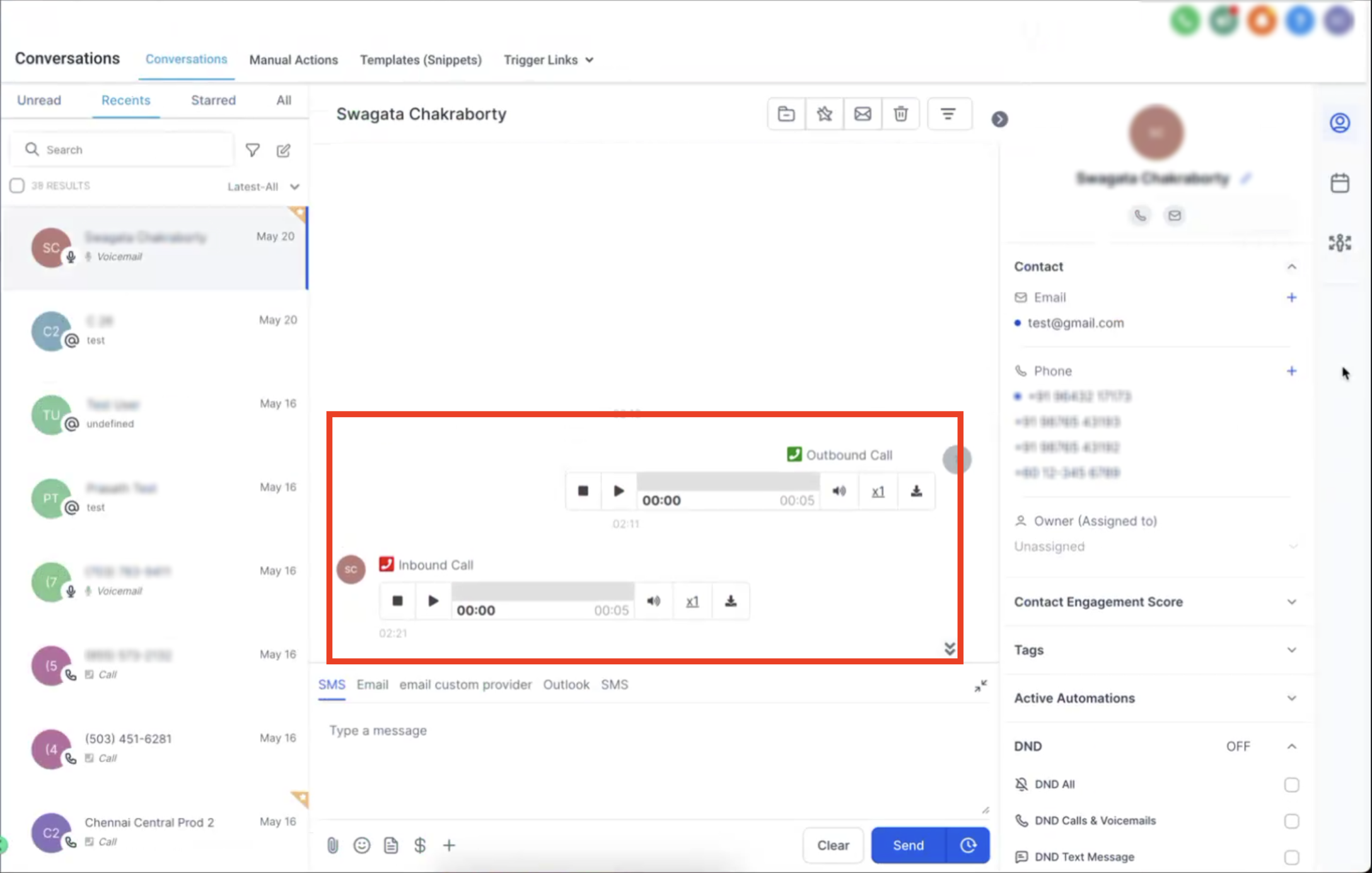
Call recordings can also be passed to the LeadConnector CRM and will be shown within the Conversation.
Need Help?
If external calls are not being logged as expected, first review the webhook data, workflow branches, contact matching, and field mappings.
Verify that:
- The workflow is published and active.
- The third-party calling tool is sending data to the correct Inbound Webhook URL.
- The webhook payload includes the expected call details, including direction, date, From number, To number, and call status.
- The If/Else branch correctly separates inbound and outbound calls using the direction field.
- The Create Contact action is included before the Log External Call action.
- For inbound calls, the contact phone field is mapped to the webhook From Number.
- For outbound calls, the contact phone field is mapped to the webhook To Number.
- The Log External Call action is included in both inbound and outbound branches when needed.
- Direction, date, To, From, call status, and attachment fields are mapped from the Inbound Webhook data.
- Phone numbers are being sent in a valid format that can be matched to the intended contact.
- The call recording URL or attachment is accessible if a recording should appear with the logged call.
- The logged activity is being checked in the correct contact's Conversations history.
If calls are appearing under the wrong contact, recheck the inbound and outbound phone-number mappings in the Create Contact action. If call recordings are missing, confirm the webhook is sending a valid recording URL or supported attachment value.
If the issue continues, collect the webhook payload, affected workflow branch, mapped field values, sample phone numbers, expected contact, call timestamp, and screenshots of the workflow configuration before contacting support.