
Triggering workflows directly from AI conversations allows you to automate actions based on customer intent. By configuring workflow triggers inside Bot Goals, you can streamline processes like bookings, purchases, and follow-ups without manual intervention. This feature improves efficiency and ensures timely, relevant actions during conversations.
TABLE OF CONTENTS
- What is Trigger a Workflow?
- Key Benefits of Triggering Workflows
- Accessing Bot Goals and Workflow Triggers
- Creating or Editing a Bot
- Opening Trigger a Workflow Settings
- Configuring Workflow Trigger Details
- Understanding Trigger Conditions
- How To Setup Trigger a Workflow
- Best Practices for Workflow Triggers
- Frequently Asked Questions
- Need More Help?
What is Trigger a Workflow?
Trigger a Workflow allows the AI to automatically start a predefined workflow when a specific condition is detected during a conversation. This enables seamless automation by connecting user intent with backend processes, reducing manual effort and improving response speed.
Key Benefits of Triggering Workflows
Automating workflows within conversations helps create smoother and more efficient customer experiences.
Automation (bold): Automatically execute actions without manual input
Faster Responses (bold): Trigger workflows instantly based on intent
Improved Accuracy (bold): Reduce human error in repetitive tasks
Scalable Processes (bold): Handle multiple interactions efficiently
Better Customer Experience (bold): Deliver timely and relevant actions
Accessing Bot Goals and Workflow Triggers
Understanding where to configure workflow triggers ensures you can quickly set up automation within your AI conversations.
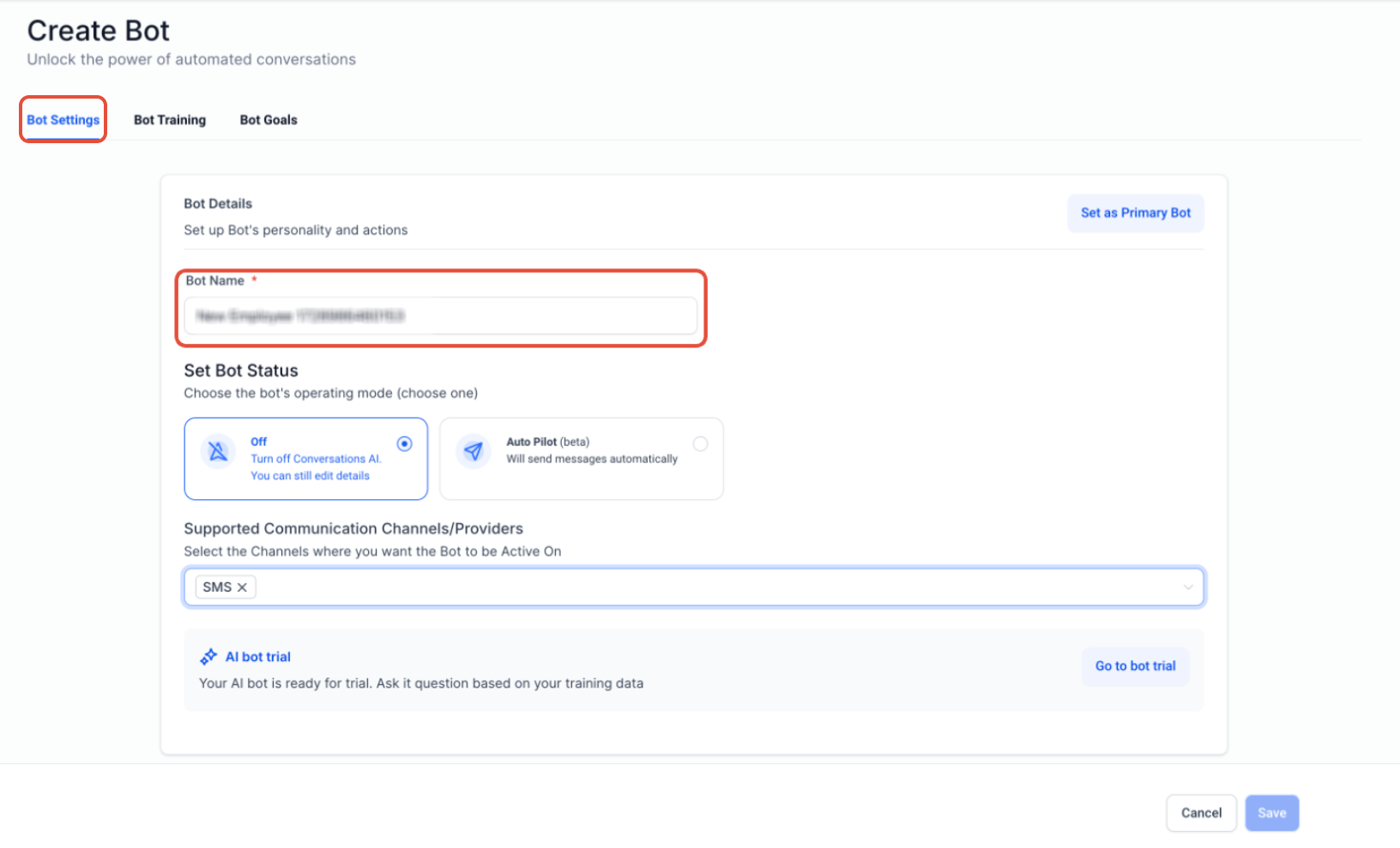
Click on the Bot Goals tab to begin configuring automation actions for your bot.
Creating or Editing a Bot
Before setting up triggers, ensure your bot is properly created and named for easy identification.
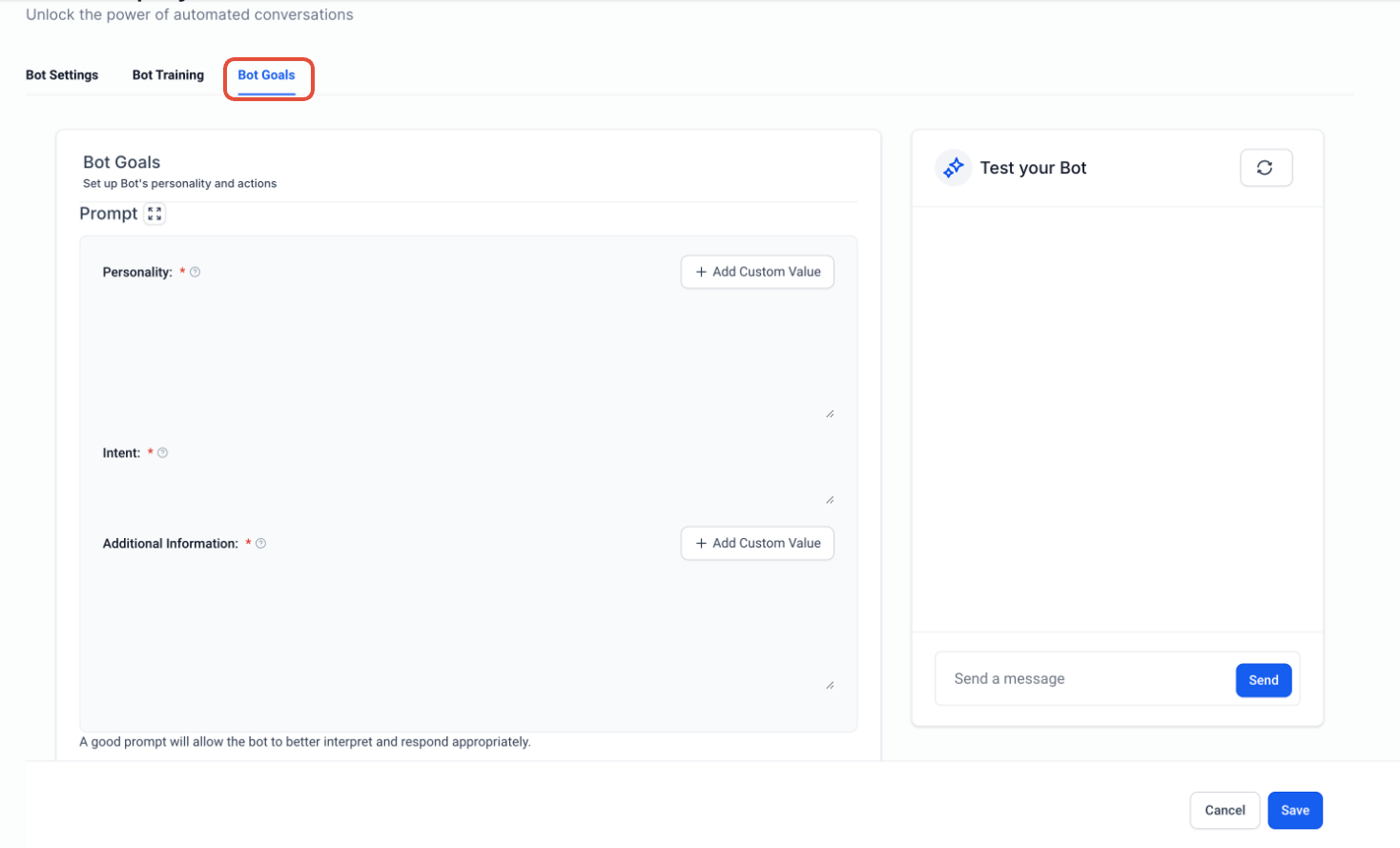
Enter or update the bot name. This helps organize and manage multiple bots effectively.
Opening Trigger a Workflow Settings
This step allows you to access the configuration panel where workflow automation is defined.
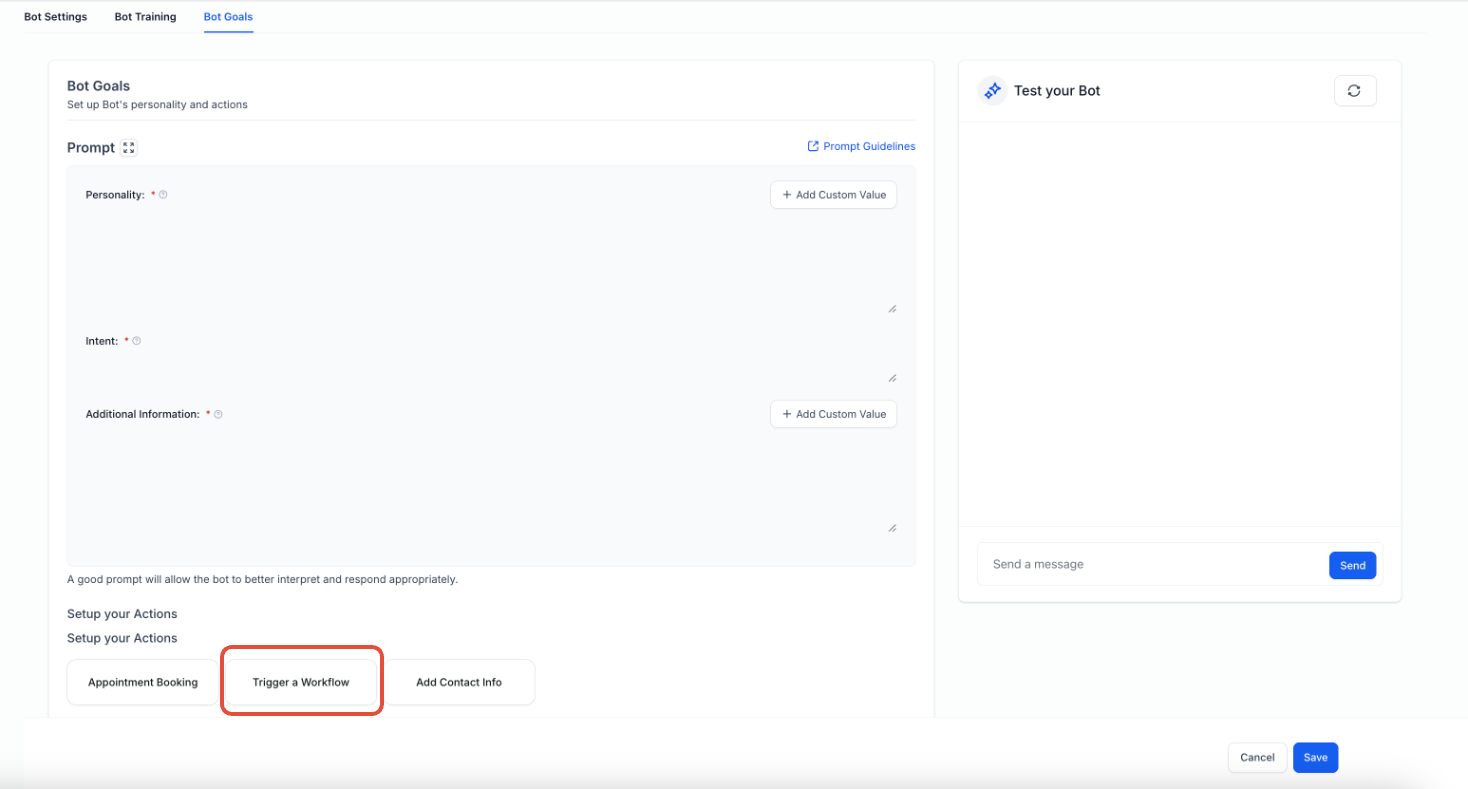
Click the Trigger a Workflow button under “Setup your Actions” to open the configuration window.
Configuring Workflow Trigger Details
Proper setup ensures the workflow activates at the right moment during a conversation.
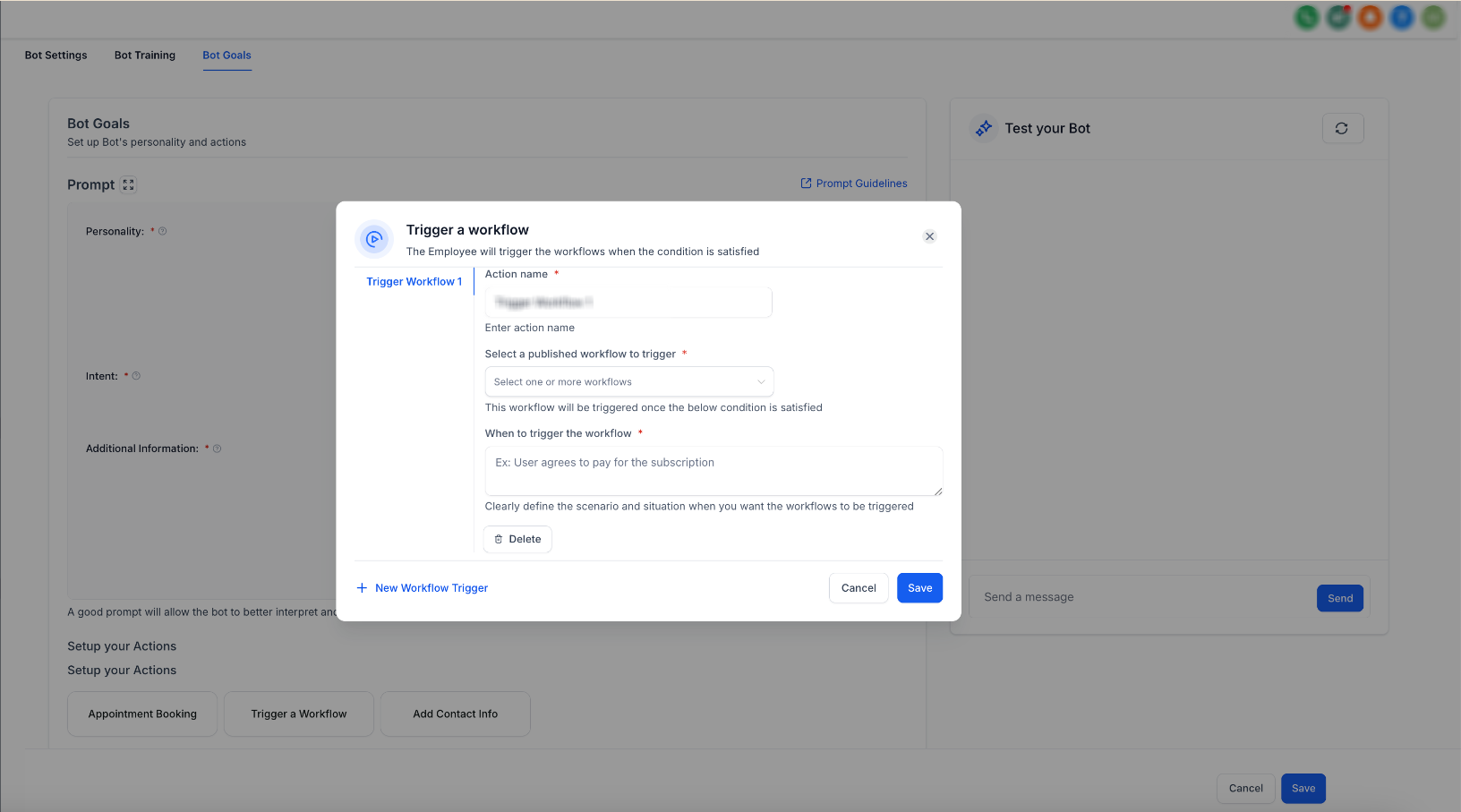
Fill in the required fields:
Enter a clear action name
Select a published workflow
Define the condition that triggers the workflow
Click Save to confirm your setup.
Understanding Trigger Conditions
Defining clear trigger conditions helps the AI recognize when to activate a workflow.
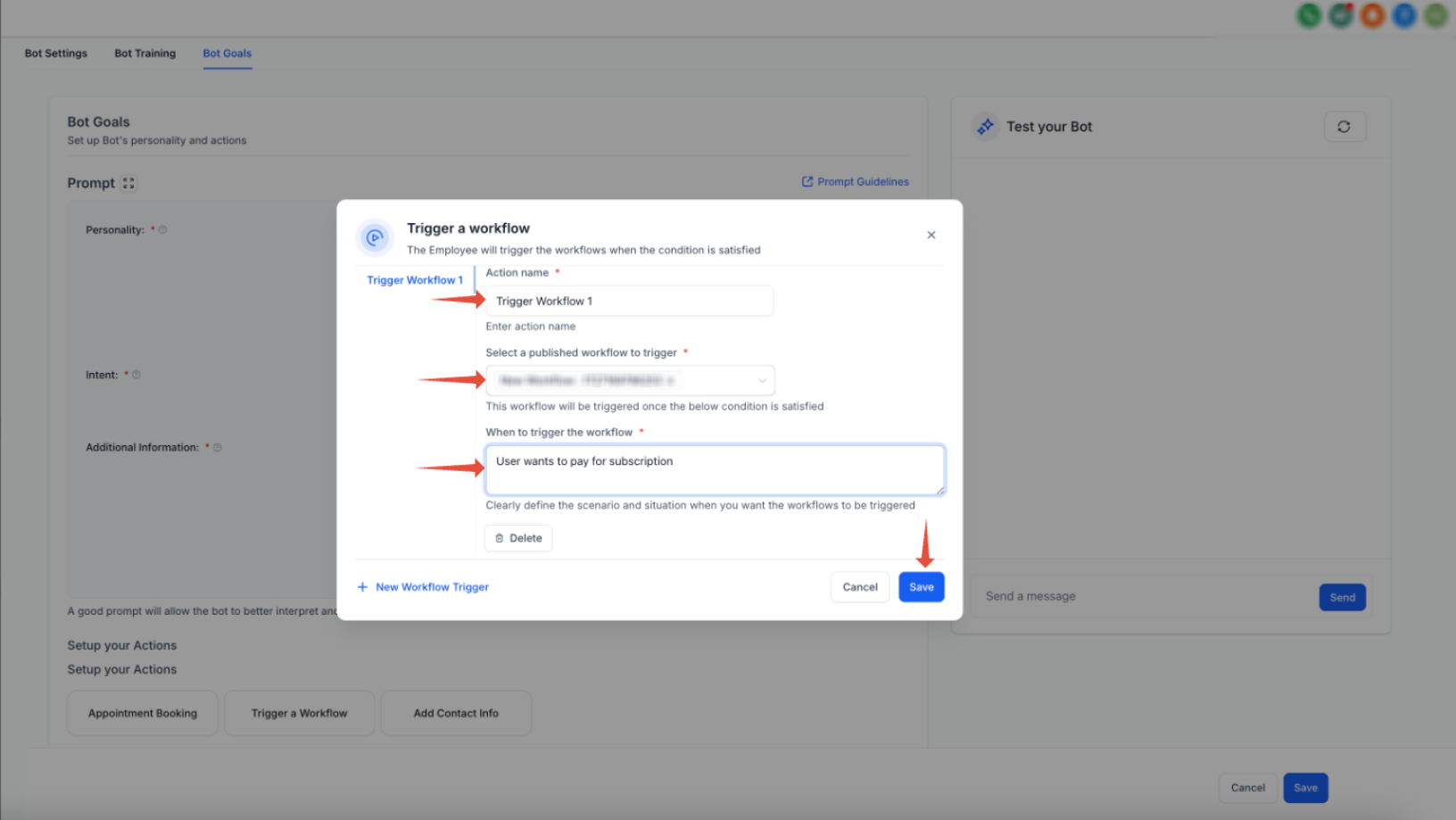
Describe the situation in simple terms, such as:
“Customer wants to book an appointment”
“Customer wants to purchase a subscription”
This helps the AI match real conversations to the correct workflow.
How To Setup Trigger a Workflow
Setting up workflow triggers correctly ensures automation works reliably across conversations.
Open the bot and go to Bot Goals
Click Trigger a Workflow
Enter an action name
Select a published workflow
Define the trigger condition clearly
Click Save to apply changes
Best Practices for Workflow Triggers
Using clear and intentional setup improves performance and avoids conflicts.
Write trigger conditions in natural language
Align prompts so users naturally trigger conditions
Avoid duplicate conditions for the same bot
Limit triggers to a maximum of 5 per bot
Ensure workflows are published before selecting
Trigger a workflow for a particular scenario is executed once per 20 messages, which means once the bot has executed a particular scenario in trigger a workflow, it cannot be re-triggered again for next 20 messages

This is done to prevent re-trigger everytime a new message is sent.
Frequently Asked Questions
Q: What happens if multiple triggers match the same condition?
The system determines which action to execute based on context and priority.
Q: Can a workflow be triggered by both user and bot messages?
Yes, triggers can activate from either side of the conversation.
Q: Why is my workflow not triggering?
Ensure the workflow is published and the condition is clearly defined.
Q: How many workflow triggers can I add?
You can configure up to 5 triggers per bot.
Q: Can I edit a trigger after saving it?
Yes, you can reopen the settings and update the trigger at any time.
Need More Help?
If you need assistance configuring workflow triggers or optimizing automation, explore additional help resources or contact support. Proper setup ensures your AI can respond intelligently and trigger the right actions at the right time.