
Managing when your AI bot interacts with contacts is essential for delivering a personalized experience. This feature allows you to control bot activity on a per-contact basis, ensuring the right balance between automation and human interaction. By adjusting bot status directly within conversations, you can improve engagement, avoid unwanted responses, and tailor communication flows more effectively.
TABLE OF CONTENTS
- What is AI Bot Status for Individual Contacts?
- Key Features of AI Bot Status Control
- Where to Access Bot Status
- How to Turn Off Bot for a Specific Contact
- Additional Information
- Frequently Asked Questions
- Need More Help?
What is AI Bot Status for Individual Contacts?
AI Bot Status for Individual Contacts allows you to control whether an automated bot is active, paused, or inactive for a specific contact. This ensures conversations remain relevant and prevents unnecessary automation when manual interaction is preferred. By adjusting bot behavior at the contact level, you gain precise control over how and when automation is applied throughout the customer journey.
Key Features of AI Bot Status Control
Fine-tuning bot behavior at the contact level helps create more meaningful and controlled interactions, especially when managing a mix of automation and manual responses.
Manual Control (bold): Adjust bot status individually for each contact in real time
Active Mode (bold): Bot automatically responds to incoming messages
Sleep/Snooze Mode (bold): Temporarily pauses the bot due to triggers or manual actions
Inactive Mode (bold): Fully disables bot interaction until reactivated
Automatic Reactivation (bold): Set a timer for the bot to resume activity after a defined period
Where to Access Bot Status
Being able to quickly view and adjust bot status directly inside conversations ensures faster decision-making and smoother communication management.
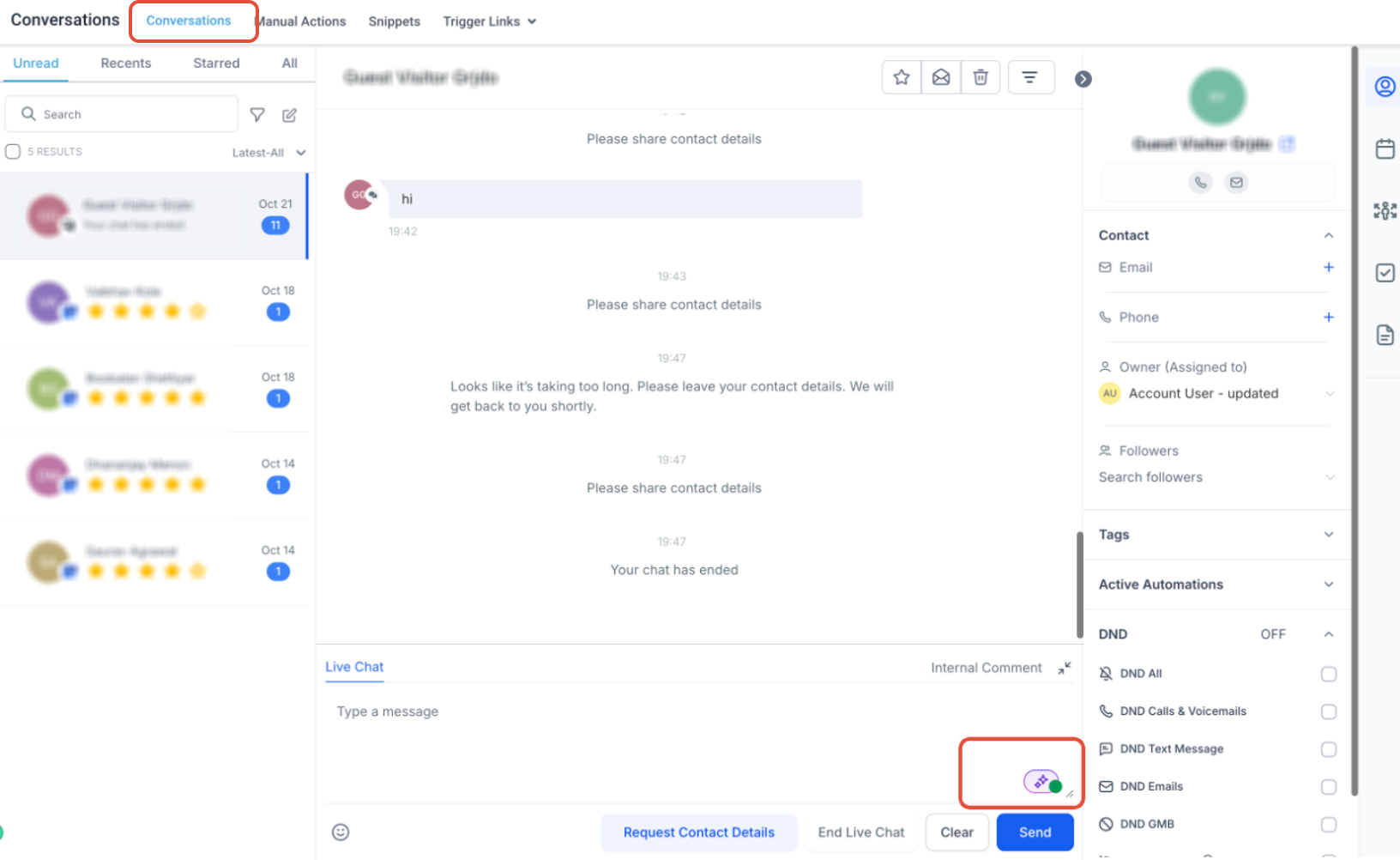
This image shows the bot status icon located in the message composer area of a conversation.
Click this icon to view or change the current bot status for the selected contact.
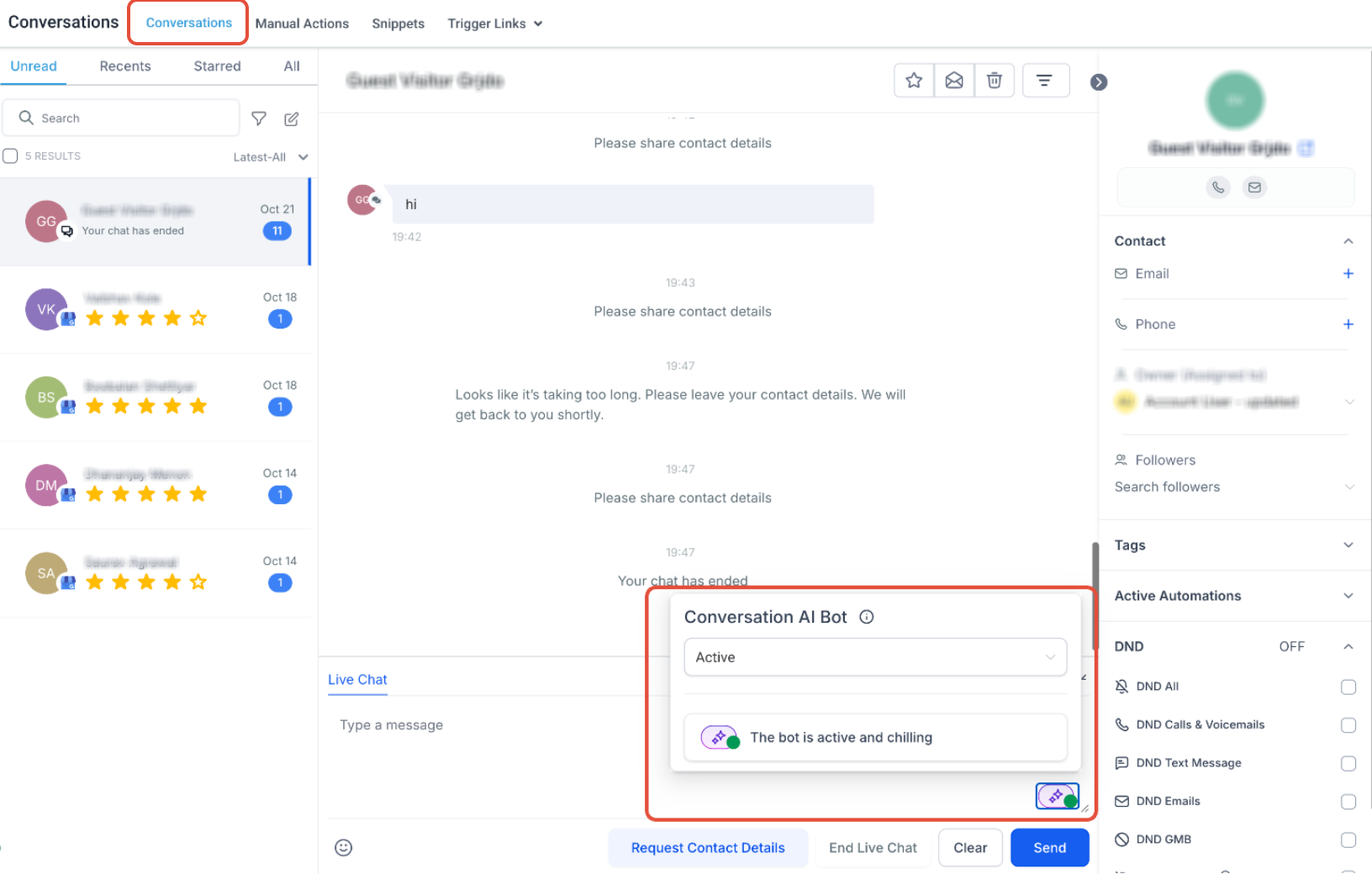
This image displays the expanded bot status panel after clicking the icon.
Review the current status (Active or Inactive) and confirm whether the bot is currently responding to messages.
How to Turn Off Bot for a Specific Contact
Disabling the bot for a specific contact ensures that communication remains fully manual when needed, preventing automated interruptions during important interactions.
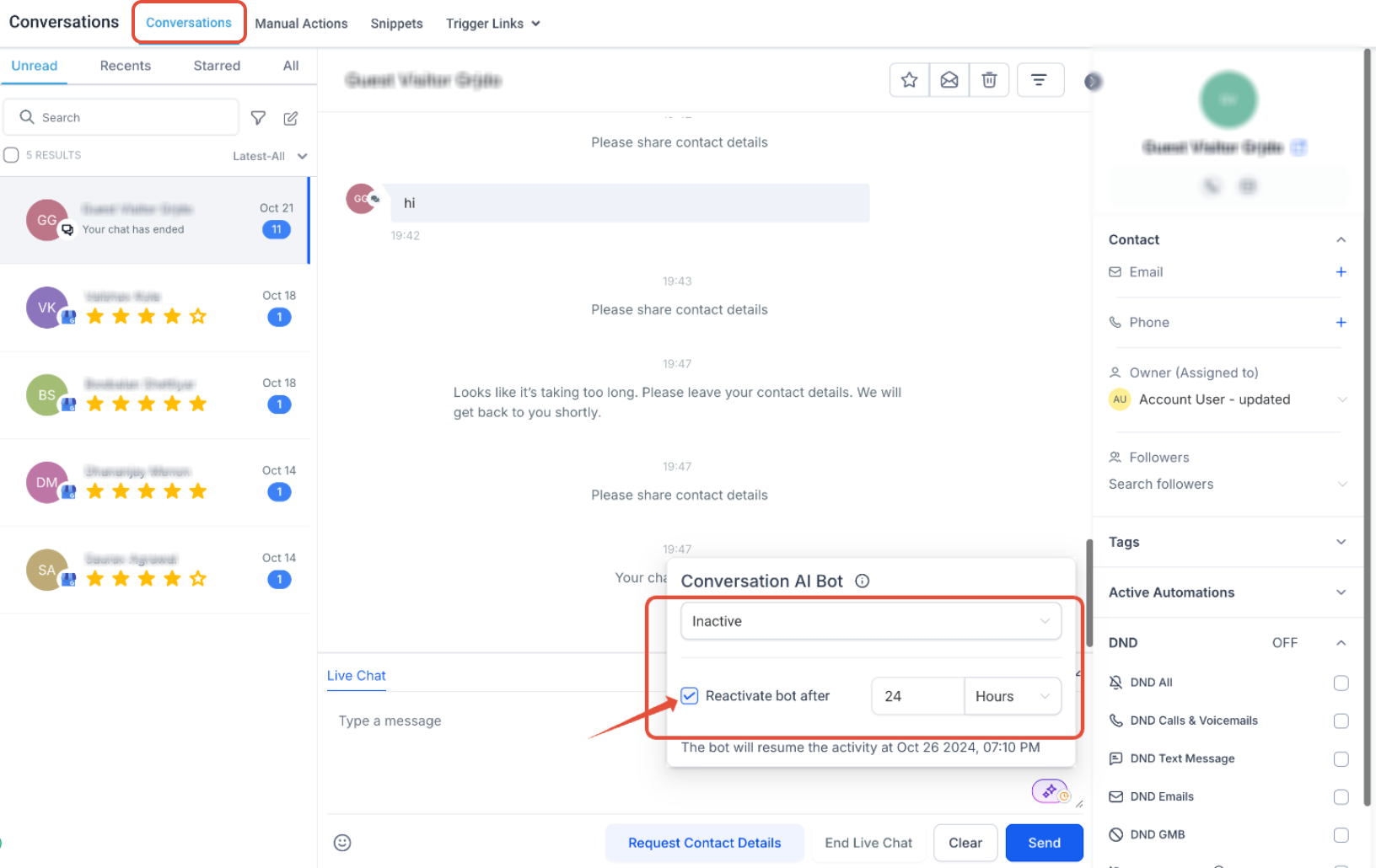
Click the bot icon and open the dropdown menu.
Select Inactive to stop the bot from responding to this contact.
Enable the “Reactivate after” option if you want the bot to turn back on automatically.
Enter the desired duration (e.g., 24 hours) to control when automation resumes.
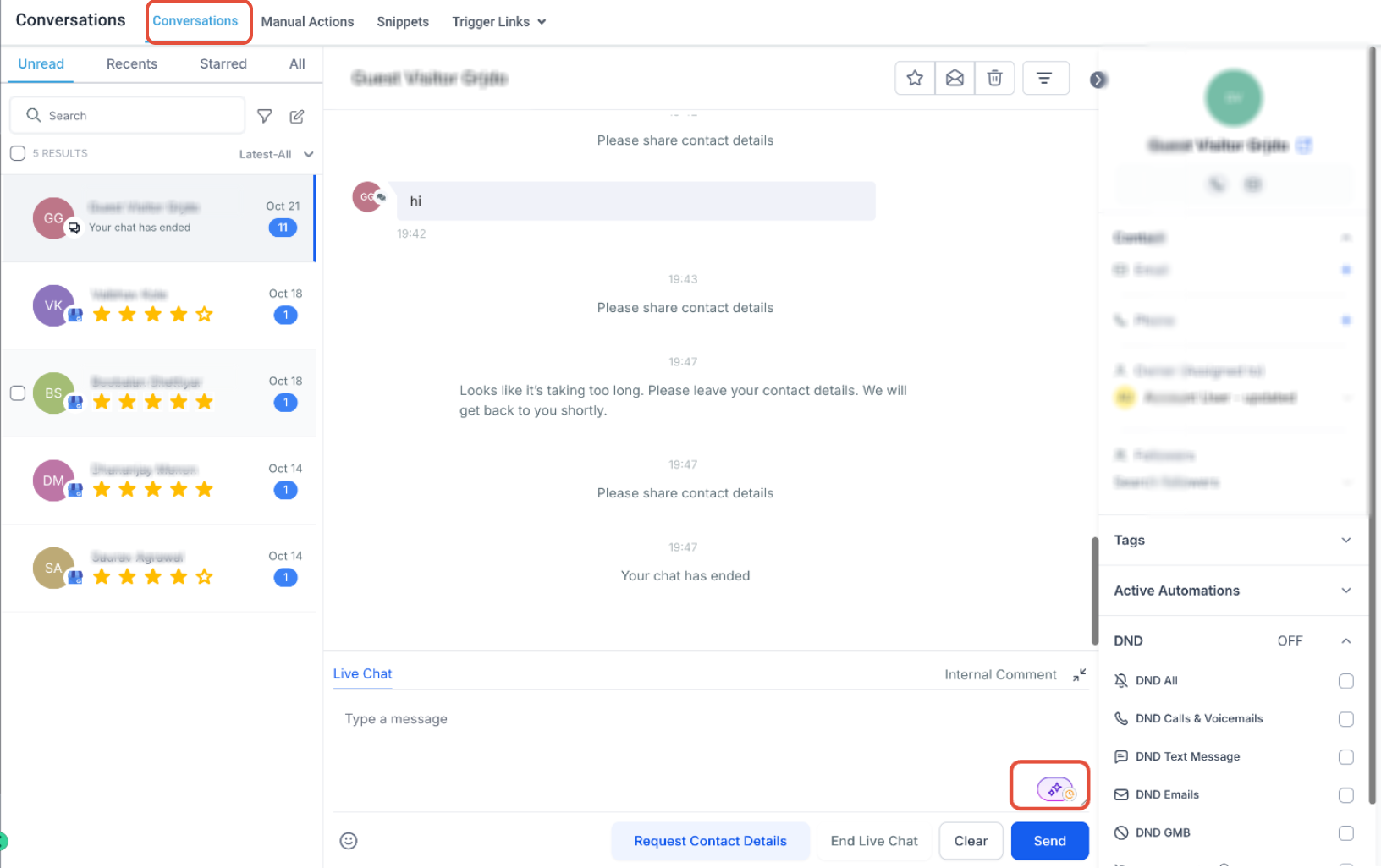
After saving your changes, confirm that the bot status icon reflects the updated state.
A different indicator confirms that the bot is no longer active for that contact.
Additional Information
Understanding how bot behavior interacts with automation settings helps prevent unexpected responses and ensures consistent communication experiences.
This feature works only when the bot is in an automated response mode
The bot may automatically pause if message limits are reached
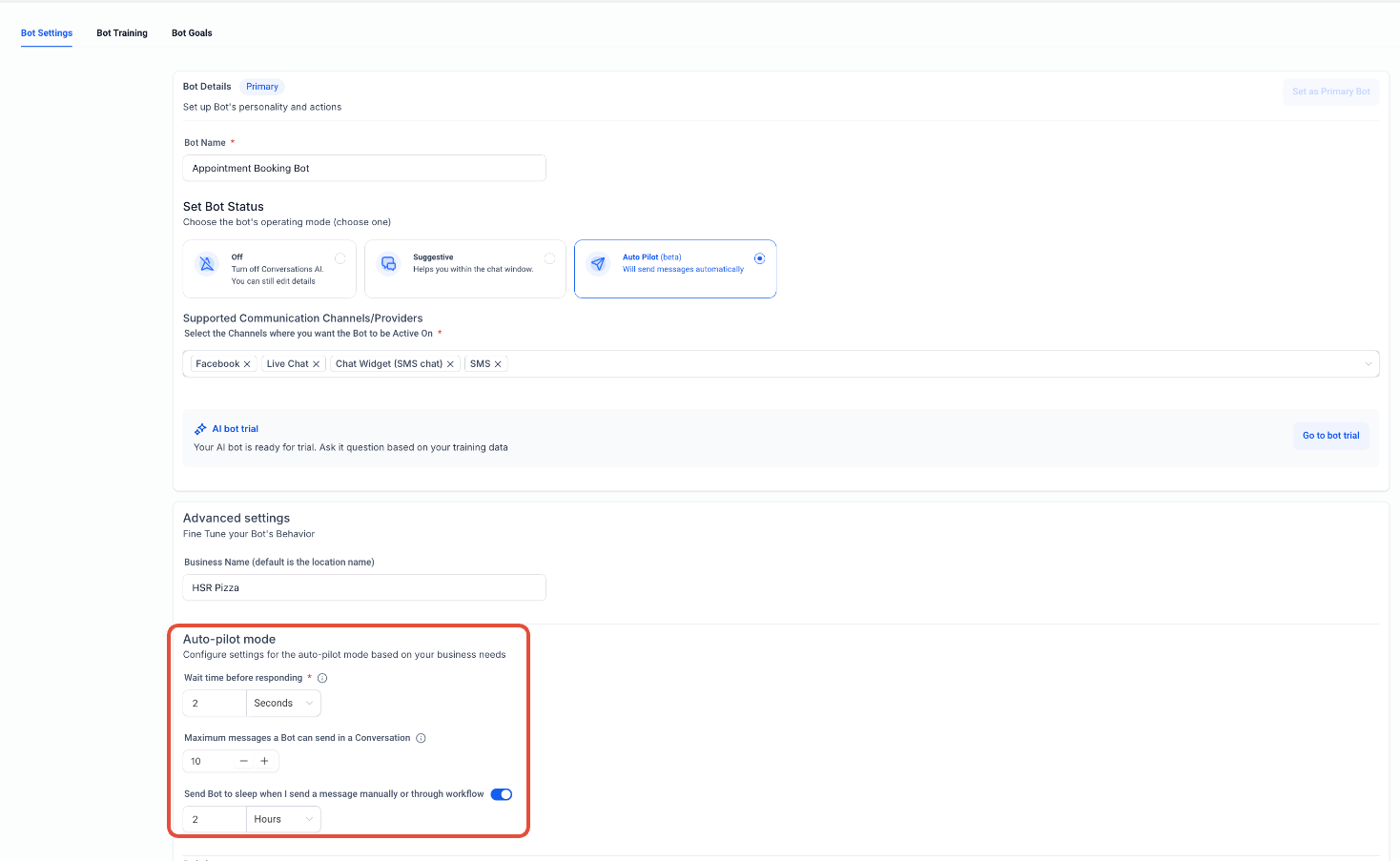
Sending manual messages or triggering workflows can temporarily disable the bot
Bot behavior can be customized further using automation settings and conditions
Frequently Asked Questions
Q: Can I turn the bot back on manually?
Yes, you can switch the bot status back to Active at any time from the same control panel.
Q: What happens when the bot is set to inactive?
The bot will not respond to any messages from that contact until it is reactivated.
Q: Can I automate bot activation and deactivation?
Yes, workflows and triggers can automatically update bot status based on conditions.
Q: Why did my bot stop responding automatically?
The bot may pause due to manual messages, workflow actions, or reaching message limits.
Q: Can I set different bot behaviors for different contacts?
Yes, bot status can be customized individually for each contact.
Need More Help?
If you need additional guidance on managing AI bot behavior or automation settings, visit the Help Center or contact support for further assistance.