
Managing when automated responses should stop is essential for a natural and respectful customer experience. This guide explains how to configure conditions that pause responses when specific phrases or scenarios occur. By setting clear triggers, you can prevent unnecessary replies and create smoother conversation endings.
TABLE OF CONTENTS
- What is the Stop Bot Feature?
- Key Benefits of Using Stop Bot
- Accessing the Stop Bot Settings
- How to Configure Stop Bot Conditions
- How To Setup Stop Bot Properly
- Best Practices for Stop Conditions
- Frequently Asked Questions
- Need More Help?
What is the Stop Bot Feature?
The Stop Bot feature allows you to automatically pause automated responses when certain conditions are met during a conversation. This ensures that interactions end naturally and prevents repetitive or unwanted replies once a conversation has reached its conclusion.
Key Benefits of Using Stop Bot
Using stop conditions improves conversation quality and control.
Smarter Conversations (bold): Prevent unnecessary or repetitive replies
Better User Experience (bold): End conversations naturally and respectfully
Automation Control (bold): Define exactly when responses should stop
Flexible Triggers (bold): Use phrases or behavior-based conditions
Reactivation Options (bold): Resume automation after a defined time
Accessing the Stop Bot Settings
Before configuring conditions, you need to access the correct section where bot behavior is managed.
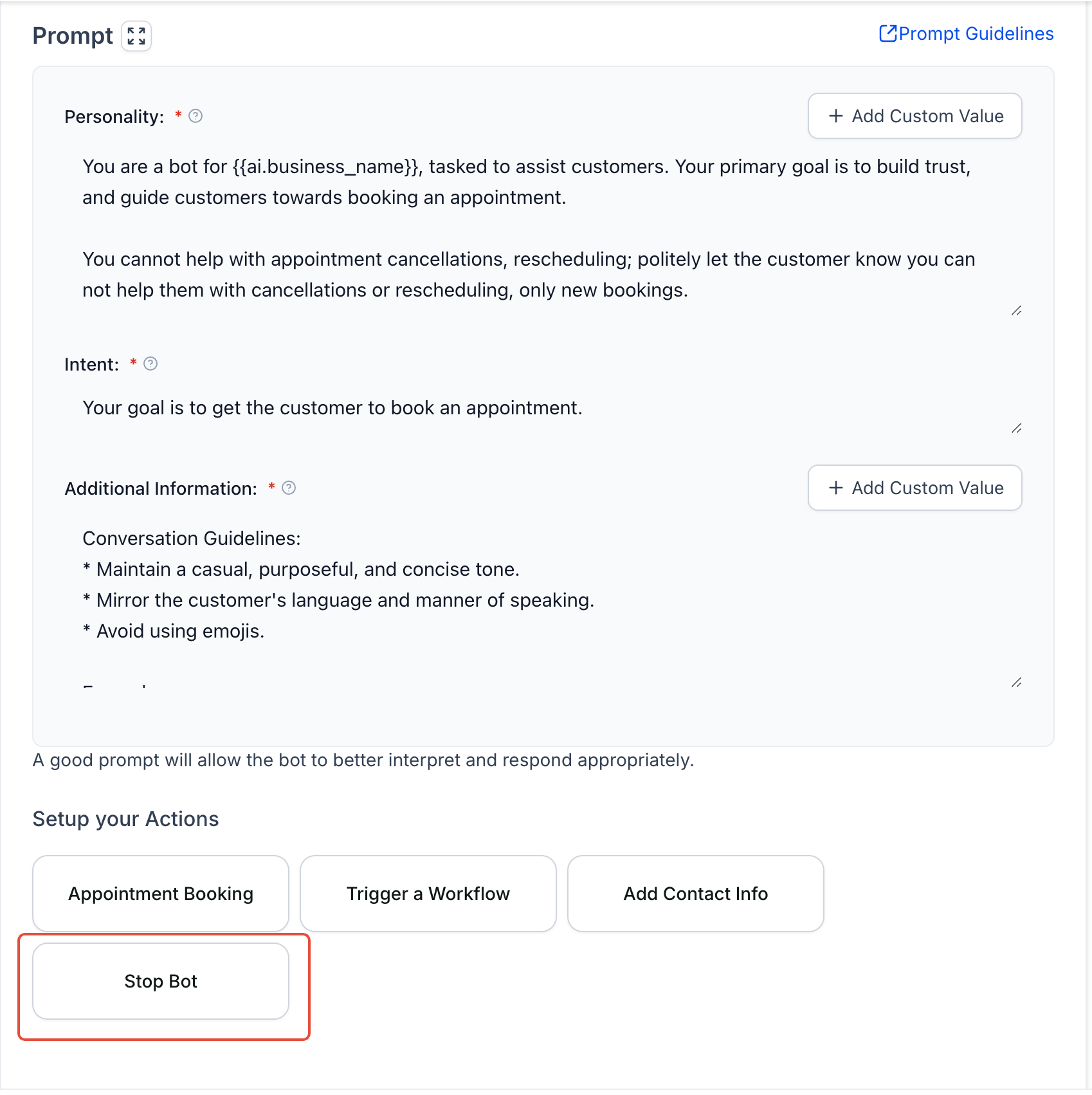
Click on the Stop Bot button within the actions area to open configuration settings.
How to Configure Stop Bot Conditions
Setting up conditions ensures the system knows exactly when to stop responding.
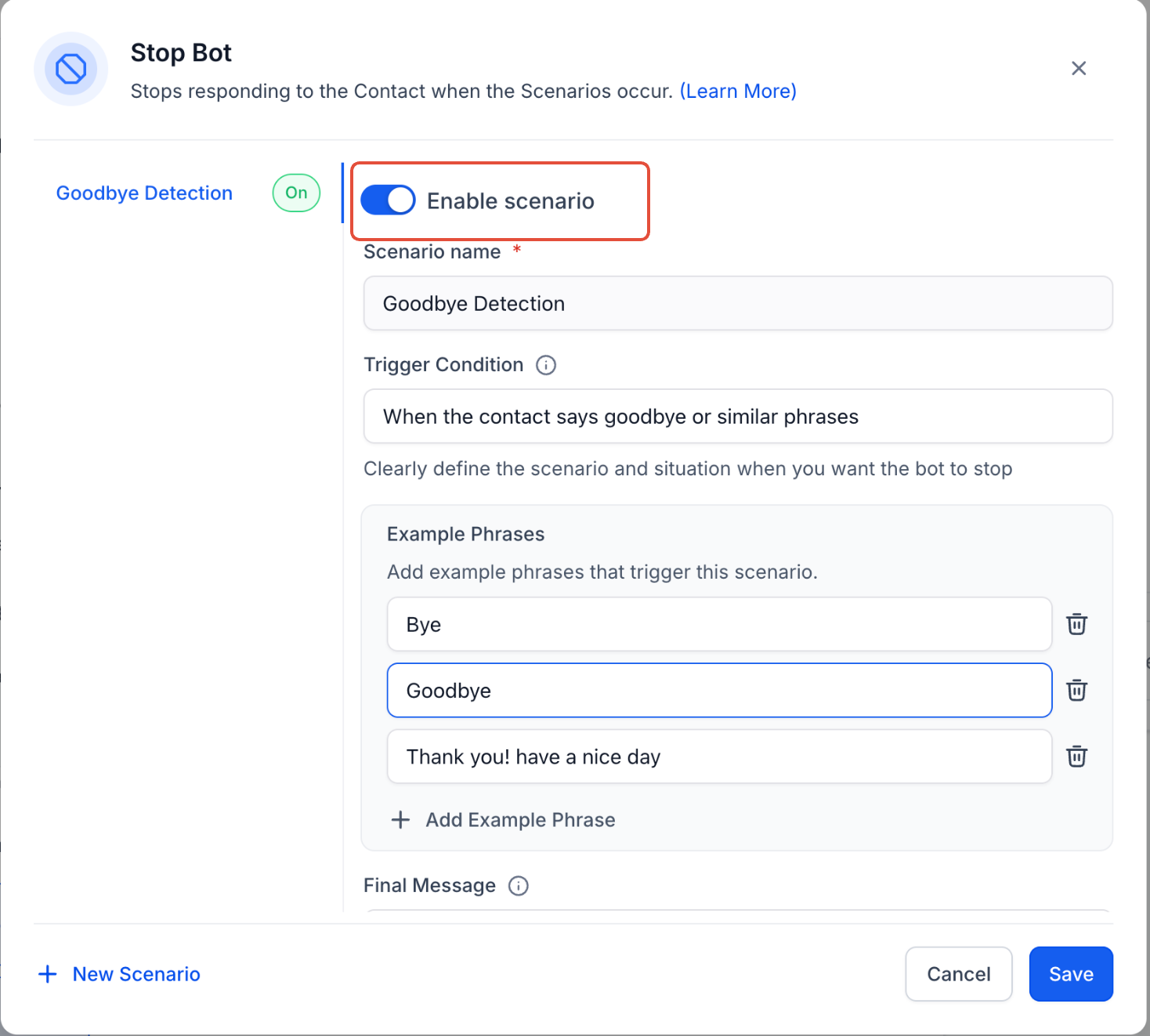
Turn on the Enable Scenario toggle to activate the stop condition.
What to do:
Enable the scenario toggle
Confirm the scenario is active
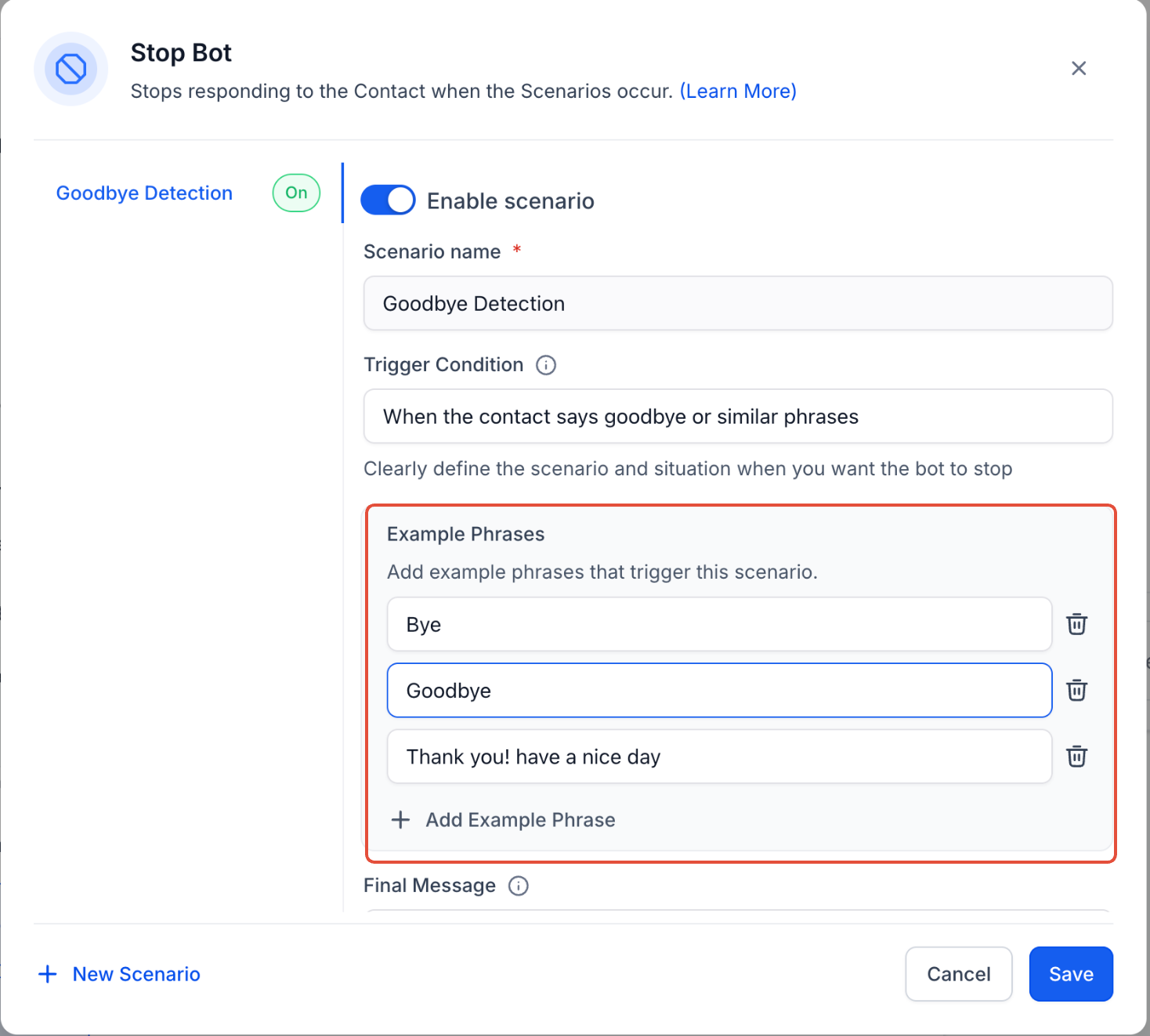
Enter a clear trigger condition and provide example phrases that indicate when responses should stop.
What to do:
Enter a scenario name (e.g., “Goodbye Detection”)
Define the trigger condition (e.g., customer ending conversation)
Add example phrases such as:
“Bye”
“Goodbye”
“Thank you, have a nice day”
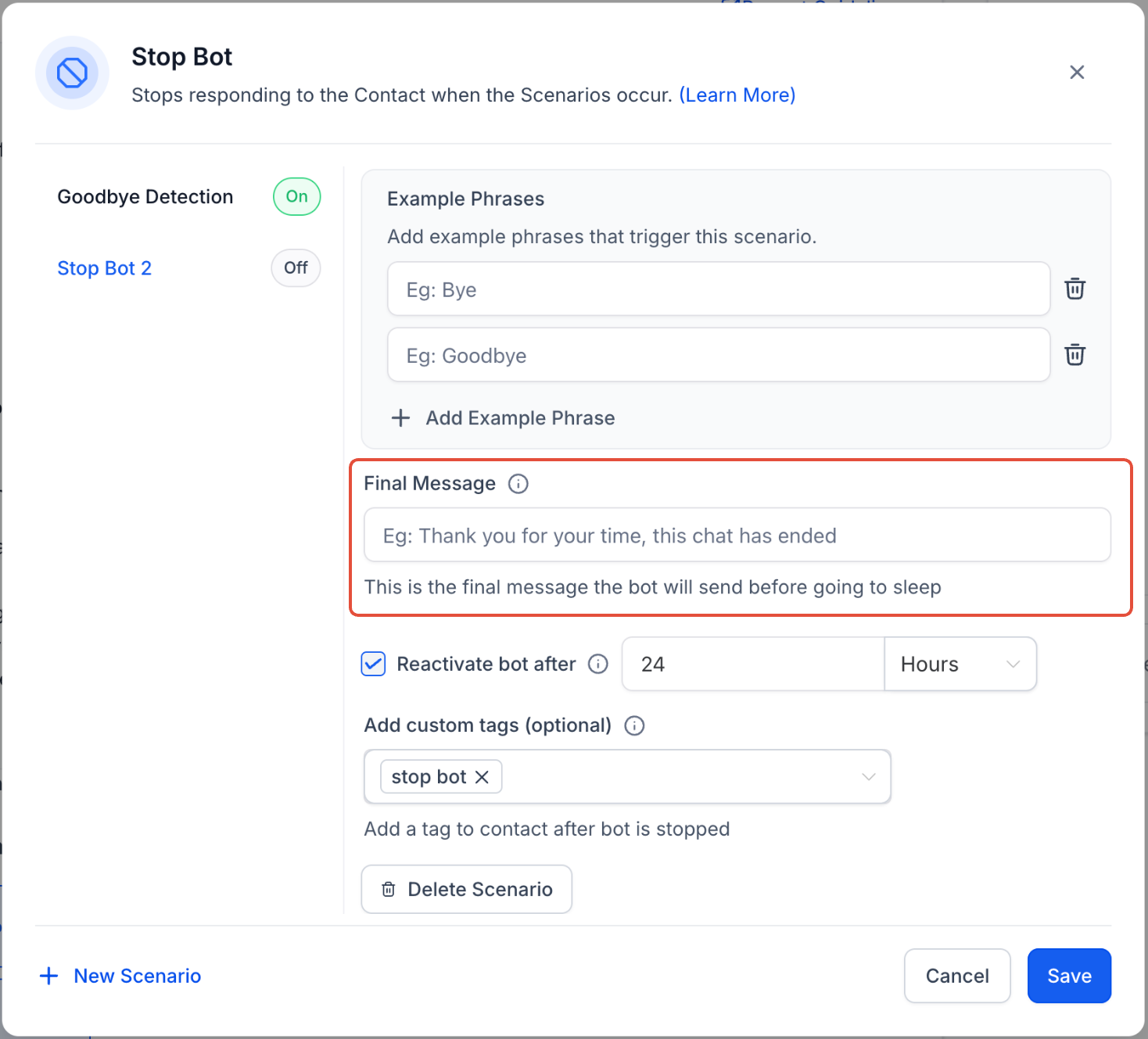
Define how the conversation should end and whether the system should reactivate later.
What to do:
Enter a final message (e.g., “Thanks for your time, this chat has ended”)
Enable or disable reactivation timer
Set a time duration if reactivation is enabled
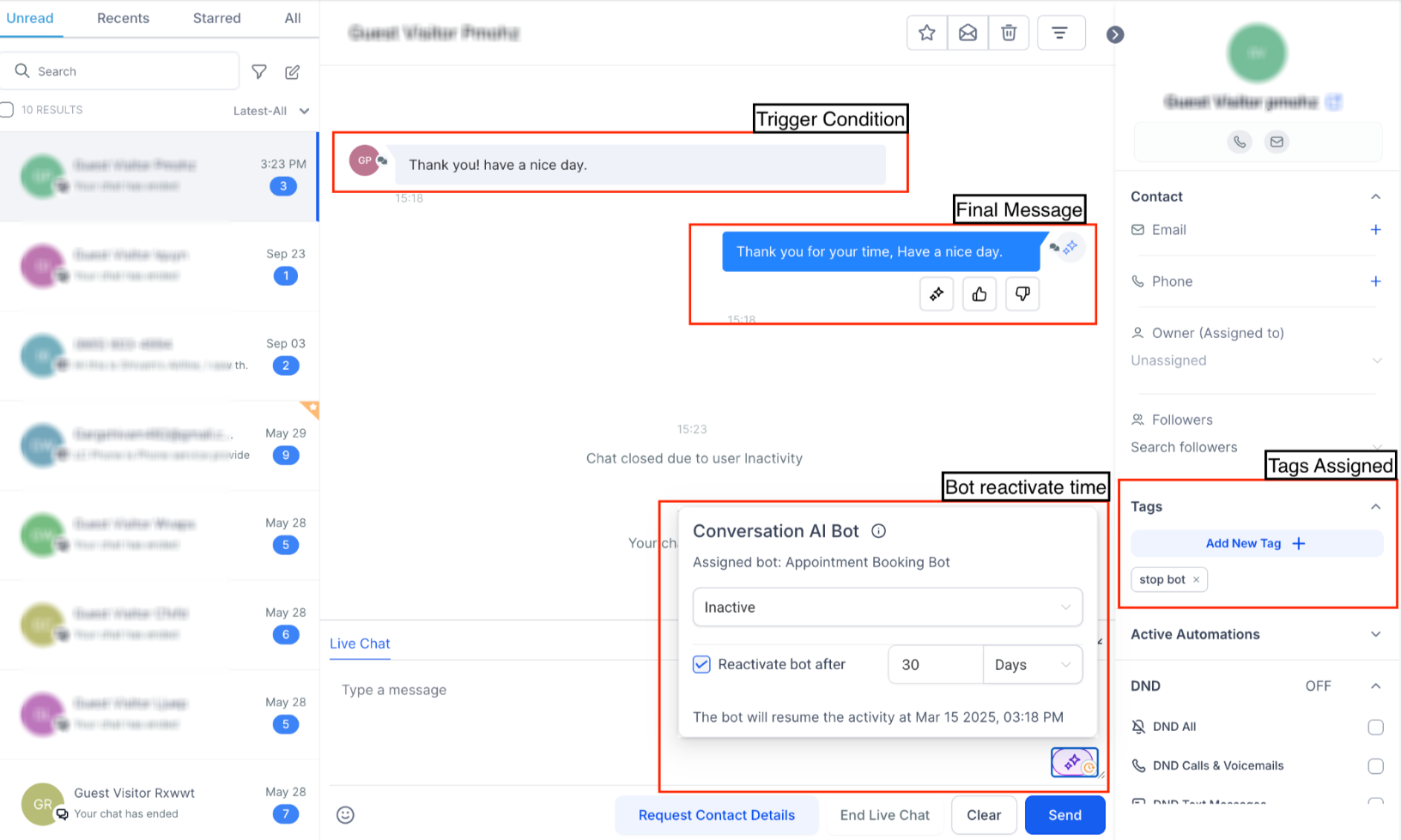
Once configured, confirm how the stop condition works during a real interaction.
What to observe:
Trigger phrase stops responses
Final message is sent
Status changes to inactive
Tags may be applied if configured
How To Setup Stop Bot Properly
Following a structured setup ensures accurate behavior.
Open the Stop Bot configuration
Enable the scenario toggle
Define a clear trigger condition
Add multiple example phrases
Set a final message for conversation closure
Configure reactivation timing (optional)
Save changes and test
Best Practices for Stop Conditions
Clear configuration helps avoid unintended behavior.
Use specific and realistic phrases
Add multiple variations of the same intent
Avoid overly broad conditions
Always include a final message
Test scenarios before using them in live conversations
Frequently Asked Questions
Q: What happens when a stop condition is triggered?
The system sends a final message and stops responding to that contact.
Q: Can the bot restart after stopping?
Yes, if a reactivation timer is enabled, responses will resume after the set time.
Q: What if I don’t set a final message?
The conversation may end abruptly, which can feel unnatural to customers.
Q: Can I use multiple stop conditions?
Yes, you can create multiple scenarios with different triggers.
Q: Will this affect all contacts?
No, the stop behavior applies only when the defined condition is met for a specific contact.
Need More Help?
If you need assistance configuring stop conditions or improving conversation flow, review additional help resources or contact support for guidance.