
Human Handover allows your AI bot to automatically transfer conversations to a human when the bot can no longer properly assist the customer. This helps create a smoother customer experience by ensuring complex questions, unresolved issues, or direct requests for human support are escalated quickly.
TABLE OF CONTENTS
- Introduction
- Why Use Human Handover?
- How to Configure Human Handover"
- Configure a Human Handover Scenario
- Human Handover Scenarios
- Lack of Information
- Failed to Resolve Issue
- Configure Post-Handover Actions
- Assign the Conversation to a User
- Customize the Final Message
- Add Tags and Additional Actions
- Important Notes
- Frequently Asked Questions
- Need Help?
Introduction
Human Handover helps your AI bot recognize when a conversation should be transferred to a real person. Instead of allowing the bot to continue struggling with unanswered questions or repeated failures, the conversation can automatically be assigned to a human team member.
This helps maintain a better customer experience while ensuring important conversations are handled correctly.
Human Handover can be triggered when:
- A customer asks to speak with a human
- The bot lacks enough information
- The bot fails to resolve the issue after multiple attempts
Why Use Human Handover?
AI bots can automate many conversations successfully, but some situations still require human assistance.
Human Handover helps you:
- Escalate complex conversations automatically
- Improve customer satisfaction
- Reduce customer frustration
- Create smoother AI-to-human transitions
- Ensure important conversations are not missed
This is especially useful for:
- Support conversations
- Appointment booking workflows
- Sales inquiries
- Escalation handling
- Service-based businesses
How to Configure Human Handover
Open Human Handover Settings
Go to the Bot Goals section and click Human Handover to begin configuring escalation settings for your AI bot.
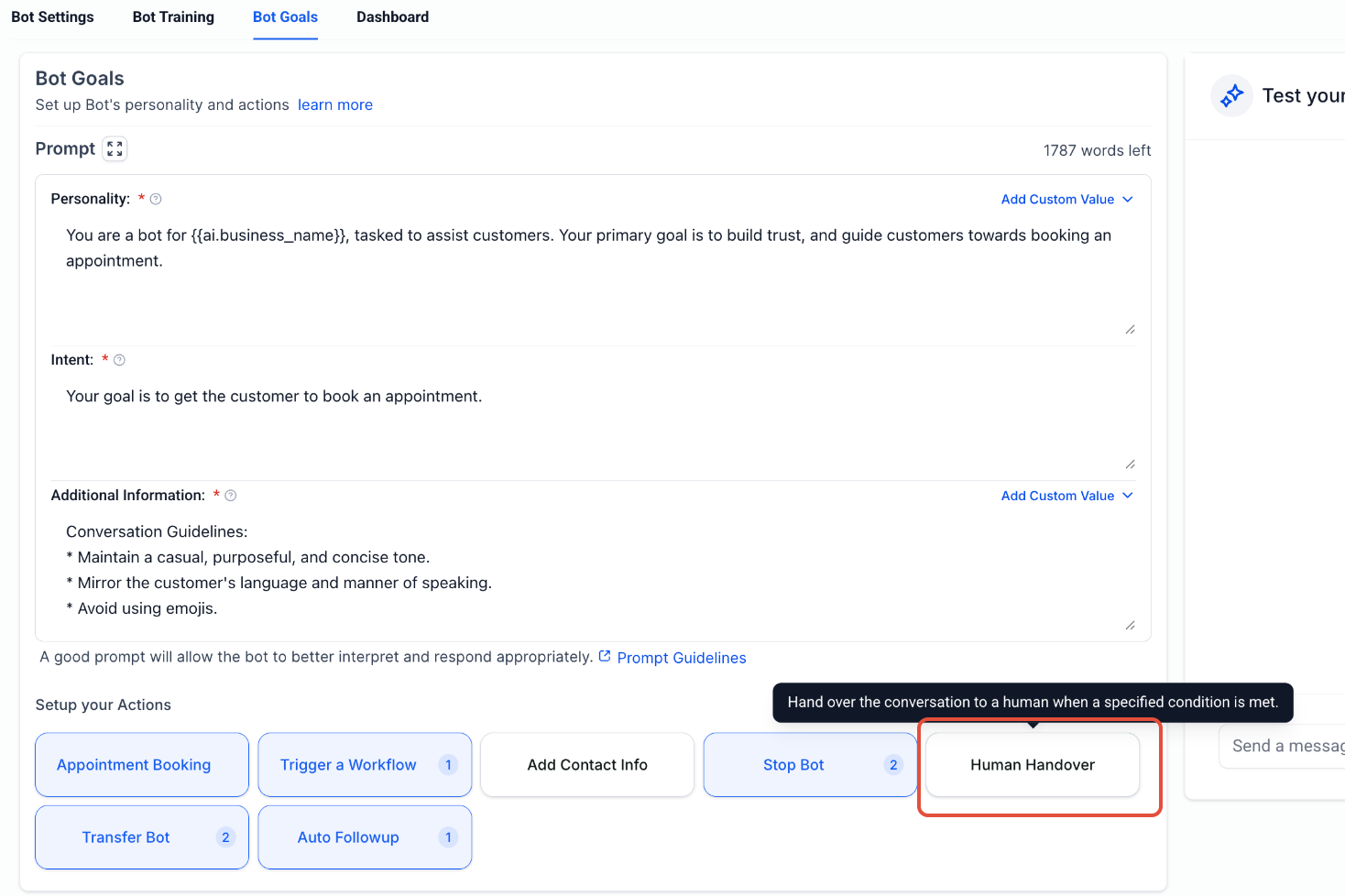
This screen shows where to access Human Handover inside the Bot Goals section before setting up escalation scenarios.
Configure a Human Handover Scenario
Inside the Human Handover window, choose the scenario you want to configure from the left panel.
Available scenarios include:
- Human Requested
- Lack of Information
- Failed to Resolve Issue
For Human Requested, add example phrases customers may use when asking to speak with a person.
Example phrases:
- I want to talk to a human
- Connect me to a person
- I want to talk to the manager
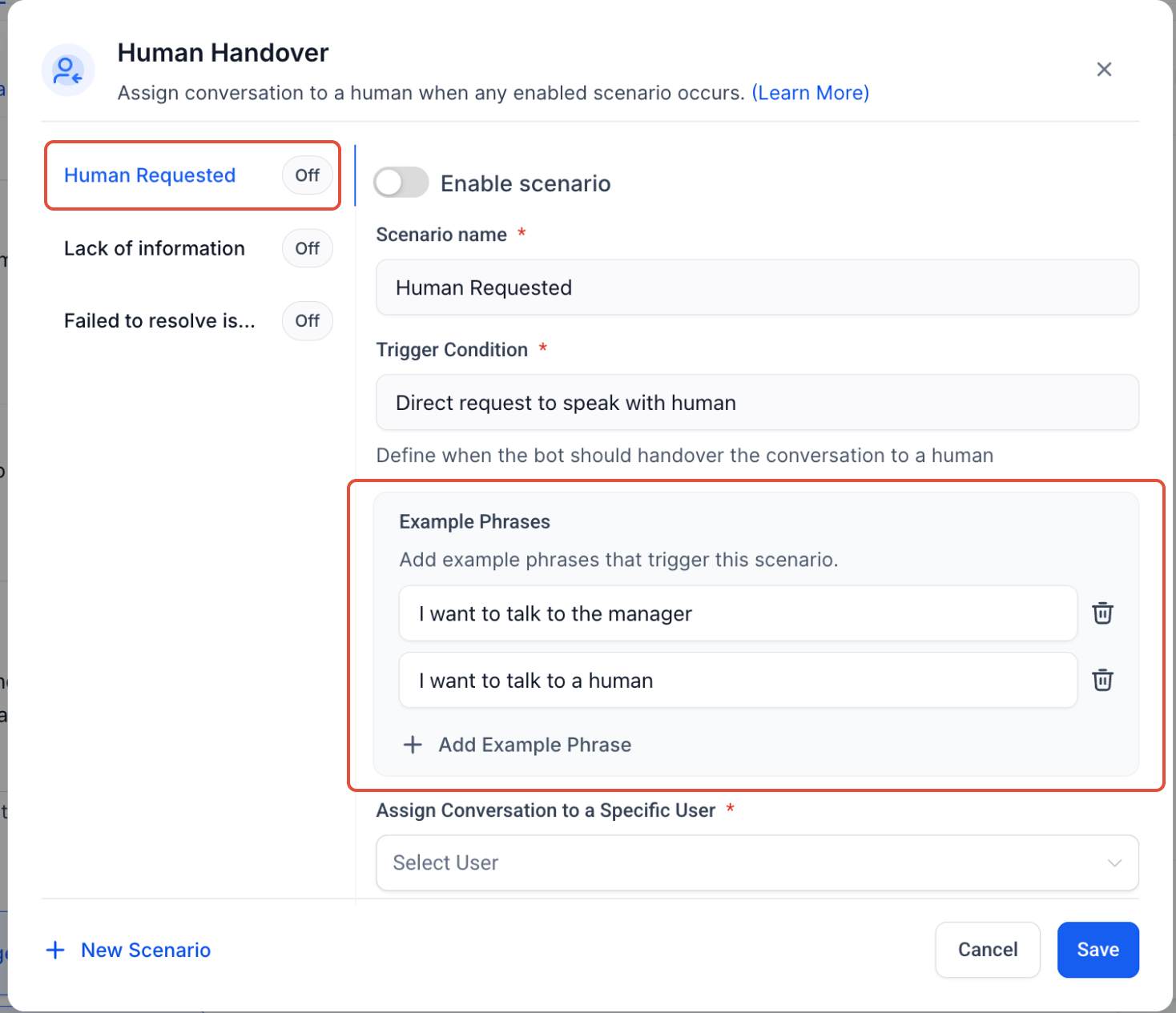
This screen shows where to enable a handover scenario and add example phrases that trigger escalation.
Human Handover Scenarios
Human Requested
Triggers when a customer directly asks to speak with a person.
You can add custom phrases that should activate the handover automatically.
Lack of Information
Triggers when the bot cannot find enough information to answer the customer correctly.
No example phrases are required.
Failed to Resolve Issue
Triggers after the bot unsuccessfully attempts to resolve the same issue multiple times.
Maximum retries: 2
No example phrases are required.
Configure Post-Handover Actions
After configuring the trigger scenario, customize what should happen once the handover occurs.
Assign the Conversation to a User
Choose which user should receive the conversation after the handover is triggered.
This ensures the right team member is notified and can continue assisting the customer.
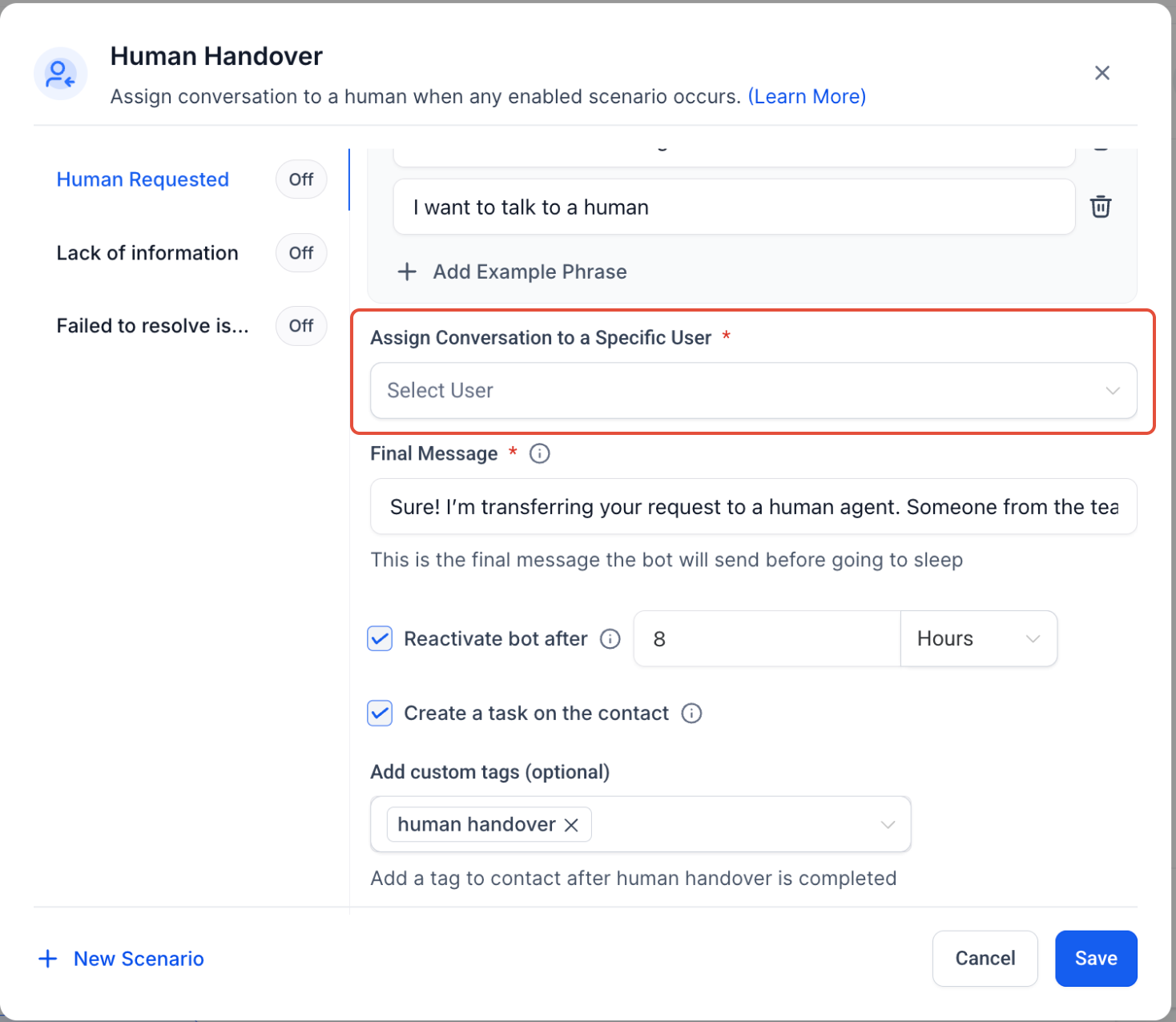
This screen highlights where to choose the user who will receive the transferred conversation.
Optional behavior:
- Assign to a selected user
- Keep the currently assigned user
Customize the Final Message
Set the final message the bot sends before the conversation is handed over.
Example:
“Sure! I’m transferring your request to a human agent. Someone from the team will assist you shortly.”
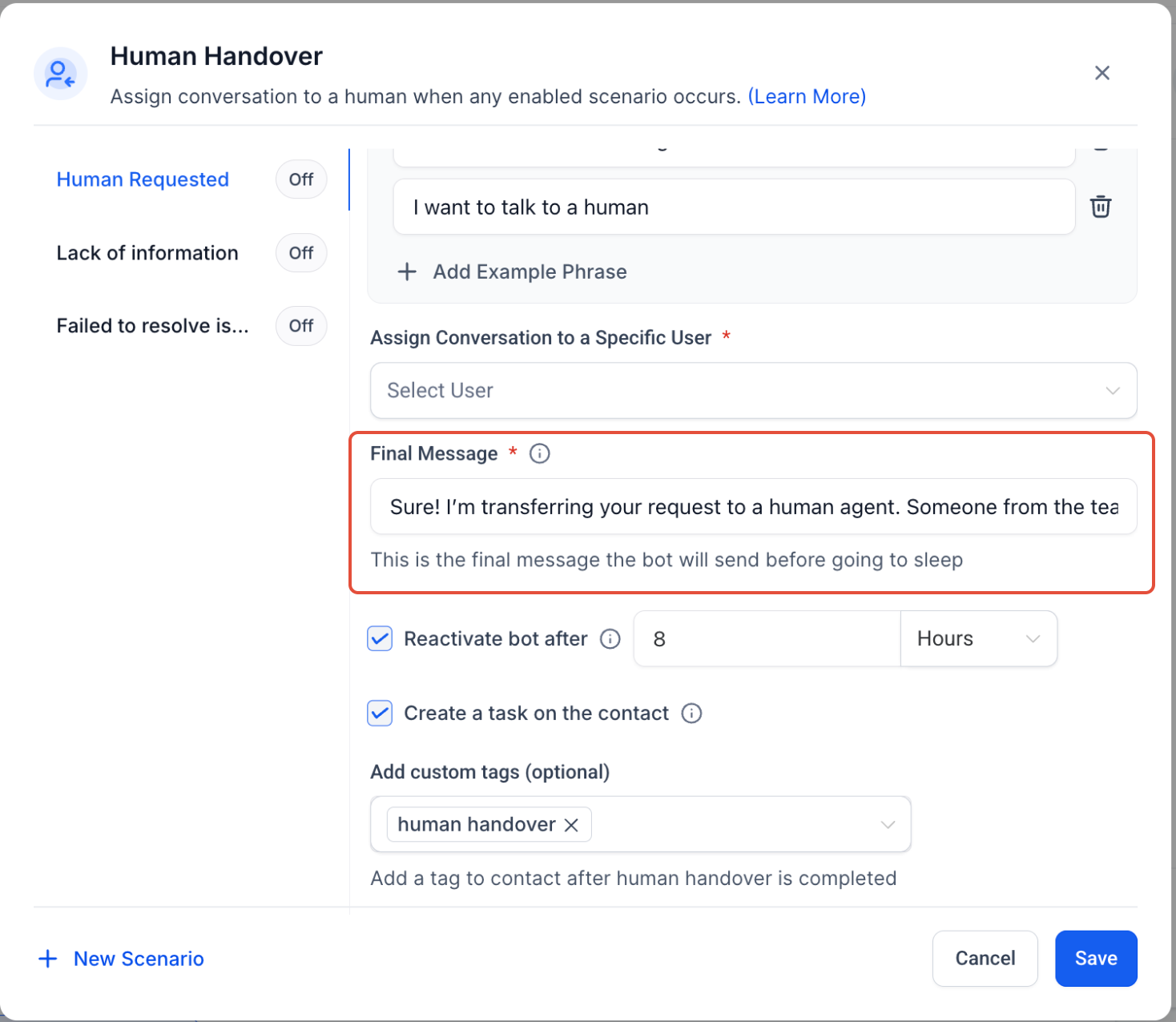
This screen shows where to customize the final message customers receive before the bot pauses.
Add Tags and Additional Actions
Configure optional actions that happen automatically after the handover occurs.
You can:
- Add custom tags
- Create tasks
- Pause the bot temporarily
Default tag example:
human handover
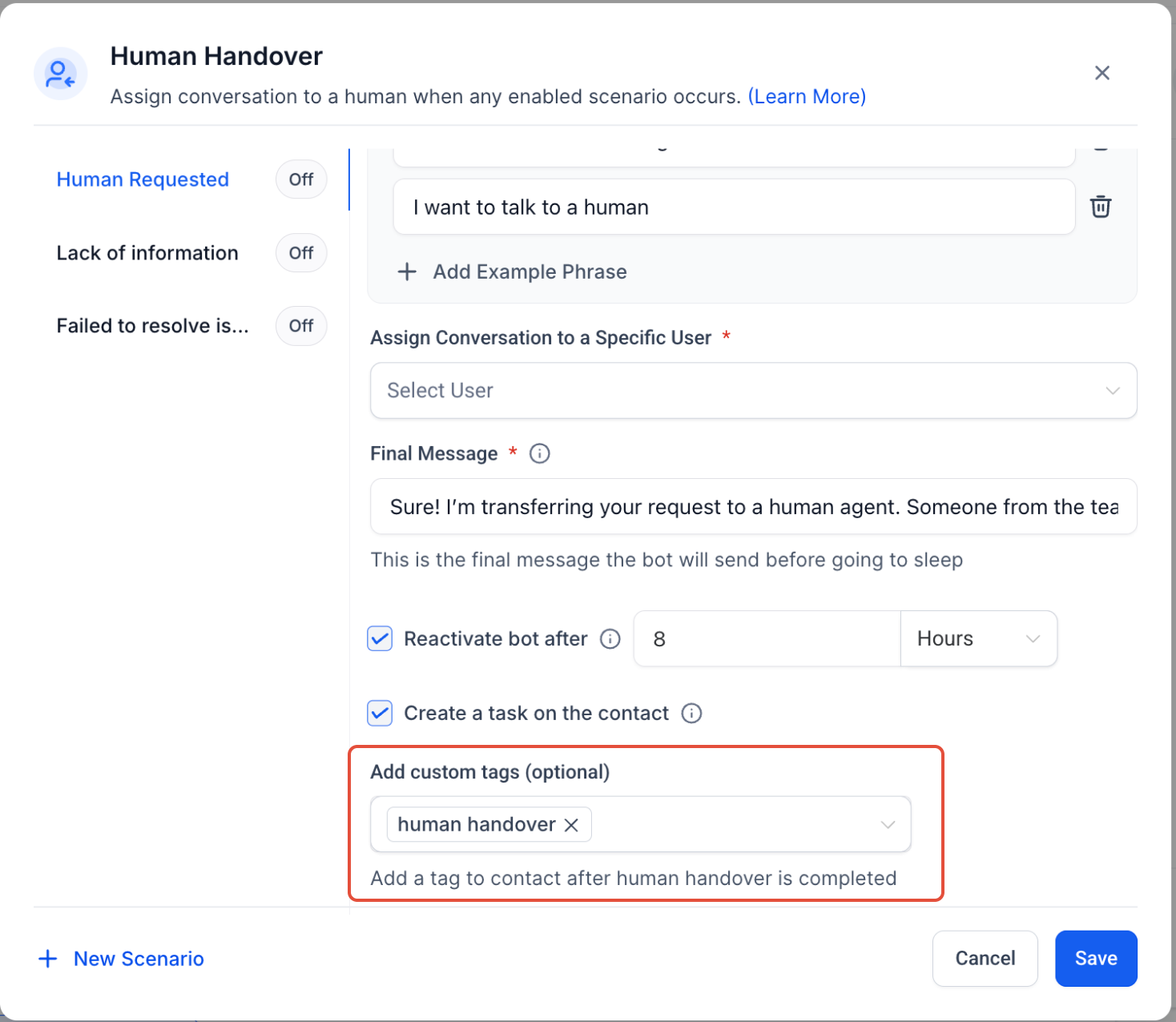
This screen highlights where to automatically apply tags after the conversation is transferred.
Important Notes
- You can configure up to 3 Human Handover actions per bot
- Bot pause duration can be customized
- Task notifications depend on user notification settings
- Human Handover only activates when enabled scenarios are triggered
- Conversations remain assigned until manually reassigned or resolved
Frequently Asked Questions
Q: What happens after Human Handover is triggered?
The conversation is assigned to the selected user, the final message is sent, and the bot can optionally pause for a set duration.
Q: Can I customize trigger phrases?
Yes. You can add custom phrases for scenarios like Human Requested.
Q: Does Human Handover create tasks automatically?
Yes, if the Create Task option is enabled.
Q: Can I assign conversations to a specific user?
Yes. Conversations can be routed directly to a selected user.
Q: Will the bot stop responding permanently?
No. You can configure how long the bot should pause before becoming active again.
Q: Can tags be added automatically during handover?
Yes. Tags can be automatically added after handover is triggered.
Need Help?
If you need assistance configuring Human Handover or troubleshooting escalation workflows, contact support or your system administrator for additional help.