
The updated invoice editor introduces a more intuitive layout designed to simplify invoice creation and improve efficiency. With a split-screen experience, you can edit invoice details on one side while previewing the final output instantly on the other. This reduces errors, speeds up the process, and makes sending invoices more seamless.
TABLE OF CONTENTS
- What’s New in the Invoice Editor
- How to Enable the New Invoice Editor
- How to Create and Edit an Invoice
- Adding Products Quickly
- Using Additional Invoice Options
- Preview and Finalize Your Invoice
- Recurring Invoice Behavior
- Why This Update Matters
- Frequently Asked Questions
- Need Help?
What’s New in the Invoice Editor
The redesigned interface focuses on clarity and ease of use. Editing fields are now organized on the left, while a live preview appears on the right. This allows you to see exactly how your invoice will look as you build it.
You can also quickly switch to this new layout and take advantage of features like inline product creation, simplified controls, and improved navigation.
How to Enable the New Invoice Editor
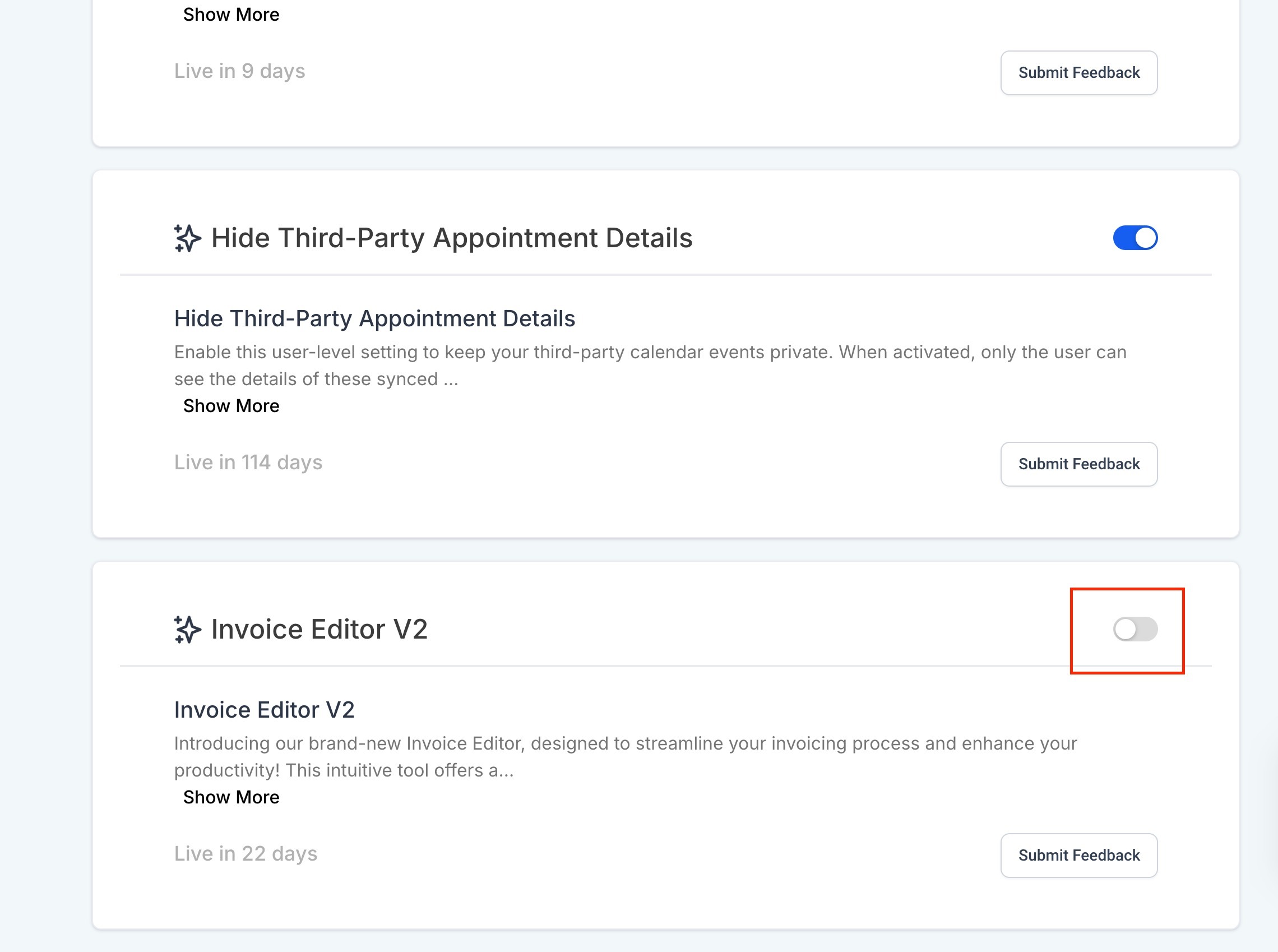
This screen shows where to enable the new invoice editor. Turn on the toggle to activate the updated layout.
To use the new design, enable it from your settings. Once activated, you will be able to switch to the new invoice experience.
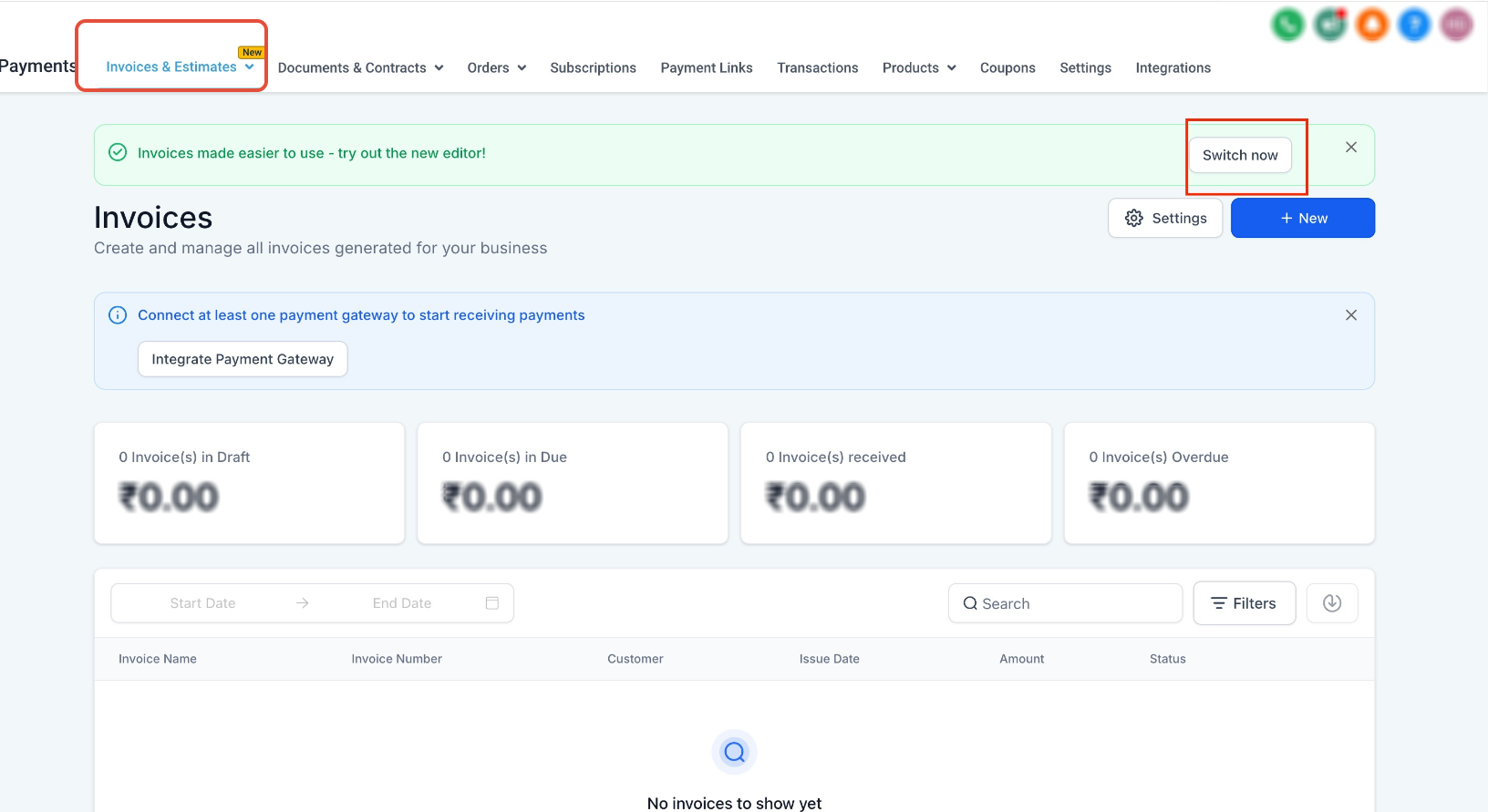
This banner appears at the top of the invoice page. Click the highlighted option to switch to the new editor.
After enabling the feature, use the banner option to switch into the new layout instantly.
How to Create and Edit an Invoice
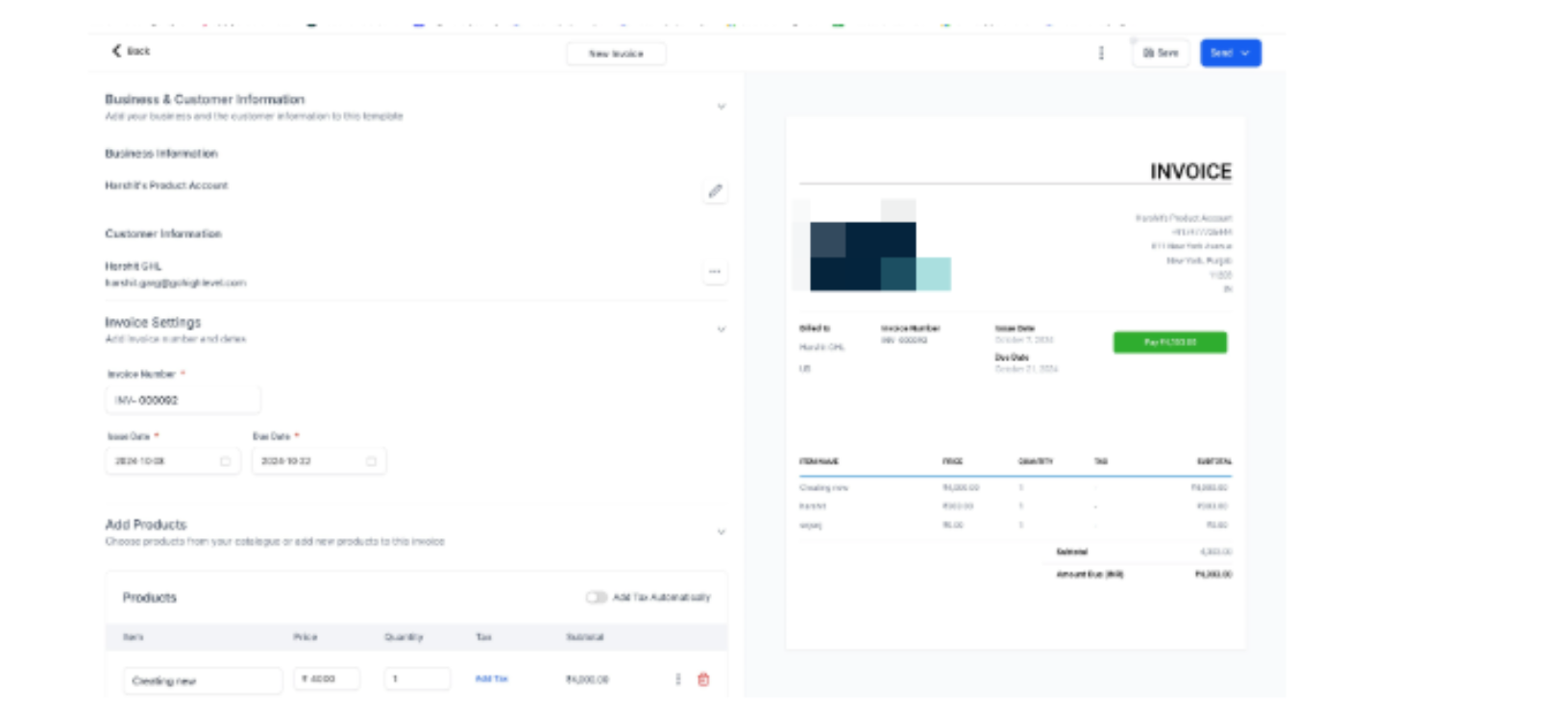
This screen shows the new layout with editing fields on the left and a live preview on the right.
Enter customer details, add products, and configure totals from the left panel. As you make changes, the preview updates automatically so you can review everything in real time.
Adding Products Quickly
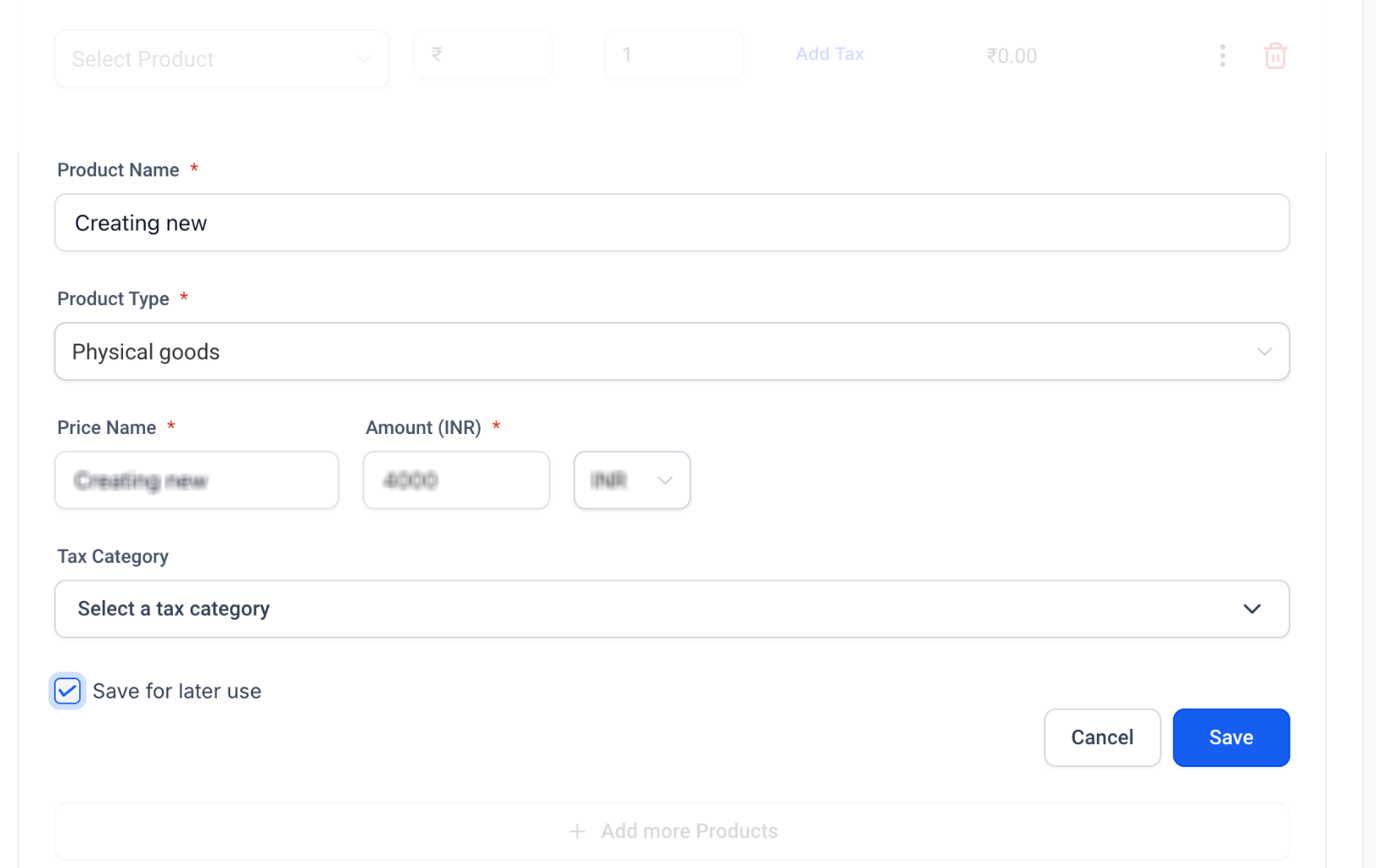
This screen shows how you can type a product name directly and add it instantly.
You can now add products on the fly by typing their name and pressing enter. This removes the need for multiple steps and helps you create invoices faster.
Using Additional Invoice Options
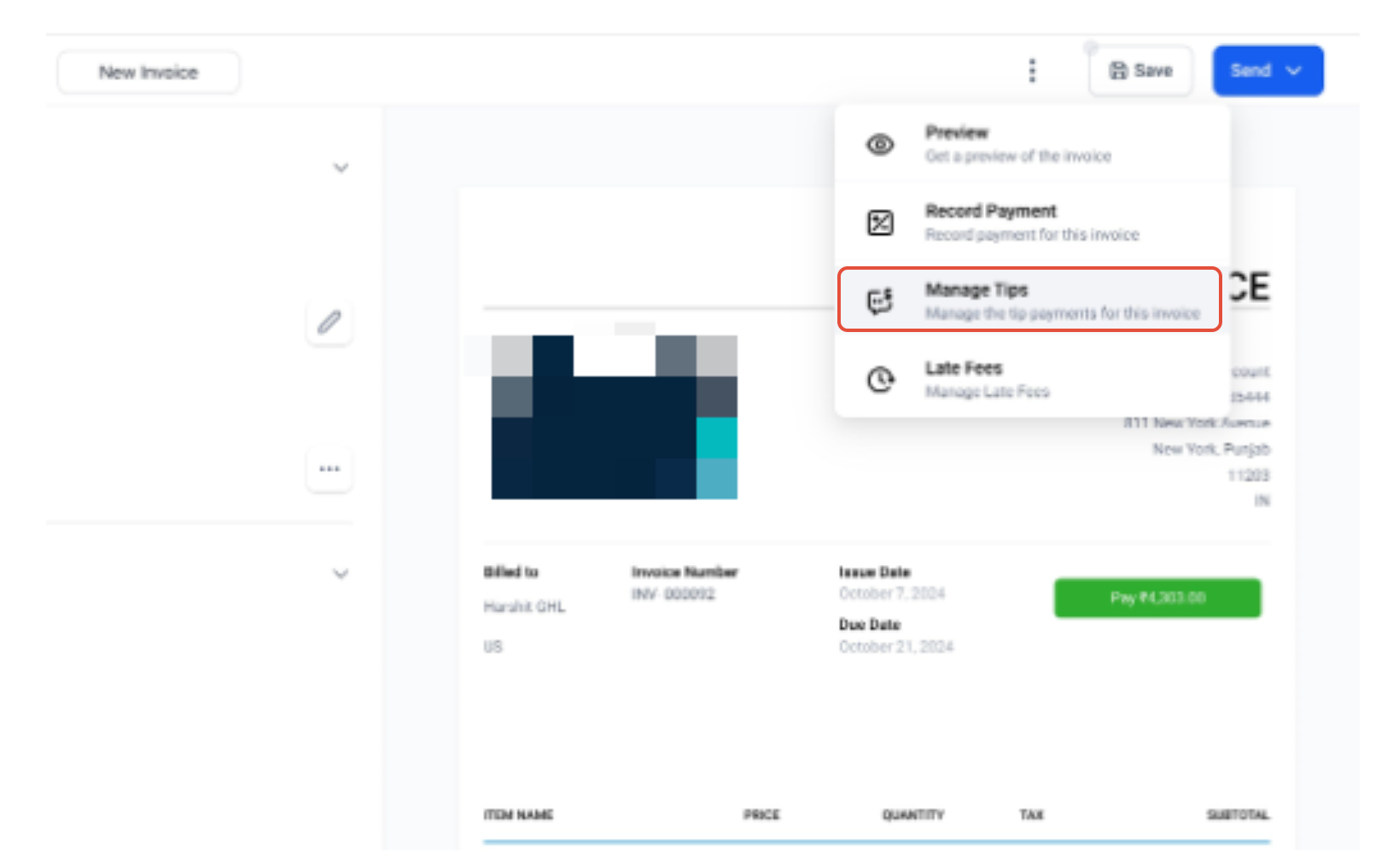
This menu allows you to manage additional invoice features such as payments, tips, and late fees.
Use the available tools to enhance your invoice, including adding late fees, managing tips, or recording payments. These options remain fully functional in the new editor.
Preview and Finalize Your Invoice
The live preview ensures you always know how your invoice will appear to customers. Before sending, review the preview carefully to confirm all details are correct.
Once ready, save and send the invoice directly from the editor.
Recurring Invoice Behavior
When you create a recurring product, the system automatically applies recurring behavior to the invoice. This ensures future invoices follow the same schedule without requiring additional setup.
Why This Update Matters
This redesign improves the overall experience by making invoice creation faster, clearer, and more reliable. The combination of real-time preview and simplified editing reduces mistakes and helps you send professional invoices with confidence.
Frequently Asked Questions
Q: Do I need to enable the new invoice editor manually?
Yes, the new editor must be enabled in settings before you can switch to it.
Q: Can I still use existing invoice features like late fees and tips?
Yes, all existing features remain available in the new editor.
Q: Will my old invoices be affected by the new layout?
No, existing invoices remain unchanged. The new layout applies to newly created or edited invoices.
Q: Can I preview my invoice before sending it?
Yes, the preview updates in real time as you edit.
Q: Is it possible to add products without pre-saving them?
Yes, you can create products instantly by typing and adding them inline.
Need Help?
If you have trouble enabling the new editor or creating invoices, reach out to support for assistance.