
Attachments allow supporting files to be included directly with financial documents, helping customers receive all relevant information in a single, complete package. Files such as specifications, visuals, terms, or reference documents can be added during document creation and are delivered automatically when the document is sent.
Each document supports up to 10 attachments, with a 20 MB total size limit across all files.
TABLE OF CONTENTS
- New Attachment Capabilities
- Where Attachments Can Be Used
- How to Use Attachments
- Why This Feature Matters
- Frequently Asked Questions
- Where to Find Help
New Attachment Capabilities
Attachments make it possible to share additional documentation without separate follow-up messages. This helps ensure customers receive complete information at the time of delivery.
Attach up to 10 files per document
20 MB combined size limit per document
Available for estimates, invoices, recurring invoices, and templates
Attachments are automatically included when the document is sent
Reduces back-and-forth communication and missing information
Where Attachments Can Be Used
Attachments can be added to the following document types:
Estimates
Estimate templates
Invoices
Recurring invoices
Each document manages its own attachments independently.
How to Use Attachments
Open the Document
Financial documents are created and edited from the payments area. Selecting New opens the document editor, where products, totals, and additional options can be configured.
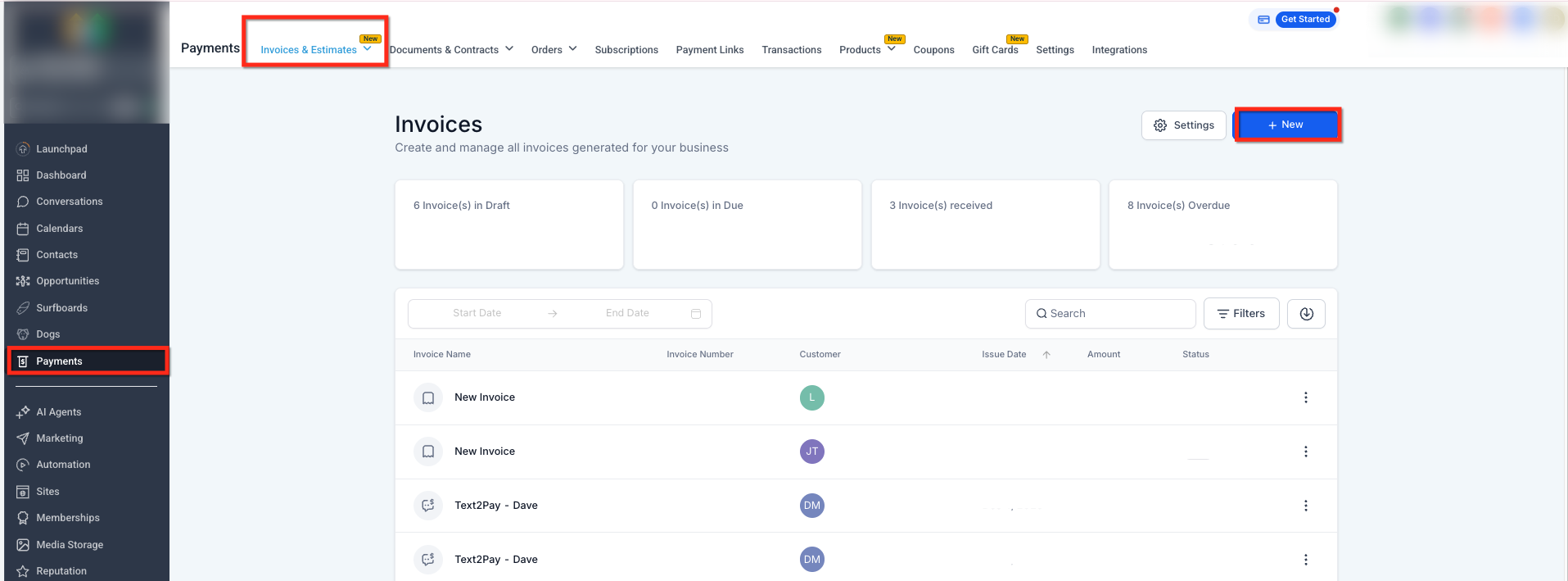
This image shows the payments section with invoices and estimates selected, and the New button highlighted. Selecting New opens the document editor where attachments can be added.
Upload Files
Attachments are added from within the document editor under Additional Options, located below the Amount Due section. Enabling attachments reveals the upload area where files can be selected or dragged in.
Supported file types include common formats such as PDF, PNG, and CSV.
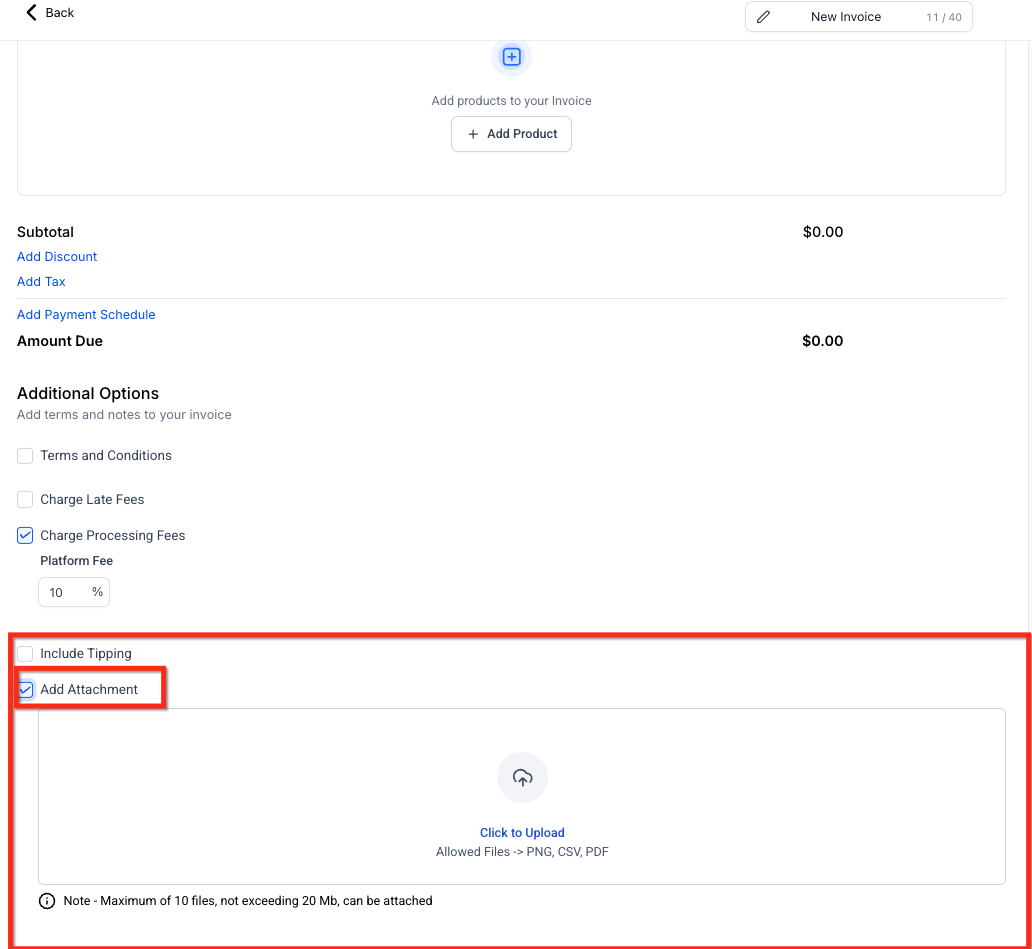
This image highlights the Add Attachment option under Additional Options and shows the upload area where files can be clicked or dragged in. File limits and supported formats are visible.
Send the Document
Once attachments are added, sending the document automatically includes all uploaded files in the customer’s email. No additional selection or confirmation is required.
Attachments are delivered only with the initial email send.
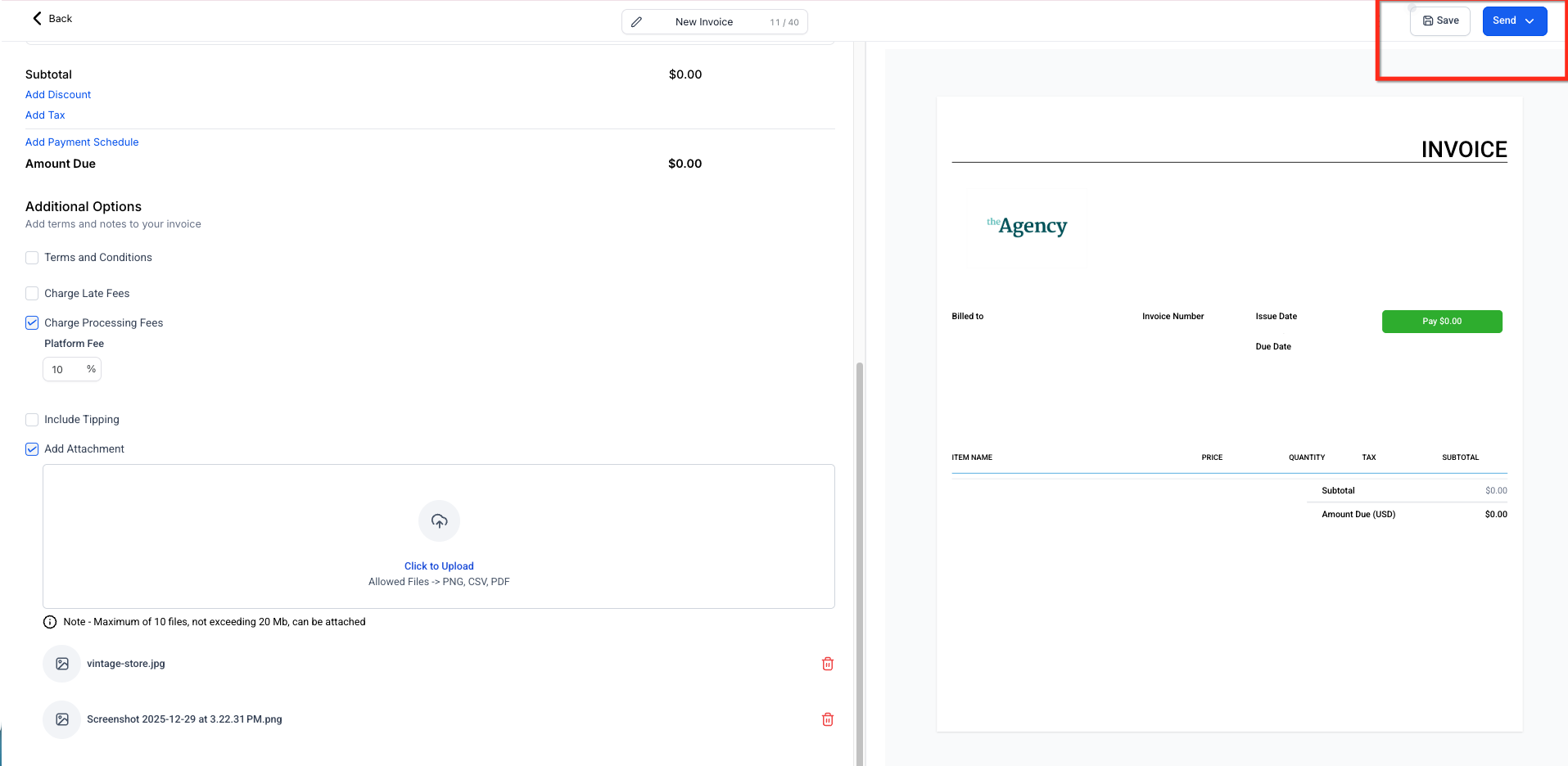
This image shows the document editor with attachments added and the Send option visible, confirming where documents are sent from.
View Files in Media Storage
All uploaded attachments are automatically saved to Media Storage, where they can be viewed, organized, and reused in future documents.
Files can also be uploaded directly to Media Storage for later use.
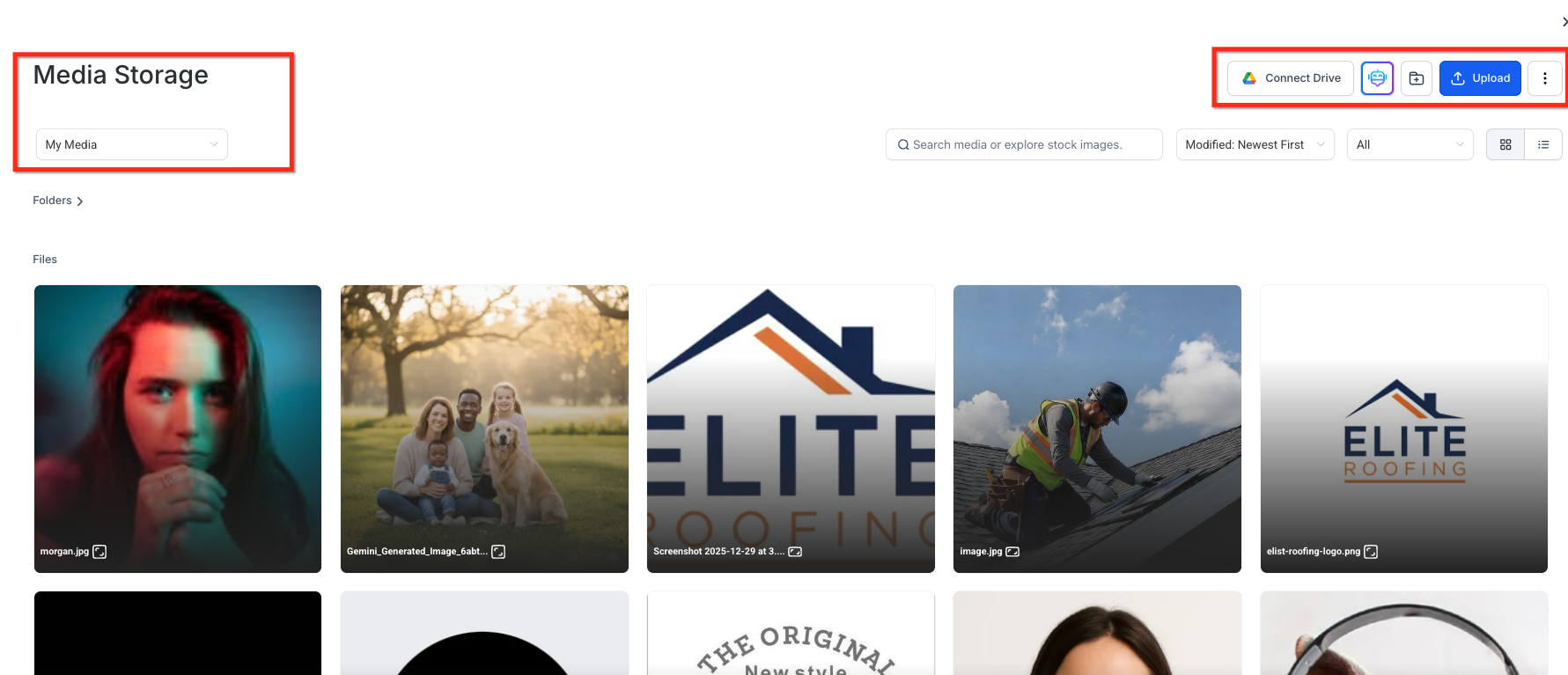
This image shows the Media Storage area with stored files and the Upload option, confirming where attachments are saved for future reuse.
Why This Feature Matters
Attachments help streamline communication and improve document clarity by keeping everything in one place.
Share supporting details without additional emails
Deliver a complete document package in a single send
Reduce miscommunication and missing files
Present documents in a more professional and organized way
Note: Attachments are only included with the first email send. They are not resent with reminders or scheduled follow-ups.
Frequently Asked Questions
Q: Can I attach more than 10 files to a document?
No. Each document supports a maximum of 10 attachments.
Q: What file types can be uploaded?
Common formats such as PDF, PNG, and CSV are supported.
Q: Are attachments included in reminders or follow-up emails?
No. Attachments are only sent with the initial email.
Q: What happens if the total file size exceeds 20 MB?
The document cannot be sent until files are removed or reduced to stay within the size limit.
Q: Are attachments saved for future use?
Yes. All uploaded attachments are automatically stored in Media Storage.
Where to Find Help
If attachments do not upload or send as expected:
Use the in-app help or support options
Search the help center using terms such as attachments, estimates, invoices, or payments
Submit a support request for further assistance