
Automating recurring invoices helps you streamline billing, reduce manual work, and ensure consistent payments from your customers. By using workflow automation, you can automatically send invoices on a schedule, control billing frequency, and enable automatic payments for a seamless experience.
TABLE OF CONTENTS
- What Are Recurring Invoices in Workflows?
- Key Benefits
- Prerequisites
- How to Set Up Recurring Invoices in Workflows
- Configuration Settings Explained
- Best Practices
- Frequently Asked Questions
- Need Help?
What Are Recurring Invoices in Workflows?
Recurring invoices allow you to automatically send invoices to customers at predefined intervals. Once configured, invoices are generated and delivered without manual effort, helping maintain steady cash flow and reducing missed payments.
This is ideal for subscriptions, retainers, memberships, and installment-based billing.
Key Benefits
Time Savings: Eliminates manual invoicing and follow-ups
Flexible Billing: Supports daily, weekly, monthly, and yearly schedules
Automated Payments: Charge customers automatically after initial payment
Consistency: Prevents missed or duplicate invoices
Scalability: Easily manage billing for multiple customers
Prerequisites
Before setting up recurring invoices, make sure:
At least one invoice template is created
A payment method is configured and active
Customer records include valid billing details
How to Set Up Recurring Invoices in Workflows
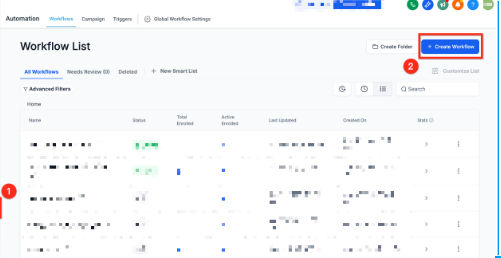
This screen shows the workflow list.
Click Create Workflow to start building a new automation.
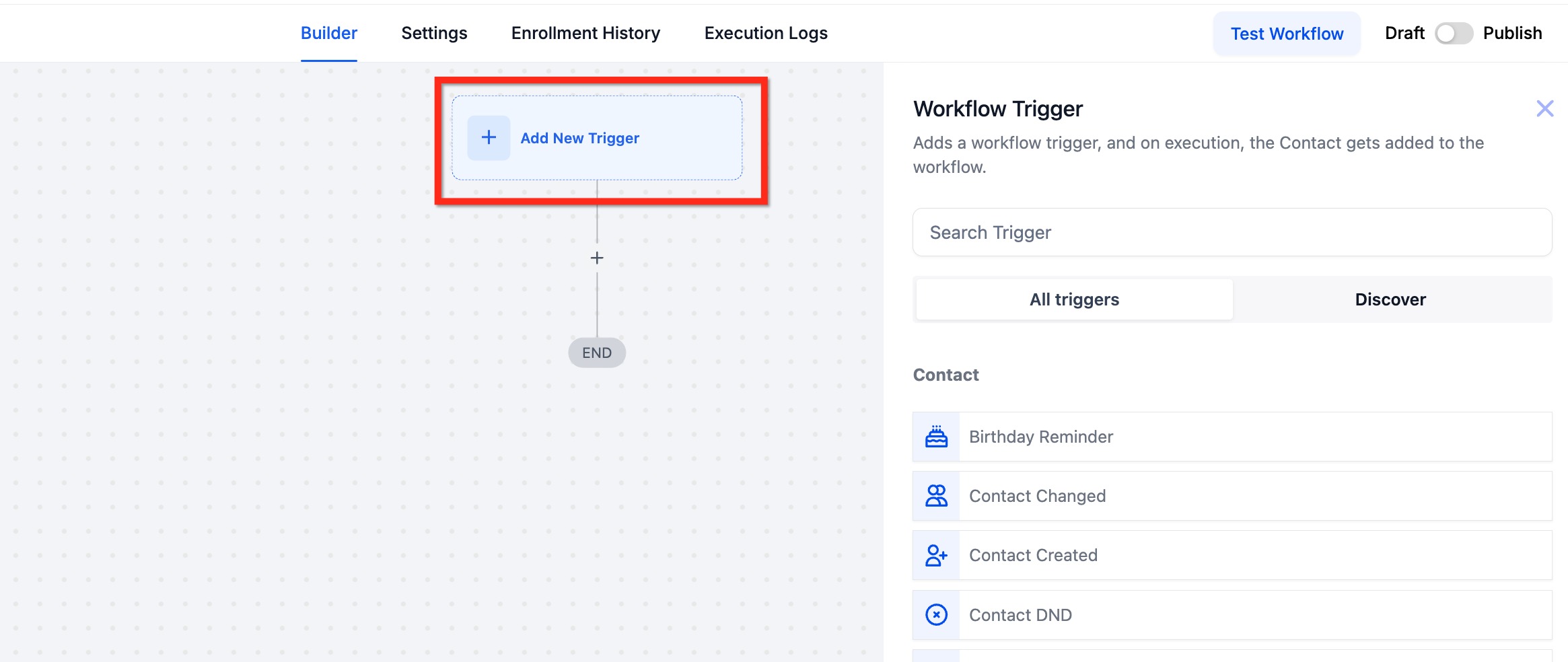
This screen shows the trigger selection panel.
Click Add New Trigger, then select the condition that will start your workflow (for example, when a contact is created or updated).
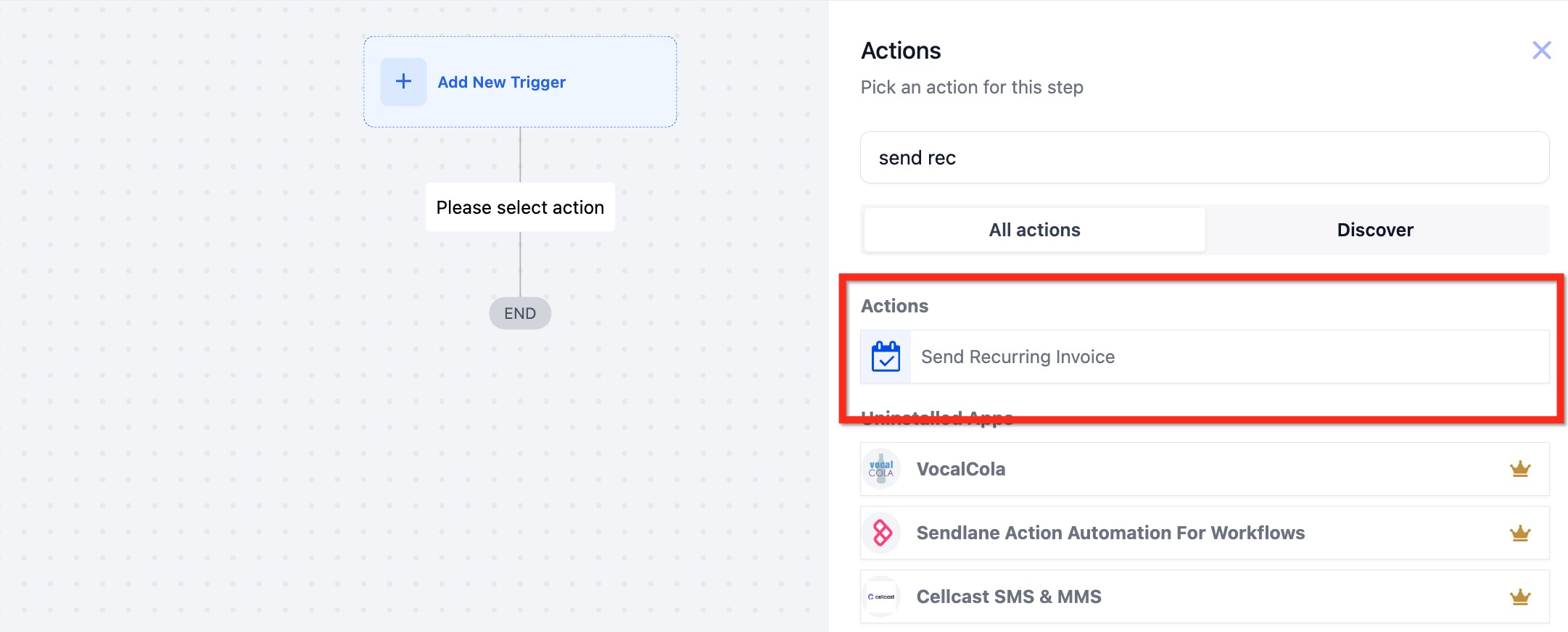
This screen shows the action selection menu.
Search for Send Recurring Invoice and select it to add it to your workflow.
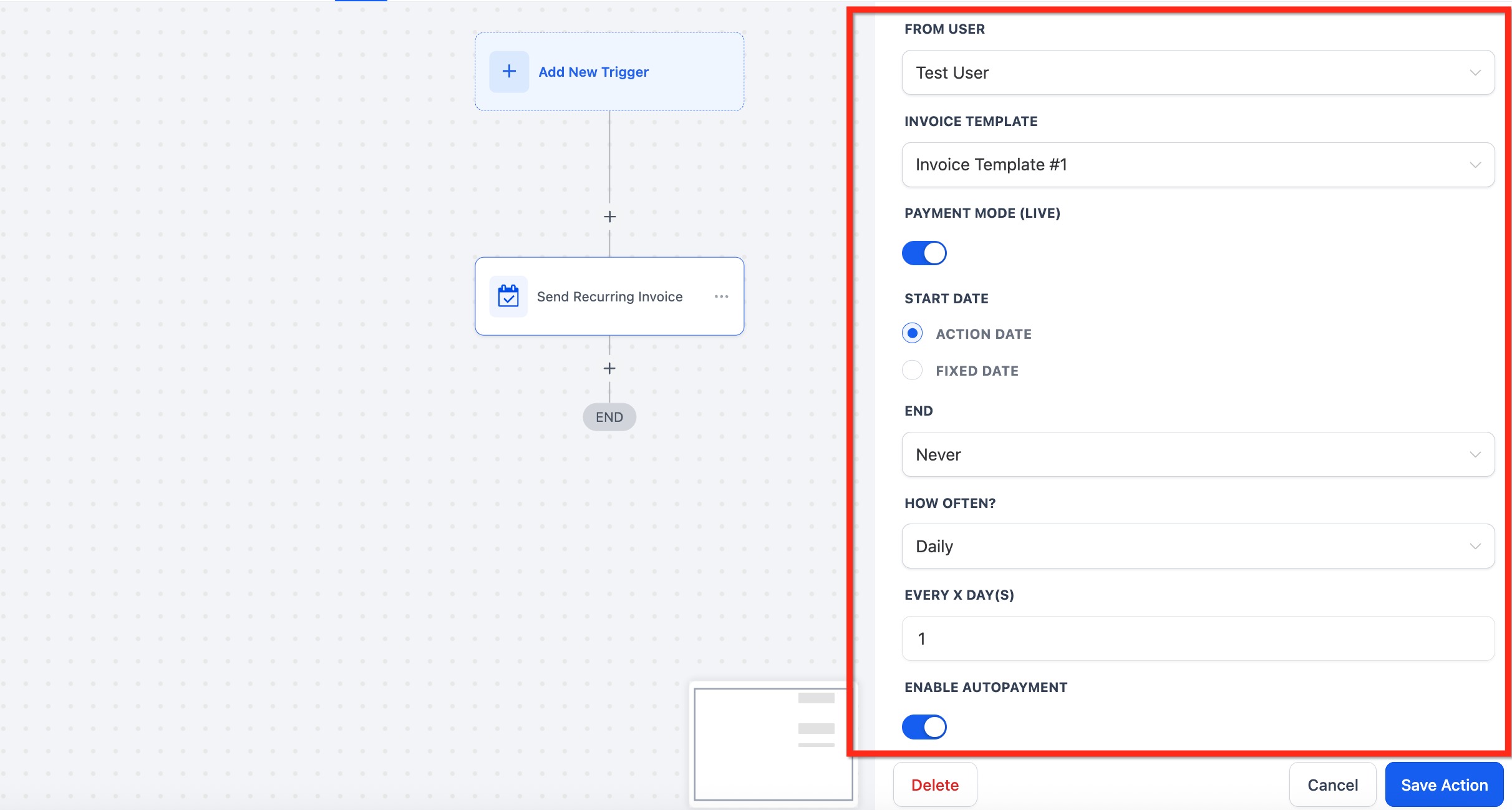
This screen shows the full configuration panel.
Set up the following:
Choose the sender of the invoice
Select an invoice template
Choose test or live mode
Set the start date (trigger-based or fixed date)
Define when the billing should end
Choose billing frequency (daily, weekly, monthly, yearly)
Set interval rules (e.g., every X days)
Enable auto payment if needed
Click Save Action once complete.
Configuration Settings Explained
Start Date
Determines when billing begins. You can start immediately when the workflow runs or choose a fixed date.
End Rules
Control when billing stops. You can let it run indefinitely or stop after a set number of billing cycles.
Billing Frequency
Choose how often invoices are sent:
Daily
Weekly
Monthly
Yearly
Each option allows additional customization based on your billing needs.
Auto Payment
When enabled, payments are automatically collected after the first successful transaction. This reduces manual follow-ups and improves payment consistency.
Best Practices
Test workflows before activating them
Use clear naming for actions and templates
Verify payment setup before enabling auto payment
Monitor the first billing cycle to ensure everything works correctly
Frequently Asked Questions
Q: Can invoices be automated without auto payment?
Yes, invoices can be sent automatically while customers pay manually.
Q: What happens if automatic payment fails?
The invoice remains unpaid and follow-up actions can be triggered to notify the customer.
Q: Can I change billing frequency later?
Yes, you can edit the workflow and update frequency settings at any time.
Q: Will invoices stop automatically?
Only if you define an end condition. Otherwise, billing continues until manually stopped.
Q: Can different customers receive different invoice templates?
Yes, you can use workflow conditions to send different templates based on customer data.
Need Help?
If you need assistance setting up recurring invoices or troubleshooting automation, please contact support or reach out to your system administrator for help.