
Web Chat inside Conversations allows businesses to communicate with website visitors in real time through a website chat widget. Messages sent from the widget appear directly in the Conversations inbox, where teams can manage them alongside SMS, email, and other communication channels.
This article explains how Web Chat works, how to configure the chat widget, and how to manage Web Chat conversations inside Conversations.
Important: Web Chat is distinct from Live Chat. Channel labels are now consistent across the platform to clearly differentiate the two experiences.
TABLE OF CONTENTS
How Web Chat Works
Web Chat enables visitors on your website to start a conversation instantly. When a visitor sends a message through the chat widget, the message is routed directly to the Conversations inbox in your sub-account.
Inside Conversations, Web Chat messages appear in real time. Agents can open the thread, respond immediately, assign the conversation, or manage it just like any other channel.
Web Chat centralizes website conversations so teams do not need to switch between platforms.
Setting Up Web Chat
To enable Web Chat, you must create and configure a chat widget.
Navigate to Sites → Chat Widget and click + New to create a widget.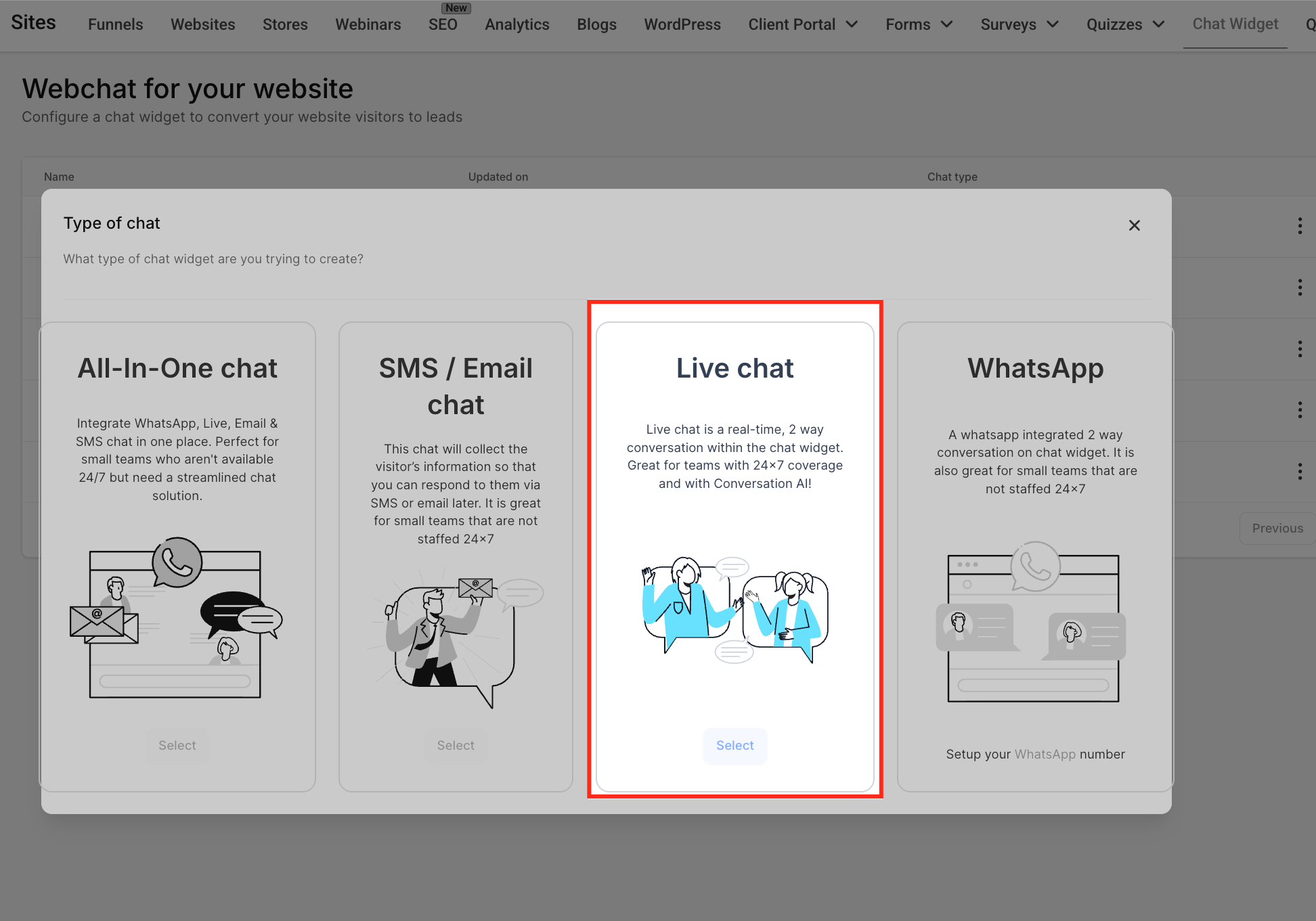
When selecting the chat type, choose Live chat. Although the setup screen displays “Live chat,” this option configures the Web Chat channel that routes website messages into Conversations.
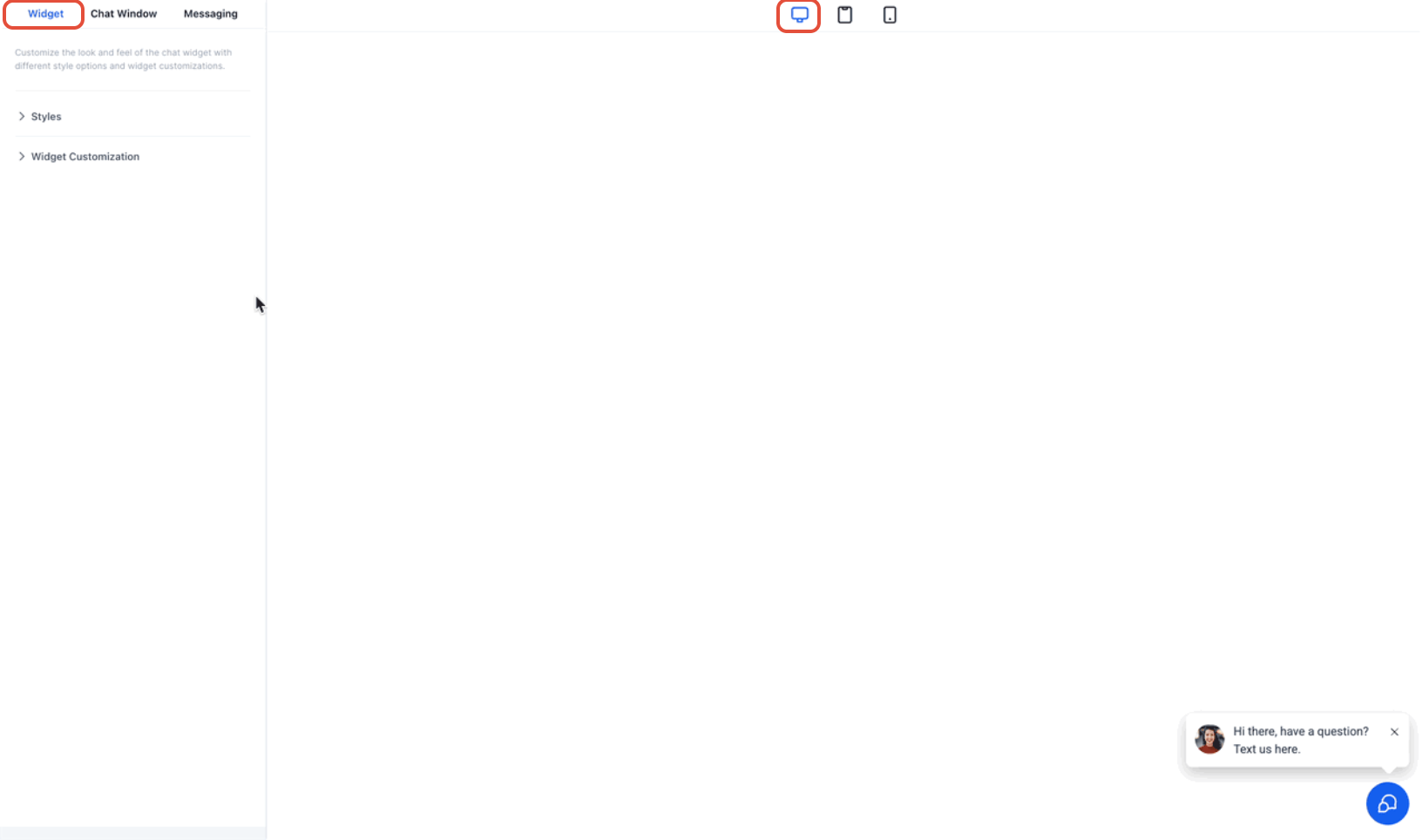
After selecting the chat type, customize the widget settings according to your needs.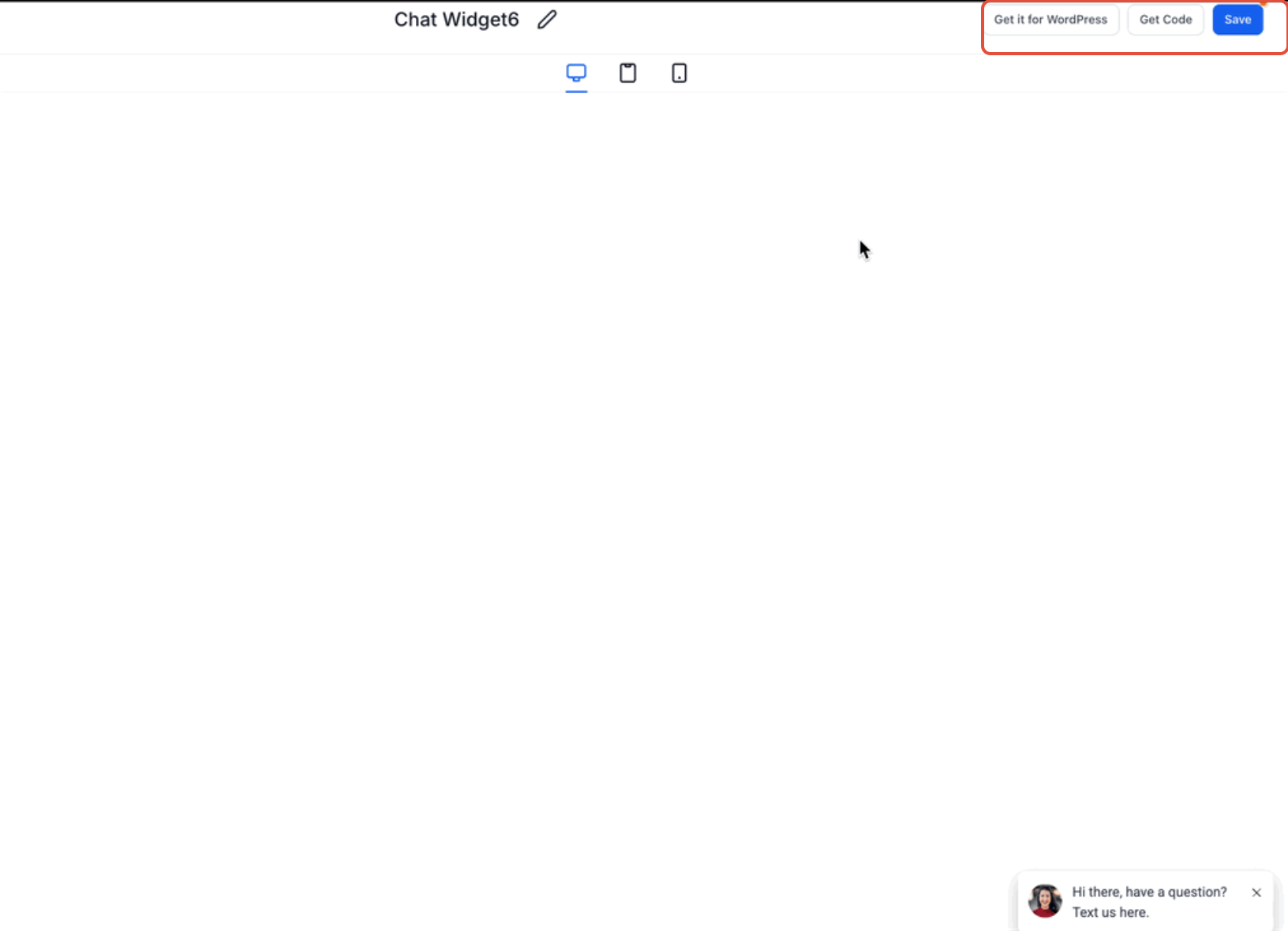
You can configure:
Intro message
Agent avatar and branding
Inactivity fallback message
Chat timeout message
Once configured, save the widget and install it on your website by copying the provided script into your website’s footer or body section. If you are using WordPress, install the LeadConnector plugin to enable the widget.
After installation, visitors can begin sending Web Chat messages from your website.
Managing Web Chat Conversations
When a visitor sends a message, it appears instantly inside Conversations.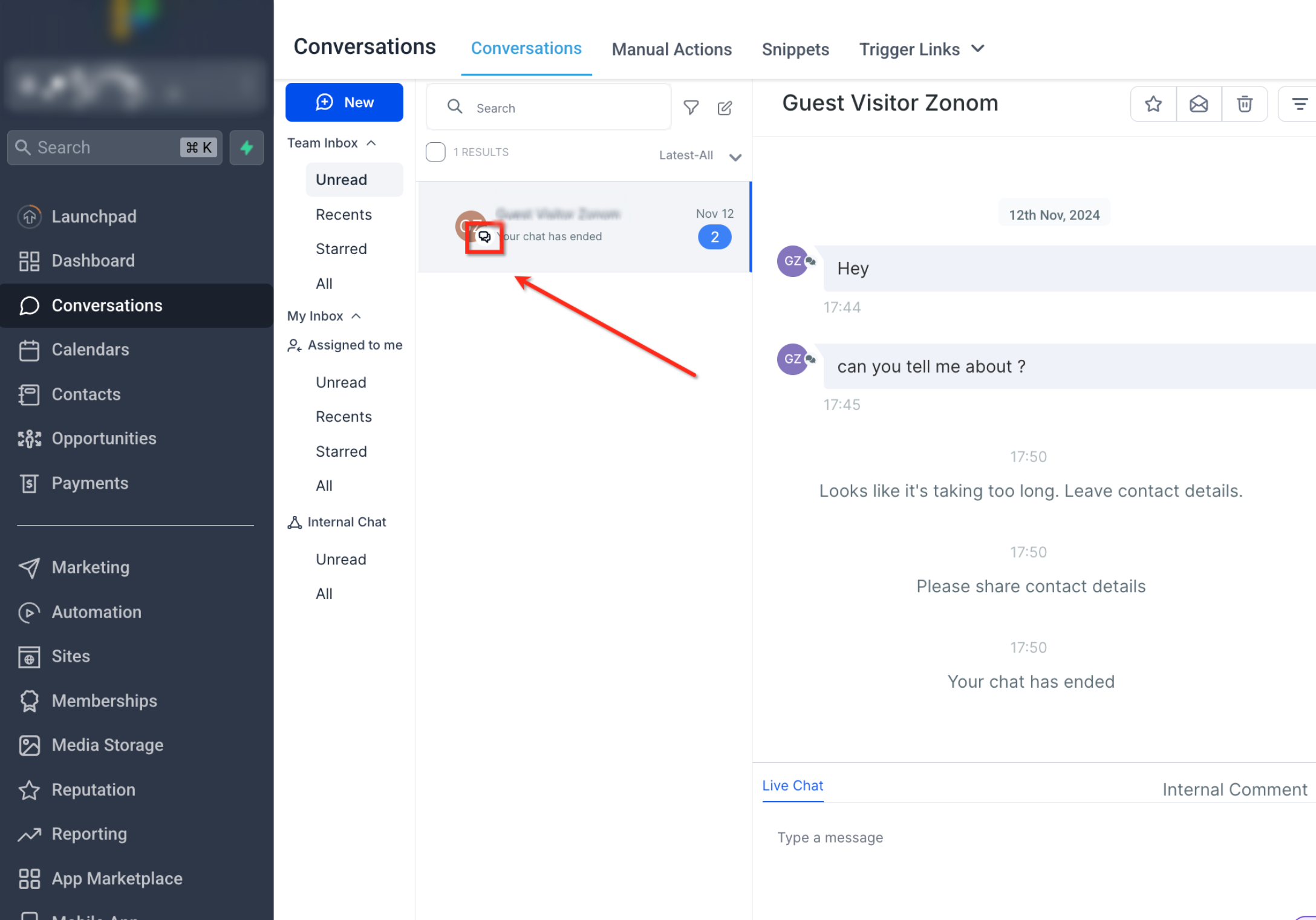
Web Chat conversations can be identified by the chat icon in the inbox. You can open the thread to respond in real time. Conversations can be assigned manually or automatically to team members using workflows or ownership rules.
To focus only on Web Chat messages, use the filter option inside Conversations.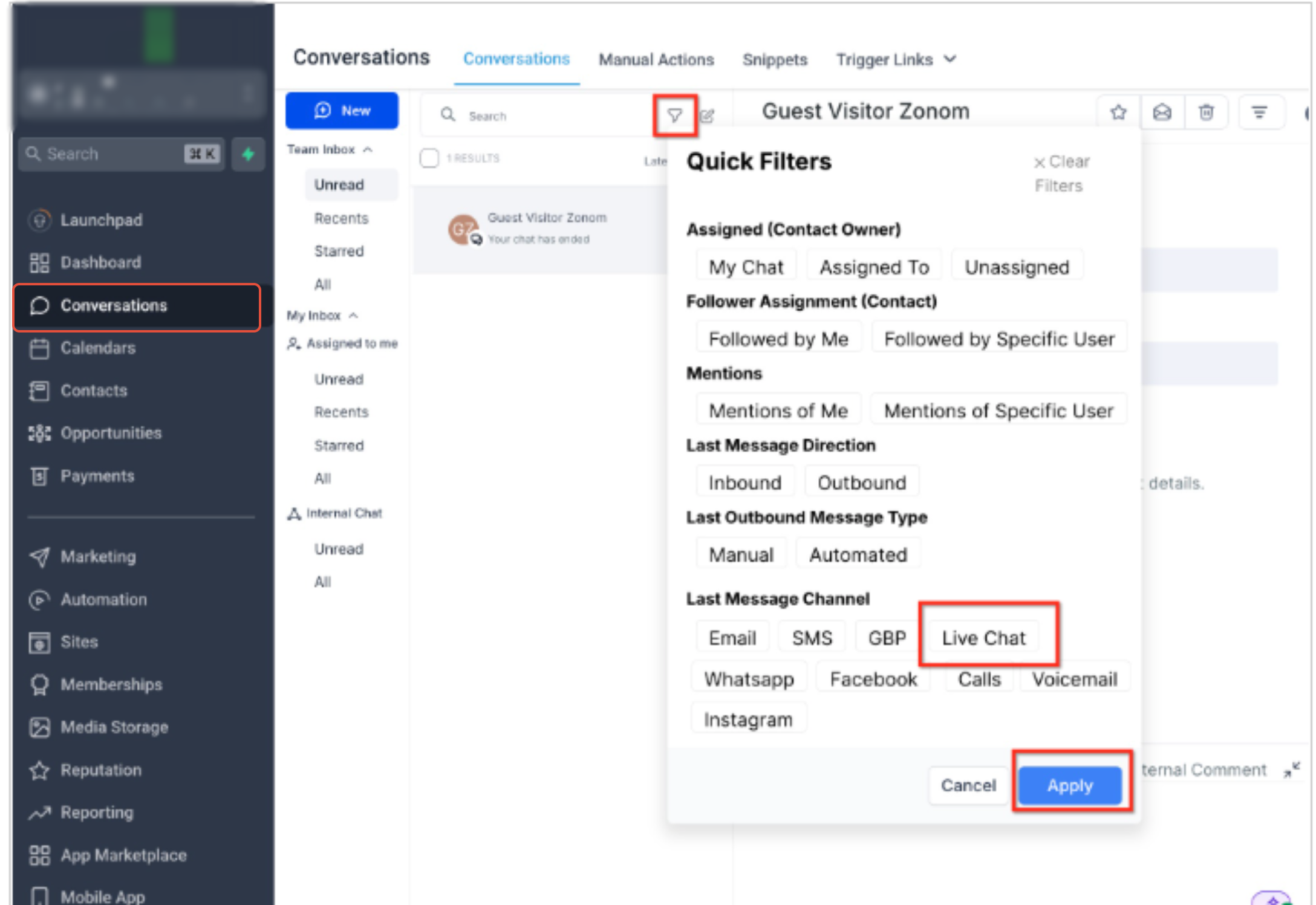
Under Last Message Channel, select Live Chat and apply the filter. This displays only Web Chat conversations originating from your website.
When a conversation is complete, you can use the End Chat option. Chats can also close automatically based on inactivity settings configured in the widget.
Frequently Asked Questions
Q: How do I ensure Web Chat messages appear in Conversations?
Install and enable the chat widget and select Live chat under Sites → Chat Widget. Messages will automatically route to Conversations.
Q: Why does the setup screen say “Live chat” if this is Web Chat?
The widget setup currently uses the label “Live chat,” but it configures the Web Chat channel that routes website conversations into Conversations.
Q: What happens if no one responds to a Web Chat message?
If no agent responds within the configured inactivity time, the fallback message prompts the visitor to leave their contact details so follow-up can continue later.
Q: Can Web Chat conversations be assigned to specific team members?
Yes. Conversations can be assigned manually or automatically using workflows and assignment rules.
Q: Can I filter only Web Chat conversations?
Yes. Use the filter option in Conversations and select Live Chat under the message channel filter.
Need Help?
If Web Chat messages are not appearing or working as expected, first review the chat widget setup, website installation, and Conversations filters.
Verify that:
- You are working in the correct account.
- The chat widget was created under Sites → Chat Widget.
- Live chat was selected when creating the widget.
- The widget was saved after configuration.
- The widget script was installed correctly on the intended website.
- The website changes were published after adding the widget.
- The widget appears and can accept messages on the live website.
- Intro, inactivity, and timeout messages are configured as intended.
- Conversations filters are not hiding Web Chat messages.
- Last Message Channel → Live Chat is selected when filtering for Web Chat conversations.
- The conversation has not already been ended manually.
- Inactivity settings are not closing the chat sooner than expected.
- Assignment rules or workflows are routing conversations to the intended user.
If the widget appears on the website but messages do not reach Conversations, send a test message from the live page, then clear any active inbox filters and check again.
If the issue continues, collect the website URL, widget name, affected conversation, date and time of the test message, expected behavior, and screenshots of the widget settings and Conversations inbox before contacting support.