
Learn how the platform chooses an SMS sender, how to manually select From and To numbers in Conversations, how multiple contact numbers behave, and how to verify the sender used for a message.
Manually selecting a From number takes priority over automatic sender selection. The selected number must still belong to the applicable sub-account, support SMS, and meet applicable messaging registration and compliance requirements.
2. Key Benefits of Selecting SMS Numbers
3. Prerequisites and Limitations
4. How the Platform Chooses the From Number
5. How To Select the From Number in Conversations
6. How To Select the Contact's To Number
7. How To Check Which Number Sent an SMS
8. Frequently Asked Questions
9. Need Help?
What Are SMS To and From Numbers?
The From number is the business phone number used to send an SMS. The To number is the contact phone number receiving the message.
When multiple eligible numbers are available, the Conversations composer lets you choose the appropriate sender and recipient before sending.
If you do not manually select a From number, the platform uses sender-priority rules to determine which business number should send the message.
Key Benefits of Selecting SMS Numbers
Choosing the correct sender and recipient helps keep SMS conversations accurate when businesses or contacts use multiple phone numbers.
- Choose the Correct Business Identity: Send from the appropriate business number when a sub-account has multiple numbers.
- Maintain Conversation Continuity: The platform can continue using the number already associated with the conversation.
- Support User-Specific Numbers: A number assigned to the sending user can be selected automatically.
- Reach the Correct Contact Number: Choose between a contact's saved numbers when multiple options are available.
- Override Automatic Selection: Manually choosing a From number takes priority over automatic sender selection.
Prerequisites and Limitations
Valid sender and recipient numbers, correct permissions, and applicable messaging compliance help prevent SMS failures or unexpected sender selection.
- The From number must belong to the relevant sub-account.
- The selected From number must support SMS.
- The contact must have a valid phone number.
- If a contact has multiple phone numbers, review which number is marked Primary.
- Applicable messaging registration, compliance, DND, and opt-out requirements still apply.
Keep in mind: Workflow and bulk-SMS sender selection use their own configuration. The sender behavior in this article focuses primarily on manual SMS messages sent from Conversations.
How the Platform Chooses the From Number
The platform follows a sender-priority order when deciding which business number should send an SMS. Understanding this order helps explain why a message may come from a different number than expected.
Sender Priority: Manually selected From number → number assigned to the sending user → number already associated with the conversation → default outbound number.
1. Manually Selected From Number
If you explicitly choose a From number for the message, the platform uses that number first. This gives you direct control when a specific business, department, or team number should be used.
2. User-Assigned Number
If no number is manually selected, the platform checks whether the sending user has an eligible phone number assigned. If that number cannot send SMS, the applicable fallback number can be used instead.
3. Existing Conversation Number
If no applicable user-assigned number is used, the platform checks the number already associated with the contact's SMS conversation. Reusing the existing number helps maintain conversation continuity.
4. Default Outbound Number
If none of the higher-priority options apply, the platform uses the sub-account's default outbound number.
How To Select the From Number in Conversations
Manually selecting the From number is useful when a message needs to come from a specific business line instead of relying on automatic sender selection.
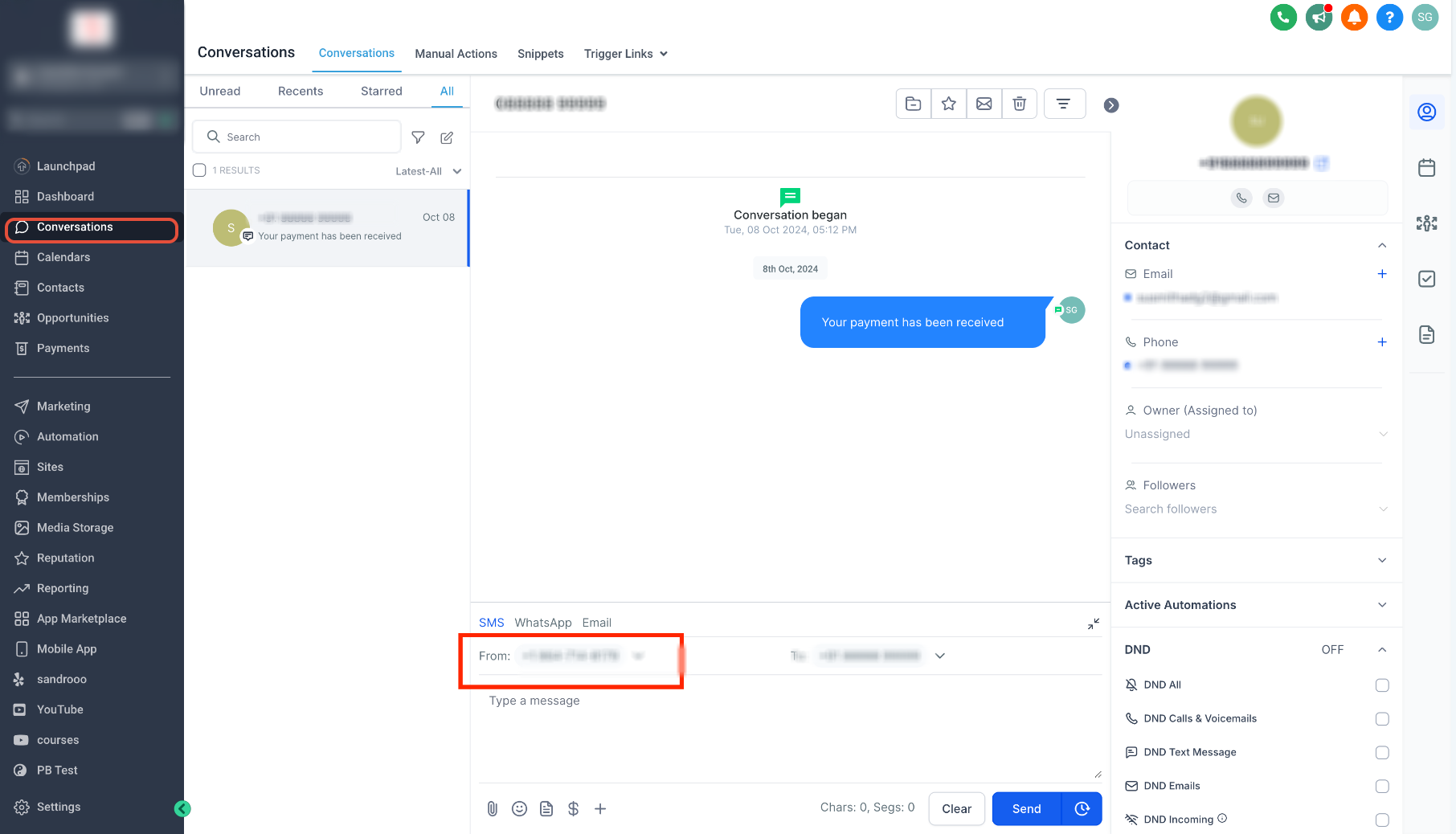
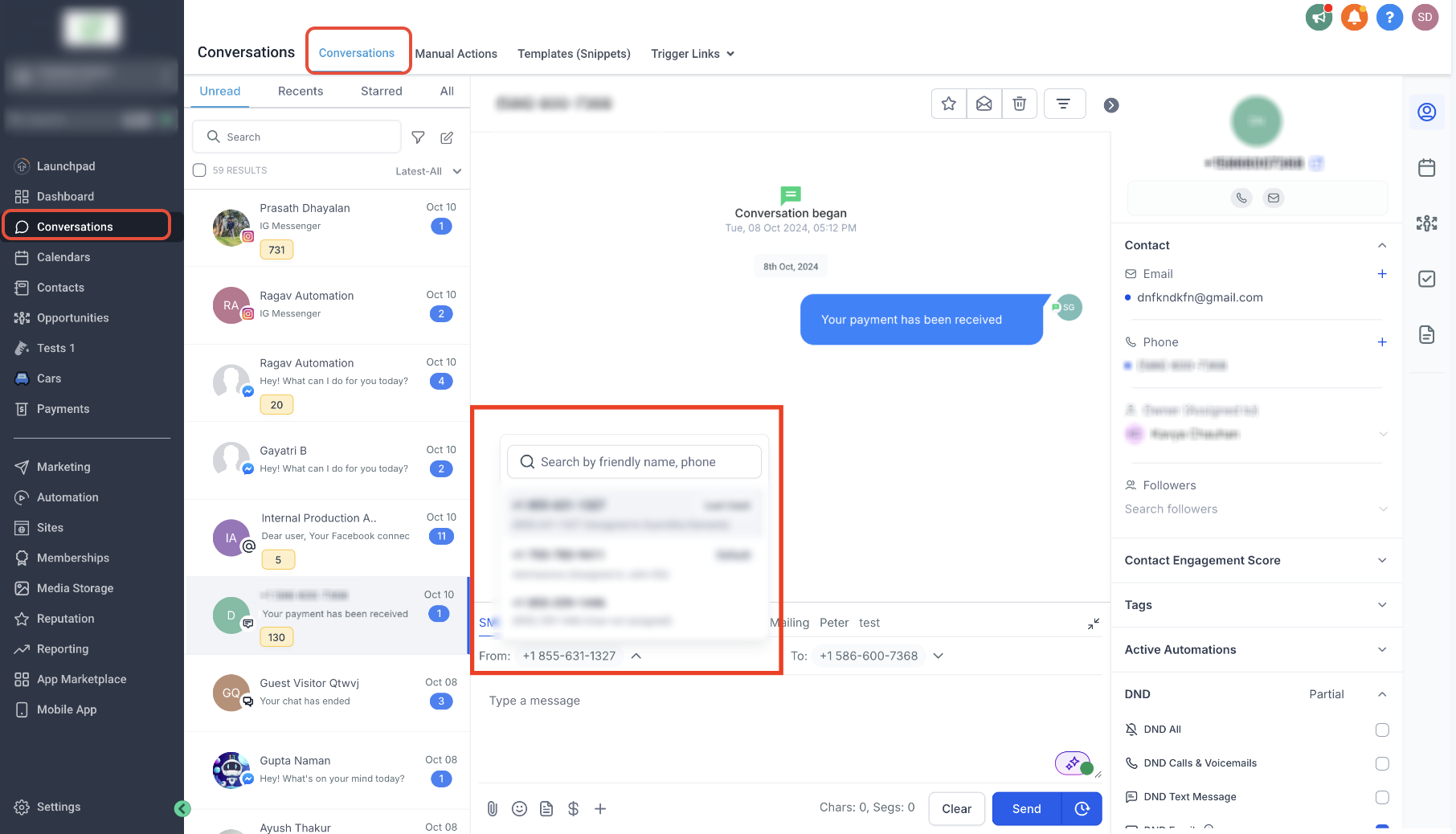
- From the Sub-Account View, click Conversations.
- Open the conversation with the contact you want to message.
- Select SMS in the message composer.
- Locate the From number selector.
- Click the From dropdown.
- Select the business phone number you want to use.
- Compose your SMS.
- Review the selected From number.
- Click Send.
Which Sender Numbers Can Users Access?
Number availability can depend on the user's role and number assignments.
- Admins: Can access the phone numbers configured for the account.
- Users: Can access the applicable default number, the last-used number for the conversation, numbers assigned to them, and eligible unassigned numbers available in the sub-account.
How To Select the Contact's To Number
Selecting the recipient number helps ensure your message goes to the correct phone when a contact has multiple numbers saved.
- From the Sub-Account View, click Conversations.
- Open the contact's conversation.
- Select SMS in the message composer.
- Locate the To field.
- If the contact has multiple phone numbers, click the To number dropdown.
- Select the phone number you want to message.
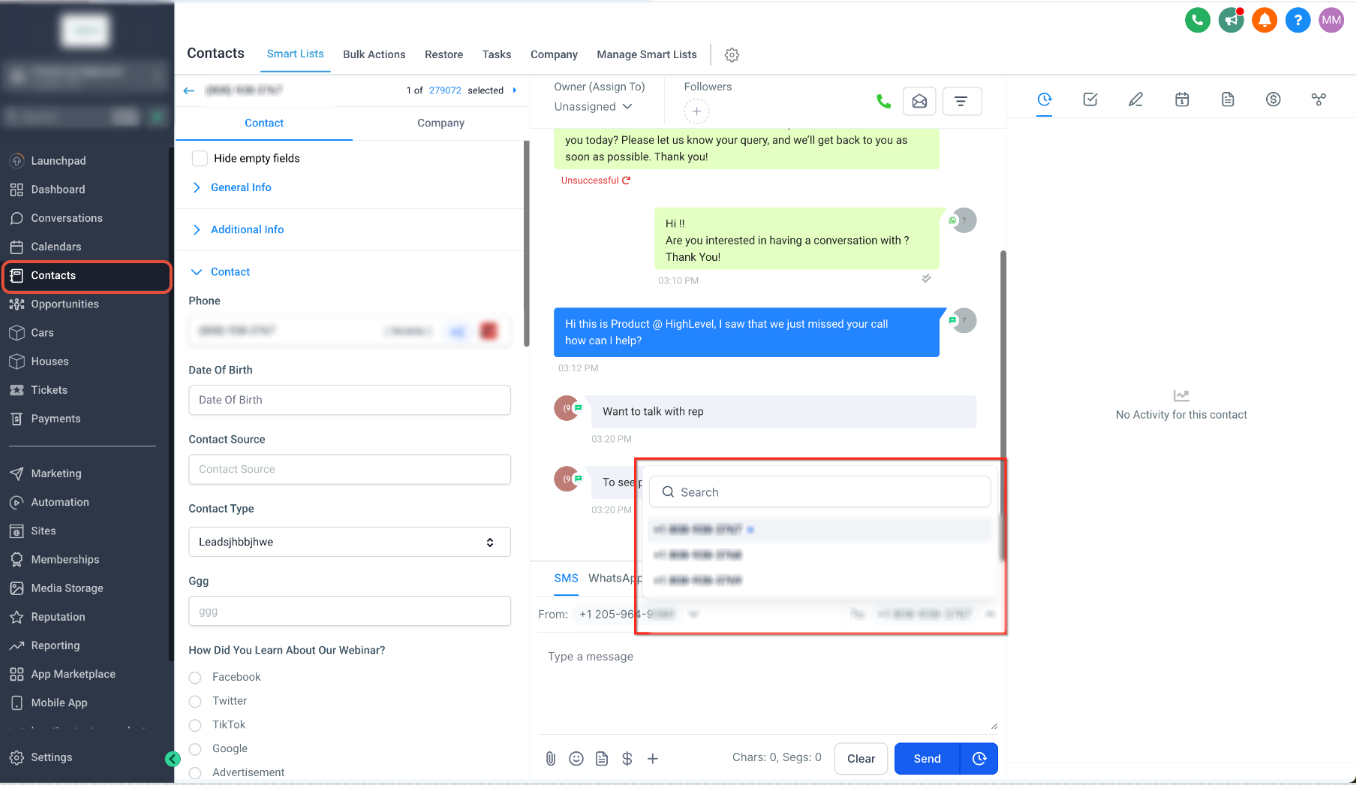
- Confirm the selected recipient number.
- Compose and send the SMS.
Multiple Contact Numbers: A contact can store up to 11 phone numbers, with one number marked as Primary. If there is no previous conversation, the primary contact number is used by default.
How To Check Which Number Sent an SMS
Message details help you confirm the exact sender number used after an SMS has been sent, which is useful when troubleshooting unexpected sender behavior.
- From the Sub-Account View, click Conversations.
- Open the relevant conversation.
- Locate the SMS you want to inspect.
- Hover over the message.
- Click the three-dot menu (⋮).
- Select Details.
- Review the sending phone number shown in the message details.
Frequently Asked Questions
Need Help?
- The expected From number is missing: Confirm the number belongs to the sub-account, supports SMS, and is available to the user.
- Messages are sending from an unexpected number: Review the manually selected sender, user-assigned number, existing conversation number, and default outbound number.
- A contact's phone number is missing: Review the contact record and confirm the number is saved correctly and available in the To selector.
- An SMS fails to send: Confirm the sender is SMS-capable and review applicable registration, DND, opt-out, and compliance requirements.
- You need to confirm the sender used: Open the SMS message details from Conversations and review the sending phone number.