
Automate TikTok direct messages (DMs) and comment replies using Workflows. Connect an eligible TikTok Business account, configure automated responses, and manage customer interactions from the Conversations Inbox.
This guide explains how to set up TikTok DM and comment automations.
TABLE OF CONTENTS
- What are TikTok DM & Comment Automations?
- Key Benefits of TikTok DM & Comment Automations
- TikTok Account Requirements
- Integrating Your TikTok Account
- TikTok Automation Triggers and Actions
- Setup Trigger: TikTok Comment(s) on Reel
- Setup Action : Reply in Comments
- How will TikTok DM automation work?
- Trigger : Customer replied
- Setup Action : Tiktok Interactive messenger
- Important Considerations
- Frequently Asked Questions
- Need Help?
What are TikTok DM & Comment Automations?
TikTok DM and Comment Automations allow you to respond automatically to incoming TikTok messages and post comments using Workflows. You can configure triggers, keyword filters, and reply actions to manage engagement without manually responding to every interaction.
Key Benefits of TikTok DM & Comment Automations
TikTok automations help you manage conversations, respond faster, and organize customer engagement.
Unified Inbox: Manage TikTok conversations alongside SMS, email, WhatsApp, and other supported channels in Conversations without switching between platforms.
Faster Response Times: Use workflows to send automated responses to incoming messages and keep contacts engaged.
Automation-Driven Efficiency: Use triggers and actions to automate replies, route leads, and assign follow-up activities without manual effort.
Contact Management: Turn TikTok interactions into CRM contacts and follow-up sequences that you can track.
Team Collaboration: Manage high message volumes using shared inboxes and workflow rules.
Real-Time Notifications: Receive notifications for TikTok direct messages and comments so your team can respond faster from Conversations.
TikTok Account Requirements
TikTok messaging and comment automations require an eligible account and supported integration permissions.
Review these requirements before configuring your workflows.
TikTok Messaging and Comment Automations currently require a TikTok Business account registered in the United States.
The feature is unavailable in the European Economic Area (EEA), Switzerland, and the United Kingdom.
Your TikTok account must be connected through Settings → Integrations → TikTok.
These restrictions are based on TikTok's available public APIs.
Integrating Your TikTok Account
Before configuring TikTok automations, make sure your TikTok Business account is connected.
Open Settings.
Navigate to Integrations.
Locate the TikTok integration card.
Connect your eligible TikTok Business account if it is not already connected.
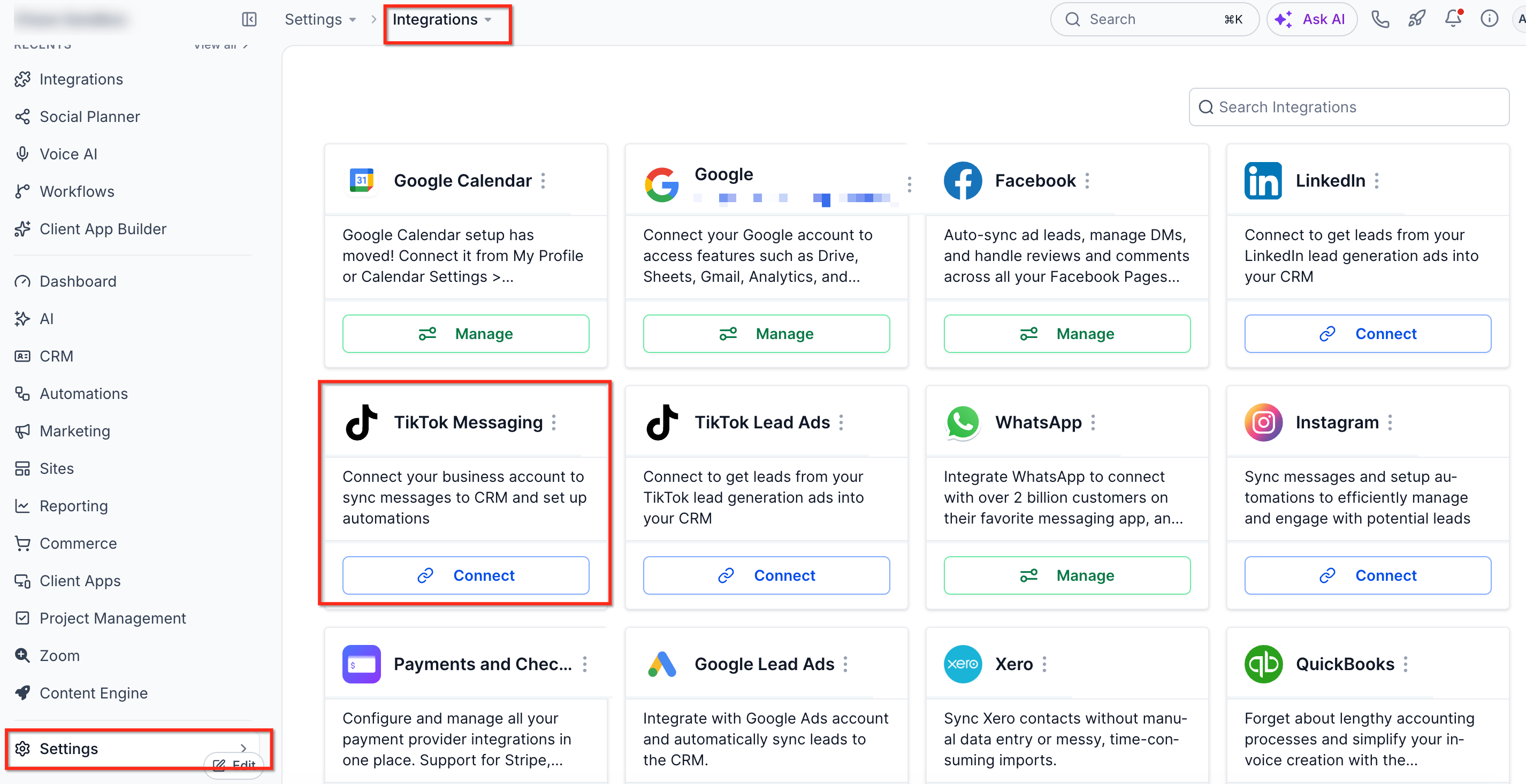
Once connected, you can configure workflows to respond to incoming TikTok messages and comments.
TikTok Automation Triggers and Actions
Workflows provide dedicated triggers and actions for automating TikTok messages and comments.
| Component | Purpose |
|---|---|
| TikTok - Comment(s) on a Post | Triggers a workflow when a matching comment is received on a TikTok post. |
| Customer Replied | Triggers a workflow when an incoming TikTok DM matches the configured conditions. |
| Reply in Comments | Posts an automated public reply to a comment. |
| TikTok Interactive Messenger | Sends an automated text message in a supported TikTok conversation. |
Setup Trigger: TikTok Comment(s) on Reel
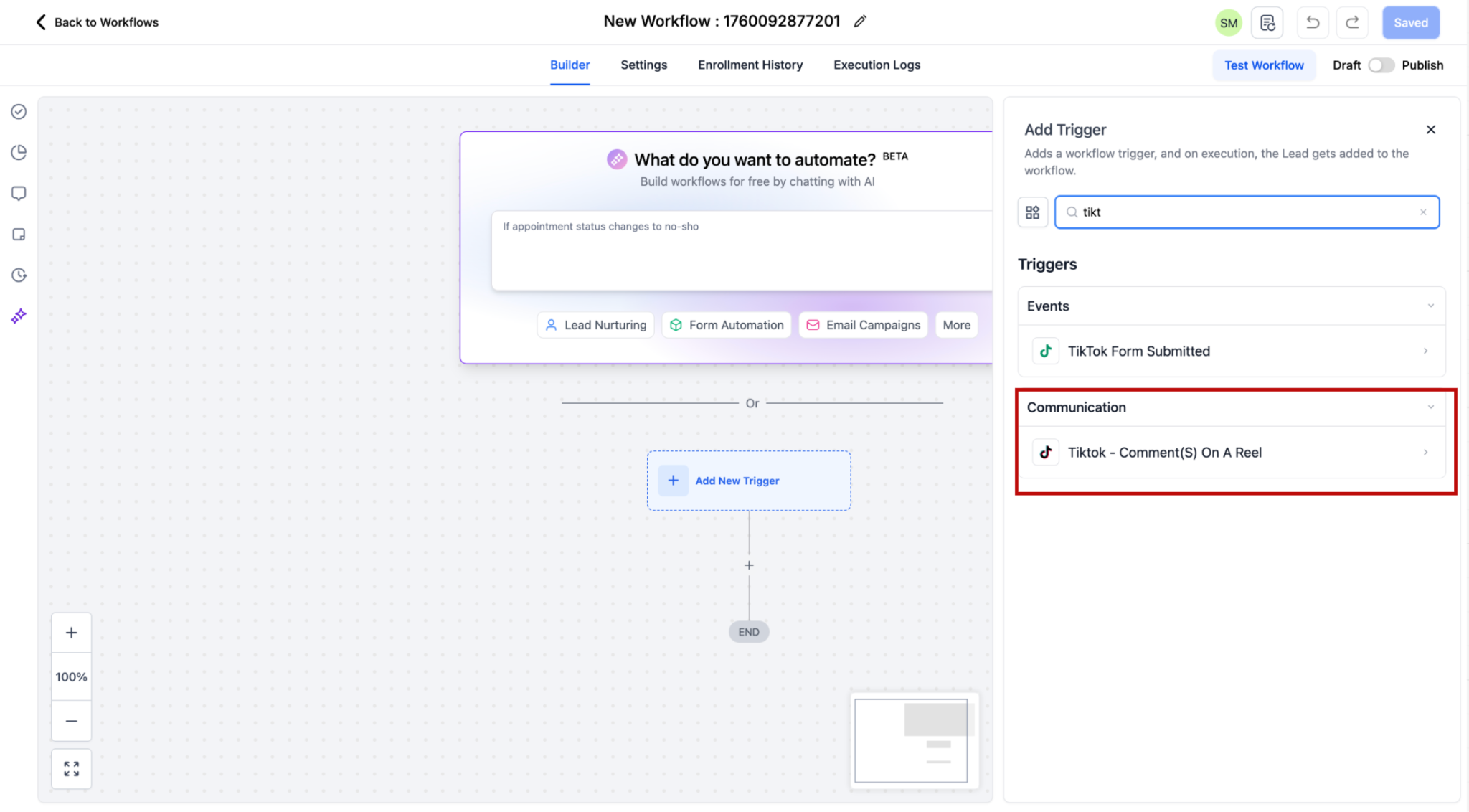
When creating a workflow click on "Add Trigger". The triggers related to comment automation are present in the Communication category. You can directly search for the trigger or scroll down to the category.
1. Go to triggers and select from the available triggers based on your use case. Here you should select TikTok - Comment(s) on a Post
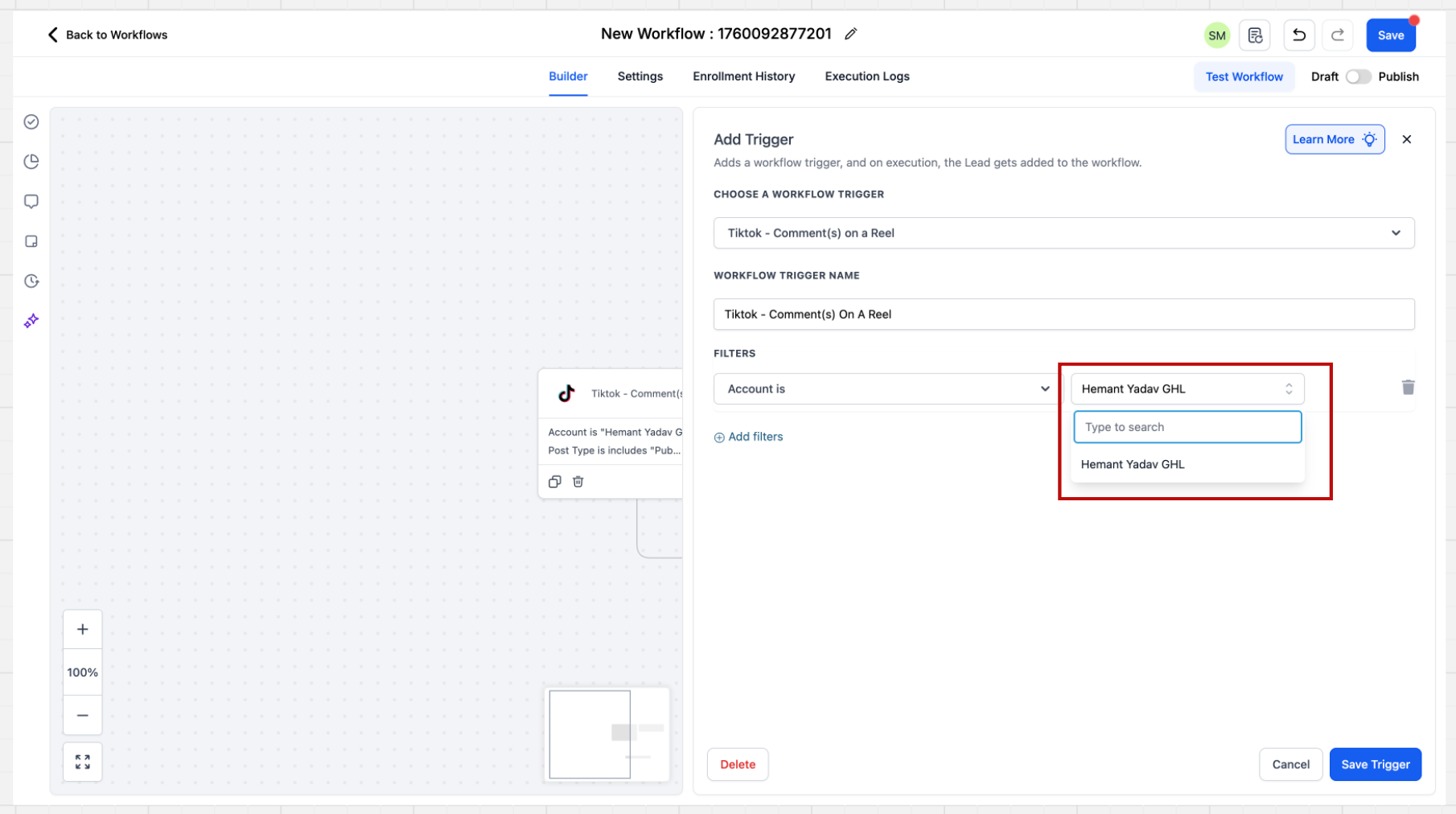
2. After clicking on the trigger the sidebar will open. There are multiple filters present here. The first step is to select the Account.
Account Selection for TikTok Comments
If a specific account is not selected in the filter, the system will automatically consider all accounts that are integrated at the location level. The automation will then execute across all these connected accounts.
3. After selecting the Page you have to select the Post Type. Post type can be "Published" or "Custom"
a. Published Post - 'Published Posts' tab fetches all posts on your business page - basis this selection, all the posts from your account comes as a dropdown.
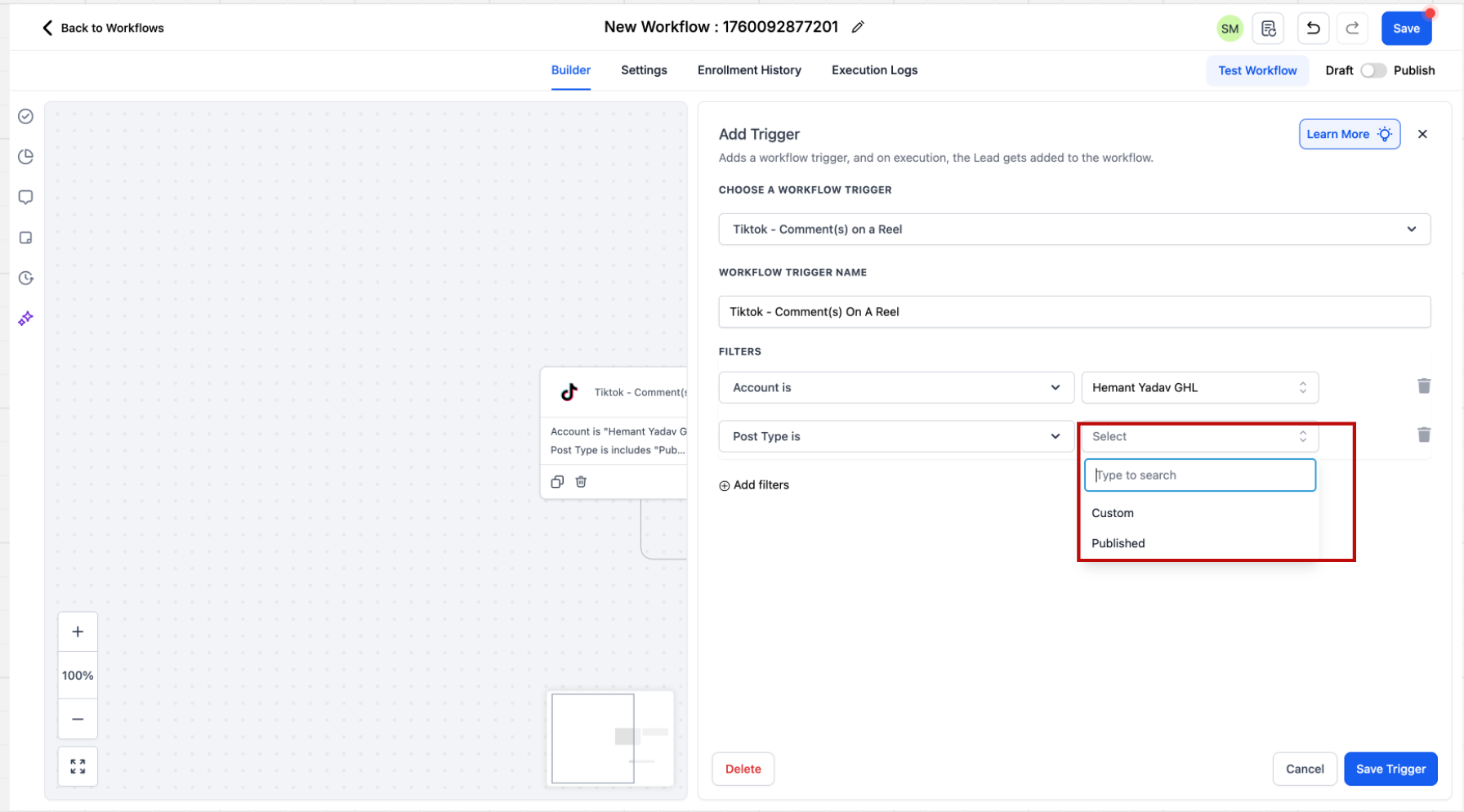
b. Custom Post - Custom Post tab allows you to define the post you want to consider by providing an URL
Post Selection Behavior
If a specific post is not selected, the system will automatically include all posts associated with the connected TikTok account.
4. In the next step, you should select the post or provide the URL, you would like to run the automation on. If you do
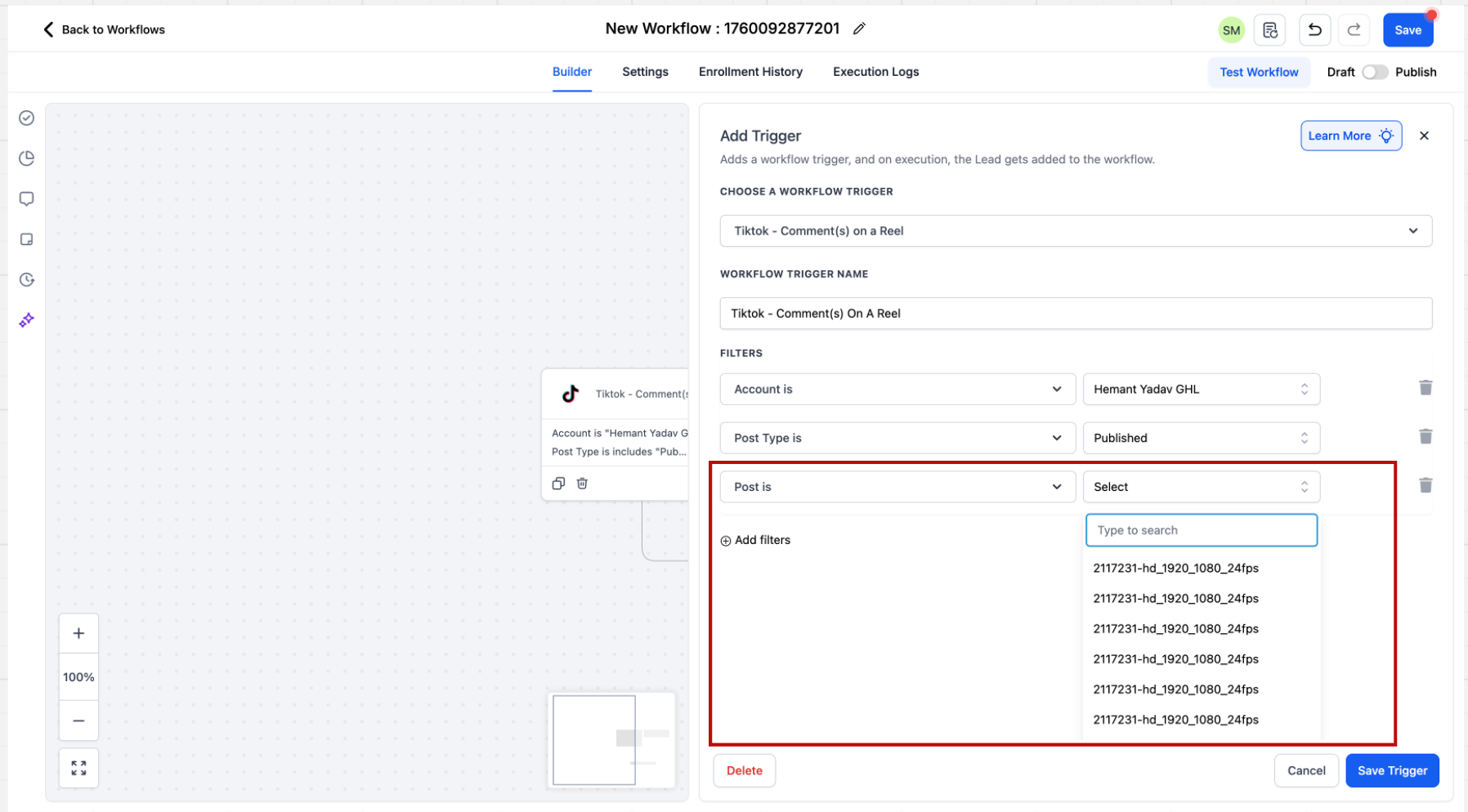
5. After selecting the post you have to enter what are you looking for in the comment. You can select from 2 options "Contains Phrase" and "Exact Match". Below are some examples to understand these 2 dropdown better.
Exact Match - Price
Inbound message - Price
Result - Pass
Exact Match - Share the Price
Inbound message - Share the Price
Result - Pass
Exact Match - Share the Price
Inbound message - Please share the Price
Result - Fail
Contains Exact Phrase - I bought from you
Inbound message - I bought from you
Result - Pass
Contains Exact Phrase - I bought from you
Inbound message - I bought from you yesterday
Result - Pass
Contains Exact Phrase - I bought from you
Inbound message - I bought one from you
Result - Fail
When the contact will be saved?
When a contact is coming through the trigger, it will be saved as a contact and First Name and Last Name of the contact will be stored.
Setup Action : Reply in Comments
Go to actions. Here you can select the action from the Communications section, “Reply in Comments”
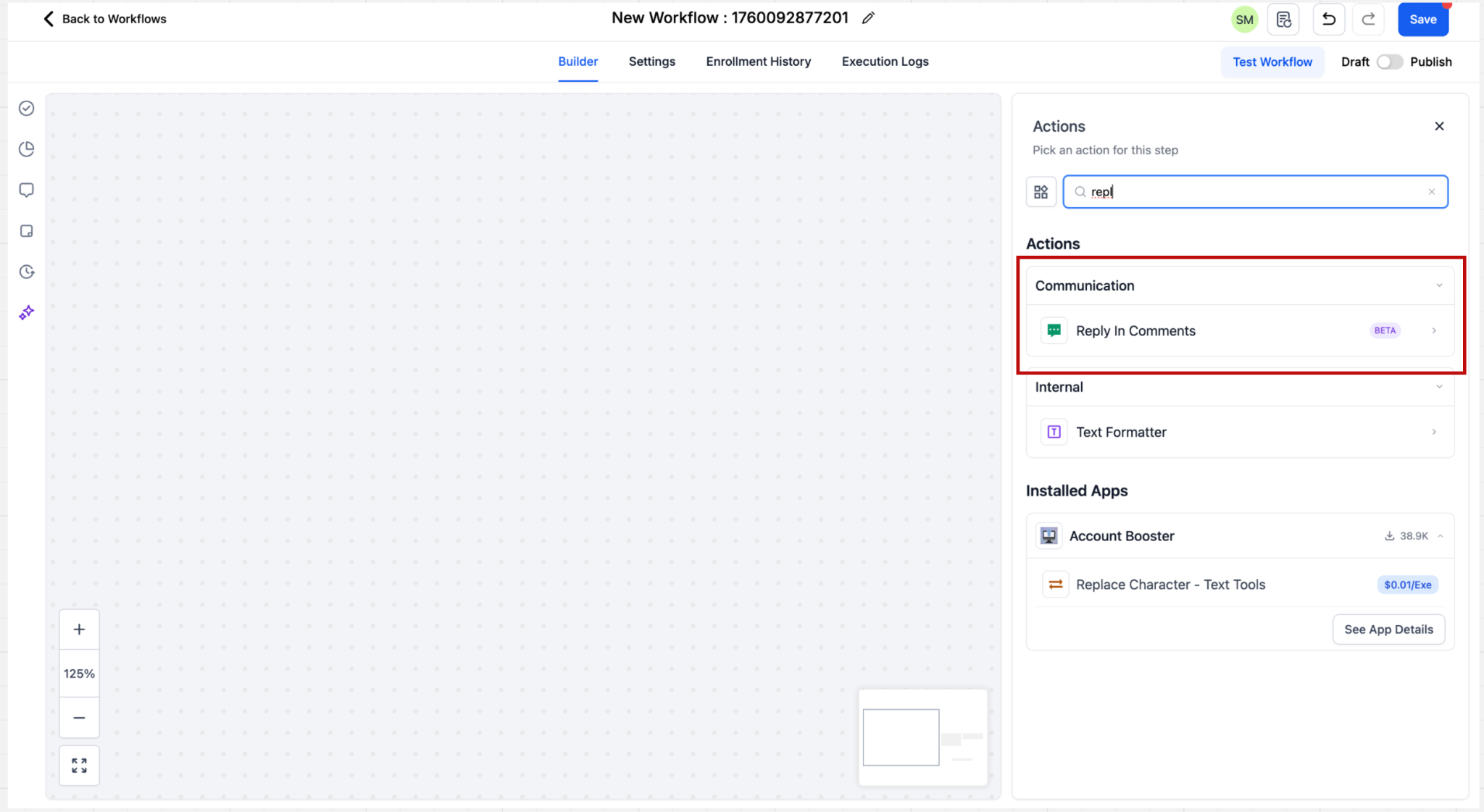
Users can configure up to 10 reply comments, which will be randomly selected during execution.
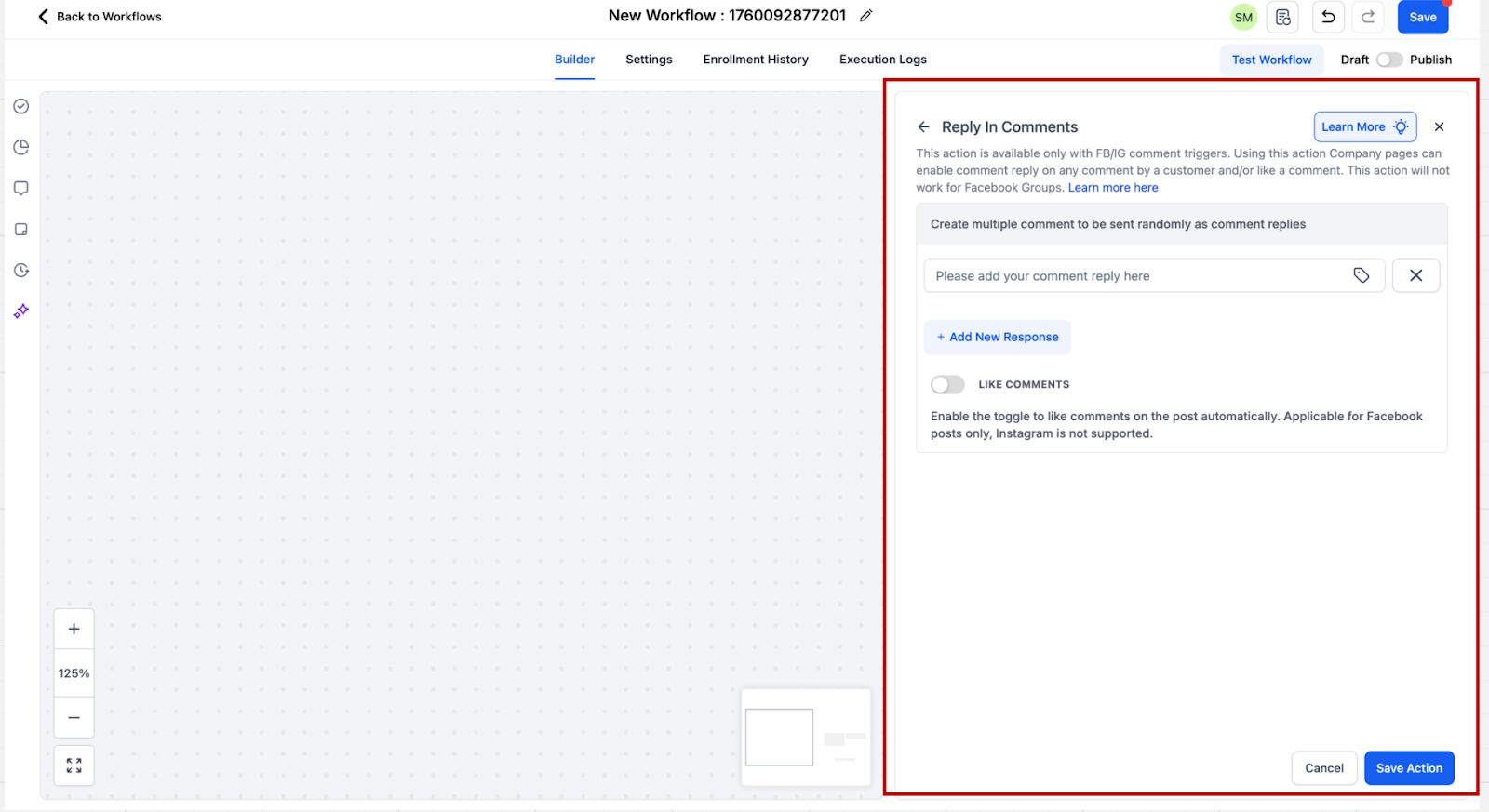
How will TikTok DM automation work?
Trigger : Customer replied
When creating a workflow click on "Add Trigger". The trigger related to DM automation “Customer replied” is present in the Events category. You can directly search for the trigger or scroll down to the category.
1. Go to triggers and select from the available triggers based on your use case. Here you should select Customer replied trigger
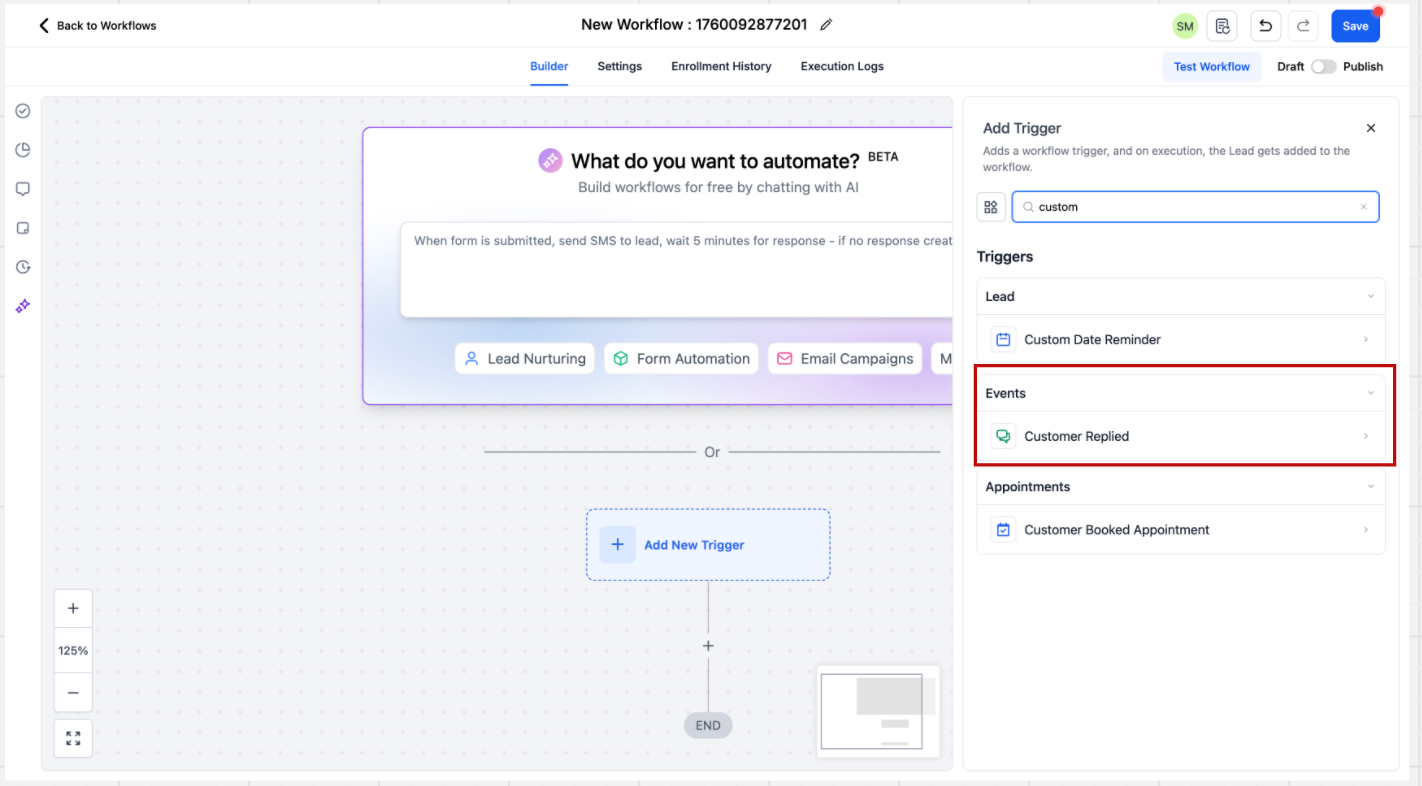
2. After clicking on the trigger the sidebar will open. There are multiple filters present here. The first step is to select the “Reply channel” filter where filter value = TikTok
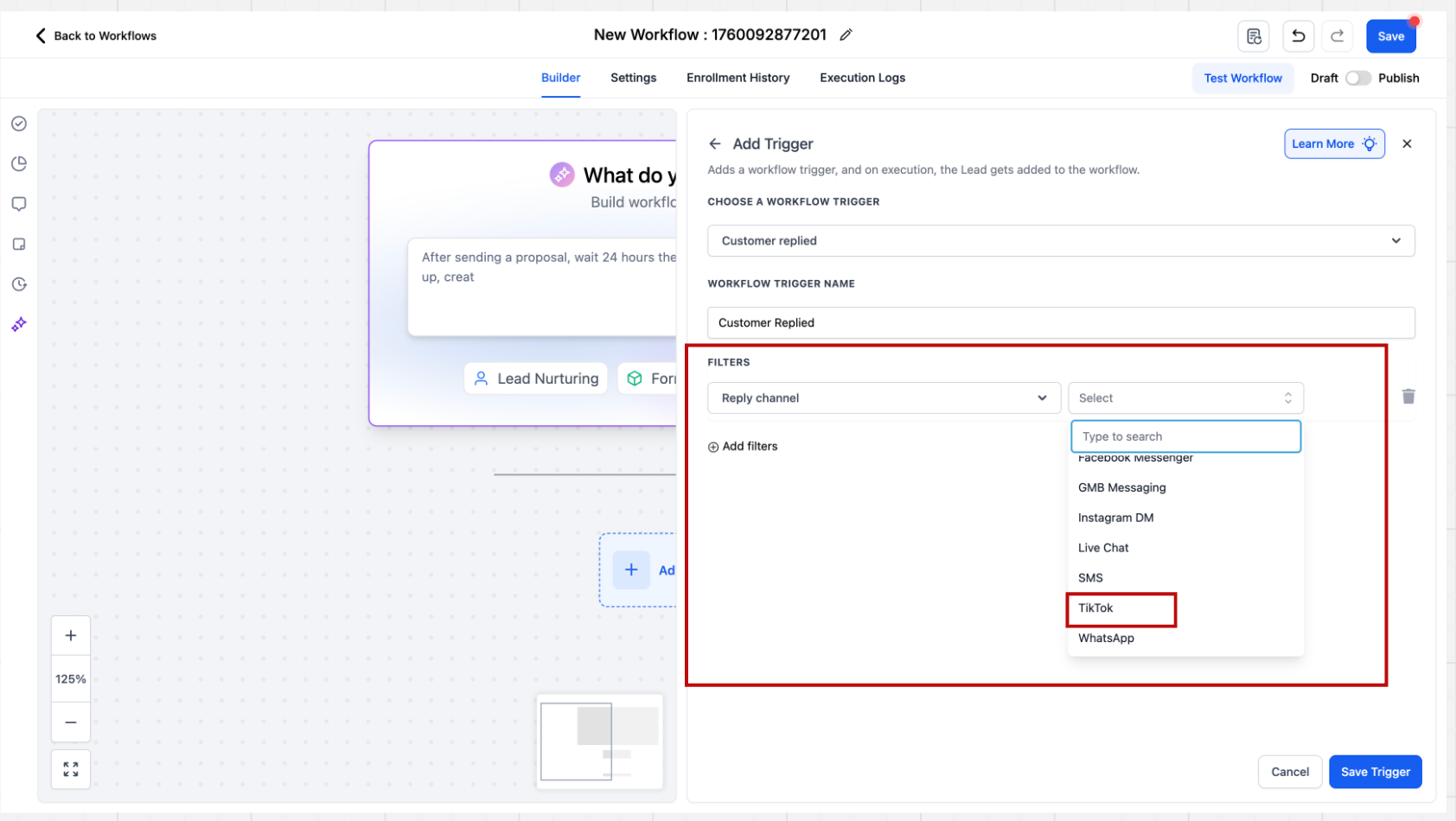
3. Users can configure automation rules for direct messages by setting specific matching conditions, such as ‘Contains Phrase’ or ‘Exact Match Phrase.’
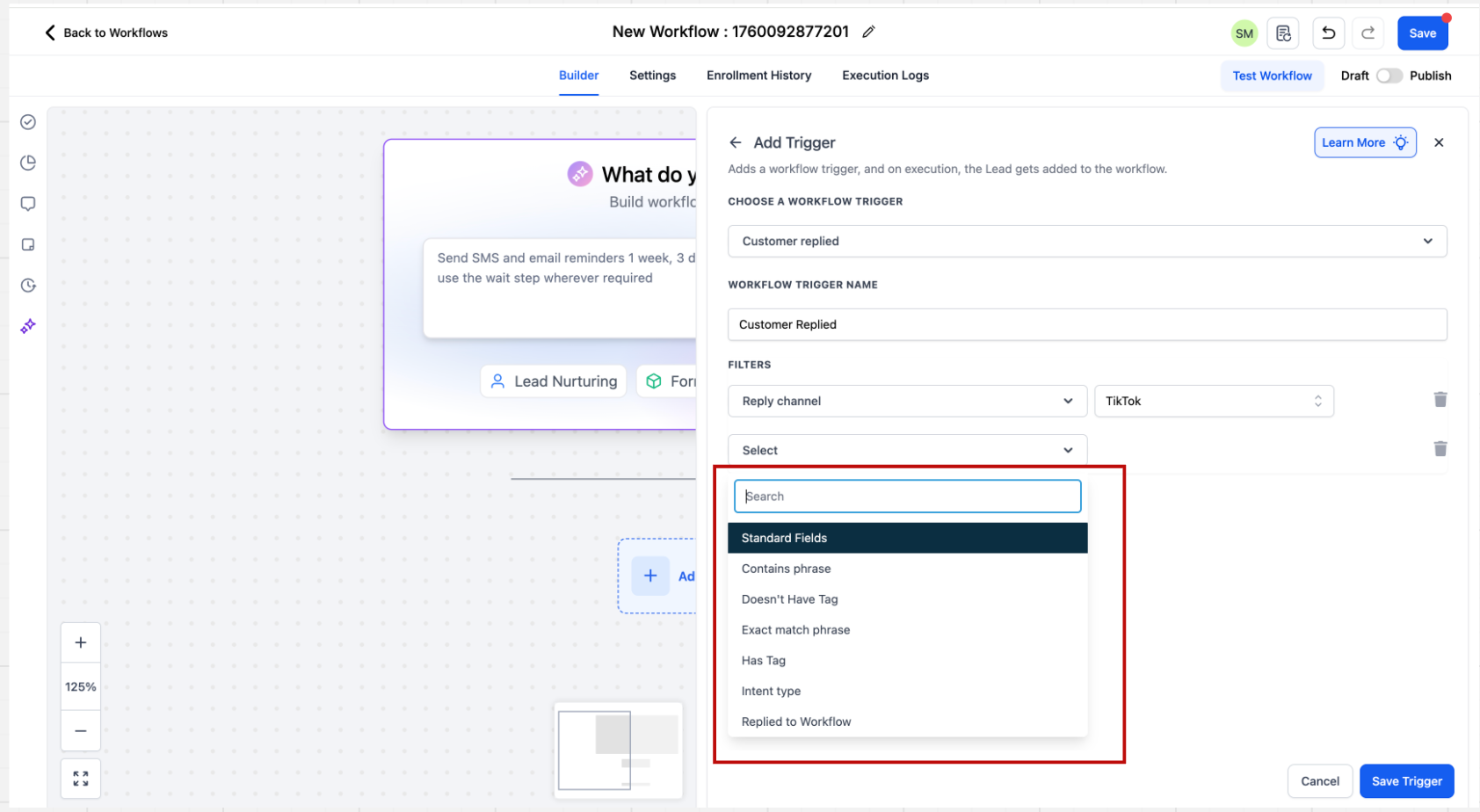
4. Based on the above configurations, you can define the trigger for the automation.
Setup Action : Tiktok Interactive messenger
There is 1 new action in the "Communications" category - Tiktok Interactive messenger
On selecting the action, the sidebar will open where you can capture all the relevant details.
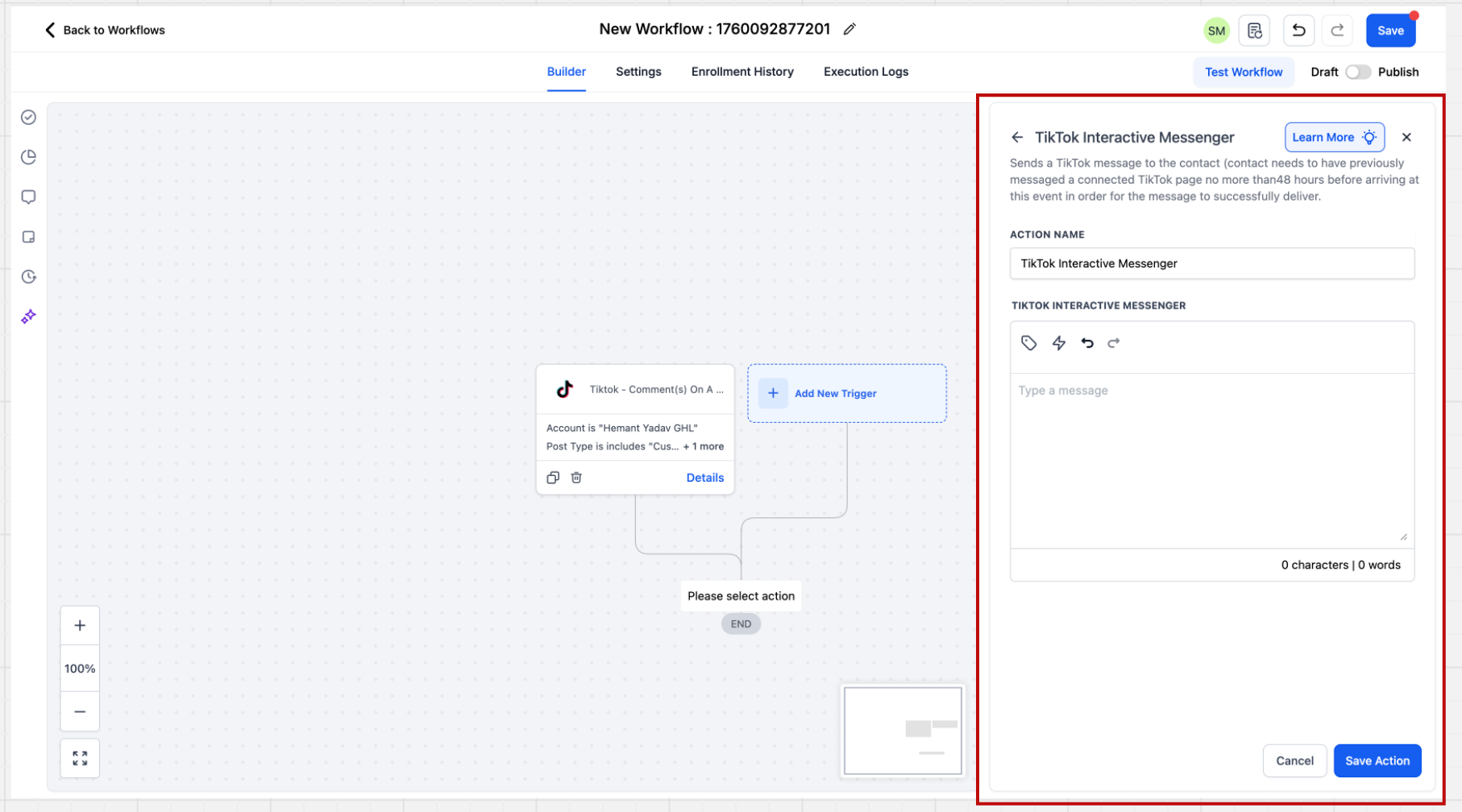
The TikTok Interactive Messenger is fairly straightforward. Here you have to provide the message you want to send to the inbound trigger defined and save the action.
Important Considerations
TikTok's API restrictions determine which messaging features are available. Consider these limitations when configuring your automations.
Message Types: TikTok Interactive Messenger supports text replies but does not support attachments, buttons, templates, or quick replies.
Reply Types: The action does not support the Reply Type selector available for certain other social messaging integrations.
Comment Filters: Automations can target specific posts, connected TikTok accounts, or matching keywords.
Account Selection: Leaving the account filter empty may include all eligible TikTok accounts connected to the current location.
Post Selection: Leaving the specific post filter empty allows the automation to monitor eligible posts associated with the selected TikTok account.
Feature Differences: Workflow-based TikTok comment automation is separate from manual Comment Management in Social Planner and AI-powered conversations.
Frequently Asked Questions
Q: Can I use TikTok automations with a Personal account?
No. TikTok Messaging and Comment Automations currently require an eligible TikTok Business account registered in the United States.
Q: Can I trigger comment automations for all TikTok posts?
Yes. Leaving the specific post filter empty allows the workflow to monitor eligible comments across posts associated with the selected TikTok account.
Q: Can I send automated DMs when someone comments on my TikTok post?
The TikTok Interactive Messenger action does not currently support the dedicated Reply to Comment via DM option available for certain other social platforms.
Q: Can I configure multiple automatic replies to TikTok comments?
Yes. The Reply in Comments action supports up to 10 reply variations. The system randomly selects one during workflow execution.
Q: Why isn't my TikTok automation triggering?
Check the following:
- Confirm that your TikTok Business account meets the eligibility requirements.
- Verify that the TikTok account is connected through Settings → Integrations.
- Make sure your workflow is published and active.
- Confirm that the correct TikTok account is selected in the trigger.
- Review the selected post or custom post URL.
- Verify that the configured phrase-matching conditions match the incoming interaction.
- Confirm that the correct action is configured and saved.
For direct message automations, verify that the Customer Replied trigger uses TikTok as the Reply Channel.
Q: Does TikTok Interactive Messenger support attachments or interactive buttons?
No. The TikTok Interactive Messenger action currently supports text replies but does not support attachments, interactive buttons, templates, or quick replies.
Q: What happens if I don't select a TikTok account in the trigger?
If no specific account is selected, the workflow considers all eligible TikTok accounts connected to the current location.
Q: Can I use different keyword conditions for TikTok automations?
Yes. You can configure matching conditions such as Contains Phrase or Exact Match to determine which comments or direct messages trigger your workflow.
Need Help?
If TikTok comment or direct message automation is not working as expected, first review the TikTok connection, workflow trigger, filters, and supported feature limitations.
Verify that:
- The TikTok business account is connected to the correct account.
- The TikTok account is registered in an eligible region.
- The workflow is published and active.
- The correct TikTok account is selected in the workflow trigger.
- The intended post is selected, or the correct custom post URL is entered.
- Leaving the account or post filter blank is intentional, since the automation may apply across all eligible connected accounts or posts.
- Exact Match or Contains Phrase is configured correctly for the expected comment or message.
- The Customer Replied trigger uses TikTok as the reply channel for direct message automation.
- The correct Reply in Comments or TikTok Interactive Messenger action is included.
- Reply comments were saved correctly if using randomized comment responses.
- The message content in TikTok Interactive Messenger was saved.
- You are not attempting to use unsupported TikTok Interactive Messenger features such as templates, attachments, buttons, quick replies, or reply-type options.
- A recent qualifying comment or direct message was used when testing the workflow.
If the workflow triggers but the response is not sent, review the matching conditions and action configuration one at a time. For comment automation, confirm the comment text meets the selected phrase rule. For direct messages, confirm the incoming message matches the configured TikTok reply conditions.
If the issue continues, collect the connected TikTok account, workflow name, trigger type, selected post or post URL, phrase-matching settings, sample comment or message, date and time of the test, and screenshots of the trigger and action configuration before contacting support.