
Access form submissions directly in Conversations to review responses and follow up faster without leaving the conversation thread. This article shows how to enable the feature, view individual or all submissions, and filter submission-based conversations.
TABLE OF CONTENTS
- What Is Form Submissions Access in Conversations?
- Key Benefits of Form Submissions in Conversations
- How to Access Form Submissions in Conversations
- Frequently Asked Questions
What Is Form Submissions Access in Conversations?
Viewing form submissions in Conversations lets you see a contact’s submitted form responses directly inside the conversation thread. This gives you immediate context before replying, which is especially helpful for lead capture, support inquiries, and website or funnel forms.
This is an additional way to review form data and does not replace the standard Forms > Submissions area.
Key Benefits of Form Submissions in Conversations
- Faster follow-up: Review the submitted form and reply from the same Conversations screen.
- Better context: See what the contact submitted before responding.
- Less context switching: Avoid moving between Conversations and the Forms Submissions area.
- Better inbox management: Use filters to quickly locate conversations tied to form submissions.
How to Access Form Submissions in Conversations
To ensure form submissions appear inside the conversation thread, you must enable a form-level setting. Then you can view the submission card inside the thread and optionally filter the inbox to find submission-based conversations.
- Go to Sites > Forms > Builder.

- Create a new form or edit an existing form you want to configure.

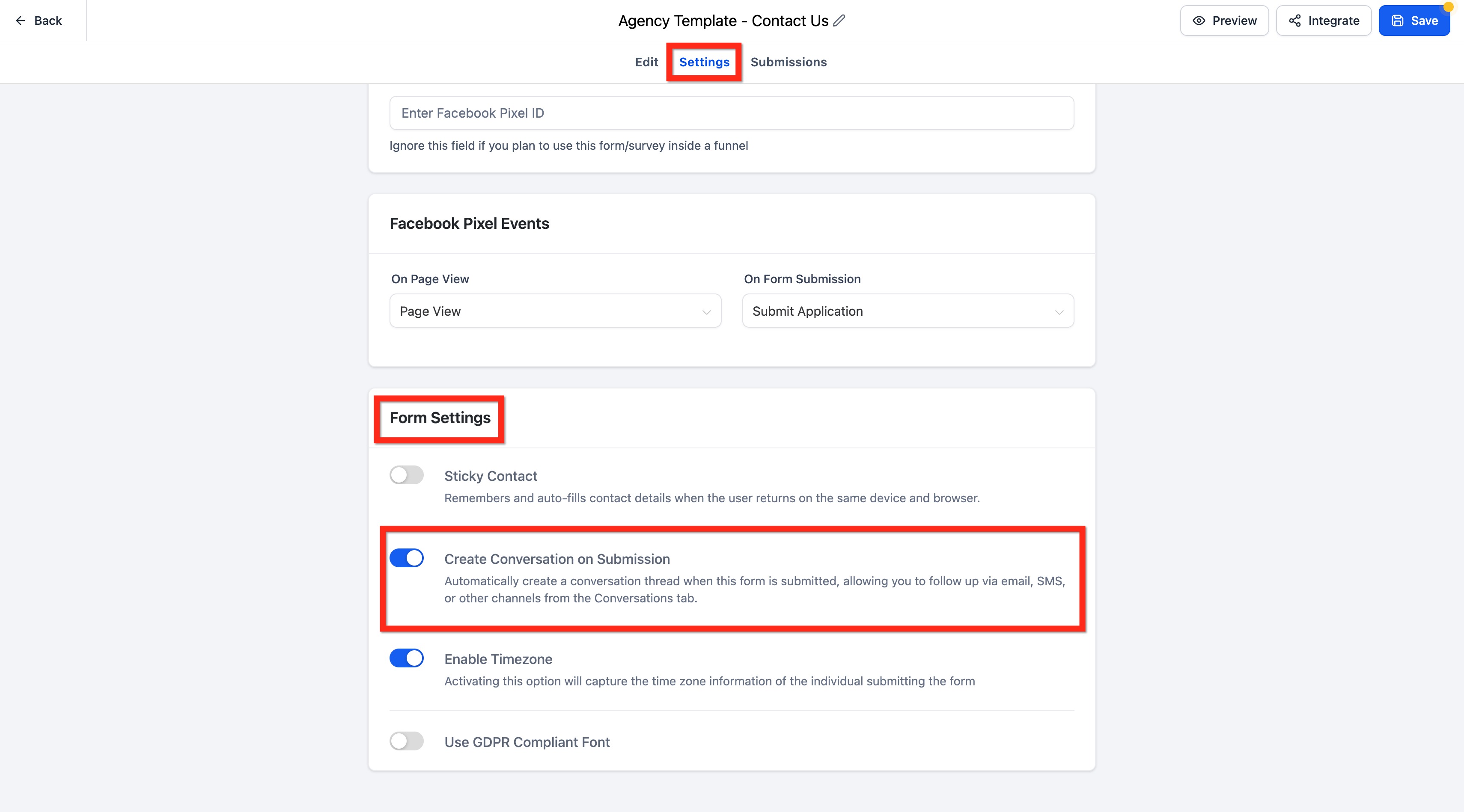
- Click the Settings tab for the form.
- In Form Settings, turn on Create Conversation on Submission.
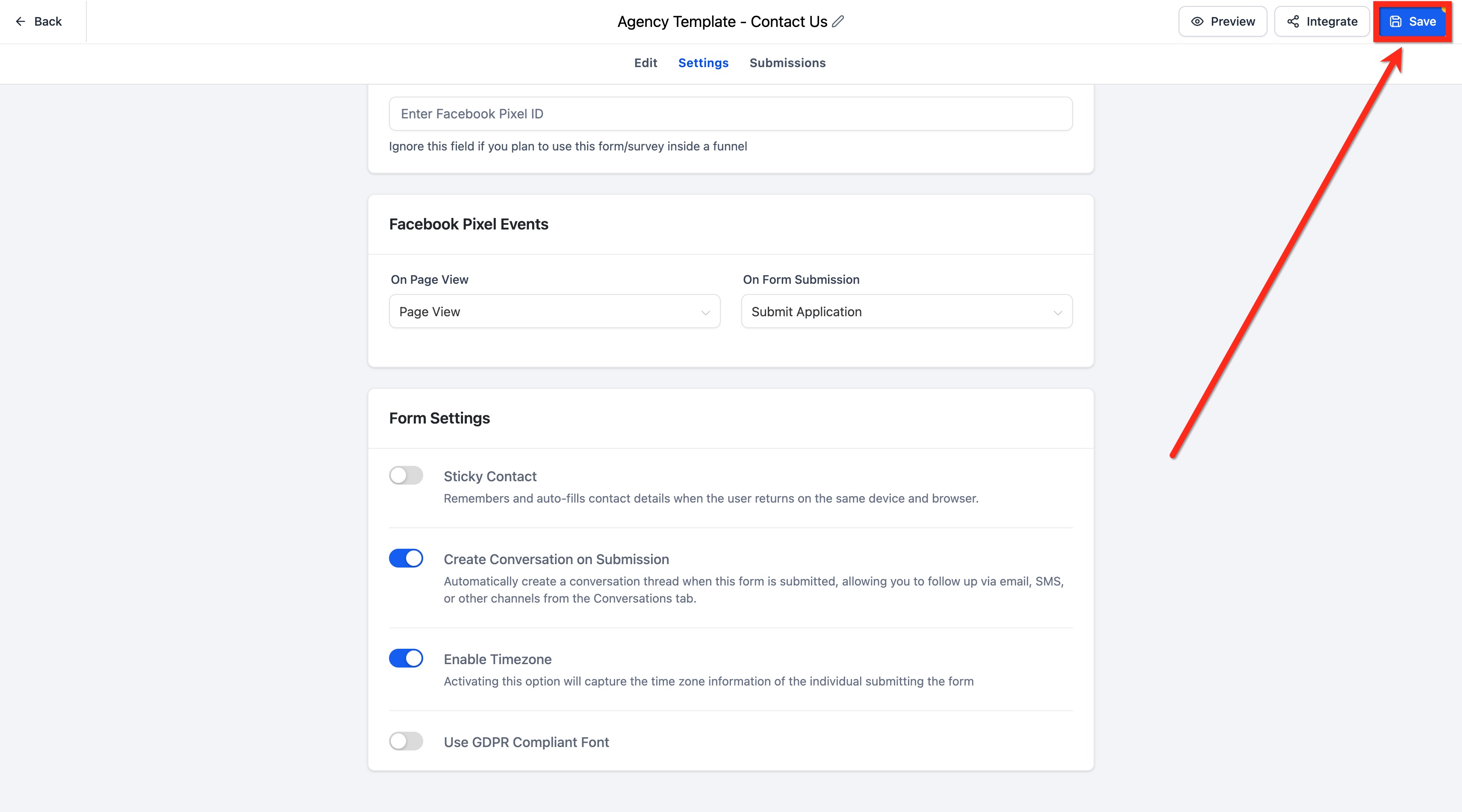
- Save the form.
- Go to Conversations.
- Open the conversation for the contact who submitted the form.
- Locate the form submission card inside the thread.

- Click View Submission to open the details for that specific submission.
- Click Check all Form Submissions to review all submissions connected to that form.

- To filter these conversations, open the filters menu in Conversations and set:
- Field: Last Message Channel
- Condition: Is
- Value: Forms Submission
- Click Apply.

- Review submissions and reply from the same screen (available channels depend on the contact details captured in the form).

Frequently Asked Questions
Q: Do I need to enable this setting for every form?
Yes. Create Conversation on Submission must be enabled on each form where you want submissions to appear in Conversations.
Q: Can I still view submissions from the Forms Submissions page?
Yes. Conversations is an additional access point, but you can still review submissions from the standard Forms Submissions area.
Q: What’s the difference between “View Submission” and “Check all Form Submissions”?
View Submission opens the specific submission tied to that conversation entry.
Check all Form Submissions opens the broader list of submissions for that form.
Q: Will older submissions appear in Conversations after I enable the setting?
The feature is intended for submissions that occur after the setting is enabled on the form.
Q: Can I filter the inbox to find only form submission conversations?
Yes. Use the filter Last Message Channel > Is > Forms Submission.
Q: Does enabling this feature also create workflows automatically?
No. This feature controls visibility in Conversations. Workflow automation should be configured separately using form submission triggers.
Q: Can this be used for forms on funnels or websites?
Yes. It supports use cases where forms capture leads, inquiries, or support requests.
Need Help?
If form submissions are not appearing in Conversations as expected, first review the form settings, submission timing, and inbox filters.
Verify that:
- You are working in the correct account.
- Create Conversation on Submission is enabled for the specific form.
- The form was saved after enabling the setting.
- The submission occurred after the setting was enabled.
- You are opening the correct contact conversation.
- The contact information captured in the form matches the contact record you are reviewing.
- A form submission card appears in the conversation thread.
- View Submission opens the expected individual submission.
- Check all Form Submissions opens the expected submission history for that form.
- Conversations filters are not hiding form submission activity.
- When filtering, Last Message Channel → Is → Forms Submission is selected.
- The form is active and successfully receiving submissions.
- You are not expecting this setting to create workflow automation automatically.
If the submission appears in Forms → Submissions but not in Conversations, confirm that Create Conversation on Submission was enabled before the submission was received, then submit a new test entry and check the conversation again.
If the issue continues, collect the form name, affected contact, submission date and time, whether the submission appears under Forms, expected behavior, and screenshots of the form settings and conversation thread before contacting support.