
A consolidated analytics dashboard lets you evaluate all Conversation AI agents from one place. Use filters for date range, channel, and agent to quickly compare outcomes, spot trends, and act faster—without opening each agent individually. This article explains access, permissions, filters, and key metrics, and includes setup steps and FAQs.
TABLE OF CONTENTS
- What is the Conversation AI Bot Dashboard?
- Key Benefits of the Conversation AI Bot Dashboard
- Access & Permissions
- How to Access the Conversation AI Bot Dashboard
- Filters: Date Range, Channel, and Agents
- Understanding Dashboard Metrics
- Conversation Summary and Transcript
- Frequently Asked Questions
What is the Conversation AI Bot Dashboard?
The Conversation AI Agents Dashboard provides a unified, view of performance across all Conversation AI agents in your account. Instead of visiting each agent’s page to gather insights, you can analyze cross‑agent activity from a single screen and then drill into a specific agent as needed.
Key Benefits of the Conversation AI Bot Dashboard
Understanding how this dashboard accelerates evaluation and decision-making helps teams prioritize the right improvements and allocate resources effectively.
Single, comprehensive view: See all Conversation AI agents’ metrics on one screen to reduce time spent switching between individual agents.
Faster decision-making: Use consolidated insights to quickly identify trends, outliers, and opportunities for optimization.
Targeted analysis: Filter by Date Range, Channel, and Agent to isolate what matters and compare performance over different periods or channels.
Permission-based visibility: Control who can access the dashboard by enabling a specific permission for the users who need it.
No configuration changes required: The dashboard adds visibility on top of your existing Conversation AI setup—no additional bot changes are needed.
Access & Permissions
Proper permissions ensures the right users have access to sensitive analytics while maintaining security and governance.
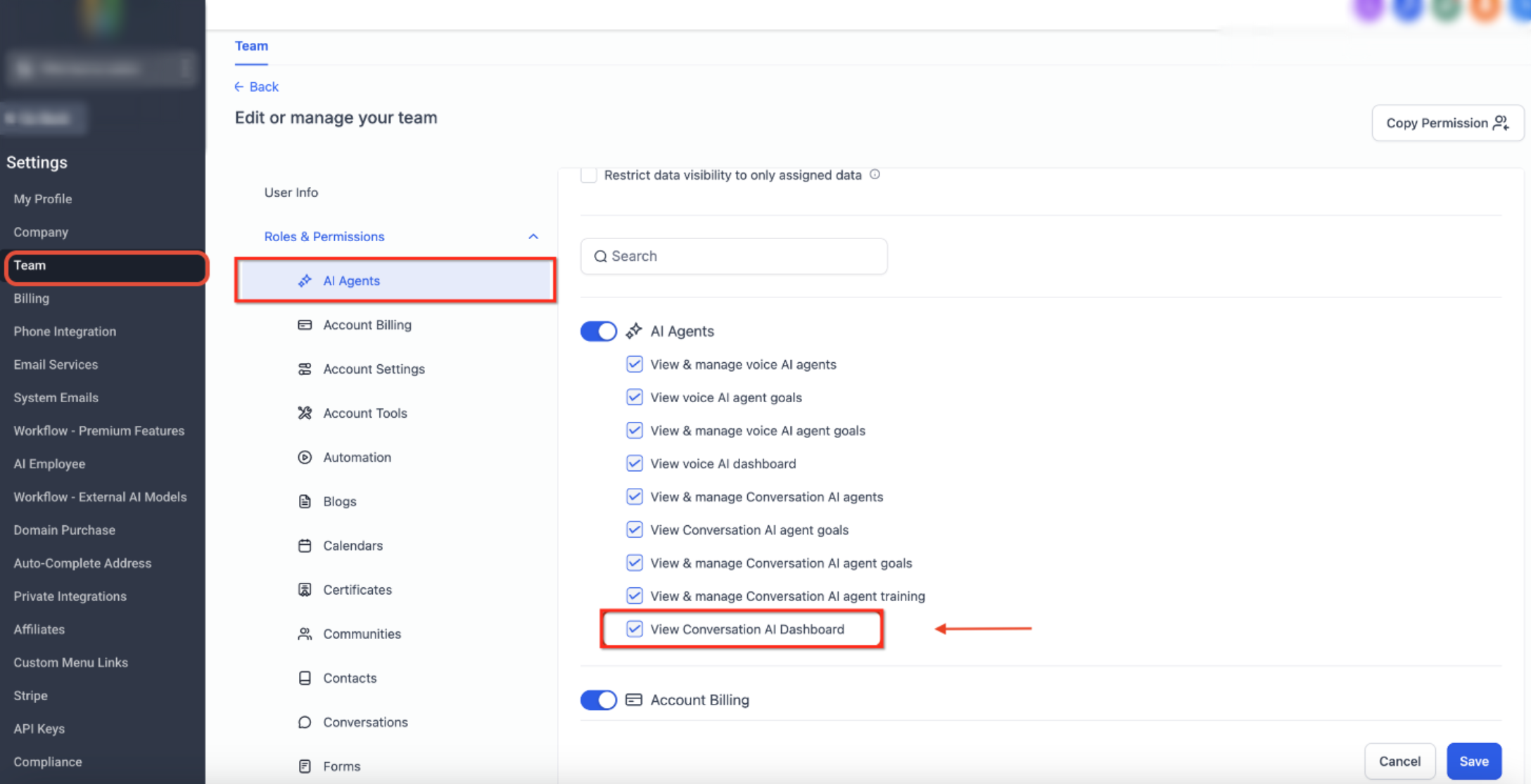
Access to the consolidated dashboard is controlled by a permission: View Conversation AI Dashboard.
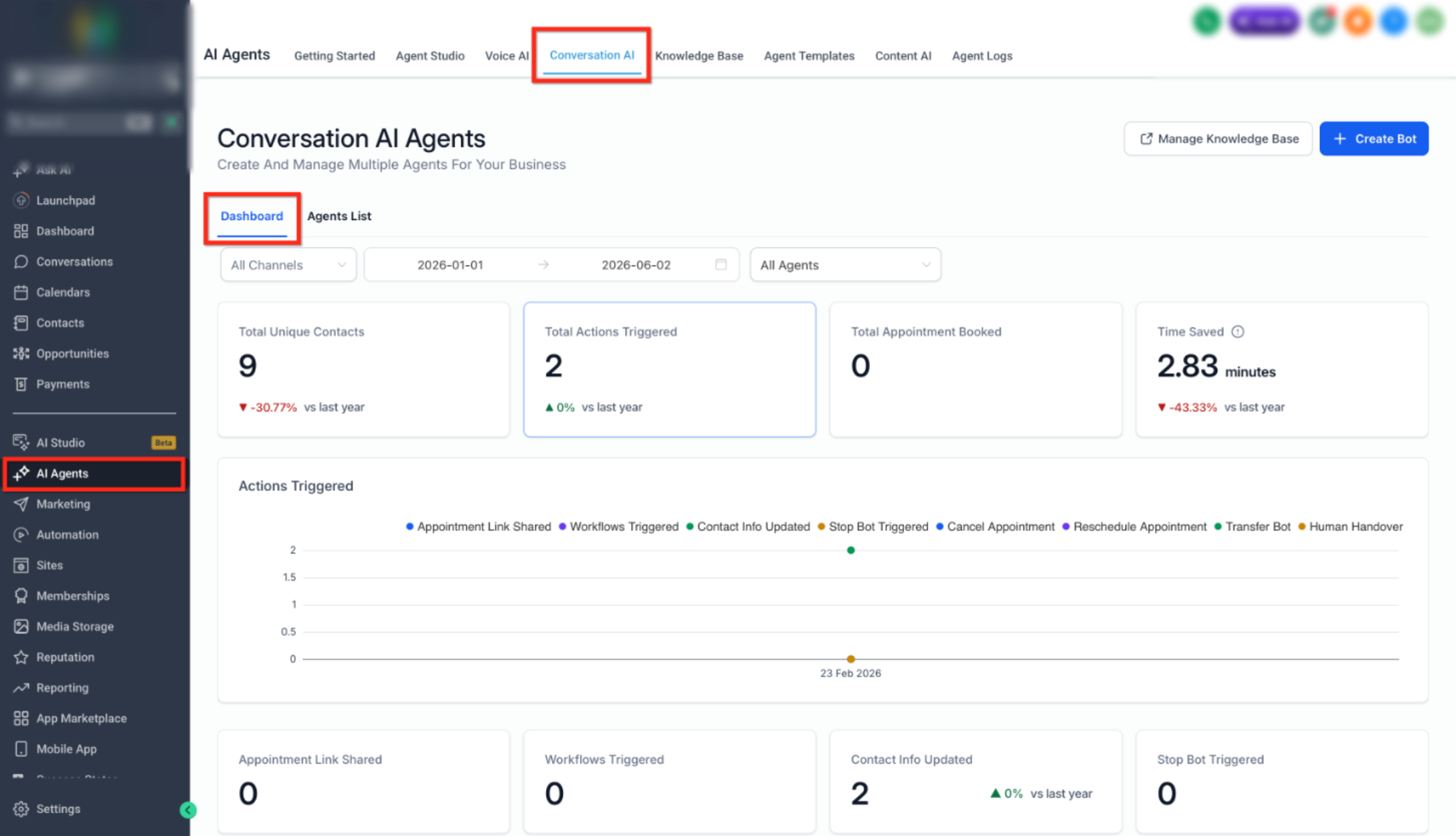
When enabled for a user, the dashboard appears on the Conversation AI home page and also at the agent level.
Admins can toggle access via Agency Settings → Team → Edit User → Roles & Permissions → AI Agents → View Conversation AI Dashboard.
How to Access the Conversation AI Bot Dashboard
Accessing the dashboard is simple and only takes a few clicks. Here you can access the metrics based on date range, communication channels, and also through your desired AI Agent.
Step 1: Navigate to Conversation AI
Go to Conversation AI under AI Agents from your account.
Step 2: Select an Agent
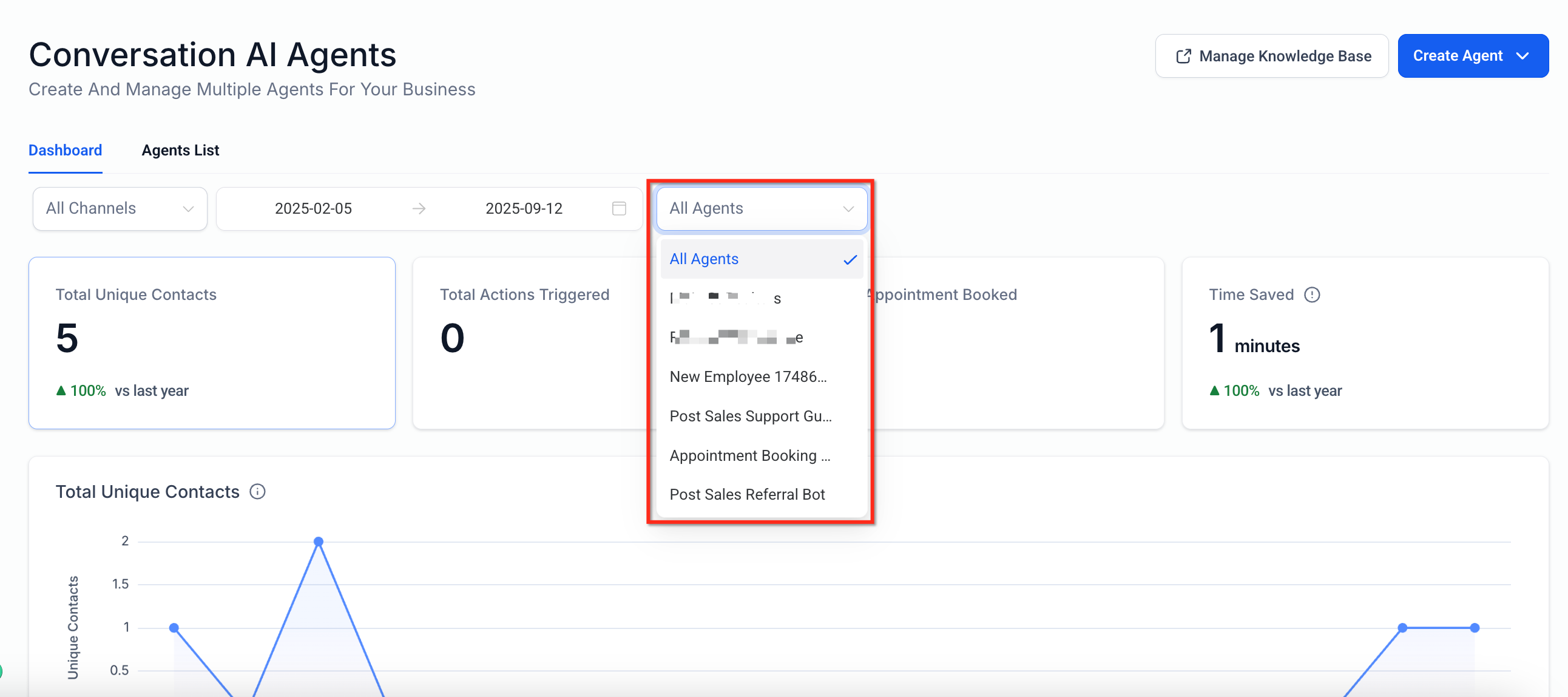
Select the bot you want to review from the dashboard tab.
Step 3: Add Filters
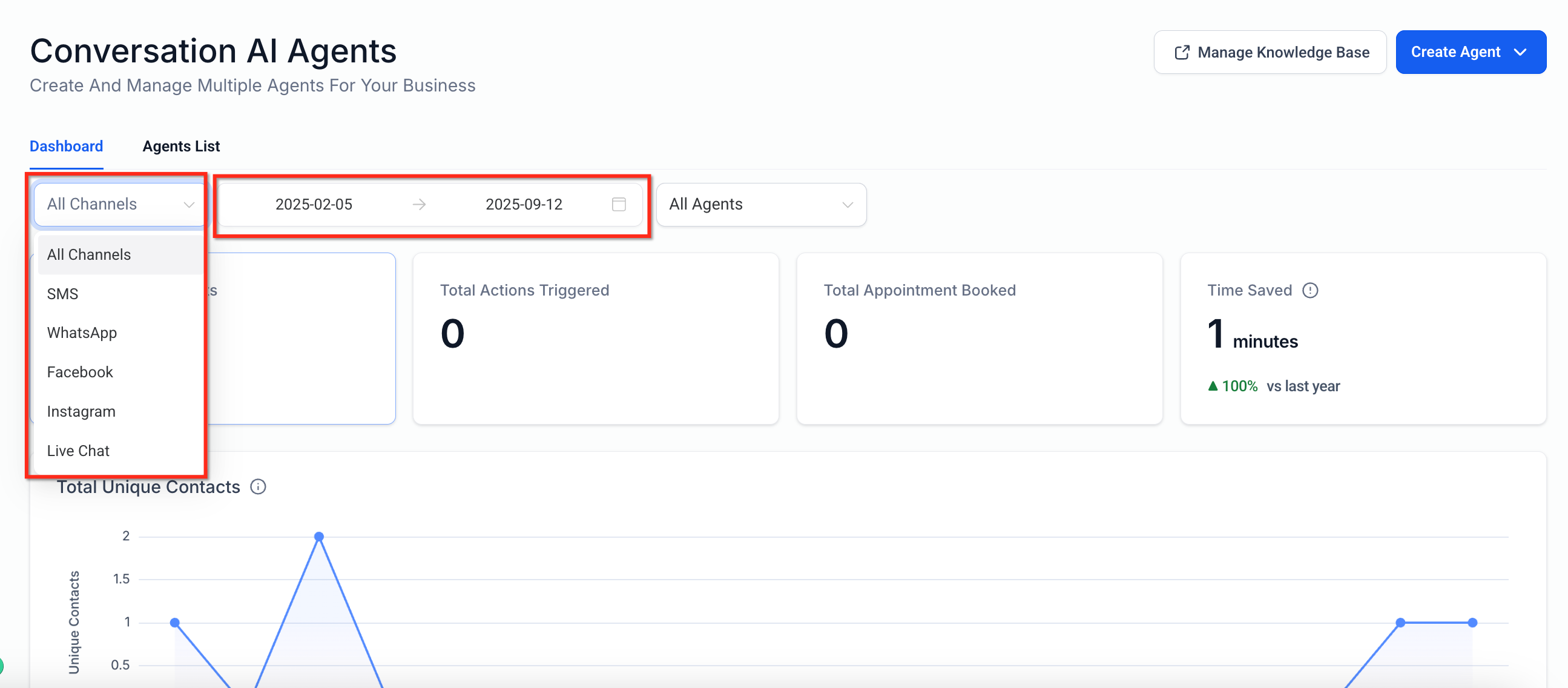
Use the channel selector and date range picker to filter data by platform or timeframe.
Filters: Date Range, Channel, and Agents
Filters allow you to refine the dashboard to answer specific questions—such as which channel is driving outcomes or how a single agent performs over time.
Date Range: Narrow results to specific periods (for example, last week vs. last month) to identify trend changes.
Channel: Focus on conversations from a particular channel when comparing performance across communication sources.
Agent: Isolate a single Conversation AI agent’s metrics to evaluate impact and troubleshoot effectively.
Understanding Dashboard Metrics
Clear definitions prevent misinterpretation and help teams make high-confidence decisions based on consistent, repeatable metrics. Metric names may vary slightly in the UI over time. Use in‑app labels and tooltips as the source of truth if wording changes. Under each metric are the drill-down metrics that are show when you click on the dashboard metric card.
Conversation Summary and Transcript
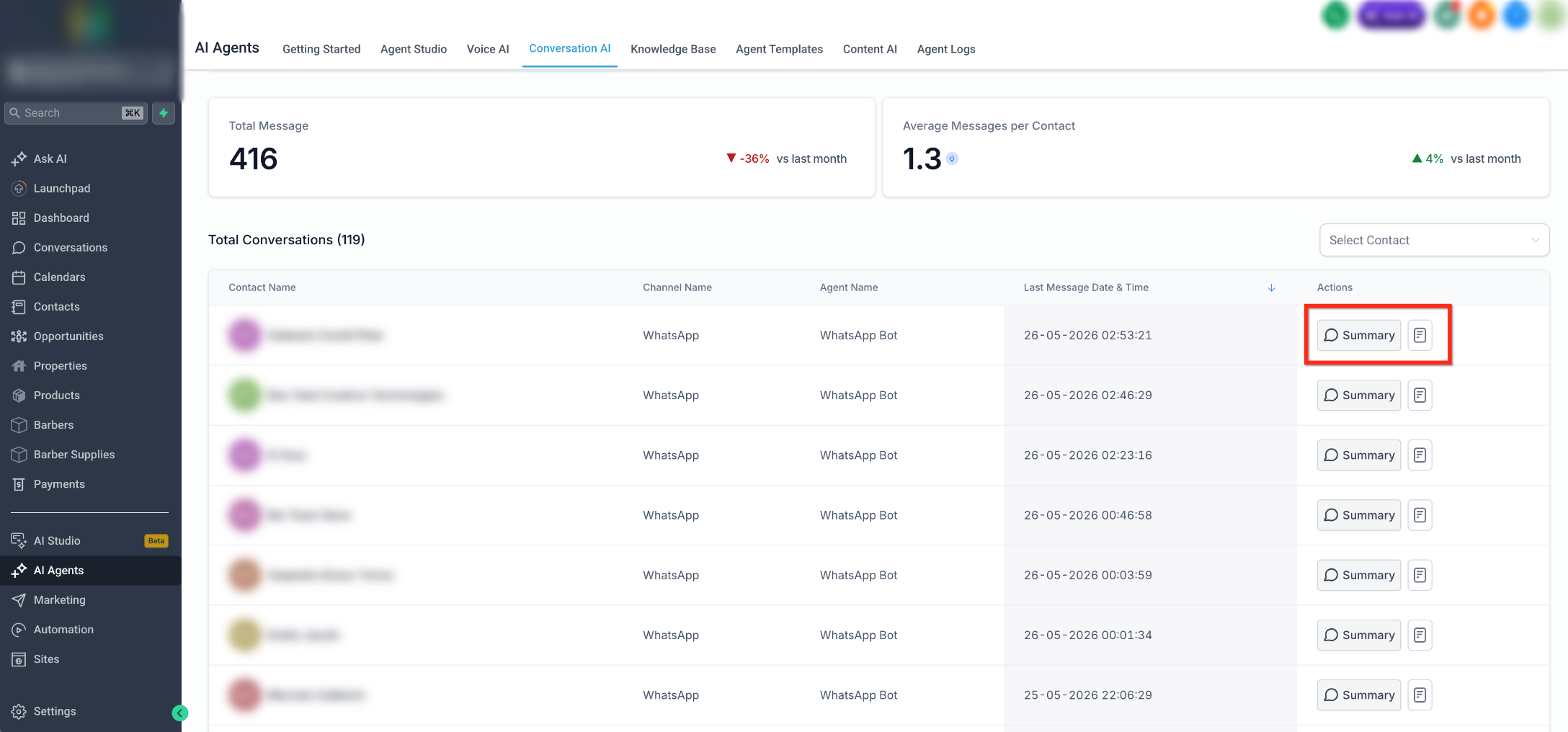
Conversation summaries and transcripts help users review completed Conversation AI interactions directly from the dashboard context. When reviewing Total Conversations, users can use these actions to quickly understand what happened in a conversation or open the full message history for a deeper review.
At the bottom of the Total Conversations area, each conversation can provide access to review options such as:
Summary: Opens a quick AI-generated summary of the conversation so users can understand the key points without reading the full exchange.
View Transcript: Opens the full conversation transcript so users can review the complete interaction between the contact and Conversation AI.
Frequently Asked Questions
Q: Where can I find the consolidated Conversation AI dashboard?
Go to AI Agents → Conversation AI. If you don’t see it, check your permission: View Conversation AI Dashboard.
Q. Who can access the dashboard?
Only users who have View Conversation AI Dashboard enabled by an admin. Without this permission, the dashboard is hidden.
Q: What filters are available?
Date Range, Channel, and Agent.
Q: Does this change how my agents are configured?
No. The update adds visibility only—no setup changes are required for your existing agents.
Q: Can I analyze a single agent’s performance?
Yes. Use the Agent filter on the consolidated view, or open the agent‑level dashboard.
Q: Why don’t I see any data?
Confirm your permission is enabled, at least one agent is published, channels are connected, and the date range is correct.
Q: Can I compare channels over time?
Yes. Use the Channel with different Date Range selections to review changes and trends.
Q: Does the dashboard include appointments?
Yes. Appointments Booked shows bookings created via Conversation AI. Validate details in the Calendars area if needed.
Need Help?
If you need assistance accessing dashboard data, understanding performance metrics, reviewing conversation summaries, or troubleshooting reporting visibility, contact support or your system administrator for assistance. Before reviewing performance trends, verify that agents are published, channels are connected, and the correct date range and filters are selected to ensure accurate reporting results.