
Editing partially paid invoices gives you the flexibility to adjust billing when customer requirements change after a payment has already been collected. Instead of replacing the invoice, you can update eligible invoice details, products, pricing, taxes, business information, and payment schedules while preserving previous payments. This helps keep billing accurate as customer needs or payment arrangements change.
TABLE OF CONTENTS
- What is Editing for Partially Paid Invoices?
- Key Benefits of Editing Partially Paid Invoices
- Editable Invoice Details
- Product Management
- Invoice Amounts, Taxes, and Business Information
- Payment Schedule Management
- Invoice Status and Payment Records
- How to Edit a Partially Paid Invoice
- Frequently Asked Questions
What is Editing for Partially Paid Invoices?
Editing partially paid invoices allows you to make changes to an invoice after a portion of the balance has been collected but before the invoice is fully paid. This is useful when products, pricing, payment dates, or other billing details change while an outstanding balance remains.
Previously collected payments remain associated with the invoice while eligible invoice information and unpaid portions can be updated. This functionality applies to invoices in Partially Paid status and is no longer available through standard invoice editing once an invoice becomes fully Paid.
Key Benefits of Editing Partially Paid Invoices
Editing an existing partially paid invoice helps keep billing records aligned with changing customer requirements without disrupting payments that have already been collected. It also reduces the need to replace an invoice when pricing, products, payment terms, or project requirements change.
- Maintain invoice continuity: Update the existing invoice instead of creating a replacement.
- Preserve previous payments: Payments already collected remain associated with the invoice.
- Adjust changing requirements: Add, remove, or update products as customer requirements change.
- Keep billing information accurate: Update invoice details, taxes, pricing, and business information.
- Restructure future payments: Modify payment schedule amounts and due dates when payment arrangements change.
- Keep customers informed: Resend the updated invoice after saving your changes.
Editable Invoice Details
Invoice details contain important billing information customers use to understand what they owe and when payment is expected. Keeping these details accurate can prevent confusion when an agreement or payment timeline changes after the first payment.
On an eligible partially paid invoice, you can update details such as:
- Invoice name
- Due date
- Terms
- Notes
The customer associated with the invoice cannot be changed after a payment has been made.
Product Management
Product editing keeps an invoice aligned with the products or services actually being delivered. This is especially useful when a customer adds something to an order, removes part of the original scope, or requires a pricing or quantity adjustment after making an initial payment.
You can make eligible product-related changes such as:
- Add products.
- Remove eligible products.
- Update quantities.
- Update product descriptions.
- Change unit prices.
- Create a new product while editing the invoice.
Invoice Amounts, Taxes, and Business Information
Changes to products or services can affect the remaining amount a customer owes. Updating invoice amounts, taxes, and business information keeps the invoice consistent with the revised transaction while retaining payments that have already been recorded.
Eligible changes can include:
- Adjusting invoice amounts.
- Updating applicable taxes.
- Updating business information displayed on the invoice.
Previously recorded payments remain intact when an eligible partially paid invoice is edited.
Payment Schedule Management
Payment schedules divide an invoice into predefined installments with their own amounts and due dates. Editing the payment schedule on a partially paid invoice lets you adapt the remaining payment arrangement when customer agreements or payment timelines change.
For eligible partially paid invoices, you can:
- Add payment schedule entries.
- Edit eligible payment schedule entries.
- Delete eligible payment schedule entries.
- Change installment due dates.
- Change installment amounts.
A Payment Schedule is different from the general Partial Payments setting. Payment schedules establish predefined installments, while Partial Payments allow customers to pay an eligible portion of the invoice based on your configured partial-payment settings.
Invoice Status and Payment Records
Invoice status determines whether partially paid invoice editing remains available. Understanding the difference between Partially Paid and Paid helps prevent unexpected editing restrictions after the remaining balance has been collected.
- Previous payments remain intact when the invoice is edited.
- The customer associated with the invoice cannot be changed after a payment has been made.
- Standard partially paid invoice editing is no longer available once the invoice becomes fully Paid.
- Partially Paid can also be used as an Invoice Status filter in supported invoice workflow automation.
How to Edit a Partially Paid Invoice
Reviewing the invoice before and after making changes helps ensure the outstanding balance, products, payment schedule, and customer-facing information continue to match your agreement with the customer. Verify all changes before saving and resending the invoice.
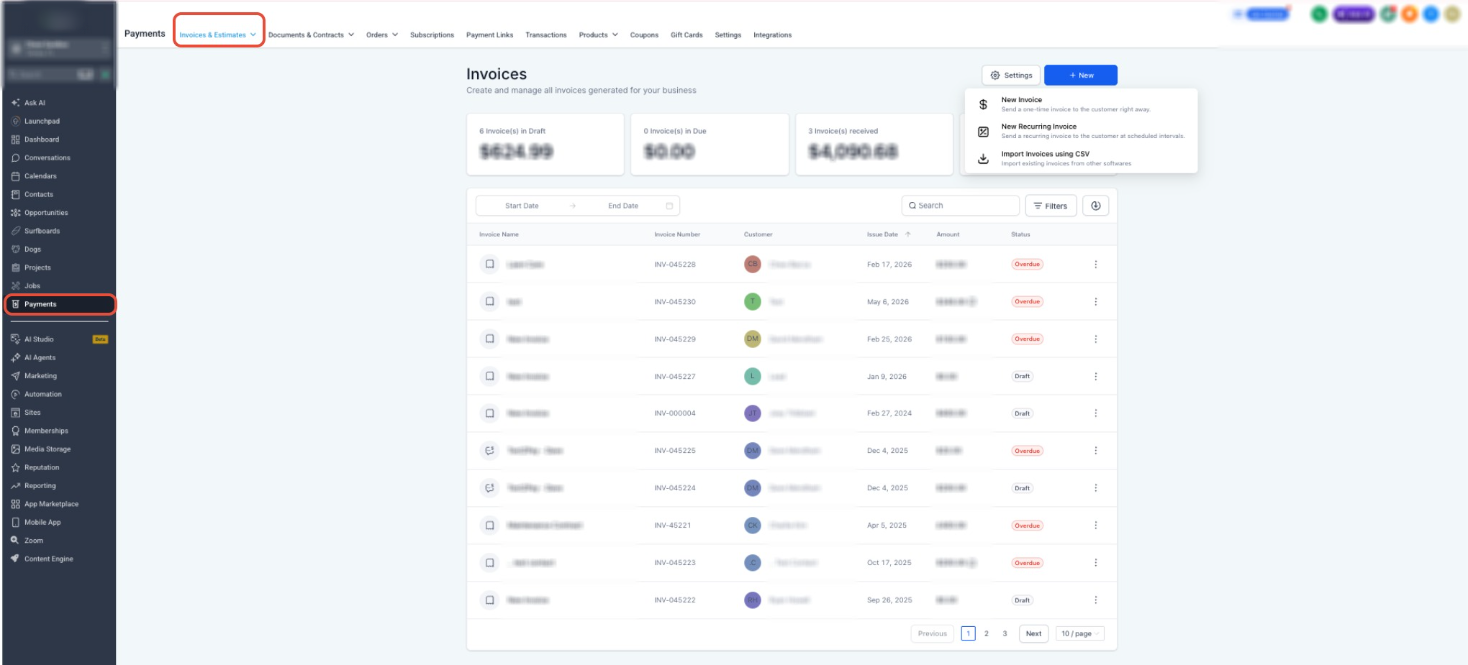
1. Open Invoices & Estimates
Navigate to Payments → Invoices & Estimates.
Locate the partially paid invoice you want to update.
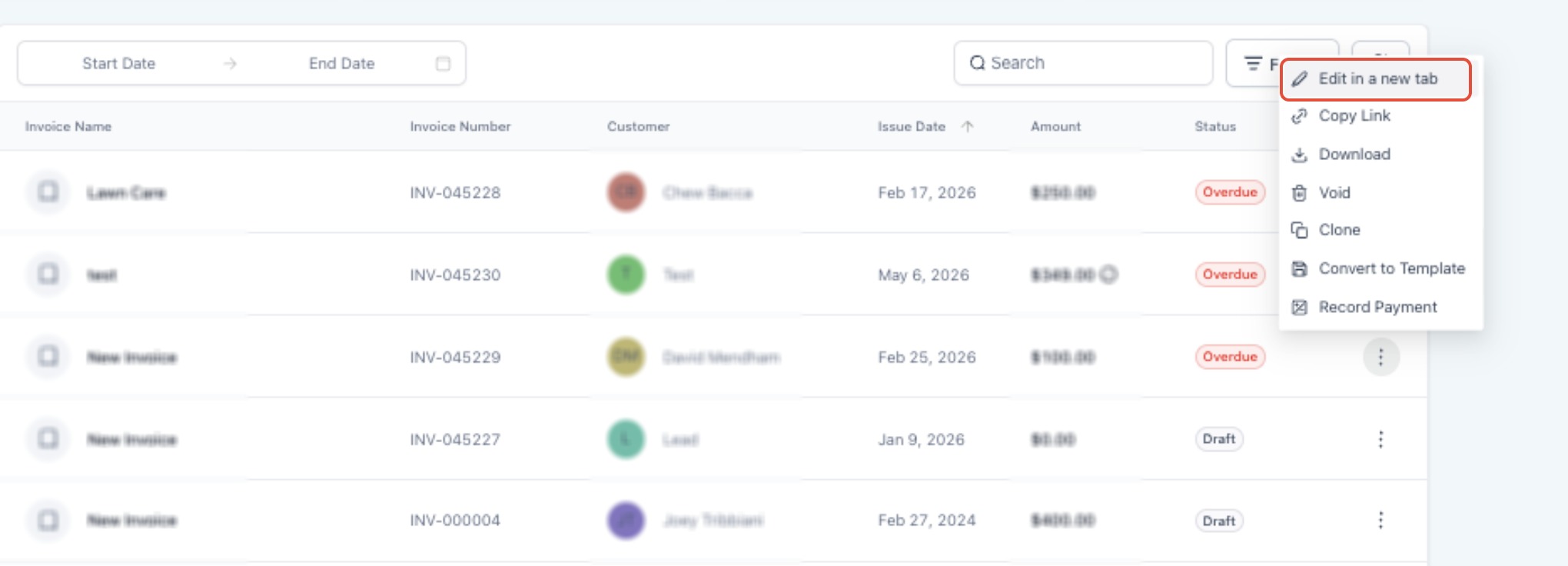
2. Open the Invoice Editing Options
Click the three-dot menu on the right side of the invoice.
Select Edit in a new tab.
The menu also contains other invoice actions, so make sure you select the editing option when your goal is to modify the existing invoice.
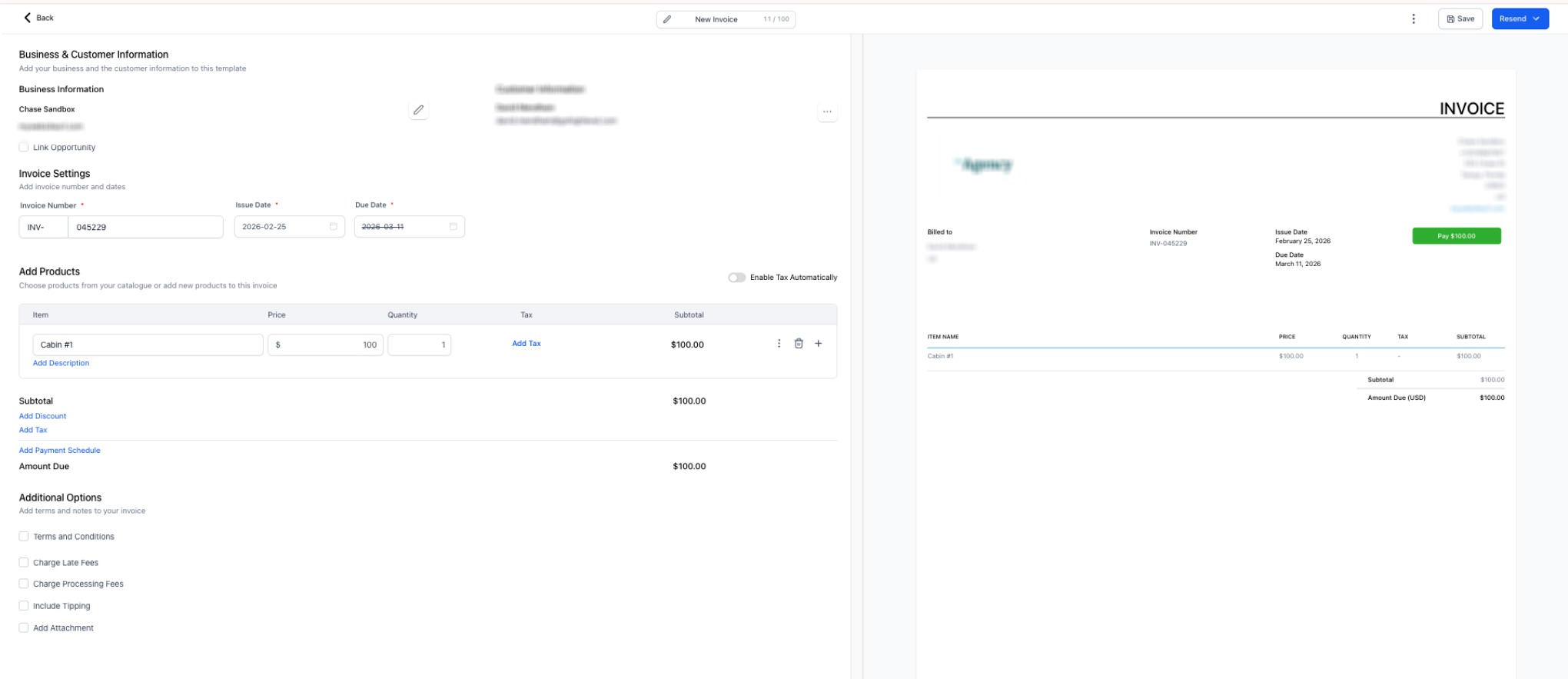
3. Make the Required Invoice Changes
Use the invoice editor to update the eligible information.
Depending on the invoice, this can include:
- Business information
- Invoice due date
- Products
- Product pricing and quantities
- Taxes
- Discounts
- Payment schedules
- Terms and conditions
- Other eligible invoice options
The invoice preview on the right reflects the invoice information presented to the customer, making it easier to review your changes before saving.
4. Save the Updated Invoice
Review the invoice carefully after making your changes.
Click Save when the changes are complete. Previously collected payments remain associated with the invoice.
5. Resend the Updated Invoice
If the customer needs the revised invoice, click Resend after saving your changes.
This lets you send the updated invoice to the customer without creating a replacement invoice.
Frequently Asked Questions
Q: Can I edit an invoice after it has been fully paid?
No. Standard partially paid invoice editing applies while the invoice is eligible for editing in Partially Paid status. Once the invoice becomes fully Paid, this editing capability is no longer available.
Q: What happens to payments that were already collected before I edit the invoice?
Previously recorded payments remain associated with the invoice. Editing eligible invoice information does not remove those existing payment records.
Q: Can I change the customer after a partial payment has been made?
No. The customer associated with the invoice cannot be changed after a payment has been made.
Q: Do I need to void the partially paid invoice before making changes?
No. Eligible partially paid invoices can be edited directly, allowing you to update the existing invoice without voiding it and creating a replacement.
Q: Can I change the remaining payment schedule?
Yes. Eligible payment schedule information can be modified on partially paid invoices, including applicable installment amounts and due dates.
Q: Are Partial Payments and Payment Schedules the same thing?
No. Partial Payments allow customers to make an eligible payment toward the invoice without paying the entire balance. Payment Schedules establish predefined installments with specified amounts or percentages and due dates.
Q: Can I resend the invoice after making changes?
Yes. After saving your changes, use Resend to send the updated invoice to the customer.
Q: Can workflows identify partially paid invoices?
Yes. Partially Paid is available as an invoice status for supported invoice workflow filtering, allowing you to create automations around partial-payment activity.
Need Help?
If you cannot edit a partially paid invoice or your changes are not behaving as expected, first confirm that the invoice is still in Partially Paid status and that the information you are trying to update is eligible for editing.
Verify that:
The invoice has not already been fully paid.
Previously collected payments still appear on the invoice.
The correct invoice is open in the editor.
The customer has not been changed after payment was collected.
Product quantities, prices, taxes, discounts, and other revised amounts are correct.
Remaining payment schedule amounts and due dates match the updated agreement.
The outstanding balance is correct after your changes.
The updated invoice was saved before being resent to the customer.
Rental booking invoices are being managed according to their separate editing requirements.
If the issue continues, capture the invoice status, payment history, outstanding balance, payment schedule, and the changes you are attempting to make before contacting support. This information will help determine whether the issue involves invoice eligibility, payment records, or the updated billing configuration.